
If you want to know how to enable screen mirroring on LG TV, you can usually set it up in a few minutes with built-in tools. Most LG models support LG TV screen mirroring through AirPlay, Miracast, or Cast-compatible options. This guide gives you the fastest setup path first, then a clear fix order when your TV does not show up.
What to Check Before LG TV Screen Mirroring
Most screen mirroring failures happen before you even tap Cast or AirPlay. Confirming the basic conditions first helps prevent repeated connection failures. If your TV worked before but suddenly stopped, these checks are usually the fastest way to restore the connection.
-
Connect both devices to the same Wi-Fi network and band.
-
Keep the LG TV on Home or Screen Share, not a locked HDMI input.
-
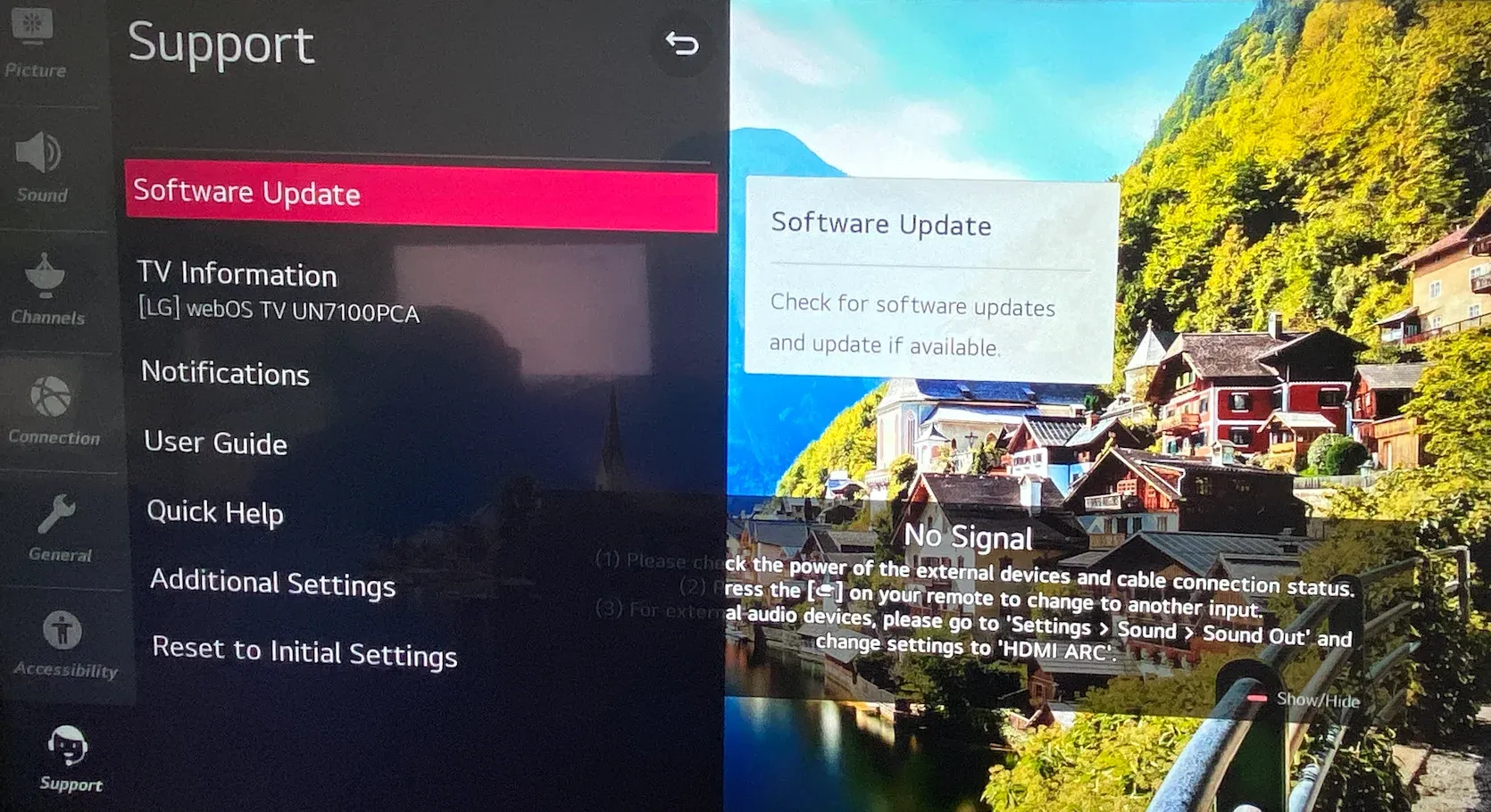
Update LG TV firmware in Settings > Support > Software Update.
-
Update your phone or laptop OS.
-
Turn off VPN or guest-network isolation on the casting device.
How to Enable Screen Mirroring on LG Smart TV
If you are specifically searching how to turn on screen mirroring on LG TV, these are the required TV-side settings. Do these first so your phone or laptop can discover the TV on the first scan. Once enabled, most devices connect in under 30 seconds.
-
Press the gear button on the LG remote and open All Settings.
-
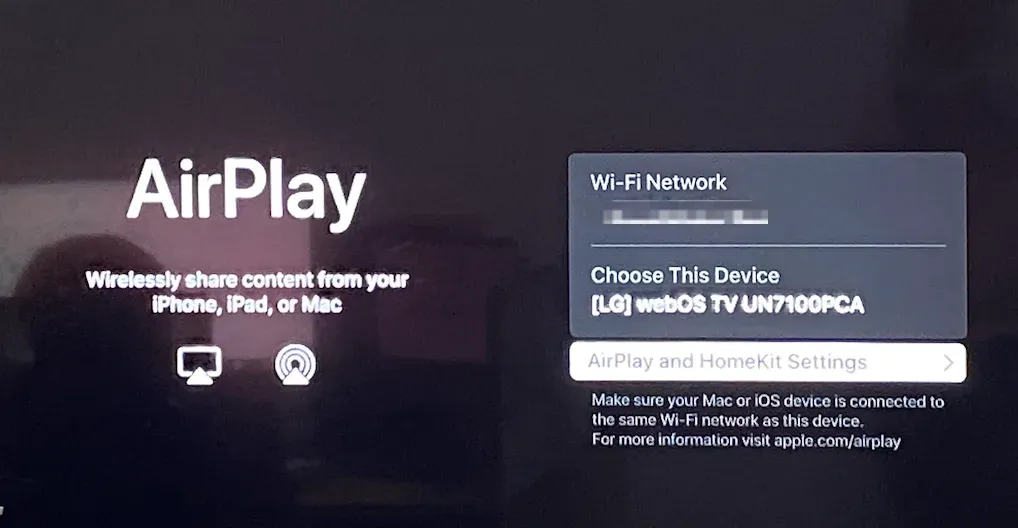
Open Connection or General, then turn on Apple AirPlay (menu names vary by model).
-
Return to Home and open the Screen Share app to make the TV discoverable.
-
Confirm the TV device name, so it is easy to identify from your source device.
How to Mirror iPhone to LG TV (AirPlay)
AirPlay is usually the fastest and cleanest option for iPhone-to-LG TV connection. Use this path if you have an iPhone or iPad and want full-screen app or photo sharing without extra apps. In most cases, connection takes under 30 seconds when Wi-Fi is set correctly.
-
Connect iPhone and LG TV to the same Wi-Fi.
-
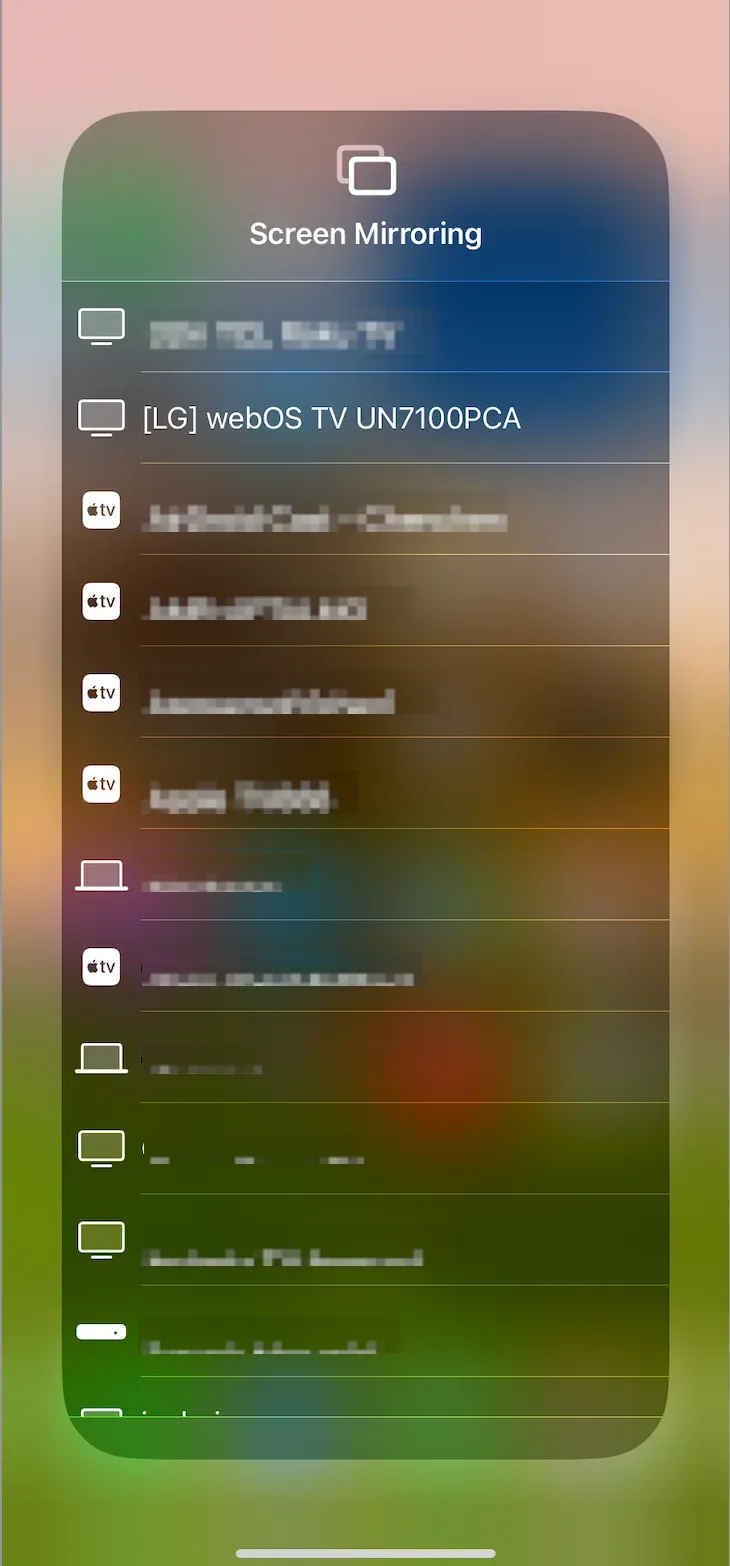
Open Control Center and tap Screen Mirroring.
-
Select your LG TV and enter the on-screen code if prompted.
-
To end it, open Control Center again, tap Screen Mirroring, then Stop Mirroring.
How to Mirror Android Phone to LG TV (Screen Share / Cast)
Android casting works well on LG TVs, but menu names differ by phone brand, which causes confusion for many users. Use this method if you see labels like Smart View, Cast, or Wireless Display on your device. The key outcome to watch for is the TV appearing in the phone's discoverable device list.
-
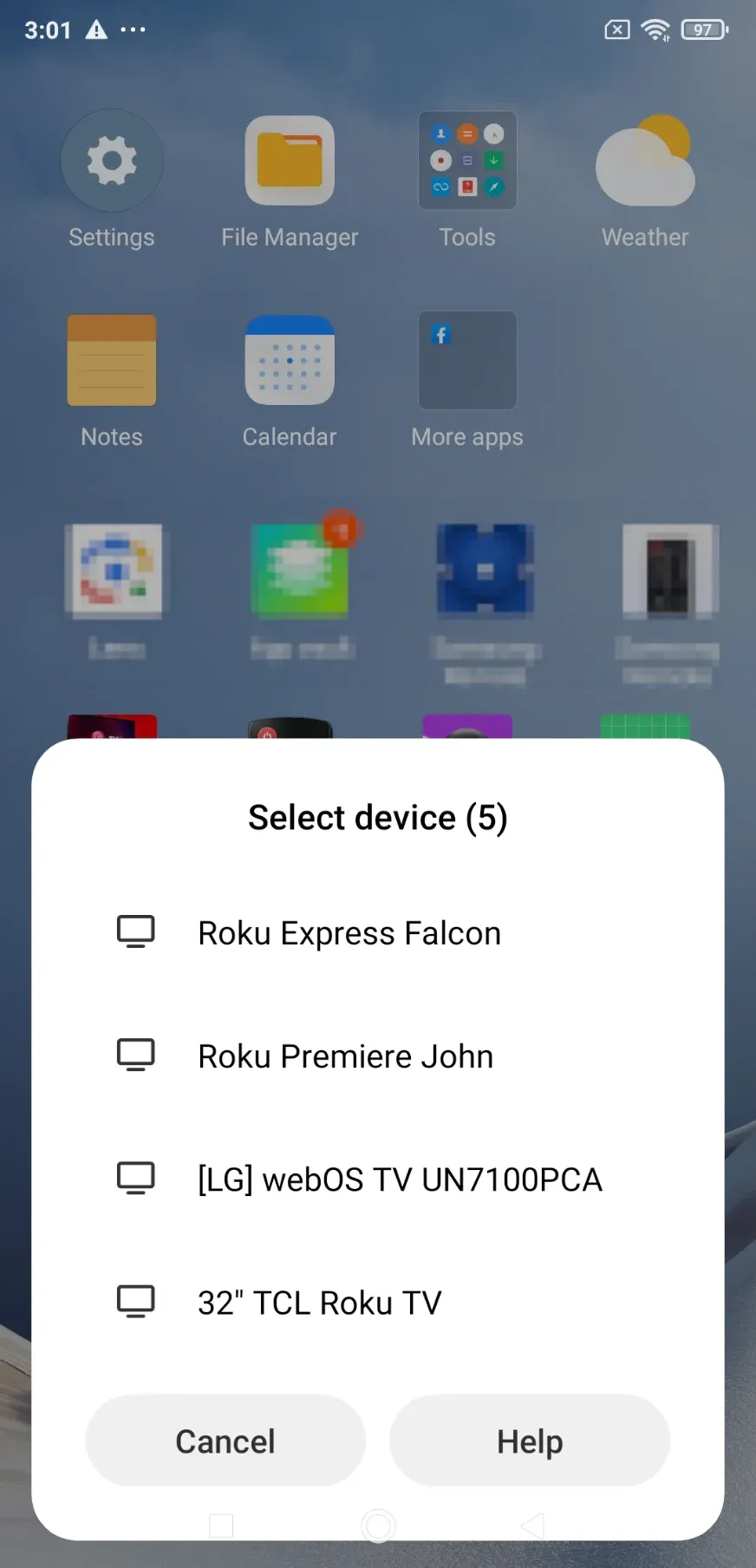
Open Cast, Smart View, or Wireless Display in the Quick Settings menu.
-
Keep the LG TV on Home or Screen Share.
-
Tap the TV name and accept pairing on TV if requested.
-
Rotate your phone for full-screen apps and raise TV volume if audio seems muted.
How to Mirror a Laptop to LG TV (Windows and Mac)
Laptop mirroring is best when you need to present, use browser tabs, or access local files on a bigger screen. Use Windows Miracast or Mac AirPlay based on your device, then choose duplicate or extend mode depending on your goal. For most users, built-in wireless tools are the better first choice before installing third-party software.
How to mirror Windows laptop to LG TV (Miracast):
-
Press Win + K.
-
Select your LG TV from the device list.
-
Choose Duplicate or Extend in display settings.
How to mirror Mac to LG TV (AirPlay):
-
Open Control Center in the menu bar.
-
Click Screen Mirroring.
-
Select your LG TV and enter the code if shown.
Troubleshooting Can't Find LG TV on Screen Mirroring
-
If you cannot find LG TV on screen mirroring, start with native fixes before changing tools. This sequence isolates the most common blockers, including network segmentation and stale device discovery sessions. If your TV is still undiscoverable after one full cycle, switch methods instead of repeating the same scan flow.
-
Restart LG TV, source device, and router.
-
Disable VPN and disconnect from guest Wi-Fi.
-
Re-enable AirPlay or Screen Share on LG TV.
-
Reconnect both devices to the same Wi-Fi band.
-
Reset network settings on phone or laptop and retry.
If the TV still does not appear, use the PigeonCast Screen Mirroring app as an alternative option. It is a practical alternative when standard discovery protocols fail in office, campus, or hotel-like networks, or when you are unsure which mirroring protocol your devices support.
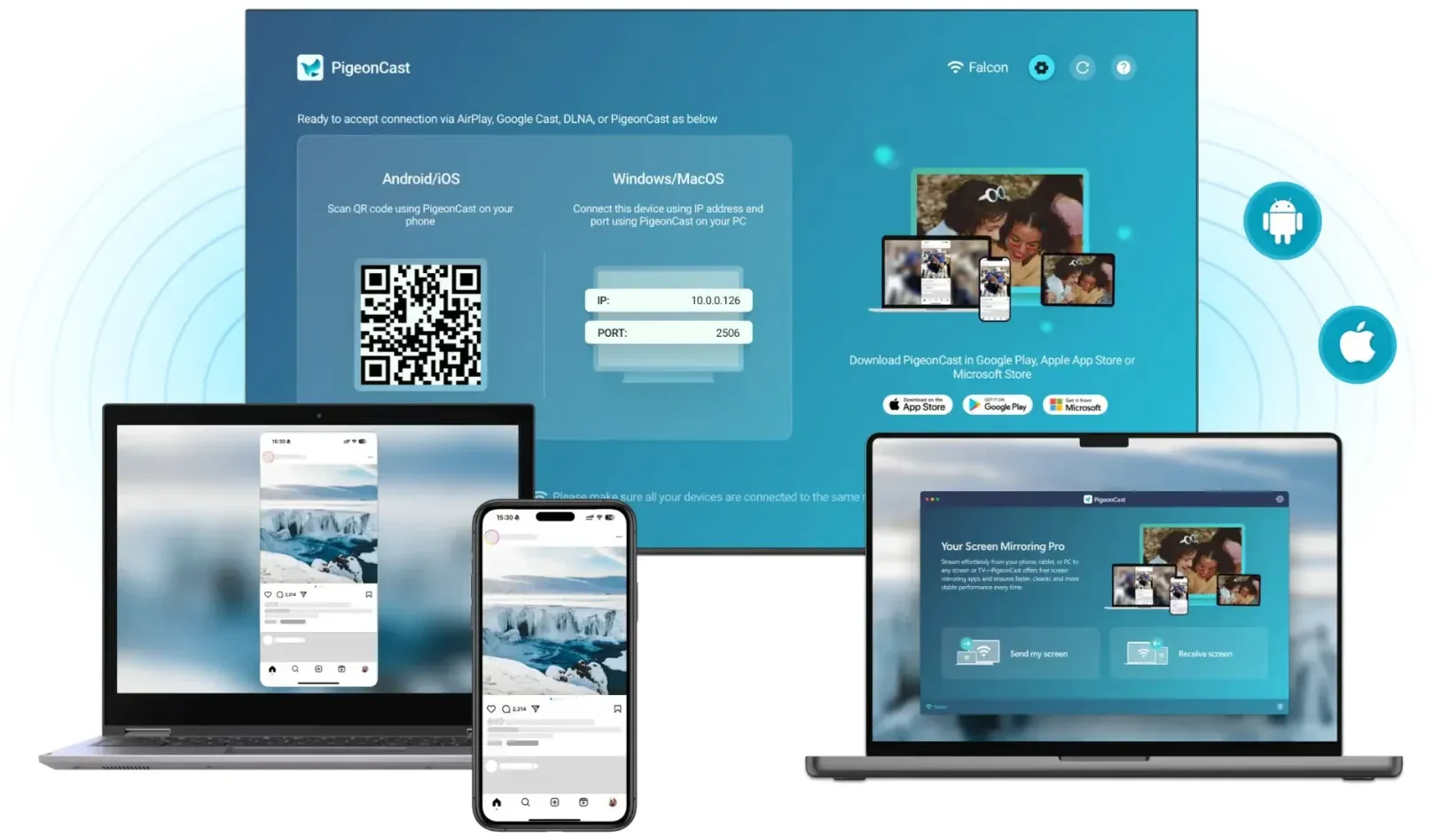
Step 1. Install PigeonCast on your phone, tablet, or laptop.


Overall Rating:



Step 2. Ensure your device and LG TV are on the same Wi-Fi network.
Step 3. Launch the PigeonCast, choose LG TV from the device list, and start screen mirroring.
Which LG TV Screen Mirroring Method Should You Use?
Method choice affects reliability, latency, and setup time. Use this quick comparison to avoid trial-and-error when you already know your device type and use case. For most home users, native protocol matching is the best first attempt.
| Method | Best For | Strength | Limitation |
|---|---|---|---|
| AirPlay | iPhone, iPad, Mac | Fast setup inside Apple ecosystem | May fail on restricted networks |
| Miracast | Windows laptop | Full desktop mirroring | Discovery can be inconsistent on some routers |
| Cast/Smart View | Android phones | Broad model support | Menu labels vary by phone brand |
| PigeonCast | cross-platform screen mirroring | More stable option when native fails | App installation |
Final Take
The most reliable way to enable screen mirroring on LG TV is to set up the TV first, then cast from the matching device method: AirPlay for Apple, Cast for Android, and wireless display for Windows. This order reduces setup errors and makes troubleshooting straightforward when something breaks.
Native mirroring is convenient, but a dedicated screen mirroring app like PigeonCast can help avoid many common connection issues.
How to Enable Screen Mirroring on LG TV FAQ
Why isn't my LG TV showing up on screen mirroring?
Check Wi-Fi first, then discoverability. Keep both devices on the same network and band, place the TV on Home or Screen Share, and disable VPN or guest isolation before rescanning.
Can't find LG TV on screen mirroring after an update. What should I do?
Re-enable AirPlay or Screen Share and restart both devices. Updates sometimes reset permissions or network behavior, so a clean restart plus re-pair usually restores discovery.
Do all LG TVs support screen mirroring?
Most newer LG smart TVs do, but feature support varies by model year. Older models may need HDMI or an external streaming device for reliable mirroring.
How do I reduce lag during LG TV screen mirroring?
Use a 5 GHz Wi-Fi connection, close background apps, and keep the source device near the router. For gaming or low-latency tasks, use HDMI instead of wireless mirroring.
Why does mirroring disconnect after a few minutes?
This is usually caused by unstable Wi-Fi, power-saving settings, or network handoff. Disable battery optimization for the casting app, keep the device awake, and retry on a stable network.
Is screen mirroring the same as casting on LG TV?
Not exactly. Screen mirroring duplicates your full device display, while casting can send only specific app content. Use mirroring for presentations and casting for media apps.
Mia Clarke is a technology editor specializing in screen mirroring and casting solutions across multiple platforms. Mia provides clear, practical guides and in-depth insights to help users seamlessly connect their devices. Passionate about enhancing digital experiences, Mia is dedicated to keeping readers updated on the latest trends and tools in cross-platform screen sharing. Whether you’re looking to mirror your smartphone, laptop, or smart TV, Mia’s content delivers reliable, user-friendly advice to simplify your tech setup.