
Whether you're watching a documentary, presenting a website to colleagues, or simply enjoying a video clip with friends, AirPlay from Safari makes it effortless. This guide will walk you through the process on all your Apple devices, introduce a powerful free alternative for non-Apple TVs, and provide solutions for when things don't go as planned.
How to AirPlay Safari from iPhone/iPad/MacBook
The method for Safari AirPlay varies slightly depending on your device, but the core principle remains the same: sending content from your browser to an Apple device. The process is most intuitive on iPhone/iPad and slightly more nuanced on Mac, giving you flexibility regardless of which Apple device you use. Now, let's dive into the detailed steps on how to AirPlay from Safari.
How to Use AirPlay from Safari on iPhone/iPad
If you are browsing on an iPhone or iPad and want to display a webpage, image, or browser video on a larger screen, you can mirror Safari to an Apple TV or another AirPlay-compatible display. Because Apple TV does not include a traditional web browser, screen mirroring is often the simplest way to open and view web content on the TV without installing a separate browser app.
Step 1. Ensure your iPhone or iPad devices and the AirPlay-enabled device are connected to the same Wi-Fi network, open Bluetooth, and AirDrop.
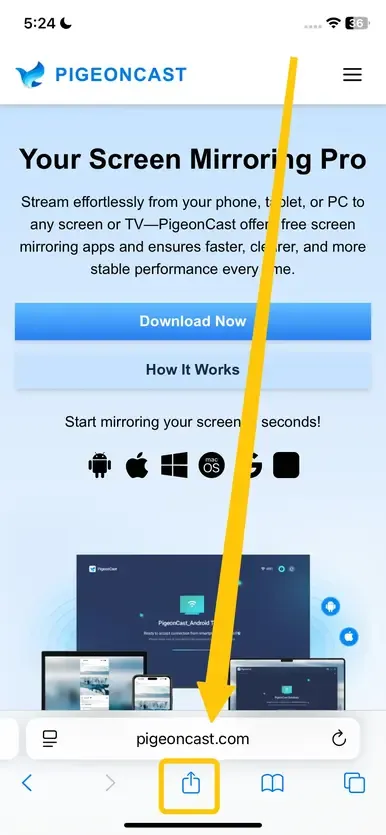
Step 2. In Safari, enter the website you want to stream and tap the Share icon (a square with an upward-pointing arrow) located at the bottom of the screen.
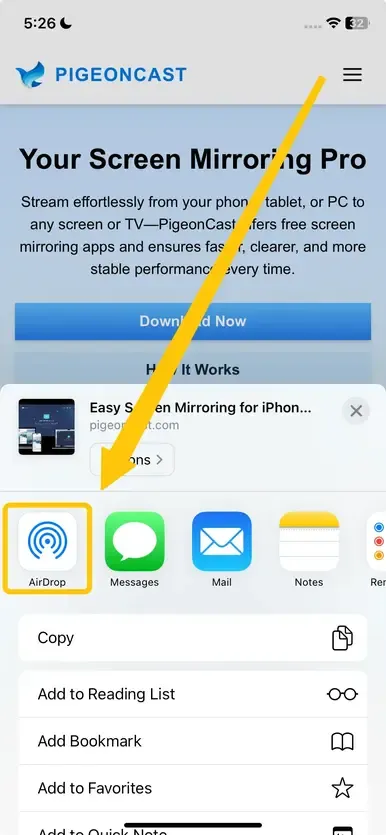
Step 3. Tap the AirDrop button below and select your other Apple device (such as a MacBook or Apple TV) from the list.
Step 4. Your Safari content will now be streamed to your TV. Enjoy the larger screen experience!
How to Use AirPlay from Safari on a MacBook
AirPlay from Safari Mac is just as straightforward and convenient. In this section, we'll guide you through how to AirPlay from Safari on Mac, allowing you to effortlessly share your content and enhance the viewing experience.
Step 1. Ensure your Mac and AirPlay receiver are on the same Wi-Fi network, open Bluetooth, and AirDrop.
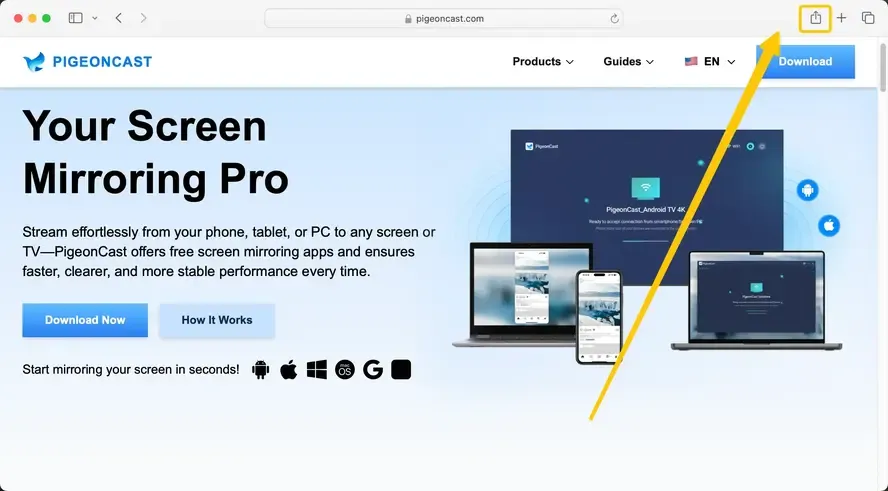
Step 2. Launch Safari, move to your targeted web window, and tap the Share icon in the upper-right corner.
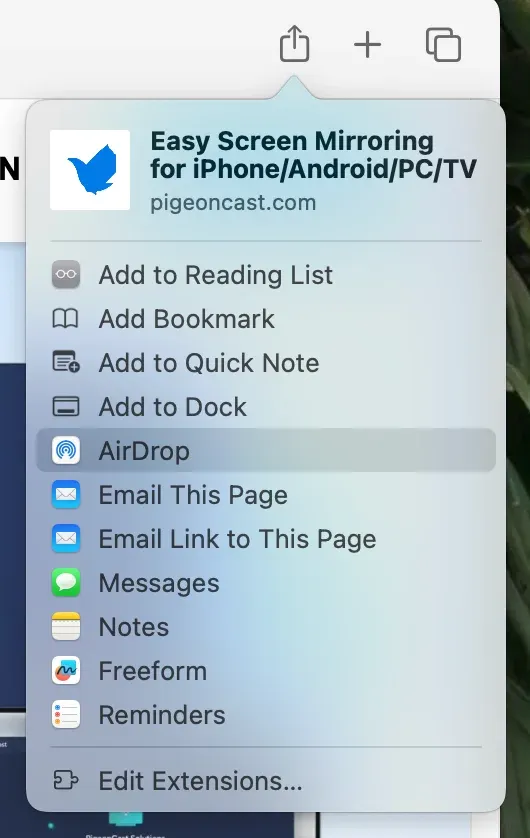
Step 3. Tap AirDrop to choose your Apple device from the available list.
Step 4. Once connected, the content from Safari on your MacBook will be sent to your chosen AirPlay device.
How to Use AirPlay from Safari to a Non-Apple Device
While AirDrop is fantastic for sharing content between Apple devices, there may be times when you need to stream Safari content to non-Apple devices. In those cases, screen mirroring is the solution, allowing you to mirror your content to a non-Apple device or an AirPlay-compatible device instead of simply sending a file.
- Method 1. Use AirPlay
Here we take how to AirPlay Safari from iPhone to an AirPlay-compatible device as an example:
Step 1. Ensure your iPhone and the AirPlay-compatible device are on the same wireless network.
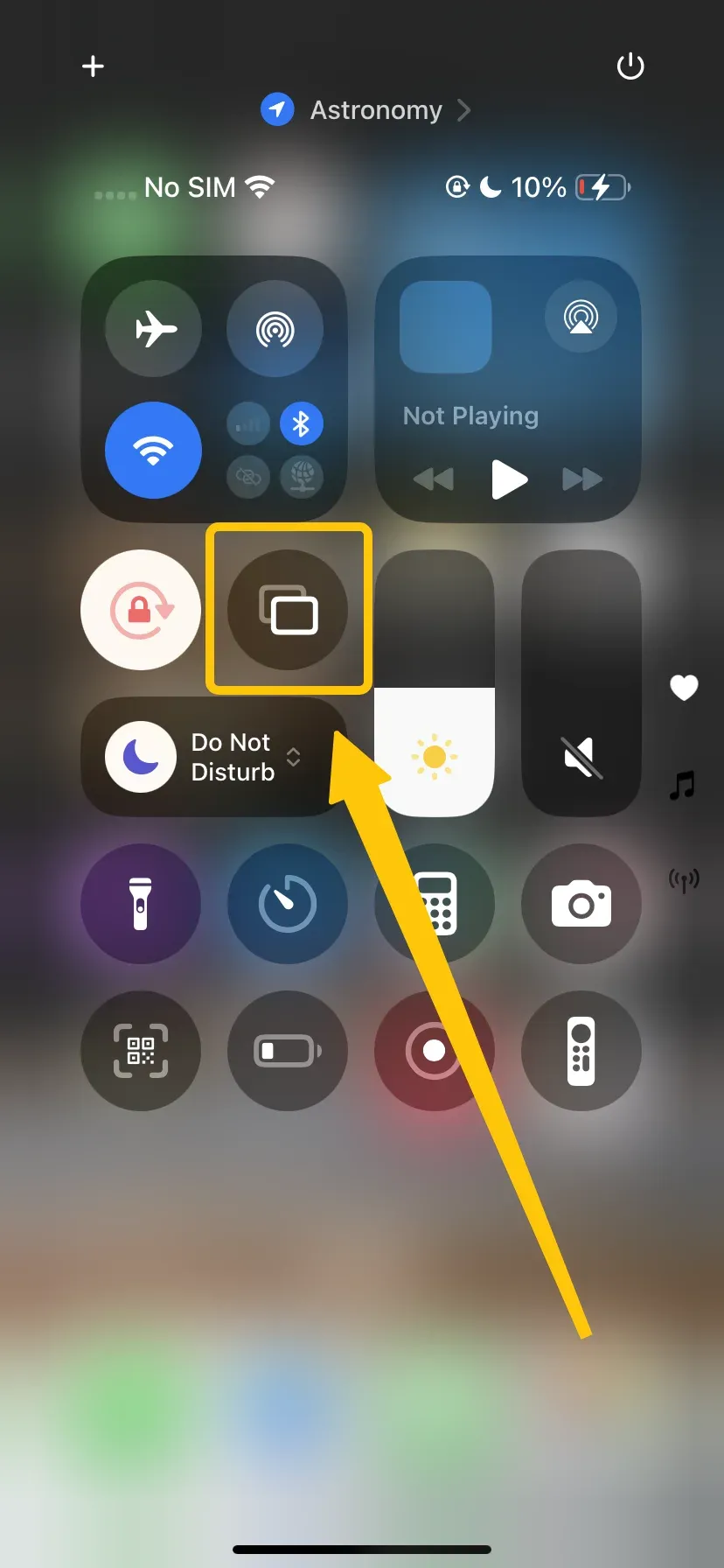
Step 2. On your iPhone, tap Screen Mirroring in Control Center to choose your receiver device to connect.
Step 3. If prompted, enter the onscreen code to finish the confirmation.
Step 4. Once paired, you can tap Safari on your iPhone, and your TV screen will now also display Safari.
- Method 2. Use PigeonCast
If you're looking to stream content to a device that's not natively compatible with AirPlay, PigeonCast is a great solution. It works with a variety of devices, including Windows PCs and Android TVs, by supporting AirPlay, DLNA, and Google Cast. Plus, the app is ad-free and uses end-to-end encryption to keep your content secure and private while streaming.

PigeonCast Screen Mirroring

Official Download



How to Solve AirPlay from Safari Not Working
If you can't AirPlay from Safari, there are a few common issues that could be causing the problem. Here are some solutions to help you troubleshoot and get things working smoothly.
- Check Wi-Fi Network: The 1st cause of AirPlay issues is devices being on different networks. Double-check that your iPhone, iPad, or Mac and your AirPlay receiver are connected to the exact same Wi-Fi network.
- Restart Everything: A simple restart can work wonders. Restart your iPhone/iPad/Mac, your router, and your Apple TV or smart TV.
- Update Software: Ensure all your devices are running the latest software (iOS/iPadOS, macOS, and your TV's firmware).
- Check the Website: Not all video players on the web support the native AirPlay button. If you don't see the icon, try using the Screen Mirroring method from Control Center instead.
- Check for Interference: If you're experiencing lag or connection problems, make sure there are no devices that could be causing Wi-Fi interference, such as microwave ovens, baby monitors, or other electronics.
- Disable VPN: VPNs can often interfere with local network discovery. Temporarily disable any active VPN on your Apple device or your TV.
Closing Words
AirPlay remains one of the most elegant ways to enjoy web content from Safari on a big screen, deeply integrated into the Apple experience. For those moments when you need to step outside the Apple ecosystem, free tools like PigeonCast provide a robust and versatile solution, ensuring you're never locked out of a larger display. By understanding both the native and third-party methods, and knowing how to troubleshoot common problems, you can confidently AirPlay from Safari to TV.
AirPlay from Safari FAQ
Can you AirPlay from Safari?
Yes, you can AirPlay from Safari. You can choose AirDrop to send a web page to an Apple device, or you can still use the Screen Mirror feature to cast your Safari window to an AirPlay-compatible device. Plus, you can also use PigeonCast to cast Safari to Android TV or Windows.
Can you AirPlay from Safari to Samsung TV?
If your Samsung TV supports AirPlay, you can then screen mirror Safari to the Samsung TV under the same wireless network connection.
Can you AirPlay Netflix from Safari?
Yes, you can AirPlay Netflix content from Safari, but make sure you are logged into your Netflix account through Safari. Open the video, tap the AirPlay button, and choose your Apple TV or compatible device to stream the video.
How to AirPlay sound from Safari?
To AirPlay sound from Safari to an AirPlay-compatible device (like an Apple TV or a smart speaker), follow these steps:
- Ensure both your device and the AirPlay-compatible device are connected to the same Wi-Fi network.
- Open Safari on your iPhone, iPad, or Mac and start playing the audio or video content you want to AirPlay.
- Open the Control Center, and tap the AirPlay icon (multiple circles and upward triangle in the center).
- Select the device you want to AirPlay to (like an Apple TV or AirPlay-enabled speakers).
Once connected, the sound will be played through the selected AirPlay device while you continue browsing in Safari.
Clara Rossi is an experienced technology editor and a seasoned expert in screen mirroring and casting technologies. With a keen eye for detail and a deep understanding of how to seamlessly connect devices, Clara excels at optimizing user experiences for effortless sharing and streaming. Whether you're seeking quick fixes or advanced tips, her expertise and responsiveness ensure that every query is met with a well-informed and efficient solution.