
Few things are more frustrating than trying to stream from your iPhone to your LG TV, only to find that AirPlay isn't working. Whether AirPlay has disappeared or simply refuses to connect, dealing with the LG TV AirPlay not working issue can make you feel cut off from the seamless experience Apple and LG promise. The good news is that in this guide, we'll walk you through 10 proven troubleshooting steps to get your wireless streaming back up and running in no time.
How to Fix AirPlay Not Working LG TV
AirPlay connectivity depends on a smooth interaction between your iPhone, LG TV, and your home Wi-Fi network. A glitch in any one of these areas can disrupt the connection. Before you rush to call for service or assume your TV is broken, let's work through these simplest and most common fixes.
#1. Check Device Compatibility
How to resolve LG TV Apple AirPlay not working? The compatibility issue may be the culprit, because not all LG TVs support AirPlay. The feature was introduced with LG's webOS 4.0, which started with 2018 models and newer ones. If you have an older TV, AirPlay won't be available as an option. Here's how to verify:
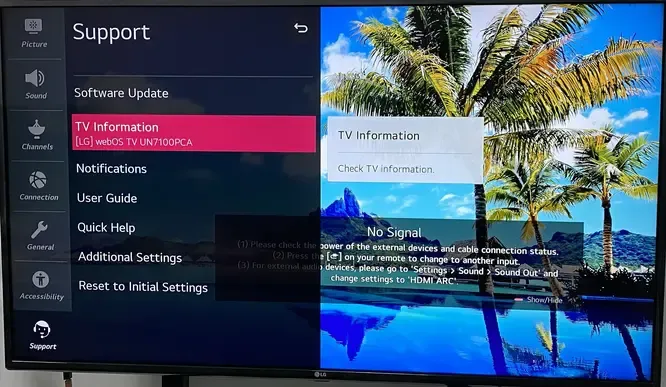
- Check Your Model Year: Your TV's model number is on the back or in Settings > Support > TV Information. If it's a 2018 model or newer (e.g., series like UK, UM, NANO, OLED from 2018+), it should be compatible.
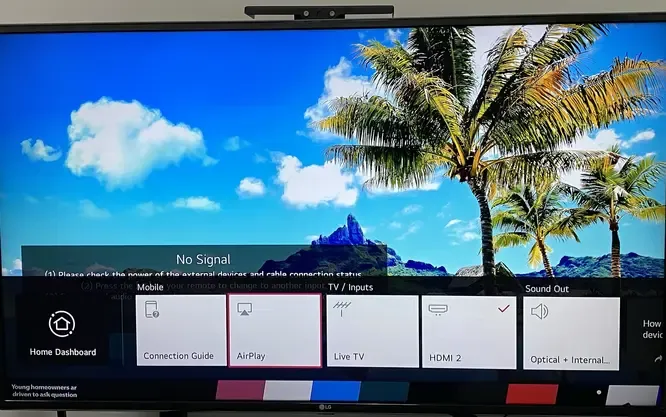
- Check for the AirPlay Setting: On your LG TV remote, press the Settings or Home button and navigate to AirPlay menu. If you do not see this menu, your TV is not AirPlay-compatible.
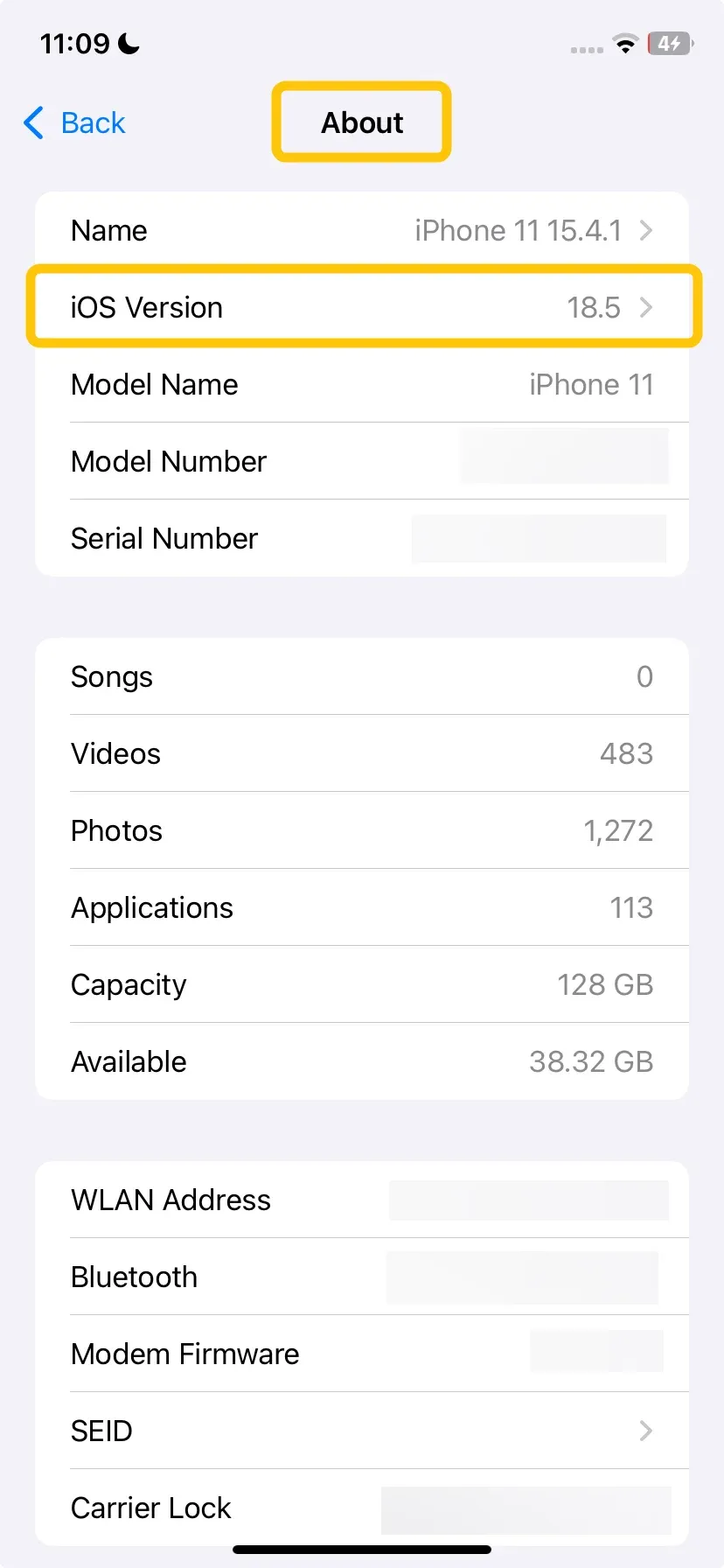
- Apple Device: Your iPhone, iPad, or Mac must be running a relatively recent OS (typically iOS 12.3+ or later for full reliability). You can check from the Settings > General > About > iOS Version.
#2. Check Network Connection
How to solve AirPlay not working on LG TV? AirPlay relies on your local Wi-Fi network, so if your Apple device and LG TV aren't connected to the same network, they won't be able to communicate. If your Wi-Fi network is too slow or unreliable, consider switching to a wired connection for better stability.
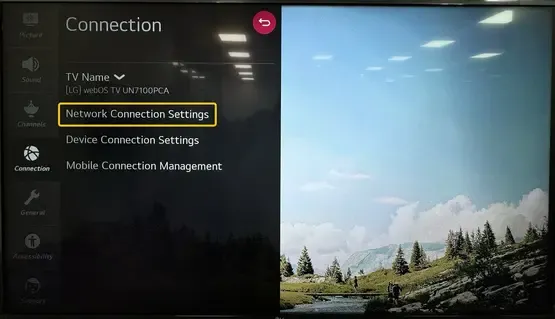
Step 1. Note the network name on your LG TV from Settings > Connection > Network Connection (or Wired if using Ethernet).
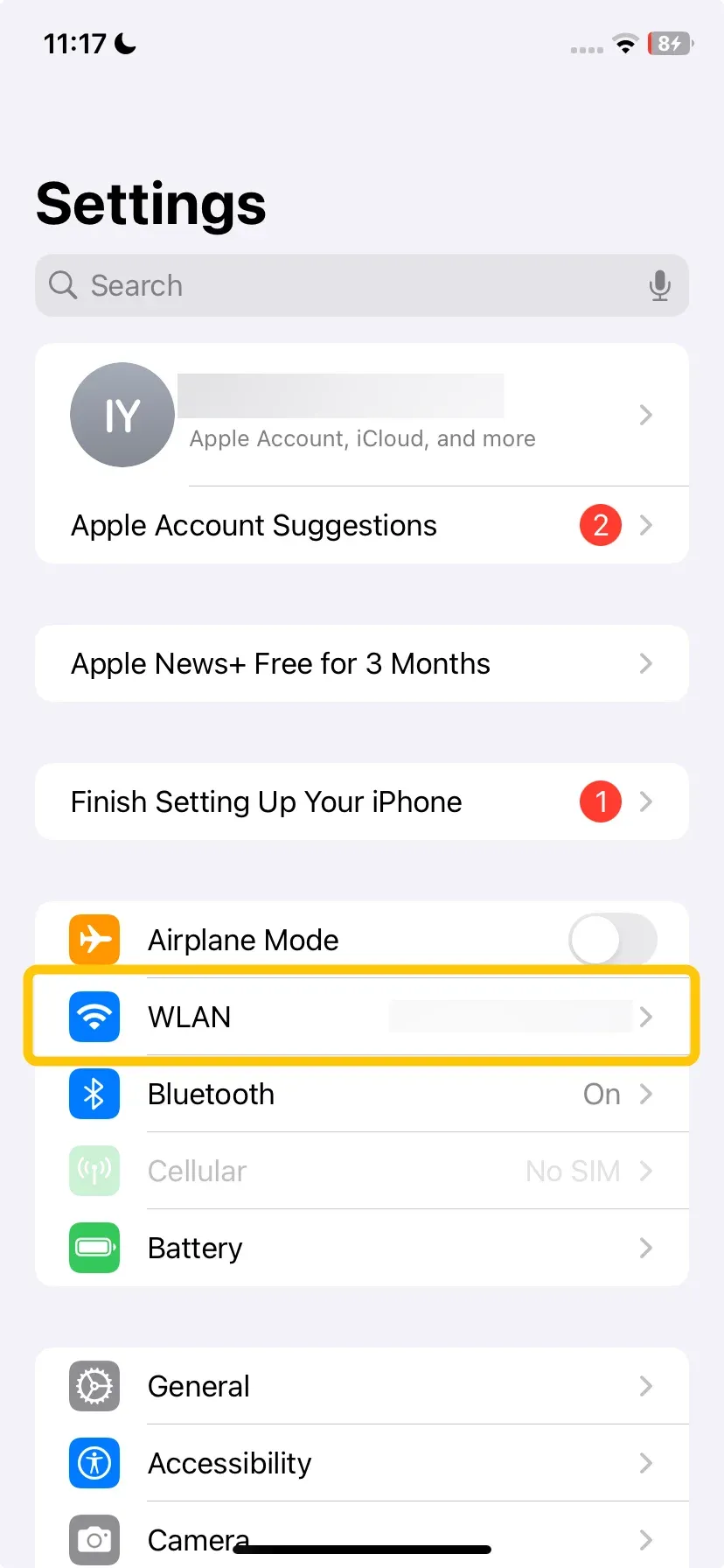
Step 2. Open Settings > WLAN on your iPhone/iPad, and ensure you are connected to the same network.
Step 3. Connect both your TV and Apple device to the 5GHz network for best performance.
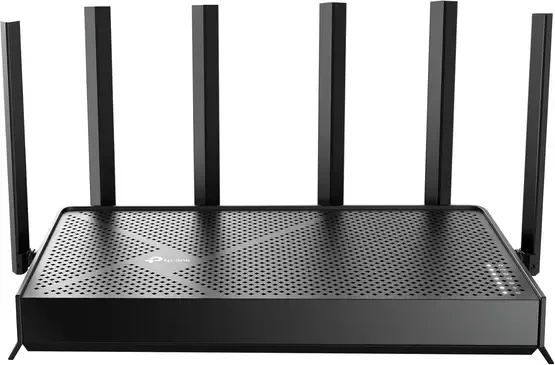
Step 4. If the problem persists, restart your router to refresh the network.
Step 5. If you're still having issues, try using a wired network connection for a more stable connection.
#3. Restart Your Device
How to fix AirPlay unable to connect to LG TV? A simple restart can fix many AirPlay issues. It clears temporary caches, resets network adapters, and stops any buggy processes that may be interfering with the connection.
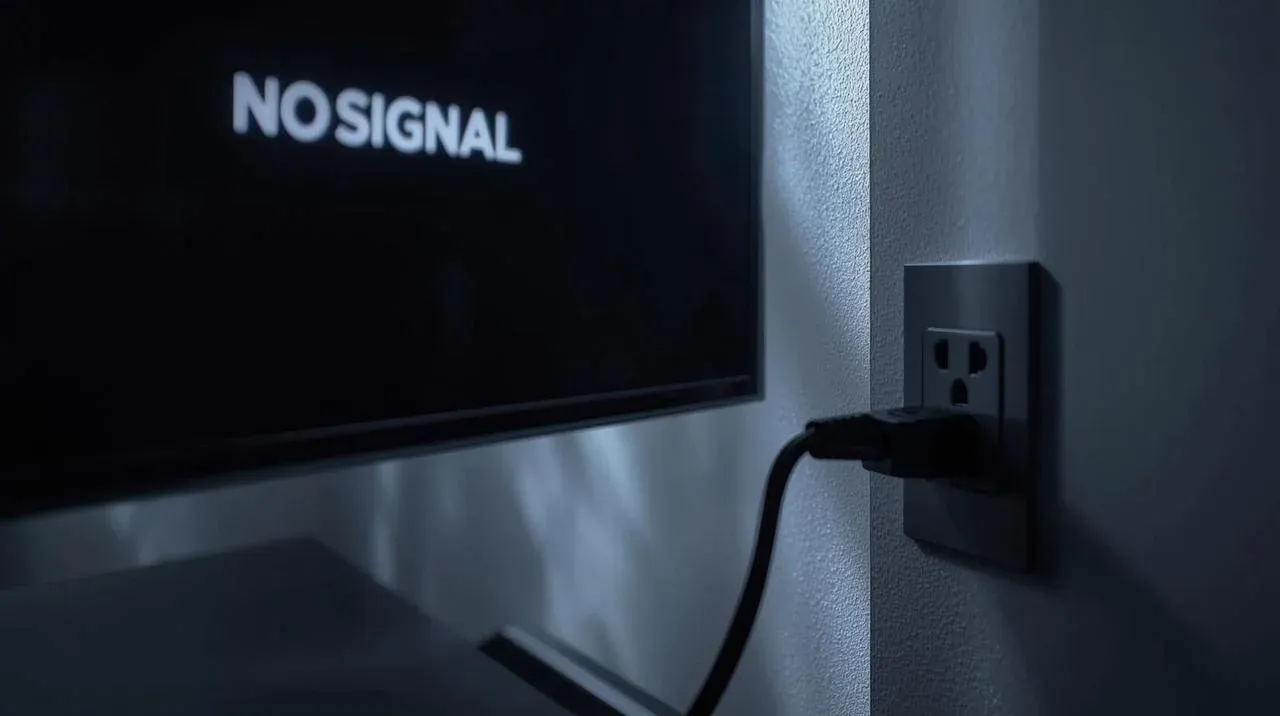
- Restart your LG TV: Unplug it from the wall power outlet for 60 seconds, then plug it back in.
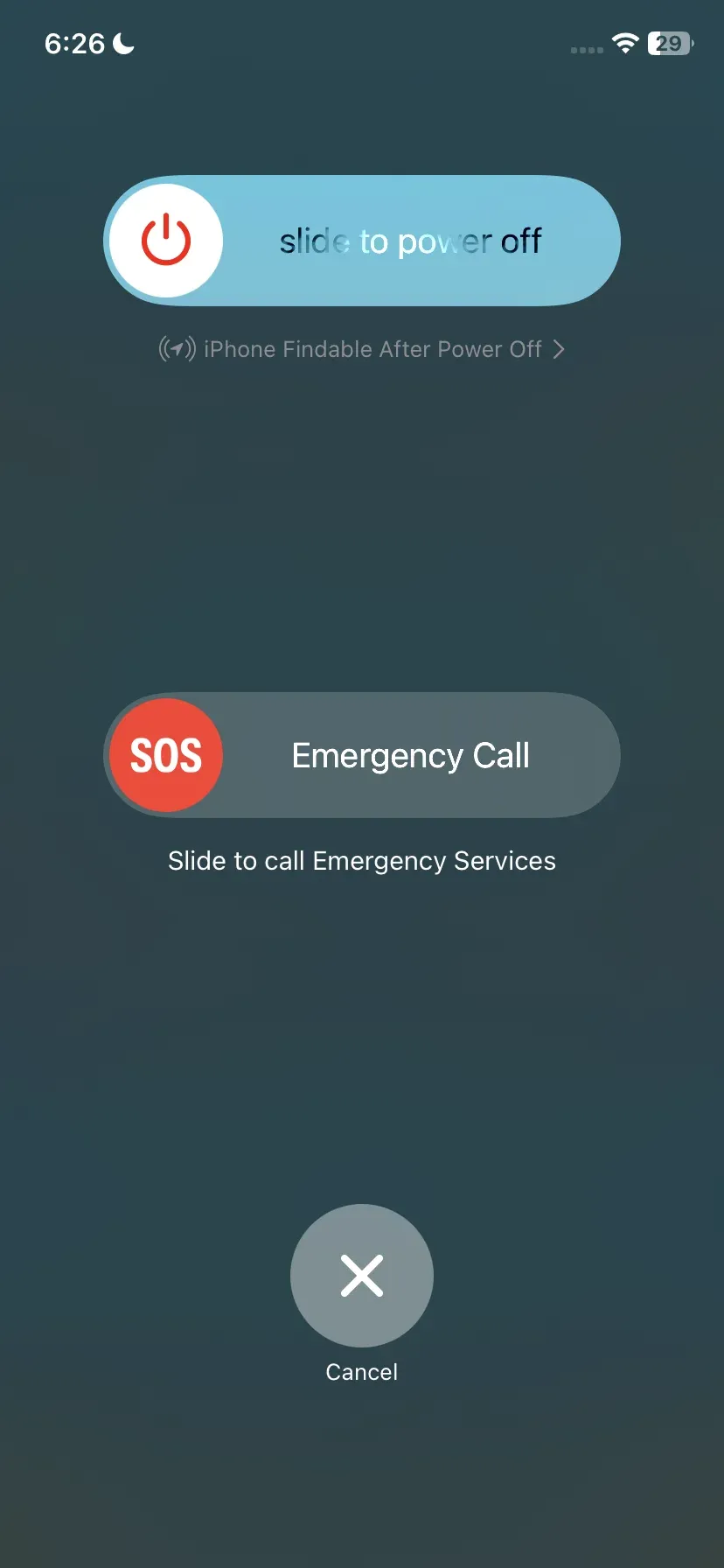
- Restart your Apple device: Press the Side button and any Volume button until the power slider appears. Slide to turn off, then press the Side button again to restart.
#4. Check for Update
Why is AirPlay not working on LG TV? Outdated software on either your LG TV or Apple device can cause AirPlay issues. Both LG and Apple regularly release updates with bug fixes and improvements to AirPlay, so keeping your devices up to date is key.
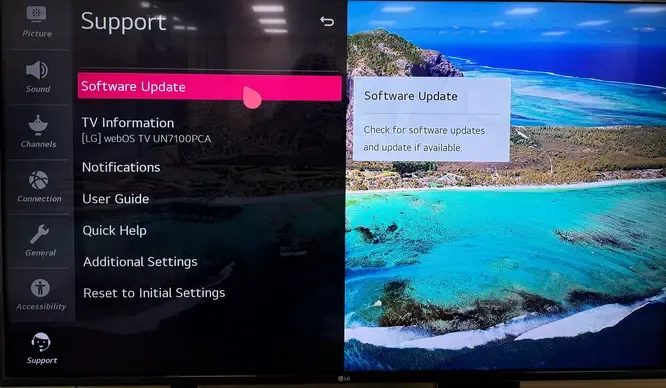
- Update your LG TV: Go to Settings > Support > Software Update. If an update is available, install it, and your TV will restart automatically.
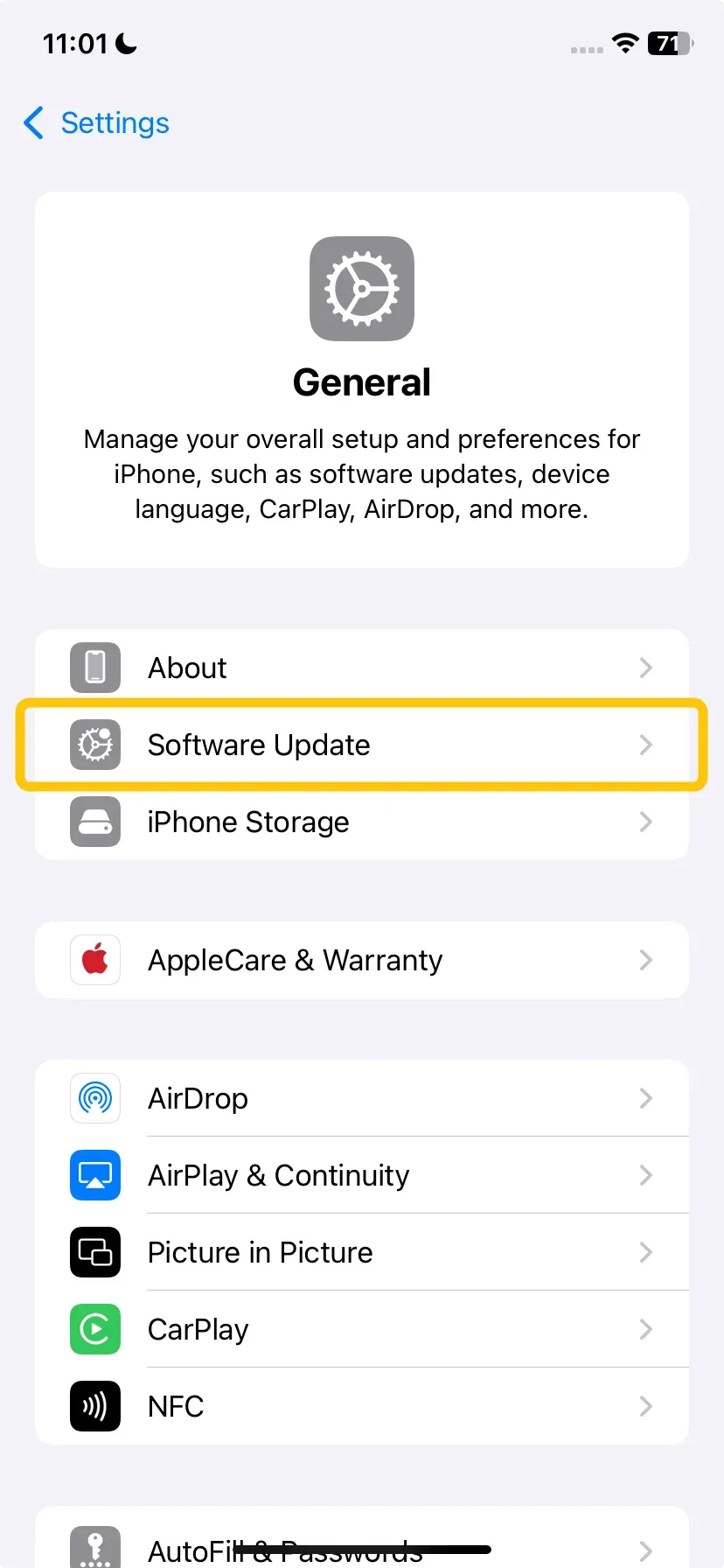
- Update your Apple device: Go to Settings > General > Software Update. (for Mac: Go to System Settings > General > Software Update)
#5. Check AirPlay Settings on Your LG TV
If AirPlay won't connect to LG TV persistently, it's worth checking the AirPlay settings. For AirPlay to work, it must be enabled on your TV. Sometimes, it can be turned off or require a password, which may prevent devices from connecting.
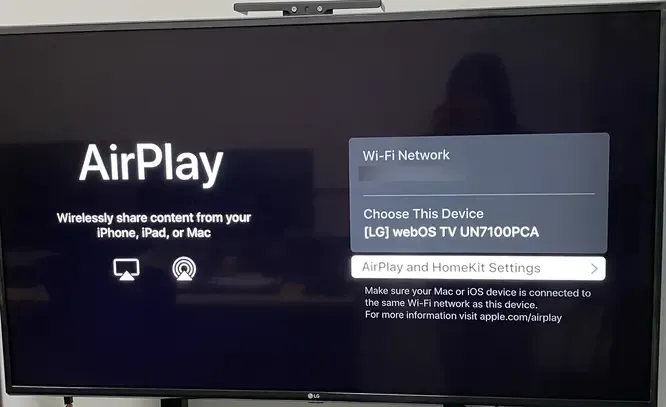
Step 1. Go to Settings > All Settings > Connection > AirPlay on your LG TV.
Step 2. Make sure AirPlay is set to On.
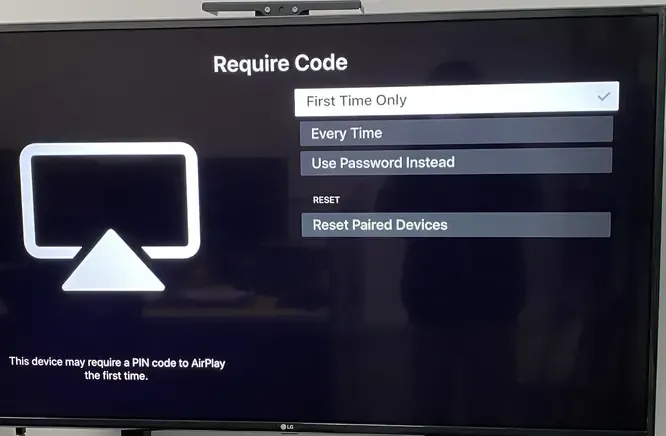
Step 3. Check additional settings, such as Require a password for connection, and ensure they're configured correctly for your needs.
#6. Disable Bluetooth on Your Apple Device
Although AirPlay doesn't rely on Bluetooth directly, Bluetooth interference can still impact your Wi-Fi, which might cause your LG TV to not show up on AirPlay or lead to streaming lag. Read on to turn off Bluetooth on your Apple device to restore the LG TV not showing up on AirPlay:
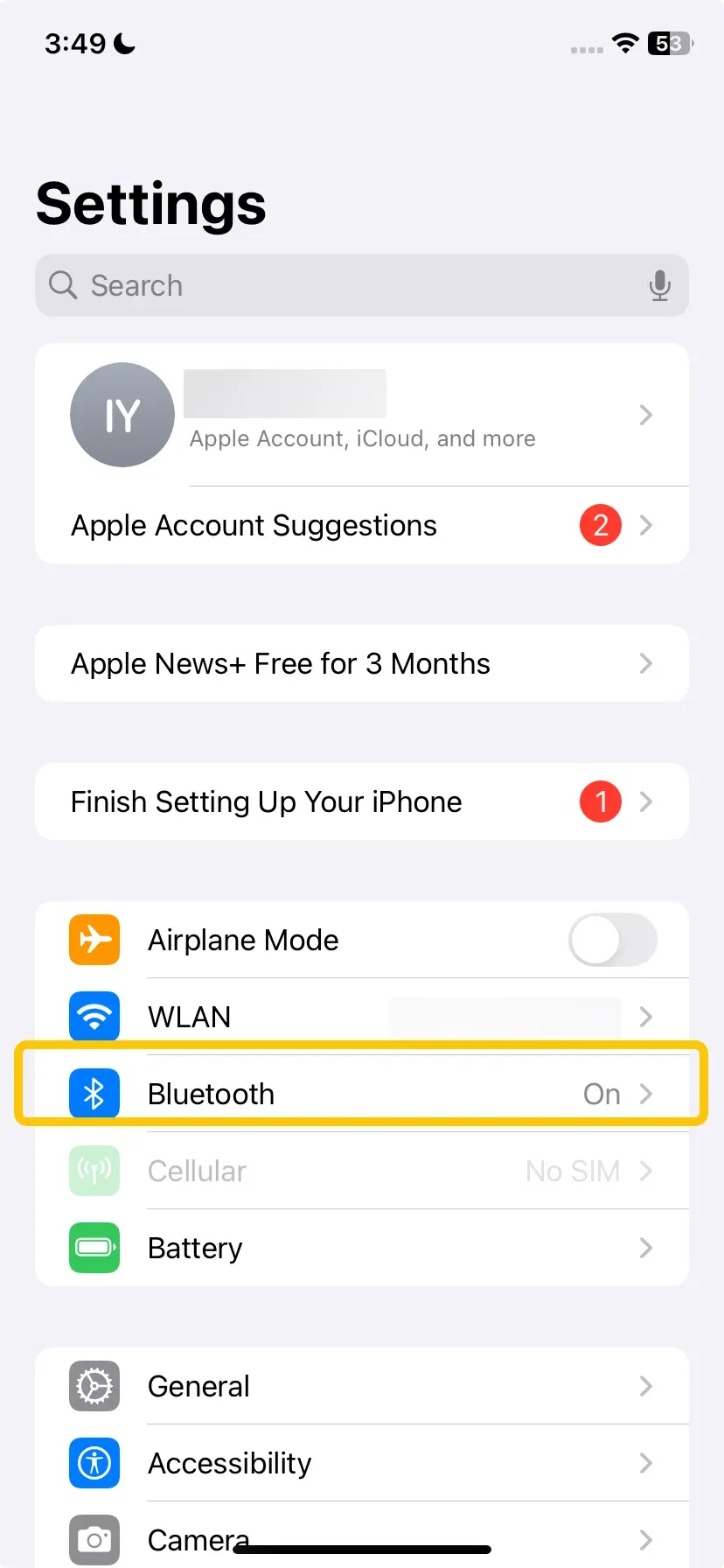
Step 1. On your Apple device, go to Settings > Bluetooth, and turn it off.
Step 2. Try using AirPlay again after disabling Bluetooth.
#7. Disable VPNs, Firewalls, and Network Security
Virtual Private Networks (VPNs) and strict firewall settings (including certain router features) are designed to protect your device on the network. However, these can sometimes prevent your LG TV not connecting to AirPlay or stop it from seeing your iPhone, causing connectivity issues.
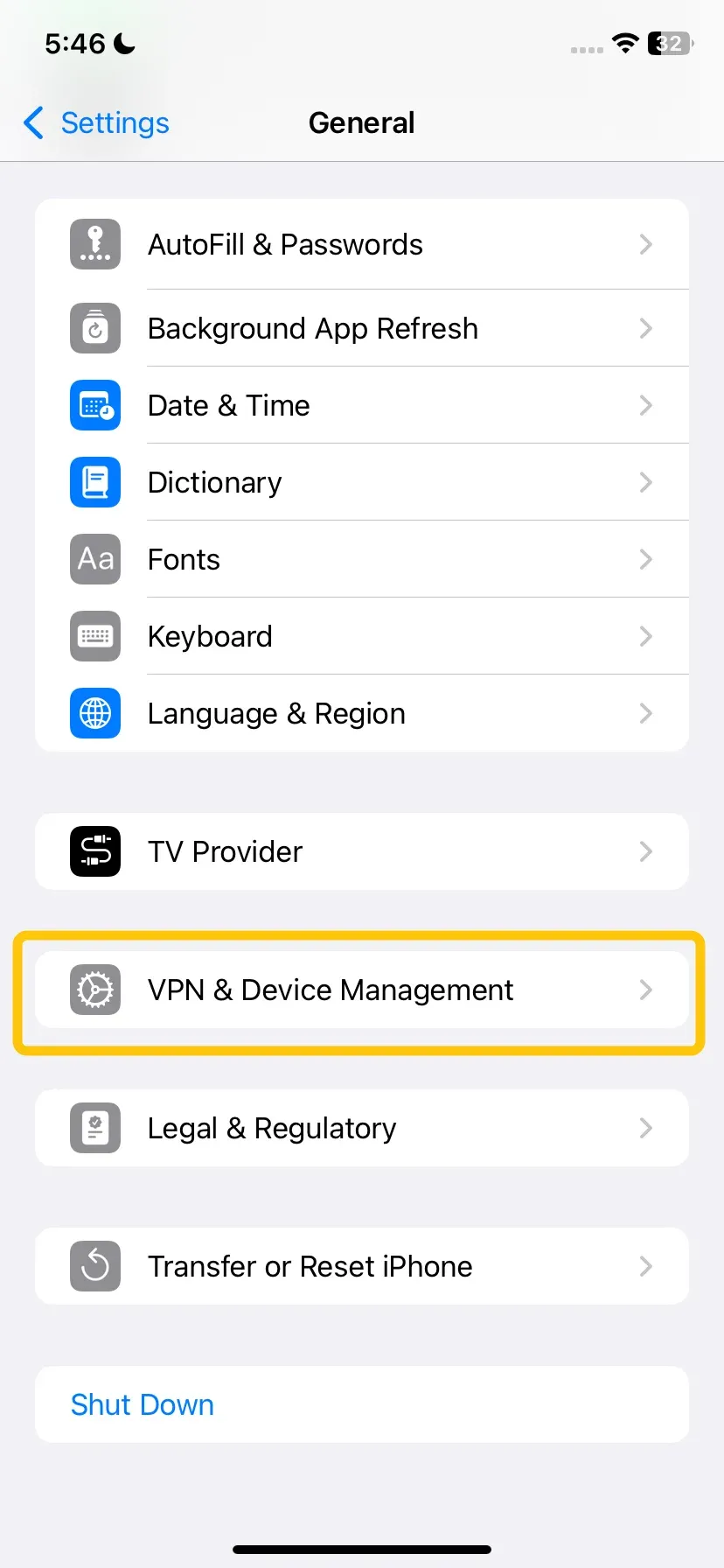
Step 1. On iPhone or iPad, open Settings > General > VPN (if it's listed) and toggle it off.
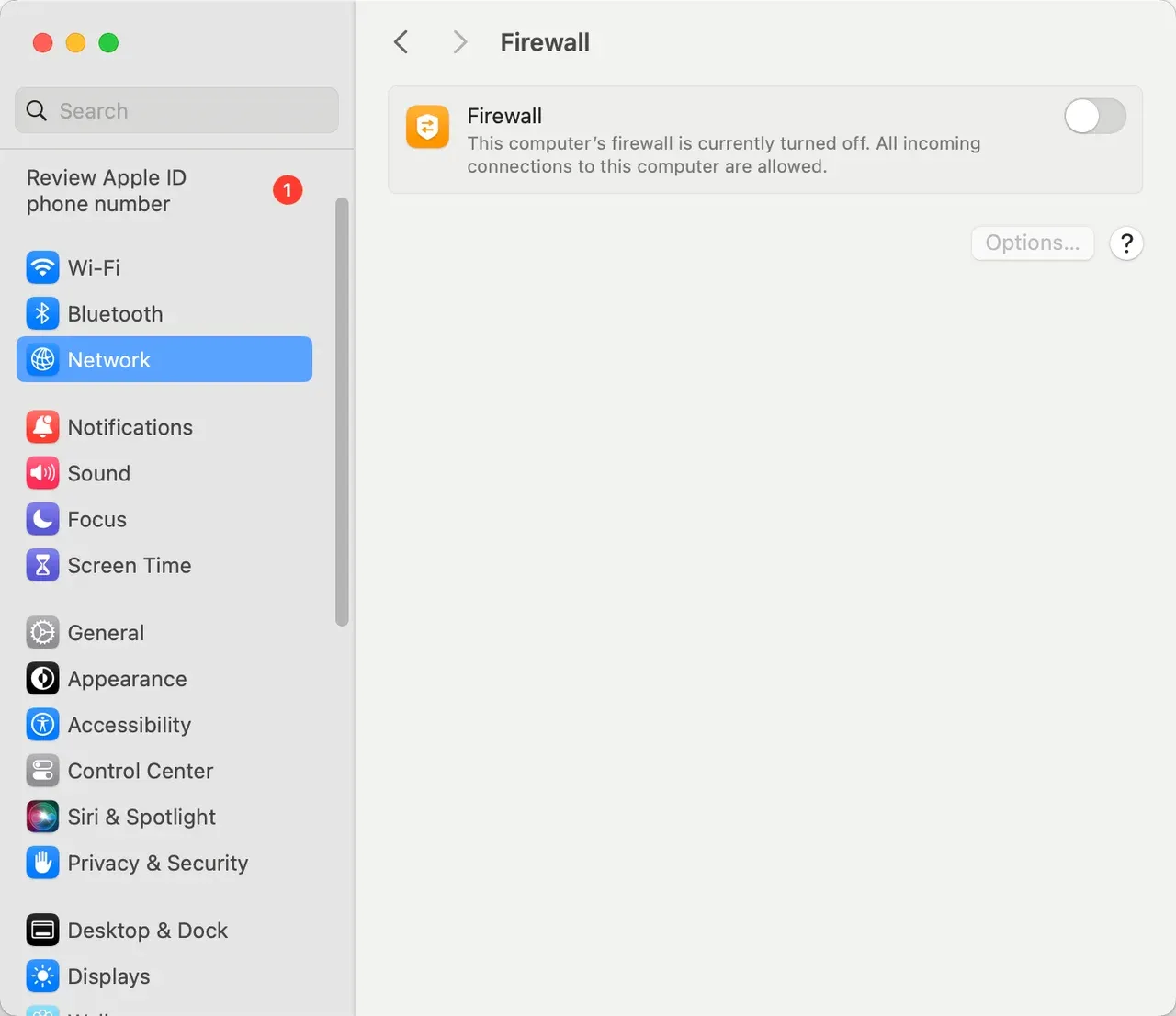
Step 2. On Mac, go to System Settings > Network, select your VPN connection or Firewall from the list on the left, and click Disconnect on the right side.
#8. Perform a Factory Reset on Your LG TV
If you've tried all the previous steps and AirPlay not working with LG TV still, performing a factory reset might help resolve any deep-rooted software issues. This will restore your TV to its original settings, clearing out any custom configurations or software bugs that could be interfering with AirPlay.
Note: A factory reset will erase all settings and data on your TV, including any software bugs or corrupted configurations that may be causing AirPlay issues.
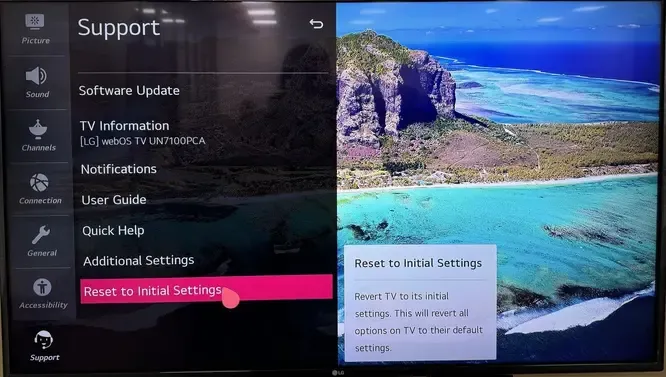
Step 1. Go to Settings > All Settings > General > Reset to Initial Settings.
Step 2. Follow the on-screen instructions to reset your TV to factory defaults.
Step 3. Turn on AirPlay and reconnect to see if the issue with your AirPlay LG TV not working persists.
#9. Contact Support
If a factory reset doesn't restore Apple AirPlay not working on LG TV functionality, the issue could be hardware-related (such as a faulty Wi-Fi module in the TV) or linked to a deeper account or service problem.
- LG Support: Visit the LG support website for your region. Have your TV's model and serial numbers ready. They can provide model-specific advice and service options.
- Apple Support: Contact Apple Support if the issue seems to be with your Apple device or its compatibility with AirPlay.
Use PigeonCast for LG TV Screen Mirroring
If you can't AirPlay to LG TV and need to wait for support, consider using PigeonCast as an easy alternative. This free app works smoothly on Android, iOS, Windows, Mac, and LG TV. You can stream videos, photos, music, and apps in stunning 4K resolution, all with minimal lag for a seamless viewing experience.

Step 1. Ensure both your devices are under the same wireless network.


Overall Rating:


Step 2. Install PigeonCast on your Apple device from the App Store and launch the app.
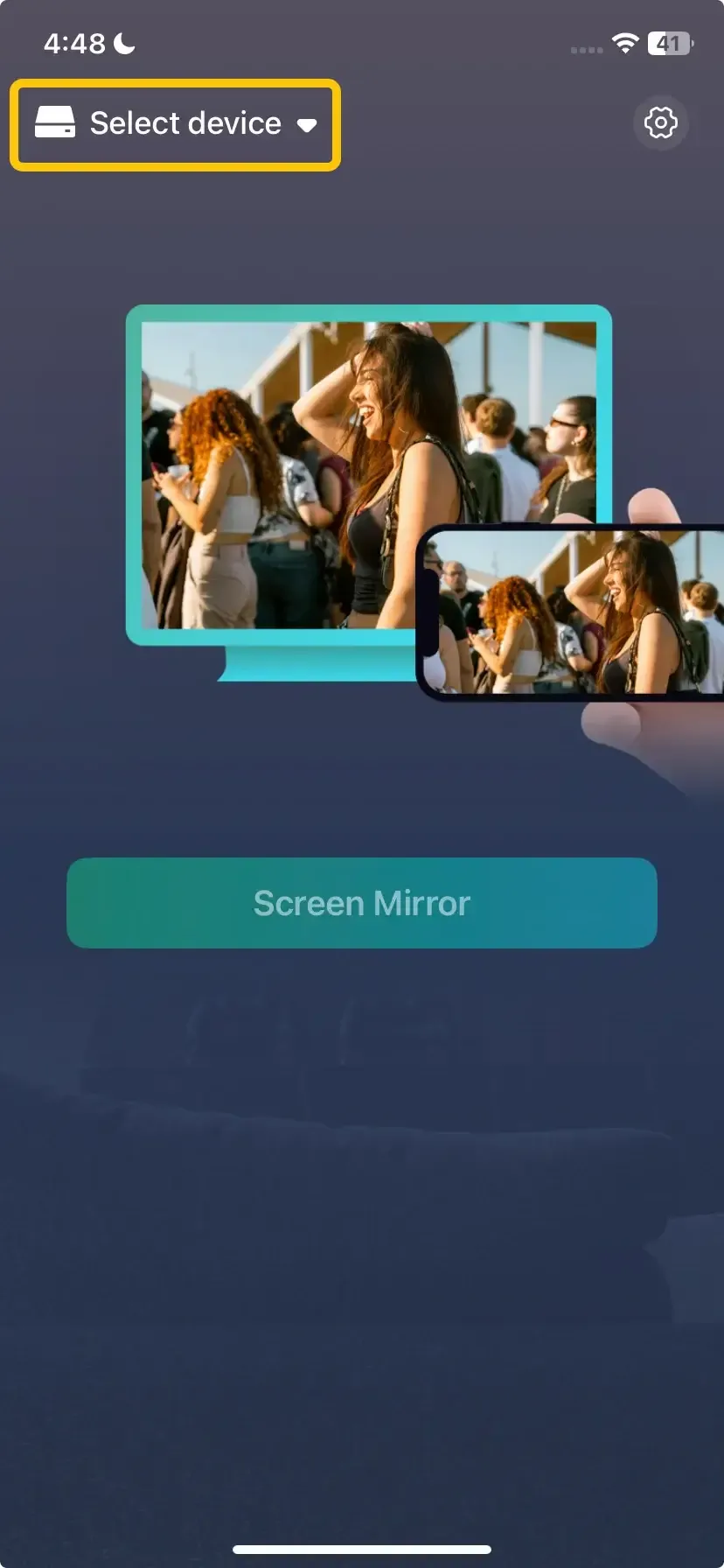
Step 3. Tap Select device to choose your LG TV from the available list. Or you can scan the QR code shown on the TV to build the connection.
Step 4. Enter the onscreen code to finish the pairing performance.
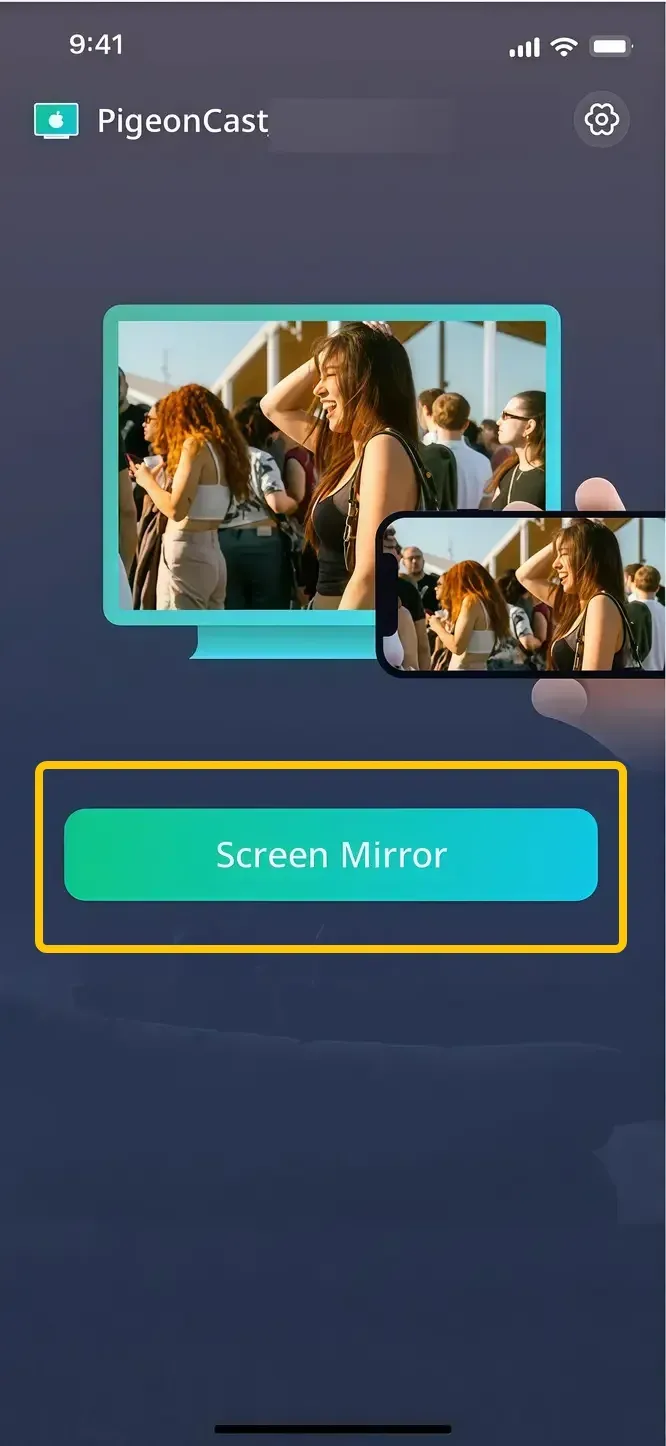
Step 5. Once you finish the connection, tap Screen Mirror to begin the mirroring activities on your LG television screen.
Final Verdict
If you're still facing issues with LG TV AirPlay not showing up, don't worry. These troubleshooting steps should help resolve the most common problems. From checking network connections and device compatibility to updating software and adjusting settings, most issues can be easily fixed. If all else fails, a factory reset or contacting support can help, and as a quick alternative, PigeonCast lets you stream content effortlessly to your TV.
LG TV AirPlay Not Working FAQ
How to solve AirPlay lagging on LG TV?
To solve AirPlay lagging, make sure both your TV and Apple device are connected to a fast and stable 5 GHz Wi-Fi network. Also, limit the number of devices on your network to reduce congestion and interference.
How to solve LG OLED TV AirPlay not working?
If AirPlay isn't working on your LG OLED TV, start by ensuring AirPlay is enabled in the settings. Also, check for software updates on both the TV and Apple devices. Restart both devices to fix temporary connectivity issues.
Why is LG TV AirPlay not working after update?
Here are some possible reasons why AirPlay might not be working on your LG TV after an update:
- Software bug introduced by the update.
- AirPlay settings may have been reset or disabled during the update.
- Network issues caused by the update, affecting connectivity.
- Incompatible update with your TV model or Apple device.
- Outdated device firmware or OS on either the LG TV or Apple device after the update.
- Temporary glitch caused by the update process itself.
Clara Rossi is an experienced technology editor and a seasoned expert in screen mirroring and casting technologies. With a keen eye for detail and a deep understanding of how to seamlessly connect devices, Clara excels at optimizing user experiences for effortless sharing and streaming. Whether you're seeking quick fixes or advanced tips, her expertise and responsiveness ensure that every query is met with a well-informed and efficient solution.