
For LG TV owners, a common question is: "Does my TV have Chromecast built in?" The answer requires understanding the difference between Google's casting technology and LG's own smart TV platform. This guide will demystify the relationship between LG TV and Chromecast, providing a clear path for LG TV Chromecast, regardless of its model.
Does LG TV Have Chromecast Built-in
Yes, newer LG TV with Chromecast built in. This is a recent and significant change in LG's strategy. Starting with a webOS update rolled out to select 2022 and 2023 models, and including all new 2024 models and beyond, LG has integrated Google's casting technology directly into its webOS platform.
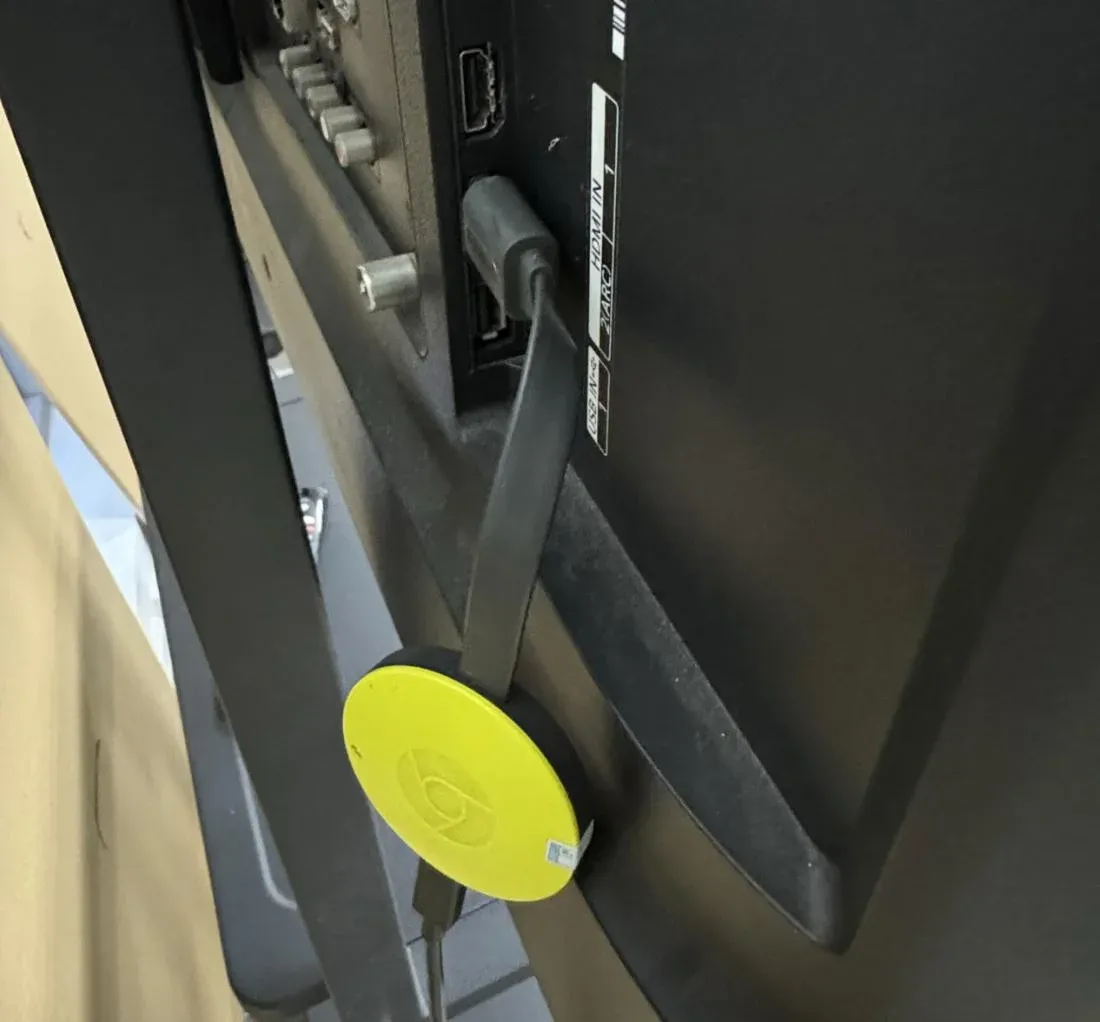
This means if you own a compatible recent model, you can now use the "Cast" button in your favorite apps on your phone, tablet, or laptop to send content directly to your LG TV without any additional dongles or devices. This seamlessly bridges the gap between the Android/Google ecosystem and LG's premium displays.
How to Chromecast on LG TV
Now that you know that the LG TV with built in Chromecast, you're probably wondering how to use it. Fortunately, the process is simple and doesn't require any complicated setup. Here's a step-by-step guide to Chromecast to LG TV:
Method 1. Chromecast to LG TV Using Casting Apps
To begin with, one of the easiest ways to cast content from your device to an LG TV is through Chromecast using casting apps. This method allows you to wirelessly stream videos, music, and even apps from your phone, tablet, or computer directly to your TV.
Step 1. Ensure your mobile device connects to the same wireless network as your LG TV.
Step 2. Launch an app that supports casting, such as YouTube, Netflix, Disney+, HBO Max, or Spotify.
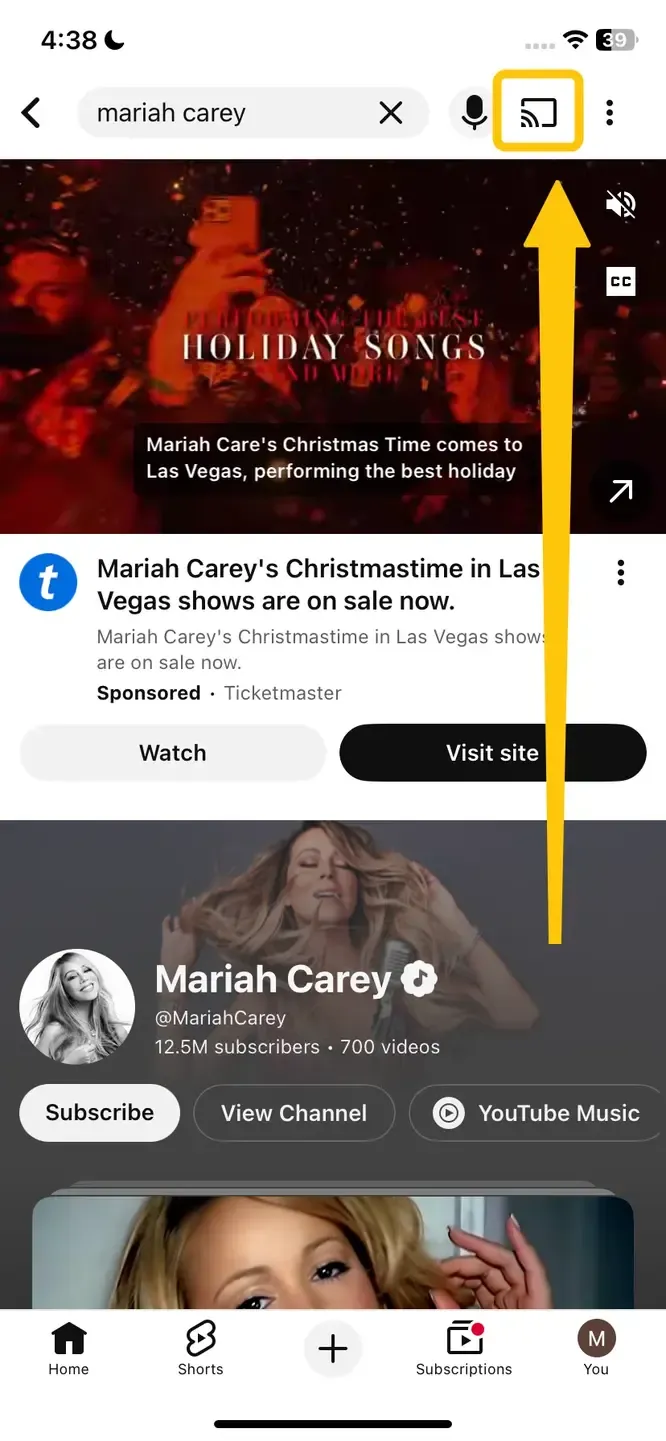
Step 3. Look for the Cast icon (a rectangle with a Wi-Fi signal in the corner) within the app.
Step 4. Tap the icon to display a list of available devices. You should see your LG TV listed by its model name or the name you've given it.
Step 5. Select your TV, and the content will start playing on the big screen immediately. You can use your mobile device as a remote to control playback, volume, and to disconnect.
Method 2. Chromecast to LG TV Using PigeonCast
Once you ensure Chromecast built in LG TV, there's a fantastic free app for screen mirroring. PigeonCast works seamlessly across Android, iOS, Windows, Mac, and a variety of TVs (including tvOS, Android TV, and more). It supports AirPlay, DLNA, and Google Cast and lets you stream a wide range of content like YouTube videos, photos, music, and apps from your devices to any screen.

Step 1. Install PigeonCast on your mobile device and open it.


Overall Rating:



Step 2. Ensure both your devices are covered by the same wireless network.
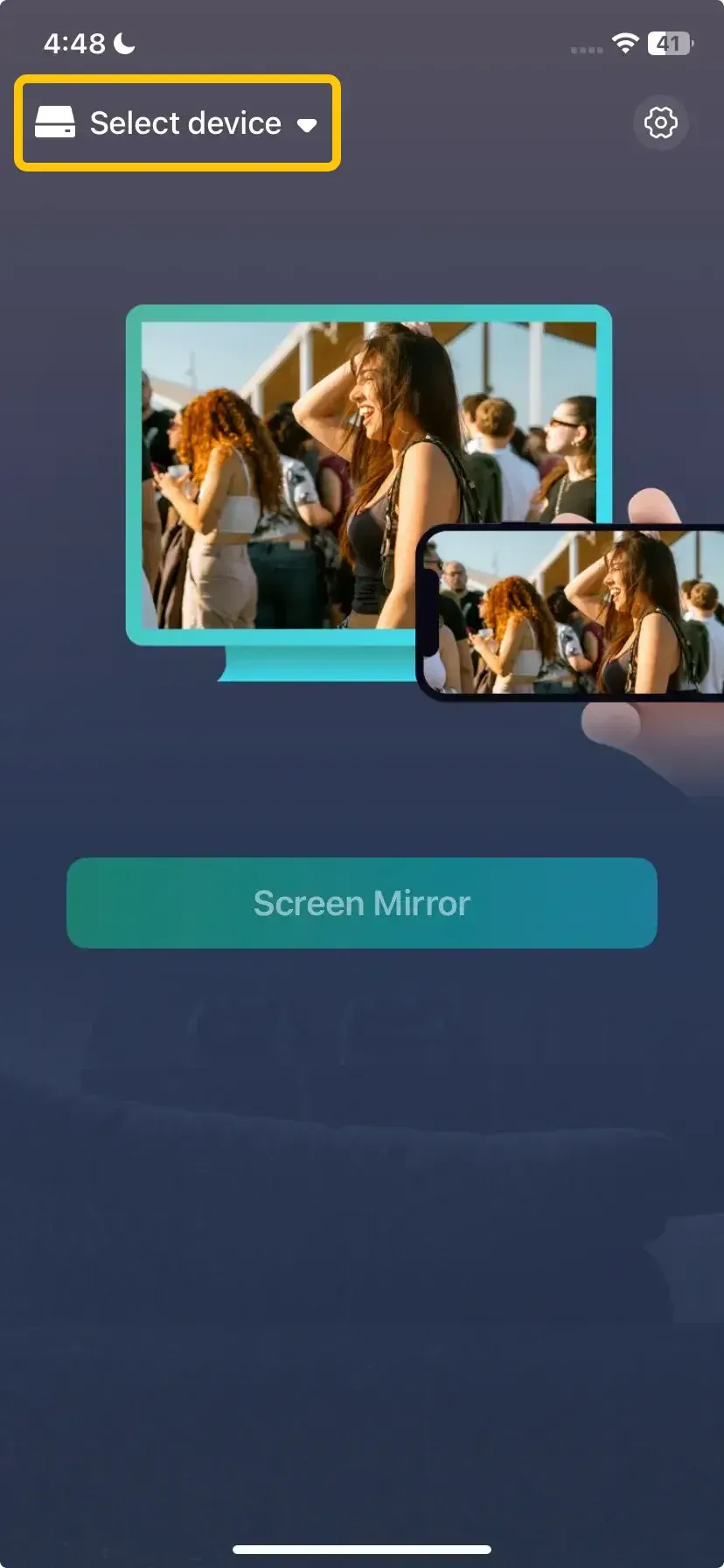
Step 3. On the mobile device, tap Select device to choose your LG TV from the available list.
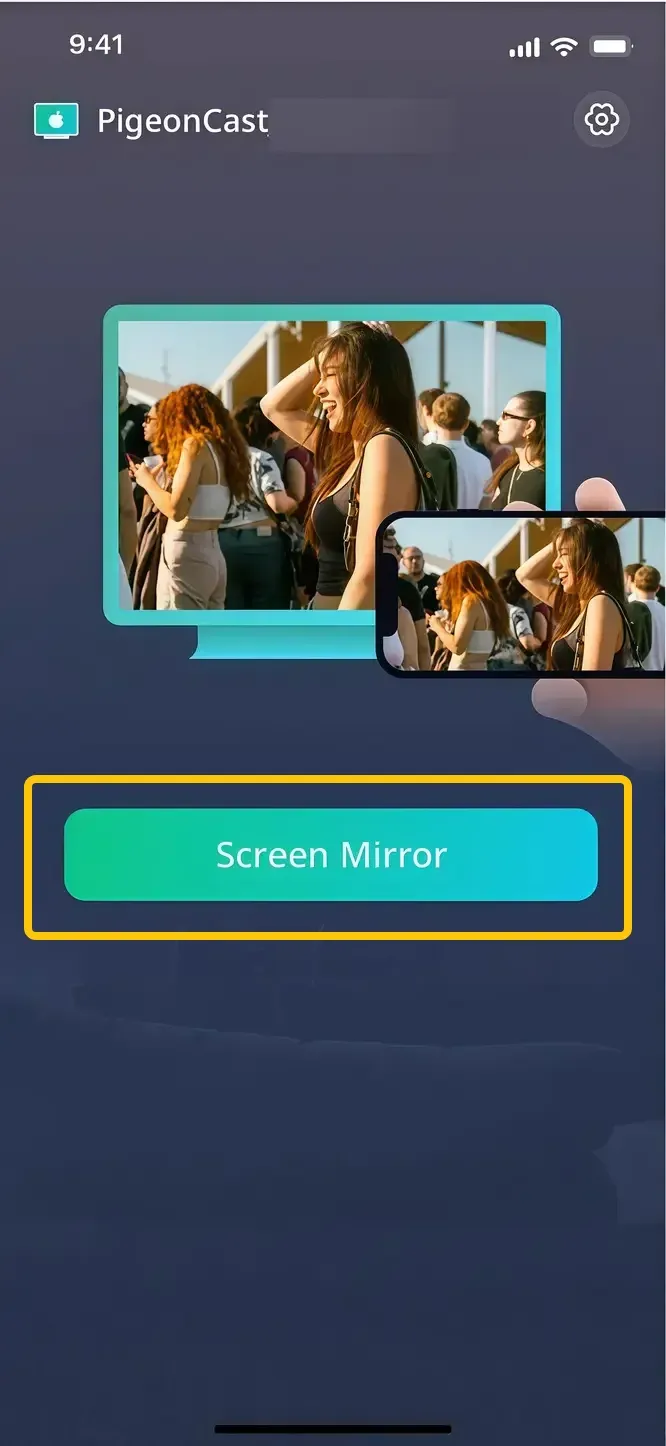
Step 4. Enter the onscreen code to finish the pairing process, and tap Screen Mirror to mirror your device.
LG TV Chromecast Not Working: Common Issues
While Chromecast is generally reliable, there may be times when Google Chromecast LG TV doesn't work as expected. Whether you're struggling to connect your device or experiencing poor streaming quality, we've put together a few common issues and solutions to help you troubleshoot.
- Chromecast Not Connecting: If your LG TV isn't showing up as a casting option, make sure your mobile device and TV are on the same Wi-Fi network. Both devices need to be connected to the same network for Chromecast to work.
- Poor Streaming Quality: Slow streaming or constant buffering can occur if your internet connection is unstable or too slow. Try using a higher-speed internet connection or move your router closer to the TV to improve signal strength.
- Chromecast Icon Missing: If the Cast icon is not appearing in supported apps, try restarting both your LG TV and the device you're casting from. Ensure that both are up-to-date with the latest software and app versions.
- Audio/Video Sync Issues: Sometimes, you might experience lag between the video and audio when streaming. This can be fixed by restarting the Chromecast feature on both the TV and your mobile device.
- Google Home App Not Working: If you use the Google Home app to set up or control Chromecast, try reinstalling the app or resetting your Google account settings.
To Sum Up
Chromecast makes it easy to stream content to your LG TV, whether it's built-in or through an external device. If your TV has Chromecast built in, just connect to Wi-Fi and start casting with no extra hardware needed. Most of the time, it works smoothly, but if you run into issues, knowing how to fix them can help you get back to Chromecast to LG smart TV quickly. Whether you're watching Netflix, casting YouTube videos, or sharing photos, Chromecast on your LG TV gives you easy access to all your favorite content.
LG TV Chromecast FAQ
Why is the LG TV Chromecast not showing up?
Here are some common reasons why your LG TV Chromecast may not be showing up:
- Wi-Fi Connection Issues: The TV and casting device may not be connected to the same Wi-Fi network.
- Outdated Software: Either the LG TV or the casting device may have outdated software or firmware.
- Device Compatibility: The app or device you're using to cast might not support Chromecast properly.
- Network Interference: Other devices or too many network connections could be causing interference.
- Casting App Glitch: The app you're trying to cast from may not function correctly.
- TV Settings: Chromecast may be disabled or not set up properly on the TV.
How to Chromecast from laptop to LG TV?
To Chromecast from a laptop to your LG TV, follow these steps:
- Ensure your laptop and LG TV are connected to the same Wi-Fi network.
- On your laptop, open the Google Chrome browser.
- In the top-right corner of Chrome, click the three vertical dots (menu).
- From the dropdown menu, click on Cast.
- A list of available devices will appear. Select your LG TV from the list.
- Choose whether you want to cast the Tab, Desktop, or File.
- After selecting the content, it will start streaming to your LG TV.
Which LG TV has Chromecast built in?
LG TVs with Chromecast built in are primarily the models that run on webOS 4.0 or newer. This includes most models released from 2022 onward, with full support for Chromecast integration starting with select 2022 and 2023 models, and all 2024 models and beyond.
Clara Rossi is an experienced technology editor and a seasoned expert in screen mirroring and casting technologies. With a keen eye for detail and a deep understanding of how to seamlessly connect devices, Clara excels at optimizing user experiences for effortless sharing and streaming. Whether you're seeking quick fixes or advanced tips, her expertise and responsiveness ensure that every query is met with a well-informed and efficient solution.