

If you want to connect a phone to an LG TV wirelessly, the easiest method depends on the phone you use and how simple you want the setup to be. iPhone users often start with AirPlay, while Android users usually begin with Screen Share, Smart View, or Cast. But if your household uses both iPhone and Android, switching between different connection methods can get annoying fast. This guide shows how to connect phone to LG TV wirelessly in the fastest way, what to do when it does not work, and when one app can make the whole process simpler.
Quick Answer: Best Way to Connect Your Phone to an LG TV
Wireless connection on a TV is not one single feature. On iPhone, LG TV connection usually depends on AirPlay. On Android, it may depend on Screen Share, Smart View, Cast, or the brand's own menu name. That is why one phone can connect to the same LG TV in seconds while another phone does not even see it.
In many cases, the TV is fine. The phone and TV are simply trying to connect in different ways. If you do not want to think about those differences every time, using one screen mirroring app across both iPhone and Android can be simpler in daily use.
| Your phone | Best method on LG TV | Best for |
|---|---|---|
| iPhone | AirPlay | Photos, videos, full screen sharing |
| Android | Screen Share or Cast | Full screen sharing or app casting |
| iPhone and Android | Screen mirroring app | One simple setup across mixed devices |
If you only use one type of phone, the built-in option is often fine. If different people at home use different phones, one app can be the easier long-term choice.
Before You Start Screen Mirroring Your Phone to LG TV
Before trying Android or iPhone screen mirroring to LG TV, check these three basics:
- Your phone and LG TV should be on the same Wi-Fi network.
- Turn off VPN or mobile hotspot if either device is using it.
- Keep the TV turned on and open the right input or screen sharing menu.
If your LG TV never appears on your phone, the problem is often a Wi-Fi or settings issue, not the phone itself.
How to Connect an iPhone to an LG TV Wirelessly
To screen mirror iPhone to LG TV wirelessly, AirPlay is the best choice. AirPlay works on many newer LG smart TVs, but not every model supports it. If you cannot find an AirPlay menu on the TV, you need to use an Apple 2 receiver with your LG TV.
Here's how to connect iPhone to LG TV wirelessly via AirPlay:
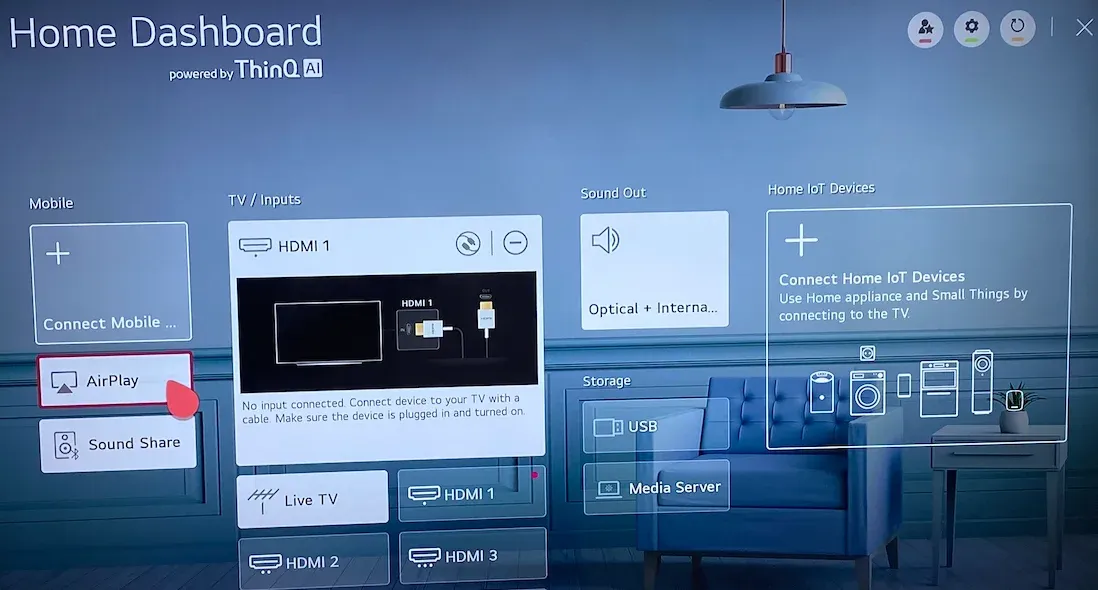
Step 1. Press the Home button on your LG TV remote.
Step 2. On your Home Dashboard, choose the AirPlay option.
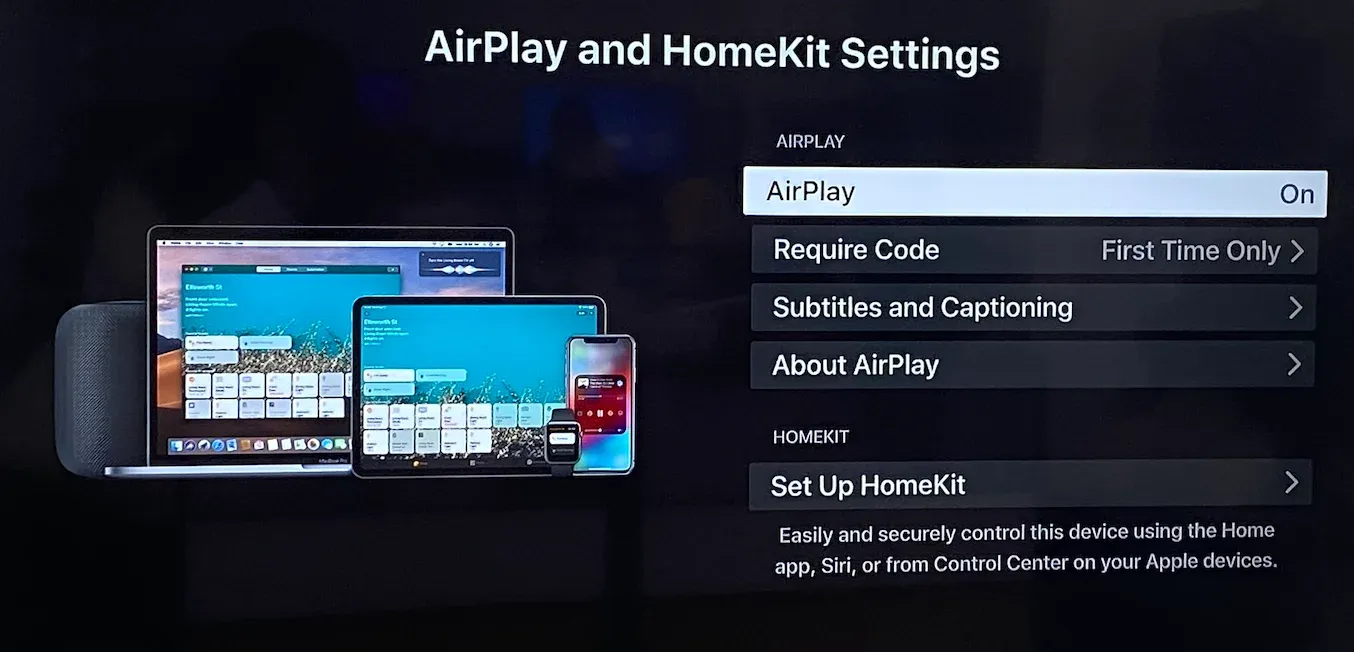
Step 3. Inside the AirPlay and HomeKit Settings, turn on AirPlay and confirm the Require Code setting.
Step 4. Once AirPlay is enabled on the TV, make sure your iPhone and LG TV are connected to the same Wi-Fi.
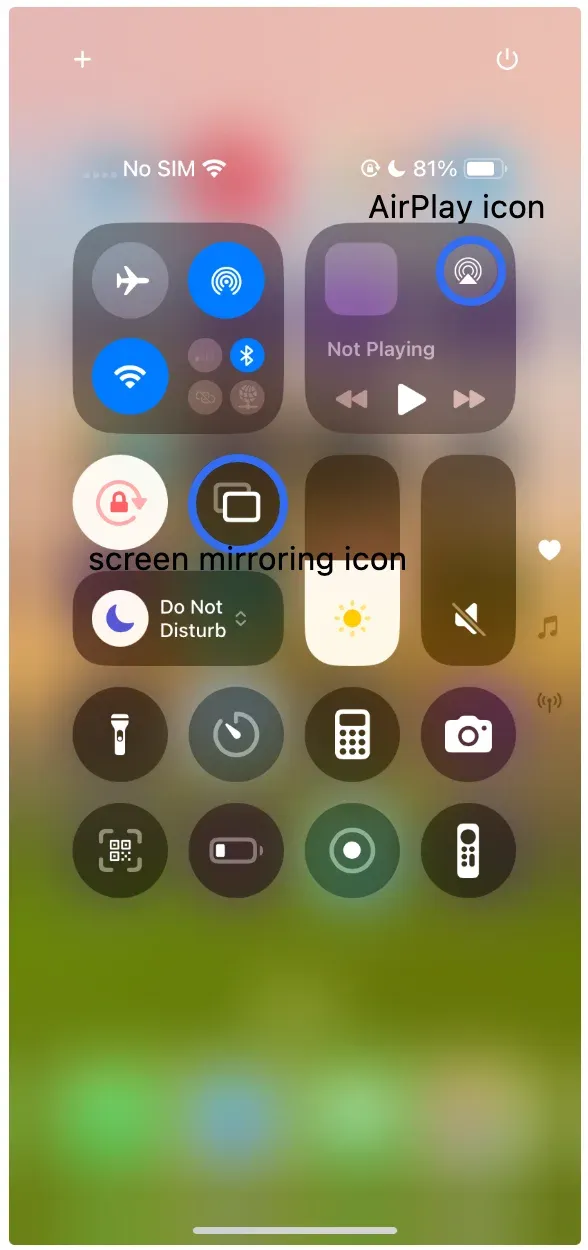
Step 5. Open Control Center on your iPhone and tap Screen Mirroring.
Step 6. Choose your LG TV from the list and enter the code shown on the TV if asked.
AirPlay is convenient when it works, but there are two limits to keep in mind. First, not every LG TV model supports it. Second, AirPlay only helps Apple users. If your home has both iPhone and Android devices, AirPlay solves only part of the problem.
If your iPhone cannot find the LG TV, check the Wi-Fi connection and restart the TV and iPhone. If your TV still does not show up, AirPlay may not be working, and you can try an AirPlay alternative method instead.
How to Connect an Android Phone to an LG TV Wirelessly
Android phones usually connect through Screen Share, Smart View, Cast, or a similar built-in option.
Android does not look the same on every phone. Samsung may call it Smart View, other brands may call it Cast or Screen Cast, and some phones are better at app casting than full-screen mirroring. So if one Android phone connects easily and another does not, that is not unusual.
Use Screen Share on LG TV
This is the best option when you want to screen mirror Android to LG TV.
Step 1. Press Home on the LG remote.
Step 2. Open Screen Share on the TV.
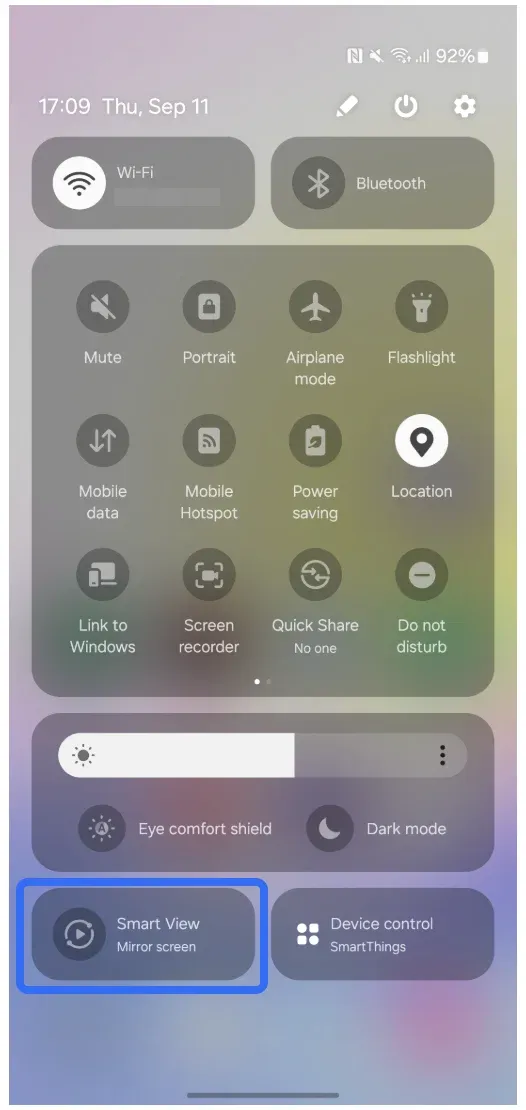
Step 3. On your Android phone, open Cast, Smart View, or Screen Cast from quick settings.
Step 4. Select your LG TV from the list.
This method is useful for showing photos, web pages, games, or anything else on your screen.
Use the Cast Button Inside an App
If you only want to watch a video, cast from your Android to LG TV:
Open a supported app like YouTube, tap the Cast button, and choose your LG TV.
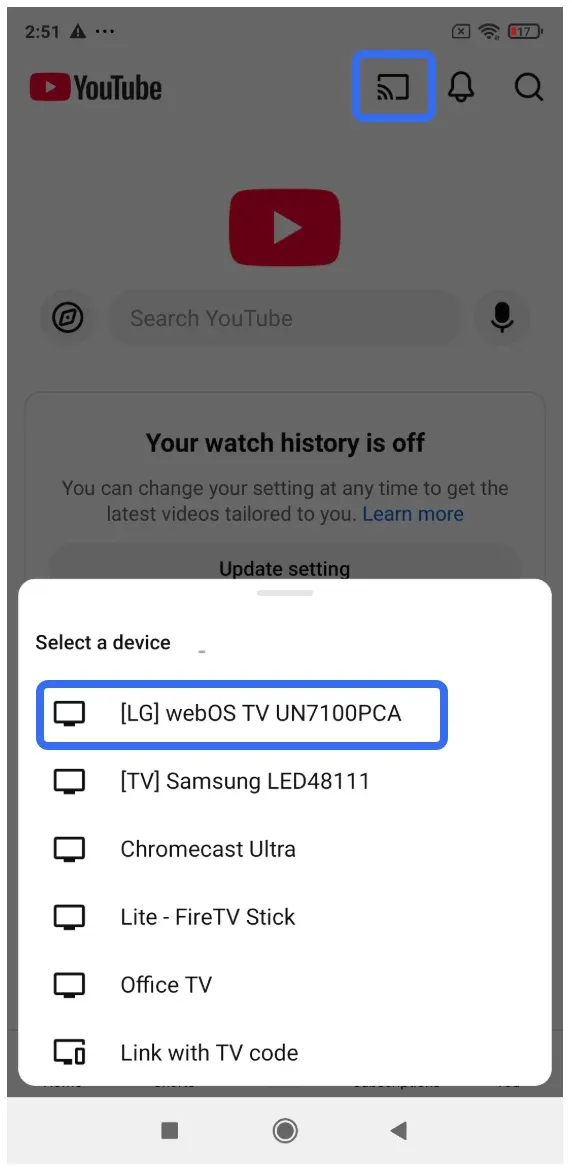
This is often smoother for video playback than mirroring the entire phone screen.
How to Connect iPhone or Android to LG TV Wirelessly
Using a screen mirroring app can be the simplest choice when you want to get any phone onto the LG TV without thinking too much about whether it is AirPlay, Smart View, Cast, or Screen Share.
PigeonCast is a screen mirroring app for iPhone, Android, and LG TV users. It lets you connect your Android or iPhone to LG TV direcyly without extra hardware. Also, you don't need to learn different connection menus for different phones.
How to connect your phone to LG TV wirelessly with PigeonCast:
Step 1. Install PigeonCast on your phone and LG TV.


Overall Rating:



Step 2. Make sure the phone and TV are on the same Wi-Fi.
Step 3. Open the app on your LG TV, which turns your TV into a universal receiver.
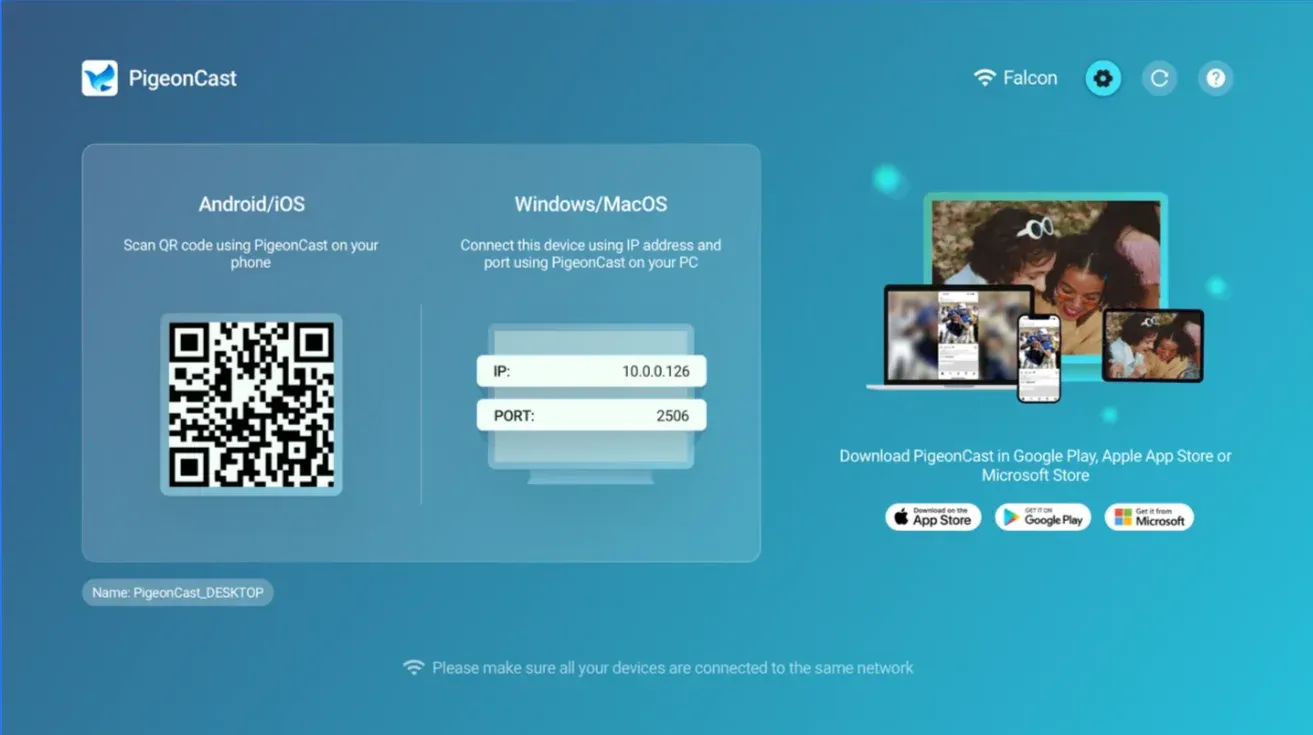
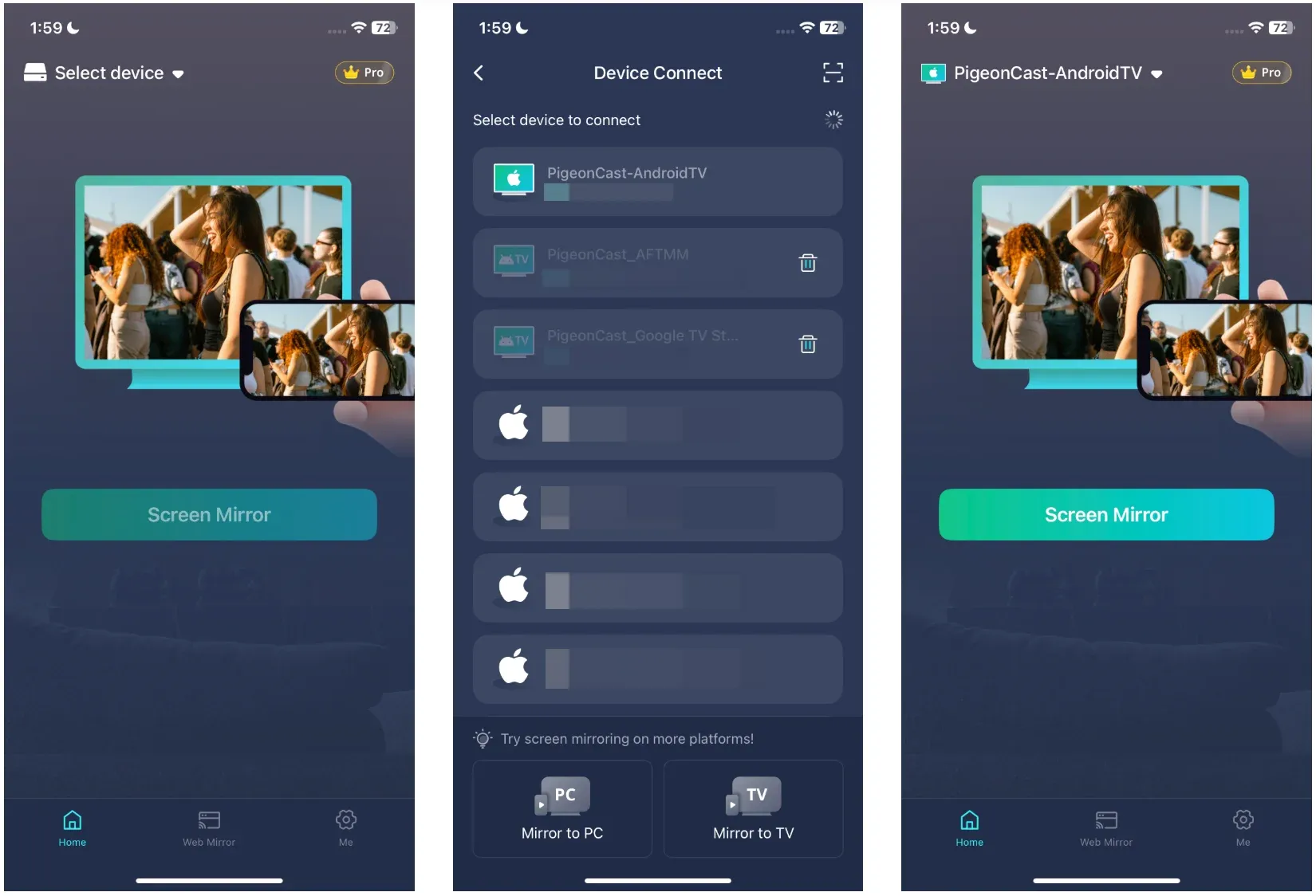
Step 4. Open the app on your phone, choose your LG TV from the list or scan the QR code display on the TV, and start screen mirroring.
Fix LG TV Wireless Connection Problems
Most LG TV connection problems fall into one of a few patterns. The TV may not show up at all, it may appear but fail to connect, the picture may turn black in one app, or the connection may keep dropping. It is faster to match the fix to the symptom than to keep retrying the same steps.
LG TV Not Showing Up on Screen Mirroring
This usually means the phone and TV cannot see each other on the same local network, or the right receiving option is not open on the TV.
Start with these checks:
- Make sure the phone and LG TV are on the exact same Wi-Fi name.
- Avoid guest Wi-Fi, hotel Wi-Fi, school Wi-Fi, or any network with device isolation.
- For iPhone, make sure AirPlay is turned on.
- For Android, reopen Screen Share before trying again.
- Turn off VPN, Private Relay, and mobile hotspot while testing.
- Restart both the TV and the phone.
If the TV is still missing, turn off mobile data for a minute and test again on Wi-Fi only. Some phones switch between Wi-Fi and mobile data in the background and interrupt device discovery.
LG TV Showing Up but Not Connecting
If the TV appears in the list but the connection fails, the problem is usually no longer discovery. It is more often a settings issue, a temporary handshake problem, or weak network stability.
Try this:
- Select the TV again and wait for any code prompt to appear.
- If a code appears on the TV, enter it and retry once.
- Restart the TV and phone, then reconnect.
- Check for TV software updates if the feature used to work before.
- Move closer to the router if the signal is weak.
This is especially common on iPhone with AirPlay when the TV appears correctly but never finishes the connection.
AirPlay Not Working on LG TV
AirPlay problems usually come from compatibility, settings, or network visibility.
Check these points:
- the LG TV model actually supports AirPlay
- AirPlay is turned on in the TV settings
- the iPhone and TV are on the same Wi-Fi
- the iPhone is not using VPN or Private Relay
- the TV is awake and not buried in a different menu state
If AirPlay never appears, focus on support and discovery. If AirPlay appears but fails after you tap it, focus on settings, the code prompt, or the network.
Android Screen Mirroring Not Connecting
Android can be harder because the menu name is not always the same. One phone may call it Smart View, another may call it Cast or Screen Cast, and some phones are more reliable with app casting than full-screen mirroring.
Check these points:
- Screen Share is open on the LG TV
- your phone supports wireless screen sharing
- your phone is not relying on mobile data during setup
- the TV appears in the cast list before you tap it
If YouTube can cast but full-screen mirroring still fails, the TV may support app casting more smoothly than full-screen screen sharing on that phone.
The Picture Connects but Video Is Black
If the connection starts but the video turns black, the issue is often the app rather than the TV.
Many streaming apps limit full-screen mirroring for protected video. In that case:
- try the app's own Cast button instead of full-screen mirroring
- test the phone home screen, Photos, browser pages, or a local video
- use the TV version of the streaming app if available
If Photos and browser pages work but one streaming app stays black, that usually confirms the TV is not the main problem.
The Connection Keeps Dropping
If mirroring starts and then drops after a few seconds or minutes, the issue is usually connection quality.
Try these fixes:
- move the phone closer to the router or TV
- restart the router
- pause heavy downloads or other high-traffic devices
- reconnect both the TV and phone to Wi-Fi
If the connection is worse at night or when many devices are online, home Wi-Fi congestion may be part of the problem.
Final Thoughts
Once the wireless phone-to-LG TV connection is working, the difference between methods usually shows up in small everyday details. Some options feel quick the first time but become annoying when different people use different phones. Others take a minute to set up, then feel much easier to repeat.
That is why the best experience is usually the one that feels predictable. You open the same menu, the TV appears quickly, and the connection starts without guessing which button or feature name to use this time.
How to Connect Phone to LG TV Wirelessly FAQs
Why is my LG TV not connecting to my mobile?
Usually because the phone and TV are not on the same Wi-Fi, the TV is not in the right receiving mode, or AirPlay or Screen Share is not turned on. Restarting both devices also helps in many cases.
Why is my phone not mirroring to my LG TV?
This often happens when the phone and TV support different wireless connection methods, or when the TV can handle app casting better than full-screen mirroring. It can also happen if one streaming app blocks screen mirroring.
Why is my phone suddenly not connecting to my TV?
If it worked before and stopped suddenly, check Wi-Fi first. A router restart, TV software update, network change, or weak signal can interrupt a connection that used to work normally.
What is the easiest way to connect both iPhone and Android to the same LG TV?
If you want one simple method for both, a screen mirroring app is usually easier than teaching each person a different built-in method.
Why does screen mirroring work for photos but fail in some video apps?
Some streaming apps limit full-screen mirroring for protected video. If photos, browser pages, or local videos work but one streaming app does not, the app itself is often the reason.
Can I connect my phone to an LG TV wirelessly without Wi-Fi?
You can mirror your phone to LG TV without Wi-Fi, but this does not always work wirelessly. Some phones can connect in a more direct way, but most people will get better results when both devices are on the same home Wi-Fi.
Mia Clarke is a technology editor specializing in screen mirroring and casting solutions across multiple platforms. Mia provides clear, practical guides and in-depth insights to help users seamlessly connect their devices. Passionate about enhancing digital experiences, Mia is dedicated to keeping readers updated on the latest trends and tools in cross-platform screen sharing. Whether you’re looking to mirror your smartphone, laptop, or smart TV, Mia’s content delivers reliable, user-friendly advice to simplify your tech setup.