

If you want the best screen mirroring app for LG TV, the first thing to understand is that LG TVs do not all behave the same way with iPhone, Android, Windows, and Mac devices.
One LG TV may work nicely with AirPlay from an iPhone. Another may handle app-based casting well but feel less reliable for full-screen mirroring. That difference is why this topic gets confusing fast. The right choice depends less on flashy promises and more on what you actually need: iPhone support, Android support, audio, low-friction setup, or a fully free option.
This comparison focuses on the factors people usually care about most on an LG TV: whether an app is free to try, whether it supports both iPhone and Android, whether audio is part of the mirroring experience, and how practical it feels for everyday home use. It does not claim lab-tested latency numbers, because those figures are rarely published in a comparable way and real delay depends heavily on your TV, router, and sender device.
Disclosure: This article is published by the team behind PigeonCast. Alternative apps are included so readers can compare different types of LG TV mirroring options, not just one in-house product.
Quick Answer
- If you only use Apple devices and your LG TV already supports AirPlay, you may not need an app at all.
- If you want one screen mirroring app that works across iPhone and Android, PigeonCast is the most complete fit in this comparison.
- If you want a free app to test basic mirroring first, LetsView is the easiest starting point.
- If you want more controls and also mirror to a PC, ApowerMirror is worth a look.
- If your home is Apple-only and you prefer a TV-specific app, AirBeamTV is the narrower but more targeted choice.
Can You Mirror to LG TV Without an App?
Yes, sometimes. Before installing anything, it is worth checking whether your LG TV already does enough for your setup.
If you are specifically searching for how to screen mirror to LG TV, this is the first decision to make. Built-in methods can be perfectly fine for simple use, but they are usually more limited than a dedicated app once multiple device types enter the picture.
AirPlay
If your LG TV supports AirPlay and you only mirror to LG TV from an iPhone, iPad, or Mac, built-in Apple mirroring may already cover what you need.
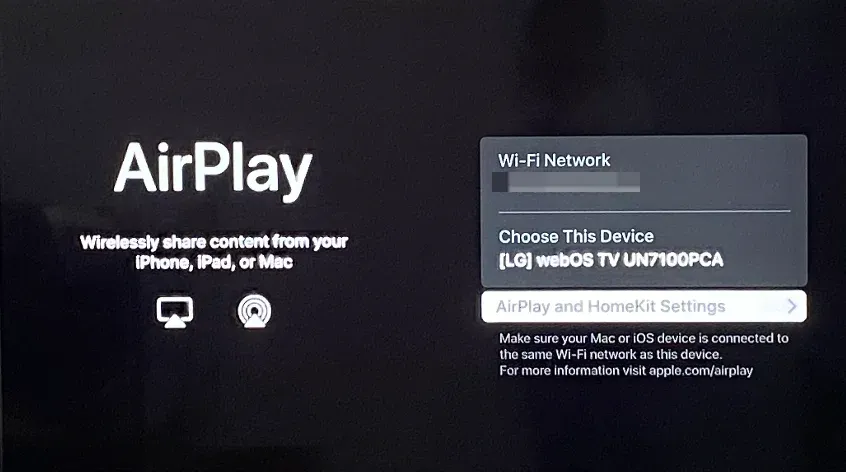
This is the cleanest no-download option for Apple users. You open Screen Mirroring on the iPhone or use AirPlay on the Mac, select the TV, and start sharing the screen.
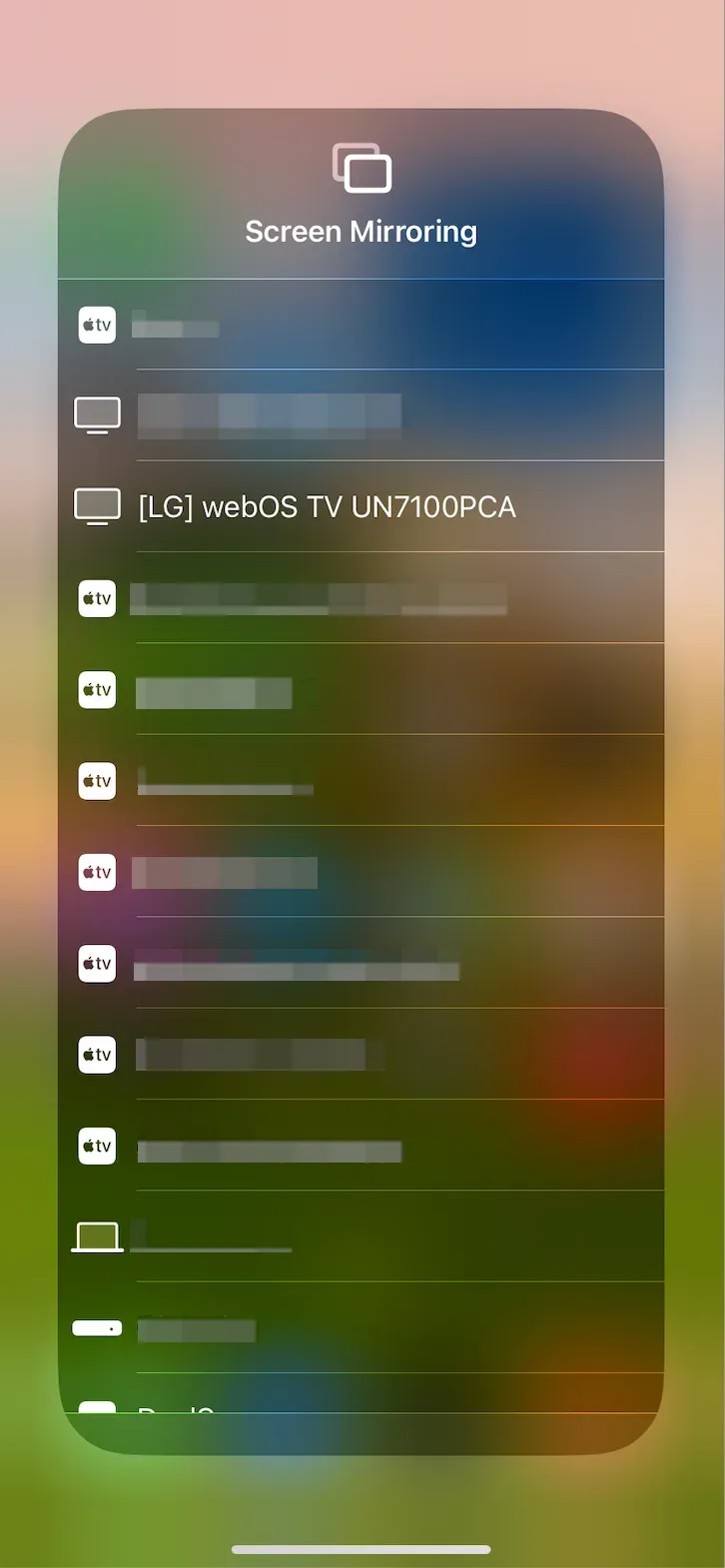
The downside is just as clear: AirPlay does not help Android users, and it does not solve the broader problem of one household needing one shared mirroring answer.
Chromecast
Some LG TVs and apps handle casting better than full-screen mirroring. If your goal is only to play supported video from a major streaming app, the built-in cast button or in-app TV handoff may work better than mirroring the entire phone screen.
That approach is often lighter on the network and can feel cleaner for movies or TV episodes. It is less useful when you need to show a game, a photo gallery, a browser page, a video call, or anything else that lives outside one streaming app.
When LG TV Built-In Options Does Not Work
Built-in methods are usually not enough when:
- the house uses both iPhone and Android
- one device connects easily but another does not
- you need full-screen sharing rather than app-to-TV playback
- you want a repeatable everyday setup instead of one-off trial and error
That is where a dedicated screen mirroring app for LG TV becomes more useful than built-in features alone. If you frequently run into connection issues, device discovery problems, or inconsistent mirroring performance, our guide on LG TV screen mirroring not working covers the most common troubleshooting steps.
Best Screen Mirroring Apps for LG TV
This is the part where app choice matters. The four options below do not all solve the same job, so the best one depends on whether you value free access, broader compatibility, extra controls, or Apple-only simplicity.
Which Is the Best LG TV Screen Mirroring App: Comparison Table
Because these apps do not publish directly comparable lab numbers for every platform, the latency column below reflects expected day-to-day use rather than measured milliseconds.
| App | Free Trial | Audio Support | Latency* | iPhone | Android | Windows/Mac | Best For |
|---|---|---|---|---|---|---|---|
| PigeonCast | Yes | Yes | Low–Medium | ✅ | ✅ | ✅ | People who want one app for iPhone and Android |
| LetsView | Yes | Partial | Medium | ✅ | ✅ | ✅ | Free testing |
| ApowerMirror | Trial | Yes | Medium | ✅ | ✅ | ✅ | Advanced controls |
| AirBeamTV | Trial | Usually Yes | Medium | ✅ | ❌ | Mac only | Apple-only homes |
*Latency depends on Wi-Fi quality, TV processing, and device performance. The ratings above reflect typical home-use experience rather than lab measurements.
PigeonCast
PigeonCast makes the most sense for LG TV users who want one app that covers the most common device mix around the TV.
It is the strongest fit in this list when iPhone and Android both matter, or when the TV is shared by different people who do not all use the same device ecosystem.
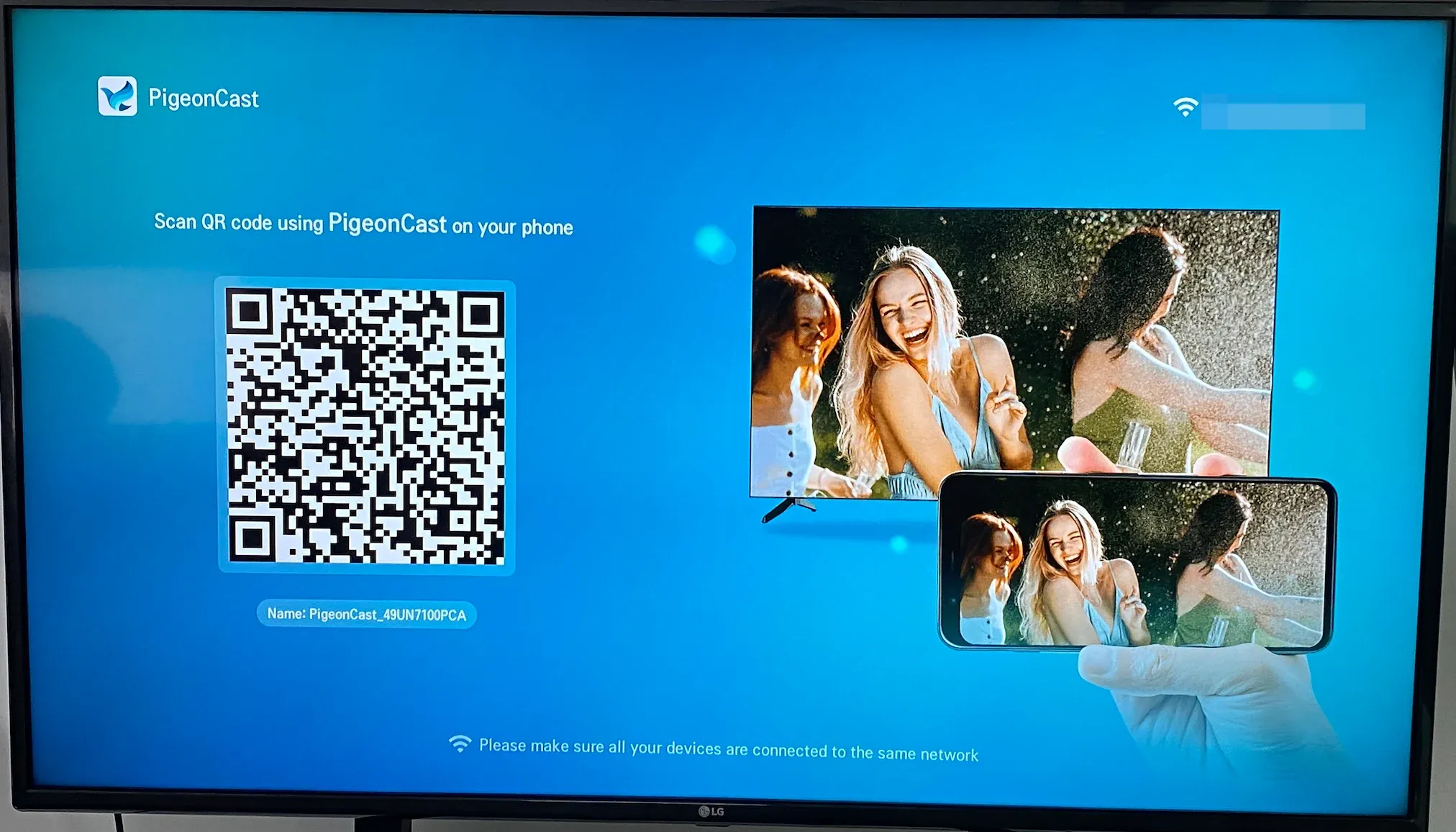
What stands out here is not that it is magical. It is that it aims at the real mixed-device problem instead of treating LG TV mirroring as an Apple-only job. That makes it more practical than narrower options if your household uses different phones and laptops.
It is a practical fit for:
- iPhone and Android users sharing one TV
- households that want one app instead of several methods
- full-screen mirroring rather than app-only playback
- casual video, photo, browsing, and everyday screen sharing
It may not be the best fit if:
- you only use Apple devices and AirPlay already works perfectly
- you want a completely free option and do not mind tradeoffs
- you only mirror once or twice a year and do not care about keeping one consistent setup
Basic Setup on LG TV


Overall Rating:



- Download and install PigeonCast on your iPhone or Android and LG TV.
- Connect your phone and LG TV to the same Wi-Fi network.
- Open PigeonCast on both sides, and on your phone, choose your LG TV.
- Start screen mirroring.
LetsView
LetsView is the easiest recommendation for people who mostly care about one thing: trying a free app before thinking harder about quality or long-term reliability.
That makes it useful as a first test on an LG TV. If you only mirror occasionally, or you mainly want to see whether your network is stable enough for wireless mirroring, it is a reasonable place to start.
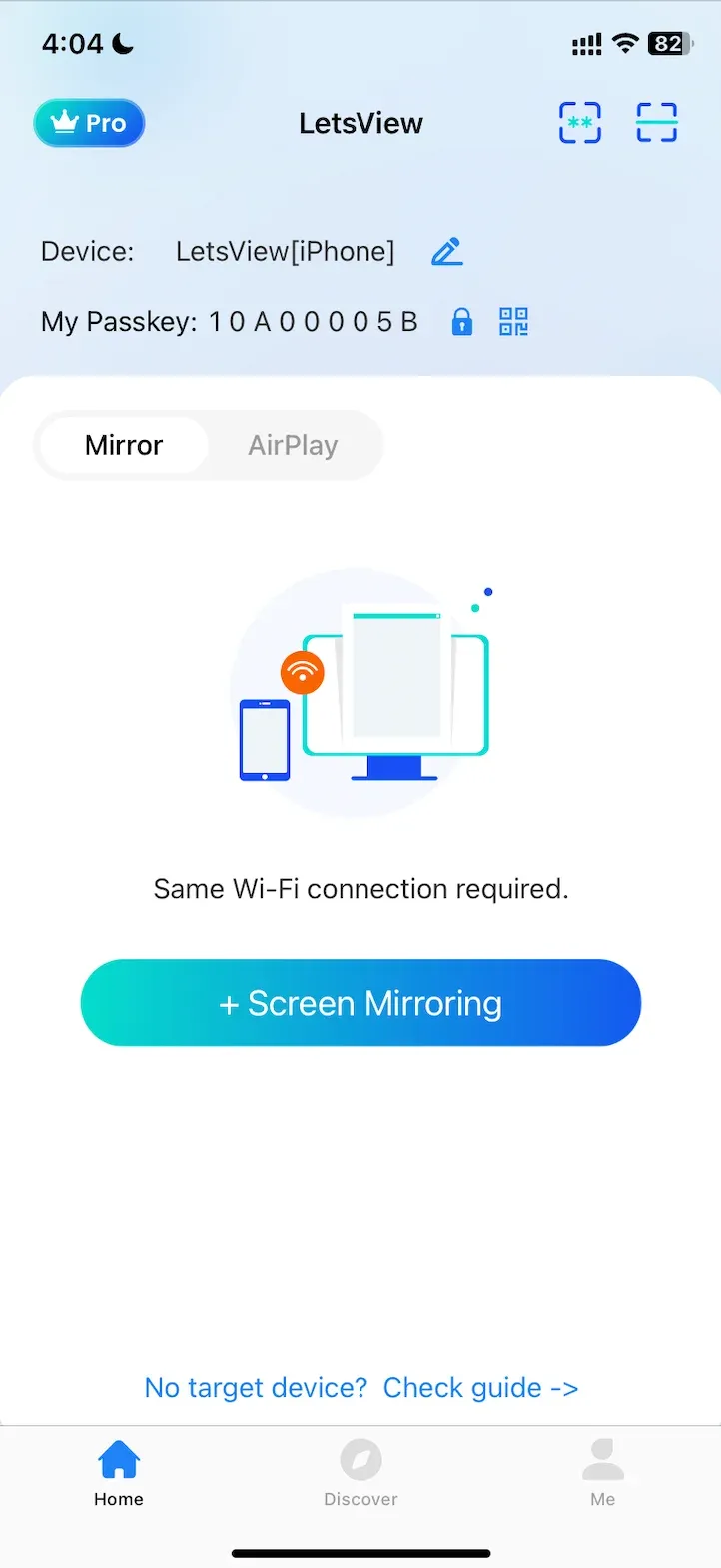
The tradeoff is that free-first mirroring tools are not always the best long-term answer. They can be fine for casual sharing, but they are usually less convincing when people expect smoother motion, more stable reconnection, or a setup they can keep using without second-guessing it.
LetsView makes the most sense if:
- you want a free starting point
- you mirror occasionally rather than every day
- you mainly share photos, slides, browser pages, or light video
ApowerMirror
ApowerMirror is a better fit for users who want more controls inside the app and are comfortable with a heavier interface.
This is the option in the list that feels the most like desktop software rather than a simple "mirror and go" tool. That can be a plus if you also mirror to a PC, want extra settings, or care about more control over the session itself.
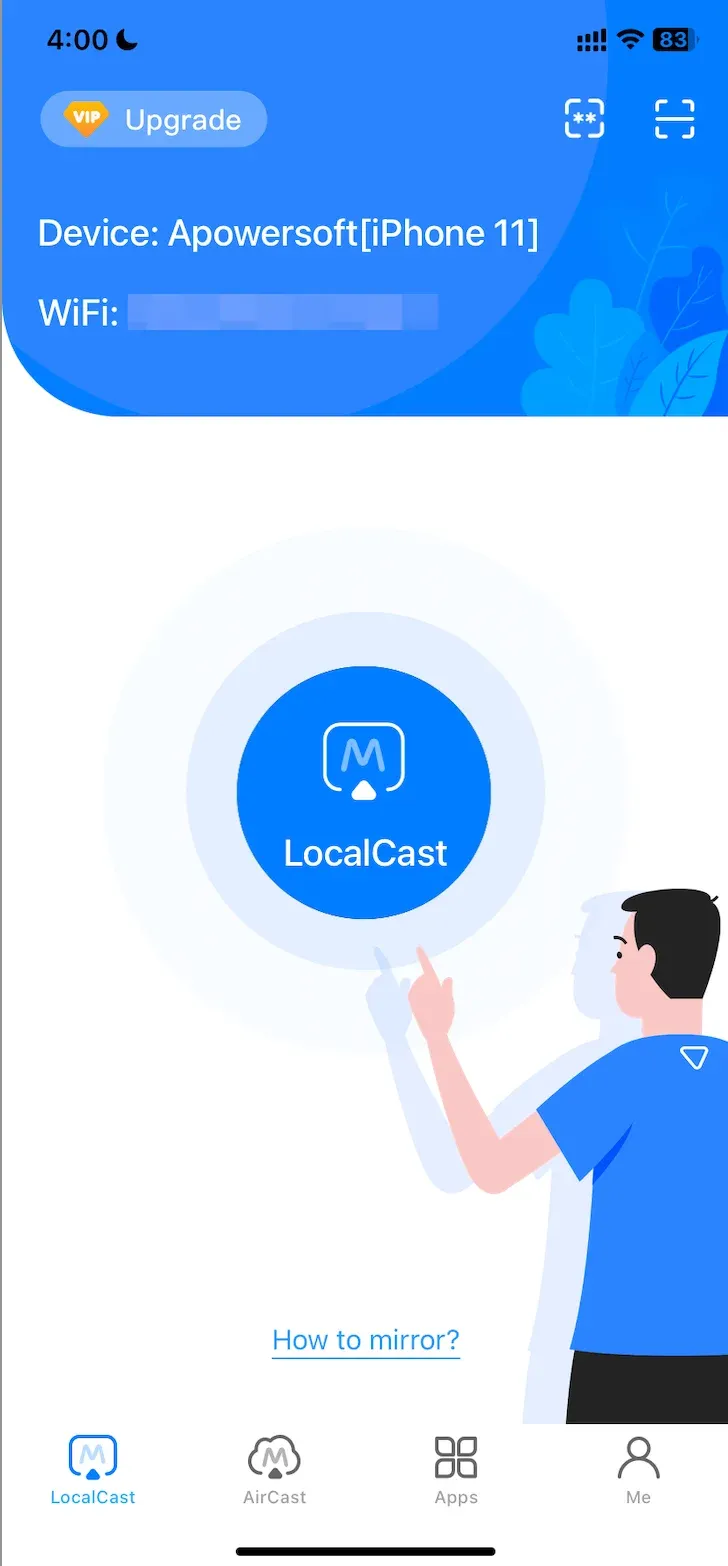
It is less attractive if your only goal is simple LG TV mirroring. In that situation, the extra controls can feel like overhead rather than value.
ApowerMirror makes the most sense if:
- you also mirror to a computer
- you want more settings than a basic mirroring app offers
- you do not mind a busier interface
AirBeamTV
AirBeamTV is the narrowest recommendation here, but that does not make it a bad one. It simply serves a smaller audience.
It is easiest to justify when your home is already Apple-heavy and you specifically want an LG TV-oriented app instead of a broader cross-platform tool.
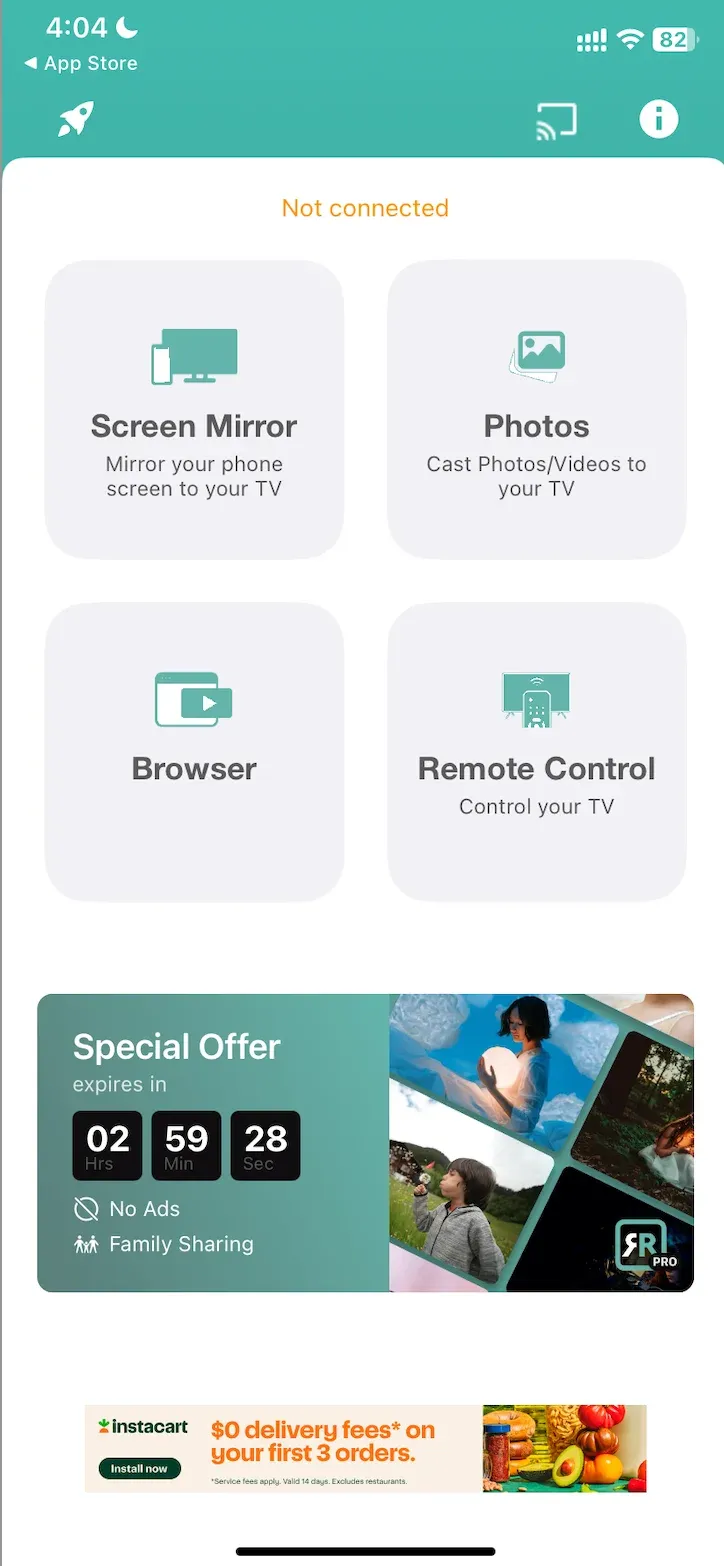
That focus also explains its limit. It is much less compelling once Android support matters or once the TV is shared across different device types.
AirBeamTV makes the most sense if:
- you only use iPhone, iPad, or Mac
- you want an app aimed directly at LG TV use
- you do not need one app that works across the whole household
Which App Is Best for iPhone and Android Users?
If your main concern is mirror iPhone to LG TV, the decision is fairly simple:
- If AirPlay already works on your TV and you only use Apple devices, you may not need an app at all.
- If you still want an app, AirBeamTV is the more Apple-specific option.
- If you want something that still makes sense when Android devices enter the picture, PigeonCast is the more flexible choice.
If your main concern is mirror Android to LG TV, the answer changes:
- AirPlay drops out immediately because it does not solve the Android side.
- AirBeamTV also becomes much less relevant.
- LetsView and ApowerMirror remain workable, but PigeonCast is the more complete fit if you want one app for both Android and iPhone households.
That is the real dividing line in this category. The more your LG TV is shared across different device types, the more cross-platform support matters.
Final Verdict
The best screen mirroring app for LG TV depends on what "best" means in your home.
If you only use Apple devices and AirPlay already works, you may not need an app. If you want a free test app, LetsView is the easiest place to begin. If you want more controls and also mirror to a computer, ApowerMirror has a clearer case.
For LG TV users who want one app that works across iPhone and Android on an LG TV, PigeonCast is the strongest overall fit in this comparison. That recommendation is not based on a claim of universal superiority. It is based on the narrower but more useful question most readers actually have: which option makes the most sense once the TV has to work with more than one kind of device.
In practice, the biggest challenge with LG TV screen mirroring is usually not the app itself. Most connection problems come from network conditions, device compatibility, or differences between TV models. For households that regularly switch between iPhone and Android devices, having one consistent mirroring solution tends to matter more than having the longest feature list.
Best Screen Mirroring App for LG TV FAQ
What is the best screen mirroring app for LG TV overall?
For mixed-device homes, PigeonCast is the strongest overall fit because it covers both iPhone and Android more naturally than the narrower options in this comparison.
Can I mirror to LG TV without downloading an app?
Yes, sometimes. If your LG TV supports AirPlay and your device is inside the Apple ecosystem, built-in mirroring may already be enough. Some streaming apps also work well through native cast buttons.
Is AirPlay enough for LG TV screen mirroring?
It can be enough for Apple-only homes. It stops being enough once Android devices, mixed households, or broader full-screen sharing needs enter the picture.
Why do some mirroring apps feel laggy on an LG TV?
The delay often depends on more than the app itself. Router quality, TV processing, network traffic, and the sender device can all affect how responsive mirroring feels.
Which app should I choose if different people use the same LG TV?
If different people in the house use different phones and laptops, cross-platform support matters more than brand-specific convenience. That is the main reason PigeonCast comes out ahead for shared LG TV use.
Why won't my phone connect to my LG TV?
The most common causes are that the devices are connected to different Wi-Fi networks, the TV does not support the required casting protocol, or network settings are blocking discovery between devices.
Does screen mirroring work on all LG TVs?
Not necessarily. Support depends on the TV model, webOS version, and the device you are mirroring from. Older LG TVs may have fewer built-in mirroring options than newer models.
Can I screen mirror to an LG TV without Wi-Fi?
Yes. It is possible to mirror your phone to an LG TV without Wi-Fi using certain direct wireless methods or wired adapters. However, most screen mirroring apps and built-in LG TV mirroring features work best when both devices are connected to the same Wi-Fi network.
Mia Clarke is a technology editor specializing in screen mirroring and casting solutions across multiple platforms. Mia provides clear, practical guides and in-depth insights to help users seamlessly connect their devices. Passionate about enhancing digital experiences, Mia is dedicated to keeping readers updated on the latest trends and tools in cross-platform screen sharing. Whether you’re looking to mirror your smartphone, laptop, or smart TV, Mia’s content delivers reliable, user-friendly advice to simplify your tech setup.