
If your LG TV screen mirroring not working issue keeps coming back, start with network alignment and a clean reconnect cycle before trying advanced settings. Most failures happen because discovery is blocked, pairing is stale, or protocol settings on the TV are off by one toggle. Follow the fix order below to avoid repeating the same failed attempt.
Quick Answer: How to Fix LG TV Screen Mirroring Not Working
When people ask why screen mirroring is not working in LG TV, the fastest wins are usually basic network and service resets, not deep factory changes. If your TV does not appear or fails to connect, the most likely cause is that local discovery traffic is blocked or the previous session is stuck.
Start with the four actions below, then move to targeted fixes by symptom.
-
Connect both devices to the same Wi-Fi network.
-
Restart the LG TV and the phone.
-
Toggle Screen Share / AirPlay off and on.
-
Disable VPN or guest network isolation.
Identify Your Mirroring Problem First
Before changing five settings at once, map your symptom to one failure layer so each next action has a clear reason. If LG TV not showing up on screen mirroring is your main issue, focus on discovery checks first; if the TV appears but fails, jump to connection repair. This split reduces unnecessary resets and shortens time to a stable mirror session.
| Problem | Likely Cause | Go To Section |
|---|---|---|
| LG TV not showing up | Network discovery blocked | Device discovery fixes |
| TV appears but won't connect | Pairing/session conflict | Connection fixes |
| Mirroring freezes or drops | Network congestion | Stability fixes |
| AirPlay not working | AirPlay configuration | AirPlay fixes |
Check LG TV Compatibility Before Fixing
Compatibility checks prevent false troubleshooting where both devices are working but the protocol path is unsupported on one side.
If you keep asking why is my LG TV not screen mirroring, confirm model support and settings state before changing router options. Once compatibility is verified, the remaining work becomes focused troubleshooting rather than guesswork.
Step 1. Confirm your LG webOS model supports Screen Share (Miracast).
Step 2. Confirm your specific LG model supports AirPlay if you use iPhone.
Step 3. Open LG settings and verify Screen Share or AirPlay is enabled.
Step 4. Update LG TV firmware to the latest available version.
Step 5. Confirm your phone supports the protocol you plan to use.
Fix LG TV Not Showing Up on Screen Mirroring
If LG TV not showing up on screen mirroring continues after quick fixes, discovery traffic between devices is usually being filtered or sent across separate network paths. The impact is simple: your phone never sees the TV as a target even though both are online.
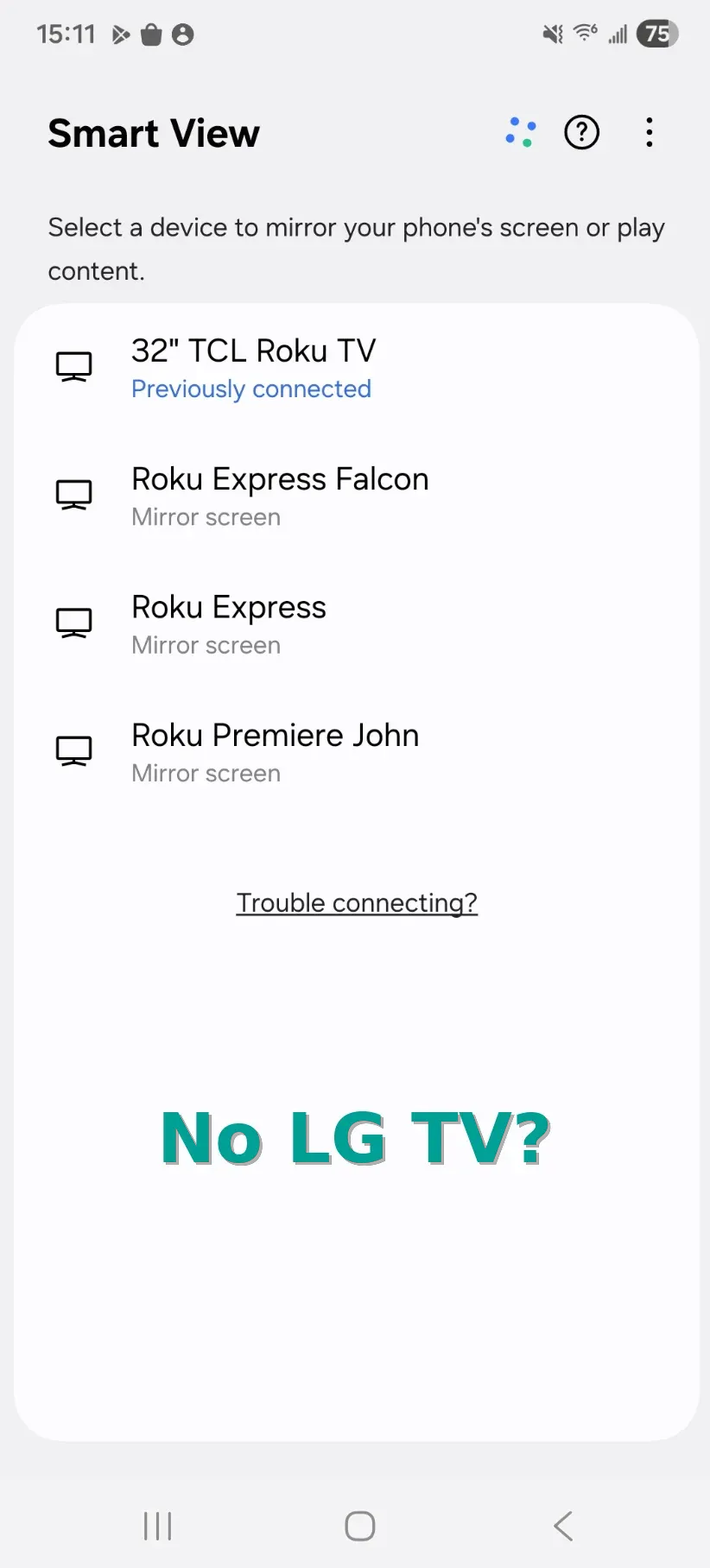
Repair the network baseline first, then refresh the cast list once conditions are aligned. Here is how to fix LG TV not showing up:
Step 1. Connect both devices to the same Wi-Fi network and same SSID.
Step 2. Disable router guest network isolation or AP isolation.
Step 3. Turn off VPN or private DNS on the phone.
Step 4. Restart Wi-Fi on the TV, then reconnect.
Step 5. Refresh the screen mirroring device list and rescan.
Discovery failures happen when multicast or local broadcast traffic is blocked, so matching SSID alone is not always enough if isolation rules stay enabled.
Fix LG TV Screen Mirroring Not Connecting
When the TV appears but pairing fails, you are dealing with a session layer problem, not pure discovery. This often happens after repeated attempts, where old trust records conflict with new requests and trigger LG TV mirroring not connecting errors.
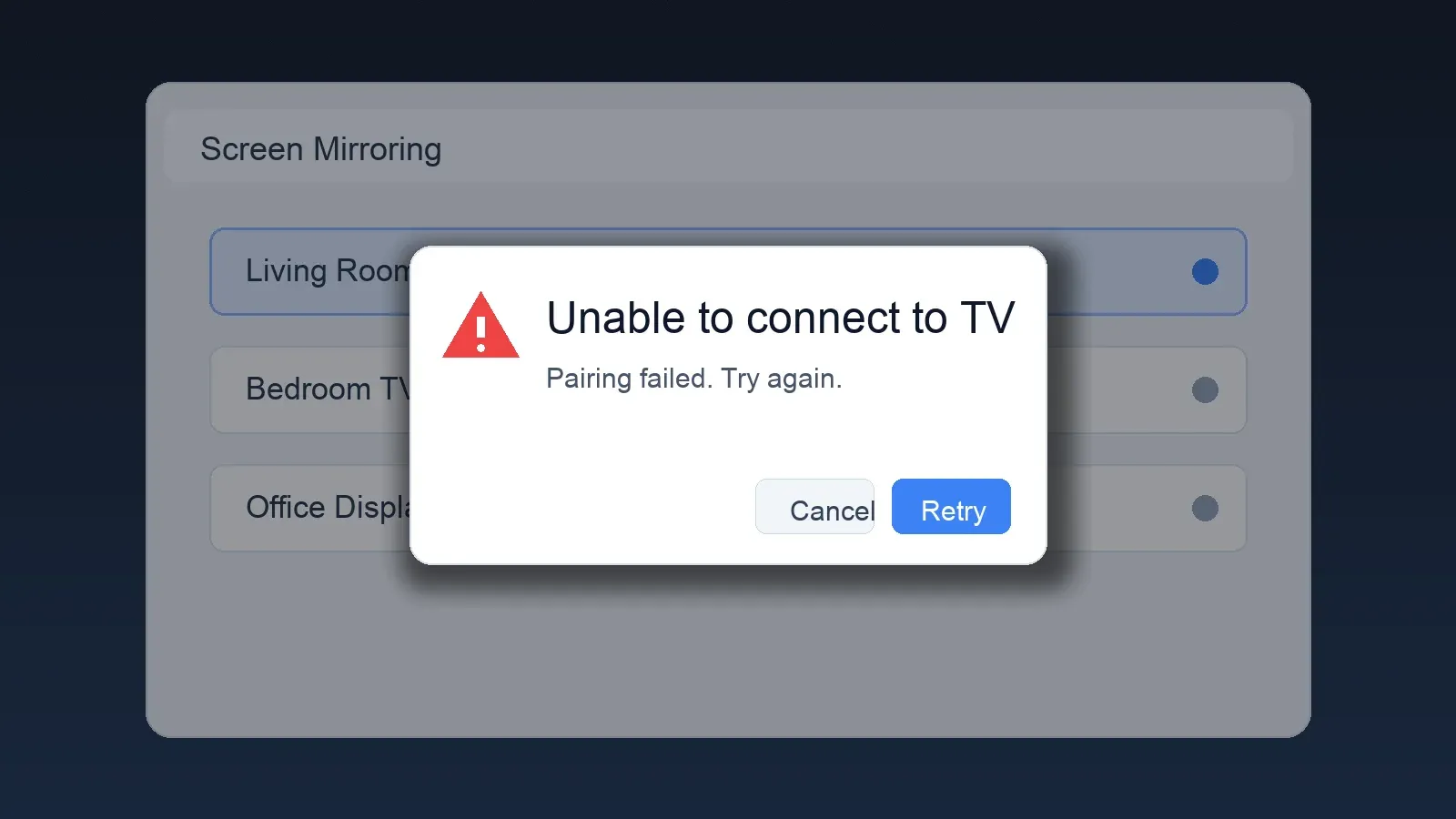
Clear stale pairings and rebuild one clean session:
Step 1. Start mirroring and accept the request prompt on the LG TV.
Step 2. Toggle Screen Share or AirPlay off, then on again.
Step 3. Remove previous paired devices on both TV and phone.
Step 4. Restart both the TV and phone, then retry once.
Session conflicts are common after firmware updates, so one clean re-pair is usually more effective than rapid retries.
Fix AirPlay Not Working on LG TV (iPhone)
If screen mirroring iPhone to LG TV not working is your specific scenario, focus on AirPlay settings and firmware parity first.
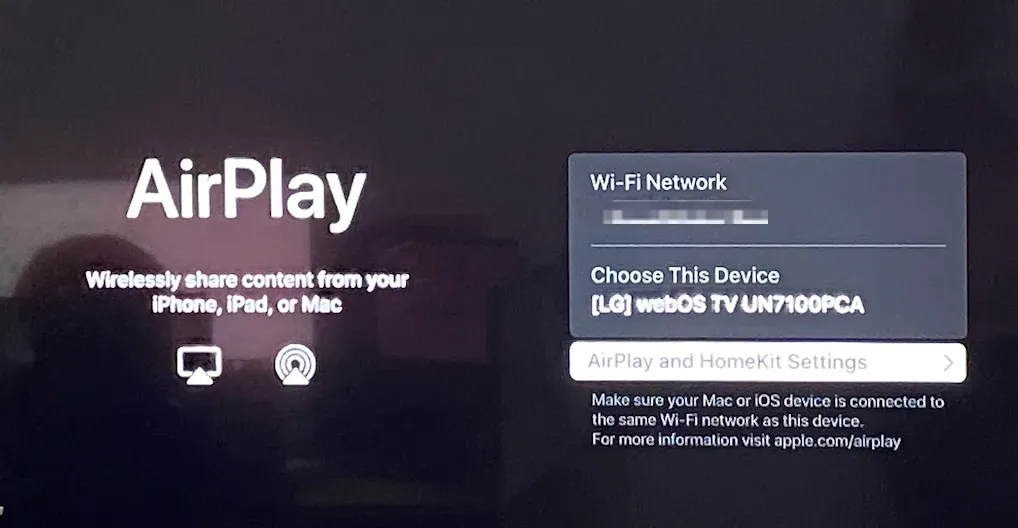
AirPlay relies on stricter pairing and permission behavior than generic cast flows, so mismatched code requirements or older firmware versions can block otherwise healthy connections. Validate the iPhone path with the steps below before changing router hardware.
How to fix LG TV AirPlay not working:
Step 1. Enable AirPlay in LG TV settings.
Step 2. Set Require Code to force a clean pairing handshake.
Step 3. Update both iOS and LG TV firmware.
Step 4. Confirm both devices are on the same Wi-Fi network.
AirPlay issues usually resolve after code-based re-pairing plus updates, especially when the TV is discoverable but connection never completes.
Fix LG TV Mirroring Lag, Freezing, or Dropping
If a session connects but stutters, the issue is usually throughput or interference, not pairing permissions. In this state, LG TV cast not working may look random because the link starts correctly then collapses under traffic spikes.
Reduce network contention first, then retest with short clips before full-screen playback:
-
Switch both devices to 5 GHz Wi-Fi.
-
Move closer to the router.
-
Close background apps.
-
Reduce network traffic.
Congested 2.4 GHz channels and heavy household uploads are common triggers for lag and random disconnects.
Reset LG TV Network Settings
Use a network reset when you have completed discovery, connection, and AirPlay checks once and still cannot keep a stable session.
This step clears corrupted network profiles and forces a fresh routing path, which often helps in persistent LG TV troubleshooting cases. Do not start here first, because it adds setup time and rarely beats quick fixes.
How to reset LG TV network settings:
Step 1. Open Settings.
Step 2. Go to Network.
Step 3. Forget the current Wi-Fi network.
Step 4. Restart the TV.
Step 5. Reconnect to Wi-Fi.
After reset, run one clean mirroring attempt before modifying extra router options.
When to Switch Screen Mirroring Methods
Switch methods after one full troubleshooting cycle if your result does not improve, because repeating the same protocol path usually wastes time. If you need reliability for meetings or classes, fallback options can deliver faster stability than extended native debugging.
Use the alternatives below based on your environment and setup constraints:
-
Chromecast
-
HDMI cable
-
Screen mirroring apps (for example, PigeonCast)
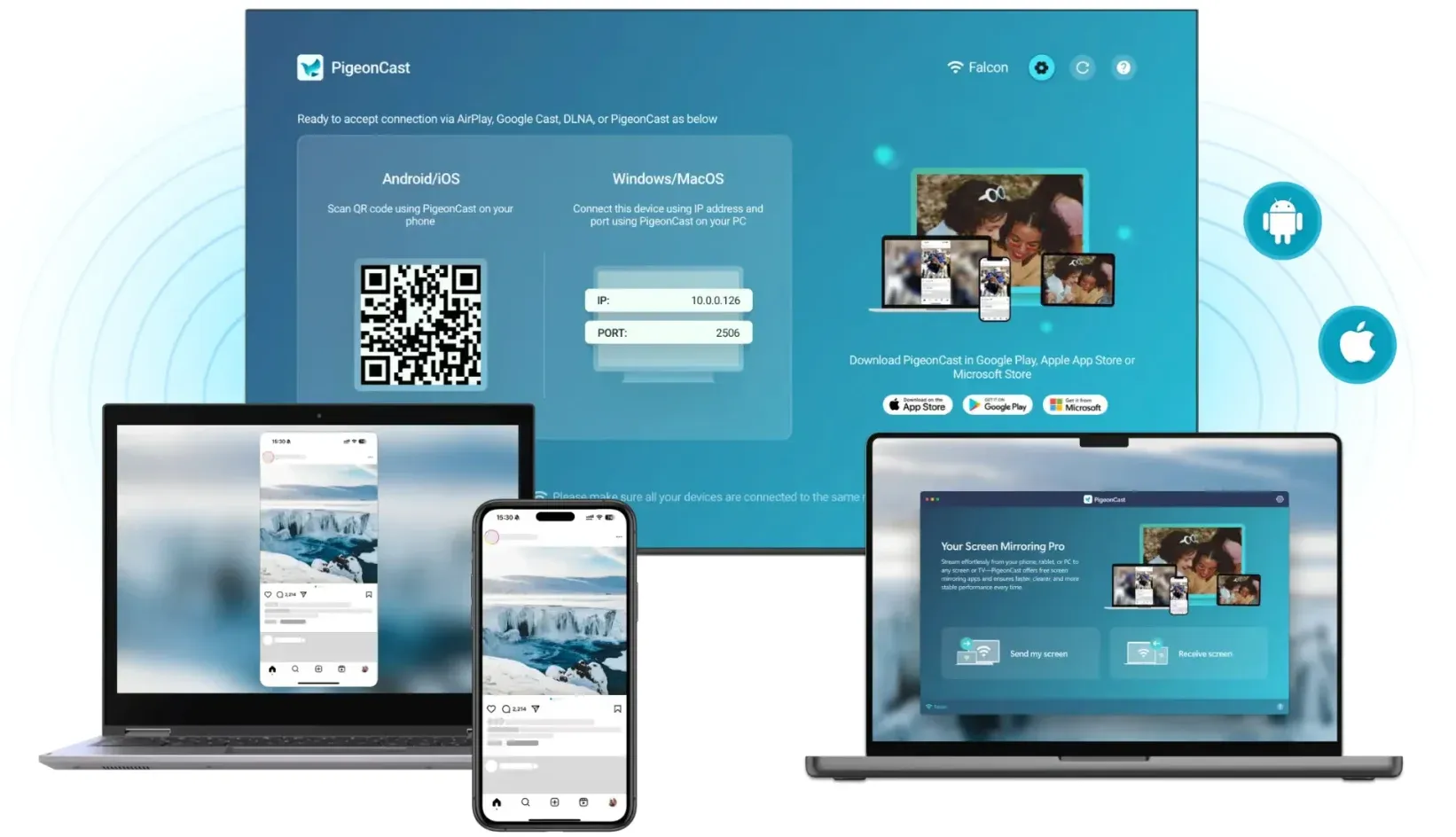


Overall Rating:



Choose HDMI for maximum stability, Chromecast for app-based casting convenience, and PigeonCast when you need a practical software fallback after repeated native failures.
Final Words
To fix LG TV screen share not working, use a fixed order to solve this quickly: quick fixes, discovery fixes, connection fixes, lag fixes, then network reset and method switch. For most users, same Wi-Fi plus restart resolves the issue fastest, while pairing cleanup fixes the next biggest group of failures. Follow the sequence once end-to-end, and only then move to fallback methods.
LG TV Screen Mirroring Not Working FAQ
Why does LG TV not appear on screen mirroring?
Check network discovery first by putting both devices on the same SSID and turning off guest isolation. If LG TV not showing up on screen mirroring continues, disable VPN or private DNS and refresh the cast list after restarting TV Wi-Fi.
Why does AirPlay not work on LG TV?
Enable AirPlay on the TV and force code pairing to rebuild trust cleanly. If screen mirroring iPhone to LG TV not working persists, update iOS and LG firmware together, then retry on the same Wi-Fi band.
Can LG TV screen mirror without Wi-Fi?
Use an HDMI connection when Wi-Fi is unavailable or unreliable. Wired output bypasses discovery and wireless congestion, so it is the most stable option for continuous playback or presentations.
Why is LG TV mirroring lagging?
Move both devices to 5 GHz Wi-Fi and reduce competing traffic first. Lag usually comes from congestion, weak signal, or heavy background uploads, not from pairing settings.
What is the fastest way to mirror to LG TV?
Start with Screen Share for compatible Android or Windows paths, and use AirPlay for iPhone once enabled on LG TV. If native pairing keeps failing after one full cycle, switch immediately to an alternative method to save time.
How do I enable AirPlay on LG TV?
-
Press the Home button on the LG remote.
-
Go to Home Dashboard.
-
Select AirPlay.
-
Turn AirPlay on.
-
Set Require Code if you want to control pairing security.
Mia Clarke is a technology editor specializing in screen mirroring and casting solutions across multiple platforms. Mia provides clear, practical guides and in-depth insights to help users seamlessly connect their devices. Passionate about enhancing digital experiences, Mia is dedicated to keeping readers updated on the latest trends and tools in cross-platform screen sharing. Whether you’re looking to mirror your smartphone, laptop, or smart TV, Mia’s content delivers reliable, user-friendly advice to simplify your tech setup.