
If you want screen mirroring Windows 10 to LG Smart TV, the fastest path is usually Miracast through the built-in Connect workflow. For most users, that should be your first choice because it uses native tools and takes only a few minutes.
This guide walks you through the exact setup steps, then gives you another method if Miracast is unstable on your hardware. You will also get a troubleshooting checklist for the most common connection failures.
Prerequisites and Compatibility
Before you start Windows 10 screen mirroring to LG TV, confirm these basics. Doing this upfront saves time and avoids failed connection attempts.
-
Your LG Smart TV and Windows 10 PC are on the same Wi-Fi network.
-
Your LG TV supports Screen Share or Miracast (most webOS models do).
-
Your PC has a wireless adapter that supports Miracast.
-
Your graphics and Wi-Fi drivers are reasonably up to date.
On Windows 10, you can quickly validate Miracast support:
-
Press Win + R, type dxdiag, and press Enter.
-
Click Save All Information.
-
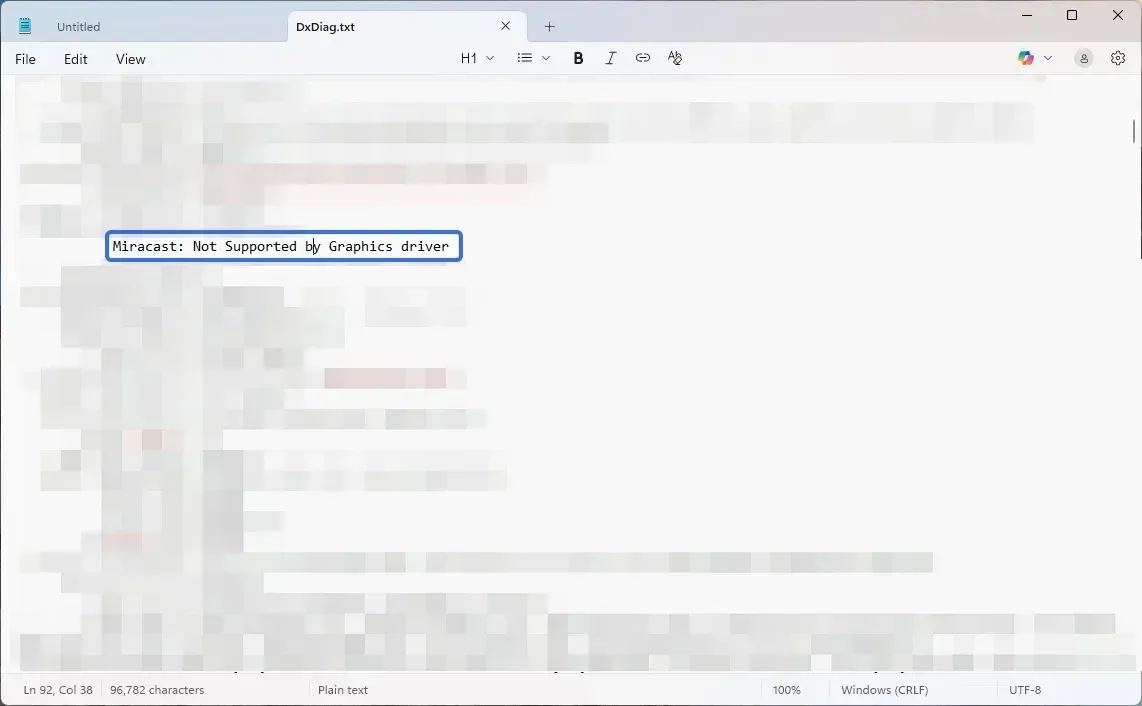
Open the saved text file and search for Miracast.
-
If it shows available or supported, Method 1 should work.
If Miracast is not supported, skip directly to Method 2 later in this guide.
How to Screen Mirror Windows 10 to LG Smart TV
You have two practical ways to connect PC to LG Smart TV wirelessly. The first uses Miracast, which is built directly into Windows 10 and LG webOS TVs. The second relies on a third-party casting solution if native wireless display pairing fails.
For most home users, starting with Miracast makes sense. It requires no cables, no extra hardware, and only a few clicks. If your setup meets compatibility requirements, the connection process is usually quick and stable enough for streaming, slides, and everyday screen sharing.
If Miracast does not appear, refuses to connect, or drops repeatedly, move to Method 2. That avoids repeated failed pairing attempts and saves time.
Method 1: Screen Mirror Windows 10 to LG TV with Miracast
Miracast is the default method for screen mirroring Windows 10 to LG Smart TV because both systems support it natively. LG labels the feature as Screen Share on most webOS models.
Before starting, open Screen Share on your LG TV. Keep it on that screen so the TV is discoverable.
Then follow these steps on your Windows 10 PC:
-
Press Win + K to open the wireless display panel.
-
Wait for your LG TV to appear in the device list.
-
Click your TV name to initiate pairing.
-
Approve the connection request on the TV if prompted.
-
Press Win + P and choose Duplicate to mirror your screen.
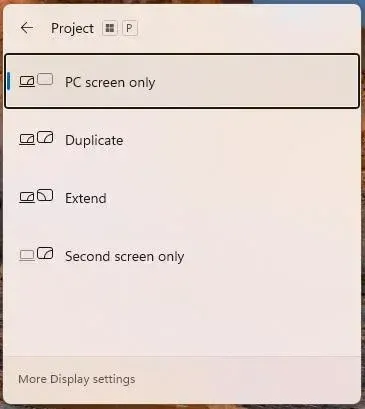
If you prefer a full desktop experience on the TV, you can choose Extend, but for most users who want straightforward Windows 10 screen mirroring to LG TV, Duplicate mode works best.
Initial pairing may take 10 to 30 seconds. After the first connection, reconnection is usually faster as long as both devices stay on the same Wi-Fi network.
If your TV does not appear in the Win + K list, continue to the troubleshooting section below before assuming your hardware is incompatible.
Method 2: Screen Mirror Windows 10 to LG TV with PigeonCast
If Miracast does not work on your hardware, keeps disconnecting, or never shows your LG TV in the Win + K list, this method gives you a more controlled alternative.
PigeonCast works over your local network and does not rely on native Miracast adapter support. That makes it useful when Windows 10 screen mirroring to LG TV fails due to driver limitations or unstable wireless display pairing.
Before starting, make sure:
-
Your LG Smart TV and PC are connected to the same Wi-Fi network.
-
Your TV is powered on and visible on the network.
-
No restrictive firewall or VPN is blocking local connections.
Then follow these steps on your Windows 10 PC:


Overall Rating:


-
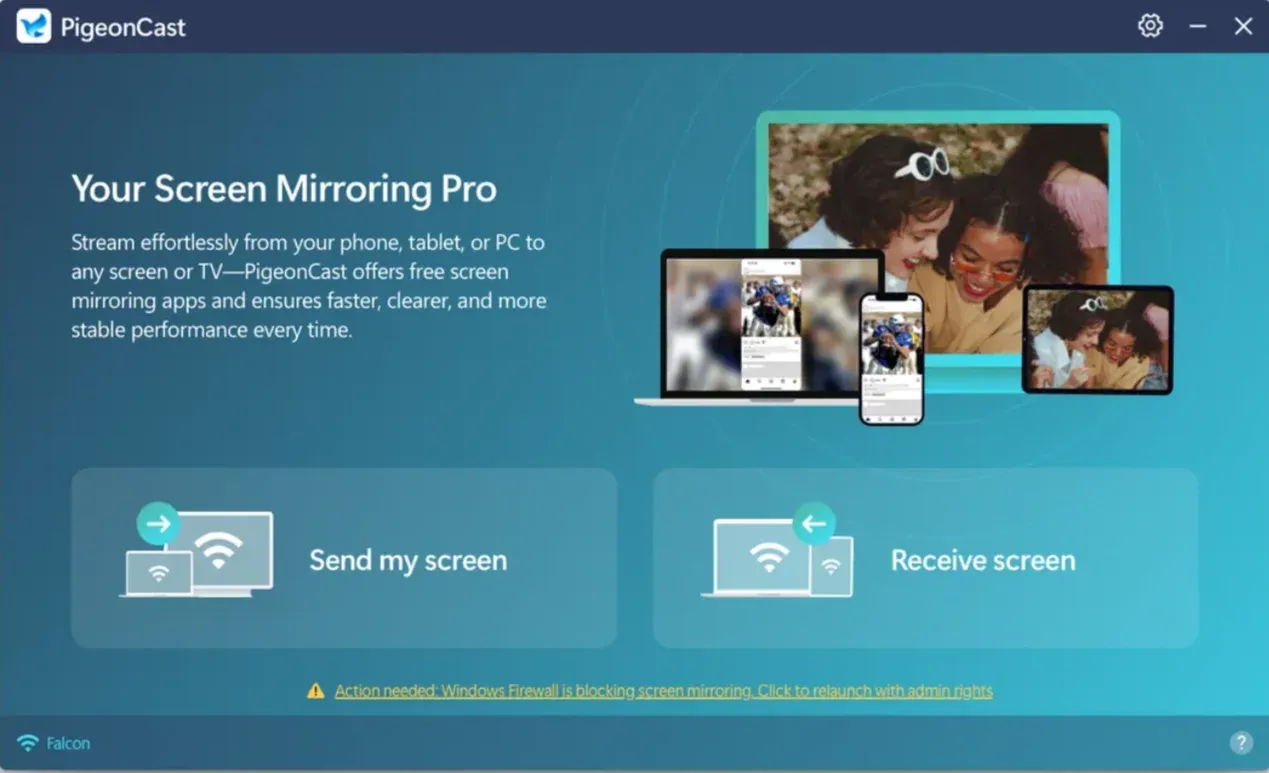
Open PigeonCast on your computer.
-
Choose the option to send or mirror your screen.
-
Wait for your LG TV to appear in the available device list.
-
Select your TV to initiate the connection.
-
Confirm pairing if prompted.
-
Once connected, verify that both video and audio are playing correctly.
If image quality looks compressed or motion feels slightly delayed, lower the stream quality one level and test again. Small adjustments often stabilize longer sessions.
This method is particularly helpful when:
-
Miracast connects but drops every few minutes.
-
The LG TV appears inconsistently in the Windows projection menu.
For users who repeatedly encounter native pairing failures, switching early to a dedicated casting tool often saves time and reduces frustration.
Troubleshooting When LG TV Does Not Appear or Connection Fails
If your LG TV does not appear or connection times out, run this checklist from top to bottom.
TV not discovered in Win + K
-
Confirm LG Screen Share is open.
-
Reconnect both devices to the same Wi-Fi SSID.
-
Power cycle your router, TV, and PC.
-
Move the PC closer to the router.
You might be interested in Windows K Not Working: Fix the Issue and Mirror Your Screen
Connection attempt fails or times out
-
Remove old paired display entries and reconnect.
-
Turn off VPN, proxy, or restrictive firewall rules temporarily.
-
Update Wi-Fi and graphics drivers.
-
Try again after a full PC restart.
Black screen or audio-only output
-
Press Win + P and switch from Extend to Duplicate.
-
Lower the display resolution to 1080p and retest.
-
Close DRM-restricted apps and test with a local video file first.
Frequent lag or random disconnects
-
Prefer 5 GHz Wi-Fi over crowded 2.4 GHz networks.
-
Reduce background downloads on your network.
-
Keep both devices on the current firmware where possible.
Can you mirror your PC to LG TV wirelessly now? If both wireless methods still feel unstable after these checks, stop troubleshooting in circles. At that point, a direct HDMI connection is the most reliable solution. It removes WiFi interference, eliminates pairing delays, and delivers consistent audio and video without drops.
Wireless screen mirroring Windows 10 to LG Smart TV is convenient, but when stability matters more than flexibility, a cable simply wins.
Just connect the HDMI cable to your Windows computer and LG TV, switch the input source, and your Windows screen will appear on your TV.
Conclusion
Screen mirroring is less about the tool and more about choosing the right path for your setup.
If your hardware supports it, Miracast remains the cleanest way to mirror Windows 10 to LG Smart TV. It is built in, quick to activate, and perfectly adequate for streaming, slides, and everyday sharing.
If your adapter limits you or the connection refuses to stay stable, switching methods is not a compromise. It is a smarter move. A dedicated casting solution or even a simple HDMI cable often delivers a smoother experience than repeatedly retrying a flaky wireless pairing.
The real goal is not just connecting your PC to an LG TV wirelessly. It is getting a stable screen on the big display without wasting time on avoidable friction. Once you match the method to your environment, screen mirroring becomes routine rather than technical.
Screen Mirroring Windows 10 to LG Smart TV FAQs
Why is my LG TV not showing up on Windows 10 screen mirroring?
Most of the time, the TV is not in Screen Share mode, or both devices are on different Wi-Fi networks. Open Screen Share on LG, reconnect both devices to the same SSID, then retry with Win + K.
Does Windows 10 require Miracast support for wireless display?
Yes. For native wireless display mirroring, your adapter and driver stack must support Miracast. If your device does not, use an alternative casting method.
Can I stream audio and video when screen mirroring Windows 10 to LG Smart TV?
Yes, but stability depends on your Wi-Fi quality and codec compatibility. If audio works but video is black, lower resolution and test a non-DRM source first.
Should I use Duplicate or Extend mode for TV mirroring?
Use Duplicate for presentations, video playback, and simple sharing. Use Extend when you need a second workspace for multitasking.
When should I switch from Miracast to an alternative method?
Switch to a Miracast alternative when your Windows 10 PC does not support Miracast, or when the connection keeps disconnecting even after basic WiFi and driver updates.
How do I fix Windows 10 screen mirroring lag on LG Smart TV?
-
Switch your PC to a 5 GHz WiFi network.
-
Pause large downloads on your network.
-
Move the laptop closer to the router.
-
Lower display resolution to 1080p.
-
Restart both TV and PC before reconnecting.
-
Try a wired HDMI connection
Why does Windows 10 connect to LG TV but show a black screen?
-
The display mode is set to Extend instead of Duplicate.
-
Resolution is too high for stable wireless streaming.
-
The app you are mirroring has DRM restrictions.
Can I screen mirror Windows 10 to LG TV without WiFi?
Wireless screen mirroring requires WiFi. However, you can connect your PC to LG Smart TV without WiFi by using an HDMI cable. Simply connect the HDMI cable to both devices, change the TV input source, and your Windows screen will display instantly.
Why does my LG TV disconnect from Windows 10 after a few minutes?
-
Weak Wi-Fi signal
-
Outdated network drivers
-
Router instability
-
Power-saving features on the PC
Is Windows 10 screen mirroring to LG TV good for gaming?
For competitive gaming or high frame rate performance, HDMI is the better option. It provides near zero latency and consistent image quality.
Do all LG Smart TVs support Miracast screen mirroring?
Most LG Smart TVs running webOS support Screen Share, which is based on Miracast. However, very old models or entry level models may not.
Can I mirror Windows 10 laptop to LG TV in 4K?
Technically yes, but 4K wireless screen mirroring Windows 10 to LG Smart TV requires:
-
Strong 5 GHz WiFi
-
Modern WiFi adapter
-
Updated graphics drivers
Mia Clarke is a technology editor specializing in screen mirroring and casting solutions across multiple platforms. Mia provides clear, practical guides and in-depth insights to help users seamlessly connect their devices. Passionate about enhancing digital experiences, Mia is dedicated to keeping readers updated on the latest trends and tools in cross-platform screen sharing. Whether you’re looking to mirror your smartphone, laptop, or smart TV, Mia’s content delivers reliable, user-friendly advice to simplify your tech setup.