
AirPlay, which transforms your LG TV into a seamless extension of your Apple ecosystem, is one of its best features, until persistent lag ruins the experience. That frustrating delay between the action on your iPhone or Mac and what appears on your TV screen is a common complaint, but it's almost always solvable. This guide will walk you through the root causes of AirPlay lagging on LG TV and provide a step-by-step troubleshooting plan to restore buttery-smooth streaming.
Why Does AirPlay Lag on LG TV
AirPlay video lagging on LG TV can be caused by several factors that affect your home network and device setup. Understanding these common culprits is the first step toward fixing the issue.
- Network Issues: A slow or unstable Wi-Fi connection can cause delays when streaming content over AirPlay. Since AirPlay relies heavily on your network, any disruption or weak signal can result in lag.
- Device Compatibility: Not all LG TVs support AirPlay 2, which is the version of AirPlay that supports smoother streaming. If your TV is running an older version of AirPlay, you might experience lag or connectivity issues.
- Interference: Wireless interference from other devices, or poor signal strength in your home can negatively affect the performance of AirPlay. Additionally, issues with the Wi-Fi network, such as congestion, can contribute to lag.
- Outdated Software: Both your Apple device and your LG TV need to be up to date to ensure compatibility and smooth streaming. An outdated device can cause delays or interruptions in your AirPlay experience.
How to Fix AirPlay Lagging on LG TV
Follow this structured troubleshooting guide in order, starting with the simplest and most likely solutions. After trying each solution, please remember to reconnect AirPlay to your TV to check if the issue has been resolved.
#1. Check If Your LG TV Supports AirPlay
Before you start troubleshooting, it's important to make sure your LG TV supports AirPlay. Not all models are compatible, especially older ones. What you might think is lag could actually be caused by your devices not being able to connect properly due to compatibility issues.
| Model Year | AirPlay 2 Supported Model Series |
|---|---|
| 2018 (webOS 4.0) | OLED: B8/C8/E8/W8/Z8UHD: UK Series, SK Series |
| 2019 (webOS 4.5) | OLED: B9/C9/E9/W9/Z9UHD: UM Series, SM Series |
| 2020 (webOS 5.0) | OLED: BX/CX/GX/WX/ZX/RXUHD: UN Series, NANO Series |
| 2021 (webOS 6.0) | OLED: All OLED ModelsQNED: All QNED ModelsUHD: UP Series, NANO Series |
| 2022 (webOS 22) | OLED: All OLED ModelsQNED: All QNED ModelsUHD: UQ Series, NANO Series |
| 2023 (webOS 23) | OLED: All OLED ModelsQNED: All QNED ModelsUHD: UR Series, NANO Series |
| 2024 (webOS 24) | OLED: All OLED ModelsQNED:All QNED ModelsUHD: UT Series, NANO Series |
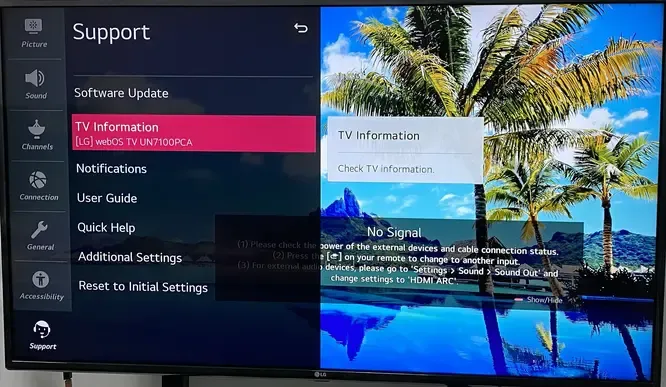
To check your LG TV model, you can navigate to Settings > Support > TV Information.
#2. Check the Network Connection
How to fix AirPlay stuttering LG TV? Think of your network like a highway. To avoid traffic jams, you need to make sure it's not overcrowded, the lanes are clear, and both your Apple device and your TV are using the same Wi-Fi network.
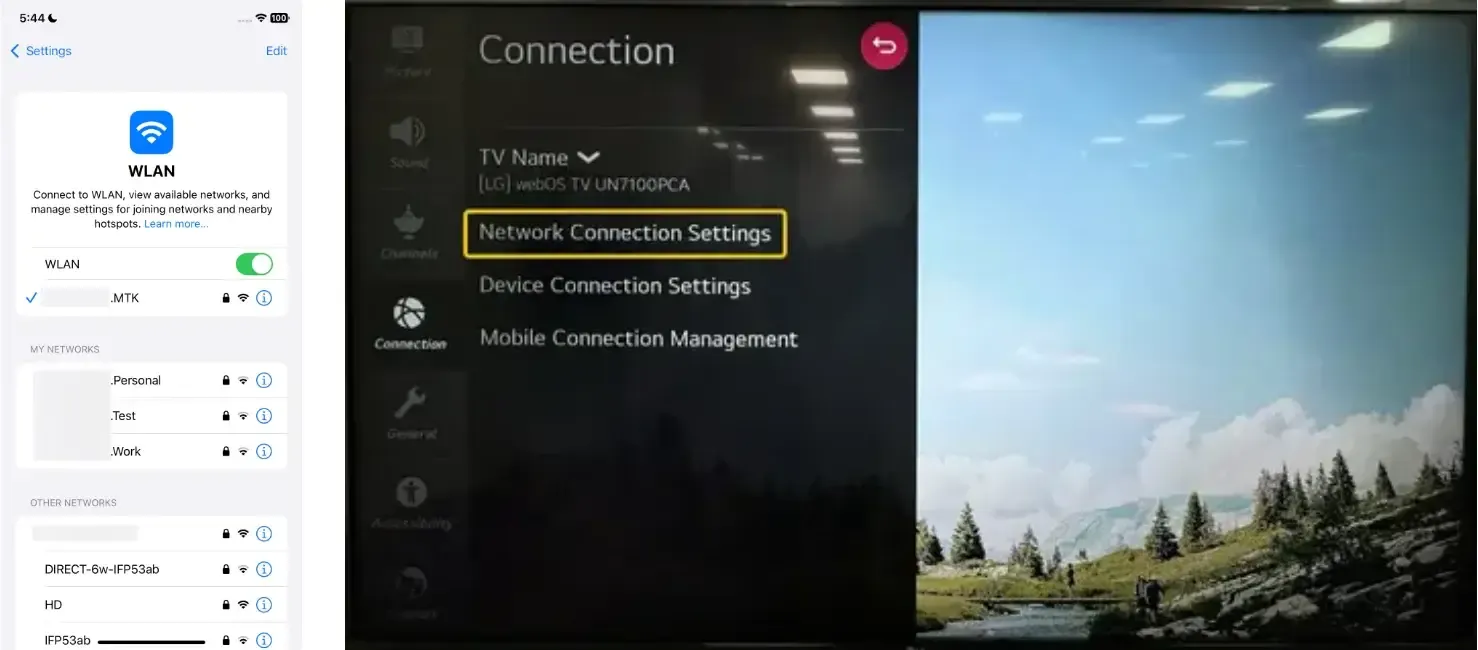
Step 1. Make sure both your Apple device and your LG TV are connected to the same wireless network, and that the signal strength is strong.
Step 2. Ensure that there are no physical obstructions (walls, furniture, etc.) between your router and devices that could weaken the signal.
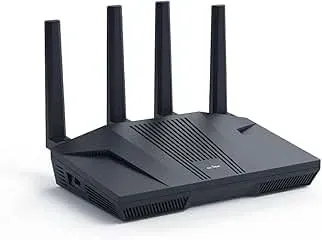
Step 3. In your router's admin settings (accessed via a web browser), try temporarily disabling the 5GHz band and ensure your Apple device and LG TV are on the same frequency.
Step 4. Disconnect all devices from the Wi-Fi and reconnect your Apple device to the LG TV, and you can even restart your router from the power source.
#3. Restart Your Deivce
Sometimes, the quickest way to fix AirPlay lag issues is to restart your devices. Restarting both your Apple device (iPhone, iPad, or Mac) and your LG TV can help refresh the connection, clear any temporary glitches, and improve performance. Read on to follow these simple steps:
- How to restart LG TV
Step 1. Press the Settings button on your LG remote to move to All Settings > General.
Step 2. Select Restart (not "Reset to Initial Settings") and confirm.
Step 3. Wait for the TV to fully reboot before trying AirPlay again.
Alternatively, try unplugging your TV from the power source, wait for a few minutes, and then plug it back in.
- How to restart Apple device
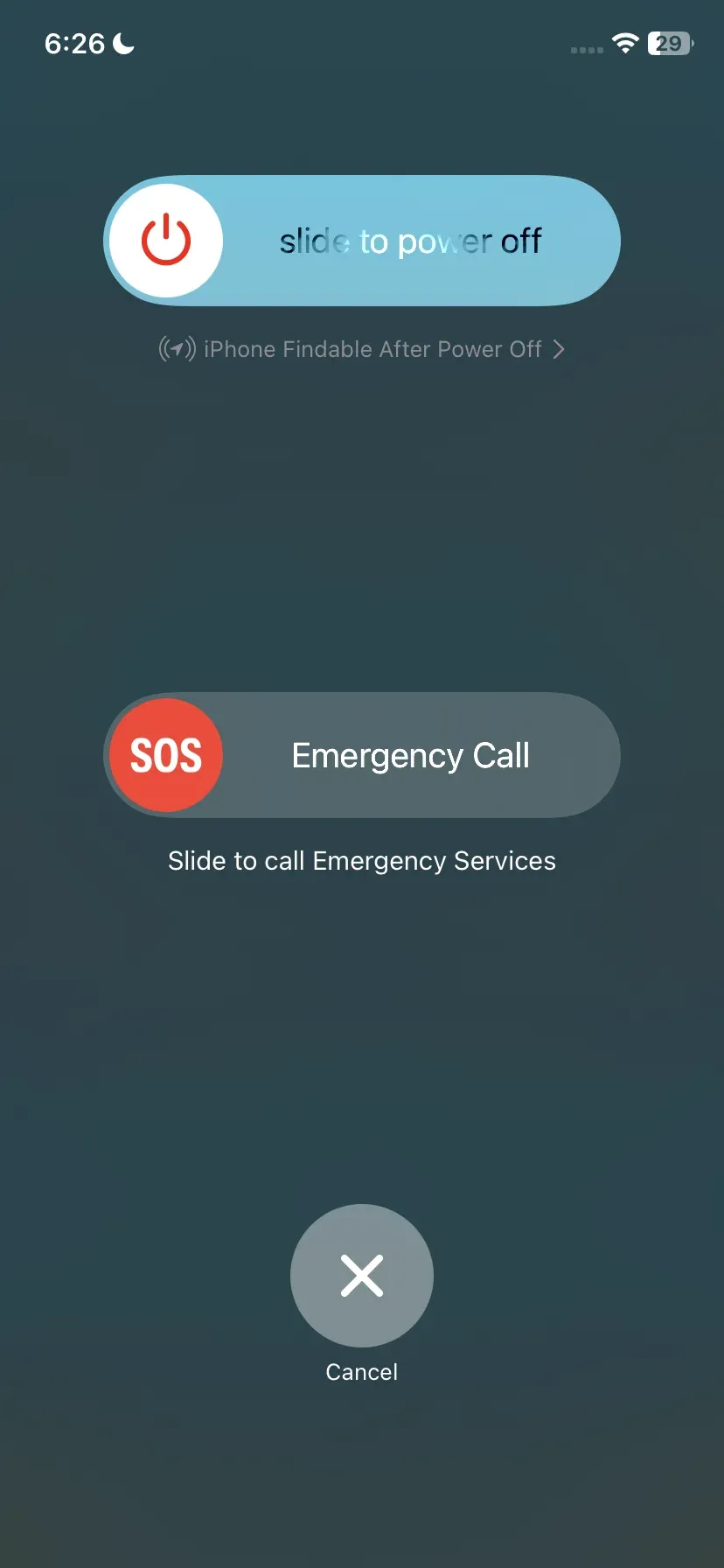
- For iPhone/iPad, press and hold the side button and one Volume button until the power slider appears. Slide to power off. Turn it back on after 30 seconds.
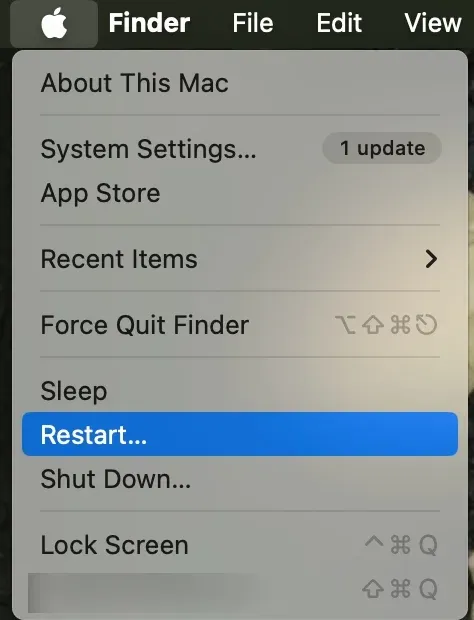
- For Mac, click the Apple menu and select the Restart... option.
#4. Update Your Deivce
Why is the AirPlay buffering on your LG TV? Outdated software could be the culprit. Software updates often address performance and compatibility issues, so running outdated versions on either your Apple device or TV may cause bugs, lag, or connectivity problems.
- How to update your LG TV
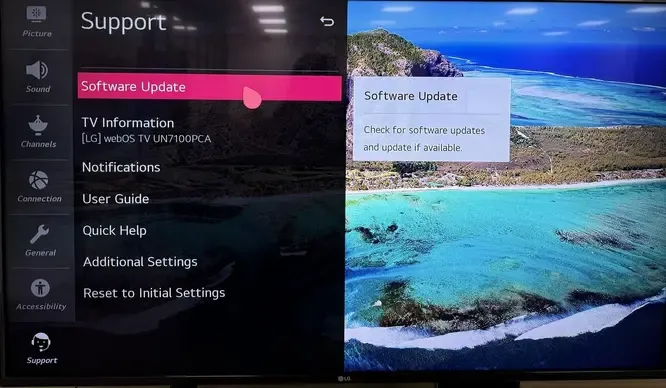
Step 1. Go to Settings > Support > Software Update to check for your LG TV version.
Step 2. If available, confirm the update requisition and wait for that.
- How to update your Apple device
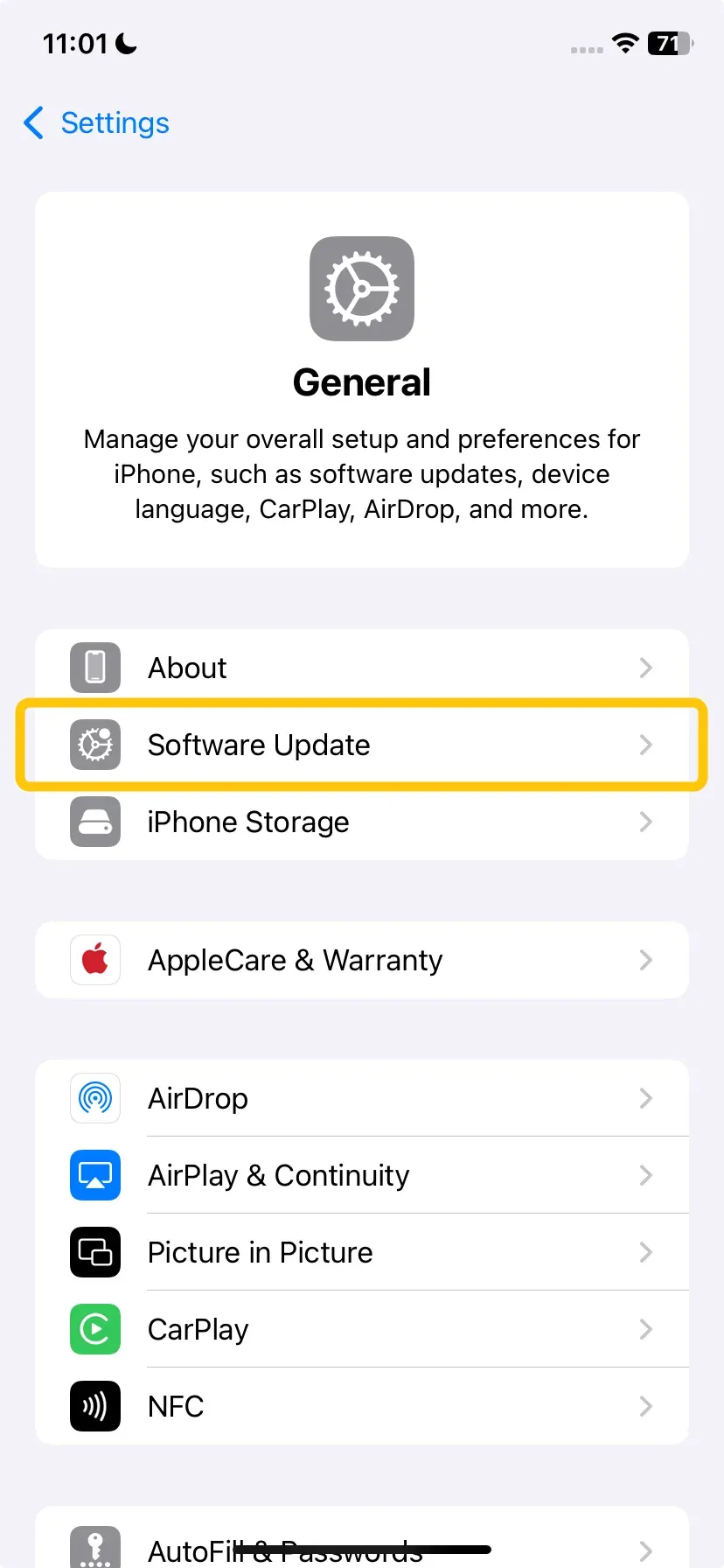
- For iPhone/iPad, go to Settings > General > Software Update and install any available updates.
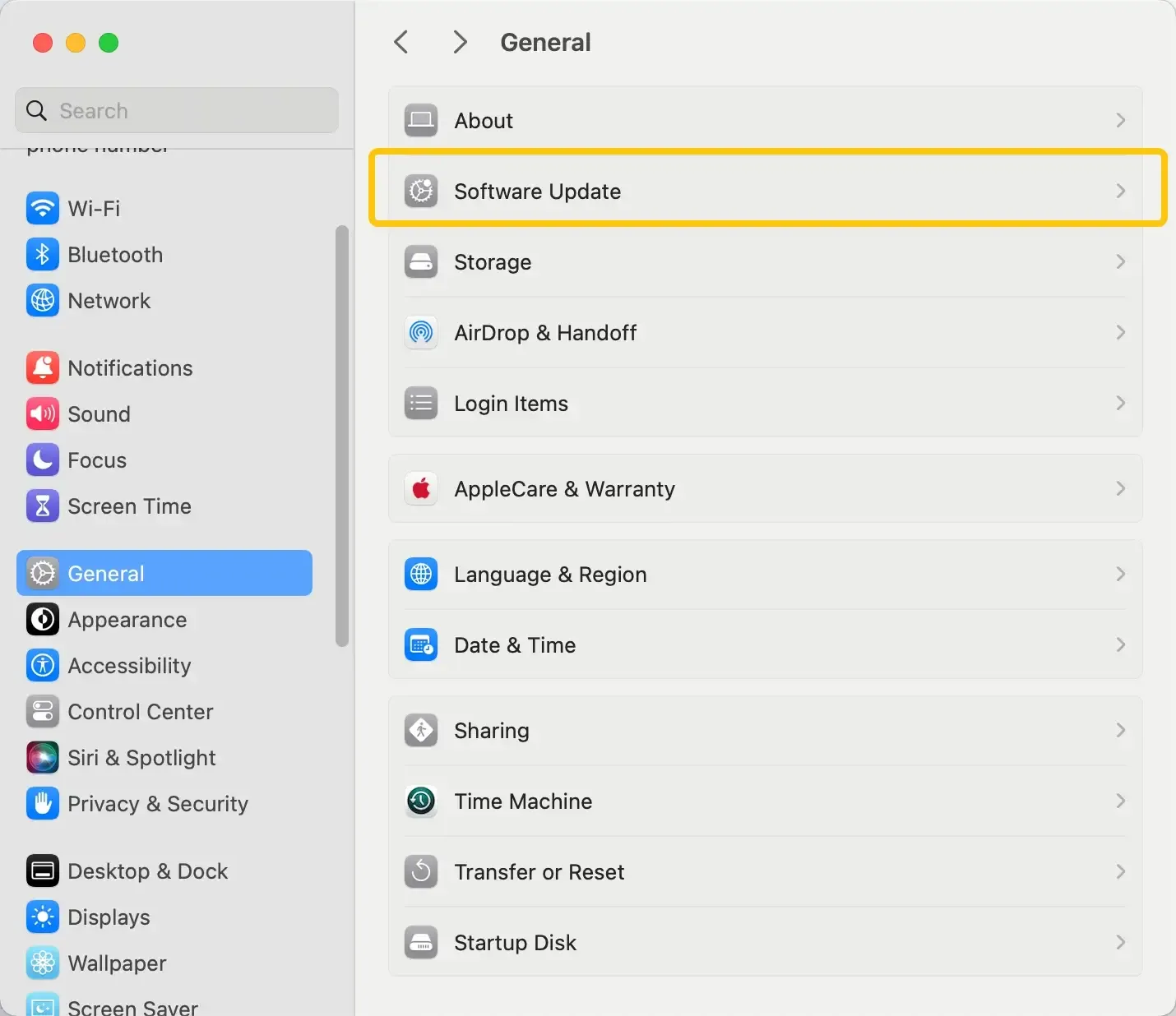
- For Mac, click the Apple Menu > System Preferences > Software Update and install updates if necessary.
#5. Remove Paired Device and Reconnect AirPlay to LG TV
Plus, AirPlay can sometimes experience issues if there are too many paired devices or if the connection has become corrupted. Try unpairing and connecting your iPhone to LG TV again to refresh the connection and eliminate any conflicts.
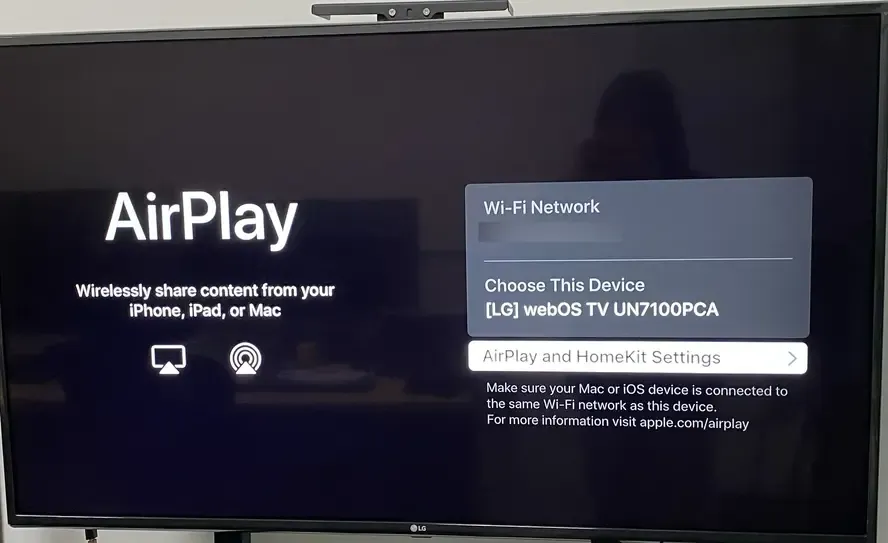
Step 1. Go to Settings > AirPlay on your LG TV and remove any previously paired devices.
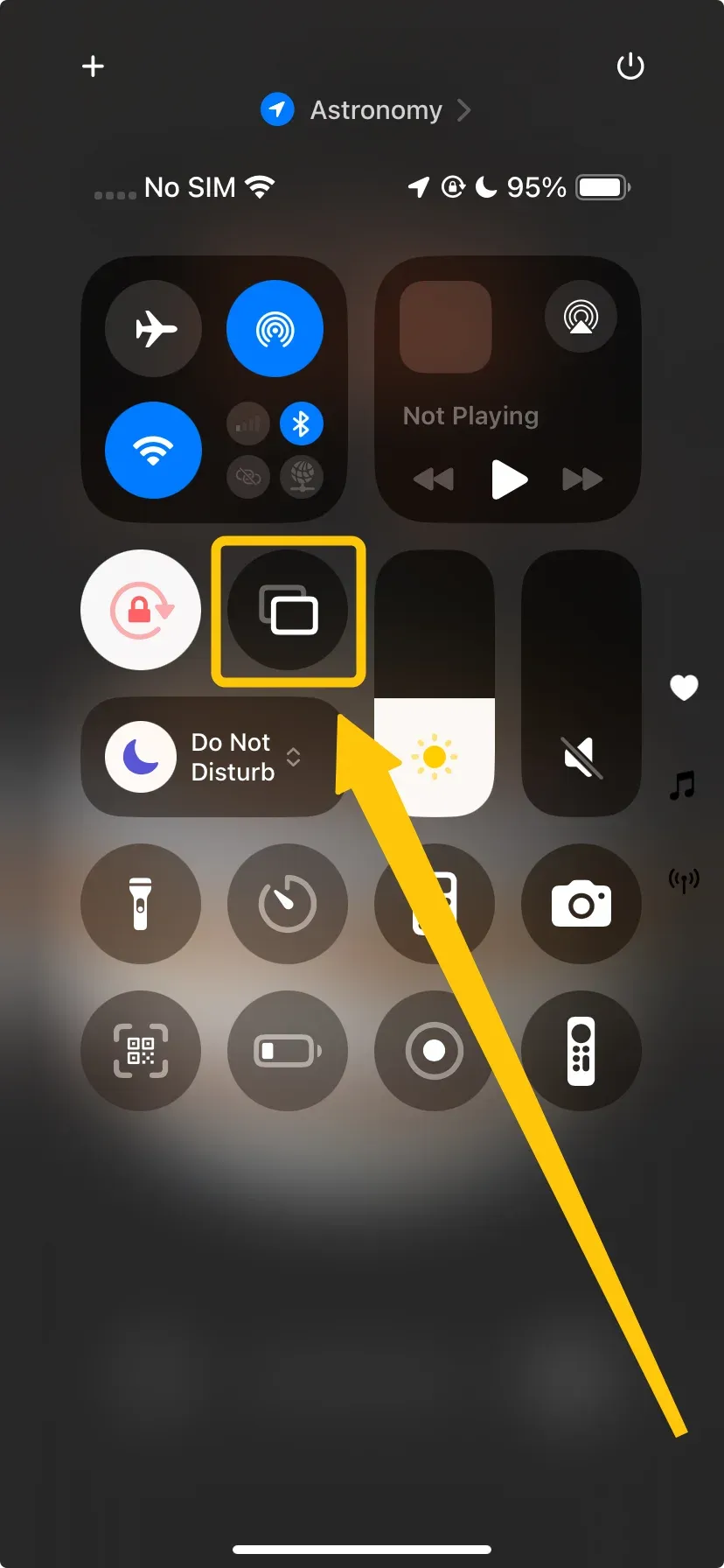
Step 2. On your Apple device, tap Screen Mirroring in the Control Center to reconnect your LG TV from the device list.
#6. Reset Your LG TV
If you've tried all the previous solutions and AirPlay lagging on LG TV iPhone continues, resetting your TV to its factory settings may be the key to fixing persistent issues. This can help eliminate any software glitches, settings conflicts, or corrupt configurations that might be affecting the AirPlay connection. Keep in mind that a factory reset will restore your TV to its original settings, so you'll need to reconfigure it afterward.
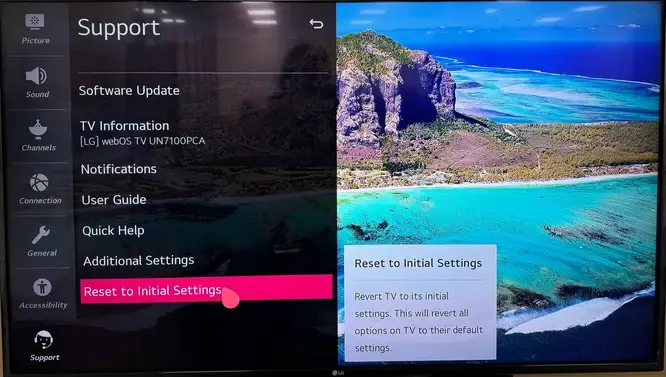
Step 1. Go to Settings > Support > Reset to Initial Settings.
Step 2. Follow the on-screen prompts to reset your TV. Keep in mind this will erase any personalized settings.
#7. Use PigeonCast as an Alternative
If hardware or something you don't know is insurmountable, third-party software like PigeonCast can offer a more stable and flexible mirroring experience. This free tool supports AirPlay, DLNA, and Google Cast, providing a seamless connection with no ads and up to 4K resolution.

It's a great alternative for bypassing device-specific issues, ensuring smooth streaming across different platforms. With PigeonCast, you can enjoy hassle-free content mirroring, even when AirPlay isn't performing at its best. Here's how to use PigeonCast to mirror your iPhone or MacBook on your LG TV with no AirPlay:
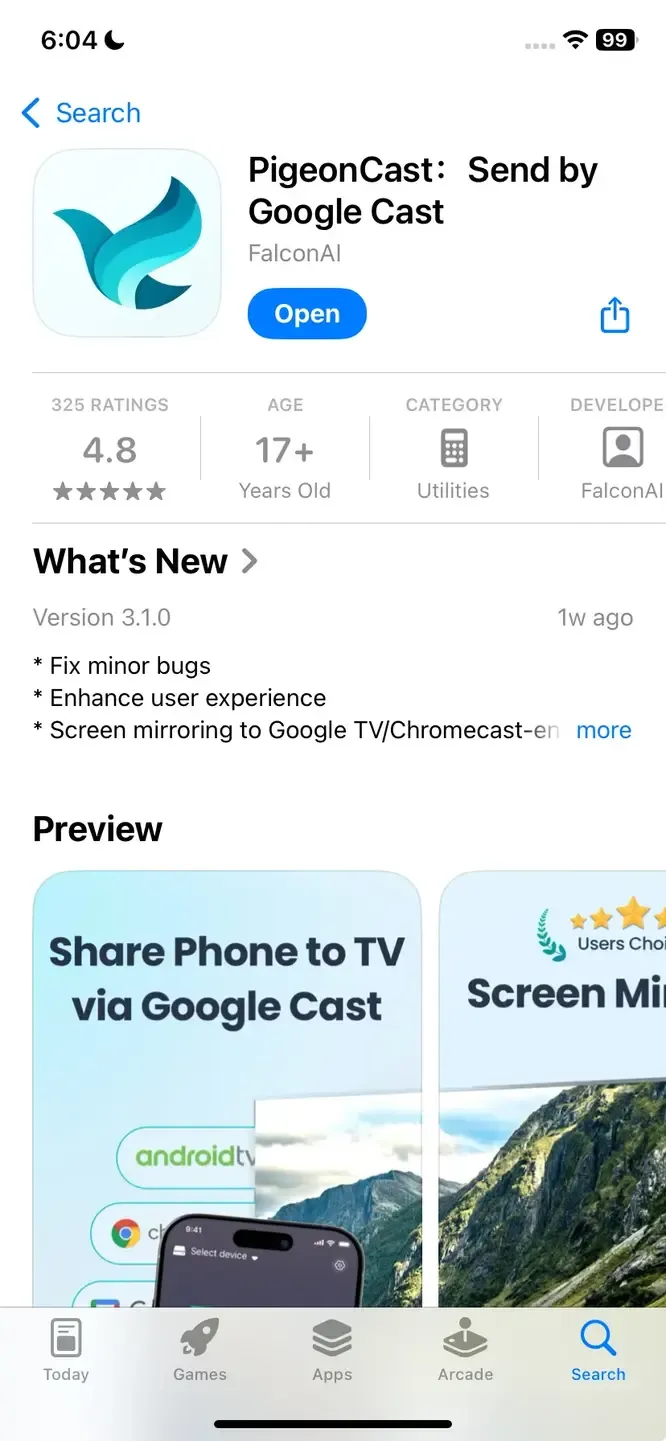
Step 1. Ensure both your devices are under the same WiFi network.


Overall Rating:


Step 2. Install PigeonCast on your iPhone, iPad, or MacBook from the App Store.
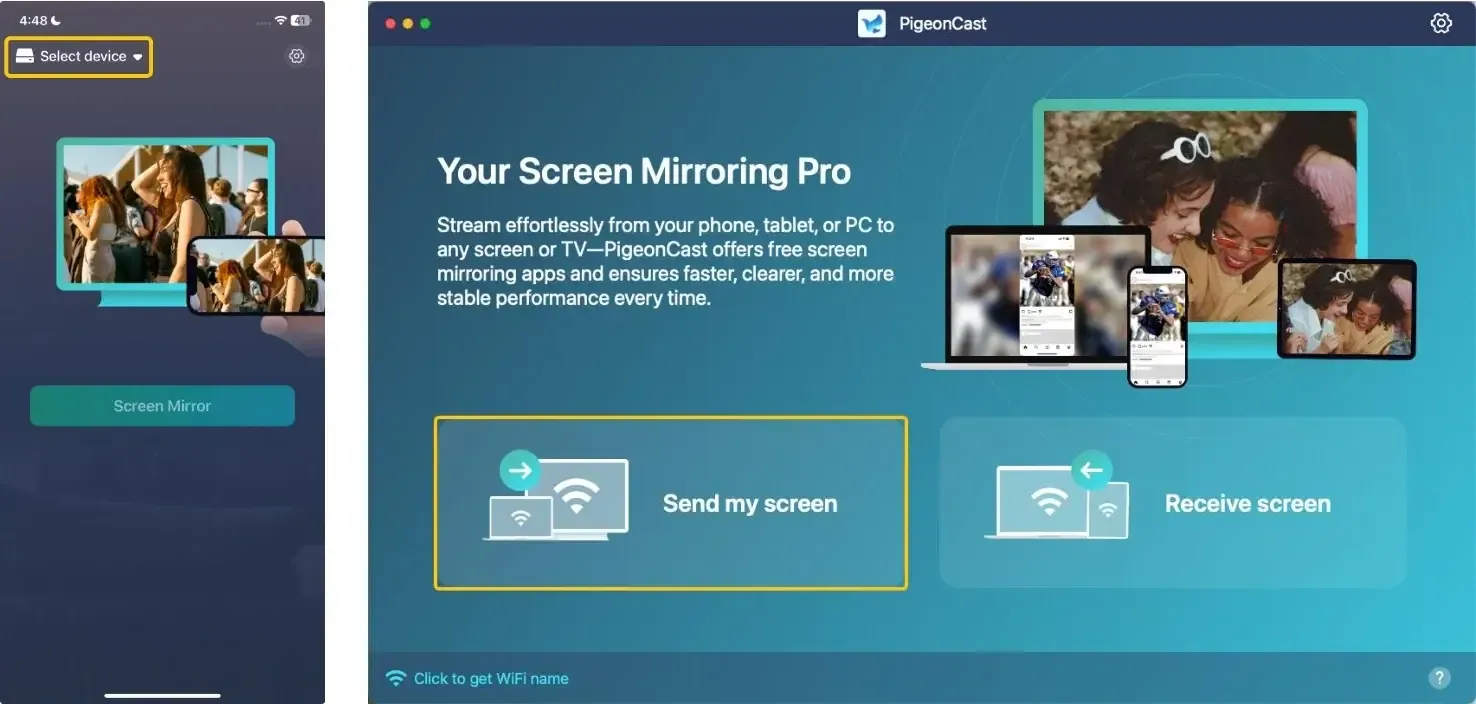
Step 3. Launch the app, tap Select device or Send my screen to choose your LG TV from the available list.
Step 4. Enter the onscreen PIN code to finish the connection requisition.
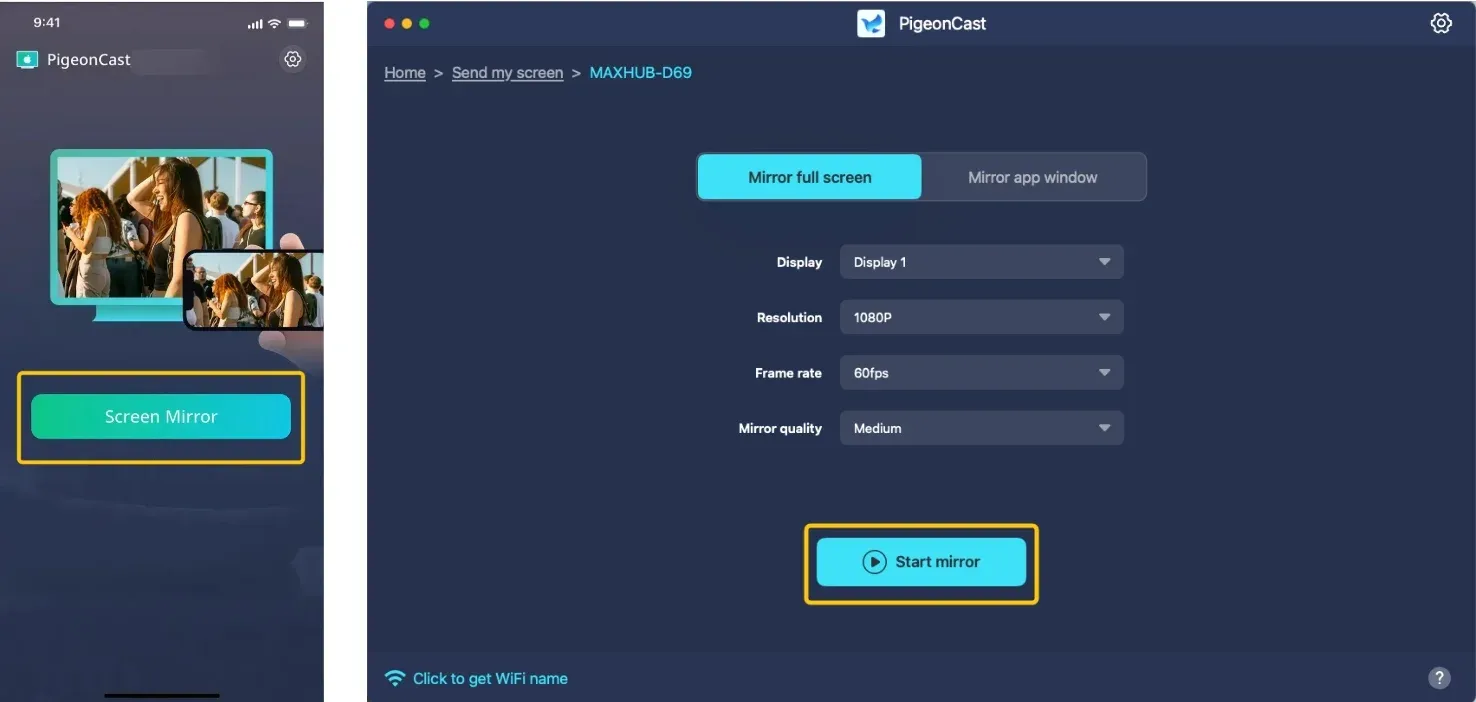
Step 5. Once you succeed, tap Screen mirror or Start mirror to begin your casting activities on your LG television. If you use a Mac, you can even choose either to mirror the full screen or a single app window.
Wrapping Up
AirPlay is a great way to stream content to your LG TV, but lag can sometimes get in the way. By following the troubleshooting steps in this guide, like checking your TV's compatibility, updating software, or resetting devices, you can often fix the issue. If AirPlay continues to lag, using alternatives like PigeonCast can provide a smoother, ad-free experience with support for multiple casting options.
AirPlay Lagging on LG TV FAQ
How to stop AirPlay from lagging?
To stop AirPlay from lagging, ensure that both your Apple device and TV are connected to the same strong Wi-Fi network. Reduce interference by moving devices closer to the router and limiting other network traffic. Make sure both your Apple device and TV are running the latest software updates. If lag persists, try restarting both devices or consider using a third-party app like PigeonCast for a smoother experience.
How to solve AirPlay lagging on Samsung TV?
To solve AirPlay lagging on your Samsung TV, try the following steps:
- Check Wi-Fi connection
- Restart devices
- Update software
- Limit network rraffic
- Use 5GHz Wi-Fi
- Unpair and reconnect
- Reset Samsung TV
- Try PigeonCast as an alternative
How to fix AirPlay lagging on Fire TV?
To fix AirPlay lagging on your Fire TV, follow these steps:
- Check Wi-Fi connection
- Restart devices
- Update software
- Use 5GHz Wi-Fi
- Limit network traffic
- Re-pair AirPlay connection
- Factory reset Fire TV
- Try PigeonCast as an alternative
Clara Rossi is an experienced technology editor and a seasoned expert in screen mirroring and casting technologies. With a keen eye for detail and a deep understanding of how to seamlessly connect devices, Clara excels at optimizing user experiences for effortless sharing and streaming. Whether you're seeking quick fixes or advanced tips, her expertise and responsiveness ensure that every query is met with a well-informed and efficient solution.