
Sony TV screen mirroring makes it easy to see your phone, tablet, or computer on a large display. Instead of hunting for cables, you can duplicate your device's entire screen so photos, video calls, games, and presentations appear on the TV in real time. If you want a quick, reliable way to share content in the living room or meeting room, screen mirroring Sony TV is one of the simplest options available.
This guide shows how to do screen mirroring on Sony TV and which method fits each device. Sony BRAVIA screen mirroring supports several protocols, so you can pick the approach that works best for Android phones, iPhones, Windows PCs, and Macs. I will also cover what to try when Sony BRAVIA screen mirroring not working and recommend apps that can make the process more reliable.
If you prefer a hands-on app for universal compatibility, there are third-party tools designed specifically for Sony TVs. The Sony screen mirroring app ecosystem is larger than many people realize, and a well-chosen app can bridge gaps between older TV models and newer phones.
Does Sony TV Support Screen Mirroring?
Most modern BRAVIA models support at least one common mirroring protocol, so BRAVIA TV screen mirroring is possible on many sets. In practice, Sony's Android TV and Google TV lines include either Chromecast built-in, AirPlay support, Miracast capability, or some combination of the three, which makes it straightforward to mirror for a wide range of devices.
A quick breakdown of typical compatibility looks like this:
- Miracast is widely supported on many older BRAVIA models and some newer ones.
- Chromecast built-in is common on Sony sets made after 2017 and is ideal for casting from apps or mirroring desktops via Chrome.
- AirPlay arrived on more Sony models starting around 2018 and became widespread on the 2020-2023 lineup, giving native iPhone and Mac users a smooth path to screen sharing.
To check your specific set, go to Settings, open Apps, and choose Sell all apps. Look for entire such as Chromecast built-in or Apple AirPlay & HomeKit, or simply search the menu for Screen Mirroring. If you follow those steps, you can quickly verify whether and how your TV supports how to do screen mirroring on Sony TV and which protocol to use.
How to Enable Screen Mirroring on Sony TV?
Enabling Sony TV screen mirroring only requires opening the input source or settings menu and turning on Miracast or AirPlay. This section walks you through each method so you can quickly turn on screen mirroring Sony TV features regardless of model, year, or system version.
Enable Miracast Screen Mirroring on Sony TV
Miracast is the default method for many older BRAVIA sets, and it offers a simple path if you want to use Sony screen mirroring without extra apps. It works well on models such as X80H, X90H, A8H, and most BRAVIA TVs released between 2013 and 2020.
Step 1. Press the Input button on your Sony remote.
Step 2. Select Screen Mirroring from the list.
Step 3. Your TV will enter waiting-to-connect mode.
Once active, your phone or PC should detect BRAVIA TV as an available Miracast receiver, and you can initiate screen mirroring Sony TV with Samsung phone.
Enable AirPlay Screen Mirroring on Sony TV
If you want to connect an iPhone to Sony TV wirelessly, AirPlay is the most stable way to enable screen mirroring Sony TV models that support Apple's protocol.
How to enable AirPlay on Sony TV:
Step 1. Press the Home button on the remote and go to Settings.
Step 2. Open Apple AirPlay & HomeKit.
Step 3. Turn on AirPlay and choose your preferred Require Code option (First Time or Every Time).
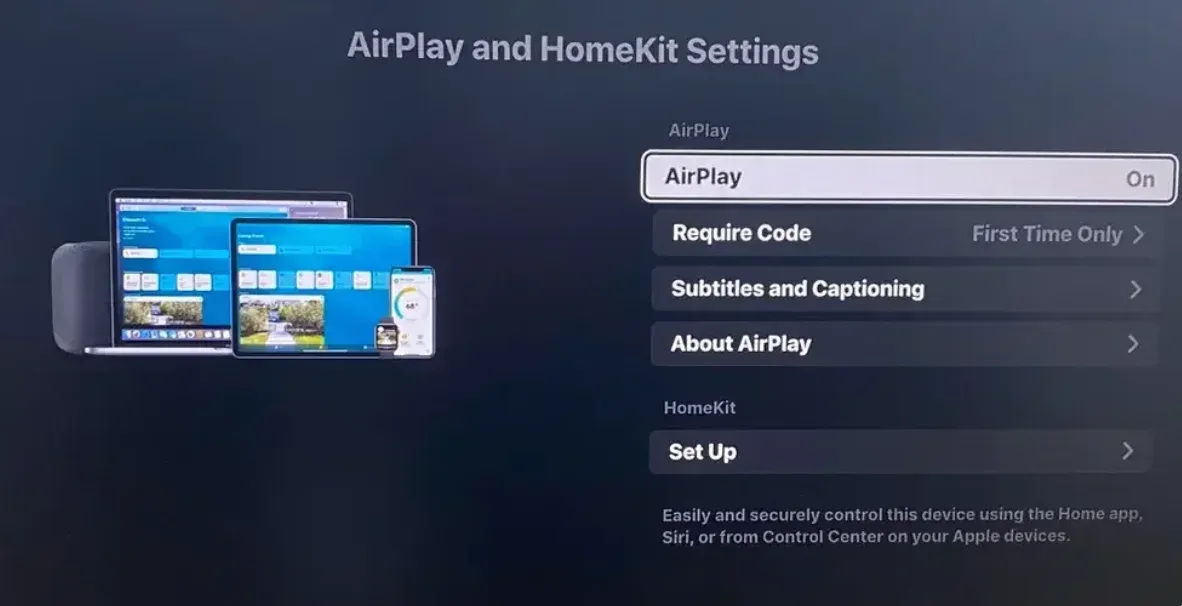
Once enabled, your iPhone or Mac can instantly detect BRAVIA TV screen mirroring via AirPlay, making it one of the easiest methods for people learning how to screen mirror on Sony TV from Apple devices.
Enable Chromecast Screen Mirroring on Sony TV
Chromecast built-in works automatically on most Sony Google TV and Android TV models, so you don't need to switch inputs or enable anything in the menu. As long as your Sony TV and your phone are on the same Wi-Fi network, supported apps can cast or mirror content directly to the TV.
Enable PigeonCast Screen Mirroring on Sony TV
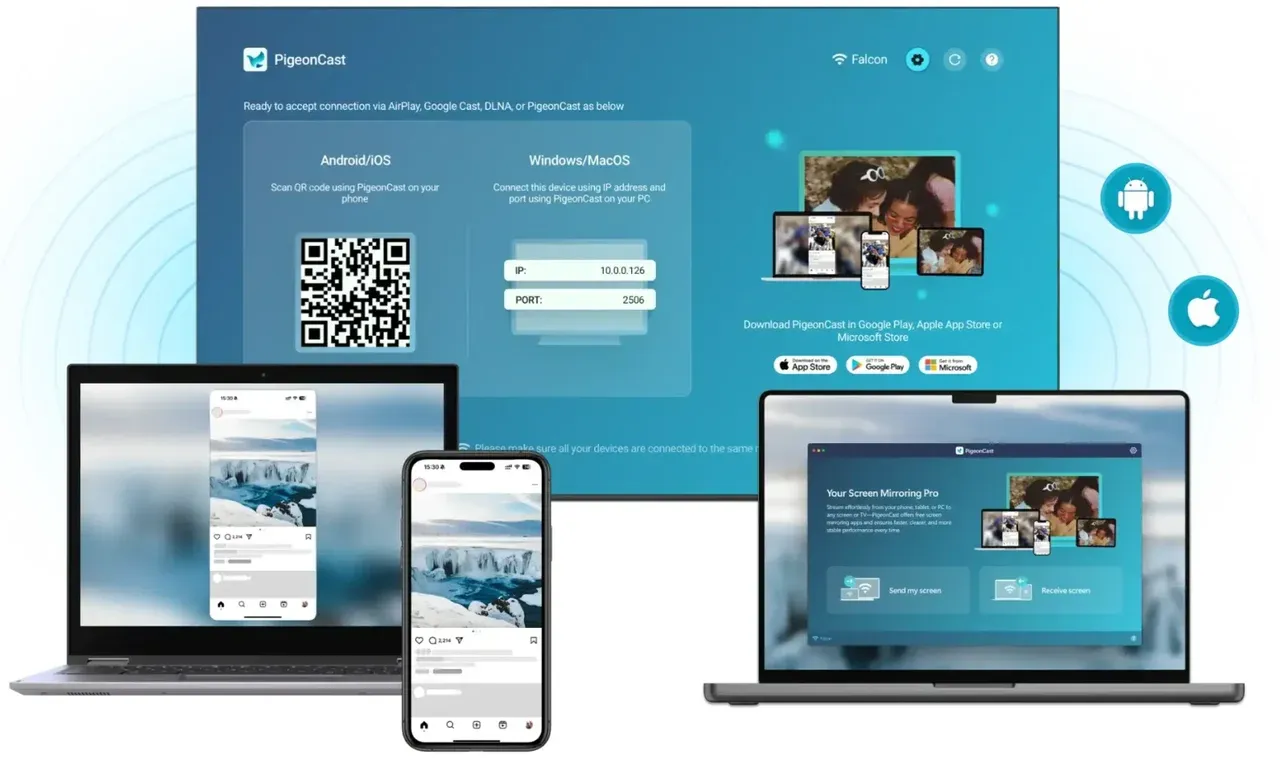
If you want an easier way to connect your phone and computer to your Sony Android TV, PigeonCast, a free and safe app, offers a more flexible solution. Without searching for Miracast or AirPlay on your TV's menu, go to the Google Play Store app on your TV, search for PigeonCast, download it, and open it. Your Sony TV will then act as a versatile receiver for screen mirroring from Android phones, iPhones, Windows PCs, and MacBooks.


Overall Rating:


For a better, smoother screen mirroring experience, install PigeonCast on both your devices, like iPhone and Sony TV, or Windows and Sony TV. PigeonCast also works on the main mobile and desktop platforms.
How to Mirror Android to Sony TV
Android phones can mirror smoothly to s Sony TV through Miracast, Chromecast built-in, or an Android screen mirroring app, giving you two simple and reliable ways to share your screen.
Method 1: Use Miracast
Step 1. Ensure Screen Mirroring is enabled on your Sony TV.
Step 2. Swipe down your phone and choose Cast, Screen Mirroring, or Smart View.
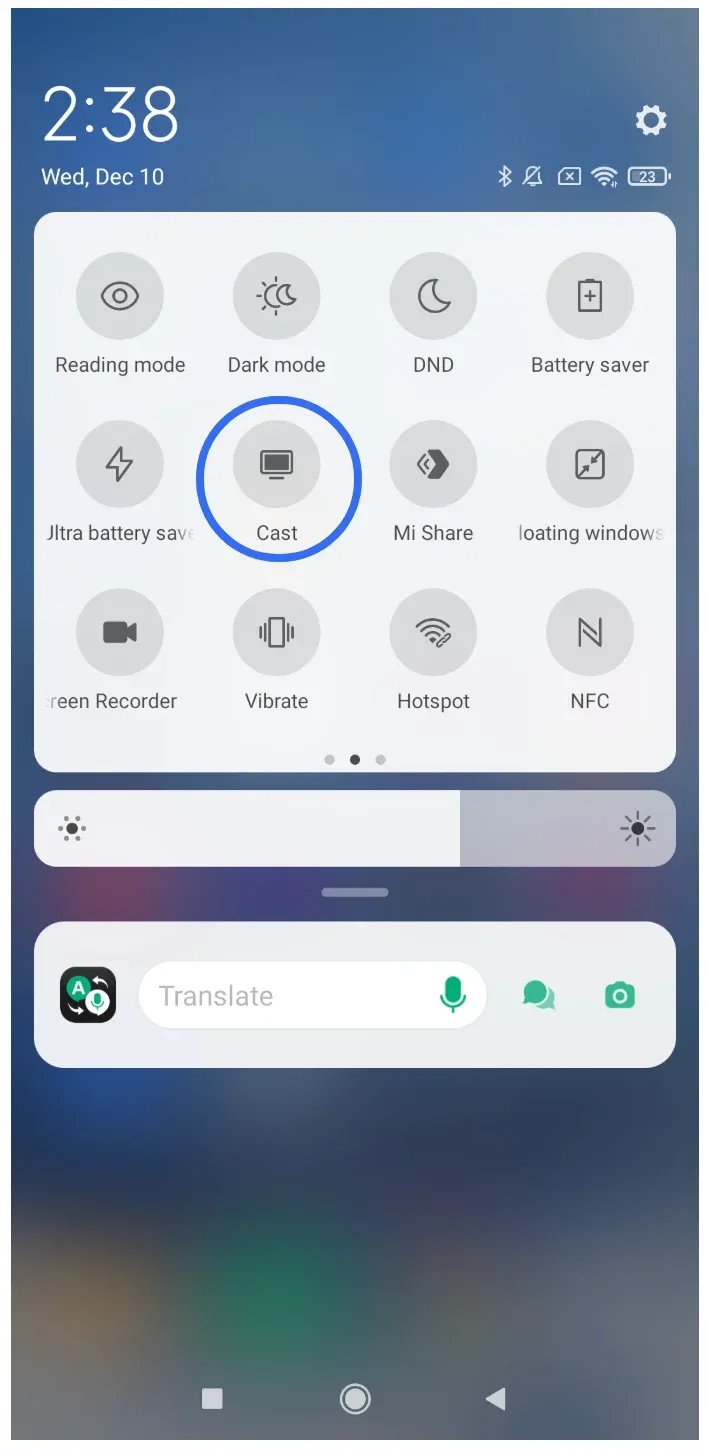
Step 3. Pick your Sony TV from the list and wait for the connection.
Method 2: Use Chromecast Built-In
Step 1. Connect your Android phone and Sony TV to the same wireless network.
Step 2. Open YouTube, Netflix, Chrome, or any Chromecast-enabled app.
Step 3. Tap Cast and choose your Sony TV.
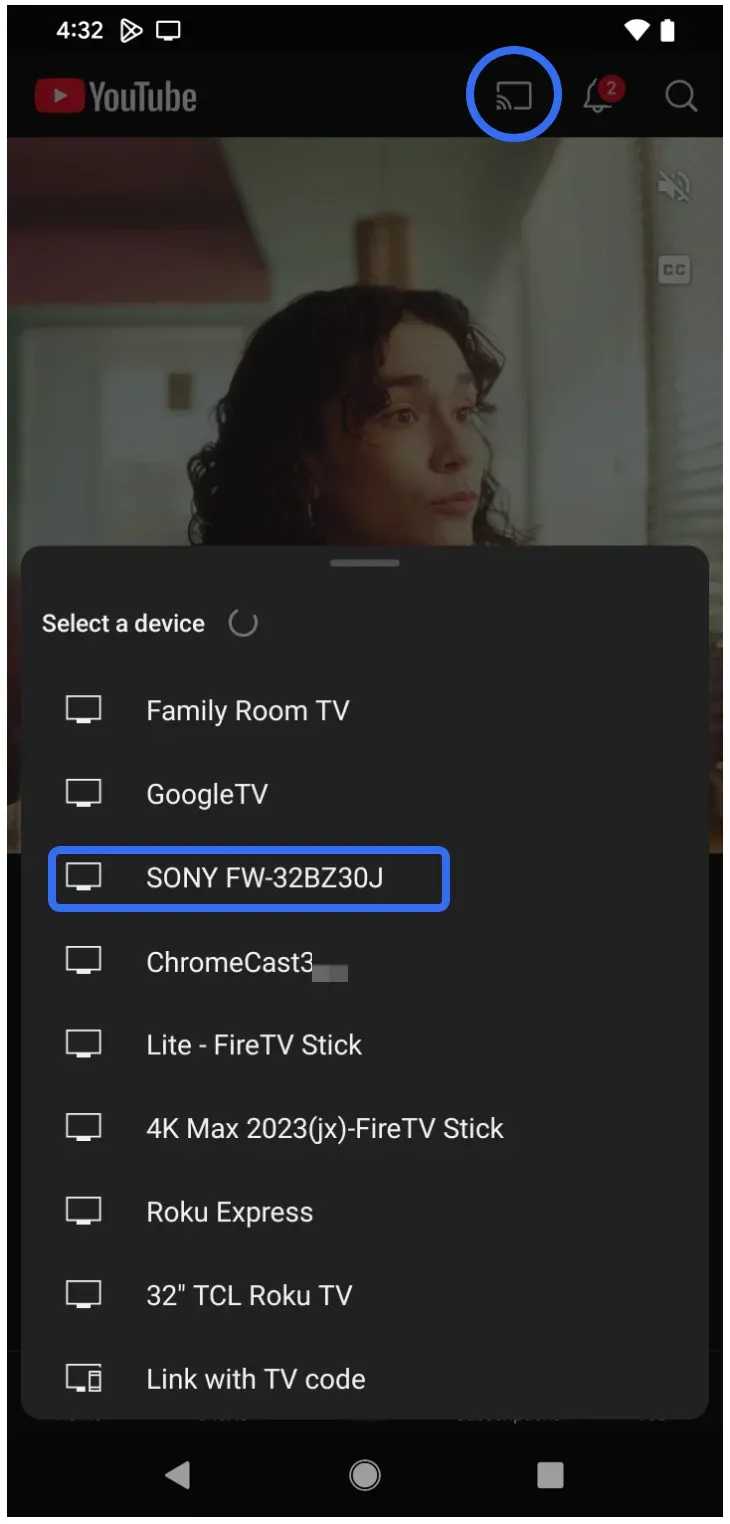
Step 3. The screen or media will appear on the TV right away.
How to Mirror iPhone to Sony TV
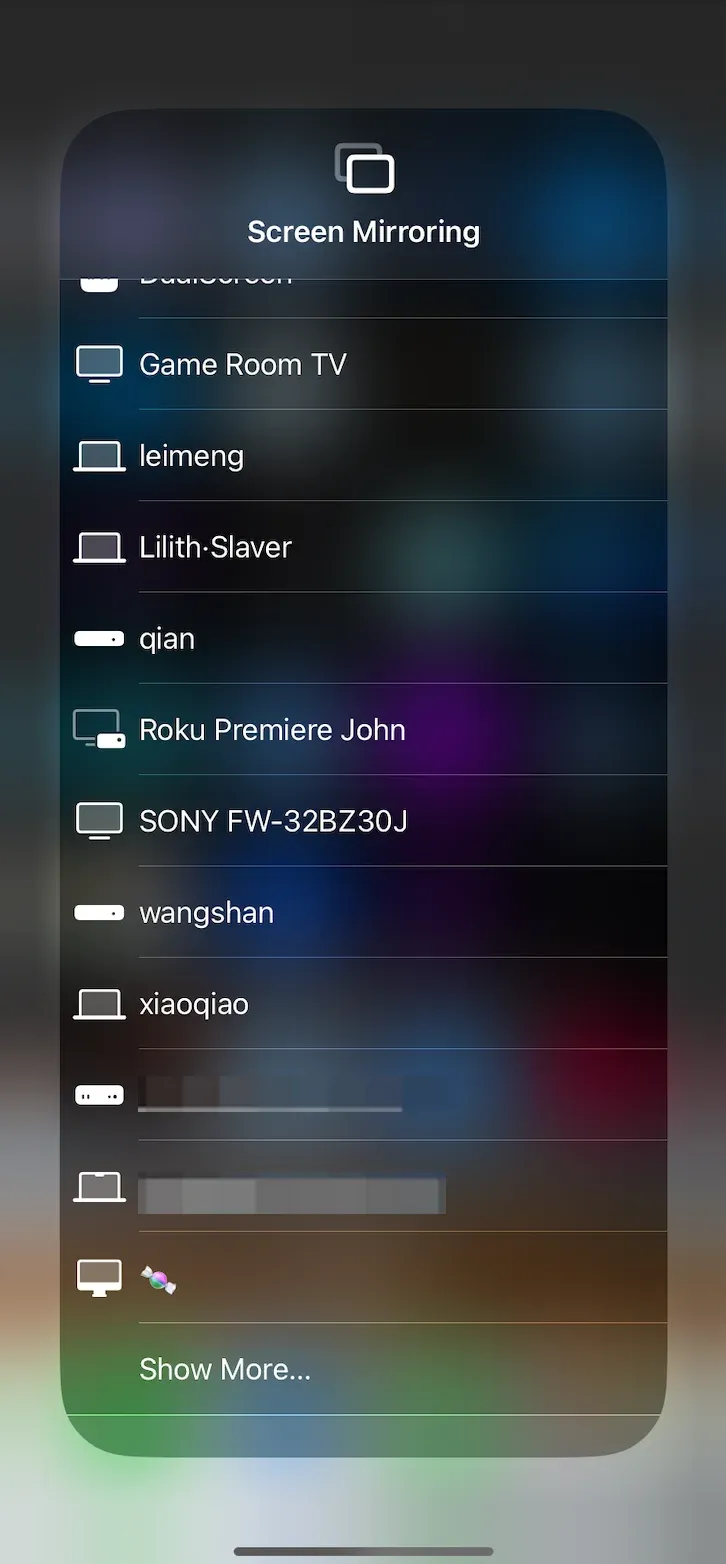
iPhone users can mirror to a Sony TV through AirPlay or by using a compatible third-party iOS screen mirroring app. Both options give you a clean, wireless way to share videos, apps, or presentations.
Here's how to connect iPhone to Sony TV screen mirroring:
Step 1. Turn on AirPlay from your Sony TV settings.
Step 2. Open Control Center on your iPhone.
Step 3. Tap Screen Mirroring.
Step 4. Choose your Sony TV to start mirroring.
How to Mirror Windows PC to Sony TV
Windows supports Miracast natively, allowing you to mirror your PC to Sony TV wirelessly. You can also use Chromecast or a third-party Windows PC screen mirroring tool if you need a more stable connection.
Method 1: Use Miracast
Step 1. On your Sony TV, open Screen Mirroring mode.
Step 2. On Windows, press Win + K.
Step 3. Select Sony TV from the device list and click Connect.
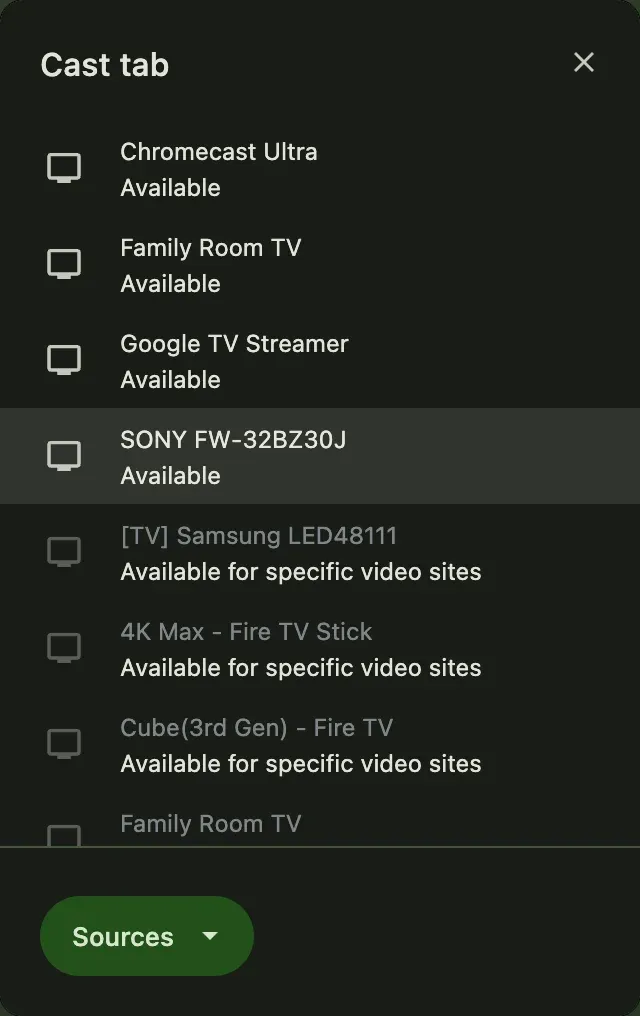
Method 2: Use Chrom
Step 1. Open Chrome on your Windows PC if available.
Step 2. Click the ⋮ menu → Cast.
Step 3. Choose Cast screen from the Sources menu.
Step 4. Select Sony TV to start casting.
How to Mirror Mac to Sony TV
You can mirror your Mac to Sony TV using AirPlay, Chrome's casting feature, or a third-party screen mirroring tool for MacBook.
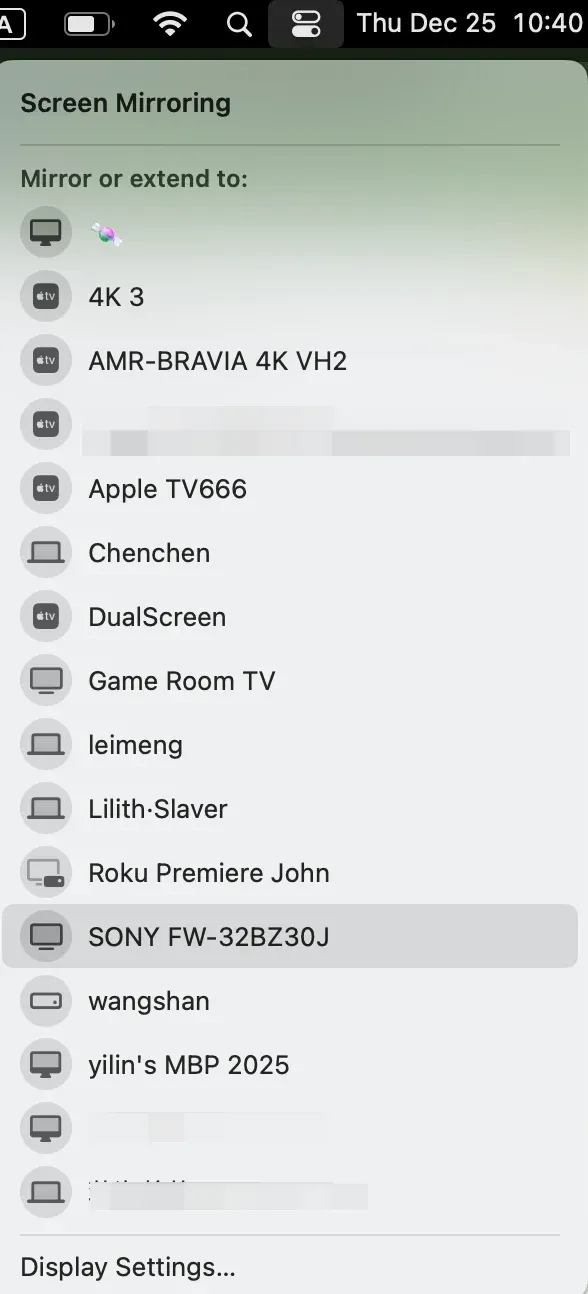
Method 1: Use AirPlay
Step 1. On your Mac, open the Control Center.
Step 2. Click Screen Mirroring.
Step 3. Select Sony TV from the list.
Method 2: Use Chrome
Step 1. Open Chrome on your MacBook if available.
Step 2. Click the ⋮ menu → Cast.
Step 3. Choose Cast screen from the Sources menu.
Step 4. Select Sony TV to start casting.
Sony BRAVIA Screen Mirroring Not Working
Most Sony TV screen mirroring issues come from network problems, protocol mismatches, or incorrect device settings, and most can be fixed with a few simple adjustments.
Problem 1: Your Phone Cannot Find the Sony TV
Step 1. Make sure both devices are connected to the same Wi-Fi network.
Step 2. Restart the TV and your phone to refresh the wireless modules.
Step 3. Check if the TV's screen mirroring mode is actually enabled.
Problem 2: AirPlay Does Not Show Up on iPhone or Mac
Step 1. On the Sony TV, go to Settings and confirm that AirPlay is turned on.
Step 2. Ensure iPhone or Mac and the TV are on the same Wi-Fi network.
Step 3. Disable VPN on the iPhone or Mac, as it may cause AirPlay not to work.
Problem 3: Miracast Connection Fails to Start
Step 1. Reopen the Screen Mirroring input on the TV.
Step 2. On your Android device or Windows PC, turn Wi-Fi and Bluetooth off and on again.
Step 3. Check if your device actually supports Miracast, since some models have removed it.
Problem 4: Sound Works but No Picture Appears
Step 1. If using Chromecast, switch to Cast Screen instead of Cast Tab.
Step 2. Restart the app you are casting from.
Step 3. Try lowering the resolution on the source device.
Problem 5: Severe Lag or Delayed Mirroring
Step 1. Move your router closer to the TV to improve signal quality.
Step 2. Disconnect other devices that are heavily using the same network.
Step 3. Switch to 5GHz Wi-Fi for a more stable screen mirroring Sony TV experience.
Problem 6: Sony TV Does Not Show the Screen Mirroring Option
Step 1. Check whether your TV model supports Miracast or AirPlay.
Step 2. Update the TV's firmware to the latest version.
Step 3. Reset the TV's network settings and try again.
Problem 7: Chromecast Casting Icon Is Missing
Step 1. Ensure Chromecast built-in is enabled under Apps settings.
Step 2. Restart the casting app, then open it again.
Step 3. Confirm your phone or laptop is connected to the same Wi-Fi as the TV.
Problem 8: Connection Drops Frequently
Step 1. Switch your Wi-Fi channel or reboot the router.
Step 2. Avoid casting 4K content on a weak network.
Step 3. Try using a more stable alternative like PigeonCast if the issue persists.
Best Free Alternative for Screen Mirroring on Sony TV: PigeonCast
When AirPlay or Miracast becomes unstable, PigeonCast delivers a more reliable, flexible, HD mirroring experience for every device.
Why PigeonCast Works Better:
- Works on Sony Android TVs
- Supports Android, iPhone, Windows, and Mac
- More stable than Miracast, especially on busy Wi-Fi networks
- Handles 4K mirroring with low latency
- Perfect for streaming videos, gaming, and presentations
- Install it once on the Sony TV and every device can connect instantly
If you often deal with freezing screens, delayed audio, or failed connections, PigeonCast provides a more consistent experience across different devices.
Step 1. Ensure your phone and Sony TV or computer and Sony TV are on the same Wi-Fi network.
Step 2. Launch PigeonCast on both your devices. On the sending device, connect to your Sony TV with the instructions.
Step 3. Start screen mirroring.
Final Words
Sony TV offers several effective ways to mirror your screen wirelessly, and choosing the right method depends on the device you use and the features your TV supports.
Android users can rely on Miracast or Chromecast. iPhone and Mac users usually get the best results with AirPlay. Windows users have Miracast and Chromecast as their primary options. For anyone who wants a universal, stable, and easy setup, PigeonCast remains the most convenient way to mirror to Sony TV across all platforms.
Whichever method you choose, make sure your network is stable and both devices share the same Wi-Fi connection. A strong wireless environment is the key to smooth, high-quality Sony TV screen mirroring.
Sony TV Screen Mirroring FAQs
How do I do screen mirroring on Sony TV?
You can mirror your device by opening the Screen Mirroring input on the TV and connecting from your phone or computer. Android and Windows usually use Miracast, while iPhone and Mac rely on AirPlay on supported models.
Why is my phone not finding my Sony TV?
Both devices must be on the same Wi-Fi network. Restart your TV and phone, then reopen the mirroring function. If the TV is older, check whether it supports Miracast or needs a Sony screen mirroring app such as PigeonCast.
Does Sony TV support screen mirroring for iPhone?
Yes, many recent Sony BRAVIA and Google TV models support AirPlay. If your TV does not include AirPlay, you can still connect iPhone to Sony TV screen mirroring through a third-party app like PigeonCast.
Why is Sony BRAVIA screen mirroring not working?
This usually happens when Miracast is disabled, Wi-Fi is unstable, or the device does not support wireless display. Reopen the Screen Mirroring input, restart your phone, and ensure both devices share the same WiFi network.
How do I mirror a Samsung phone to Sony TV?
Samsung phones support Miracast through Smart View. Open Smart View, select your Sony TV, and confirm the connection. If the TV does not appear, enter the Screen Mirroring input on the TV first.
Where is the screen mirroring option on Sony TV?
Older Sony BRAVIA models have Screen Mirroring under Input. Newer Google TV and Android TV models use Chromecast built-in or AirPlay, found under Settings → Apps or Apple AirPlay & HomeKit.
Can I mirror my Windows PC to Sony TV?
Yes. Windows supports Miracast through the Win + K shortcut. You can also use Chrome's Cast Desktop feature. If none work, PigeonCast provides a stable alternative.
Mia Clarke is a technology editor specializing in screen mirroring and casting solutions across multiple platforms. Mia provides clear, practical guides and in-depth insights to help users seamlessly connect their devices. Passionate about enhancing digital experiences, Mia is dedicated to keeping readers updated on the latest trends and tools in cross-platform screen sharing. Whether you’re looking to mirror your smartphone, laptop, or smart TV, Mia’s content delivers reliable, user-friendly advice to simplify your tech setup.