
Ever tried to share a video or photo from your iPhone, only to realize the screen feels too small? Connecting your iPhone to a Sony TV solves that problem instantly. Whether you own a Sony Bravia smart TV or an older model, there are several simple ways to mirror, cast, or stream from iPhone to TV. In this guide, we'll show you how to connect iPhone to Sony TV, covering both wireless and wired solutions so you can enjoy big-screen entertainment without the guesswork.
Method 1: Use AirPlay on Compatible Sony TVs
Many newer Sony Bravia smart TVs (2019 and later, running Android TV or Google TV) come with AirPlay 2 built in. This is the easiest way for screen mirroring iPhone to Sony TV since no extra hardware is needed.
Step 1. Make sure your iPhone and Sony TV are connected to the same Wi-Fi network.
Step 2. Enable AirPlay on your Sony Bravia smart TV.
Step 3. On your iPhone, swipe down to open Control Center.
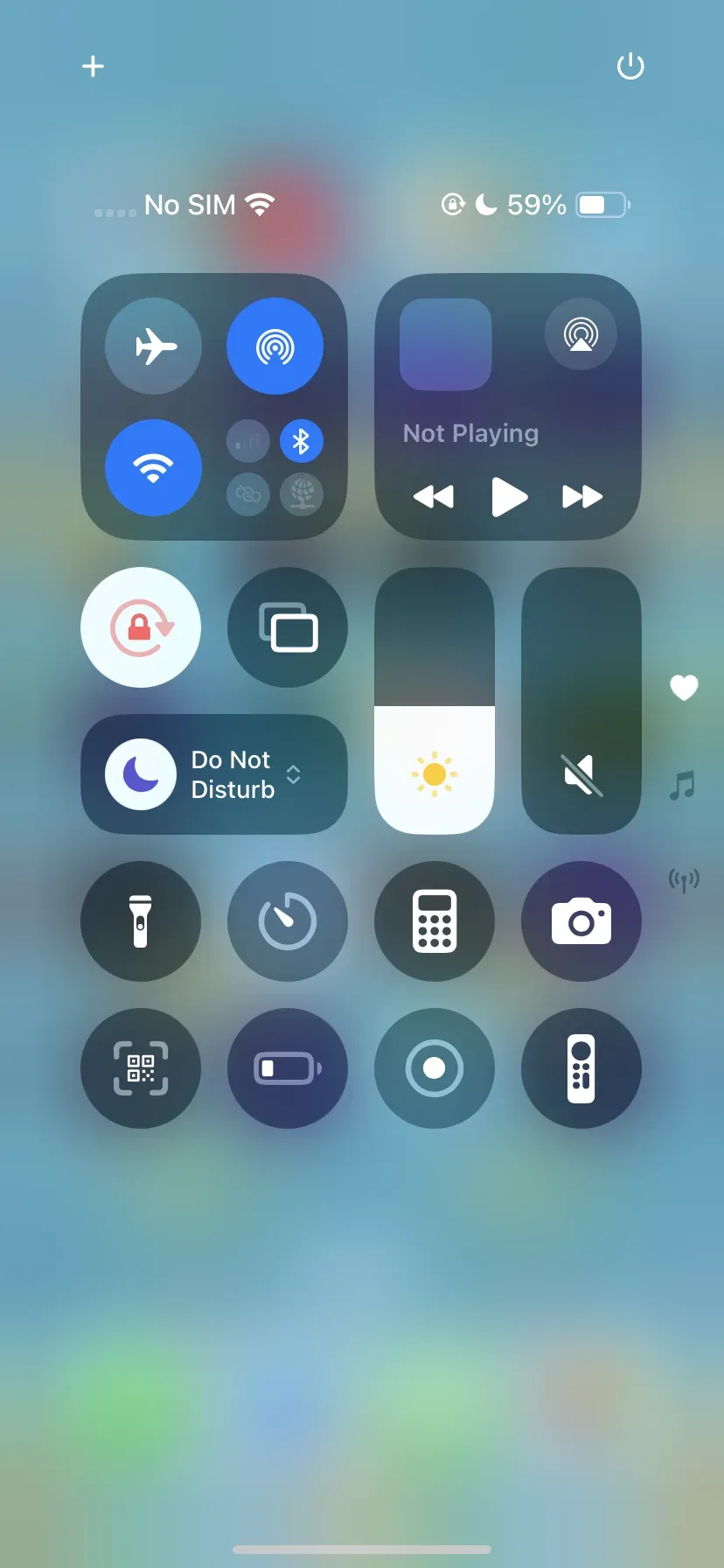
Step 4. Tap Screen Mirroring and select your Sony TV from the list.
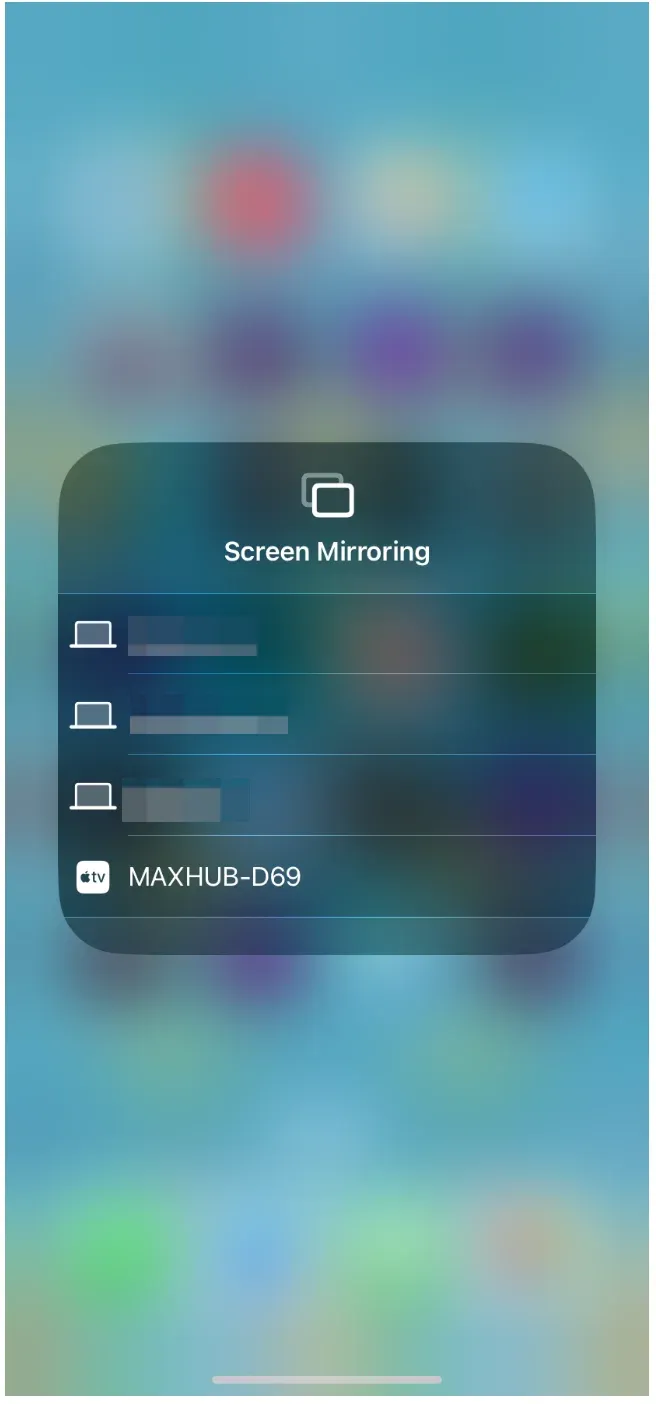
Step 5. Your iPhone screen will now appear on the TV.
This method is perfect if you want Sony TV AirPlay for movies, presentations, or gaming.
Method 2: Cast via Chromecast (Built-in or Dongle)
Most Sony Bravia TVs with Android TV or Google TV have Chromecast built in. This allows you to cast directly from Chromecast-compatible apps like YouTube, Netflix, or Disney+.
Step 1. Connect your iPhone and Sony TV to the same Wi-Fi.
Step 2. Open a cast-enabled app on your iPhone, like YouTube.
Step 3. Tap the Cast icon and select your Sony TV.
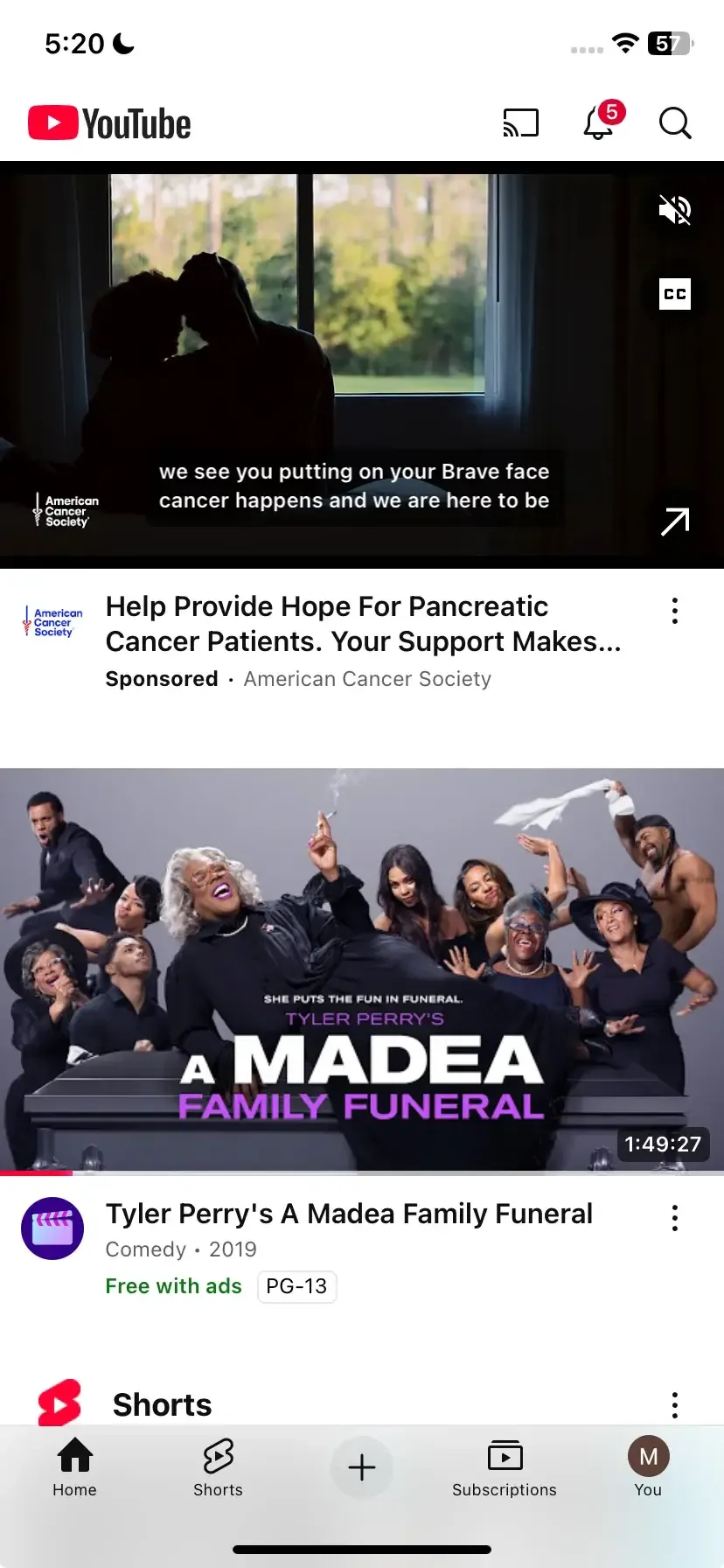
If your TV doesn't have Chromecast built in, you can use an external Chromecast dongle. This makes it easy to cast iPhone to Sony TV without screen mirroring.
Method 3: Set Up PigeonCast on Sony Android TV
Since 2015, Sony has included Android TV in its lineup, and in 2021 it began rolling out Google TV models. If you own one of these, you can install the PigeonCast screen mirroring app to turn your Sony TV into an AirPlay receiver. This gives you greater flexibility for Bravia TV screen mirroring iPhone, especially if your model doesn't have built-in Sony TV AirPlay support.
Step 1. Install PigeonCast from the Google Play Store on your Sony TV and launch it on the TV.

PigeonCast Screen Mirroring

Official Download


Step 2. Make sure your iPhone and TV are on the same Wi-Fi.
Step 3. On your iPhone, open Control Center > Screen Mirroring.
Step 4. Select your Sony TV running PigeonCast, and your iPhone screen will mirror wirelessly.
This is one of the best options if you want to know how to connect iPhone to Sony TV wirelessly without relying on built-in AirPlay.
Method 4: Use an HDMI Cable with an Adapter
If you prefer a wired option, you can use a Lightning to Digital AV Adapter or USB-C to HDMI Adapter with an HDMI cable. This ensures a stable connection, ideal for streaming without Wi-Fi.
Step 1. Connect your adapter to your iPhone.
Step 2. Plug in an HDMI cable and connect it to your Sony TV.
Step 3. Switch your TV input to the correct HDMI port.
Step 4. Your iPhone screen will now be mirrored on your TV.
This is the most reliable way for Sony Bravia screen mirroring when Wi-Fi is weak or unavailable.
Method 5: Use DLNA Streaming Apps
For older Sony TVs that don't support AirPlay or Chromecast, DLNA-based apps can help. Apps like Plex or iMediaShare let you stream photos, music, and videos from your iPhone.
Step 1. Install a DLNA-compatible app on your iPhone.
Step 2. Ensure your Sony TV and iPhone are connected to the same Wi-Fi.
Step 3. Open the app and choose your Sony TV to start streaming.
While this doesn't offer full screen mirroring iPhone to Sony TV, it's a great workaround for older models.
Wrapping Up
Now you know exactly how to connect iPhone to Sony TV, whether it's through AirPlay, Chromecast, PigeonCast, HDMI, or DLNA. For most users, how to screen mirror iPhone to Sony TV wirelessly with AirPlay or PigeonCast will be the fastest method. But if stability is key, the HDMI adapter remains the most reliable choice. No matter which approach you choose, Bravia TV screen mirroring iPhone has never been easier.
How to Connect iPhone to Sony TV FAQs
Q: Why is my iPhone not connecting to Sony TV?
If your iPhone isn't connecting, first check that both devices are on the same Wi-Fi network. For Sony TV AirPlay, make sure AirPlay is enabled in your TV's settings. If you're trying screen mirroring iPhone to Sony TV through PigeonCast or another app, confirm that it's installed and running properly. Restarting both your TV and iPhone often resolves most connection issues.
Q: Can I use AirPlay on my Sony TV?
Yes. Many newer Sony Bravia TVs come with Sony TV AirPlay built-in. You can easily mirror or cast your iPhone screen directly. If your model doesn't have native support, you can use third-party apps like PigeonCast to enable screen mirroring iPhone to Sony TV.
Q: How do I know if my Sony TV supports AirPlay?
Go to Settings > Device Preferences > Apple AirPlay & HomeKit. If you see this option, your TV has AirPlay support. Otherwise, you'll need an alternative solution such as Bravia TV screen mirroring iPhone via PigeonCast.
Q: What's the easiest way to connect iPhone to Sony TV wireless?
The easiest method is using AirPlay if your TV supports it. Simply connect your iPhone and TV to the same Wi-Fi network, then choose your TV from the AirPlay list. If AirPlay isn't available, you can still mirror iPhone to Sony TV using apps like PigeonCast.
Q: Can I mirror iPhone to Sony TV without Wi-Fi?
Yes, without Wi-Fi, you can only connect using an HDMI adapter, which doesn't rely on wireless streaming.
Mia Clarke is a technology editor specializing in screen mirroring and casting solutions across multiple platforms. Mia provides clear, practical guides and in-depth insights to help users seamlessly connect their devices. Passionate about enhancing digital experiences, Mia is dedicated to keeping readers updated on the latest trends and tools in cross-platform screen sharing. Whether you’re looking to mirror your smartphone, laptop, or smart TV, Mia’s content delivers reliable, user-friendly advice to simplify your tech setup.