
Android devices are widely used today, but many users only take advantage of the basic features. Have you ever tried screen mirroring or know how to enable screen mirroring on Android? In this guide, we'll walk you through the steps to mirror or cast your screen, helping you get more from your device and enjoy a more immersive viewing experience.
What Is Screen Mirroring on Android
Before you begin, it's helpful to know what screen mirroring is. It's a feature that lets your Android device display its screen on another screen, like a TV or computer, in real time. Whether you're using apps, watching videos, viewing photos, or playing games, everything on your phone will show up on the other screen as well.
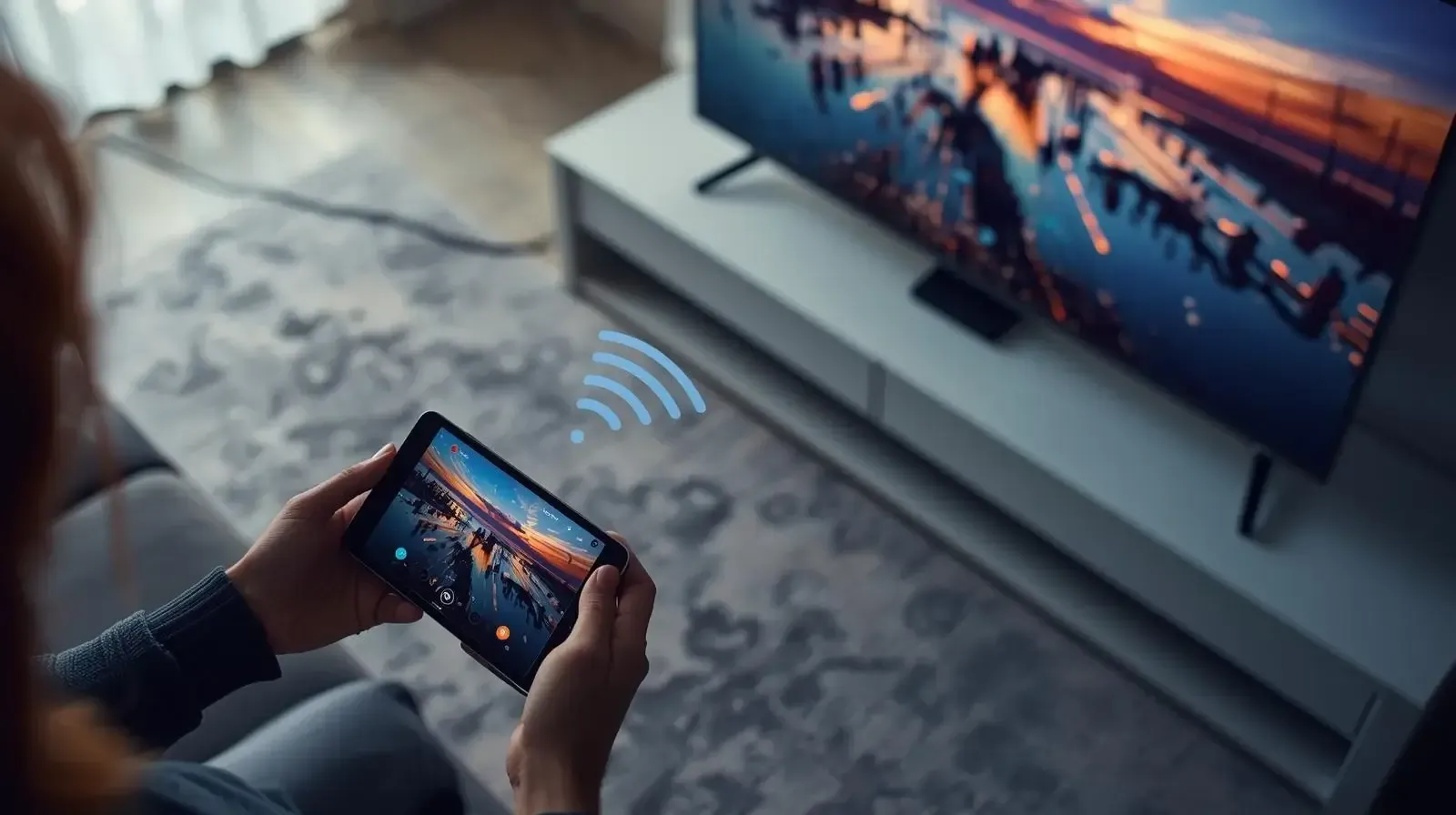
The name of this feature can vary depending on the device brand. For example, it's called Cast or Screen Cast on Google and OnePlus phones, Smart View on Samsung devices, and Wireless Display or Miracast on some older models.
Check If Your Device Supports Screen Mirroring
Before you can start mirroring your Android screen, it's important to make sure your device actually supports the feature. While most modern Android devices do, the steps to check and the names used for screen mirroring can vary depending on the phone or TV brand.
For Android Phones and Tablets
Most Android smartphones and tablets running Android 8.0 or higher come with screen mirroring or casting built in. Here's how to check if your device has this capability:
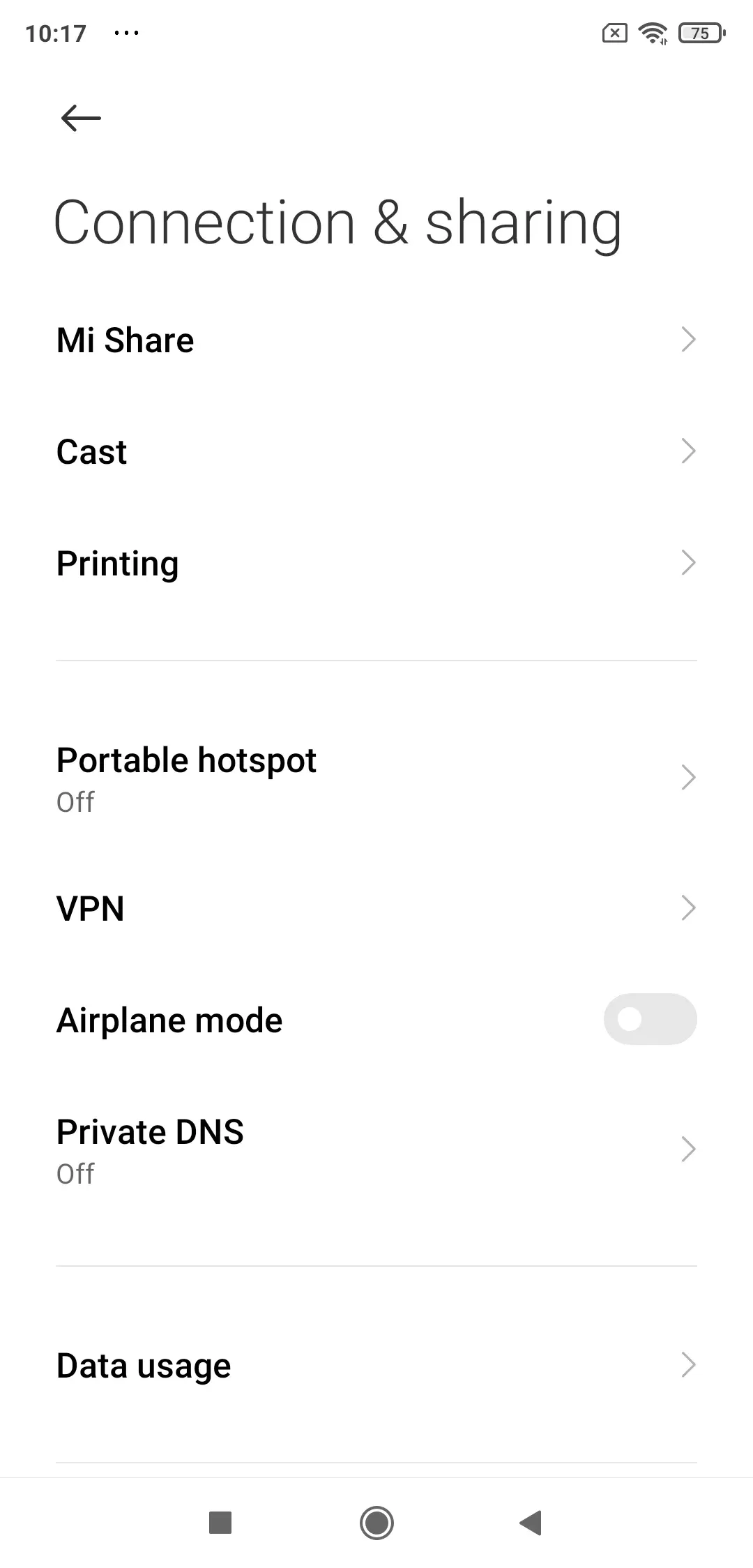
Step 1. Open the Settings > Connected Devices or Display, depending on your phone model.
Step 2. Look for terms like Cast, Smart View, or Wireless Display.
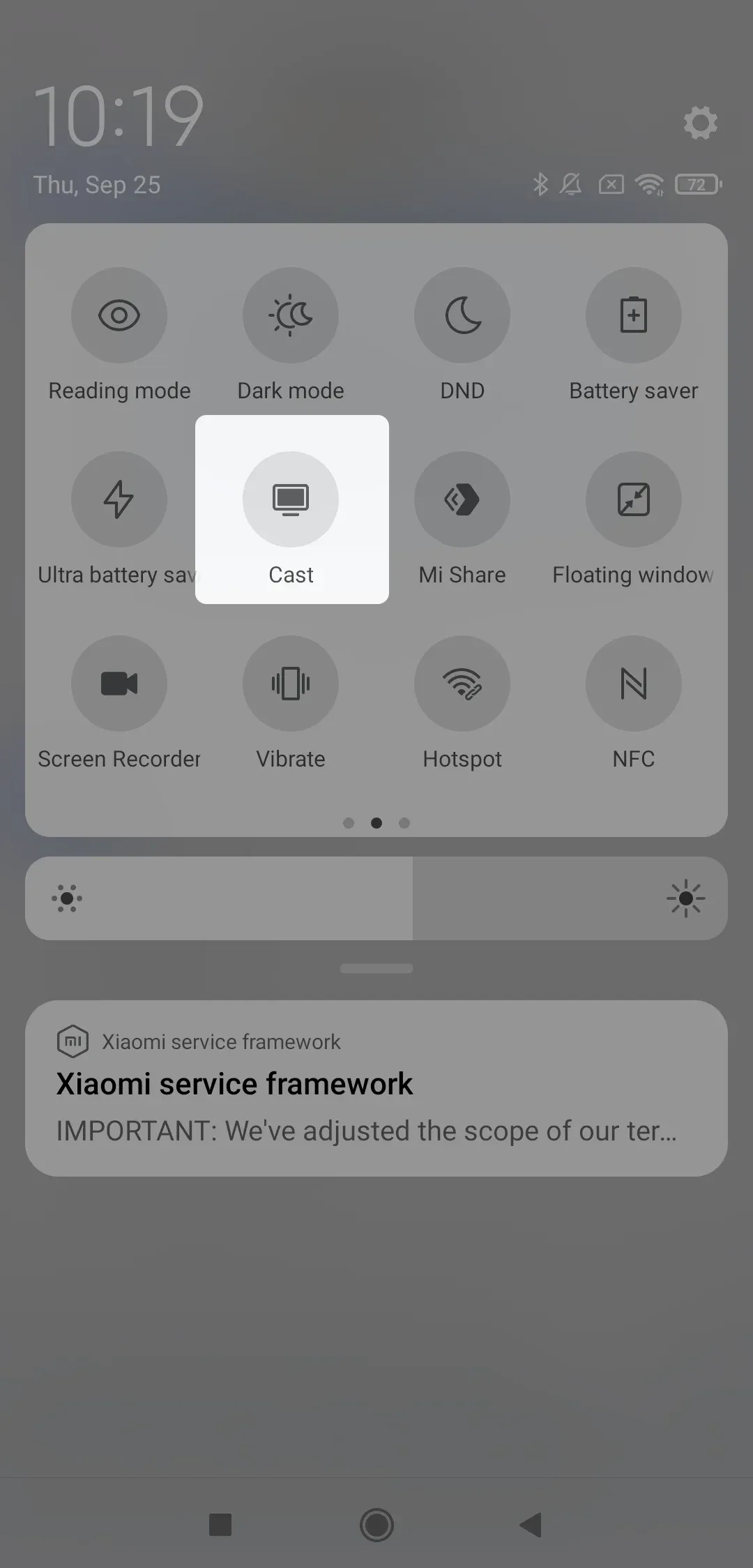
Quick tip: You can also swipe down from the top of your screen to open the notification shade or quick settings panel. If your device supports mirroring, you'll usually find a Cast or Screen Mirroring icon there.
For Android TVs
Just like phones, many Android TVs support screen mirroring out of the box, especially popular brands like Sony, TCL, Hisense, and Xiaomi. These TVs often include Google Cast, Miracast, or both technologies.
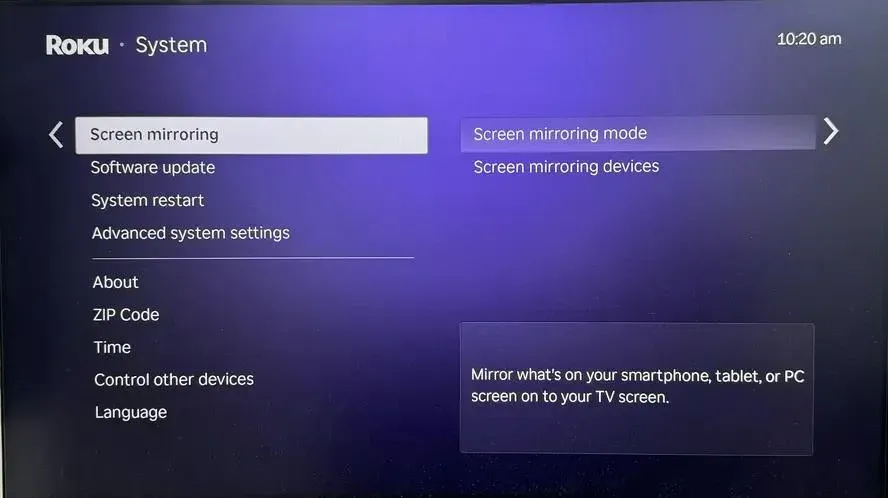
Step 1. Go to Settings.
Step 2. Look under menus like Network, Display, or Connection Preferences.
Step 3. Look for options labeled Screen Mirroring, Wireless Display, Miracast, Screen Share, or WiDi.
If you find one of these, your TV is screen-mirroring ready. If not, don't worry, you can still use the Chromecast dongle (plug into HDMI), a Fire TV Stick, Roku, or similar casting device, or third-party apps like PigeonCast to add this feature.
How to Enable Screen Share on Android
Screen mirroring is a great way to share what's on your Android onto another screen. Whether you want to watch videos, play games, or show a presentation, mirroring helps you enjoy content more comfortably. Let's walk through how to enable this feature on different Android devices.
How to Enable Screen Mirroring on Android Phone or Tablet
Most modern Android phones and tablets include a built-in screen mirroring feature, although its name and location vary by brand. Samsung calls it Smart View, Google Pixel uses Cast, while Xiaomi phones may display Cast or Wireless Display depending on the MIUI or HyperOS version. The process for screen mirroring from a Xiaomi phone follows the same basic connection steps, but the menu path may differ slightly by model.
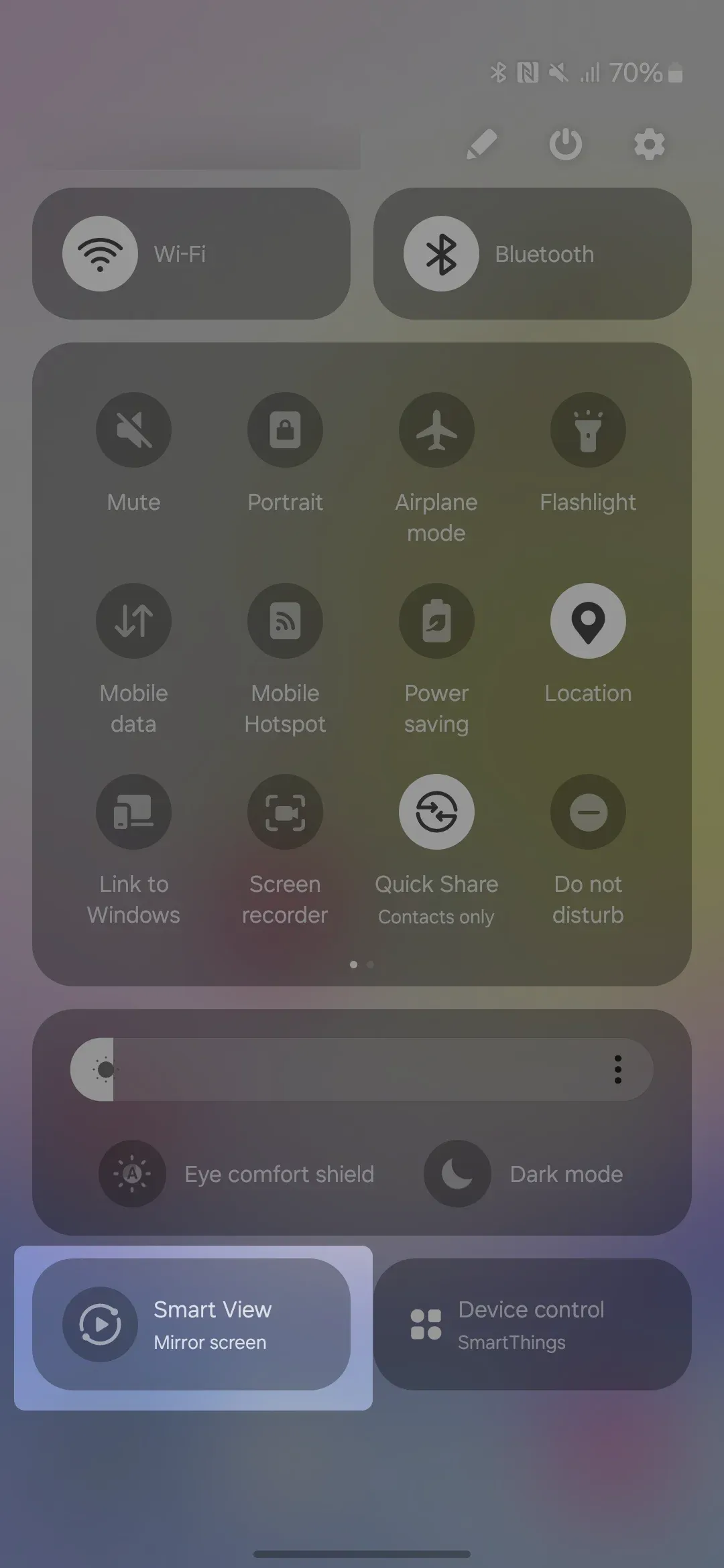
Before starting, connect your Android phone and the receiving device to the same Wi-Fi network.
Step 1. Swipe down from the top of your screen to open the Quick Settings panel.
Step 2. Look for and tap Cast, Smart View, or Screen Mirroring.
Step 3. Select the device you want to mirror your screen to from the list of available devices.
Step 4. If a prompt appears on the other device, accept the connection.
Step 5. Once connected, everything on your mobile device's screen will appear on the other display.
How to Enable Screen Mirroring on Android TV
For Android TV, you should also activate the screen mirroring feature to start the casting or mirroring behaviors. To make the connection succeed, you have to ensure that both your devices are covered by the same wireless network. Here we take some examples of the common TV brands:
- How to Enable Screen Mirroring on TCL Android TV
Step 1. Turn on your Android TV.
Step 2. There's no setup required, and your TV is ready to receive casting by default.
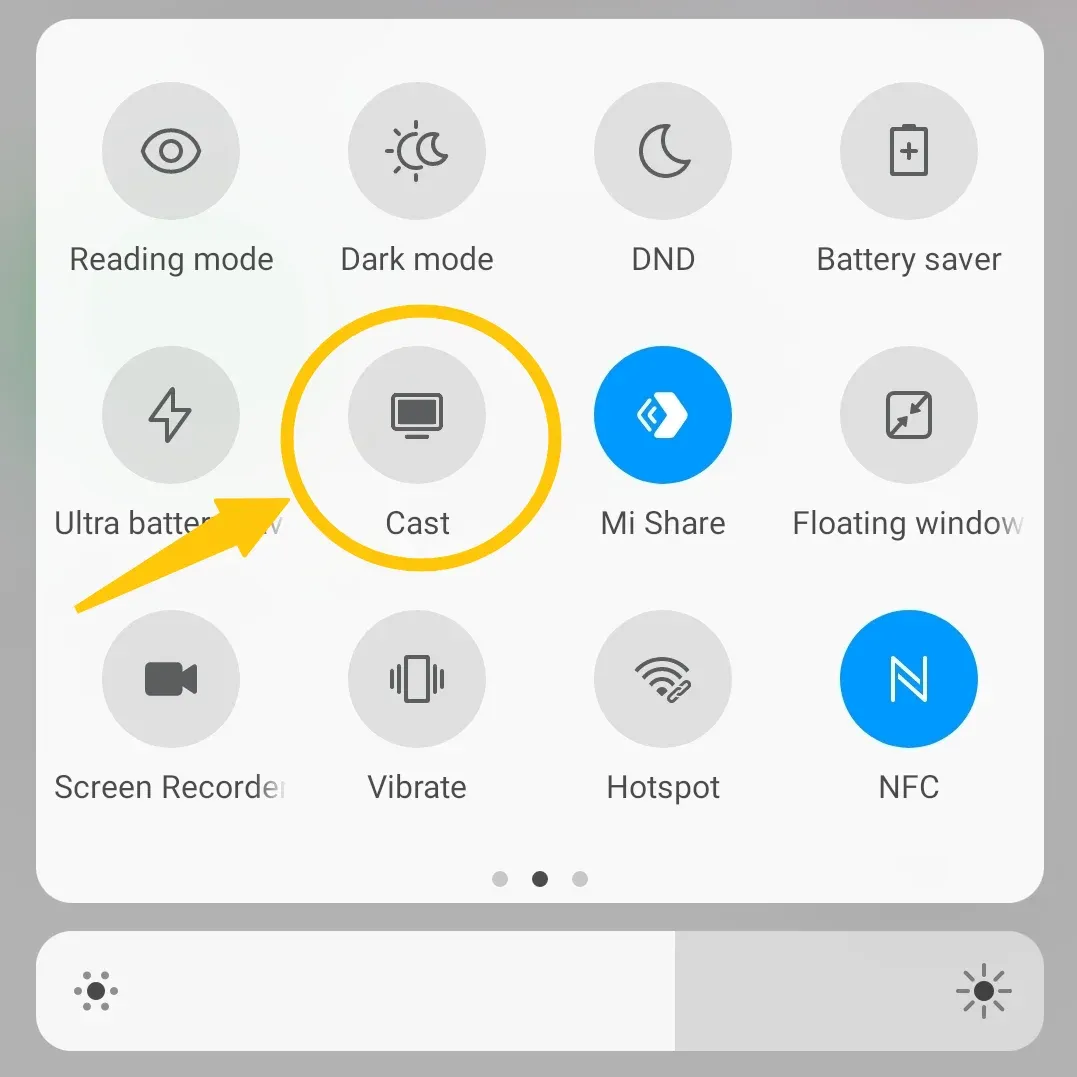
Step 3. On your Android phone, swipe down and tap the Cast option to select your TV.
- How to Enable Screen Mirroring on Android Samsung TV
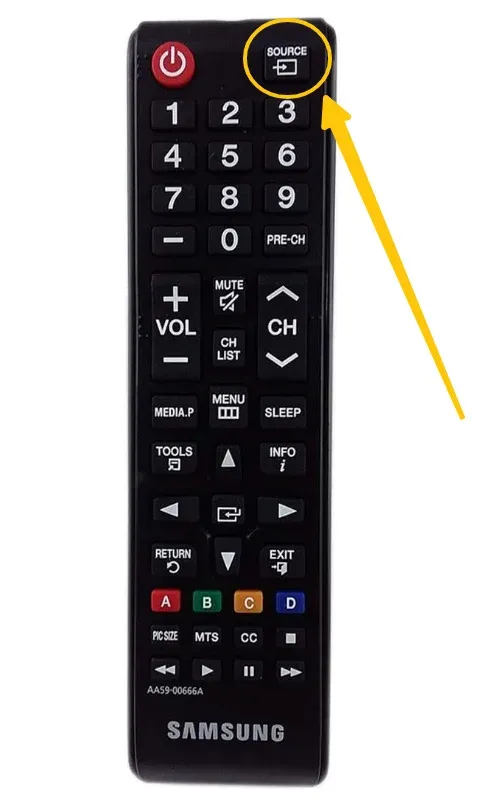
Step 1. On your TV remote, press the Input or Source button.
Step 2. Choose Screen Mirroring, Miracast, or Wireless Display.
Step 3. On your Android phone, go to Settings > Connected Devices > Cast (or swipe down and tap Smart View, Cast, or Screen Mirroring).
Step 4. Select your TV name when it appears.
How to Enable Screen Mirroring (AirPlay) on Your Android
How to enable mirroring on Android if you can't find the screen mirroring or casting option on your Android, or if this feature isn't working on your Android? With the PigeonCast, a universal screen mirroring solution, you can turn your Android device into a powerful sender or receiver. It supports multiple protocols like AirPlay, Google Cast, and DLNA, giving you a seamless cross-platform streaming experience.

- Option 1. Use Your Android Phone as Sender device
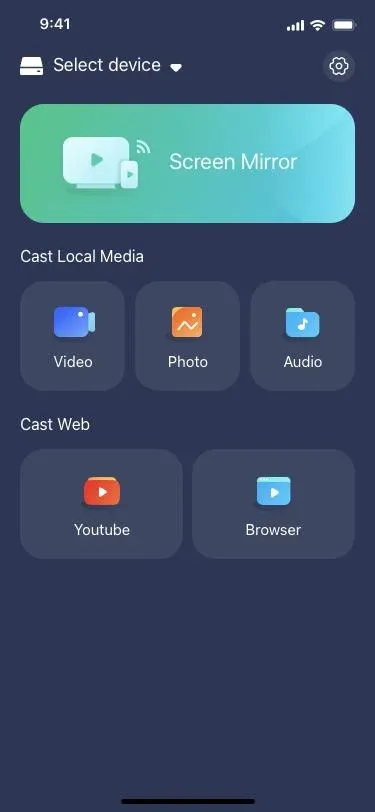
With the PigeonCast Android screen mirroring app, you can easily mirror your Android screen to a TV, PC, Mac, or even Apple TV with no operating system barriers. Whether you want to stream YouTube, Vimeo, or your own photo albums, PigeonCast gives you smooth playback and full control right from your phone.

PigeonCast Screen Mirroring

Official Download


Step 1. Install the Android mobile screen mirroring app on your device.
Step 2. Ensure both your devices are covered by the same wireless network.
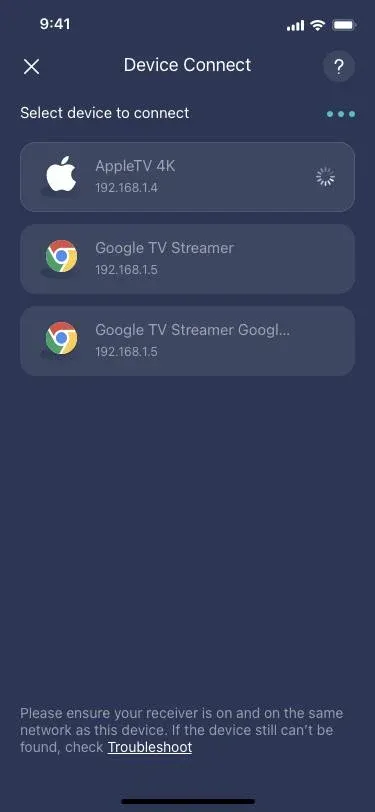
Step 3. Launch the app on your Android mobile device, and choose your receiver device from the available list.
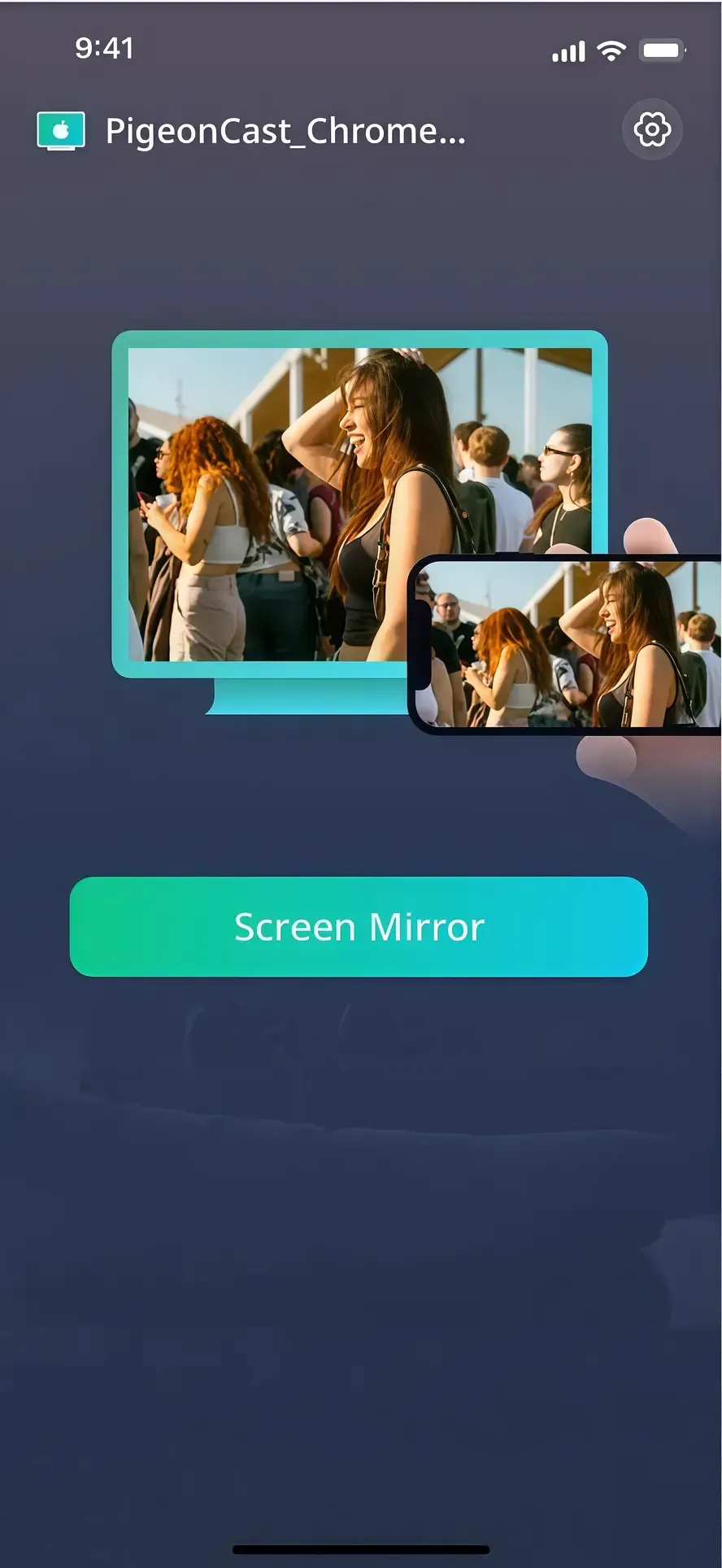
Step 4. If prompted, enter the onscreen PIN code to finish the connection. When succeed, you can tap the Screen Mirror button then see the receiver's screen displaying the content on your Android mobile device.
- Option 2. Use Your Android TV as Receiver device
If you own an Android TV and also use Apple devices, connecting them can be easier than you think. With the PigeonCast Android TV Screen Mirroring app, you can turn your Android TV into an AirPlay compatible receiver in just a few steps. No technical skills required, simply cast from your iPhone, iPad, or Mac to your Android TV without any hassle. Now, let's walk through how to set it up.
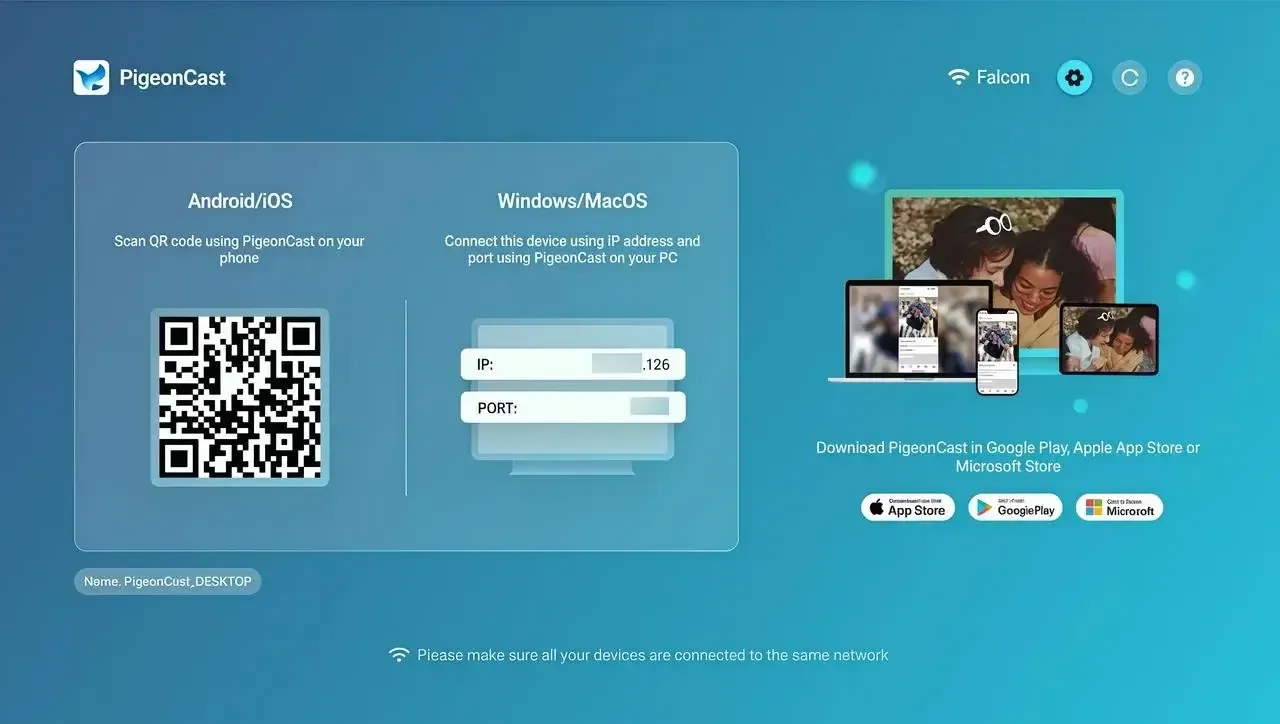
PigeonCast Screen Mirroring
Official Download
Step 1. Simply install PigeonCast app on your Android TV from the Goolge Play.
Step 2. Ensure your devices are under the same wireless network.
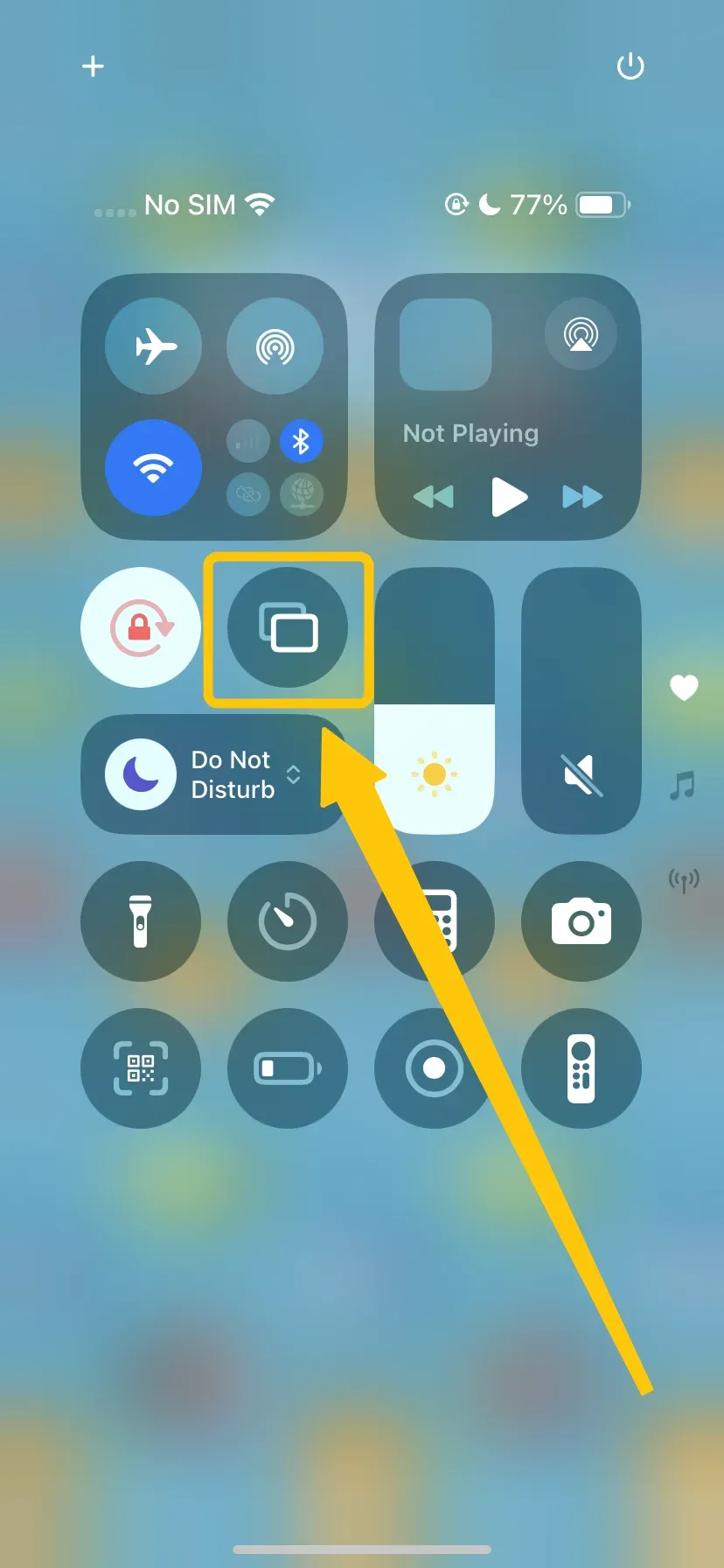
Step 3. Launch the app on your TV, and tap Screen Mirroring in the Control Center to choose the PigonCast icon from the available list.
Step 4. Enter the PIN code to finish the pairing process. Once you succeed, you can mirror your Apple screen to the Android device.
To Sum Up
How to enable screen cast on Android? If you're looking to stream content from your phone to a TV, mirror your Android TV to a laptop, or just expand your casting options, it's easier than you think. With the right tools, like the PigeonCast app, you can cast across different devices using AirPlay, Google Cast, and DLNA.
How to Enable Screen Mirroring on Android FAQ
Q: Where is screen sharing in Android settings?
Screen sharing on Android is usually found in the Quick Settings panel. Swipe down from the top of your screen, then look for an option called Cast, Screen Cast, Smart View, or Screen Mirroring—the exact name may vary depending on your phone brand. You can also go to Settings > Connected Devices > Connection Preferences > Cast to access it manually.
Q: How to mirror Android to TCL TV?
Step 1. Make sure both your Android phone and TCL TV are connected to the same Wi-Fi network.
Step 2. Enable screen mirror on your TCL TV:
- On your TCL Android TV:
- On your Android phone, swipe down to open Quick Settings.
- Tap Cast or Screen Cast.
- Select your TCL TV from the list.
- On your TCL Roku TV:
- Go to Settings > Connected Devices > Cast.
- Choose your TCL Roku TV.
- On your older TCL TV that supports Miracast (older models):
- On the TV remote, press Input or Source, then select Screen Mirroring or Miracast.
- On your Android device, open Settings > Display > Wireless Display, or use Smart View/Cast.
Q: Why is my screen mirroring not working on my Android phone?
Here are the potential reasons why screen mirroring may not work on your Android phone:
- Devices are not connected to the same Wi-Fi network
- The receiving device does not support screen mirroring (e.g., Miracast or Google Cast)
- Screen mirroring is disabled on the TV or receiver
- Battery saver, VPN, or data saver is enabled on your phone
- Your phone or casting app is outdated
- The receiving device's screen mirroring app is not running
- Network restrictions or firewall issues (especially on public or work networks)
- Bluetooth interference or unstable Wi-Fi signal
- Incompatible phone or outdated Android version
Q: Can all Android phones do screen mirroring?
Most Android phones running Android 8.0 or newer support screen mirroring using Cast, Smart View, or Miracast. However, some budget or older models may require a third-party app to enable this feature.
Q: What is the best app for screen mirroring on Android?
Some of the best screen mirroring apps for Android include:
- PigeonCast – supports AirPlay, Google Cast, and DLNA
- ApowerMirror – ideal for casting to PC
- LetsView – free and easy to use
- AirDroid Cast – good for remote sharing and control
Clara Rossi is an experienced technology editor and a seasoned expert in screen mirroring and casting technologies. With a keen eye for detail and a deep understanding of how to seamlessly connect devices, Clara excels at optimizing user experiences for effortless sharing and streaming. Whether you're seeking quick fixes or advanced tips, her expertise and responsiveness ensure that every query is met with a well-informed and efficient solution.