
Holding a Xiaomi flagship feels like carrying a pocket-sized cinema, but even the most vibrant AMOLED panel hits a physical limit when you're trying to share a 4K drone shot or a high-stakes mobile raid with friends. Achieving a seamless Xiaomi screen mirroring to TV setup shouldn't feel like solving a cryptic puzzle.
Whether you are navigating the revamped Interconnectivity menu on HyperOS 3.0 or pushing a legacy Redmi device to its limits, the goal is fluid, lag-free synchronization. Yet, between varying hardware protocols and proprietary software walls, the handshake between your phone and the television often stutters. This guide strips away the fluff to provide a direct roadmap for beaming your content across devices without the usual technical friction.
Quick Answer
For most users, the fastest route is the "Cast" or "Wireless Display" feature found in your Xiaomi settings. If you have a Smart TV with built-in Chromecast or Miracast, you can link them in under 30 seconds. If you are dealing with tricky hardware like an Apple TV, a third-party bridge like PigeonCast becomes your best friend to bypass compatibility roadblocks.
How to Mirror Xiaomi Phone to TV
Before we dive into the specific methods, ensure both your Xiaomi phone and your TV are hugging the same Wi-Fi network. It sounds obvious, but it is the number one reason screen mirroring errors pop up.
Method 1: Use Miracast (The Native Choice)
Xiaomi leans heavily on Miracast technology, often labeled as Wireless Display. This is your go-to for most Android-based TVs and older smart models.
Here's Xiaomi screen mirroring to TV:
-
Open Settings on your Xiaomi/Redmi device.
-
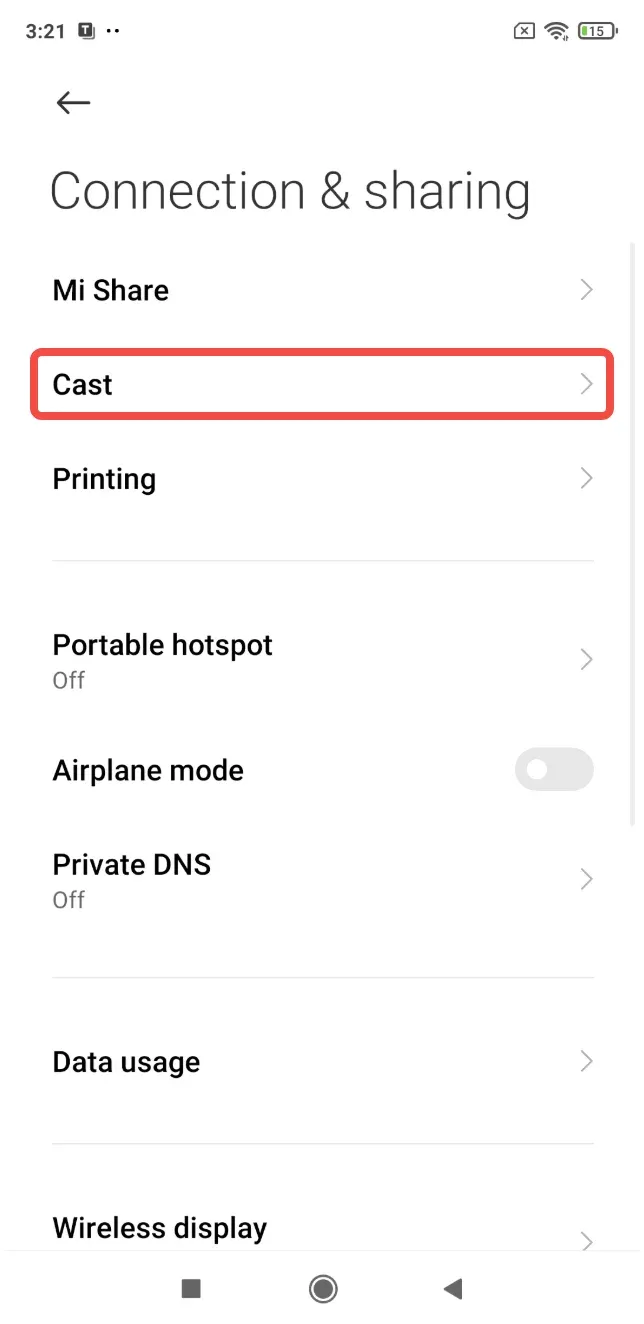
Navigate to Connection & Sharing.
-
Tap on Cast or Wireless Display and toggle it on.
-
Wait for your TV's name to appear in the list. Tap it, and you are live.
Pro Tip: If you're on the newer HyperOS, look for the "Interconnectivity" menu. It’s Xiaomi’s refined way of handling cross-device tasks.
Method 2: Use Chromecast (For Google TV & Apps)
If you own a Sony TV, a Xiaomi Mi TV Stick, or a Chromecast dongle, this method offers better stability for streaming video content.
How to start screen mirroring Xiaomi to TV:
-
Ensure your TV has Chromecast built-in enabled.
-
On your phone, swipe down the Quick Settings and tap the Cast icon.
-
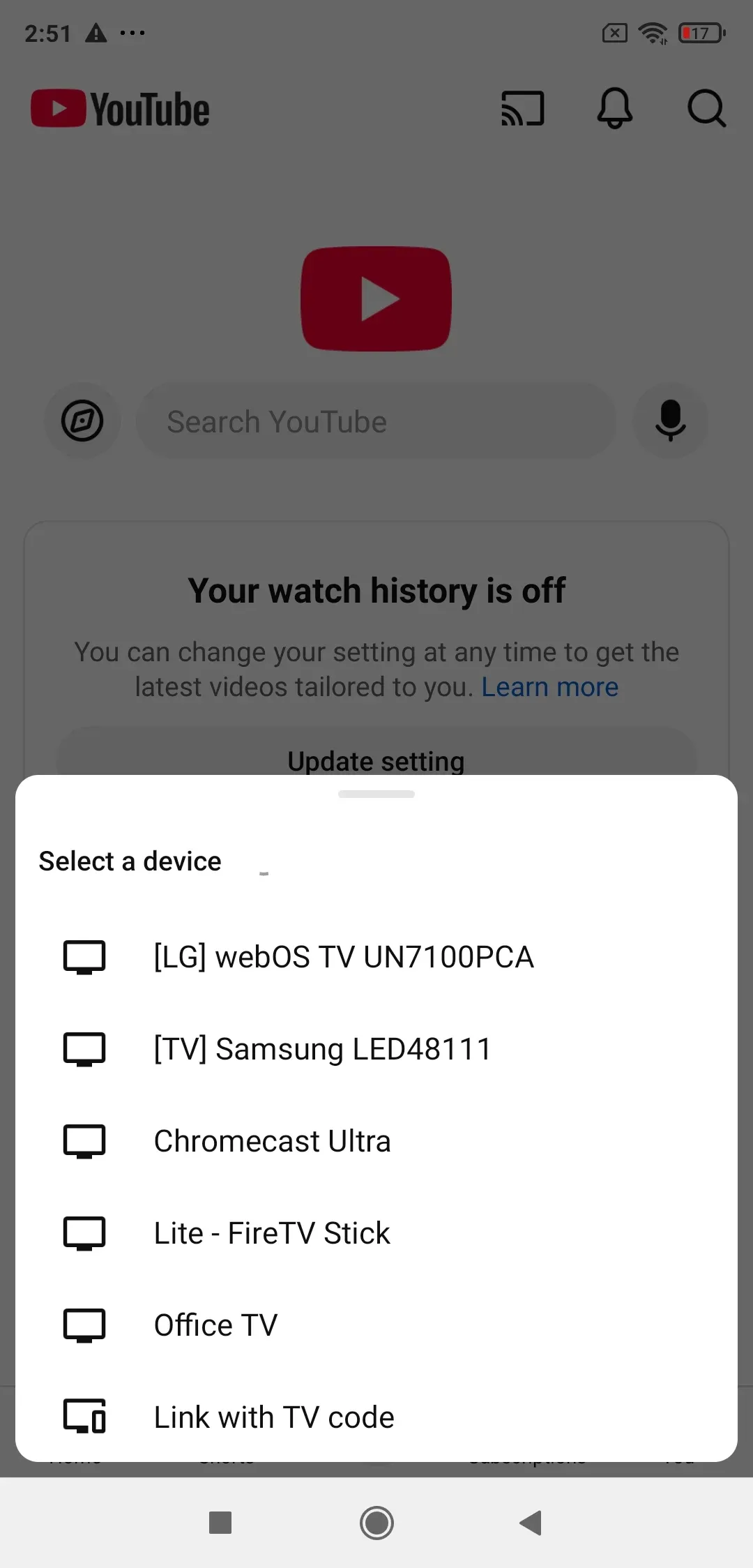
Alternatively, open a Chromecast-supported app like YouTube or Netflix and hit the Cast symbol at the top right.
-
Select your TV from the Google Home-linked devices.
Method 3: Use PigeonCast (The Universal Fix)
When native protocols like Miracast or Chromecast hit a wall, especially if you are trying to mirror Xiaomi to Apple TV, you need a dedicated "bridge". Standard system tools often struggle with cross-platform handshakes, leading to that frustrating "device not found" loop.
PigeonCast cuts through this compatibility mess by acting as a high-speed translator between Xiaomi's HyperOS/MIUI environment and various TV receiver protocols. If you've ever dealt with Xiaomi screen mirroring lag during a high-bitrate video stream, this app's optimized encoding usually offers a much more stable frame rate than the default system cast.
How to mirror Mi phone to TV via PigeonCast:
Step 1. Download and install PigeonCast on your Android phone or TV from the app store.


Overall Rating:


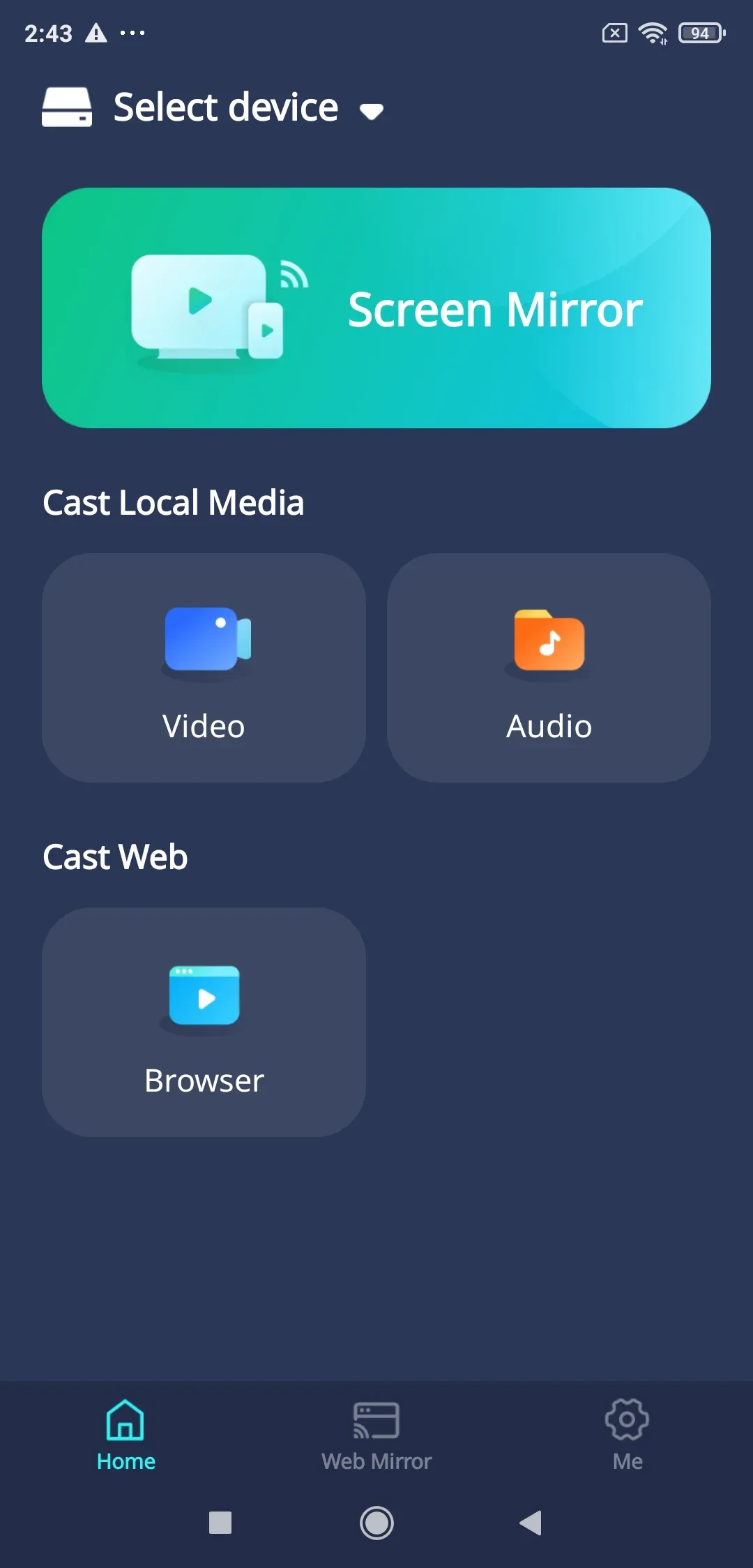
Step 2. Launch the PigeonCast on both ends and tap Screen Mirror.
Step 3. Choose your TV from the device list.
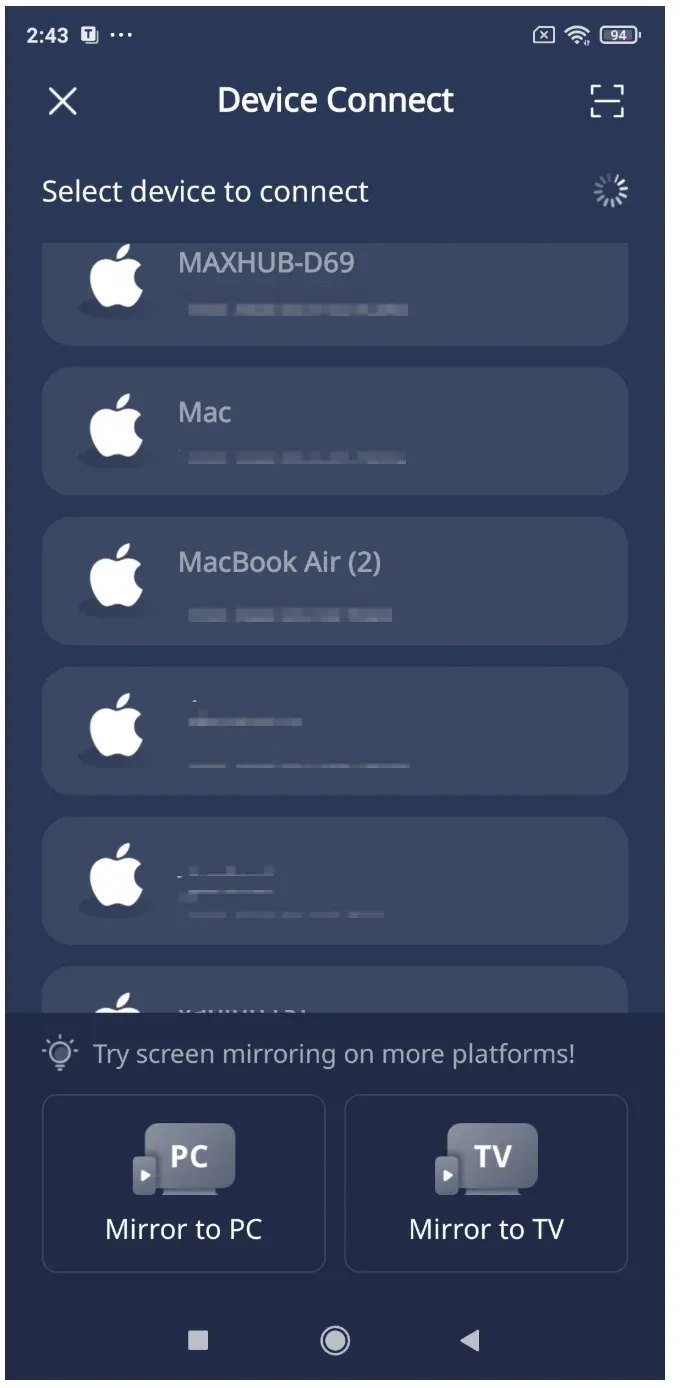
Step 4. Follow the onscreen instructions until your phone screen appears on your TV.
The Verdict: Which Method Wins?
Choosing the right method for Xiaomi screen mirroring to TV depends entirely on the "tech stack" in your living room. There is no one-size-fits-all, but there is always a best-fit.
My Take: For daily casual use, stick to the Wireless Display toggle in your HyperOS settings. However, if you are looking for a "universal remote" experience that doesn't care if your TV is from Sony or Apple, keeping a bridge like PigeonCast in your app drawer is the ultimate safety net for 2026.
Xiaomi Screen Mirroring to TV FAQs
Why is my Xiaomi screen cast not working?
Most screen mirroring issues stem from Wi-Fi frequency mismatches. Is your phone on 5GHz while the TV is on 2.4GHz? Put them on the same band. Also, check if Xiaomi wireless display connection failed due to a restricted "Special App Access" setting in your privacy menu.
Does Xiaomi have Miracast?
Yes, absolutely. Xiaomi markets it as Wireless Display. It's built into the core of MIUI and HyperOS, allowing peer-to-peer screencasting in some cases without a router.
How to enable screen mirroring on Xiaomi?
Swipe down the Control Center and look for the Cast or Wireless Display icon. If it's not there, tap the "Edit" button (the pencil icon) to drag it into your active shortcuts.
Does Xiaomi have AirPlay?
Not natively. Xiaomi uses Android-based protocols. To connect Xiaomi to Apple TV, you must use a third-party application like PigeonCast to "mimic" the AirPlay protocol so the Apple device recognizes the incoming Android stream.
How do I mirror my Xiaomi to Apple TV?
Since Apple uses the proprietary AirPlay protocol, your Xiaomi won't see the Apple TV natively. You'll need a third-party bridge. Apps like PigeonCast or AirBeamTV act as the middleman, allowing your Android device to "speak" AirPlay and beam your screen without needing an iPhone.
Can I cast to TV without Wi-Fi on a Xiaomi phone?
Surprisingly, yes. If both your phone and TV support Miracast, they can create a direct Wi-Fi Direct link. You still need Wi-Fi toggled "On" on both devices for the radio signal, but you don't actually need an active internet connection or a router to mirror your display.
Why is there a black screen when mirroring Netflix from my Xiaomi?
This isn't a bug; it's DRM (Digital Rights Management) at work. Most premium streaming apps block screen mirroring to prevent piracy. To watch Netflix on the big screen, use the built-in Chromecast feature (the "Cast" icon inside the app) instead of mirroring your entire phone screen.
How do I fix Xiaomi screen mirroring lag?
Lag is often caused by interference at 2.4 GHz. Switch both your TV and Xiaomi phone to a 5GHz Wi-Fi band. Additionally, enabling "Hardware Acceleration" in your casting app settings or reducing the output resolution to 1080p can significantly sharpen the response time.
Mia Clarke is a technology editor specializing in screen mirroring and casting solutions across multiple platforms. Mia provides clear, practical guides and in-depth insights to help users seamlessly connect their devices. Passionate about enhancing digital experiences, Mia is dedicated to keeping readers updated on the latest trends and tools in cross-platform screen sharing. Whether you’re looking to mirror your smartphone, laptop, or smart TV, Mia’s content delivers reliable, user-friendly advice to simplify your tech setup.