
Staring at a cramped 6-inch smartphone screen when a 98-inch Xiaomi Mini LED masterpiece is sitting right in front of you isn't just a waste; it's a tragedy. We've all been there: you're ready to show off your travel vlogs or dominate a mobile game on the big screen, only to be met with a "Device Not Found" spinning wheel.
Whether your Mi TV runs the classic Android TV interface or the newer Google TV skin, getting Mi TV screen mirroring to work shouldn't feel like solving a Rubik's cube. While Xiaomi's 2026 flagship lineup has finally started embracing Apple users, most of us still struggle with laggy connections or missing audio. This guide cuts through the technical noise to get your pixels where they belong.
Quick Answer: How to mirror in 30 seconds?
Don't have time to read the full manual? Here is the "too long; didn't read" version for how to enable screen mirroring on Mi TV:
-
Android Users: Swipe down to your Quick Settings and tap Cast or Wireless Display. If your TV doesn't show up, ensure Miracast is open on Mi TV.
-
iPhone/Mac Users: Unless you own the brand-new 2026 S Mini LED series, you'll need a receiver app like PigeonCast from the Mi TV Play Store to "unlock" AirPlay.
-
Windows Users: Hit Win + K and select your Xiaomi TV.
-
The Golden Rule: Both devices must be on the same Wi-Fi band (5GHz is highly recommended to avoid the dreaded stutter).
Method 1: Screen Mirror to Mi TV with PigeonCast
If your household is a mix of an iPhone, a Windows laptop, and a Xiaomi TV, you've likely realized they don't always speak the same language. Most Mi TVs run on Android TV or Google TV, which are built for Chromecast but often ignore Apple users entirely.
PigeonCast for Android TV Screen Mirroring App acts as the universal translator for Mi TV screen mirroring. It's a lightweight receiver that bridges the gap between Google's ecosystem and Apple's AirPlay, handling cross-platform streams without the lag that usually kills the vibe.
How to get it running:
Step 1. Download PigeonCast from the Google Play Store on your Mi TV.
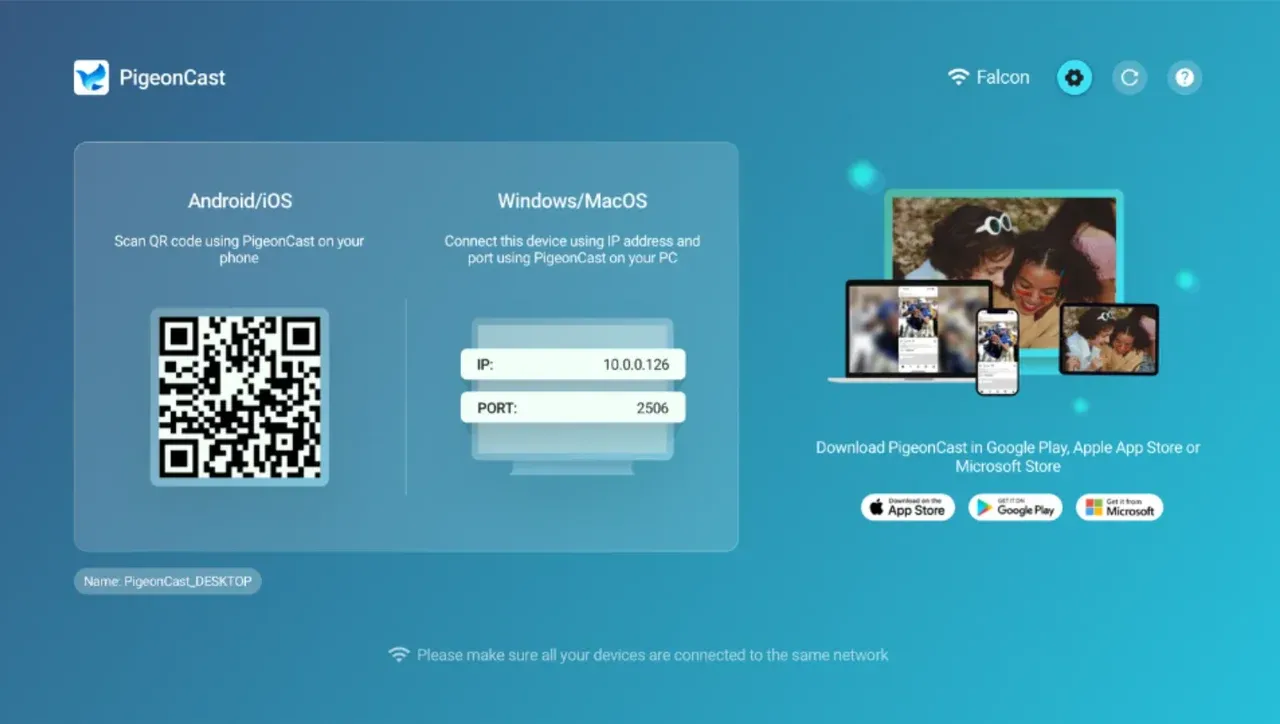
Step 2. (Optional) Download PigeonCast from the app store on your phone or laptop.


Overall Rating:



Step 3. Ensure your phone/laptop and your Mi TV are on the same Wi-Fi frequency (5GHz is better for mirroring).
Step 4. Open the app on your TV. On your sender device, enable screen mirroring:
-
On an Android device, open Quick Settings, tap Cast.
-
On an iPhone or Mac, go to the Control Center, and choose Screen Mirroring.
-
On a Windows PC, press the Windows + K shortcut.
-
If you are using PigeonCast on your phone or laptop, just tap Screen Mirror or Send my screen.
Step 5. Choose your Mi TV from the list.
Step 6. Your screen appears instantly.
Method 2: Screen Mirror to Mi TV with Miracast/Chromecast
If you're rocking a Xiaomi, Redmi, or any modern Android phone, you're in luck. The integration is usually baked right into the OS. Most Mi TVs feature Chromecast built-in, while older or budget-friendly models rely on Miracast.
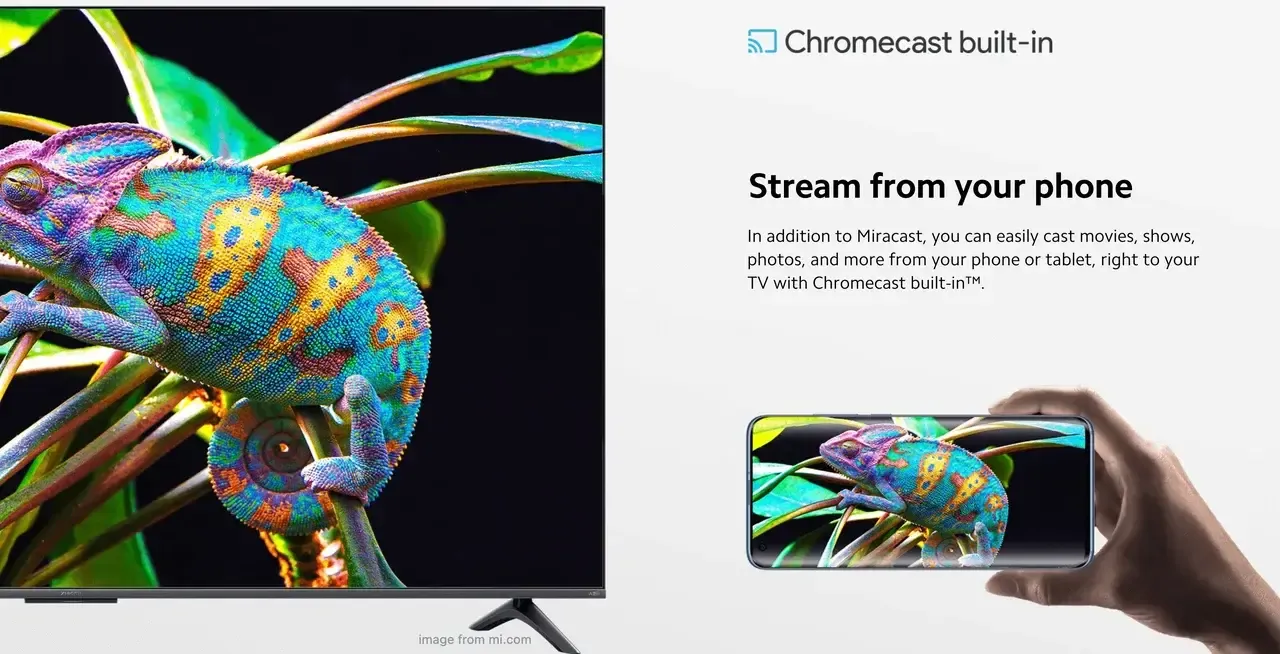
Why does this matter? Miracast creates a direct peer-to-peer connection, which is great if your router is acting up. However, for a stable Mi TV cast from Android, Chromecast is usually the smoother operator for streaming video.
How to trigger the magic:
Step 1. Ensure your Android phone and Mi TV are on the same Wi-Fi network.
Step 2. On your TV, choose Apps or Network Settings, and then find and open Miracast. This puts the TV in Discovery Mode.
Step 3. On your phone, go to the Quick Settings, choose Cast, Smart View, or Wireless Display.
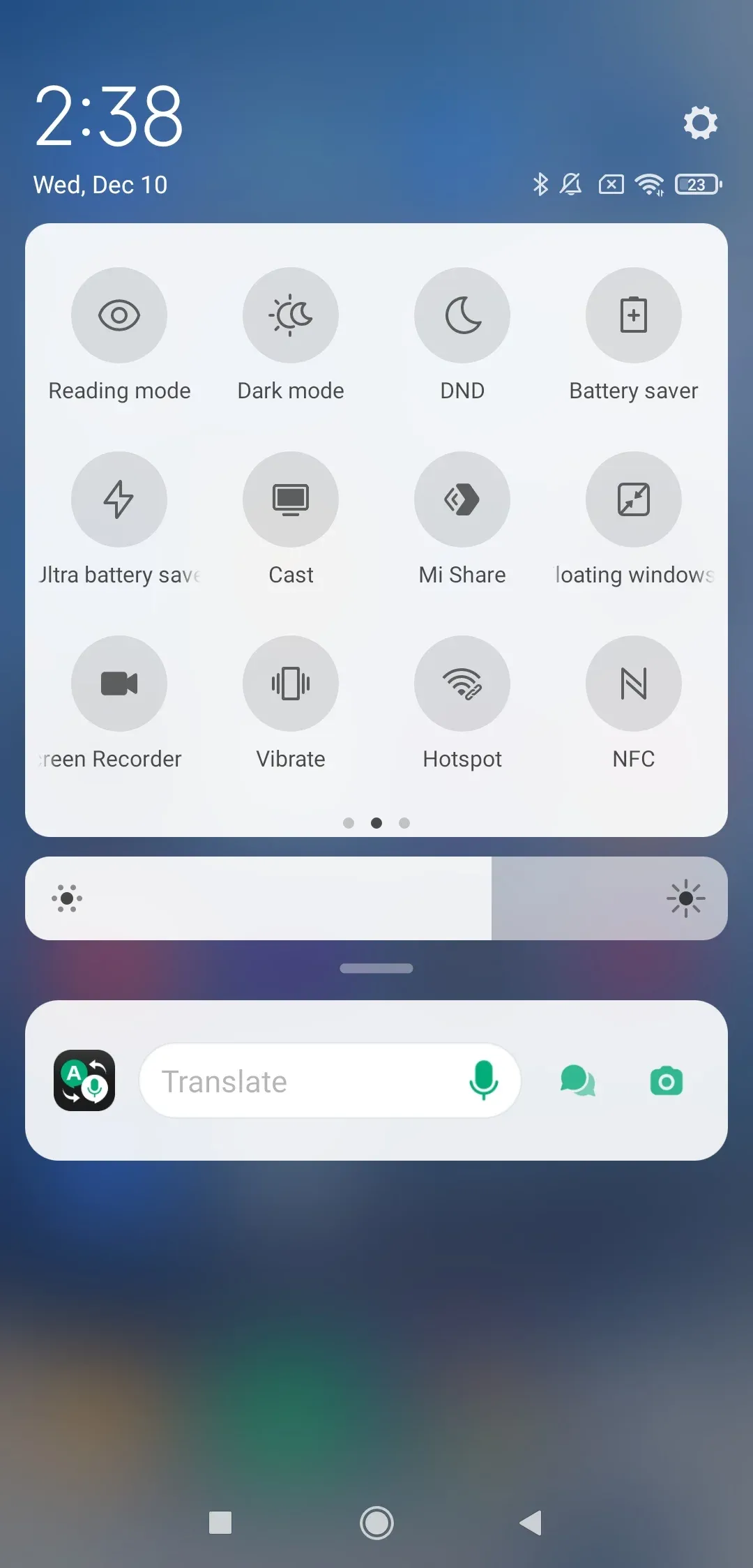
Step 4. Your phone will scan the area. Once your Mi TV pops up, tap it.
Step 5. A prompt might appear on your TV screen, and grab the remote and hit Accept.
This way also applies to screen mirroring Xiaomi phone to TV.
Method 3: Screen Mirror to Mi TV with AirPlay
For the longest time, "Does the Xiaomi TV have AirPlay?" was met with a frustrating "No". But the landscape has shifted significantly in 2026.
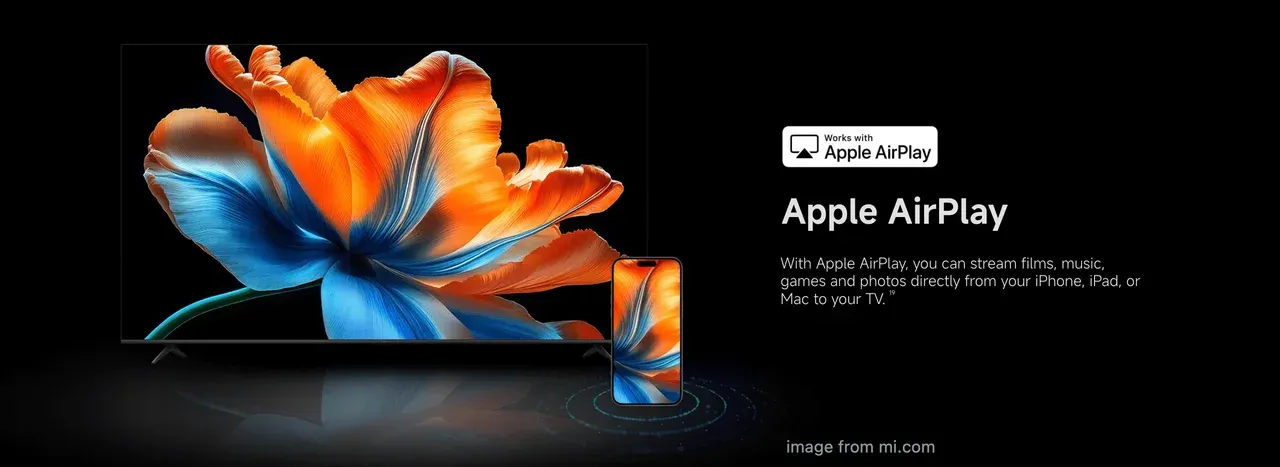
If you've splurged on the new flagship Xiaomi TV S Mini LED 98 (2026) or the 85-inch variant, congratulations! Xiaomi has finally integrated Apple AirPlay natively. You no longer need extra apps; just swipe down on your iPhone and your massive 98-inch screen will appear as an available device.
If you have an older model or even the 2025 A-series, you'll still need a workaround. Here's the step-by-step guide on Mi TV screen mirroring iPhone:
Step 1. On your Mi TV's Play Store, search for an AirPlay 2 receiver app, like PigeonCast or AirPlayMirror. Once installed and active, your iPhone, iPad, or Mac will finally "see" the Mi TV as an AirPlay-compatible device.
Step 2. Ensure both your devices are connected to the same Wi-Fi network.
Step 3. On your Apple device, go to the Control Center, and select your Mi TV from the list.
Method 4: Screen Mirror to Mi TV with HDMI
Wireless tech is convenient until the lag makes a movie unwatchable. If you are gaming or working on a Windows PC, a high-quality HDMI cable is still the gold standard for screen mirroring Windows to Mi TV. Furthermore, this method is solid when Mi TV screen mirroring without WiFi.
How to screen mirror to Mi TV:
Step 1. Plug one end into your laptop and the other into the HDMI 1 or HDMI 2 port on your Xiaomi TV.
Step 2. Switch the TV input to the corresponding HDMI source.
Step 3. Press Win + P on your keyboard to choose between Duplicate or Extend your desktop.
Which Method Should You Use?
There are four workarounds for Xiaomi TV screen mirroring, and which is the best?
| Feature | PigeonCast | Miracast/Chromecast | Native AirPlay (2026 S Series) | HDMI |
|---|---|---|---|---|
| Best For | Multi-device homes | Xiaomi/Android | iPhone users with new TVs | Pro Gaming/Offline |
| Setup Speed | Fast | Instant | Instant | Physical |
| Stability | High | Moderate | Very High | Perfect |
| Wire-Free? | Yes | Yes | Yes | No |
Troubleshoot: Mi TV Screen Mirroring Not Working
Is your Mi TV Chromecast not working or Mi TV Miracast not working? Don't toss the remote just yet. Usually, the culprit is one of these three things:
-
The Wi-Fi Ghost: Most "connection failed" errors happen because the TV is on 2.4GHz and the phone is on 5GHz. Make sure they match.
-
Clear the Cache: If mirroring is laggy, go to Settings > Apps > See all apps > Chromecast built-in and select Clear Cache.
-
Permissions: On newer Android versions, you must grant the "Nearby Devices" permission to the casting app for it to discover the TV.
The End
Let's be honest: there isn't a "one-size-fits-all" answer for Mi TV screen mirroring. If you've just unboxed the gargantuan Xiaomi TV S Mini LED 98 (2026), the native AirPlay and Chromecast features are world-class—you likely won't need to lift a finger beyond a simple swipe.
However, for the millions of us still using the incredibly reliable older Mi TV models or the 2025 A-series, the "native" experience can feel a bit fragmented. That's where the right software comes in. If you want to stop troubleshooting and just start watching, an all-rounder like PigeonCast is my personal recommendation. It levels the playing field, making sure your iPhone doesn't feel like a stranger to your Android-based TV.
Whether you go wireless for convenience or grab an HDMI cable for that lag-free gaming session, your Mi TV is more than capable of handling the job. It's time to stop squinting at your phone and start enjoying the cinematic experience you actually paid for.
Mi TV Screen Mirroring FAQs
Does Mi TV support screen mirroring?
Yes. It natively supports Chromecast and Miracast. The latest 2026 Mini-LED flagship models now also support Apple AirPlay.()
How to connect Mi TV with phone?
The "how-to" depends on your hardware. For Android, use the Cast or Wireless Display feature in your settings. For iPhones, either use native AirPlay (on 2026 models) or download a receiver app like PigeonCast to bridge the connection.
How do I mirror my iPhone to my Mi Smart TV?
If you have a 2026 S Mini LED model, use the native AirPlay. For all others, install a receiver app like PigeonCast or AirPlayMirror from the TV's Google Play Store.
What is the best app for Mi TV screen mirroring?
If you want one app that handles everything from an iPhone or MacBook to an Android tablet seamlessly, PigeonCast is currently the most stable third-party option.
Does the Xiaomi TV have AirPlay?
Yes, but only on specific models. The new Xiaomi TV S Mini LED 98 (2026**)** and its 85-inch sibling come with official AirPlay 2. For older models, you can easily add this functionality by installing a third-party AirPlay receiver app.
Can I do Mi TV screen mirroring without Wi-Fi?
Wireless mirroring usually requires a local network to function. If you're offline or have a spotty router, your best bet is an HDMI cable. It's the only way to guarantee a perfect connection without a Wi-Fi signal.
Why is there no sound when I mirror my screen?
Check if your phone is on "Silent". Also, ensure the media volume on both the phone and the TV is turned up. Some apps also block audio casting due to DRM (copyright) restrictions.
Mia Clarke is a technology editor specializing in screen mirroring and casting solutions across multiple platforms. Mia provides clear, practical guides and in-depth insights to help users seamlessly connect their devices. Passionate about enhancing digital experiences, Mia is dedicated to keeping readers updated on the latest trends and tools in cross-platform screen sharing. Whether you’re looking to mirror your smartphone, laptop, or smart TV, Mia’s content delivers reliable, user-friendly advice to simplify your tech setup.