

If you've searched for ways to mirror your phone to a Hisense TV, you've probably come across the term AnyView Cast. Many users assume it's a standalone app that needs to be installed, but that's not actually how it works.
In this guide, you'll learn what AnyView Cast Hisense is, which Hisense TVs support it, how to cast from Android, iPhone, Windows, and Mac to a Hisense TV, common AnyView Cast issues and fixes, and an easier way to mirror to a Hisense TV.
What Is Anyview Cast
AnyView Cast is Hisense's built-in wireless screen mirroring feature. On supported models, it allows a phone, tablet, or computer to display its screen on the TV over a local Wi-Fi network without requiring an HDMI cable.
Technically, AnyView Cast is based on Miracast, a wireless display standard developed by the Wi-Fi Alliance. Miracast works differently from Chromecast or AirPlay. Instead of sending only media content, it mirrors the entire screen in real time, making it suitable for presentations, web browsing, photo sharing, and app demonstrations.
This is why Android phones and Windows PCs generally work well with AnyView Cast. Both platforms support Miracast natively, allowing them to establish a direct wireless display connection with compatible Hisense TVs.
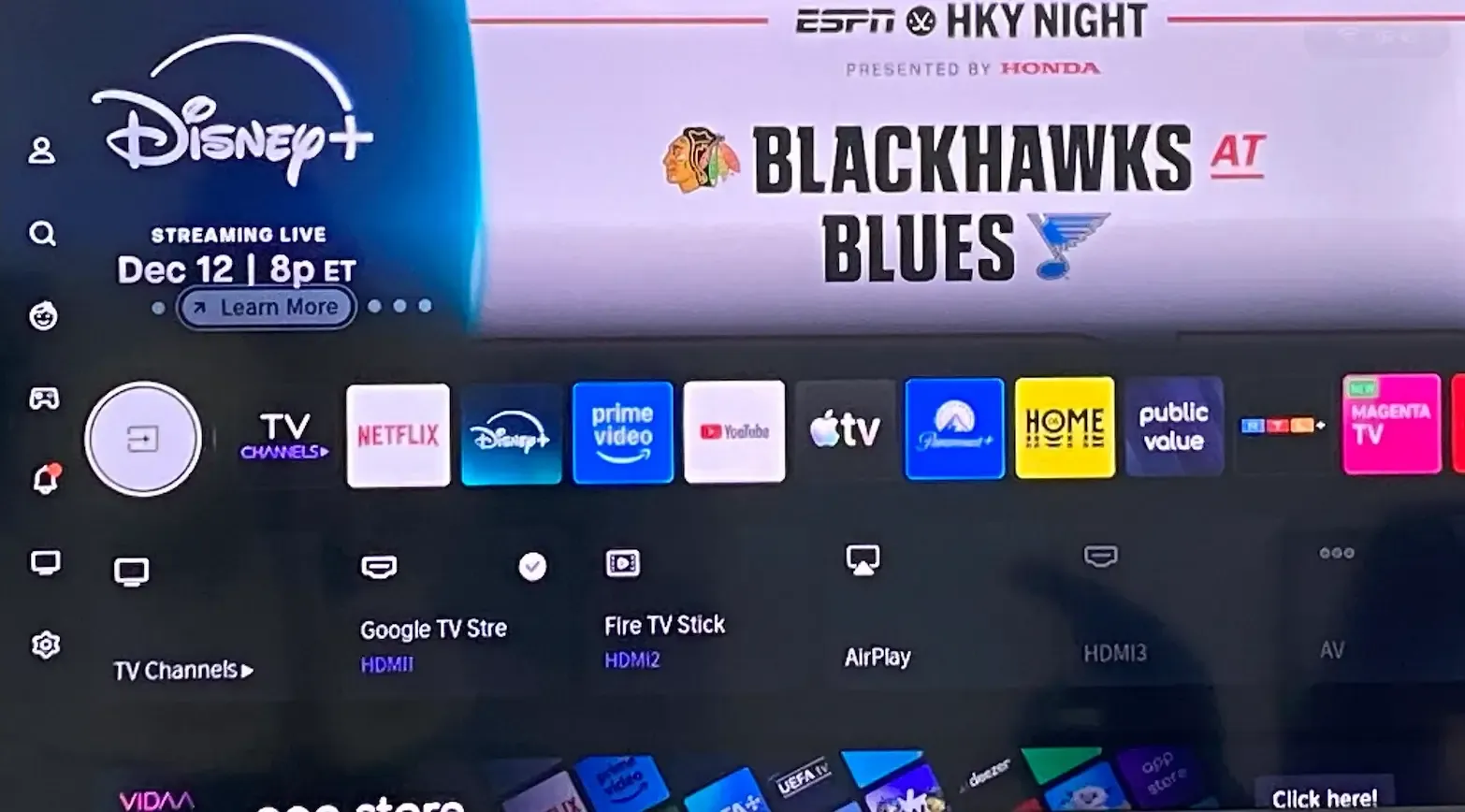
One source of confusion is that not every Hisense TV uses the AnyView Cast name. Hisense has released televisions with several different operating systems over the years, including VIDAA, Android TV, Google TV, Roku TV, and Fire TV. While many VIDAA models include a dedicated AnyView Cast menu, newer platforms often rely on their own screen mirroring technologies instead.
In other words, the ability to mirror your screen and the presence of the AnyView Cast label are not always the same thing. A Roku-based Hisense TV may support screen mirroring through Roku's implementation of Miracast, while a Google TV model may rely on Chromecast and a newer AirPlay-compatible model may use Apple's protocol instead.
Which Hisense TV Supports Anyview Cast
Not every Hisense TV includes the same casting feature. Hisense has used several different smart TV platforms over the years, and each platform handles screen mirroring in a slightly different way.
On most VIDAA-powered TVs, AnyView Cast is available as a built-in feature and can usually be found in the Input menu or the list of installed apps. These models use Miracast technology, allowing compatible Android phones and Windows PCs to connect directly to the TV without additional hardware.
However, newer Hisense TVs do not always use the AnyView Cast name. Models running Google TV, Android TV, Roku TV, or Fire TV often provide similar screen mirroring capabilities through their own platform-specific technologies. As a result, a TV may fully support wireless casting even if you never see an AnyView Cast option in the menu.
To make things easier, the table below shows the primary screen mirroring technology commonly found on each Hisense platform.
| Hisense Platform | Primary Screen Mirroring Technology | Android Phones | iPhone / iPad |
|---|---|---|---|
| VIDAA TV | AnyView Cast (Miracast) | ✅ Native Support | ⚠️ Limited |
| Android TV | Chromecast + Miracast | ✅ Native Support | ⚠️ App Required |
| Google TV | Chromecast Built-in | ✅ Native Support | ⚠️ Content Casting Only |
| Roku TV | Roku Screen Mirroring + AirPlay | ✅ Native Support | ✅ AirPlay Supported |
| Fire TV | Display Mirroring + AirPlay | ✅ Native Support | ✅ AirPlay Supported |
Rather than focusing only on the AnyView Cast name, it is more useful to identify which casting technology your TV supports. If your TV runs VIDAA OS and includes an AnyView Cast menu, you can follow the instructions in this guide directly. If your TV runs Google TV, Roku TV, or Fire TV, the casting process is slightly different, but screen mirroring is still possible.
The easiest way to check compatibility is to open your TV's Settings, Inputs, or Network menu and look for one of the following options:
- AnyView Cast
- Screen Mirroring
- Wireless Display
- Chromecast
- AirPlay
If one of these features is available, your TV already supports wireless screen sharing in some form.
Device compatibility is equally important. Because AnyView Cast is based on Miracast, Android phones and Windows computers generally provide the best experience. Samsung Galaxy devices use Smart View, while many Xiaomi, OPPO, vivo, OnePlus, Motorola, and Pixel phones offer similar functionality under names such as Cast, Wireless Display, or Screen Cast.
Windows 10 and Windows 11 also support Miracast through the Wireless Display feature, allowing laptops to connect directly to compatible Hisense TVs without installing additional software.
Apple devices are different. iPhones, iPads, and MacBooks do not support Miracast, which means they cannot connect to AnyView Cast directly. Instead, they rely on AirPlay. If your Hisense TV supports AirPlay, you can mirror your screen using Apple's built-in technology. If AirPlay is unavailable on your model, a third-party screen mirroring app for Hisense TV can bridge the gap and enable screen mirroring from iOS and macOS devices.
How to Use Anyview Cast on Hisense TV
Once you've confirmed that your TV supports AnyView Cast or another Miracast-based screen mirroring feature, the setup process is usually straightforward. In most cases, you'll first enable screen mirroring on the TV and then connect from your phone or computer.
The exact menu names may vary between Hisense models, but the overall process remains largely the same.
Step 1. Enable Anyview Cast on Hisense TV
- Turn on your Hisense TV.
- Open the Input menu.
- Select Anyview Cast or Screen Mirroring.
- Keep the screen open so your TV becomes discoverable to other devices.
If you don't see AnyView Cast in the Input menu, check the Settings or Apps section instead. Some Hisense models place the feature under a different name, such as Wireless Display or Screen Mirroring.
Step 2. Connect From an Android Device
Android devices typically offer the most reliable experience with AnyView Cast because most manufacturers include built-in Miracast support.
Depending on your phone brand, the feature may appear under different names. Samsung uses Smart View, while Xiaomi, OPPO, vivo, Motorola, and other Android manufacturers often use Cast or Wireless Display.
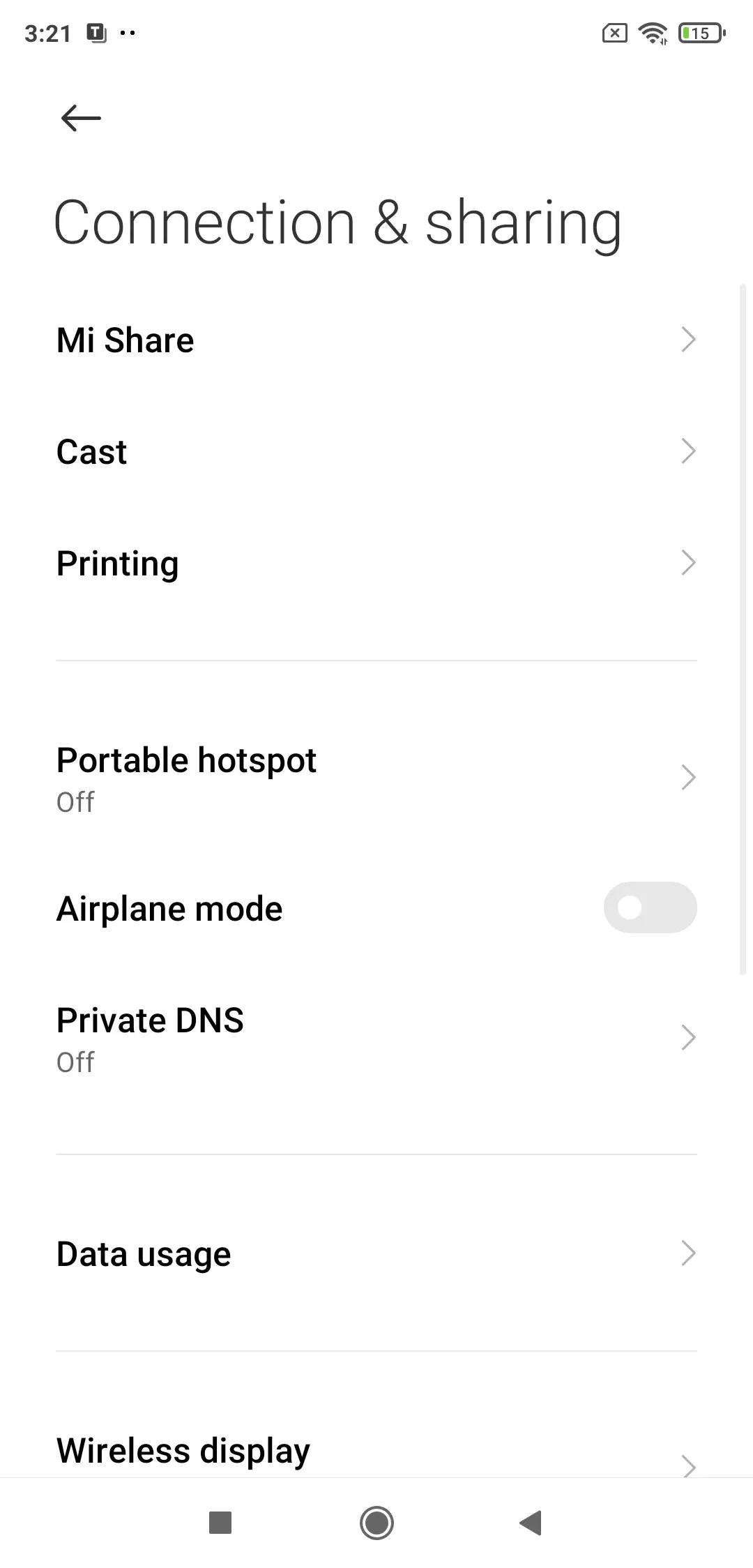
- Open the Settings on your phone.
- Look for Cast, Smart View, Wireless Display, or Screen Mirroring.
- Turn on the feature and select your Hisense TV from the list.
- Confirm the connection on the TV if prompted.
If your TV does not appear in the device list, wait a few seconds and refresh the Cast menu. Some phones may also require Wi-Fi and Bluetooth to be enabled before nearby displays can be detected.
Step 3. Connect From a Windows Laptop
Windows supports Miracast on most modern devices, making it one of the easiest ways to connect to AnyView Cast.Try the steps below:
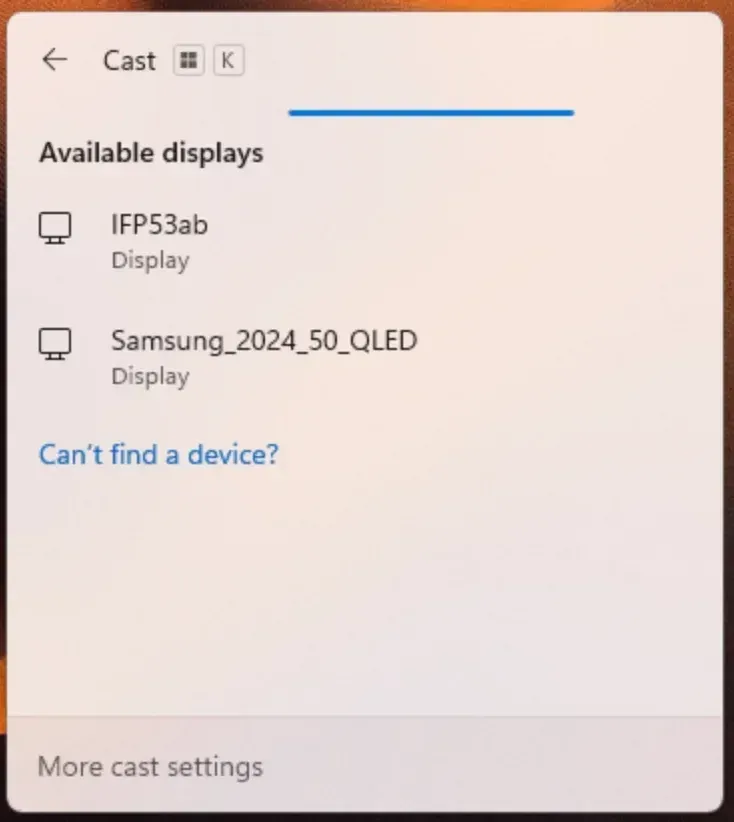
-
Press Windows Key plus the letter K on your keyboard.
-
Wait for the device list to load.
-
Select your Hisense TV.
-
Approve the request on your TV.
After connecting, press Windows + P if you want to change how the TV is used. You can choose Duplicate to show the same screen on both displays, Extend to use the TV as a second monitor, or Second Screen Only to display content exclusively on the TV.
If your Hisense TV does not appear in the device list, or if Windows displays a message that Wireless Display is unavailable, install the feature from the Optional Features menu and try again.
How to Mirror iPhone or Mac to Hisense TV
If you're using an iPhone, iPad, or MacBook, you may have noticed that your Hisense TV doesn't appear when you open AnyView Cast. This is expected. Unlike Android and Windows devices, Apple products do not support Miracast, which is the technology behind AnyView Cast.
Instead, Apple relies on AirPlay for wireless screen mirroring. Whether you can connect directly depends on the features available on your specific Hisense TV.
Option 1. Use AirPlay on a Compatible Hisense TV
Many newer Hisense TVs support AirPlay 2, particularly models running Google TV, Roku TV, and some newer VIDAA versions.
To mirror your iPhone,iPad,or Mac:
- Connect your Apple device and TV to the same Wi-Fi network.
- Open Control Center and select Screen Mirroring.
- Select your Hisense TV from the list.
- Enter the AirPlay code displayed on the TV if prompted.
Once connected, your Apple device's screen will appear on the TV wirelessly.
If your TV does not appear in the Screen Mirroring list, verify that AirPlay is enabled on the TV and that both devices are connected to the same Wi-Fi network.
Option 2. Use a Screen Mirroring App
If your Hisense TV doesn't support AirPlay, you can still mirror an iPhone, iPad, or Mac using a third-party screen mirroring app.
Apps such as PigeonCast allow Apple devices to connect to a wider range of Hisense TVs. This can be useful if your TV lacks native AirPlay support or if you're looking for a more consistent setup across different devices.
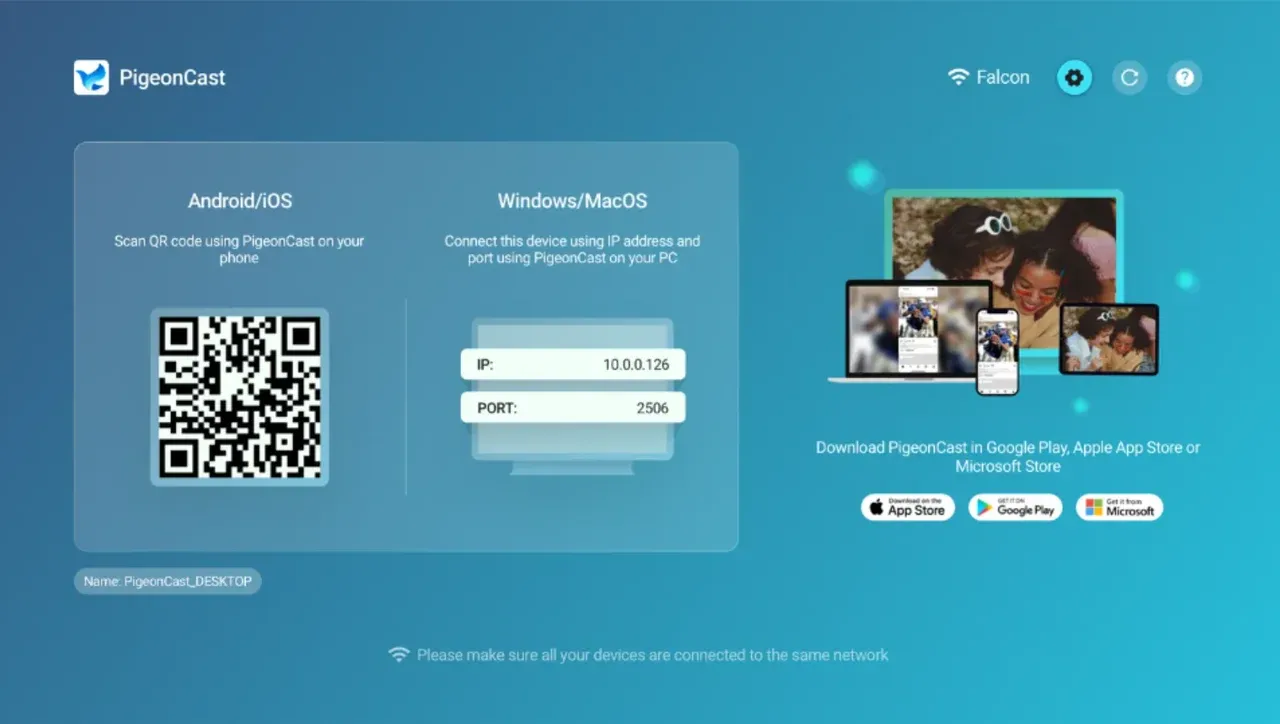
With the right app installed, you can mirror photos, videos, presentations, web pages, and other content directly from your Apple device to your Hisense TV without needing additional hardware.


Overall Rating:



AnyView Cast vs AirPlay vs Chromecast
Depending on your device and TV model, you may have more than one way to mirror content to a Hisense TV. The table below shows which technology is typically the best choice for different scenarios.
| Scenario | Recommended Option | Why |
|---|---|---|
| Android phone → VIDAA TV | AnyView Cast | Built into many VIDAA models and supports full-screen mirroring. |
| Android phone → Google TV | Chromecast | Native support with no additional setup required. |
| Windows laptop → Hisense TV | AnyView Cast | Works through Miracast and supports wireless screen duplication. |
| iPhone/iPad → AirPlay-enabled Hisense TV | AirPlay | Native Apple solution with the simplest setup process. |
| MacBook → AirPlay-enabled Hisense TV | AirPlay | Supports wireless display extension and screen mirroring. |
| iPhone/iPad → Non-AirPlay Hisense TV | PigeonCast | Useful when AirPlay is unavailable on the TV. |
| Mixed-device households | PigeonCast | Provides a consistent experience across Android, iPhone, Windows, and Mac devices. |
Anyview Cast Not Working on Hisense TV
If Anyview Cast is not working on your Hisense TV, you can try several fixes. These solutions apply to common issues such as devices not appearing, failed connections or sudden disconnections.
Fix 1: Ensure Your Device Supports Miracast
Miracast is the core technology used by Anyview Cast, and it's essential for mirroring your screen to the TV.
- Android Devices: Most Android phones and tablets support Miracast, which is compatible with Anyview Cast. However, some device manufacturers may disable or hide this feature. Ensure you're using a supported device, and look for features like Smart View (Samsung), Cast (Google Pixel), or Wireless Display (LG, Huawei).
- Windows Laptops: Windows 8.1, Windows 10, and Windows 11 with the Wireless Display feature installed are compatible with Anyview Cast.
- Phones/iPads and MacBooks do not support Miracast, as they use AirPlay instead. If your Hisense TV supports AirPlay, you can set up a direct wireless connection.
Fix 2: Restart the Hisense TV
Sometimes, the simplest solution is the most effective. A restart can clear any temporary glitches in the TV's wireless module or network connection.
Step 1. Turn off the TV completely using the remote or power button.
Step 2. Unplug the TV from the power source and wait for at least 10 seconds.
Step 3. Plug it back in, turn on the TV, and navigate to Anyview Cast again.
This process resets the TV's internal connection, which can often solve minor connectivity issues.
Fix 3: Keep Both Devices Close to Each Other
Miracast-based connections, such as Anyview Cast, work best when both devices are within a close range to avoid connection issues. If the distance between the TV and your device is too great, the signal may be weak or unstable.
Here are some pro tips for better connection:
- Try to keep your phone, laptop, or tablet within 10–15 feet of your TV.
- Make sure there are no physical obstructions (walls, furniture) between the devices.
- For a stable connection, ensure your device is connected to the same Wi-Fi network as your Hisense TV.
Fix 4: Update Your Hisense TV Software
Outdated software is a common reason why Anyview Cast might not work properly. TV manufacturers often release firmware updates to fix bugs, improve performance, and enhance compatibility with new devices.
Here are the steps to fix Anyview Cast Hisense issues with a software update:
Step 1. Press Settings on your remote.
Step 2. Navigate to Support and select System Update.
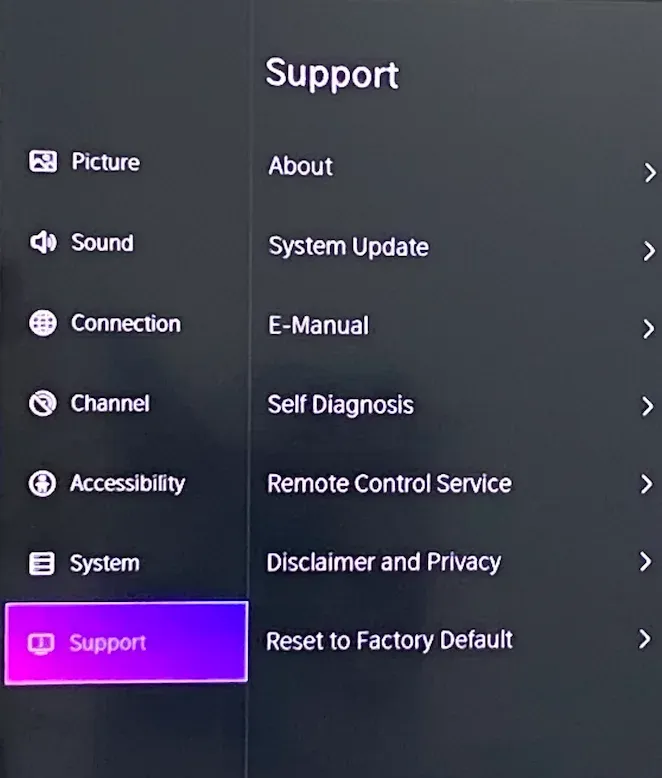
Step 3. If an update is available, follow the on-screen instructions to download and install the update.
Step 4. After updating, restart your TV and try connecting to Anyview Cast again.
Note: If your TV model doesn't have automatic updates, you can manually check for new firmware updates on the Hisense support website and follow the instructions to update via USB.
Fix 5: Reset the Network Settings on Your TV
If none of the above steps work, try resetting the TV's network settings. This will erase all stored network data and allow for a fresh connection to your Wi-Fi network.
Step 1. Go to Settings > Network > Reset Network Settings.
Step 2. Confirm the reset and reconnect to your Wi-Fi network after the reset.
Step 3. Attempt to use Anyview Cast again.
Fix 6: Check for Interference from Other Devices
Wireless interference can sometimes cause connectivity issues. Other devices, such as routers, microwaves, and even some Bluetooth gadgets, might disrupt the Miracast signal.
How to reduce interference:
- Ensure that the Wi-Fi signal strength is good.
- If possible, move other electronic devices away from the TV and phone/laptop to reduce interference.
- Try using 5GHz Wi-Fi if your router supports it, as it's less congested than the 2.4GHz band.
Final Thoughts
The easiest way to use AnyView Cast is to first identify which screen mirroring technology your Hisense TV supports. VIDAA models typically use AnyView Cast, while Google TV, Roku TV, and Fire TV models may rely on Chromecast or AirPlay instead. Once you've identified the correct technology, connecting a phone or computer usually takes only a few minutes.
Anyview Cast Hisense FAQs
Why can't I cast to Hisense TV?
Make sure both devices support Miracast. Ensure your Hisense TV is on the correct input and both devices are within range of each other. iPhones and Macs won't work unless using an app like PigeonCast.
How do I cast my phone to my Hisense TV?
For Android, go to Settings > Cast and select your Hisense TV. For Windows, press Win + K and select your TV. If you're using an iPhone, use PigeonCast for casting.
How to use Anyview Cast with iPhone?
iPhones do not support Miracast, so they cannot connect directly to AnyView Cast. If your Hisense TV supports AirPlay, use Apple's built-in screen mirroring feature. Otherwise, a third-party app such as PigeonCast can be used.
How do I cast from iPhone to Hisense?
If your Hisense TV has AirPlay support, you can AirPlay your iPhone to the TV directly. Otherwise, you need a third-party app like PigeonCast to cast from your iPhone to your Hisense TV.
Mia Clarke is a technology editor specializing in screen mirroring and casting solutions across multiple platforms. Mia provides clear, practical guides and in-depth insights to help users seamlessly connect their devices. Passionate about enhancing digital experiences, Mia is dedicated to keeping readers updated on the latest trends and tools in cross-platform screen sharing. Whether you’re looking to mirror your smartphone, laptop, or smart TV, Mia’s content delivers reliable, user-friendly advice to simplify your tech setup.