
If your Hisense TV AirPlay is not working, don't panic because it's a common issue many users face, from AirPlay not appearing to iPhones refusing to connect or screen mirroring failing. The good news is that these problems are usually easy to fix with a few simple steps. In this guide, we'll explore the main reasons behind Hisense TV AirPlay not working and provide practical, step-by-step solutions to get your streaming back on track quickly.
Why Is AirPlay Not Working on Hisense TV
Before diving into fixes, it's useful to understand why AirPlay might stop working on your Hisense TV. Several factors can interfere with AirPlay, ranging from simple settings to network or software issues. The most common causes include:
- AirPlay is turned off on your Hisense TV. If the feature is disabled, your devices won't detect the TV.
- Your iPhone, iPad, or Mac isn't on the same Wi-Fi network as the TV. AirPlay requires all devices to be connected to the same network.
- Outdated firmware or software. Running an older version on either the TV or Apple device can cause compatibility issues.
- Temporary network glitches or device bugs. Sometimes, a quick restart of your devices or router is all it takes.
- Firewall or router settings are blocking connections. Certain network restrictions can prevent AirPlay from functioning.
- Too many connected devices on the network. Heavy network traffic can interfere with AirPlay streaming.
- HDCP or HDMI compatibility issues. If you're using AirPlay with certain apps or external devices, these protections can sometimes block streaming.
- Device-specific restrictions. Some apps or content may restrict AirPlay due to licensing or security settings.
Hisense TV AirPlay Not Working Fix
If you're facing AirPlay not working Hisense TV, several tried-and-true solutions can get it back up and running. To make the process easy, follow these steps in order, starting with simple checks and moving toward more advanced troubleshooting.
Bonus: If your Hisense TV doesn't support AirPlay but does support Google Cast, you can use PigeonCast to bridge the gap. This free and versatile app allows you to stream effortlessly from different operating systems. It's also compatible with AirPlay, DLNA, and Google Cast, giving you maximum flexibility for wireless casting.


Overall Rating:



Solution 1. Confirm Hisense TV Supports AirPlay
Before diving into any fixes, make sure your Hisense TV is actually compatible with AirPlay. Not every Hisense TV show supports this feature. Older models or non-smart TVs, for example, won't work with AirPlay, no matter what troubleshooting steps you try. Verifying compatibility first can save you time and frustration.
Tip: Most Hisense Smart TVs from 2020 onward (VIDAA, Roku, or Google TV) support AirPlay 2, but older models may not.
Step 1. Press the Home button on your Hisense remote.
Step 2. Navigate to Settings > System > About.
Step 3. Note your TV model number and firmware version.
Step 4. Compare your model with Apple's official list of AirPlay 2-compatible devices (available on Apple's support site).
Solution 2. Verify AirPlay Settings on Your Hisense TV
Even when your Hisense TV supports AirPlay, the feature may not be active by default. Checking that AirPlay is turned on and properly set up is an essential step in troubleshooting. The connection can fail if the TV's settings restrict access or if a passcode hasn't been set, so confirming these configurations first can save time and frustration.
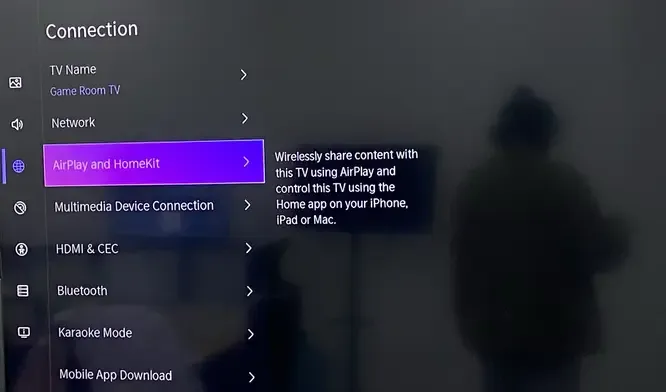
Step 1. Press the Home button on your Hisense remote.
Step 2. Navigate to Settings > Connection > AirPlay and HomeKit to ensure that AirPlay is turned On.
Solution 3. Check Network Connection
AirPlay depends on a reliable network connection to work smoothly. Even if the feature is enabled, your Hisense TV and Apple device need to be connected to the same Wi-Fi network, and the signal should be strong enough for streaming. If the devices are on different networks or the connection is weak, AirPlay may fail, freeze, or lag.
Step 1. Confirm the same Wi-Fi network.
Step 2. On your TV, check Network Status—it usually shows signal strength or connection quality.
Step 3. On your iPhone, you can move closer to the router to improve signal quality.
Step 4. Reduce the number of devices using Wi-Fi to free up bandwidth.
Step 5. Restart your Wi-Fi router by unplugging it for 30 seconds. After restarting, reconnect both the TV and the iPhone and try AirPlay again.
Solution 4. Restart your Hisense TV and Apple Device
How to fix the Hisense TV Apple AirPlay not working? Sometimes, temporary glitches in either the Hisense TV or your Apple device can prevent AirPlay from working. Restarting both devices is a simple yet effective way to clear these temporary issues.
Step 1. Press the Power button on your remote and select Turn Off, or simply unplug the TV from the power source. Wait for 30 seconds to ensure all temporary data is cleared. Plug the TV back in and turn it on.
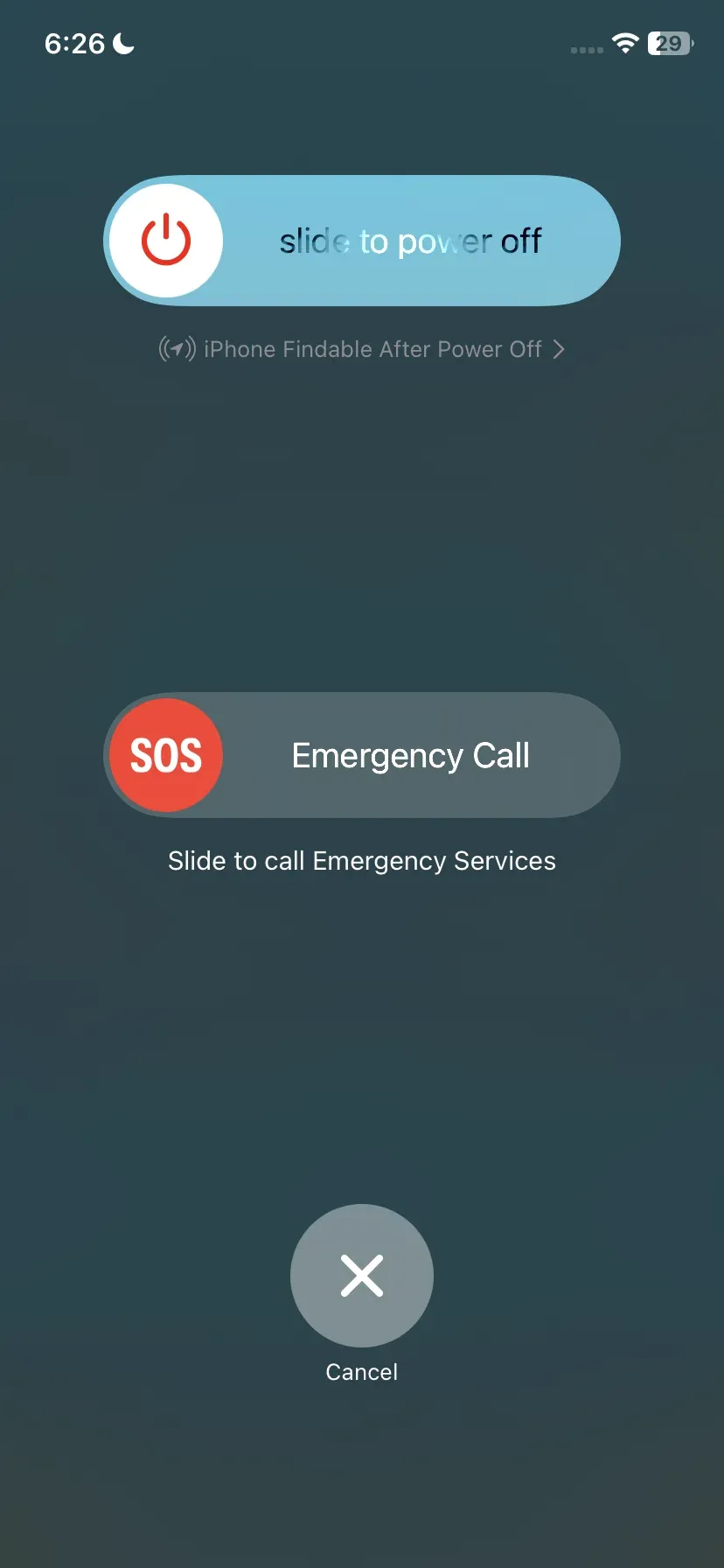
Step 2. Press and hold the Power button and one Volume button until the slide to power off option appears. Slide to power off and wait 10–15 seconds, and press the Power button again to turn the device back on.
Solution 5. Update Both Devices
Outdated firmware on your Hisense TV or outdated iOS on your Apple device can cause AirPlay to malfunction. Keeping both devices updated ensures compatibility, security, and smoother streaming.
Step 1. For TV, press the Home button on your remote.
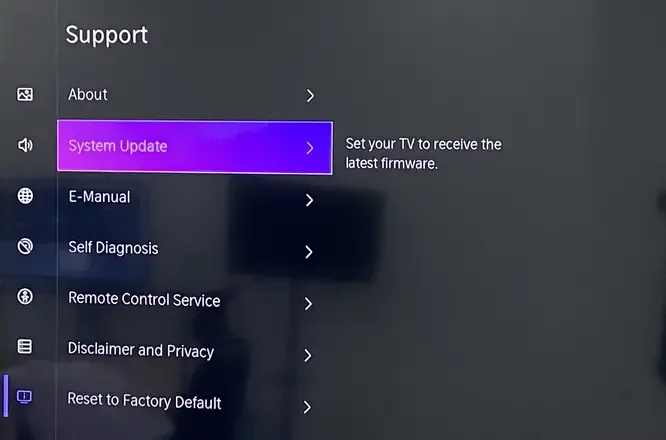
Step 2. Navigate to Settings > Support > System Update and select Check for Updates.
Step 3. If an update is available, select Download and Install. Wait for the update to complete and allow the TV to restart automatically.
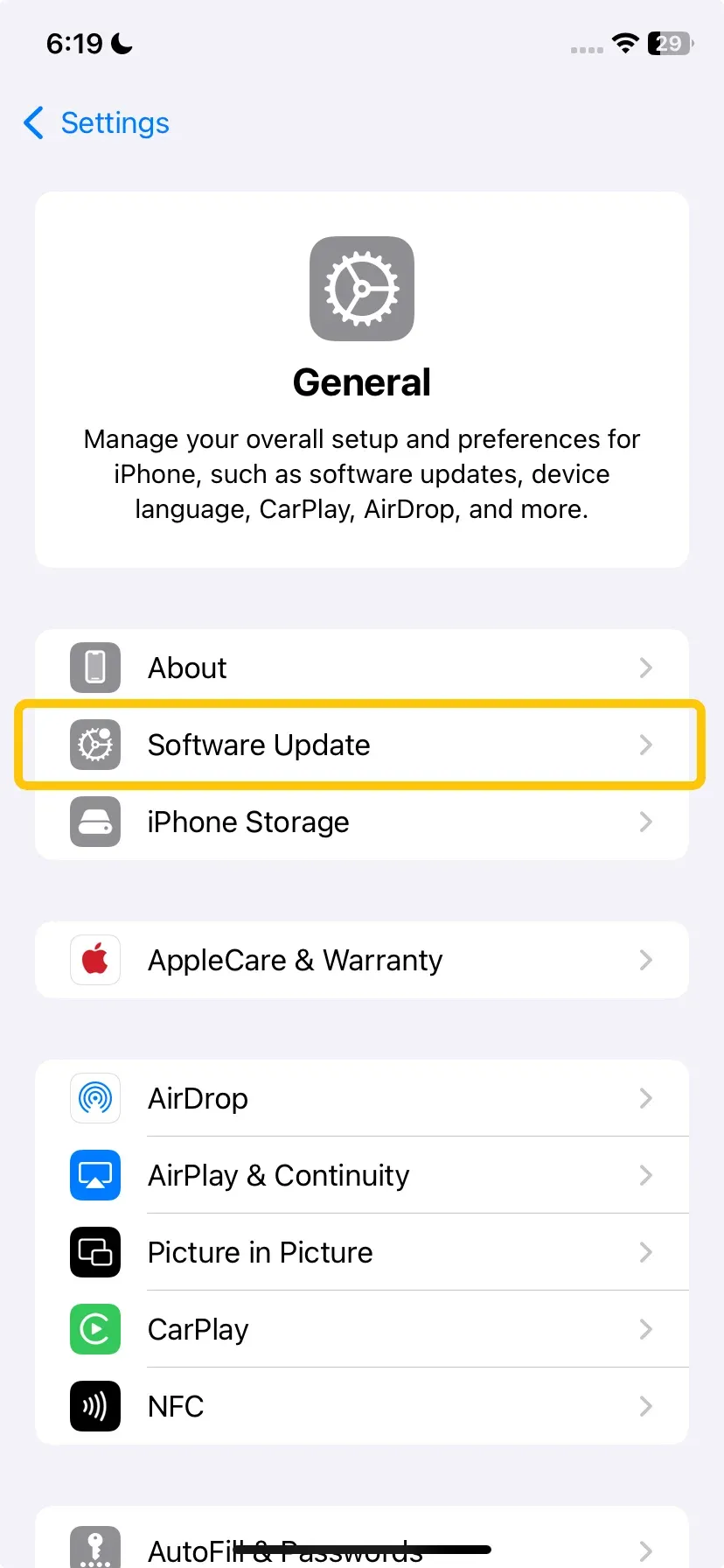
Step 4. For Apple devices, open Settings > General > Software Update.
Step 5. If an update is available, tap Download and Install. Wait for the device to update and restart automatically.
Solution 6. Disable VPN or Proxy Settings
VPNs or proxy settings can interfere with Hisense AirPlay not working because they reroute your network traffic or block the local network discovery protocols that AirPlay uses. Disabling these ensures your iPhone/iPad and Hisense TV can communicate directly on the same network.
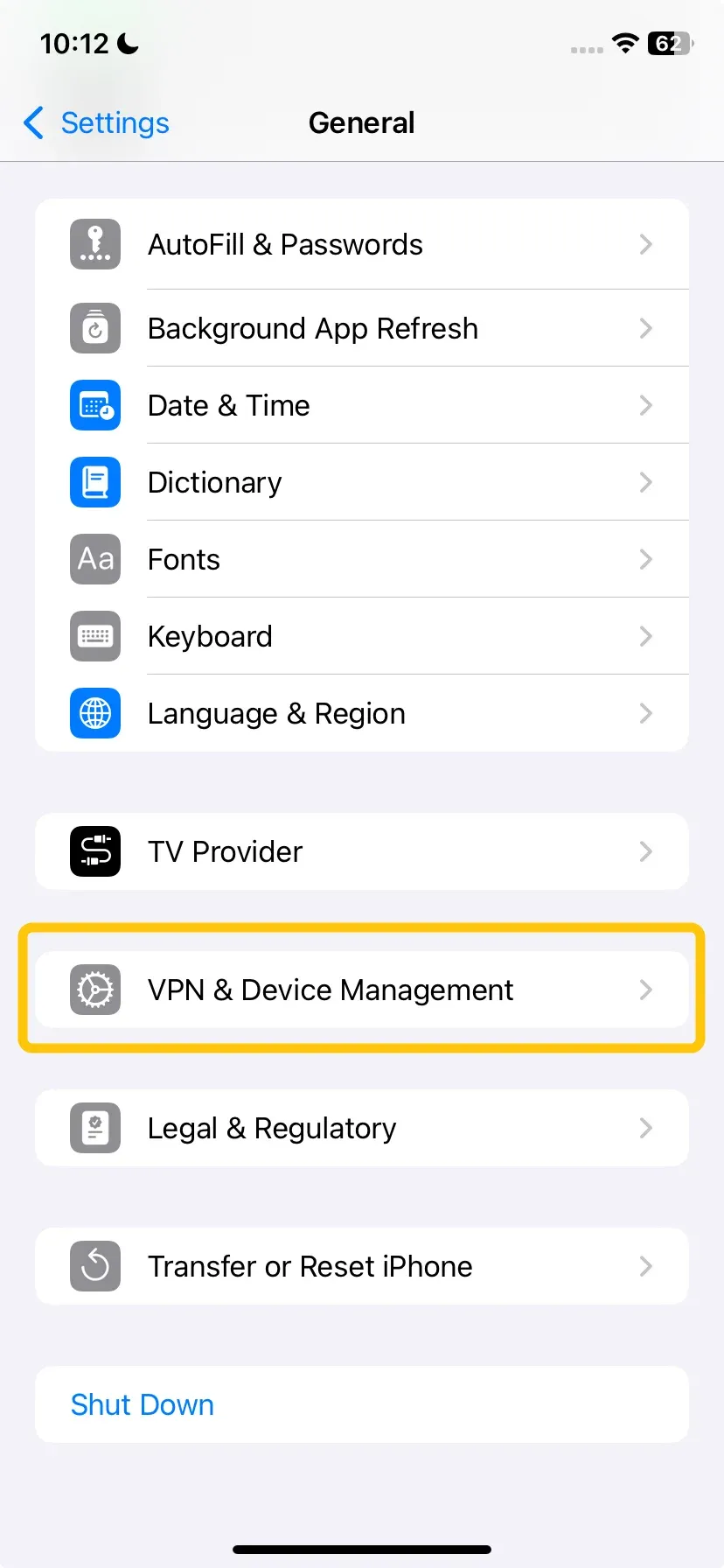
Step 1. On your iPhone, open Settings > General > VPN & Device Management. Turn off any active VPN connection.
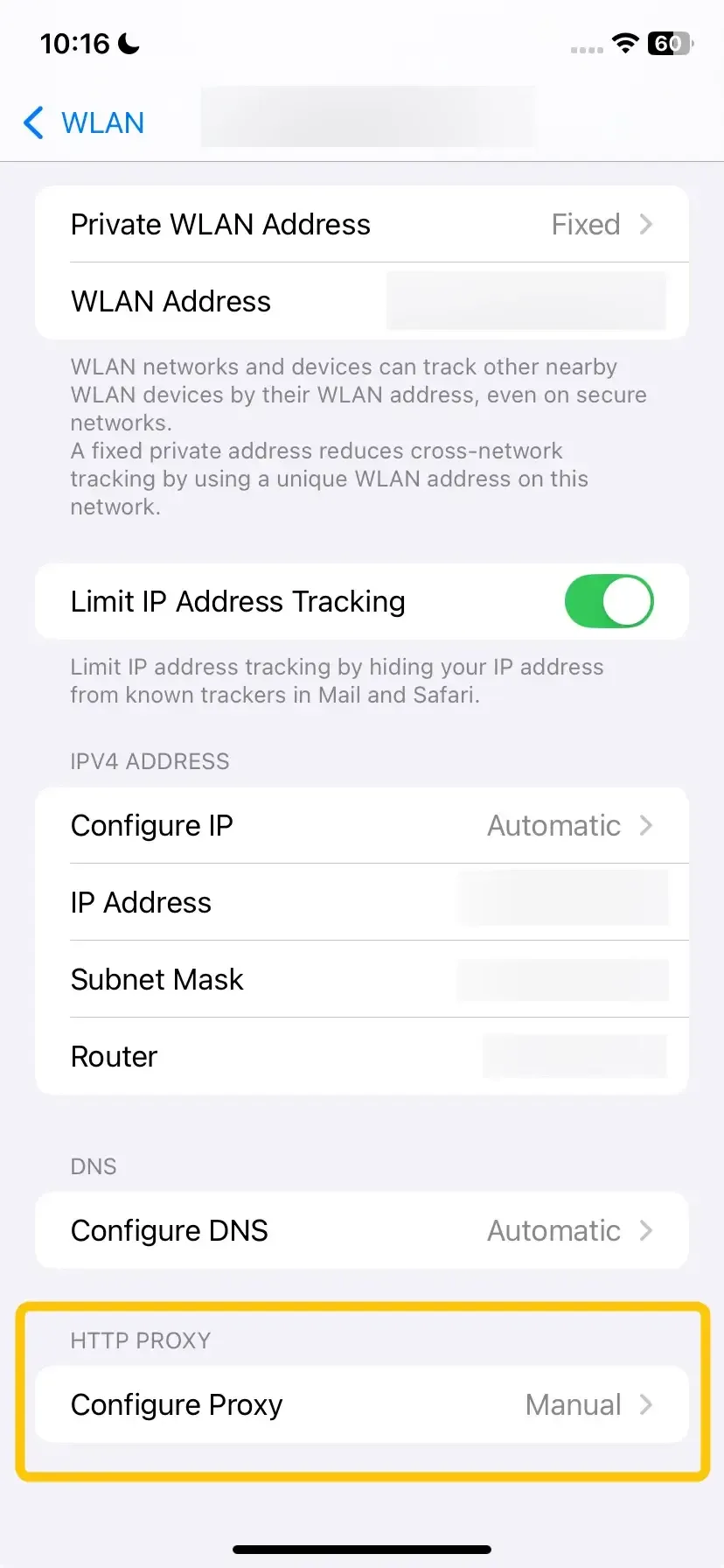
Step 2. Go to Settings > WLAN. Tap the i icon next to your connected Wi-Fi network and scroll to HTTP Proxy and select Off.
Step 3. Open Control Center > Screen Mirroring on your iPhone, select your Hisense TV, and test the connection.
Solution 7. Reset Your Hisense TV
If the AirPlay Hisense TV not working issues persist, a factory reset can resolve persistent AirPlay issues caused by software glitches or corrupted settings. This restores your TV to its original state and often fixes connection problems.
Step 1. Make note of any Wi-Fi passwords, app logins, or customized settings because a factory reset will erase all data.
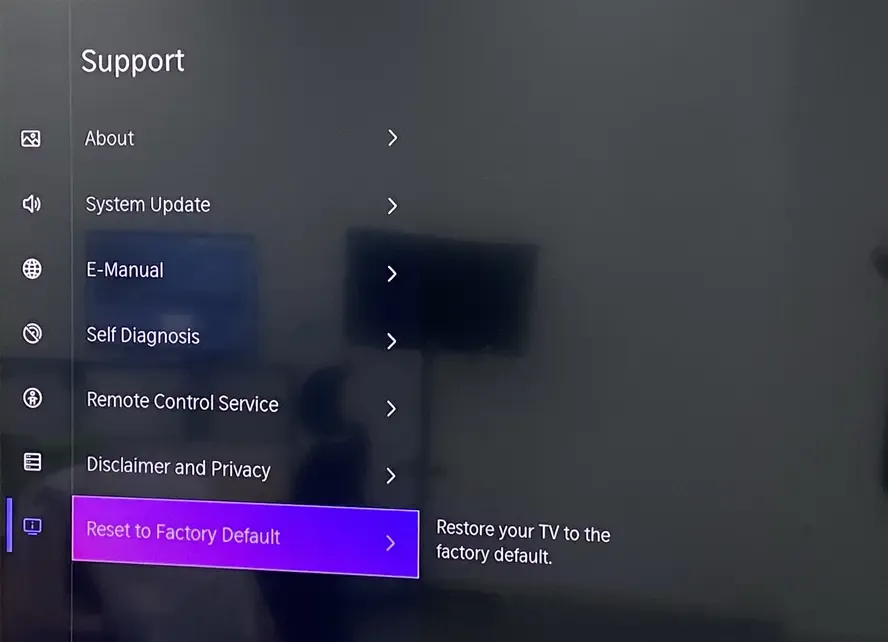
Step 2. Navigate to Settings > Support > Reset to Factory Default (menu names may vary slightly by TV model).
Step 3. Confirm the reset and wait for the TV to restart automatically.
Step 4. After the reset, go to Settings > Network and reconnect your TV to your home Wi-Fi. Ensure it's the same network as your iPhone or iPad.
Step 5. Navigate to Settings > System > AirPlay and HomeKit. Turn AirPlay ON and set Require Code to First Time Only.
Step 6. On your iPhone, open Control Center > Screen Mirroring. Select your Hisense TV and test the connection.
Solution 8. Contact Support
If all previous troubleshooting steps fail, the issue may be caused by a hardware defect, firmware bug, or network incompatibility that cannot be resolved manually. Contacting official support ensures you get expert guidance or service.
Conclusion
If AirPlay on Hisense TV not working appear, don't worry because most issues can be easily resolved with the right approach. With the right setup and a stable network connection, AirPlay on Hisense TV should work smoothly, allowing you to enjoy seamless streaming and effortless screen mirroring.
Hisense TV AirPlay Not Working FAQ
Is Hisense TV compatible with AirPlay?
Yes, most Hisense Smart TVs from 2020 onward, including VIDAA, Roku, and Google TV models, are compatible with AirPlay 2. Older or non-smart models may not support AirPlay.
Why won't my iPhone connect to my Hisense TV?
Here are the main reasons your iPhone might not connect to your Hisense TV:
- AirPlay is turned off on the Hisense TV
- iPhone and TV are not on the same Wi-Fi network
- Outdated software or firmware on the TV or iPhone
- Temporary network glitches or device bugs
- Firewall or router settings are blocking connections
- Too many devices are connected to the network, causing interference
- HDCP or HDMI-related restrictions
- App or content-specific restrictions
How to mirror iPhone to Hisense TV without AirPlay?
If your Hisense TV doesn't support AirPlay, you can mirror your iPhone using third-party apps like PigeonCast, ApowerMirror, or LetsView. These apps allow you to stream your iPhone screen to the TV over Wi-Fi. Many of them support multiple casting protocols, including DLNA and Google Cast, and provide stable, high-quality streaming without needing AirPlay.
Clara Rossi is an experienced technology editor and a seasoned expert in screen mirroring and casting technologies. With a keen eye for detail and a deep understanding of how to seamlessly connect devices, Clara excels at optimizing user experiences for effortless sharing and streaming. Whether you're seeking quick fixes or advanced tips, her expertise and responsiveness ensure that every query is met with a well-informed and efficient solution.