
If you've ever asked, "Does Hisense TV have AirPlay?", you're not alone. Many Apple users want to stream or mirror content from their iPhone, iPad, or Mac directly to their Hisense Smart TV. AirPlay makes it easy to share photos, videos, and music wirelessly between Apple devices and compatible TVs. In this guide, we'll explain which Hisense TV models support AirPlay and how to connect your Apple device.
Does Hisense TV Have Apple AirPlay
Luckily, the answer is yes. But if you're wondering whether your Hisense TV supports Apple AirPlay, the answer depends on the TV's model, its operating system, and the year it was released. While newer Hisense models often come with AirPlay 2 built in, older Roku or Android-based TVs may not.
- Hisense Roku TV and Android TV models (2018–2020) generally do not have built-in AirPlay, though you can still mirror via third-party apps.
- Hisense TVs with Google TV (2021 and newer) or VIDAA U5 and later often include Apple AirPlay 2 support.
How to Enable AirPlay on Supported Hisense TVs
After finding out the answer to "Does my Hisense TV have AirPlay?", let's go through the steps on how to AirPlay on Hisense TV. This AirPlay mirroring method works best with newer models like VIDAA U5, U6, or Hisense Google TV, allowing a seamless connection without additional apps or cables. Here we take how to connect iPhone to Hisense TV as an example and the process is similar to iPad and MacBook.
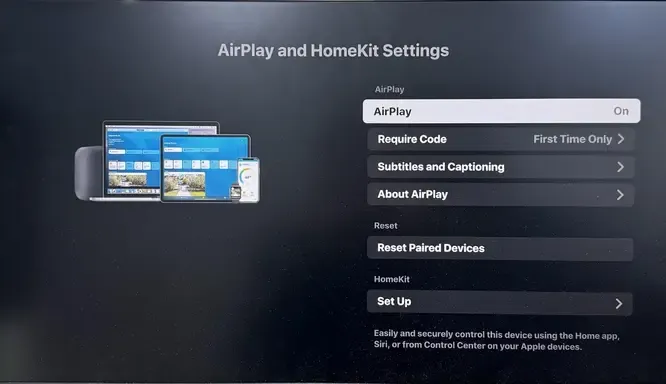
Step 1. On your TV, go to Settings > System, Connection, or Display and Sounds > AirPlay & HomeKit > AirPlay and turn On AirPlay.
Step 2. Connect your iPhone to the Same Wi-Fi Network as your Hisense TV.
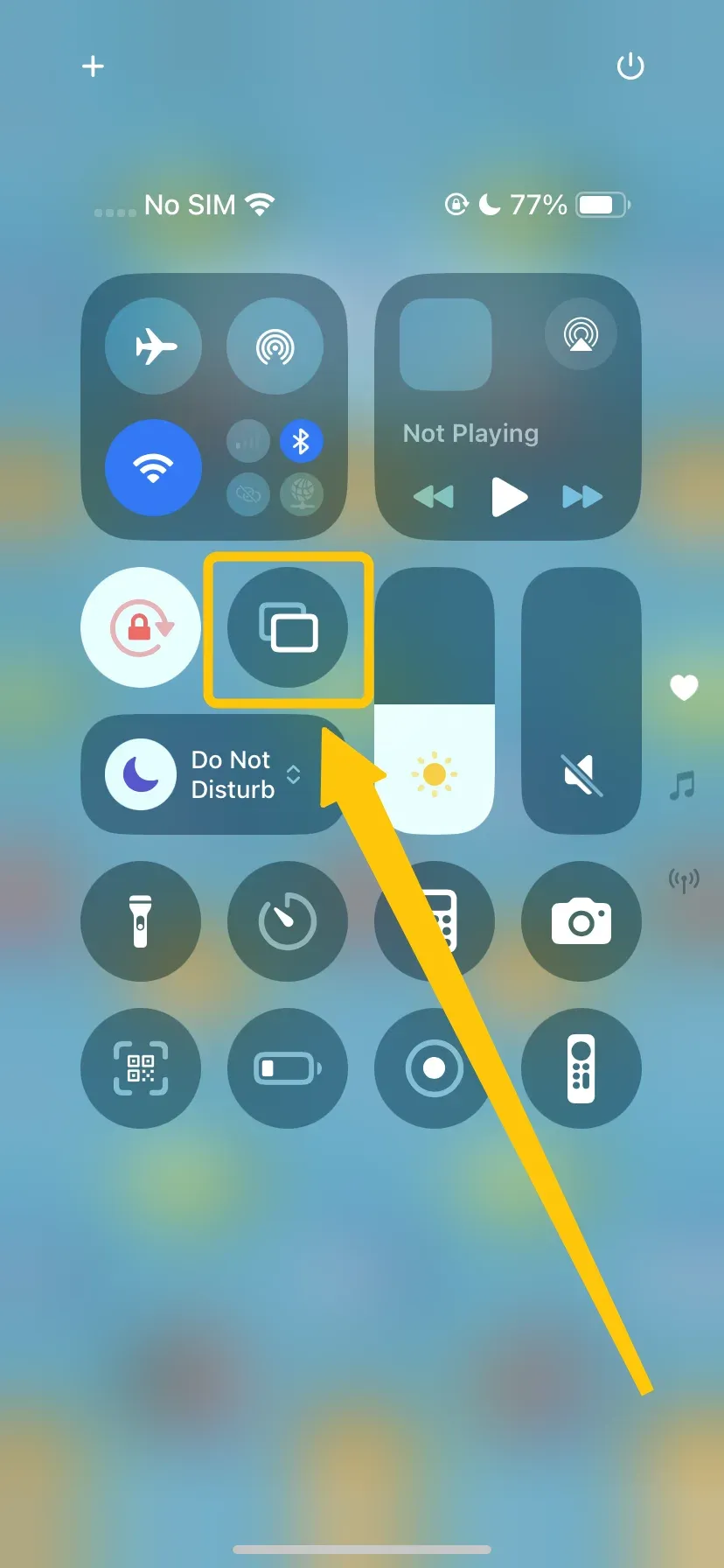
Step 3. Open Control Center on your iPhone and tap Screen Mirroring to select your Hisense TV from the device list.
Step 4. If prompted, enter the AirPlay code shown on your TV screen. Your iPhone screen should now appear on the Hisense TV.
What to Do If Your Hisense TV Doesn't Support AirPlay
While many newer Hisense TVs come with built-in support for AirPlay 2, not all models may have this feature. If you're trying to stream content from your Apple device and can't find AirPlay options, it's possible that your TV doesn't support this functionality out of the box.
Way 1. Use PigeonCast
How to AirPlay to Hisense TV? If your Hisense TV doesn't support AirPlay, you can use a third-party casting app like PigeonCast, available on the App Store and Google Play. It works with most Hisense smart TV models, including older Android versions with Google Cast.

This software works smoothly across Android, iOS, Windows, Mac, and a wide range of TVs, including tvOS and Android TV, without any restrictions. It supports AirPlay, DLNA, and Google Cast, giving you maximum flexibility for casting content. With end-to-end encryption, your videos, photos, and other media stay secure and private while streaming.
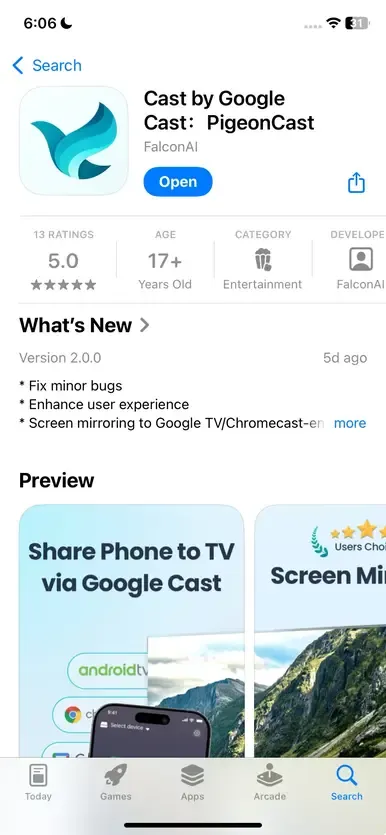
Step 1. Install PigeonCast on your iPhone and Hisense TV.

PigeonCast Screen Mirroring

Official Download



Step 2. Connect both devices to the same WiFi network.
Step 3. Launch the app on your Hisense TV. On your iPhone, open PigeonCast and tap Select device option to choose your Hisense TV from the available list to connect.
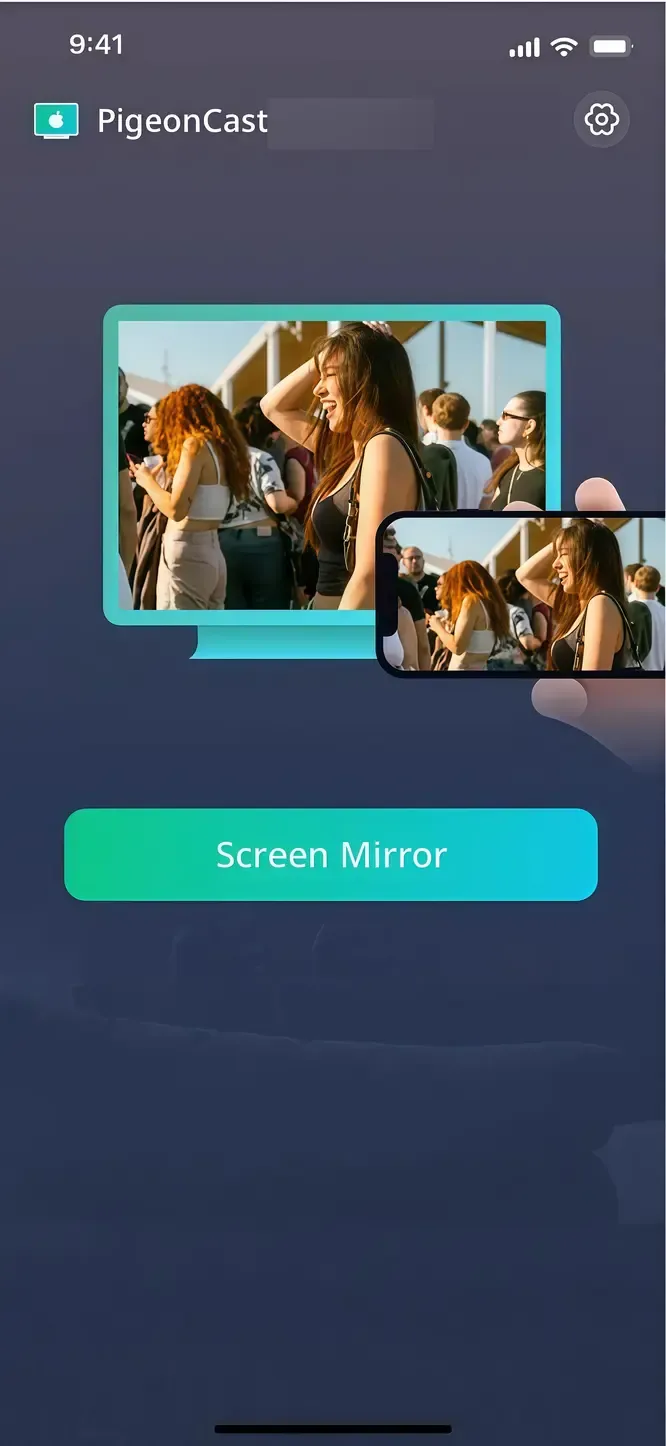
Step 4. Enter the onscreen code to confirm the connection. Then, tap the Screen Mirror button to start your mirroring activities.
Way 2. Use an HDMI Cable
If you're looking for a more reliable and stable connection or if wireless casting isn't working smoothly, using an HDMI cable is a straightforward way to mirror your iPhone to a Hisense TV. This method ensures consistent video and audio quality without interruptions from network issues.
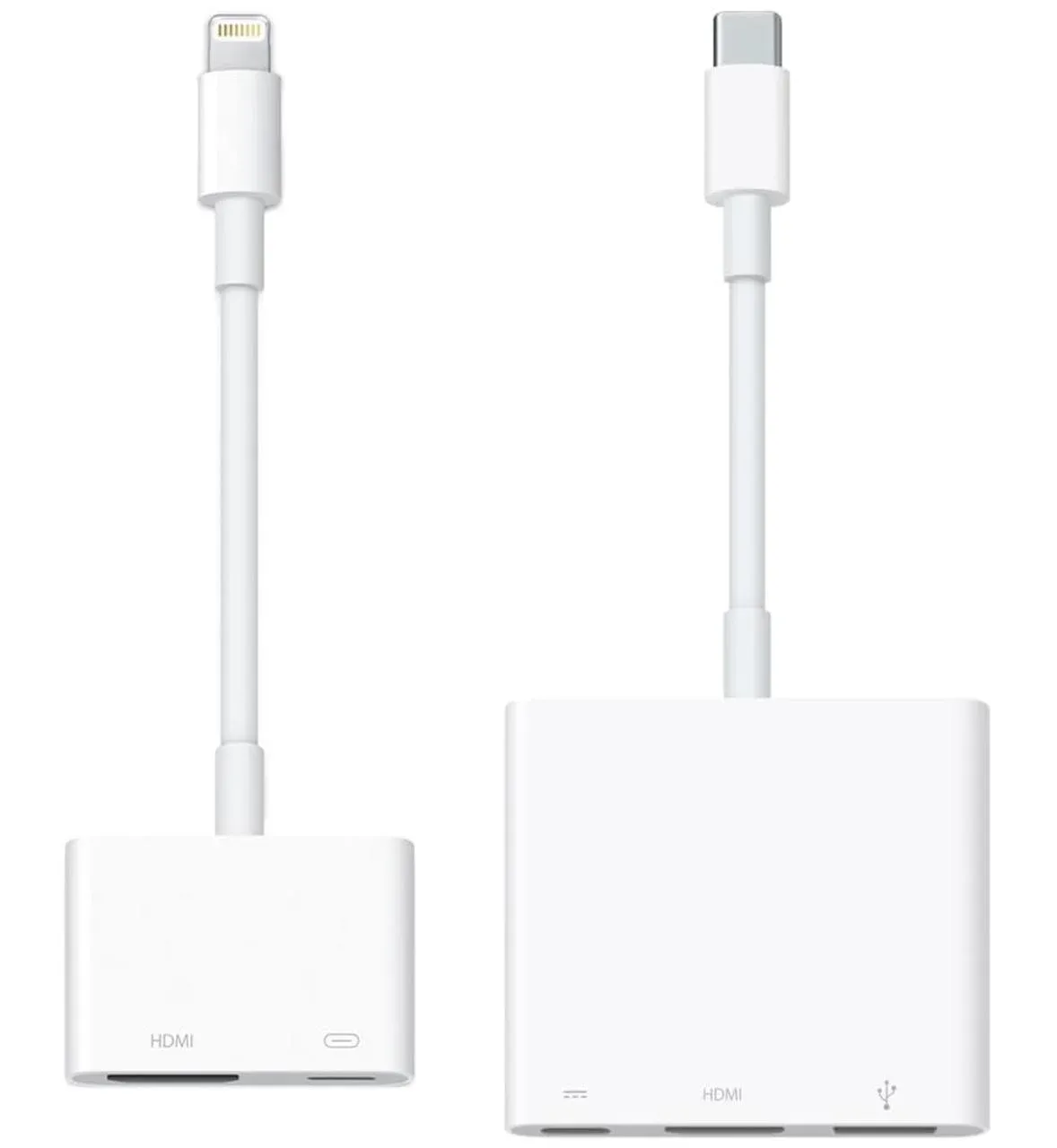
Step 1. Connect the appropriate adapter to your iPhone.
- Use a USB-C to HDMI adapter for iPhone 15 and later
- Use a Lightning to HDMI adapter for iPhone 14 and earlier
Step 2. Plug an HDMI cable into the adapter and the other end into an available HDMI port on your Hisense TV.
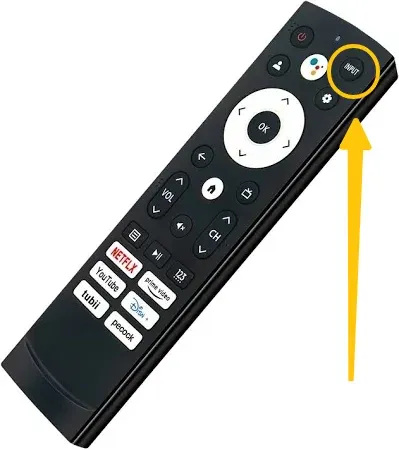
Step 3. Turn on your TV and press the Input or Source button on the remote. Select the HDMI port you used.
Step 4. Your iPhone screen should now appear on the TV. You can mirror apps, videos, photos, or presentations in real time.
Final Verdict
Do Hisense TVs have AirPlay? Whether your Hisense TV has built-in AirPlay or not, there are still multiple ways about how to how to use AirPlay on Hisense TV from your iPhone, iPad, or Mac. Newer models with AirPlay 2 support offer the easiest and most seamless connection, while third-party apps like PigeonCast provide a flexible alternative for older TVs. For the most stable experience, a wired HDMI connection also works reliably.
Does Hisense TV Have AirPlay FAQ
Q: How do I turn on AirPlay on my Hisense TV?
To turn on AirPlay on your Hisense TV, go to Settings > System > AirPlay & HomeKit, then toggle AirPlay to On. Make sure your Hisense TV and Apple device are connected to the same Wi-Fi network to start streaming or mirroring.
Q: Why can't I screen mirror to Hisense TV?
There are several reasons you might not be able to screen mirror to your Hisense TV:
- Wi-Fi network issues: Your TV and device must be on the same network.
- Device incompatibility: Older phones, tablets, or computers may not support the same mirroring standard as your Hisense TV.
- Outdated software: Running old firmware or OS on your TV or device can prevent connections.
- Incorrect input or settings: Screen mirroring must be enabled on the TV, and the correct input selected.
- Interference or distance: Physical obstacles or being too far from the Wi-Fi router can weaken the signal.
Q: How do I know if my TV has AirPlay?
You can check if your TV has AirPlay by going to Settings > Network > AirPlay & HomeKit. If the option is available, your TV supports AirPlay. Alternatively, you can check the TV's model and specifications on the manufacturer's website. Newer Hisense models with VIDAA U5, U6, or Google TV (2021 and later) typically include AirPlay 2 support.
Q: Why can't I find AirPlay on my Hisense TV?
Here are some additional reasons why AirPlay might not be showing up on your Hisense TV:
- Model Compatibility
- Outdated Software
- Network Issues
- AirPlay Disabled
- Unsupported Content
- TV's Input Mode
- Apple Device Settings
- TV's AirPlay Configuration
Q: Does AirPlay work on Hisense TVs without WiFi?
No, AirPlay requires a Wi-Fi connection to function properly. Both your Hisense TV and the Apple device (iPhone, iPad, or Mac) need to be connected to the same Wi-Fi network for AirPlay to work. Without Wi-Fi, AirPlay cannot establish a connection between the devices.
Q: How to fix AirPlay not working on Hisense TV?
If AirPlay isn't working on your Hisense TV, there are several potential issues that could be causing the problem. Here's a step-by-step guide to help you troubleshoot and fix AirPlay connectivity issues:
- Check Compatibility
- Update Your TV's Firmware
- Ensure Both Devices Are on the Same Wi-Fi Network
- Restart Your Devices
- Enable AirPlay on the TV
- Check Your Apple Device Settings
- Check for Interference
- Reset Network Settings on the TV
- Test AirPlay with Another Device
- Disable VPN or Firewall on Apple Device
Q: Can I mirror iPhone to Hisense TV without AirPlay?
Yes, you can mirror your iPhone to a Hisense TV without using AirPlay, though the method will depend on the specific features of your TV and available third-party apps. Here are a few alternatives to AirPlay:
- Use a third-party app (PigeonCast)
- Use an HDMI cable and Lightning to HDMI Adapter
- Use Google Chromecast
- Use screen mirroring apps for Apple and Android devices
Clara Rossi is an experienced technology editor and a seasoned expert in screen mirroring and casting technologies. With a keen eye for detail and a deep understanding of how to seamlessly connect devices, Clara excels at optimizing user experiences for effortless sharing and streaming. Whether you're seeking quick fixes or advanced tips, her expertise and responsiveness ensure that every query is met with a well-informed and efficient solution.