

Learning how to screen mirror on Hisense TV can be confusing when different TV models and devices use different casting methods. You may use AirPlay on iPhone, Cast or Smart View on Android, or wireless display on a Windows PC. This guide shows the main ways to connect your phone or computer to a Hisense TV, plus what to check when the TV does not appear or the connection fails.
Quick Answer to Hisense TV Screen Mirroring
You can screen mirror on Hisense TV in different ways depending on your device:
- iPhone: Use AirPlay if your Hisense TV supports it.
- Android phone: Use Cast, Smart View, Screen Cast, or Wireless Display, depending on your phone brand.
- Windows PC: Use Windows wireless display or Miracast if both your PC and Hisense TV support it.
Before you start, check which system your Hisense TV uses before choosing a mirroring method. Hisense TVs may run VIDAA, Android TV, Google TV, Roku TV, or Fire TV, and the casting menu can look different across models. Depending on your TV, the feature may be called AirPlay, Cast, Screen Mirroring, Wireless Display, or Anyview Cast.
How to Cast to Hisense TV from iPhone
If you own an iPhone, screen mirroring to your Hisense TV is quite simple, thanks to Apple's AirPlay feature. AirPlay enables you to wirelessly stream content from your iPhone directly to some Hisense TVs, providing a seamless viewing experience without the need for additional cables. Before starting, ensure your Hisense TV supports AirPlay. You can follow the steps on how to screen mirror iPhone on Hisense TV if compatible:
Step 1. Ensure your iPhone and TV are connected to the same Wi-Fi network.
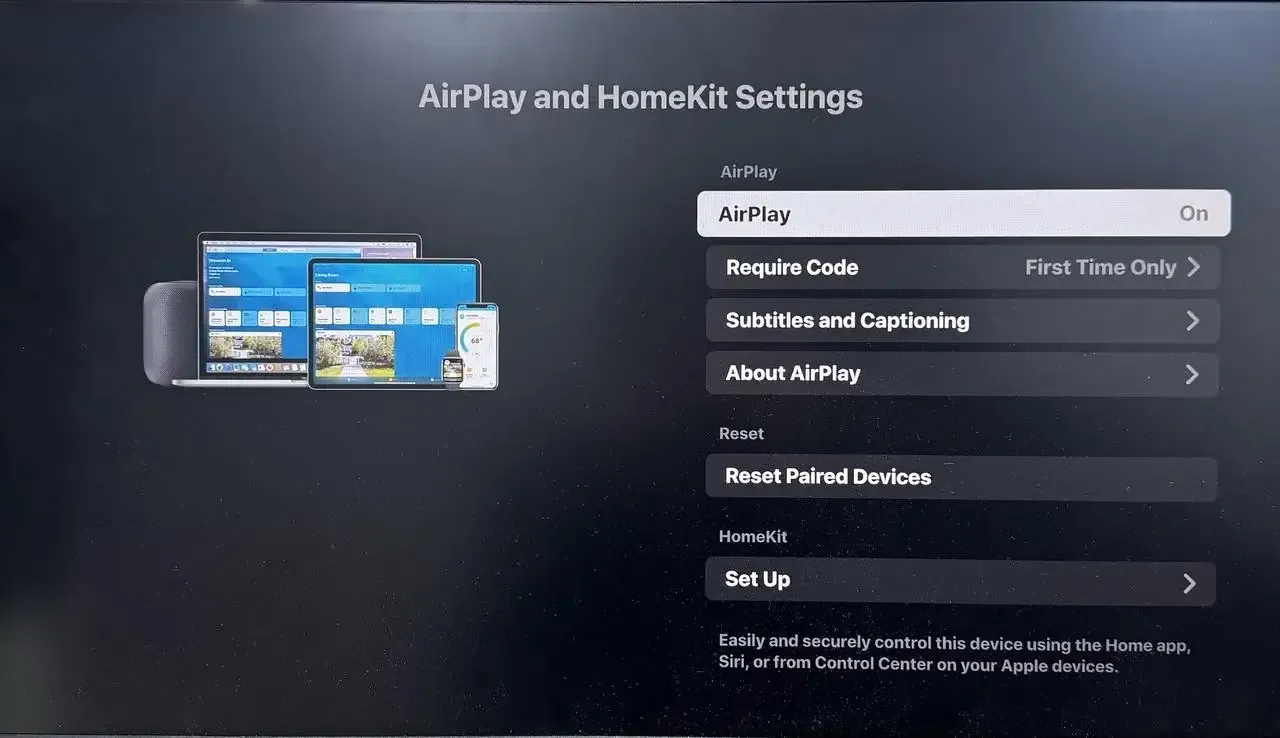
Step 2. On your Hisense TV remote, navigate to Settings and find the AirPlay option to enable it.
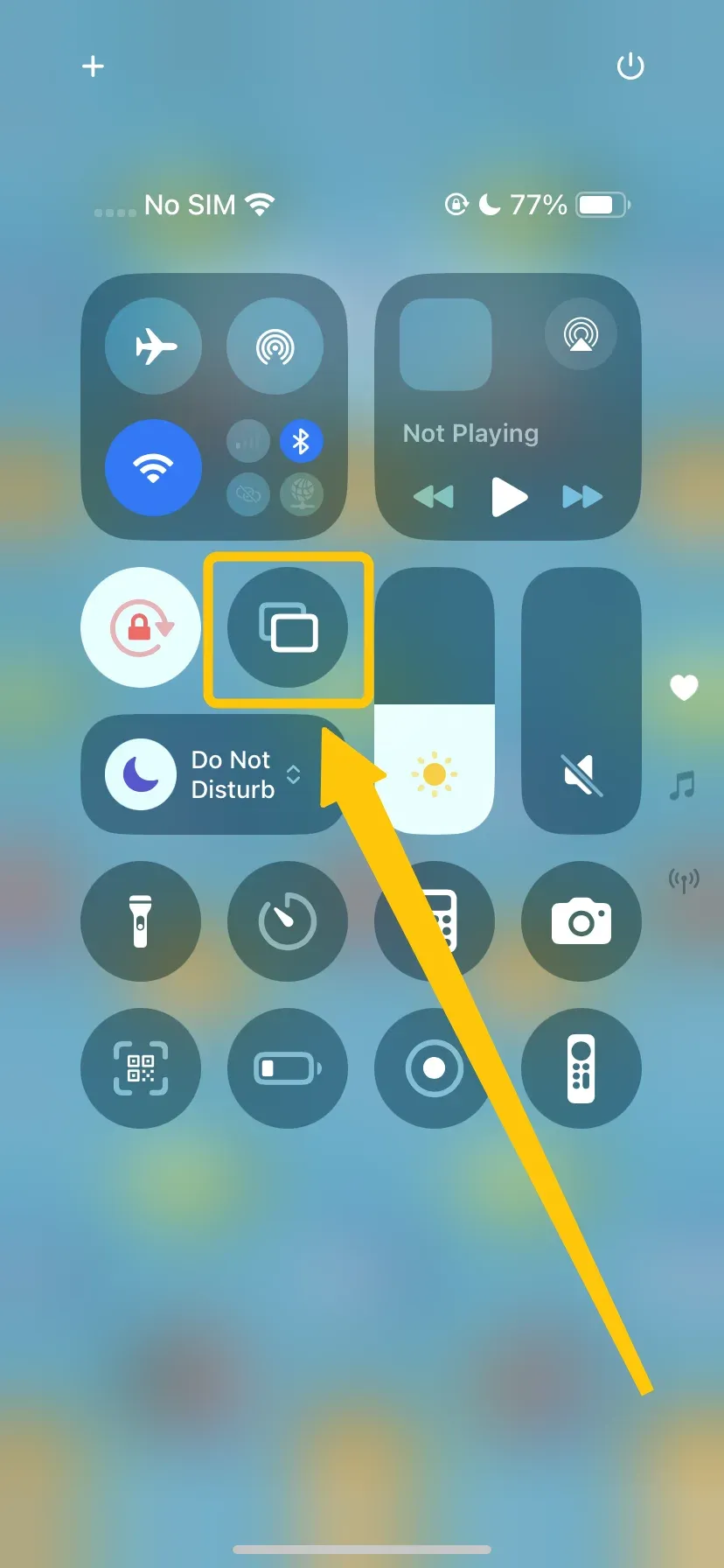
Step 3. On your iPhone, open the Control Center and tap Screen Mirroring.
Step 4. Select your Hisense TV from the list of available devices and enter the prompted code onscreen.
Step 5. After finishing the pairing, your iPhone screen should now appear on your TV.
How to Cast to Hisense TV from Android Phone
Android devices can also cast to Hisense TVs using built-in technologies like Google Cast or Miracast. Google Cast is the easiest way to stream content from an Android phone to a Hisense TV, as it is supported by many apps, including YouTube, Netflix, and others. Now, let's see how to do Hisense screen mirroring from Android:
Step 1. Connect your Android device and Hisense TV to the same WiFi network.
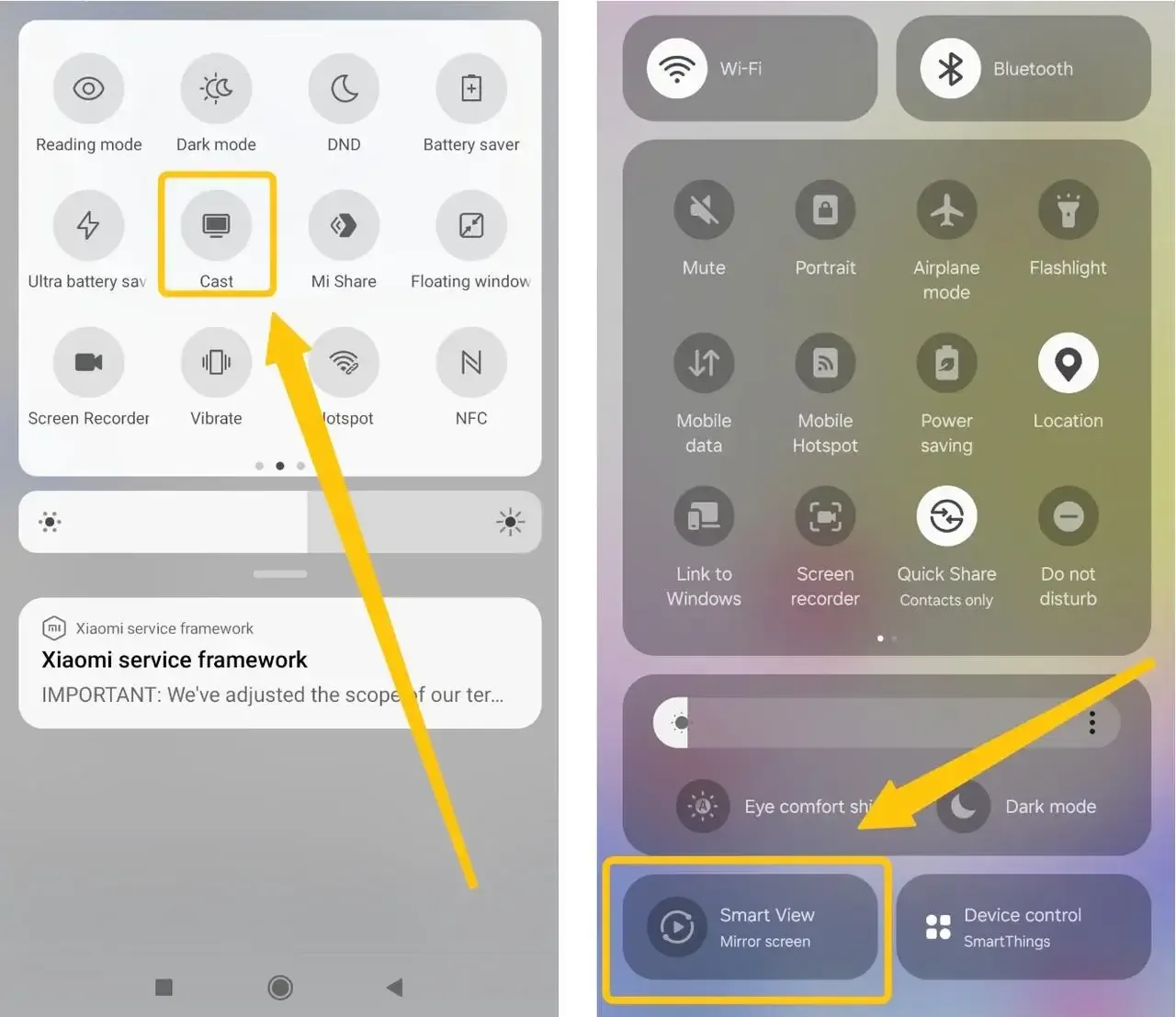
Step 2. On your Android, tap the Cast or Smart View option (or other similar casting or mirroring buttons) to choose your Hisense from the available list.
Step 3. If prompted, enter the onscreen PIN code to finish the screen mirroring Hisense TV connection.
How to Cast to Hisense TV from PC
If you're looking to mirror content from your PC to your Hisense TV, the process is just as easy and seamless as casting from other devices. Using Miracast, you can wirelessly project your PC's screen to your TV without any extra hardware. In the next section, we'll walk you through the steps on how to screen share on Hisense TV from a Windows PC.
Note: To use this method, your Windows version needs to be 8.1 or higher, and your PC must support Miracast. You can easily check if your PC supports Miracast by clicking here.
Step 1. Ensure both your PC and Hisense TV are connected to the same Wi-Fi network.
Step 2. On your Hisense TV remote, press the Home button. Navigate to Settings > Network & Internet. Look for the Screen Mirroring option and enable it.
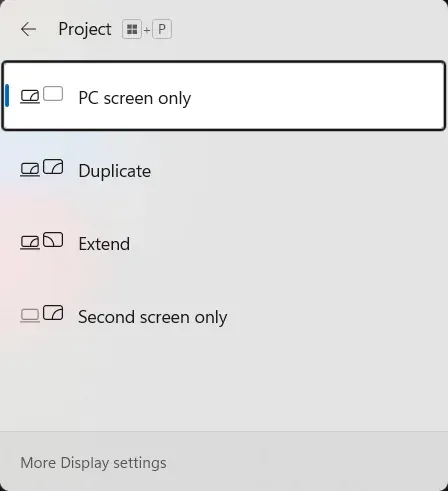
Step 3. On your PC, press Windows + P keys to initiate Miracast, then click Connect to a wireless display.
Step 4. Select your Hisense TV to complete the screen mirroring. With these steps, you'll be able to enjoy your PC's content on the big screen in no time!
Use PigeonCast When Hisense Screen Mirroring Does Not Work
If your Hisense TV does not appear on your iPhone, Android phone, or Windows PC, the built-in casting method may not match your TV system. Some Hisense TVs use AirPlay, some use Cast or Anyview Cast, and some require wireless display support from the device you want to mirror.
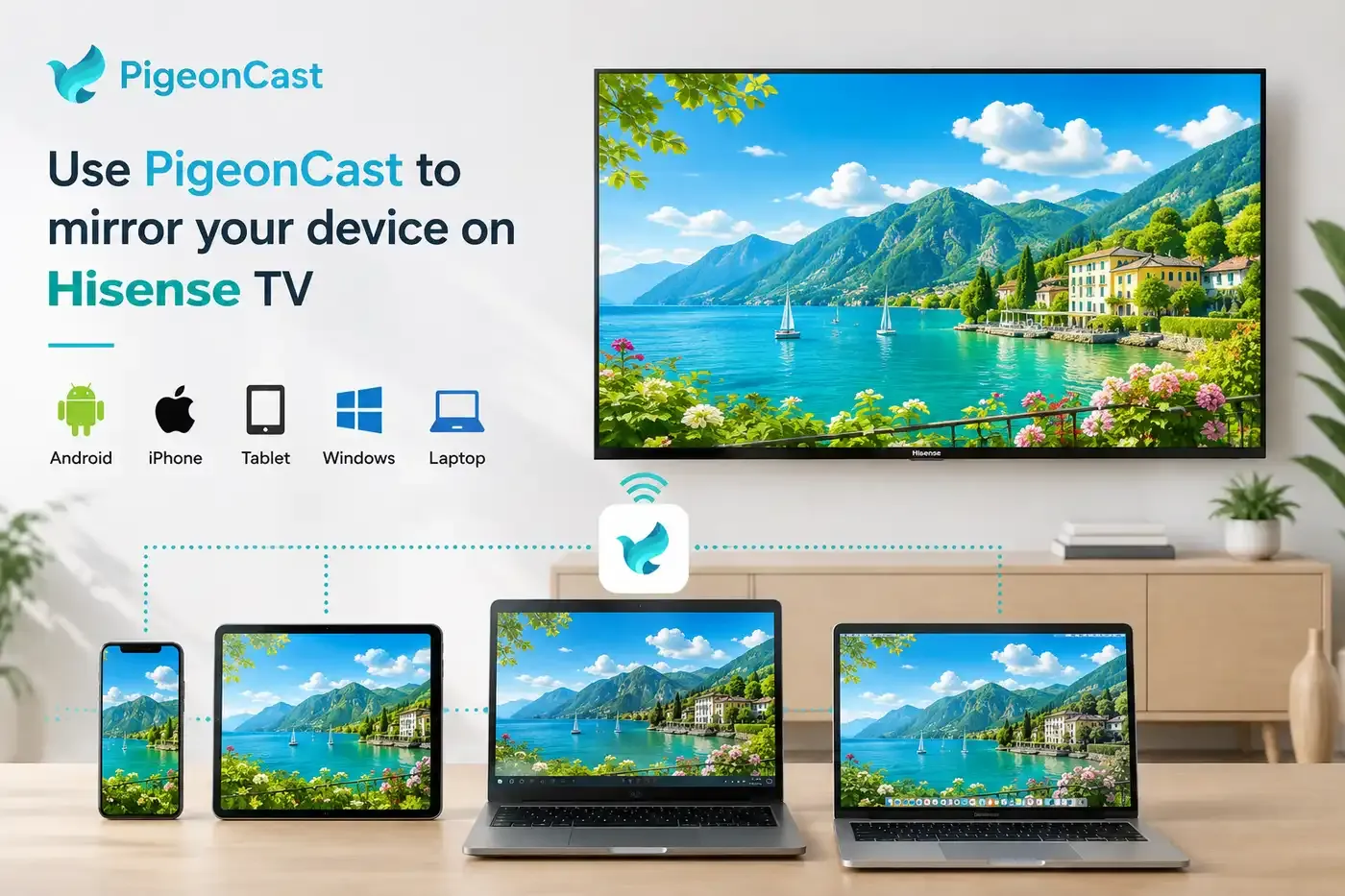
PigeonCast gives you another wireless way to mirror a phone, tablet, or computer to a Hisense TV. It works across iPhone, Android, Windows, Mac, Android TV, and Apple TV, so it is useful when you switch between different devices or when the native Hisense mirroring option is hard to find.


Overall Rating:



Step 1. Install PigeonCast on the device you want to cast from the app store. You can also download this app on the Hisense TV from the app shop if available.
Step 2. Connect your phone, tablet, or computer and your Hisense TV to the same Wi-Fi network.
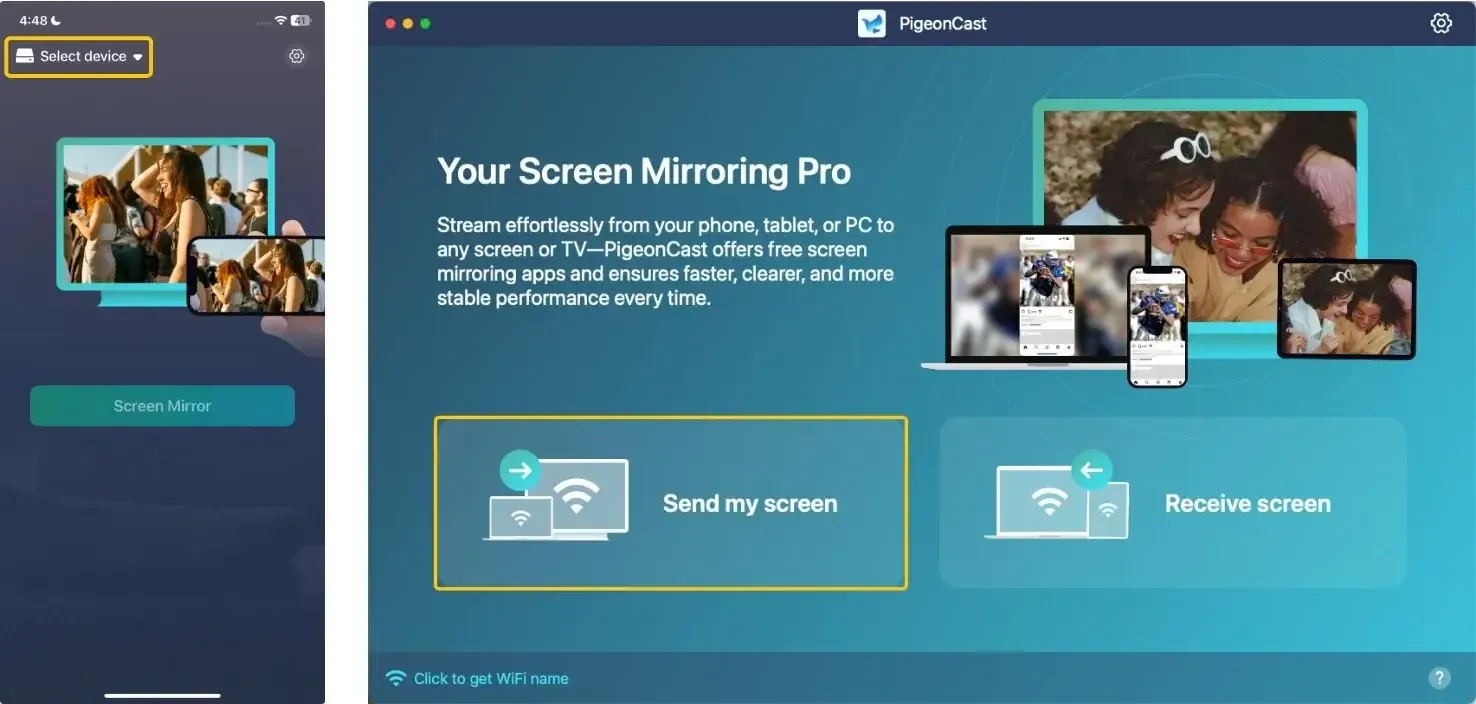
Step 3. Open PigeonCast, tap Select device or Send my screen to choose your Hisense TV or receiver from the device list.
Step 4. Enter the PIN code that appears on the TV to confirm the connection.
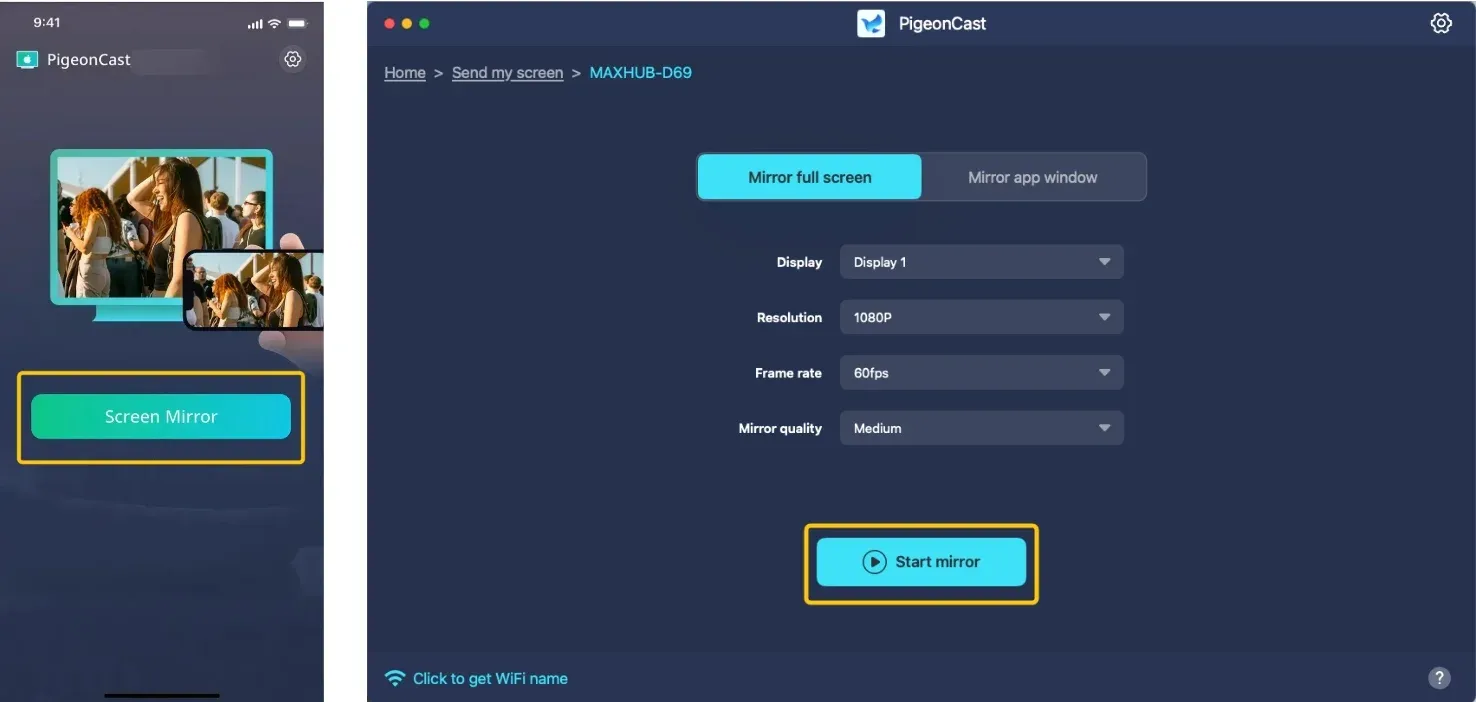
Step 5. When you finish the connection, tap Screen Mirror or Start mirror to begin screen mirroring or casting photos, videos, browser pages, apps, or presentations to the TV.
If you are using other smart TV platforms, you can also check this guide on Xumo TV screen mirroring to learn different ways to connect your phone, tablet, or computer wirelessly.
How to Fix Hisense TV Screen Mirroring Not Working
Screen mirroring problems on Hisense TV usually come from network settings, TV casting mode, device compatibility, or blocked video content. Start with the issue that matches what you see on your screen.
- Hisense TV does not appear on your phone or PC
- Make sure your phone, computer, and Hisense TV are connected to the same Wi-Fi network.
- Turn off VPN, guest Wi-Fi, or router isolation if they block local device discovery.
- Open the correct casting feature on your TV, such as AirPlay, Cast, Screen Mirroring, Wireless Display, or Anyview Cast.
- Restart your TV and the device you want to mirror, then search again.
- Screen mirroring connects but shows a black screen
- Test screen mirroring with your home screen, photos, or a browser page first.
- If those screens appear normally, check whether the app or video source blocks screen sharing.
- Try playing the same content in the Hisense TV app if available.
- Switch to another casting method if only one app keeps showing a black screen.
- Screen mirroring is lagging or freezing
- Move your phone or computer closer to the router.
- Close background apps on the device you want to mirror.
- Restart your Hisense TV and reconnect screen mirroring.
- Disconnect other devices from the same Wi-Fi if the network is crowded.
- Use an HDMI cable for movies, presentations, or long sessions that need a more stable connection.
- Devices are on the same Wi-Fi but still cannot connect
- Check whether your Hisense TV supports the method you are using.
- Use AirPlay for iPhone only if your Hisense TV supports AirPlay.
- Use Windows wireless display only if both your PC and TV support Miracast.
- For Android, check whether your phone uses Cast, Smart View, Screen Cast, or Wireless Display.
- Update your Hisense TV firmware and your phone or computer system, then try again.
- Audio plays but the screen does not mirror
- Check whether the app is sending only audio to the TV.
- Try mirroring another screen, such as photos, a browser page, or your home screen.
- Restart the casting session and reconnect your device.
- Use another casting method if the same app keeps blocking video mirroring.
To Sum Up
A smooth Hisense TV casting setup comes down to choosing the method your devices actually support. If the built-in option works, keep using it. If the TV menu is hard to find, the device list stays empty, or the connection keeps dropping, switch to another wireless method or use a wired setup for better stability. PigeonCast is worth trying when you need one flexible option across different phones, computers, and smart TVs.
How to Screen Mirror on Hisense TV FAQ
Does Hisense TV have screen mirroring?
Yes, most Hisense smart TVs support screen mirroring in some form. The feature name may vary by model and system, so it may not always appear as “Screen Mirroring” in the menu. Look for related options such as AirPlay, Cast, Wireless Display, or Anyview Cast in your TV settings.
Why is screen mirroring not working on Hisense TV?
Here's a simple list of reasons why screen mirroring might not work on a Hisense TV:
- Devices are not connected to the same Wi-Fi network
- Screen mirroring or AirPlay is disabled on the TV
- TV firmware or device software is outdated
- TV model does not support certain mirroring technologies (AirPlay, Miracast, etc.)
- Network interference or a weak Wi-Fi signal
- Firewall or security settings are blocking the connection
- Device compatibility issues with the TV
How do I enable screen mirroring on my Hisense TV?
You can enable screen mirroring from the casting or sharing settings on your Hisense TV. The exact menu name depends on your TV model.
- Open Settings on your Hisense TV.
- Look for AirPlay, Cast, Screen Mirroring, Wireless Display, or Anyview Cast.
- Turn on the matching casting feature.
- Keep your TV on the casting or mirroring screen.
- Search for your Hisense TV from your phone, tablet, or computer.
How to screen mirror on Hisense TV without Wi-Fi?
You usually need a local network to screen mirror wirelessly on a Hisense TV, but there are a few options when Wi-Fi is not available.
- Use an HDMI cable with a laptop, PC, or supported phone for the most stable no-Wi-Fi setup.
- Try USB-C to HDMI if your Android phone, tablet, or laptop supports video output.
- Use Lightning to HDMI if you want to connect an iPhone or older iPad with a wired adapter.
- Check whether your device and TV support Wi-Fi Direct or wireless display without a router, though support varies by model.
- Use a mobile hotspot only when both devices can connect to it and the mirroring method allows local discovery.
If you want the most reliable method without Wi-Fi, HDMI is usually the safest choice.
Do I need an app to screen mirror on Hisense TV?
Not always. If your Hisense TV supports AirPlay, Cast, Wireless Display, or Anyview Cast, you can try the built-in screen mirroring feature first. An app is more useful when your TV does not appear, the built-in option is unstable, or you need to cast across different devices.
- Try the built-in feature on your Hisense TV first.
- Check whether your phone or computer supports the same casting method.
- Use a screen mirroring app if the native option does not work well.
- Use HDMI if you want a wired connection with fewer network issues.
Why does my Hisense screen mirroring have audio but no video?
Audio-only mirroring often happens when the app or video source blocks screen sharing. Test with your home screen, photos, or a browser page first. If those work normally, the issue is likely the app, not your Hisense TV. Try the TV version of the app, another casting method, or an HDMI connection.
Clara Rossi is an experienced technology editor and a seasoned expert in screen mirroring and casting technologies. With a keen eye for detail and a deep understanding of how to seamlessly connect devices, Clara excels at optimizing user experiences for effortless sharing and streaming. Whether you're seeking quick fixes or advanced tips, her expertise and responsiveness ensure that every query is met with a well-informed and efficient solution.