
Ever wanted to watch something on your iPhone but got stuck staring at that tiny screen? With Hisense TV screen mirroring iPhone, you can easily cast your iPhone's content onto the large TV screen for a more immersive viewing experience. Keep reading to learn how to mirror your iPhone to your Hisense TV in just a few easy steps.
Can You Mirror iPhone to Hisense TV
Yes! Some might worry about compatibility issues because they've heard the AirPlay ecosystem is limited. Fortunately, most Hisense ULED and Laser TV models from 2020 onward come with built-in AirPlay 2 support. Even if your Hisense TV isn't one of them, there are still effective methods to screen mirror iPhone to Hisense TV. Let's move on and explore how to screen mirror from iPhone to Hisense TV!
How to Mirror iPhone to Hisense TV
The iPhone screen mirror to Hisense TV is a simple process, and there are several methods to choose from. We've outlined three options: AirPlay, PigeonCast (a free universal mirroring app), and using an HDMI cable. You can pick the method that works best for your device and setup!
Way 1. Mirror iPhone to Hisense TV via AirPlay
If you have a Hisense TV from 2020 or later, including ULED, Laser TV, high-end models, or even a Hisense Roku TV, there's a good chance it supports AirPlay 2. Here's how to mirror iPhone to Hisense Roku TV:
Step 1. Confirm your TV is AirPlay compatible by checking your TV's specifications in the manual or online using your model number.
Step 2. Ensure your iPhone and Hisense TV connect to the same wireless network.
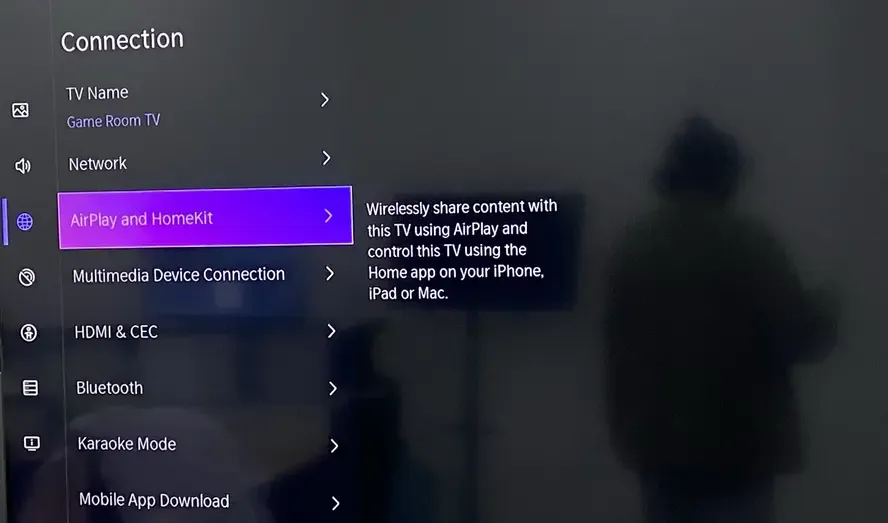
Step 3. On Hisese TV, go to Settings > Apple AirPlay & HomeKit to enable AirPlay.
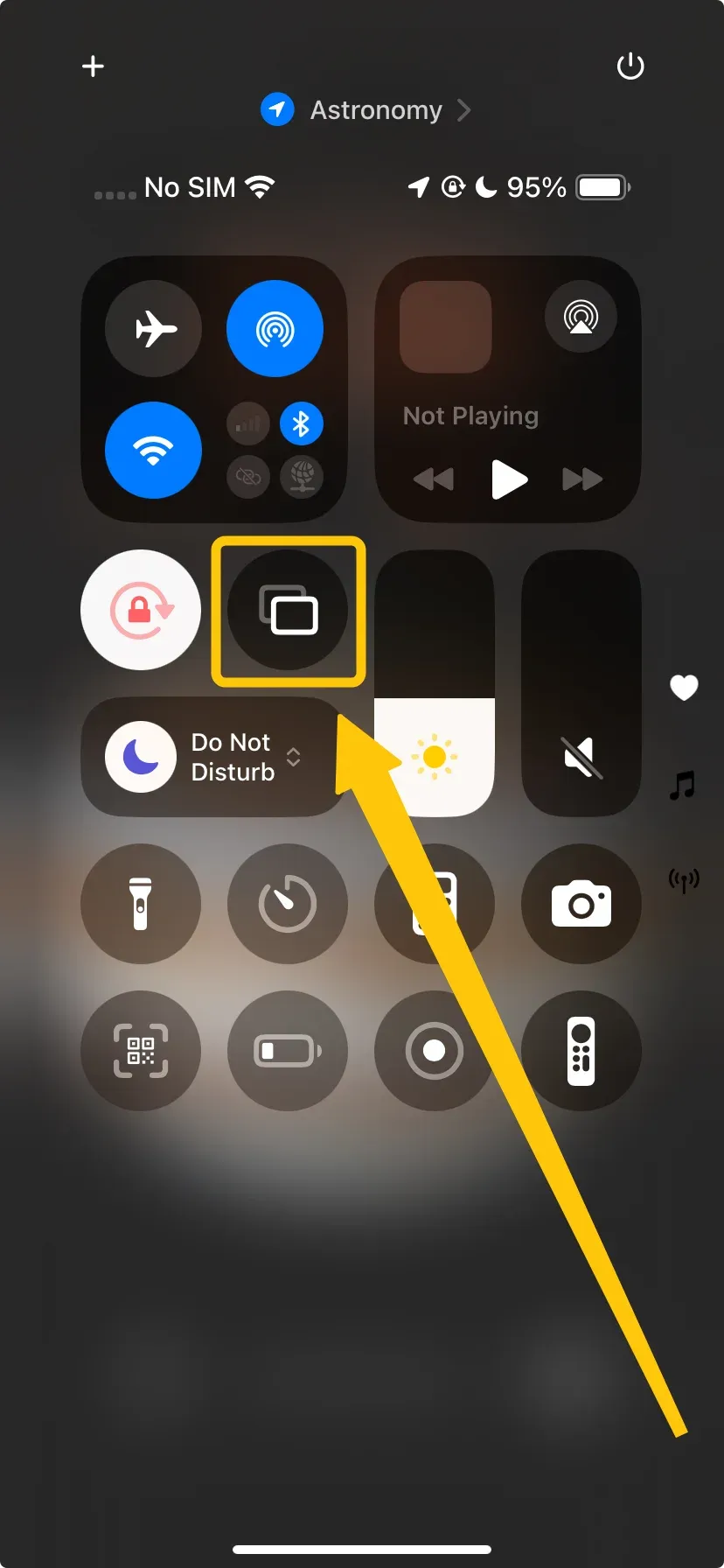
Step 4. On iPhone, tap Screen Mirroring from the Control Center to choose your Hisense TV from the available list.
Step 5. If prompted, enter the code that appears on your Hisense TV to complete the connection.
Step 6. You can then start streaming content from your iPhone to your Hisense TV instantly.
Way 2. Mirror iPhone to Hisense TV via PigeonCast
If your Hisense TV doesn't support AirPlay or you're facing AirPlay not working issues, PigeonCast is a great alternative. This reliable and easy-to-use tool works seamlessly with both Android and iOS devices, letting you mirror your iPhone to your Hisense TV without the need for expensive cables or adapters. Plus, with end-to-end encryption, your content stays private and secure while streaming. Now let's check how to screen mirror iPhone to Hisense TV:
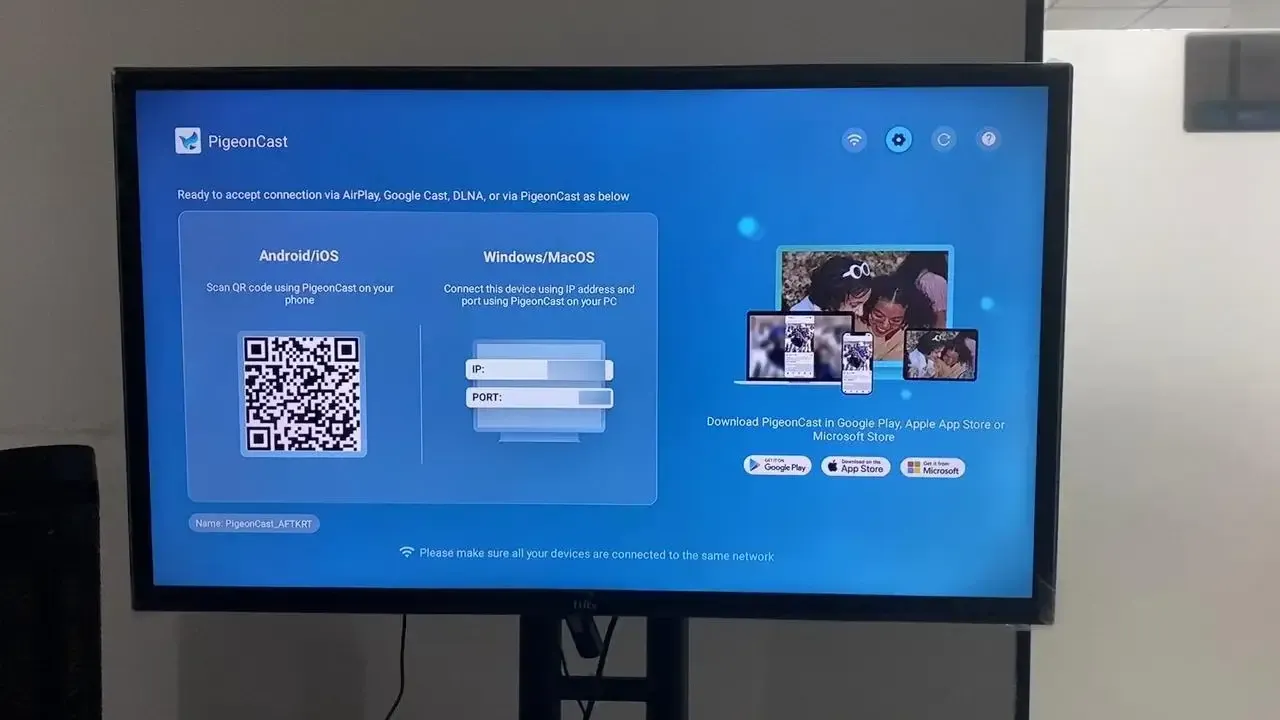
Step 1. Ensure your devices are covered by the same wireless network.


Overall Rating:



Step 2. Install PigeonCast on your iPhone from the App Store, and on the Hisense from the corresponding app store.
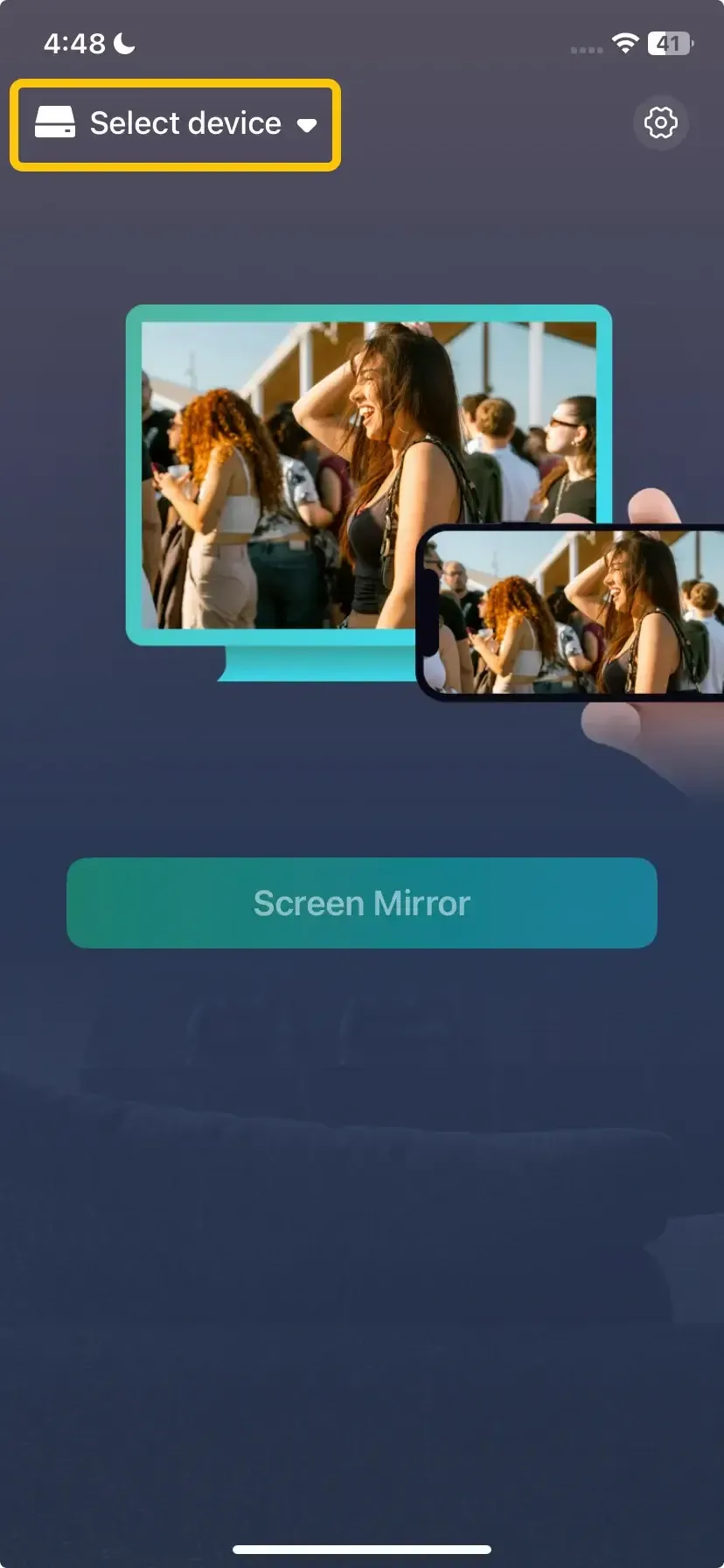
Step 3. Launch the app, tap Select device to choose your Hisense TV from the device list. Or you can scan the QR code shown on the television screen to build the connection.
Step 4. Enter the onscreen PIN code to finish the pairing process.
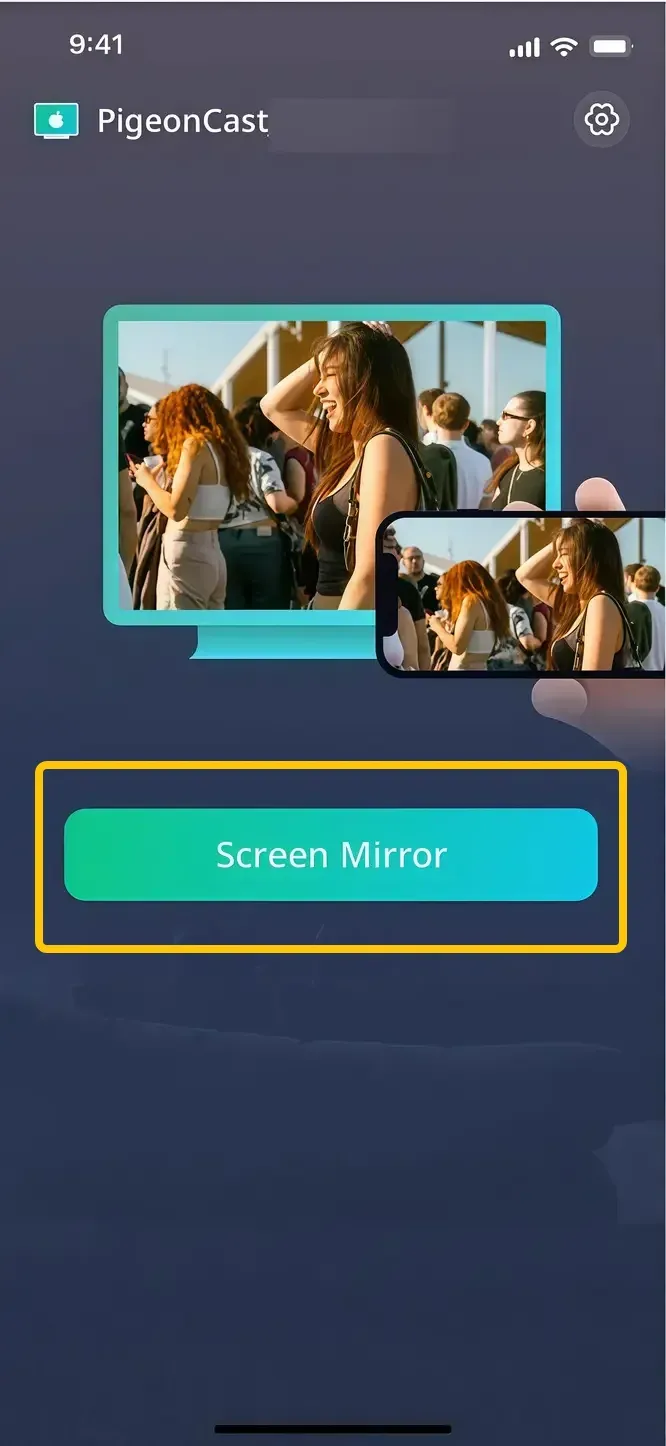
Step 5. Once the connection succeeds, tap Screen Mirror to start mirroing your iPhone screen on the television screen.
Way 3. Mirror iPhone to Hisense TV via HDMI Cable
For a reliable wired connection, use an HDMI cable. It ensures a stable, high-quality stream with no lag. This method works with any Hisense TV that has an HDMI port, making it a universal solution for zero-latency streaming. Here's the step-by-step process on how to mirror iPhone on Hisense TV:
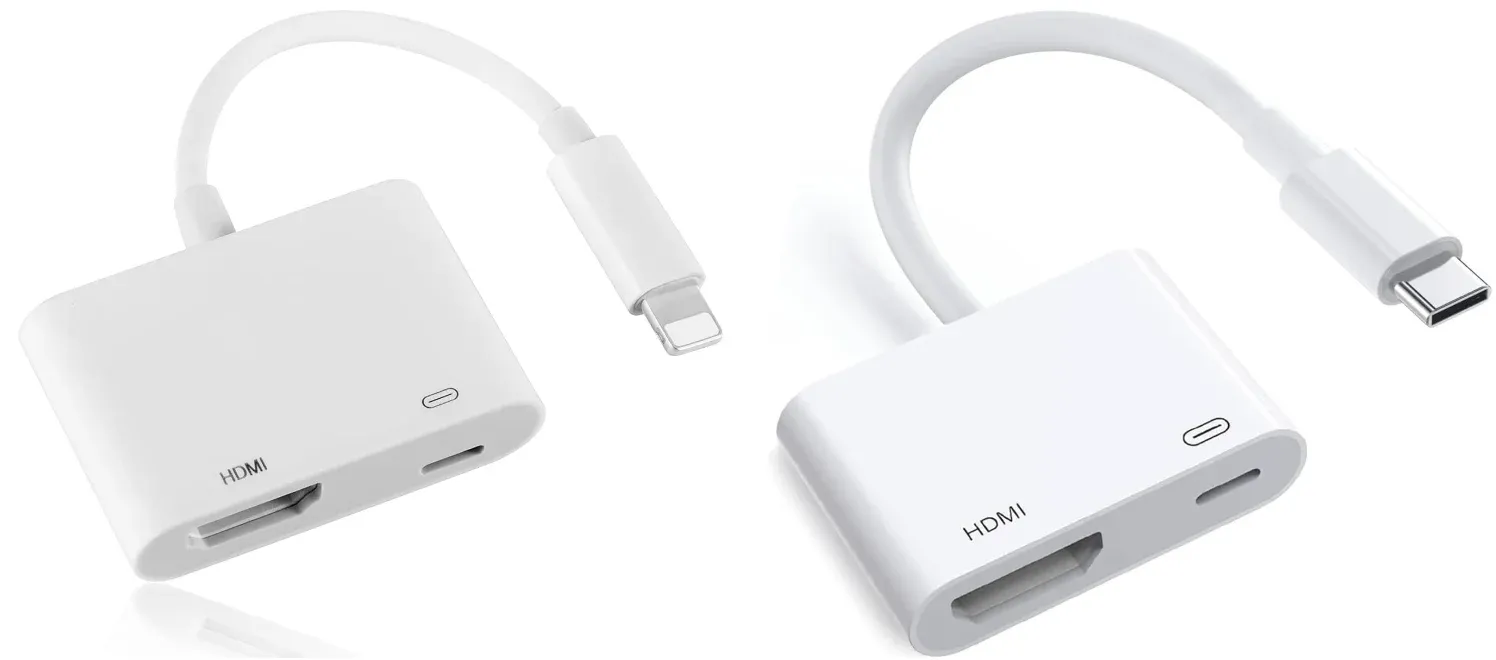
Step 1. Purchase the appropriate adapter for your iPhone:
- For iPhone 14 and earlier models with a Lightning port, get a Lightning to HDMI adapter (also called the Lightning Digital AV Adapter).
- For iPhone 15 and newer models, get a USB-C to HDMI adapter or a USB-C to HDMI cable.
Step 2. Plug the adapter into your iPhone and connect the HDMI cable to both the adapter and the HDMI port on your Hisense TV.
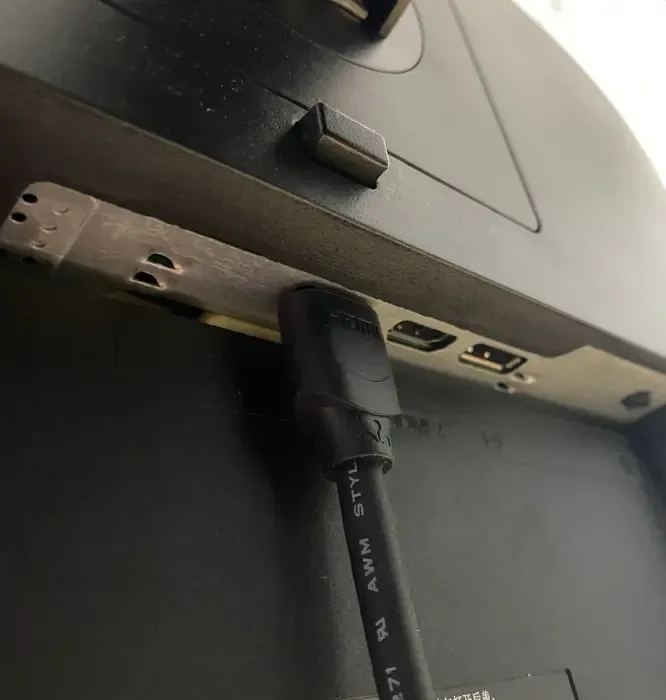
Step 3. Use your TV remote to press the Input or Source button to switch the input to the HDMI port where the cable is connected.
Step 4. Your iPhone's display should now be mirrored on the TV screen, and you can view videos, apps, photos, and other content directly on the big screen.
Conclusion
Learning how to screen mirror on Hisense TV with iPhone is quick and easy. You can use AirPlay for newer models, the PigeonCast app for a universal solution, or an HDMI cable for a stable, wired connection. Whichever method you choose, you'll be able to enjoy your iPhone's content on a bigger screen in no time.
Hisense TV Screen Mirroring iPhone FAQ
How to screen mirror iPhone to Hisense Vidaa TV?
To screen mirror your iPhone to a Hisense Vidaa TV, follow these steps:
- Ensure your Hisense Vidaa TV supports AirPlay (most models from 2020 onward do).
- Make sure both your iPhone and TV are connected to the same Wi-Fi network.
- On your Hisense TV, go to Settings > Apple AirPlay & HomeKit and enable AirPlay.
- On your iPhone, swipe to open the Control Center, tap Screen Mirroring, and select your Hisense TV from the list.
- If a code appears on your TV, enter it on your iPhone to complete the connection.
How to mirror iPhone to Hisense Smart TV wirelessly?
To mirror your iPhone to a Hisense Smart TV wirelessly, follow these steps:
- Check that your Hisense Smart TV supports AirPlay (available on most models from 2020 onward).
- Make sure both your iPhone and Hisense Smart TV are connected to the same Wi-Fi network.
- On your Hisense TV, go to Settings > Apple AirPlay & HomeKit and enable AirPlay.
- Swipe down from the top-right corner of your iPhone to open the Control Center.
- Tap Screen Mirroring and select your Hisense Smart TV from the list of available devices.
- If a code appears on the TV screen, enter it on your iPhone to complete the connection.
How to mirror iPhone to Hisense Android TV?
If your Hisense Android TV does not support AirPlay, you can still mirror your iPhone using other methods:
- Use the PigeonCast App
- Ensure both your iPhone and Hisense Android TV are connected to the same Wi-Fi network.
- Download and install the PigeonCast app on your iPhone from the App Store and on your Hisense TV from the Google Play Store.
- Open the PigeonCast app on both devices.
- On your iPhone, tap Select Device and choose your Hisense TV from the list.
- Follow the on-screen instructions to pair the devices.
- Tap the Screen Mirror to start casting your iPhone's screen to your TV.
- Use an HDMI Cable with Adapter
If wireless methods don't work, you can always connect your iPhone directly to your Hisense TV with an HDMI cable. Here's how:
- Purchase the appropriate adapter (Lightning to HDMI for iPhone 14 and earlier, or USB-C to HDMI for iPhone 15 and newer).
- Connect the adapter to your iPhone and plug the HDMI cable into both the adapter and the HDMI port on your TV.
- Use your TV remote to switch to the correct HDMI input.
- Your iPhone screen will now be mirrored on your Hisense Android TV.
How to solve screen mirroring iPhone to Hisense TV not working?
If screen mirroring from your iPhone to your Hisense TV isn't working, try these simple fixes:
- Make sure both your iPhone and TV are connected to the same Wi-Fi network.
- On your TV, go to Settings > Apple AirPlay & HomeKit and make sure AirPlay is on.
- Turn off your iPhone and TV, then turn them back on.
- Ensure both your TV and iPhone are running the latest software.
- On your iPhone, swipe down to open the Control Center, tap Screen Mirroring, and select your Hisense TV.
- If wireless doesn't work, use an HDMI cable and adapter to connect your iPhone directly to your TV.
How to screen mirror to Hisense TV from iPhone without WiFi?
To screen mirror to your Hisense TV from an iPhone without Wi-Fi, you can use a wired connection or Bluetooth. Here's how:
- Use an HDMI Cable with Adapter
- Get the appropriate adapter for your iPhone: Lightning to HDMI Adapter for iPhone 14 and earlier. USB-C to HDMI Adapter for iPhone 15 and newer.
- Plug the adapter into your iPhone and connect an HDMI cable from the adapter to your Hisense TV.
- Use your TV remote to switch to the HDMI input where the cable is connected.
- Your iPhone screen will be mirrored to the TV.
- Use Hotspot and PigeonCast
- On your iPhone, enable Personal Hotspot. This will allow your iPhone to create a local network.
- Connect your Hisense TV to your iPhone's hotspot. Go to your TV's Wi-Fi settings and select your iPhone's hotspot.
- Download and install the PigeonCast app on both your iPhone and your Hisense TV (from the App Store for iPhone and Google Play for TV).
- Open the PigeonCast app on both devices.
- On your iPhone, tap Select Device in the PigeonCast app, then choose your Hisense TV.
- Once connected, tap Screen Mirror on your iPhone to start mirroring to your TV.
How to connect iPhone to Hisense TV without AirPlay?
Three effective AirPlay alternatives:
- PigeonCast: Free, no-ads, universal mirroring app that works wirelessly with no cable needed.
- HDMI Cable: The reliable, wired solution that works with all Hisense TVs with HDMI ports.
- Chromecast with Google TV: Allows casting from iPhone apps like YouTube and Netflix (not direct mirroring, but great for media content).
Clara Rossi is an experienced technology editor and a seasoned expert in screen mirroring and casting technologies. With a keen eye for detail and a deep understanding of how to seamlessly connect devices, Clara excels at optimizing user experiences for effortless sharing and streaming. Whether you're seeking quick fixes or advanced tips, her expertise and responsiveness ensure that every query is met with a well-informed and efficient solution.