
Chromecast built-in is a handy feature that allows you to easily cast videos, music, photos, and even your entire screen from your mobile device to the TV. If you have a Hisense TV and want to know how to Chromecast to Hisense TV, this guide will help you through each step and provide solutions in case you run into any Chromecast issues along the way.
Can You Chromecast on Hisense TV
Yes, you can Chromecast to your Hisense TV, but it depends on the model and operating system. Hisense smart TVs run different platforms, and Chromecast compatibility varies accordingly. Hisense TVs with Google TV (2021 models and newer) have Chromecast built in, allowing you to cast directly from your Android or iOS device. Many newer models with the VIDAA U smart platform also support Chromecast.
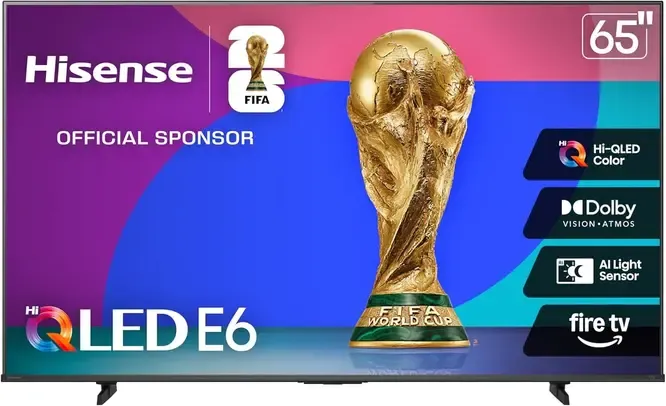
However, older models or those running platforms like Roku TV may do not have Chromecast feature. The good news is, if your TV doesn't have built-in Chromecast, you can still add the functionality with an external Chromecast device.
How to Chromecast on Hisense TV
Whether you have a Hisense TV with Google TV, Android TV, or an external Chromecast device, the steps to cast content from your mobile device or computer to the TV are similar. Now, let's read on to check how to use Chromecast on Hisense TV:
Way 1. Use Chromecast-enabled App
One of the most common and straightforward methods of Chromecast is using apps that support Chromecast. Many popular apps, such as YouTube, Netflix, Spotify, and Google Photos, have Chromecast support built-in, allowing you to cast content directly to your Hisense TV. Here's how to use built-in Chromecast on Hisense TV via Chromecast-enabled apps:
Step 1. Ensure that both your Hisense TV and the device you're casting from (phone, tablet, or computer) are connected to the same Wi-Fi network.
Step 2. Open an app like YouTube, Netflix, Spotify, or Google Photos on your device.
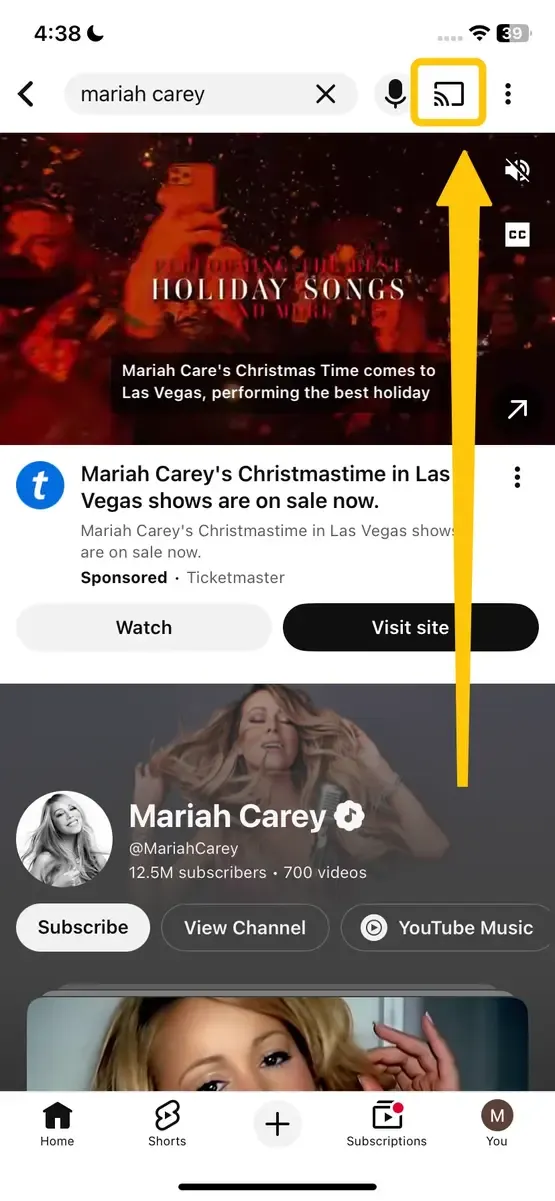
Step 3. Look for the Cast icon in the top-right corner of the app.
Step 4. Tap on the Cast icon and choose your Hisense TV from the list of available devices.
Step 5. Once you select your TV, the content will start streaming directly to your Hisense TV. You can pause, play, or adjust volume from your device.
Way 2. Use Google Home
If your Hisense TV runs Google TV or Android TV, or if you are using an external Chromecast device, you can use the Google Home app to manage and control your casting experience. This app is essential for setting up and controlling Chromecast devices. Here's how to Chromecast to Hisense TV from phone or tablet:
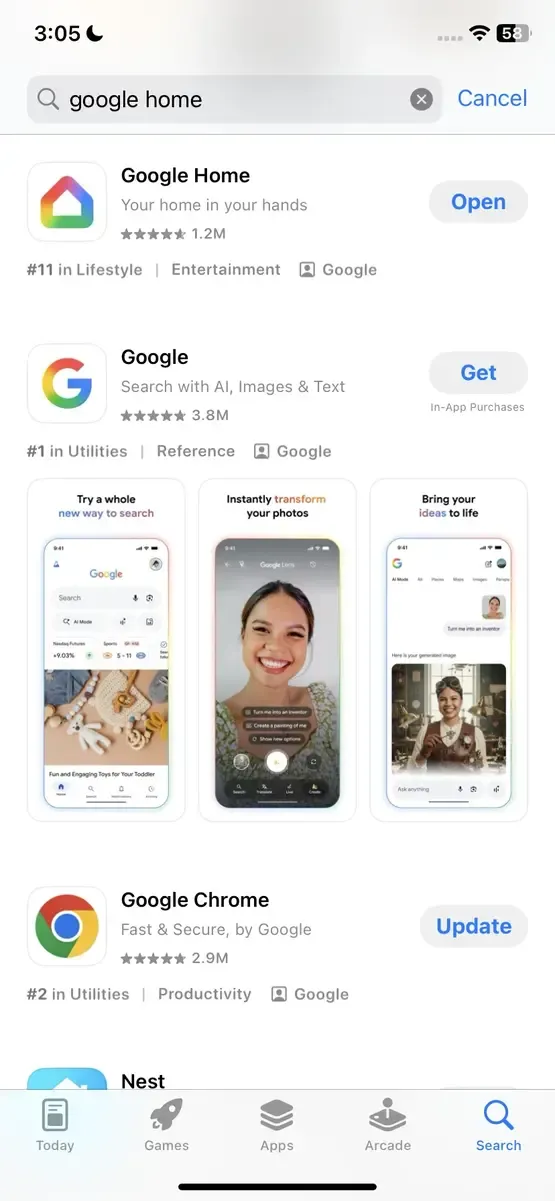
Step 1. Install the Google Home app on your smartphone or tablet from the App Store and Google Play.
Step 2. Open the app, sign in with the same Google Account.
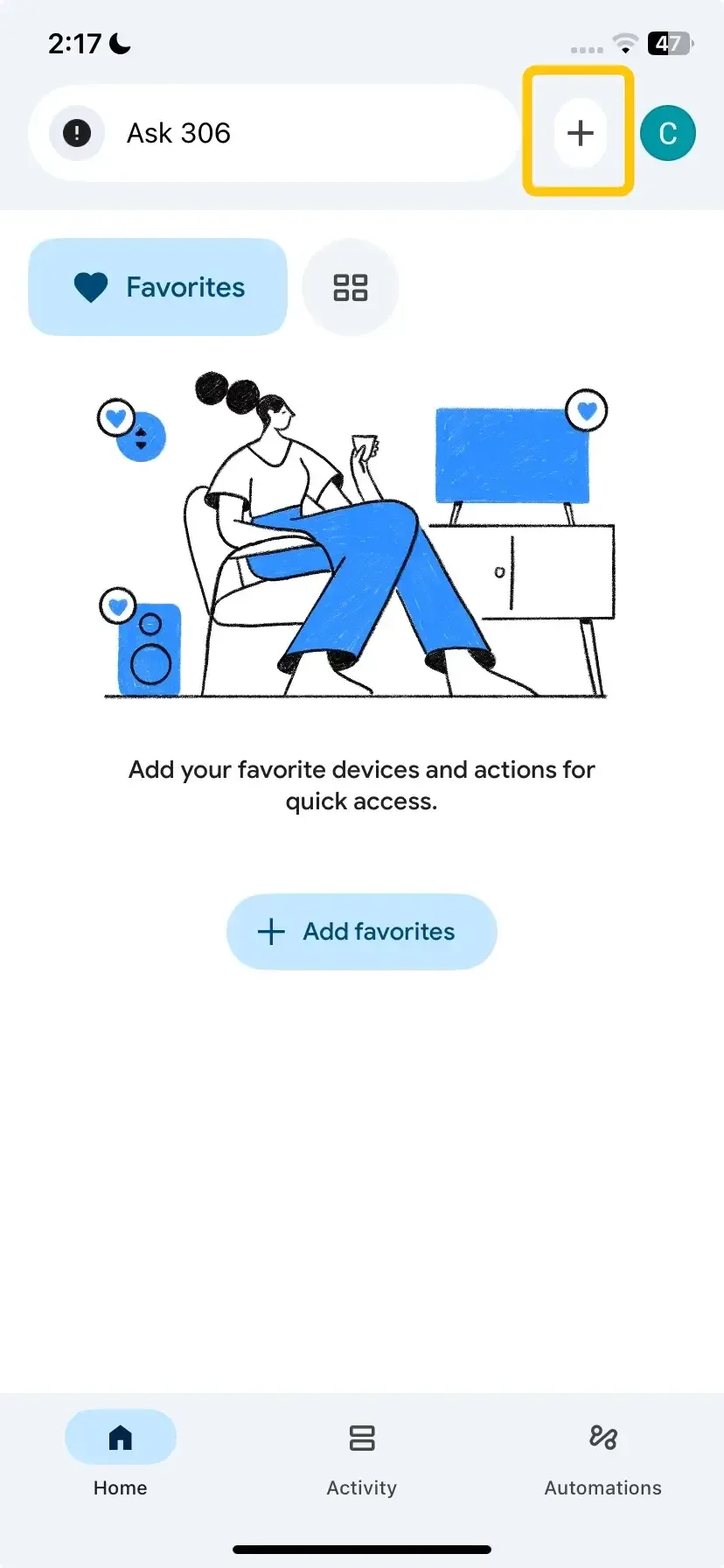
Step 3. Tap the + icon in the top-left corner of the home screen, and select Set up device.
Step 4. Once setup is complete, your Hisense TV will appear as a device tile on the app's main screen.
Step 5. Tap Cast my screen to mirror your entire phone display to the TV.
Way 3. Use PigeonCast
If you run into issues with Chromecast or your Hisense TV doesn't support it, PigeonCast is a free Chromecast alternative for casting content. PigeonCast supports a wide variety of devices, including iOS, Android, Windows, and Mac, and works over Wi-Fi without the need for extra hardware.
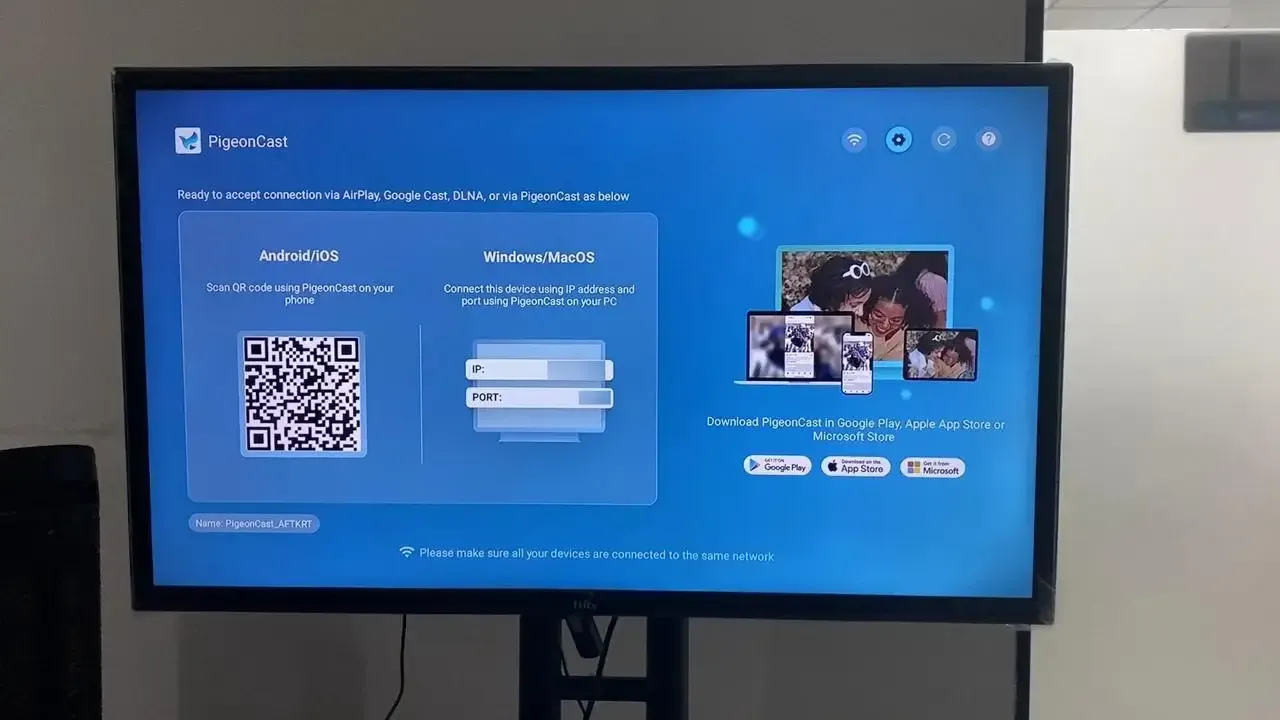
Step 1. Make sure both your device and your Hisense TV are connected to the same Wi-Fi network.


Overall Rating:



Step 2. Download the PigeonCast on your mobile device from Google Play or App Store, and open it.
Overall Rating:
Step 3. Navigate to Hisense TV's app store, type PigeonCast to search for and install it. Then launch the app.
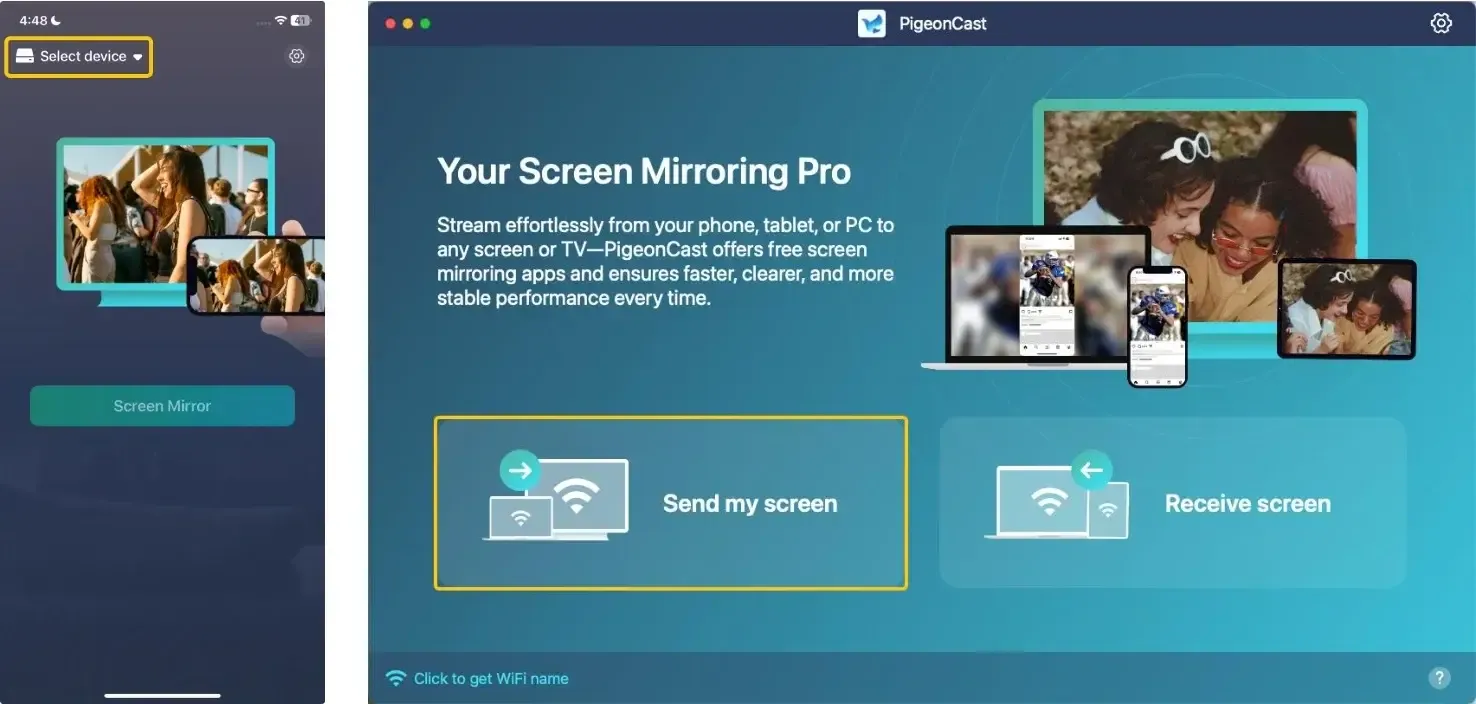
Step 4. On the mobile device, tap Select device or Send my screen to choose your Hisense TV from the available list. Or you can scan the QR code shown on the television screen.
Step 5. Enter the onscreen PIN code to confirm the connection.
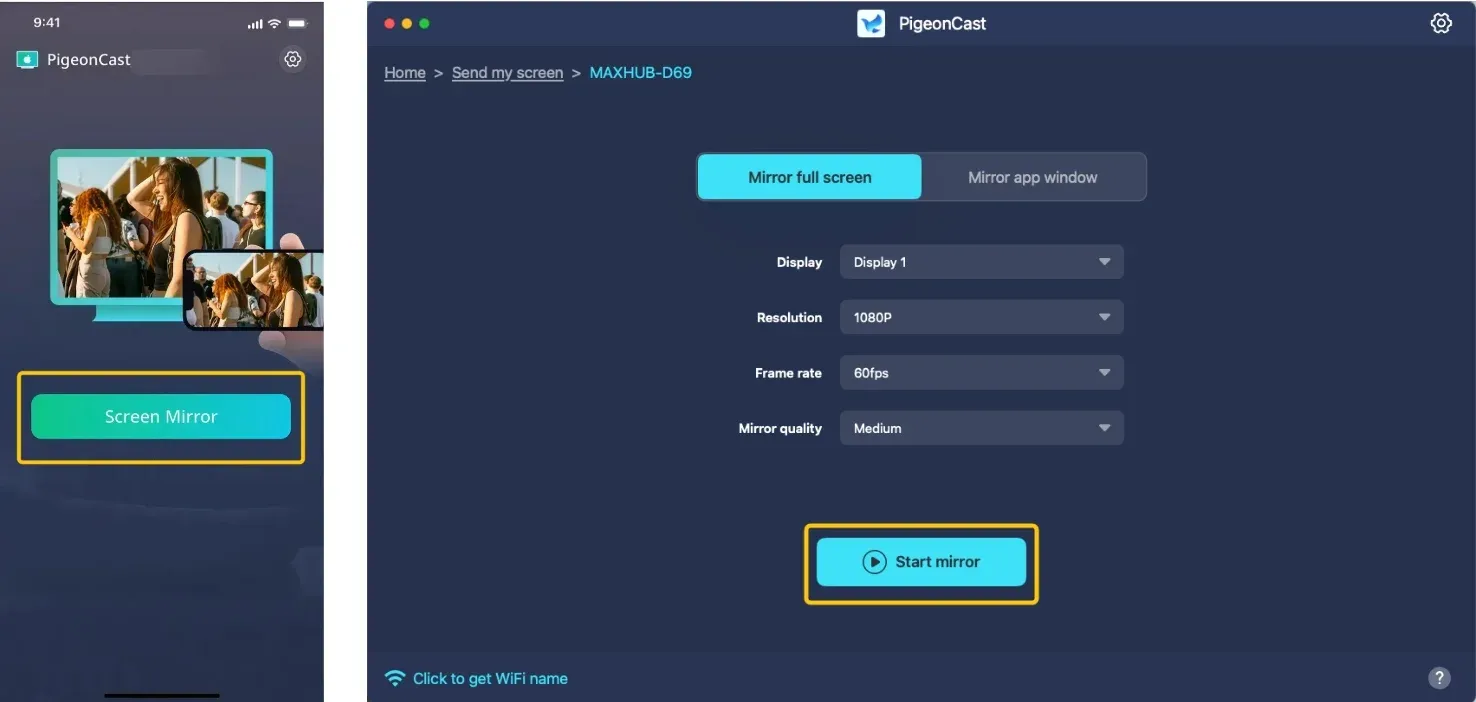
Step 6. Once connected, you can then tap Screen Mirror or Start mirror to stream videos, photos, music, or even mirror your entire screen to your TV. If you use a laptop, you can choose whether to mirror the full screen or an app window.
To Sum Up
How to connect phone to Hisense TV wirelessly? Whether with a Hisense TV Chromecast built in, VIDAA U, or requires an external Chromecast device, the process is simple. You can cast content using supported apps, the Google Home app, or alternatives like PigeonCast. If you encounter any issues, the solutions in this guide will help you get back to streaming in no time.
How to Chromecast to Hisense TV FAQ
Does Hisense TV support Chromecast?
Yes, many Hisense TVs support Chromecast. Models with Google TV (2021 and newer) and VIDAA U smart platform typically have Chromecast built-in. This allows you to cast content directly from your mobile device to the TV. For older models or those with platforms like Roku TV, you may need an external Chromecast device to enable casting functionality.
Why can't I Chromecast to my Hisense TV?
Here are the reasons why you might not be able to Chromecast to your Hisense TV:
- Incompatible Model
- Wi-Fi Network Mismatch
- Chromecast Disabled
- Outdated Software
- Network Interference
- Device or TV Settings
How to Chromecast to Hisense Roku TV?
To Chromecast to your Hisense Roku TV, follow these steps:
- Make sure your Hisense Roku TV is running a version of Roku OS that supports Chromecast (Roku OS 9.4 or later).
- Both your Hisense Roku TV and the device you're casting from must be connected to the same Wi-Fi network.
- Enable Screen Mirroring on Your Roku TV:
- Press the Home button on your Roku remote.
- Go to Settings > System > Screen Mirroring > Enable screen mirroring.
- Open a Chromecast-enabled app (e.g., YouTube, Netflix, etc.), tap the Cast icon in the top-right corner, and select your Hisense Roku TV from the list of available devices.
How to cast to Hisense TV from Android phone?
To cast to your Hisense TV from an Android phone, follow these steps:
- Your Hisense TV and Android phone need to be connected to the same Wi-Fi network.
- Enable Screen Mirroring on Your Hisense TV:
- Open the Settings menu on your Hisense TV.
- Navigate to Network or Connections and ensure Screen Mirroring or AirPlay is turned on.
- Open a Chromecast-enabled app on your Android phone.
- Tap the Cast icon and select your Hisense TV from the list of available devices.
Alternatively, you can mirror the whole screen:
- Swipe down from the top of your Android phone's screen to open the Quick Settings menu.
- Look for Cast or Screen Mirroring (may be labeled as Smart View or Wireless Display, depending on your phone).
- Tap the Cast icon and choose your Hisense TV from the list of devices.
How to fix the Hisense TV Chromecast not working?
If Chromecast is not working on your Hisense TV, here are a few troubleshooting steps to help you fix the issue:
- Check Wi-Fi connection
- Update software and firmware
- Enable Chromecast or screen mirroring
- Restart devices
- Check for interference
- Test with another device
- Factory reset Chromecast (external device)
- Use a different casting method, like PigeonCast
How to cast to Hisense TV from iPhone?
To cast from an iPhone to a Hisense TV, follow these steps:
- Ensure both devices are connected to the same Wi-Fi network.
- Open the Control Center on your iPhone (Swipe down from the top-right corner for iPhone X or newer, or swipe up from the bottom for earlier models).
- Tap on Screen Mirroring to select your Hisense TV from the list of available devices.
- Enter the AirPlay code (if prompted) that appears on your TV screen.
Clara Rossi is an experienced technology editor and a seasoned expert in screen mirroring and casting technologies. With a keen eye for detail and a deep understanding of how to seamlessly connect devices, Clara excels at optimizing user experiences for effortless sharing and streaming. Whether you're seeking quick fixes or advanced tips, her expertise and responsiveness ensure that every query is met with a well-informed and efficient solution.