
When people search Hisense TV screen mirroring not working, they usually mean the phone or computer cannot complete the wireless handoff to the TV. On some Hisense models the path is AirPlay, on others it is Anyview Cast, Chromecast, or Miracast-style casting, and on Roku or Fire TV versions the menu names change again. The fastest fix is to match the right protocol first, clear discovery and Wi-Fi blockers next, then use a fallback like PigeonCast or HDMI if the built-in route keeps failing.
Why Is Hisense TV Screen Mirroring Not Working
Hisense TV screen mirroring usually fails for one of three reasons: the TV cannot be found, the connection starts but breaks, or the video does not play correctly after mirroring begins. These problems can look similar, but the cause may be different on each Hisense TV system. Common causes include:
- Your phone, computer, and Hisense TV are not on the same WiFi network.
- The TV is using the wrong mirroring mode, such as AirPlay, Anyview Cast, Chromecast, or Roku screen mirroring.
- AirPlay, Cast, Screen Mirroring, or receiver mode is turned off in the TV settings.
- VPN, Private Relay, guest WiFi, or router isolation blocks device discovery.
- The TV firmware or phone system is outdated.
- A streaming app blocks mirrored playback and shows a black screen.
How to Fix Hisense TV Screen Mirroring Not Working
The fixes below are arranged from the easiest checks to the stronger backup options. Follow them in order, and you can quickly narrow down whether the problem comes from discovery, connection stability, device compatibility, or playback limits.
Fix 1. Check Your Hisense TV Compatibility
Not every Hisense TV supports the same screen mirroring method. Some models work with AirPlay, some use Anyview Cast, some rely on Chromecast built-in, and Roku or Fire TV versions have their own mirroring settings. If your phone or computer is looking for a feature your TV does not support, the Hisense TV may never appear in the device list.
Step 1. Open Settings on your Hisense TV.
Step 2. Go to System, About, Device Preferences, or TV Information to check which TV system your model uses.
Step 3. Match your Hisense TV system with the correct mirroring feature:
| Hisense TV System | Feature to Check |
|---|---|
| VIDAA TV | Anyview Cast, Screen Sharing, or AirPlay if available |
| Google TV/Android TV | Chromecast built-in, Cast, or AirPlay if available |
| Roku TV | Screen Mirroring or AirPlay if available |
| Fire TV | Display Mirroring or AirPlay if available |
| Xumo TV/XClass TV | Built-in casting, screen mirroring, or app casting settings |
Step 4. Open the matching feature on the TV before searching from your phone, tablet, PC, or Mac.
If your Hisense TV does not support the mirroring method your device is trying to use, skip to a compatible method instead of repeating the same failed connection.
Fix 2. Check the WiFi Connection
Screen mirroring needs your Hisense TV and source device to find each other on the same local network. Even if both devices can access the internet, they may still fail to connect if one is on guest WiFi, mobile hotspot, VPN, or a separated router band.
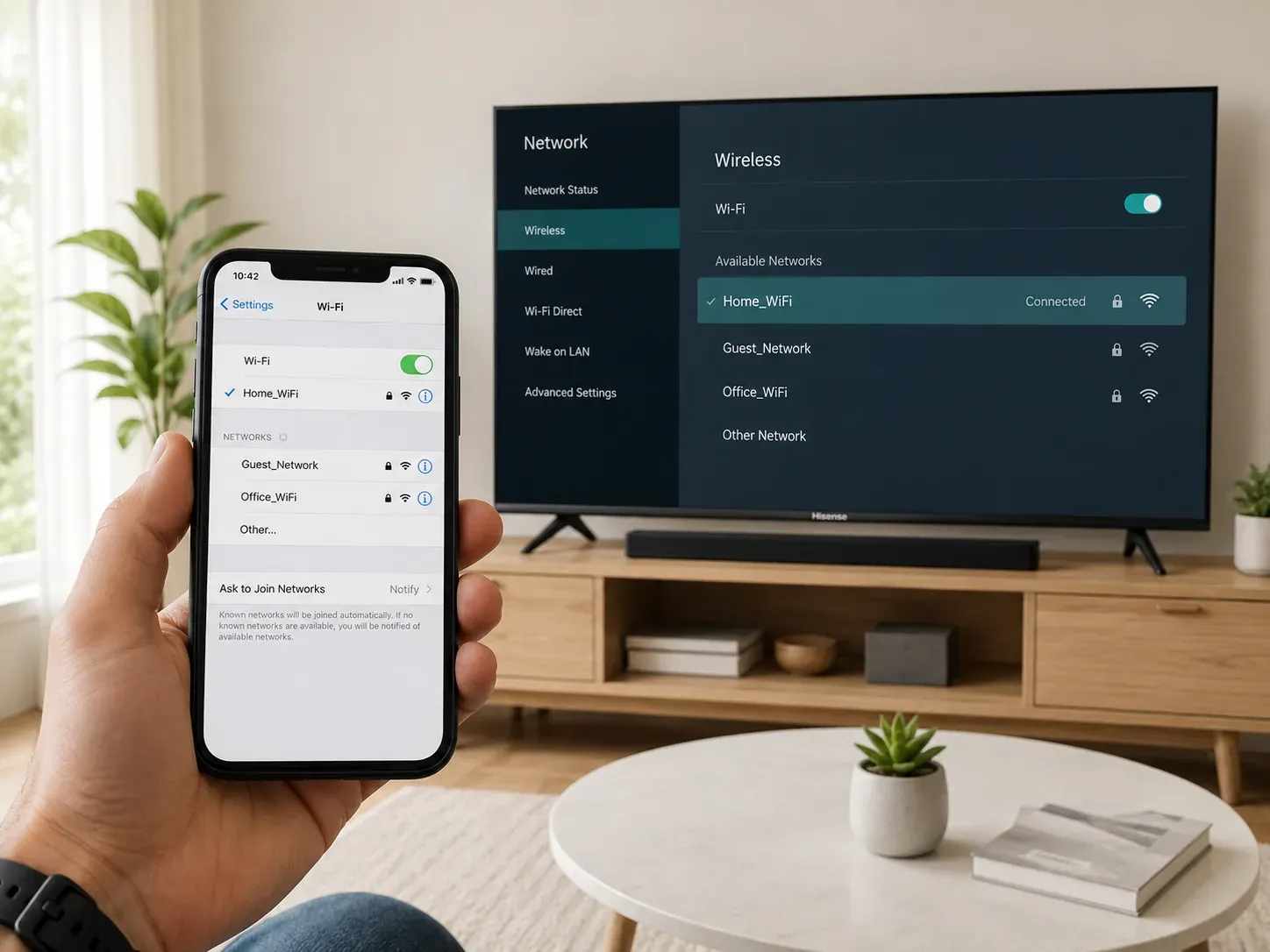
Step 1. Connect your Hisense TV and your phone, tablet, PC, or Mac to the same WiFi network.
Step 2. Avoid guest WiFi. Guest networks often block nearby device discovery, so your phone may not see the TV.
Step 3. Turn off VPN, iCloud Private Relay, proxy apps, or mobile hotspot sharing while testing screen mirroring.
Step 4. If your router shows separate 2.4 GHz and 5 GHz names, put both devices on the same one first.
Step 5. Restart your router and Hisense TV if the TV still does not appear in the screen mirroring list.
Keep the devices close to the router during setup. A weak WiFi signal can make the TV appear for a moment and then disappear before the connection finishes.
Fix 3. Turn On the Right Mirroring Mode on Hisense TV
Your Hisense TV may not appear on your phone or computer if the TV is not ready to receive a mirroring request. After checking compatibility, open the correct receiver mode on the TV before searching again from your device.
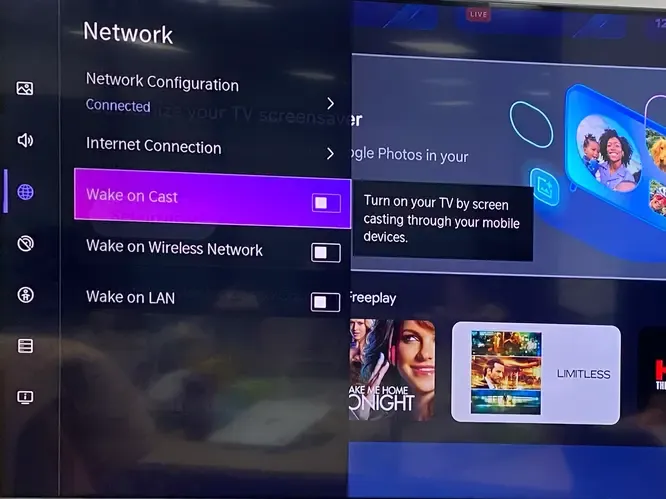
Step 1. Press the Home button on your Hisense remote.
Step 2. Open Settings, Inputs, Apps, or Connection depending on your TV system.
Step 3. Look for the matching feature, such as AirPlay, Anyview Cast, Screen Sharing, Cast, Screen Mirroring, or Display Mirroring.
Step 4. Turn the feature on, then keep that screen open while you search for the TV from your phone, tablet, PC, or Mac.
Step 5. If your TV asks whether to allow the device, choose Allow or Accept.
Fix 4. Fix iPhone or iPad Screen Mirroring
If you use an iPhone or iPad, your Hisense TV needs AirPlay support to appear in the Screen Mirroring list. Some Hisense models have Apple AirPlay and HomeKit in settings, while others do not support native AirPlay.
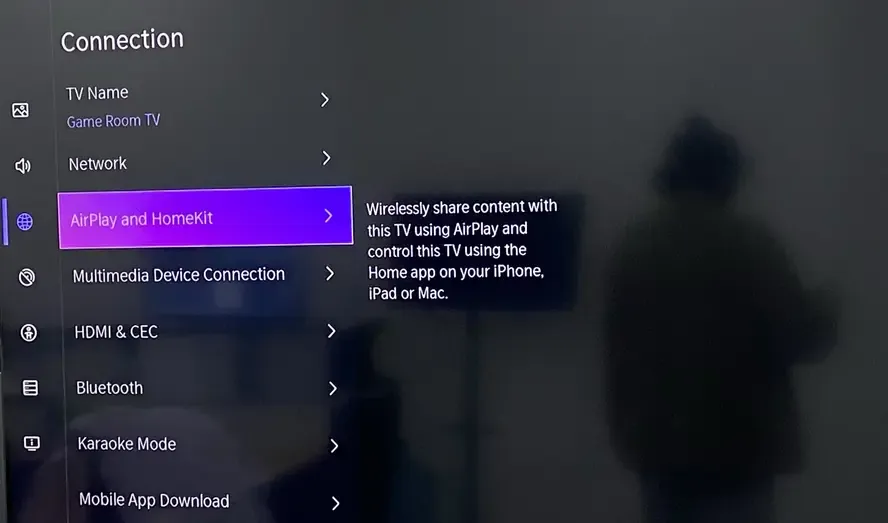
Step 1. On your Hisense TV, check whether AirPlay or Apple AirPlay and HomeKit is available and turned on.
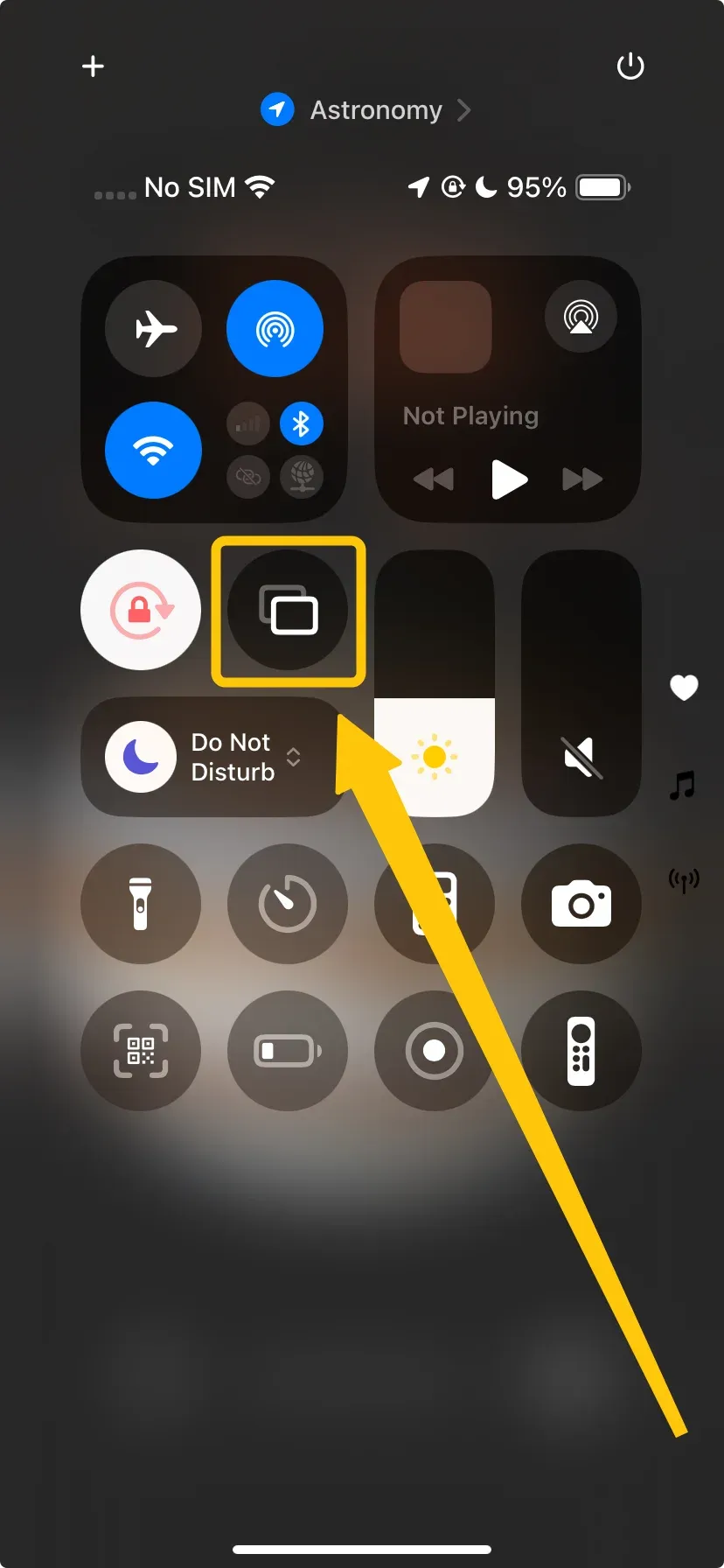
Step 2. Open Control Center on your iPhone or iPad. Tap Screen Mirroring and wait for your Hisense TV to appear.
Step 3. Select the TV and enter the AirPlay code if one appears on the screen.
Step 4. If the TV does not appear, restart your iPhone or iPad and update iOS or iPadOS if needed.
Bonus: If your Hisense TV does not support AirPlay, you do not have to move straight to cables. PigeonCast gives you another wireless way to mirror from iPhone, Android, Windows, or Mac to a TV device, including Apple TV and Android TV setups. It is useful when the built-in Hisense mirroring option does not match the device you want to mirror from.


Overall Rating:



Fix 5. Reset the Failed Screen Mirroring Connection
If your Hisense TV appears in the list but the connection fails, the problem may come from an old pairing record or a stuck connection request. Reset the connection on both devices before trying again.
Step 1. On your phone, tablet, PC, or Mac, remove the Hisense TV from saved casting, AirPlay, Bluetooth, or connected device records if it appears there.
Step 2. On your Hisense TV, open the screen mirroring, AirPlay, Cast, or device connection settings and remove old paired devices if the option is available.
Step 3. Restart the Hisense TV and the device you want to mirror from.
Step 4. Open the correct mirroring mode on the TV again.
Step 5. Search for the Hisense TV from your phone, tablet, PC, or Mac and approve the new connection request.
Fix 6. Update and Restart Your Hisense TV
If screen mirroring still fails after checking WiFi, compatibility, receiver mode, and connection records, update the TV system and restart the devices. Outdated firmware can affect AirPlay, Cast, device discovery, and app connection behavior.
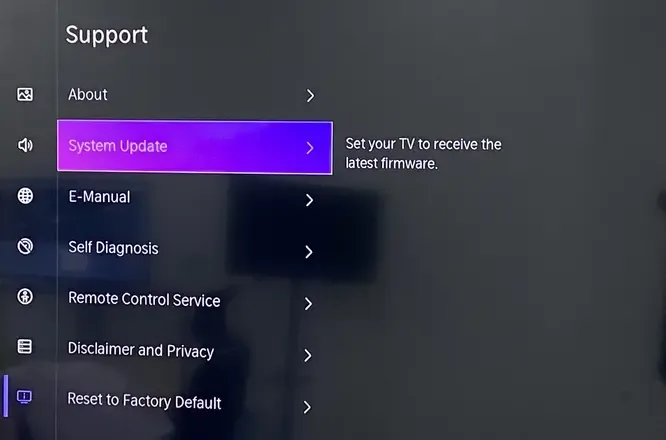
Step 1. On your Hisense TV, open Settings.
Step 2. Go to System, Device Preferences, Support, or About, depending on your TV system.
Step 3. Look for System Update, Software Update, or Check for Updates, then install any available update.
Step 4. Update the phone, tablet, PC, or Mac you want to mirror from.
Step 5. Turn off the Hisense TV, unplug it from power for about 60 seconds, then plug it back in and turn it on.
Step 6. Restart your source device and try screen mirroring again.
Fix 7. Fix the Black Screen Problem
If your Hisense TV connects but the video area turns black, the screen mirroring connection may not be the real problem. Some streaming apps block mirrored playback, so the phone screen appears on the TV but the movie or show does not play correctly.
Step 1. Test screen mirroring with Photos, Safari, Chrome, or another simple app first.
Step 2. If photos or browser pages mirror normally, open the streaming app again and test one video.
Step 3. If only the streaming app shows a black screen, use the app directly on your Hisense TV instead of mirroring it from your phone.
Step 4. If the Hisense TV app is not available or does not work well, use a supported streaming device, game console, or HDMI connection.
Step 5. For meetings, photos, websites, presentations, and local files, continue using screen mirroring as long as the content displays correctly.
Fix 8. Use HDMI as a Backup
If wireless screen mirroring still fails, HDMI gives you a direct way to show your phone, tablet, or computer on the Hisense TV. The key is choosing the right cable or adapter for your device.
Step 1. Check the port on your source device and choose the matching HDMI adapter or cable:
| Device | Cable or Adapter You Need |
|---|---|
| iPhone with Lightning port | Lightning Digital AV Adapter + HDMI cable |
| iPhone 15 or newer with USB-C | USB-C to HDMI adapter or USB-C to HDMI cable |
| iPad with Lightning port | Lightning Digital AV Adapter + HDMI cable |
| iPad with USB-C | USB-C to HDMI adapter or USB-C to HDMI cable |
| Android phone or tablet with USB-C | USB-C to HDMI adapter or USB-C to HDMI cable, if the device supports video output |
| Laptop with HDMI port | Standard HDMI cable |
| Laptop with USB-C only | USB-C to HDMI adapter or USB-C to HDMI cable |
| Laptop with Mini HDMI or Micro HDMI | Mini HDMI to HDMI or Micro HDMI to HDMI cable |
Step 2. Connect the adapter or cable to your phone, tablet, PC, or Mac, then plug the HDMI end into the Hisense TV.
Step 3. Press Input or Source on the Hisense remote and select the HDMI port you used.
Step 4. If the screen appears but there is no sound, open the audio settings on your device and select the Hisense TV or HDMI output.
Step 5. If the image does not fit the TV screen, adjust the display, resolution, or aspect ratio settings on your source device or Hisense TV.
Conclusion
When Hisense TV screen mirroring stops working, do not stay stuck on the same cast button. Check whether the TV can actually receive the mirroring method you are using, clear the common connection blockers, refresh the failed pairing, and test whether the issue is wireless connection or app playback. If the built-in route still fails, a different wireless receiver or HDMI connection can help you get the screen onto the TV without wasting more time.
Hisense TV Screen Mirroring Not Working FAQ
Does Hisense TV support screen mirroring from all phones?
No. Hisense sells TVs with different systems, including VIDAA, Google TV, Android TV, Roku TV, Fire TV, and Xumo TV. These systems do not always support the same mirroring features. One Hisense TV may work with AirPlay, another may use Chromecast built-in, and another may only support app-based casting or a limited screen sharing feature. That is why the model and TV system matter more than the Hisense brand name alone.
Why does my Hisense TV appear in the list but fail to connect?
That usually means device discovery is working, but the pairing or connection step is failing. Common reasons include an old blocked device record, a denied permission request, outdated TV software, or a receiver mode that is open but not fully compatible with the source device. In this case, the TV showing up is a useful clue: the problem is less about finding the TV and more about completing the connection.
Can Hisense TV screen mirroring work without internet?
Sometimes, but it still depends on the connection method. Some local mirroring features only need both devices on the same local network, even if the internet is down. Streaming apps are different because they still need internet to load and play video. If you want the most stable no-internet option, a wired HDMI connection is usually more reliable than wireless mirroring.
Why is there lag when screen mirroring to Hisense TV?
Some lag is normal because wireless mirroring has to send your screen over the network in real time. It can feel more obvious when you play games, scroll quickly, or use a video call. For watching short clips, showing photos, or presenting slides, the delay may not matter much. If low delay is important, a direct TV app, casting feature, or HDMI connection usually performs better than full screen mirroring.
Should I factory reset my Hisense TV to fix screen mirroring?
A factory reset should be the last option. It can remove saved apps, accounts, WiFi settings, picture settings, and paired devices. It may help if the TV software is stuck or the connection menu is broken, but most mirroring problems can be solved by checking compatibility, receiver mode, network settings, device permissions, updates, or app playback limits first.
Can I screen mirror protected streaming apps to Hisense TV?
Not always. Some streaming services block mirrored playback to protect licensed video. The TV may show your phone interface, but the actual video area may stay black, freeze, or play without sound. That does not always mean your Hisense TV is broken. Use the streaming app directly on the TV or use a supported playback device when the app blocks full screen mirroring.
Clara Rossi is an experienced technology editor and a seasoned expert in screen mirroring and casting technologies. With a keen eye for detail and a deep understanding of how to seamlessly connect devices, Clara excels at optimizing user experiences for effortless sharing and streaming. Whether you're seeking quick fixes or advanced tips, her expertise and responsiveness ensure that every query is met with a well-informed and efficient solution.