
If you want a free screen mirroring app for Hisense TV, PigeonCast is the best place to start. It gives you the strongest mix of cross-platform support, free entry, and clear protocol coverage, which matters more on Hisense than on some other TV brands because Hisense models do not all use the same casting stack.
I judge these apps by the details that actually change the experience on a Hisense TV: sender and receiver support, free-tier limits, protocol support, and whether the app looks better suited to mixed-device homes or to one narrow setup. I focus on five third-party apps first, then cover the built-in Hisense options that many readers should test before installing anything.
Can You Screen Mirror to a Hisense TV for Free?
Yes, you usually can. Many Hisense TVs support at least one free mirroring or casting option, but the exact choice depends on the TV system and the device you are sending from.
The tricky part is that "Hisense TV" does not mean one fixed protocol. Some Hisense models expose AirPlay, some rely more on Google Cast, and some list Anyview Cast or Miracast-style screen sharing. That is why a good app recommendation has to look at protocol support, not just app store ratings.
Best Free Screen Mirroring Apps for Hisense TV
Before the app-by-app breakdown, here is the short version.
| Option | Free use | Quality details | Protocol angle | Best fit on Hisense TV |
|---|---|---|---|---|
| PigeonCast | Yes | Up to 2K at 60fps; optional bitrate on iOS sender page | AirPlay, Google Cast, and PigeonCast receiver | Best overall for mixed-device homes |
| LetsView | Yes | Free tier tops out around SD, 4 Mbps, 30 fps; adjustable up to 1440p in settings | App receiver model, AirPlay-style receiving on some setups | Good free testing tool, but lighter free quality |
| AirBeamTV | Free trial | No clear bitrate or fps published on Hisense page | Brand-specific receiver app | Best for Apple users who want a TV-specific app |
| ApowerMirror | Free trial / free tier | iOS free tier sits at 720p; premium goes up to 2K | Wi-Fi, USB, AirPlay, DLNA | Best if you also want phone control on PC |
| AirDroid Cast | Yes on same local network | No clear public bitrate table | Wireless QR cast, AirPlay to Android TV, P2P direct connection | Best if your Hisense TV runs Android TV or Google TV |
PigeonCast
PigeonCast is the strongest first recommendation because it covers the biggest Hisense problem: mixed protocol support across different TV families.
On the Android sender side, PigeonCast supports AirPlay, AirPlay 2, Google Cast, and its own sender-to-receiver setup, with screen mirroring up to 2K at 60fps.
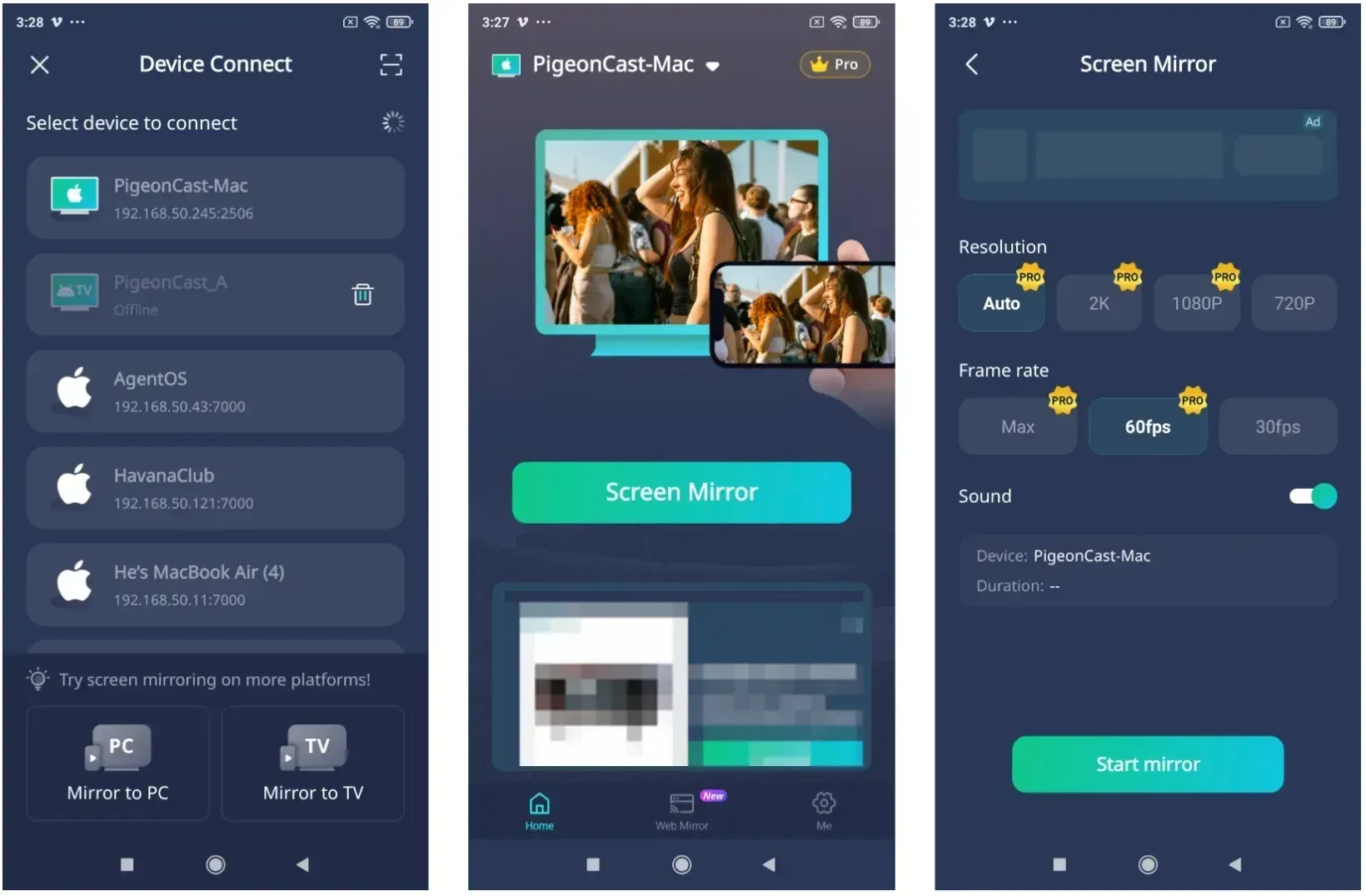
On the iPhone sender page, it has its own receiver mode supports up to 2K with optional bitrate control. That is more useful than it sounds. When a mirror app gives you a bitrate or quality knob, you can trade raw sharpness for lower lag on a weaker router instead of living with one fixed setting.
For Hisense TVs, that matters in three common cases:
- your Hisense TV has Google Cast but no native AirPlay
- your TV has AirPlay but Android phones in the house need a different method
- your TV's native mirroring works, but not consistently across every sender
PigeonCast is also stronger than basic protocol-only options when you move between iPhone, Android, Windows, and Mac. AirPlay is excellent inside the Apple world. Chromecast is excellent when the TV and app both support Google Cast properly. PigeonCast sits above that split and gives you one app that can bridge both sides.
The tradeoff is that it is still screen mirroring, not magic. DRM-heavy apps can still block protected video, and real image quality depends on the phone, the receiver, and the Wi-Fi conditions. But among the free options here, it gives the clearest mix of resolution ceiling, protocol coverage, and cross-device support.


Overall Rating:



LetsView
LetsView is one of the easier free tools to size up because its quality limits are relatively visible.
In plain terms, the free tier sits closer to SD quality with a 4 Mbps / 30 fps ceiling for PC casting, while the app also exposes several resolution choices up to 1440p plus modes that lean toward smoothness or image quality.
I like that because you can tell what kind of compromise the app is asking you to make. It feels less mysterious than apps that only promise "high quality" and leave the rest vague.
On a Hisense TV, LetsView is a decent free test if your main goal is:
- checking whether your network is stable enough for wireless mirroring
- showing slides, documents, or web pages
- getting a cross-platform tool without paying on day one
Where it falls behind PigeonCast is published free-tier quality. A 4 Mbps / 30 fps ceiling is fine for casual use, but it is not my first pick for motion-heavy sports clips, fast scrolling demos, or games. It is more of a solid free utility than a "this will look best on your TV" recommendation.
AirBeamTV
AirBeamTV is built around brand-specific TV mirror apps, and that makes it easy to understand for Apple users who just want something aimed at Hisense.
AirBeamTV clearly aims itself at Apple users who want a cable-free way to mirror to Hisense without adding Apple TV hardware.
The bigger issue is that it does not currently support Android phone mirroring to Hisense TV. That changes the recommendation quite a bit. In practice, this makes AirBeamTV a niche Apple-side tool, not a full-household answer.
That makes AirBeamTV a more narrow recommendation:
- strong fit for iPhone, iPad, or Mac owners
- weaker fit for Android-first homes
- less transparent than LetsView or PigeonCast on bitrate and frame-rate details
If your home is mostly Apple and you want a Hisense-focused receiver app, AirBeamTV is worth a look. If you want one free recommendation that also makes sense when an Android phone enters the picture, it is not the strongest option.
ApowerMirror
ApowerMirror is more feature-heavy than the other apps here, and that shows up quickly once you look past the headline pitch.
On iOS, the free tier sits at 720p, while the paid tier goes up to 2K. That already tells me this app is less generous than PigeonCast if your only goal is free TV mirroring.
At the same time, ApowerMirror gives users more knobs to turn. You can adjust mirroring resolution and definition settings on Android, and the app supports both Wi-Fi and USB connections.
On the TV side, it also works with DLNA-compatible devices and can use AirPlay in some Apple-style mirroring cases. That makes it broader than a simple phone-to-TV mirror tool, but also less focused.
That makes ApowerMirror easy to recommend when you care about more than just TV output:
- you also mirror to a PC often
- you want phone control features on desktop
- you prefer having USB as a lower-lag option
For a Hisense TV-only recommendation, though, it is not my first pick. The free tier is less generous on published quality than PigeonCast, and the product leans more toward phone-to-PC and control features than simple TV mirroring.
AirDroid Cast
AirDroid Cast is the most network-flexible option in this list.
AirDroid Cast makes the strongest case when connection flexibility is your top concern. It works with Android TV 5.0 or later, supports wireless QR-code or cast-code pairing, and even lets Apple devices connect through AirPlay on Android TV setups.
It also draws a clear line between free local use and paid remote use, and it leans on peer-to-peer direct connection plus end-to-end AES encryption. I see this more as a connectivity-first product than a pure quality-first one.
That is a strong set of details for Hisense TVs that run Android TV or Google TV, because it gives you:
- a TV app designed for Android TV receivers
- local free mirroring on the same network
- an AirPlay receive option for Apple senders
Its weak point is quality clarity. You can understand how it connects faster than you can understand how sharp or smooth it will look compared with the better-documented rivals. So I trust it more as a connection tool than as the clearest quality-first recommendation.
How to Screen Mirror iPhone to Hisense TV
If you use an iPhone, start by checking whether your Hisense TV shows AirPlay support. If it does, native AirPlay is still the cleanest first try because it uses Apple's own mirroring system and needs less app setup.
If AirPlay is missing or unreliable, PigeonCast is the better app-based choice because it can send from iPhone to Google Cast-supported receivers and to its own receiver setup, which is useful on Hisense TVs that do not behave like a normal AirPlay target.
Use this order:
Step 1. Make sure the iPhone and the TV are on the same Wi-Fi.
Step 2. Check the TV menu for AirPlay support first.
Step 3. If AirPlay is available, open Control Center on iPhone, tap Screen Mirroring, and choose the TV.
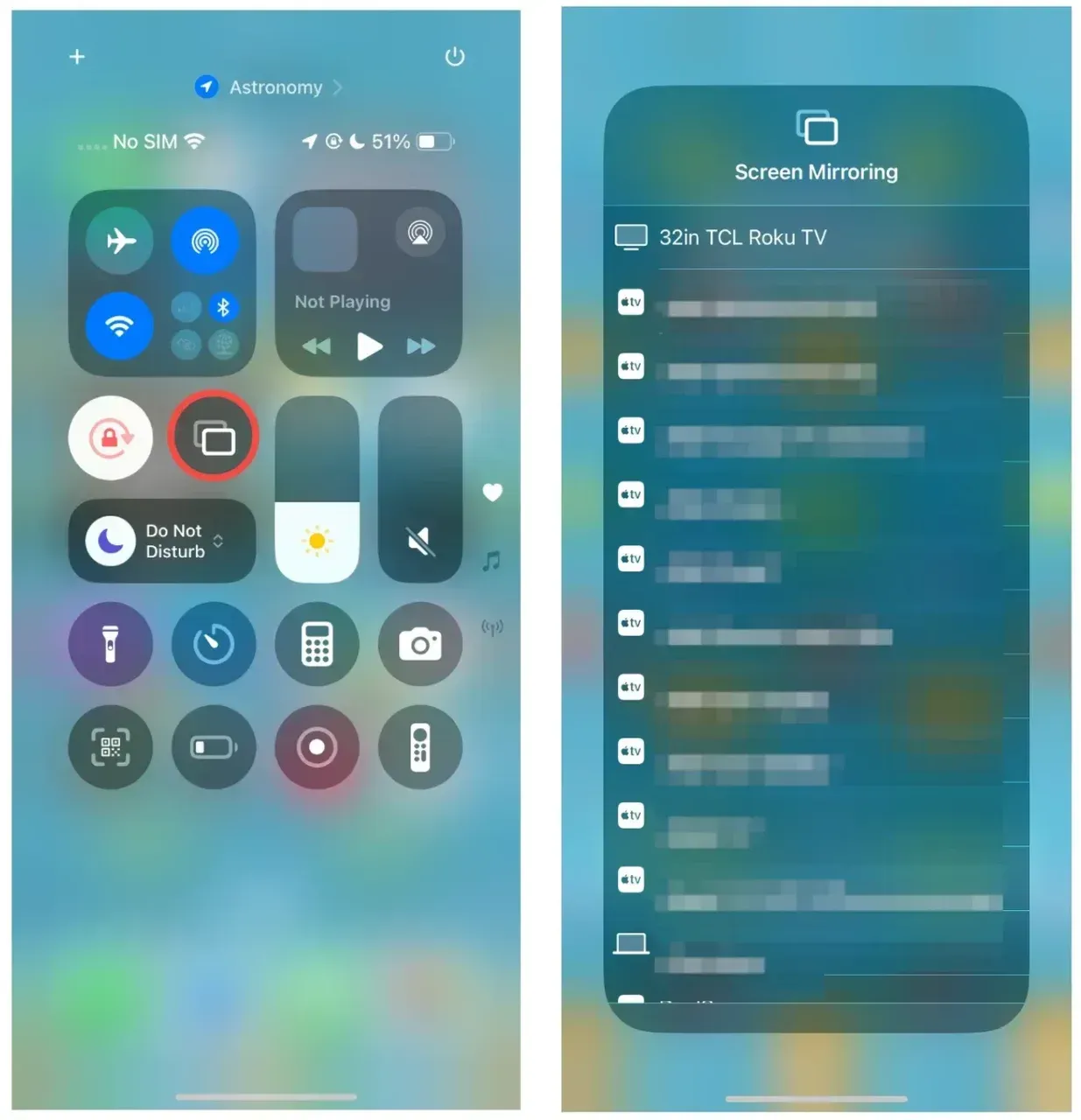
Step 4. If the TV does not appear, install PigeonCast on the iPhone and use either Google Cast mirroring or the PigeonCast receiver method that matches your TV side.
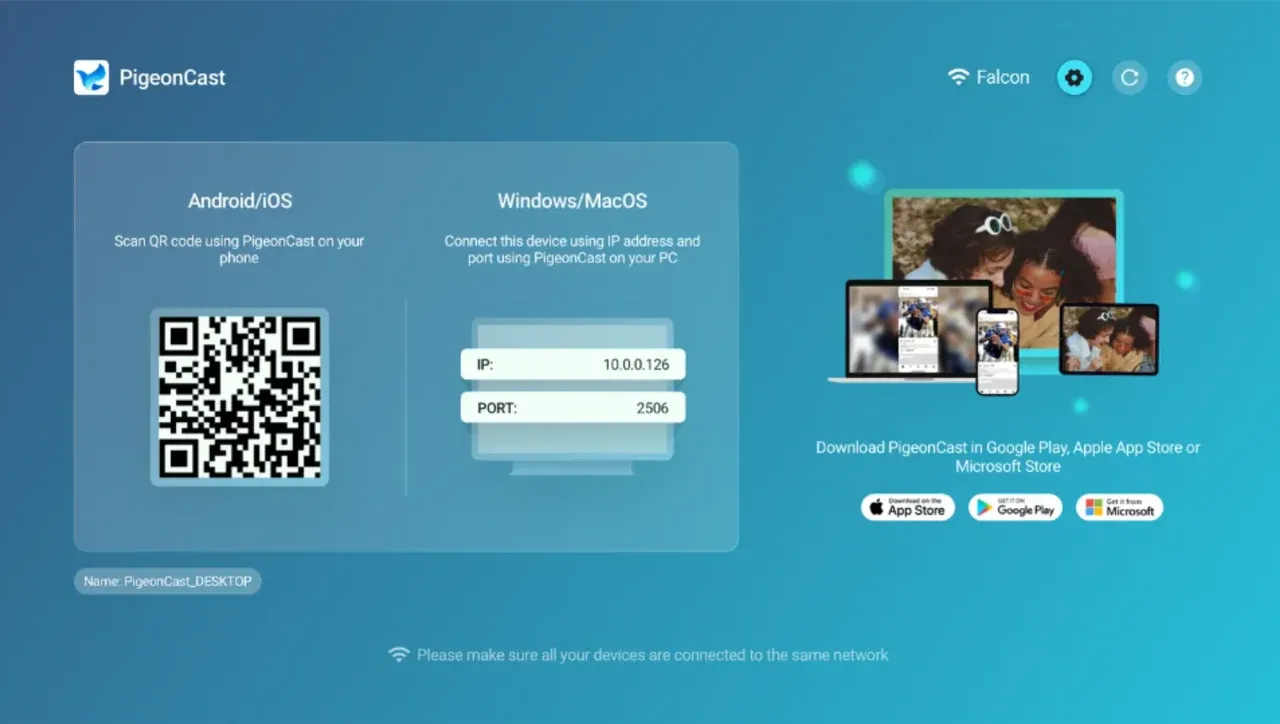
Step 5. If audio echoes from both devices, mute the sending phone and let the TV handle playback.
For iPhone users, the main decision is simple: native AirPlay first, PigeonCast second, and TV-specific apps like AirBeamTV only if you want a narrower Apple-only answer.
How to Screen Mirror Android to Hisense TV
Android users usually have more possible methods, but the method list is also messier.
If your Hisense TV runs Google TV or Android TV and exposes Google Cast, that is the first thing to test. If the TV uses Anyview Cast or Miracast-style sharing instead, success depends more on whether the phone still supports that standard cleanly. If you want one app instead of guessing which built-in standard this specific TV prefers, use PigeonCast.
Use this order:
Step 1. Connect the Android phone and the TV to the same Wi-Fi.
Step 2. Check whether the TV appears as a Google Cast target.
Step 3. If yes, test native cast first for video apps and simple sharing.
Step 4. If full-screen mirroring is what you need, or the cast option is missing, open PigeonCast and connect through Google Cast support or the app's own receiver.
Step 5. If the TV specifically exposes Anyview Cast, you can test it, but expect more variation than with Google Cast or PigeonCast.
Android users are also the group most likely to care about frame rate. That is another reason PigeonCast ranks first here. A published 2K / 60fps ceiling is simply a stronger quality signal than a free tool that only promises basic screen sharing.
Built-In Hisense Screen Mirroring Options
Hisense support is not one thing. Some current models include AirPlay, Miracast, DLNA, and Anyview Cast, while Google TV models tend to lean harder on Google Cast support. That is why built-in mirroring can feel easy on one Hisense TV and confusing on another.
AirPlay
AirPlay is the best built-in choice for Apple users when the TV supports it.
AirPlay works as a same-network mirroring system that sends the full screen from iPhone, iPad, or Mac to an AirPlay-compatible TV. That matches real-world use pretty well. On a supported Hisense model, I still think this is the cleanest built-in option for photos, presentations, browsing, and light video watching from Apple devices because it asks less of the user than most third-party apps.
The limit is obvious: AirPlay is an Apple protocol. It does nothing for Android senders.
Chromecast
Chromecast, now described more broadly by Google as Google Cast, is often the best built-in choice for Android phones and for apps that already expose a cast button.
Chromecast usually works best when you are sending from Google Cast-enabled apps to a Google Cast-enabled TV or display on the same Wi-Fi. In practice, that often feels cleaner than full-screen mirroring because the app hands media playback to the TV instead of continuously re-encoding the entire phone display.
The downside is that cast support is app-dependent. If the app you use does not expose Cast, Chromecast may not solve the problem by itself.
Anyview Cast
Anyview Cast is the built-in option you should treat most carefully.
Anyview Cast is meant for sharing video, audio, or images from an Android-based device to the TV, but it has always been a little less predictable than the bigger standards. Some phones connect easily. Others do not.
You still see Anyview Cast listed alongside Miracast, DLNA, and AirPlay on many Hisense model specs, which tells me Hisense has not fully abandoned it. I just would not make it my first recommendation unless the TV already shows it clearly and the phone connects on the first try.
That tells you what Anyview Cast is good at and where it struggles:
- best on supported Android-to-TV sharing
- less predictable than AirPlay or Google Cast across newer phones
- not the best default if you need one answer for every device in the house
PigeonCast vs Built-In Hisense Screen Mirroring
If your Hisense TV already mirrors well with the native protocol you need, use it. Built-in methods are cleaner when they work. The reason PigeonCast still ranks first is that "when they work" is not the same on every Hisense model.
| Method | Protocol support | Quality details | Strength | Weak point |
|---|---|---|---|---|
| PigeonCast | AirPlay, AirPlay 2, Google Cast, proprietary protocol | Up to 2K / 60fps on Android; up to 2K with optional bitrate on iPhone | Best cross-platform answer | Protected apps can still block mirroring |
| AirPlay | Apple-only native protocol | Apple does not market it by bitrate here; quality is usually strong on supported TVs | Best native Apple experience | Useless for Android senders |
| Chromecast / Google Cast | Google Cast-enabled apps and some mirroring cases | Depends more on app and TV support than a single public bitrate figure | Best app-to-TV handoff on compatible apps | Not every app exposes Cast |
| Anyview Cast | Miracast/Android-style local mirroring on supported sets | No clear modern bitrate table | Useful on some older or supported Android setups | Most model-to-model variation |
The practical answer is straightforward:
- choose AirPlay if your home is Apple-only and the TV supports it
- choose Chromecast if your main apps already cast well to the TV
- choose PigeonCast if you want the broadest free answer across iPhone, Android, Windows, Mac, and mixed Hisense model behavior
- choose Anyview Cast only if your TV clearly exposes it and your Android device connects cleanly
Free Screen Mirroring App for Hisense TV FAQ
What is the best free screen mirroring app for Hisense TV?
PigeonCast is the best free screen mirroring app for most Hisense TV owners. It gives you clearer quality expectations than most rivals, supports AirPlay and Google Cast plus its own receiver method, and makes more sense than native-only options when your TV and phones do not all live in the same ecosystem.
Can I mirror iPhone to Hisense TV for free?
Yes, you can mirror iPhone to Hisense TV for free if the TV supports AirPlay or if you use a free app like PigeonCast. AirPlay is still the cleanest first choice for Apple users, but an app-based method becomes more useful when the TV does not show up as a normal AirPlay receiver.
Can I mirror Android to Hisense TV for free?
Yes, many Android phones can mirror to a Hisense TV for free through Google Cast, Anyview Cast, or a free app like PigeonCast. The catch is that Android success depends more heavily on which Hisense system your TV uses, so one method can work perfectly on one model and fail on another.
Does every Hisense TV support screen mirroring?
No, not every Hisense TV supports the same kind of screen mirroring. Support varies by region and model, and current sets may offer AirPlay, Miracast, DLNA, Anyview Cast, or Google Cast in different combinations instead of one universal standard across the whole brand.
Is Anyview Cast the same as AirPlay or Chromecast?
No, Anyview Cast is not the same as AirPlay or Chromecast. The important difference is that Hisense presents it as its own built-in screen-sharing feature, usually closer to Android or Miracast-style local mirroring, while AirPlay belongs to Apple and Chromecast or Google Cast belongs to Google's casting system.
Mia Clarke is a technology editor specializing in screen mirroring and casting solutions across multiple platforms. Mia provides clear, practical guides and in-depth insights to help users seamlessly connect their devices. Passionate about enhancing digital experiences, Mia is dedicated to keeping readers updated on the latest trends and tools in cross-platform screen sharing. Whether you’re looking to mirror your smartphone, laptop, or smart TV, Mia’s content delivers reliable, user-friendly advice to simplify your tech setup.