
Connecting your MacBook to your Hisense TV lets you create a workspace, gaming area, or home theater. You can show slideshows, stream movies from websites not on your TV app store, or enjoy a larger screen. Hisense Smart TVs work well with Apple devices and offer both wireless and wired options. This guide will show you how to connect MacBook to Hisense TV easily.
How to Connect MacBook to Hisense TV Wirelessly
Wireless connectivity provides unmatched convenience, letting you share your screen without being restricted by cables. The two most effective ways to connect a MacBook to a Hisense TV wirelessly are using Apple's built-in AirPlay or the free, flexible third-party app, PigeonCast. Now, read on to check how to connect MacBook to Hisense Smart TV step by step:
Way 1. Use AirPlay
AirPlay is Apple's native streaming technology, providing the most seamless experience for Mac users. However, this method only works if your Hisense TV is AirPlay 2-compatible, a feature available on most models from 2019 and newer. Once you've confirmed compatibility, follow these steps on how to connect MacBook Air to Hisense TV wirelessly:
Step 1. Ensure that both your MacBook and Hisense TV are connected to the same Wi-Fi network.
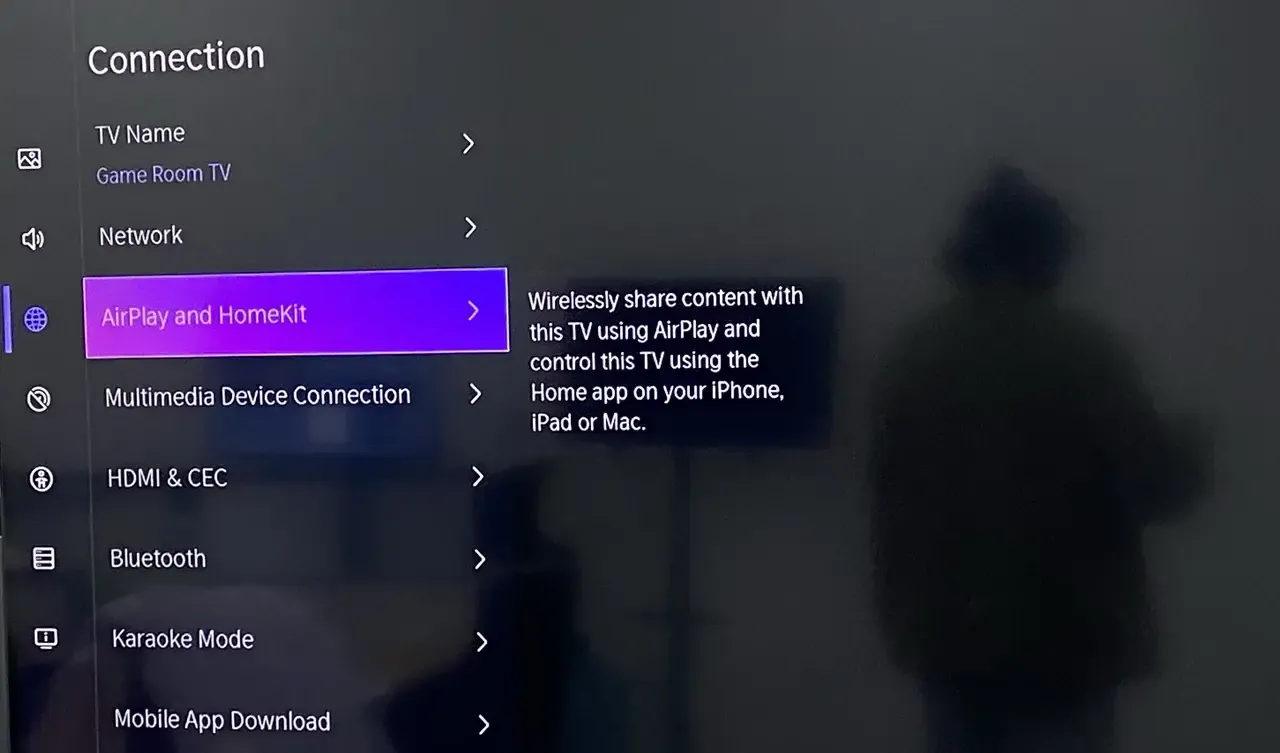
Step 2. On your Hisense TV, navigate to Settings > Connection > AirPlay and HomeKit to enable AirPlay.
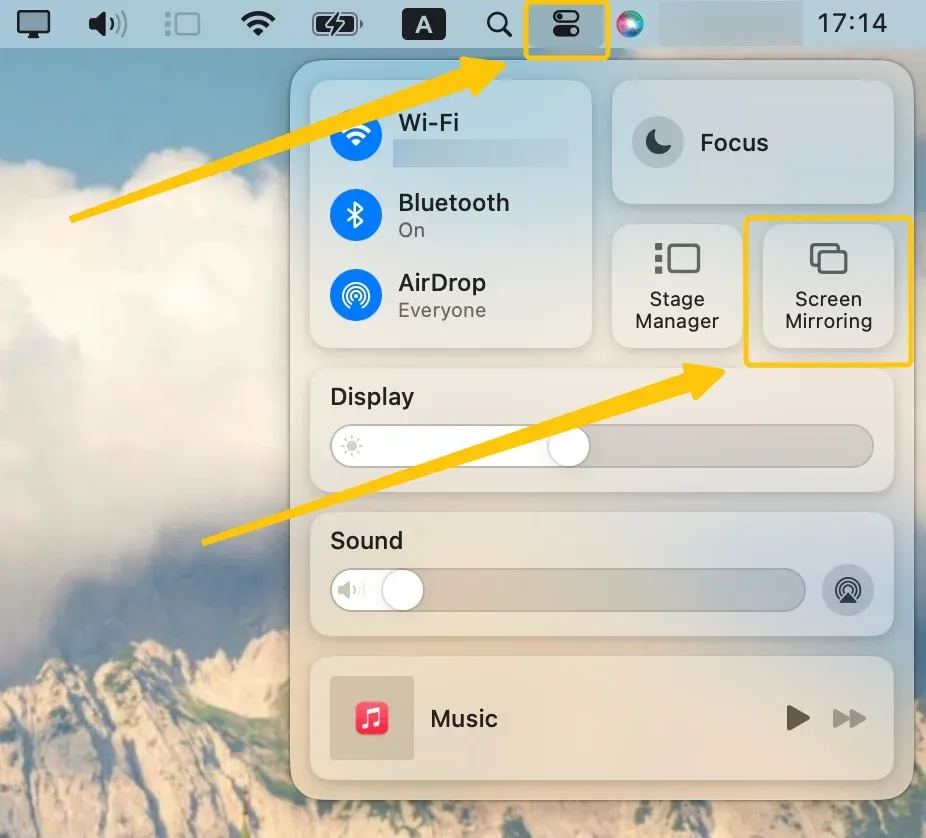
Step 3. On your MacBook, click the Screen Mirroring button in the menu bar at the top right of the screen.
Step 4. Select your Hisense TV from the available list and enter the AirPlay code if prompted.
Step 5. Your MacBook's screen will appear on your Hisense TV, and you can start streaming content.
Way 2. Use PigeonCast
If AirPlay isn't supported on your Hisense TV, PigeonCast is a fantastic alternative. This free mirroring app works effortlessly across Android, iOS, Windows, Mac, and various TVs (like tvOS and Android TV), with no limitations. It allows you to wirelessly mirror your MacBook's display to your TV, even on models that don't support AirPlay. Here's how to connect MacBook Pro to Hisense TV:

Step 1. Ensure your MacBook and Hisense TV are covered by the same wireless network.


Overall Rating:


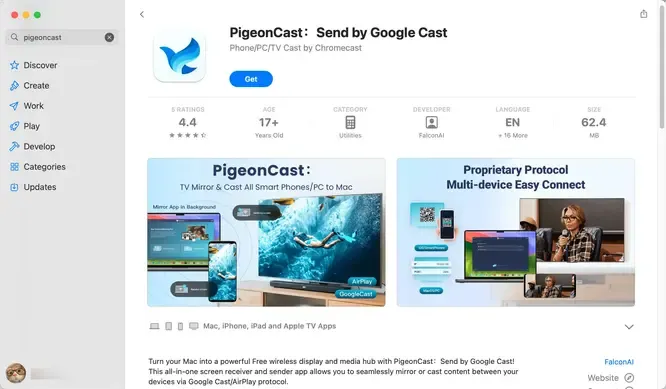
Step 2. Install PigeonCast on a MacBook from the App Store.
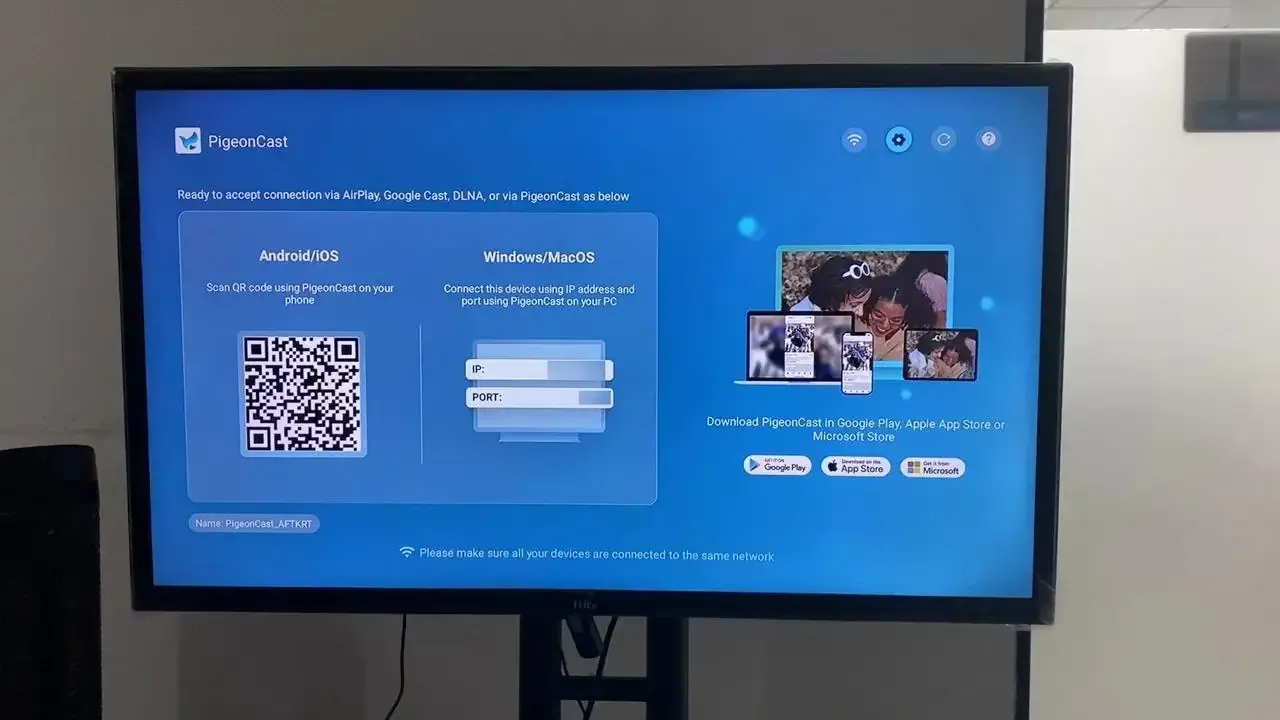
Step 3. Search for and download PigeonCast on Hisense TV from the app store, and launch the app.
Overall Rating:

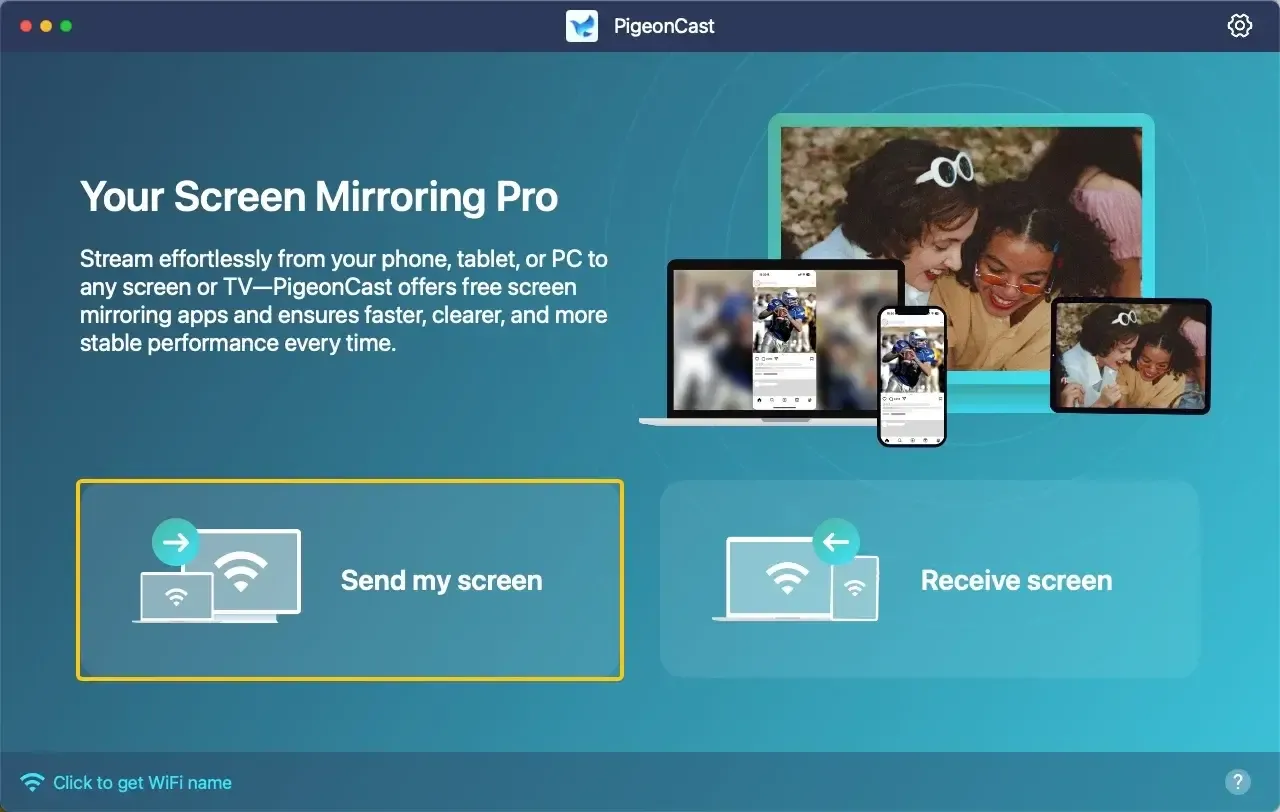
Step 4. Launch the app, tap Send my screen to choose your Hisense TV from the device list.
Step 5. Enter the onscreen PIN code to confirm the connection.
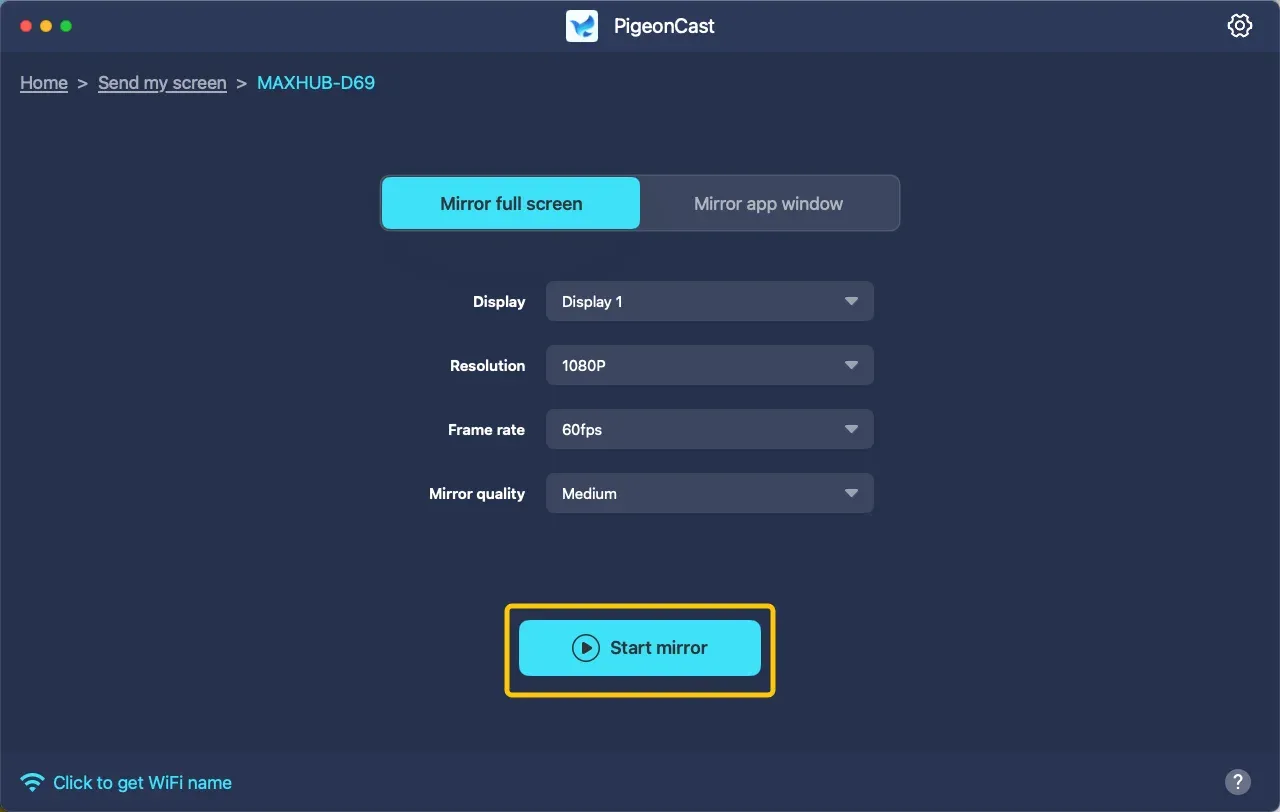
Step 6. When you finish the pairing process, you can choose whether to mirror the full screen or a single app window, then tap Screen Mirror to start mirroring activities.
How to Connect MacBook to Hisense TV with Cable
A wired HDMI connection offers a fast, stable, and high-quality link between your MacBook and TV. This method ensures perfect synchronization with zero lag and supports top-tier video and audio quality, including 4K HDR. Here's how to connect MacBook Air to Hisense Smart TV:
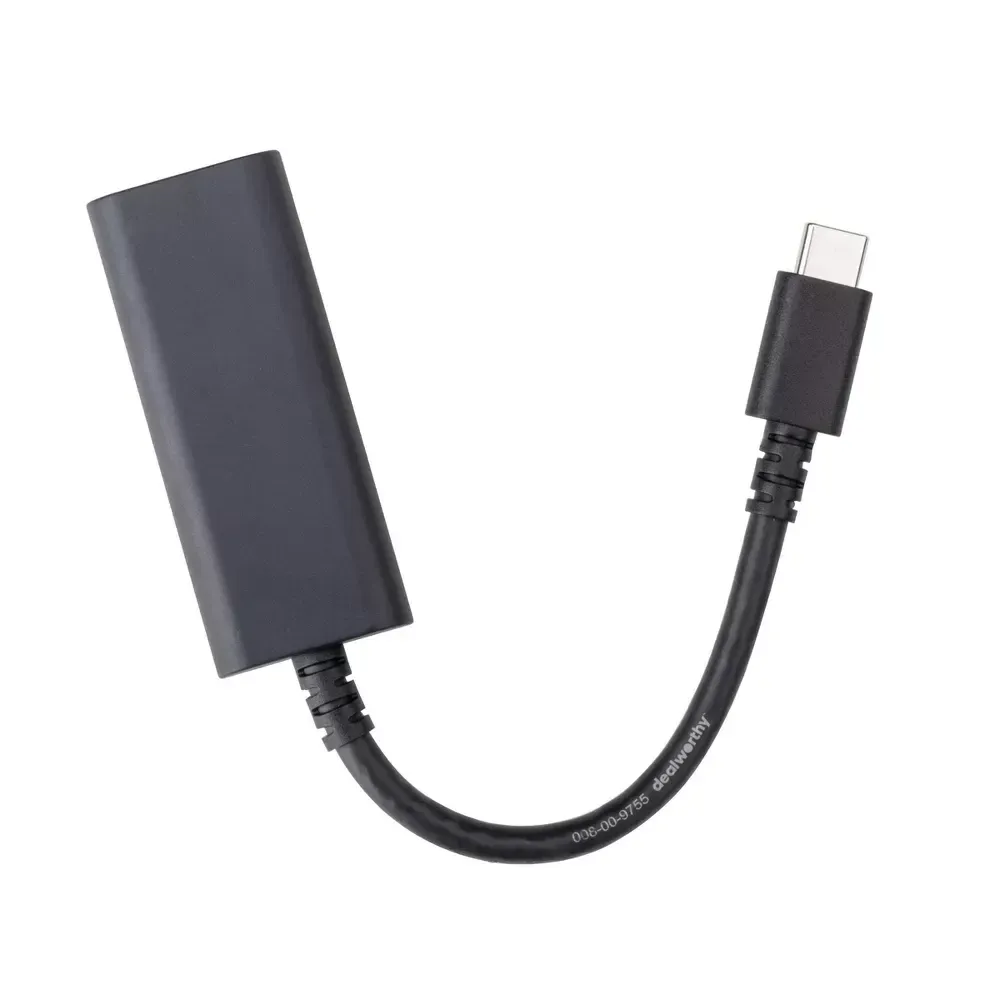
Step 1. Connect your USB-C to HDMI adapter to your MacBook.
Step 2. Plug a standard HDMI cable into the adapter, and connect the other end to any available HDMI port on your Hisense TV.
Step 3. Turn on your Hisense TV and press the Input or Source button on the remote. Select the corresponding HDMI port you used (e.g., HDMI 1) to connect Mac to Hisense TV.
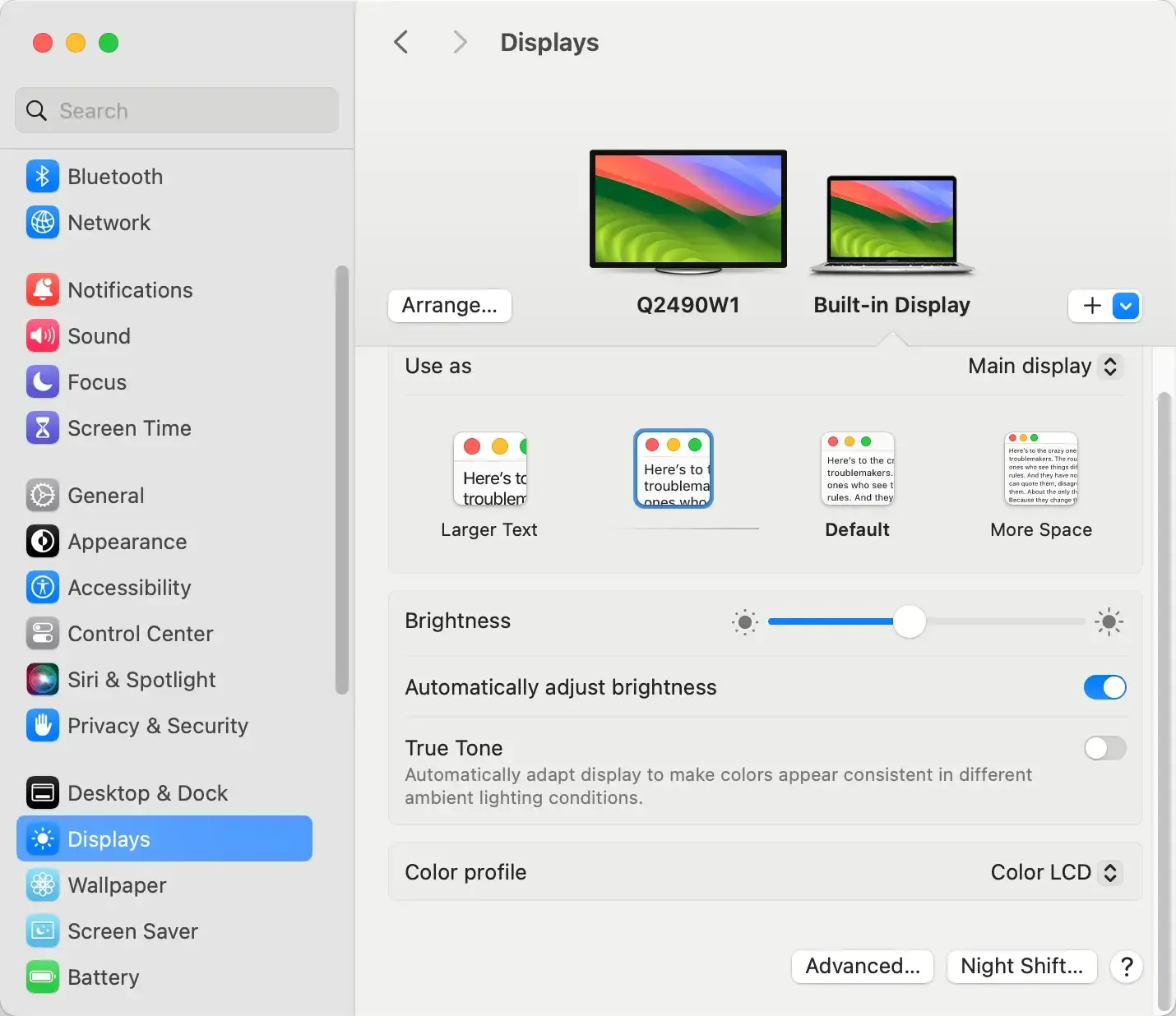
Step 4. Your Mac's display should instantly appear on the TV. You can configure it as an extended display or a mirrored screen by going to System Settings > Displays on your MacBook.
Final Verdict
How to connect Apple laptop to Hisense TV? Whether you choose wireless methods like AirPlay or PigeonCast, or prefer the reliability of a wired HDMI connection, you can enjoy seamless streaming, presentations, or gaming. Follow the steps in this guide, and you'll be up and running in no time, transforming your TV into an extended screen for all your needs.
How to Connect Macbook to Hisense TV FAQ
Can Apple screen mirror to Hisense TV?
Yes, you can mirror your Apple device's screen to a Hisense TV. If your TV supports AirPlay 2, you can use Apple's built-in AirPlay feature for wireless screen mirroring. Alternatively, you can use third-party apps like PigeonCast to mirror your Apple device to a Hisense TV, even if AirPlay is not supported.
How do I connect my MacBook to my smart TV?
To connect your MacBook to your smart TV, you have two main options: wireless and wired methods.
- AirPlay (if supported on your TV):
- Ensure your MacBook and smart TV are connected to the same Wi-Fi network.
- On your MacBook, click the Screen Mirroring in the menu bar and select your TV from the list.
- If prompted, enter the AirPlay code on your TV to complete the connection.
- Use a Casting App (like PigeonCast):
- Install the casting app (like PigeonCast) on both your MacBook and smart TV.
- Connect both devices to the same Wi-Fi network.
- Open the app on your MacBook and select your TV to start screen mirroring.
- Wired Method (Using HDMI):
- Connect your USB-C to HDMI adapter to your MacBook.
- Plug one end of an HDMI cable into the adapter and the other end into an HDMI port on your TV.
- Turn on your TV and select the correct HDMI input.
- Your MacBook screen should automatically appear on your TV.
How do I connect my laptop to my Hisense TV wirelessly?
To connect your laptop to your Hisense TV wirelessly, follow these steps based on the available options:
- Option 1: Using AirPlay (for compatible Hisense TVs)
- Option 2: Using a Third-Party App (like PigeonCast)
- Option 3: Using Miracast (for Windows laptops)
How to connect MacBook to Hisense TV Bluetooth?
If you want to use Bluetooth for audio, these steps should work for connecting your MacBook and Hisense TV. However, for screen mirroring, you'll need to use other wireless options.
Step 1. Enable Bluetooth on your Hisense TV
Step 2. Pair your MacBook with the TV
Step 3. Set Audio Output to Bluetooth (Optional)
Clara Rossi is an experienced technology editor and a seasoned expert in screen mirroring and casting technologies. With a keen eye for detail and a deep understanding of how to seamlessly connect devices, Clara excels at optimizing user experiences for effortless sharing and streaming. Whether you're seeking quick fixes or advanced tips, her expertise and responsiveness ensure that every query is met with a well-informed and efficient solution.