
A small phone screen is not always enough for movies, photos, games, or work files. With Xumo TV, you can put that content on the big screen in different ways, depending on whether you use an iPhone, Android phone, Windows PC, or Mac. This guide explains how to screen mirror on Xumo TV with AirPlay, casting, wireless display, and HDMI, so you can choose the method that works best for your device.
Can You Screen Mirror on Xumo TV
Yes, you can screen mirror on Xumo TV. Here, Xumo TV means a smart TV that runs the Xumo TV platform, not just the Xumo Play app on your phone. Some Sharp TVs also come with the Xumo TV platform, which means they may share similar screen mirroring options. You are connecting your iPhone, Android phone, Windows PC, or Mac to the TV screen itself.
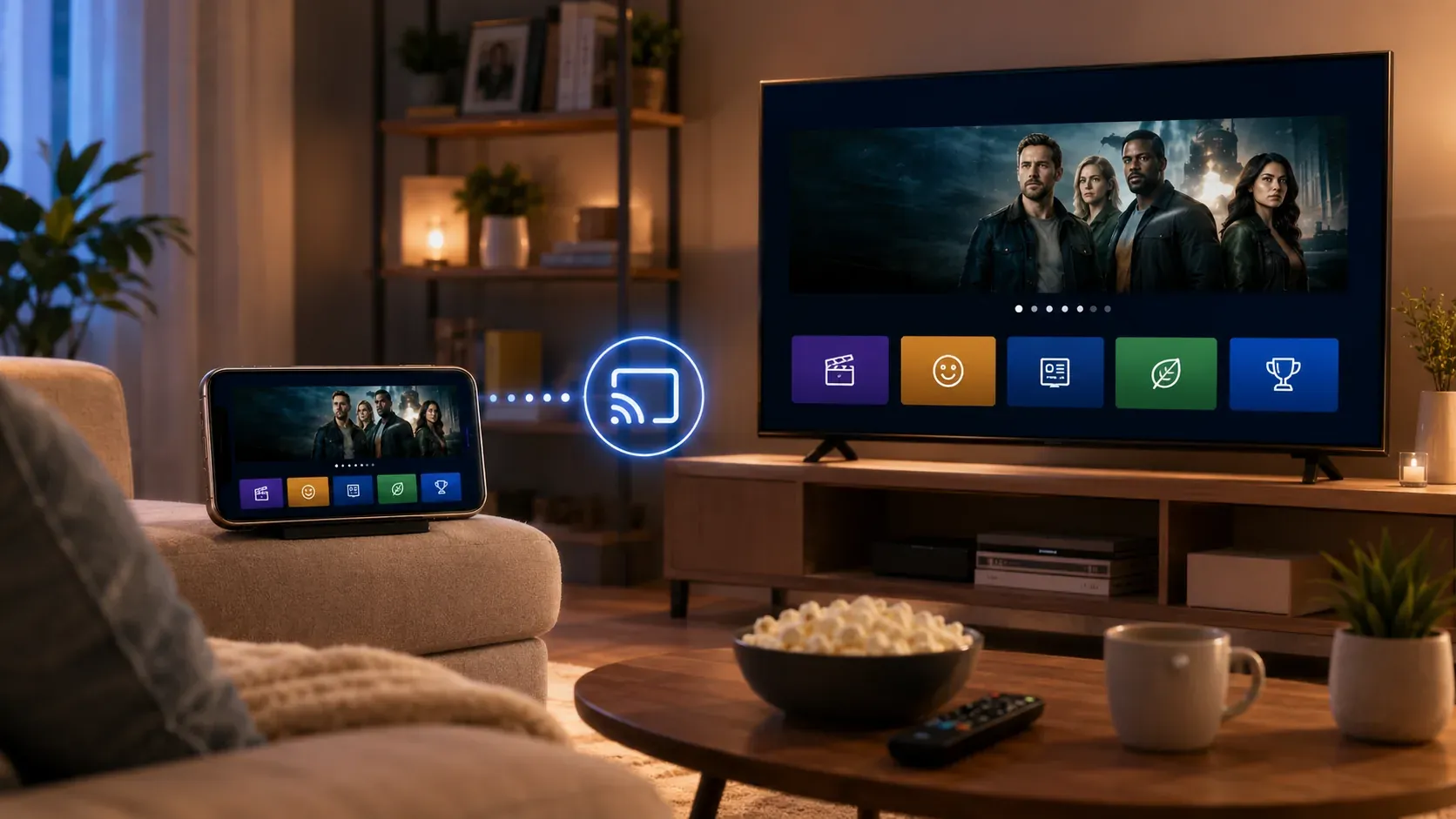
The right method depends on your device. Phone, iPad, and Mac can usually use AirPlay. Android phones and Windows PCs may use casting or wireless display features. HDMI gives you a stable backup when wireless mirroring fails. You can also use PigeonCast, a screen mirroring solution for iOS, Android, Windows, Mac, and TV, to stream content from your phone, tablet, or PC to a bigger screen.
Before You Screen Mirror on Xumo TV
Xumo TV supports both casting and screen mirroring. Before trying any method, take a minute to check the basic setup. These small checks can save you from most connection problems later.
- Connect your phone, tablet, or computer and Xumo TV to the same WiFi network.
- Keep your device close to the TV and router for a stronger signal.
- Update your Xumo TV and the device you want to mirror from.
- Turn off VPN, because it may block your device from finding the TV.
- Make sure the screen mirroring feature is available on your device, such as AirPlay, Cast, Smart View, or Wireless Display.
How to Screen Mirror iPhone to Xumo TV with AirPlay
AirPlay works on Xumo TV models, which are smart TVs running the Xumo TV platform. For iPhone, iPad, and Mac, AirPlay is the first method to try on a supported Xumo TV. It lets you share your Apple device screen wirelessly, including photos, videos, browser pages, apps, and presentations. Follow these steps to use AirPlay on Xumo TV:
Step 1. Turn on your Xumo TV and open AirPlay Settings on your Xumo TV to turn on Apple AirPlay.
Step 2. Connect your iPhone, iPad, or Mac and Xumo TV to the same Wi-Fi network.
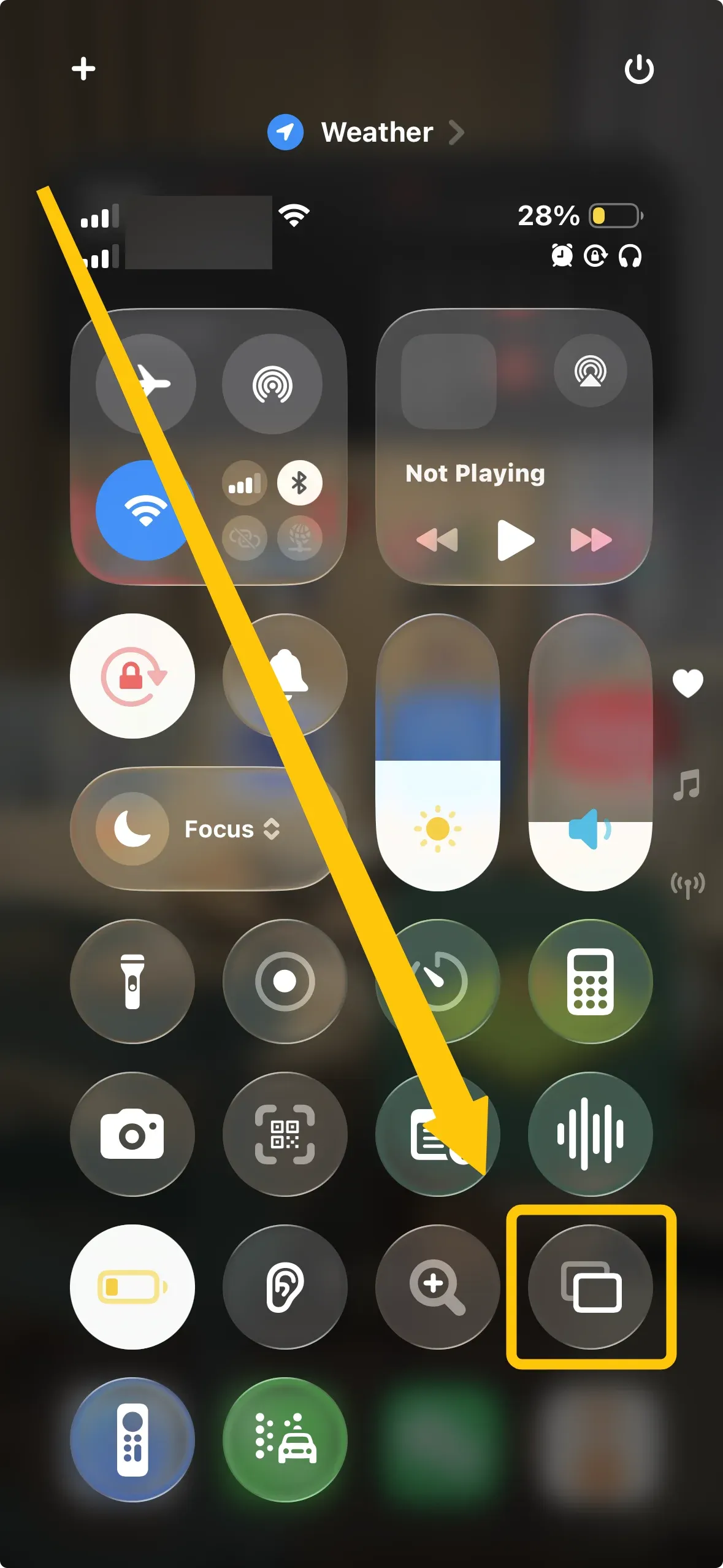
Step 3. Open Control Center on Apple device and tap Screen Mirroring.
Step 4. Select your Xumo TV from the device list and enter the AirPlay code if it appears on the TV screen.
Step 5. Wait a few seconds, and your Apple device screen should appear on Xumo TV.
To stop mirroring, open Control Center again, tap Screen Mirroring, and choose Stop Mirroring.
How to Screen Mirror Android to Xumo TV
Android screen mirroring on Xumo TV depends on your TV model and your phone. Xumo support mentions Android screen mirroring for Element Xumo TV, so check your TV model first. For other Xumo TV models, casting from supported apps may work better than full screen mirroring. Follow these steps to mirror Android to Xumo TV:
Step 1. Turn on your Xumo TV, go to Settings > Privacy, and turn on Mobile video casting.
Step 2. Connect your Android phone and Xumo TV to the same WiFi network.
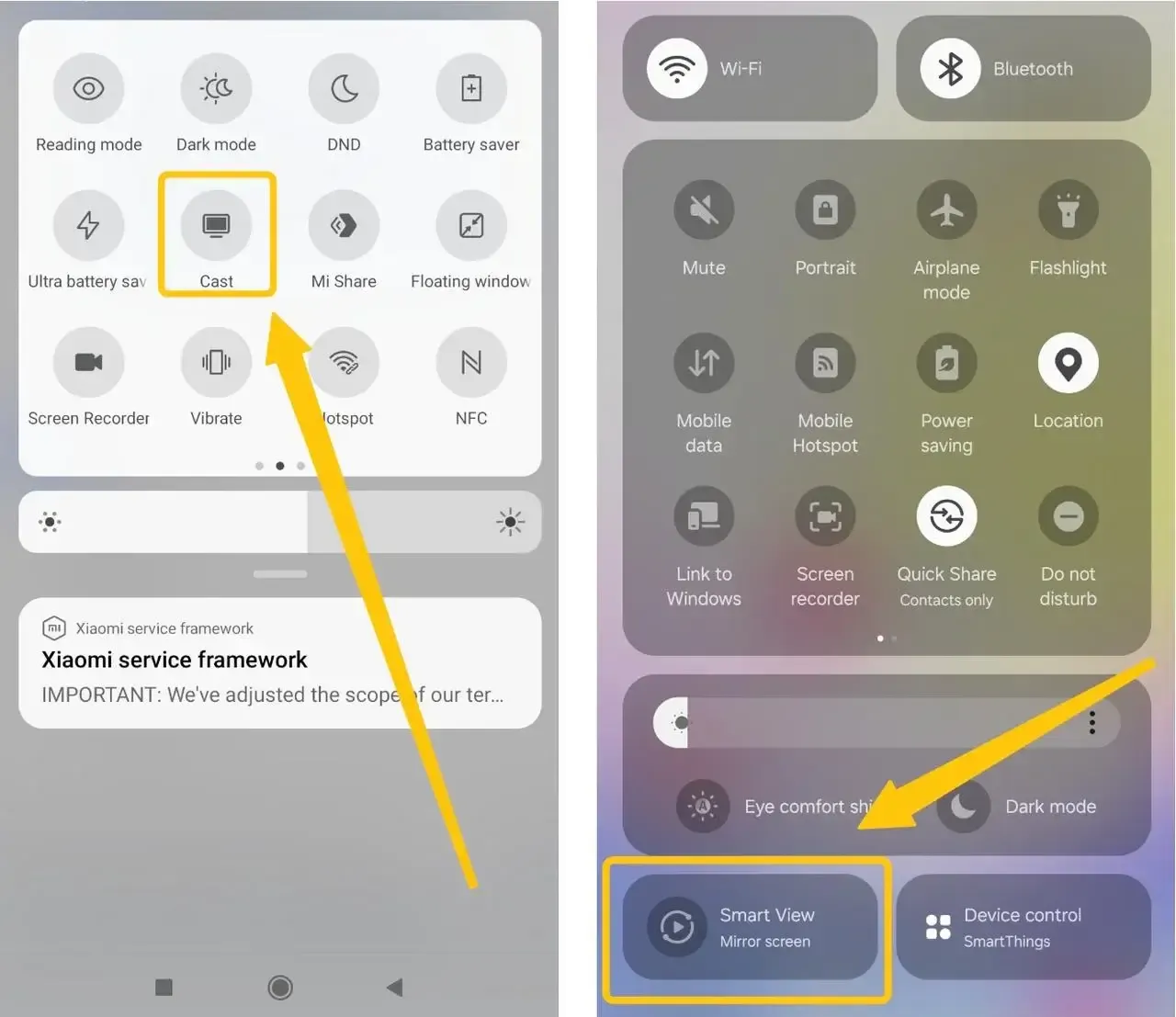
Step 3. Open the screen sharing feature on your Android phone. The name may be Cast, Smart View, Screen Cast, or Wireless Projection.
Step 4. Select your Xumo TV from the device list, and choose Connect when a pop up appears on your TV.
Step 5. Wait for the connection to finish. Your Android screen should appear on Xumo TV within a few seconds.
Android brands use different names for screen mirroring. Samsung phones usually use Smart View, while some other Android phones use Cast or Wireless Projection. No Xumo TV in the device list usually means your phone does not support that mirroring method, your TV model does not support Android screen mirroring, or both devices are not on the same WiFi network.
How to Screen Mirror Windows PC to Xumo TV
A Windows PC can mirror to Xumo TV through wireless display, but support varies by TV model and computer. The fastest check is to press Windows + K on your PC. Your Xumo TV should appear in the available display list when both devices support wireless display and use the same WiFi network.
Step 1. Turn on your Xumo TV, then connect your Windows PC and Xumo TV to the same WiFi network.
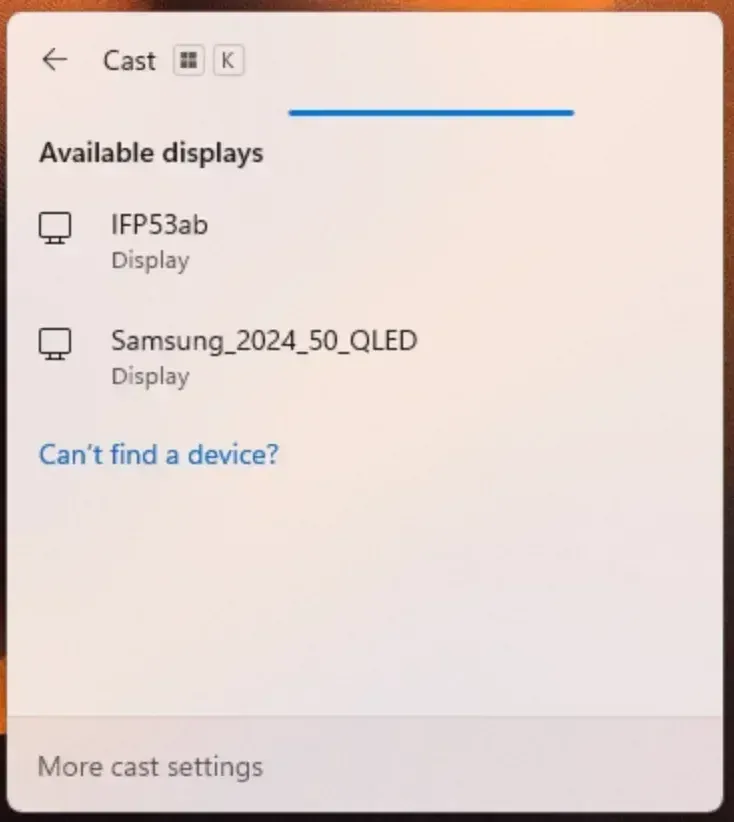
Step 2. Press Windows + K and choose your Xumo TV from the available display list.
Step 3. Select Connect if a prompt appears on the TV.
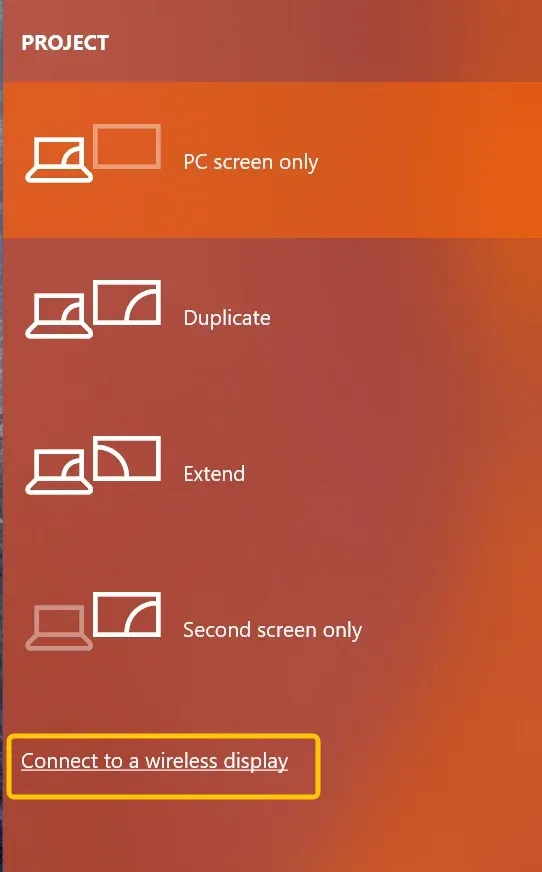
Step 4. Press Windows + P, then choose Duplicate to show the same screen or Extend to use Xumo TV as a second screen.
How to Screen Mirror to Xumo TV with PigeonCast
AirPlay, Cast, Smart View, and Wireless Display can work well, but each one is tied to a certain device, system, or TV model. Once you switch from iPhone to Android, or from a phone to a computer, the steps may change again.
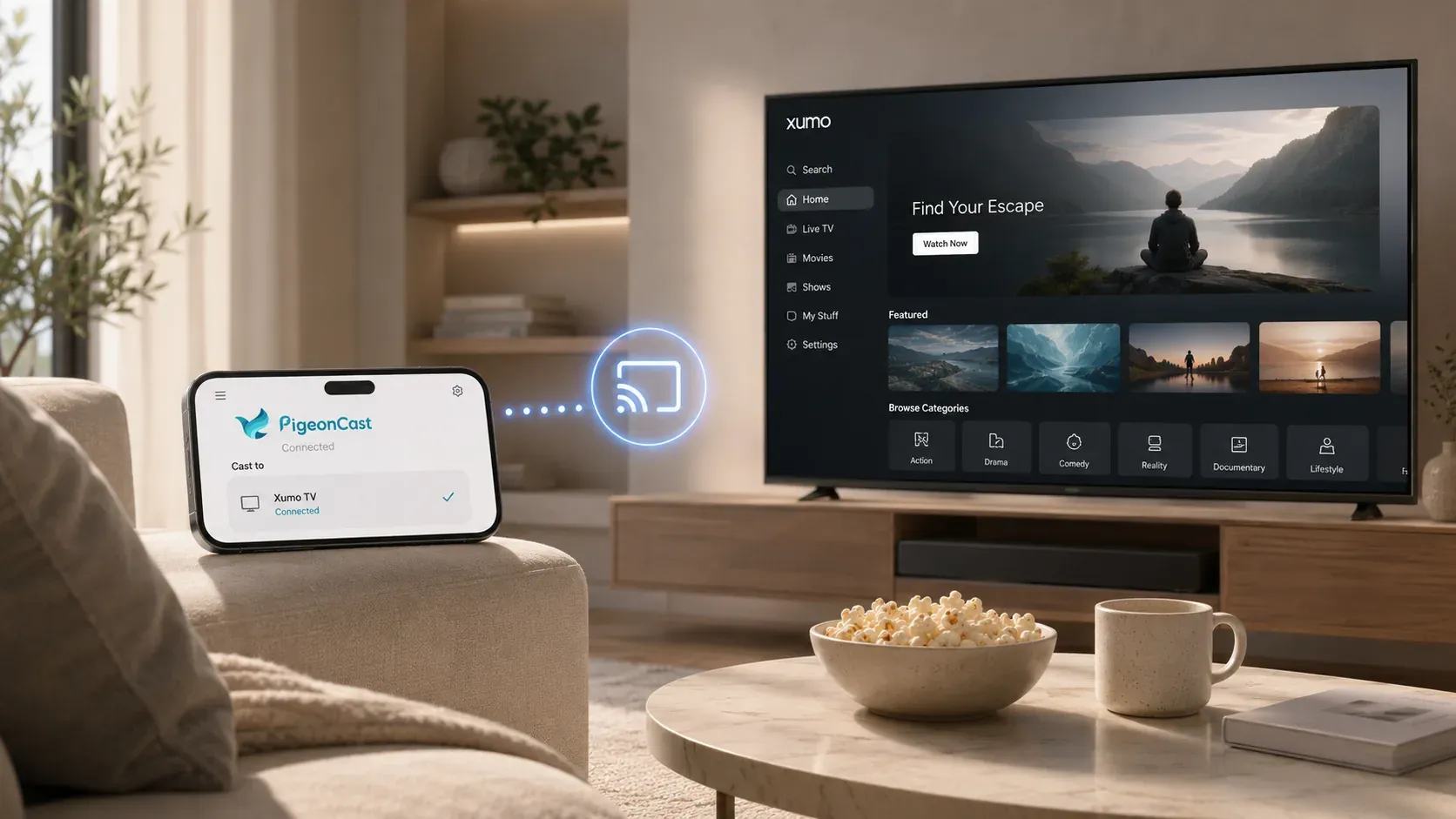
PigeonCast is made for this kind of mixed device setup. It supports iOS, Android, Windows, Mac, and TV, and works with AirPlay, DLNA, and Google Cast, so you can share videos, photos, apps, browser pages, or presentations over WiFi without using cables. It also focuses on faster, clearer, and more stable screen mirroring for big screen viewing. Follow these steps to screen mirror with PigeonCast:


Overall Rating:



Step 1. Make sure your device and Xumo TV are connected to the same wireless network.
Step 2. Download and install PigeonCast on the device you want to mirror from, such as your iPhone, Android phone, Windows PC, or Mac.
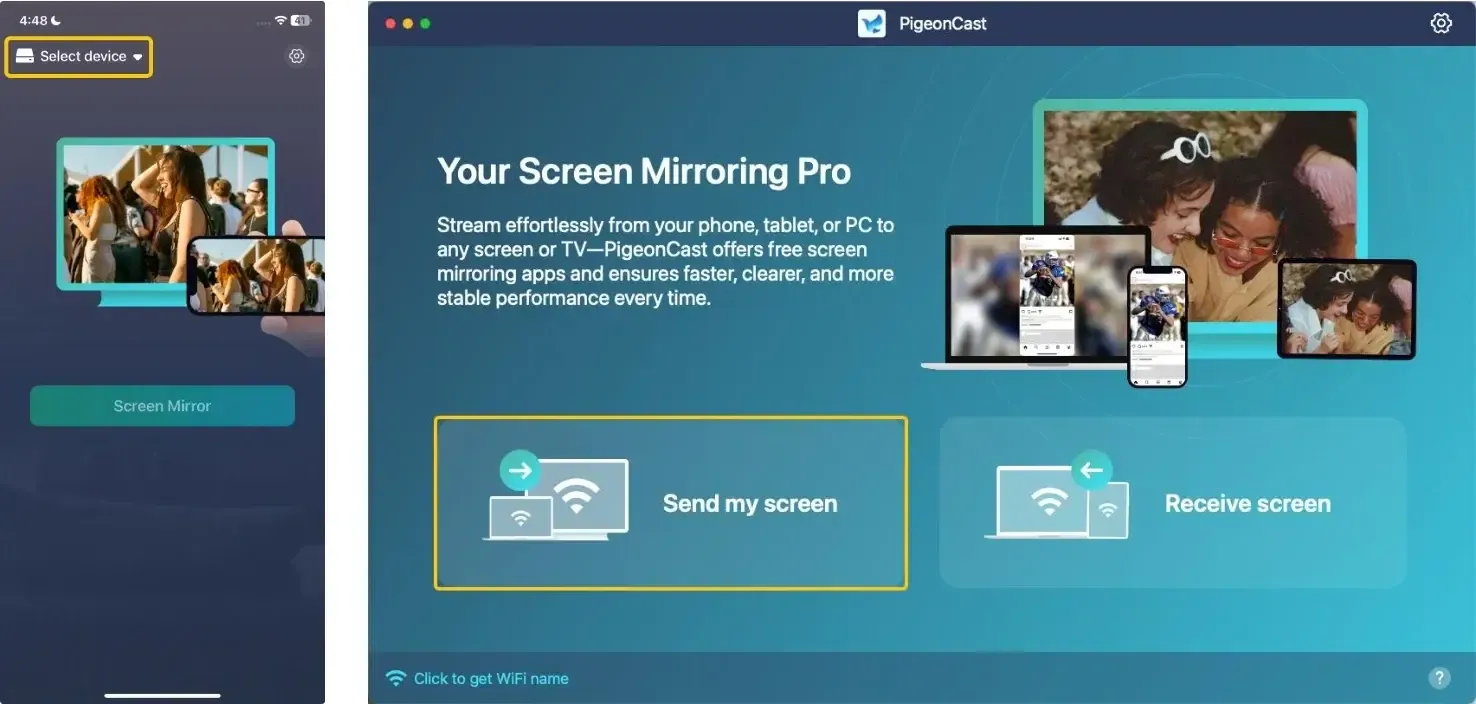
Step 3. Open PigeonCast, tap Select device or Send my screen to choose your Xumo TV or the available TV receiver from the device list.
Step 4. Enter the PIN code to confirm the pairing process.
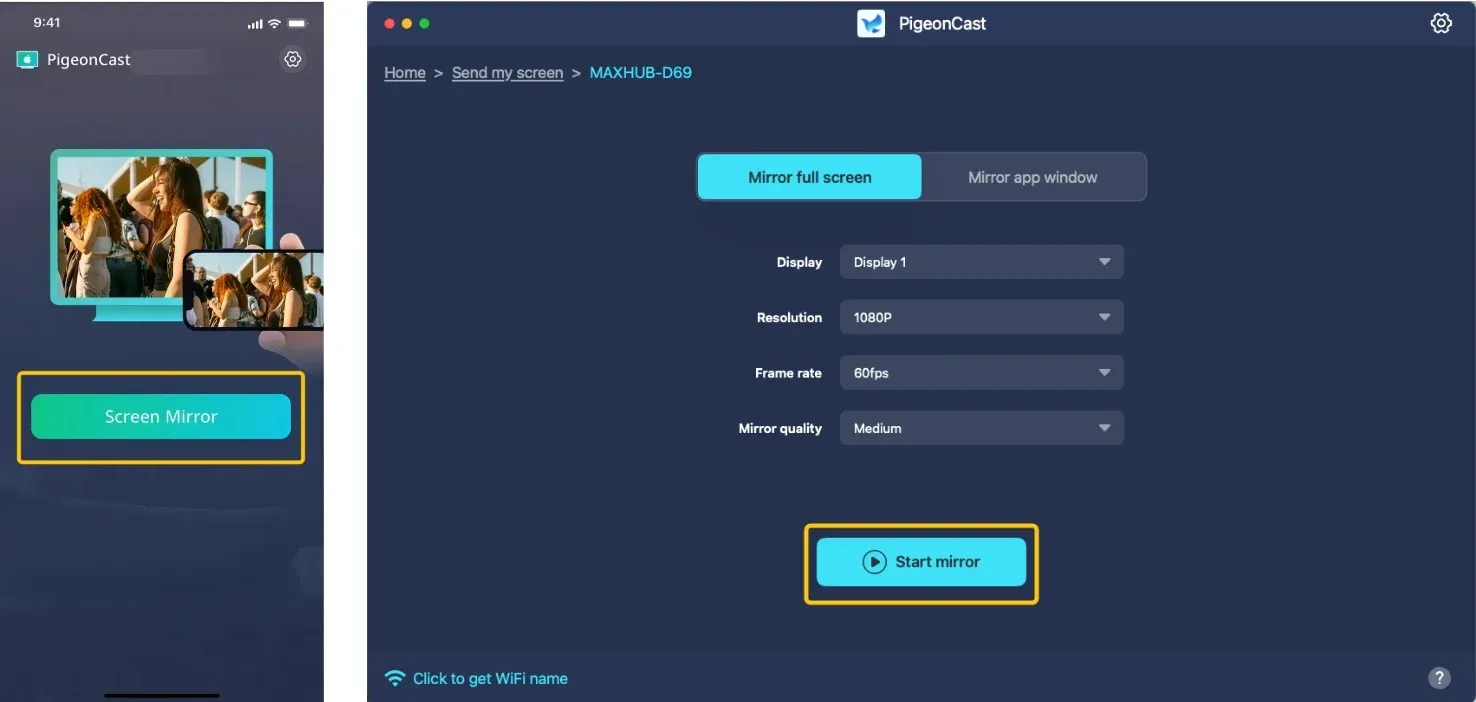
Step 5. When the connection finishes, click Screen Mirror or Start mirror to mirror your screen, photos, videos, browser pages, or apps to the bigger screen.
How to Connect to Xumo TV with an HDMI Cable
Wireless screen mirroring is convenient, but WiFi problems, device limits, or TV model differences can stop the connection. An HDMI cable gives you a more stable way to show your phone or computer screen on Xumo TV, especially for movies, meetings, games, or presentations.
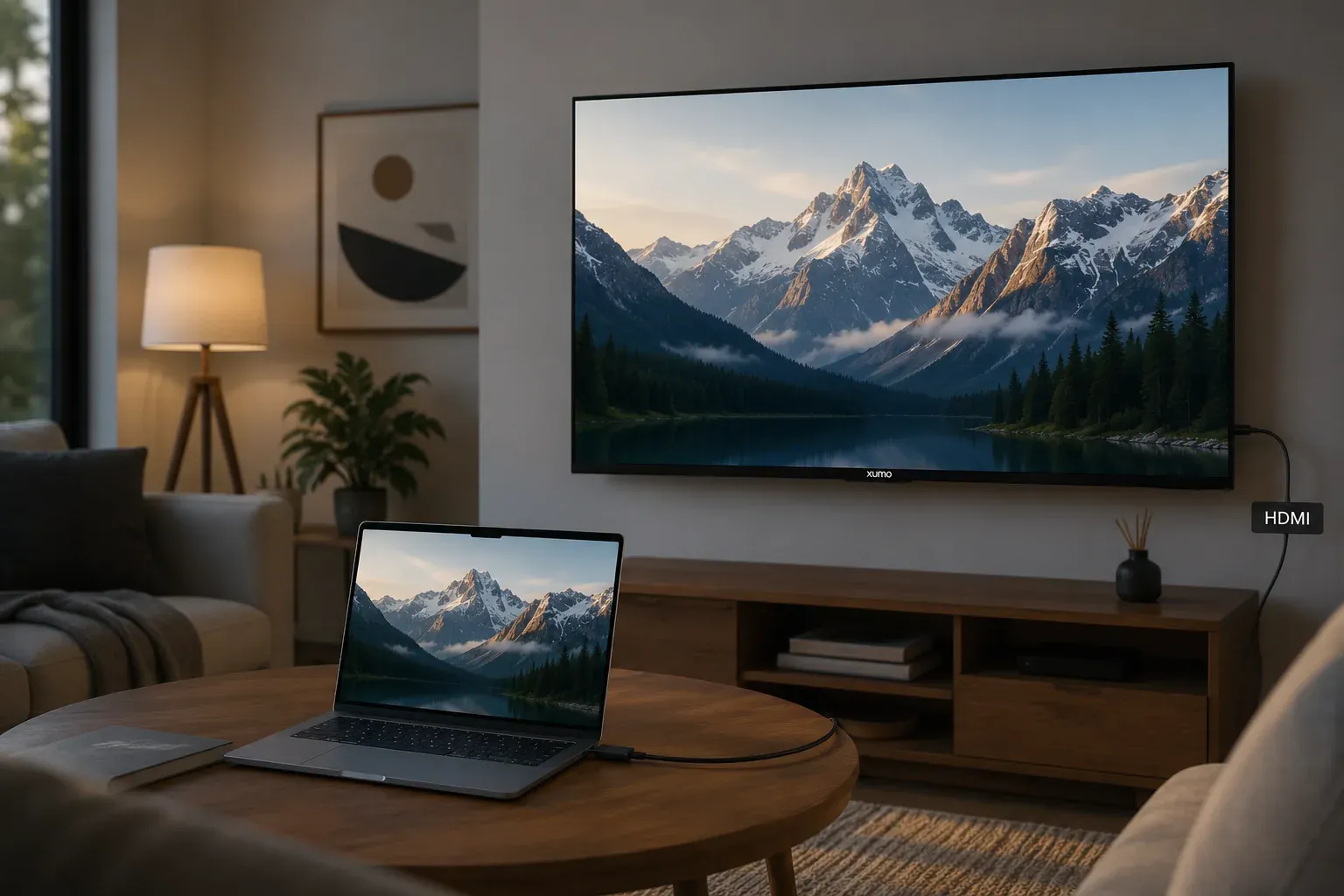
Step 1. Plug one end of the HDMI cable into your Xumo TV and the other end into your laptop, or use a compatible adapter for your phone or tablet.
Step 2. Turn on your Xumo TV and switch the input source to the correct HDMI port.
Step 3. Allow screen output on your device if a prompt appears.
Step 4. Open the display settings on your computer or mobile device, then choose mirror mode if needed.
Step 5. Play your video, open your file, or show your screen on Xumo TV.
An HDMI connection is not wireless, but it usually has fewer delays and connection errors. It is a good backup when AirPlay, Android casting, Windows wireless display, or other wireless methods do not work.
To Sum Up
The best way to screen mirror on Xumo TV depends on the device and connection you have. AirPlay is the first choice for iPhone, iPad, and Mac on supported Xumo TV models. Android and Windows users can try the built in casting or wireless display features, while PigeonCast offers a cross platform option when you want a more flexible way to mirror from different devices. For the most stable setup, an HDMI cable is still a reliable backup.
How to Screen Mirror on Xumo TV FAQ
Is Xumo TV the same as Xumo Play?
No. Xumo TV usually means a smart TV running the Xumo TV platform. Xumo Play is a free streaming app or service. You can watch content in Xumo Play, but you do not mirror your phone screen to the Xumo Play app itself.
Why does my Xumo TV not appear on my phone or computer?
The common reasons are different WiFi networks, VPN, outdated software, weak WiFi signal, or unsupported screen mirroring on your phone, computer, or TV model. Restarting both devices and reconnecting them to the same WiFi network usually helps.
Can I screen mirror to Xumo TV without WiFi?
Yes, but your options are limited. Most wireless screen mirroring methods require both devices to use the same WiFi network. Without WiFi, you can connect your phone, tablet, or laptop to your Xumo TV with an HDMI cable and a compatible adapter. This gives you a stable wired connection for sharing your screen.
Why can I cast a video but not mirror my full screen?
Casting and screen mirroring are not the same. Casting only sends video from a supported app to your Xumo TV, while screen mirroring shows everything on your phone, tablet, or computer. Some apps support casting but do not allow full screen mirroring due to device limits, app restrictions, or content protection. To mirror your full screen, use your device’s built in screen mirroring feature, a compatible mirroring app, or an HDMI connection.
How to screen mirror on Pioneer Xumo TV?
Pioneer Xumo TV is a Xumo TV model, so Apple users can use AirPlay to mirror an iPhone, iPad, or Mac.
- Turn on AirPlay in the TV settings.
- Connect both devices to the same WiFi network.
- Choose your Pioneer Xumo TV from Screen Mirroring on your Apple device.
Android and Windows mirroring may depend on your phone, computer, and TV support, so use Cast, Smart View, Wireless Display, PigeonCast, or HDMI when AirPlay is not an option.
How to screen mirror on Element Xumo TV?
Element Xumo TV supports AirPlay for iPhone, iPad, and Mac. For Android and Windows, Element Xumo TV may also support screen mirroring through Cast, Smart View, Screen Cast, or Wireless Display. PigeonCast or HDMI can help when wireless mirroring is not stable.
- Turn on AirPlay in the TV settings.
- Keep your Apple device and Element Xumo TV on the same WiFi network.
- Open Screen Mirroring on your iPhone, iPad, or Mac.
- Select your Element Xumo TV from the device list.
Clara Rossi is an experienced technology editor and a seasoned expert in screen mirroring and casting technologies. With a keen eye for detail and a deep understanding of how to seamlessly connect devices, Clara excels at optimizing user experiences for effortless sharing and streaming. Whether you're seeking quick fixes or advanced tips, her expertise and responsiveness ensure that every query is met with a well-informed and efficient solution.