
How to screen mirror on Xfinity TV can be confusing because Xfinity may refer to the Stream app, X1, Flex, or Xumo Stream Box. This guide shows 5 easy ways to cast or mirror your phone, computer, and Xfinity content to a bigger screen in 2026, including AirPlay, Chromecast, PigeonCast, and HDMI.
Can You Screen Mirror on Xfinity TV
Yes. You can cast Xfinity Stream content or mirror a full phone or computer screen to your TV. The best choice depends on what you want to show.
| What you want to do | Better option |
|---|---|
| Watch Xfinity Stream on TV | AirPlay or Chromecast |
| Cast supported apps to X1 or Flex | X1 or Flex mobile casting |
| Show photos, websites, apps, or local files | Screen mirroring |
| Mirror from iPhone, Android, PC, or Mac | PigeonCast |
| Get the most stable connection | HDMI |
If you only want to watch Xfinity Stream, casting is usually enough. If you want the whole screen on TV, choose a mirroring method instead.
How to Screen Mirror on Xfinity TV
Before trying the methods below, connect your phone, computer, TV box, or streaming device to the same Wi-Fi. Update the Xfinity Stream app and turn off VPN if the TV does not show up. If you see a black screen, the app or video may not allow full screen mirroring, so try another casting or wired option.
Method 1. Use AirPlay for Xfinity Stream
AirPlay is a handy choice for iPhone, iPad, and Mac users. You can use it to play supported Xfinity Stream content on an Apple TV or AirPlay-compatible smart TV. You can also use Apple Screen Mirroring when you want to show your whole screen, such as photos, web pages, apps, or a presentation.
- For Xfinity Stream:
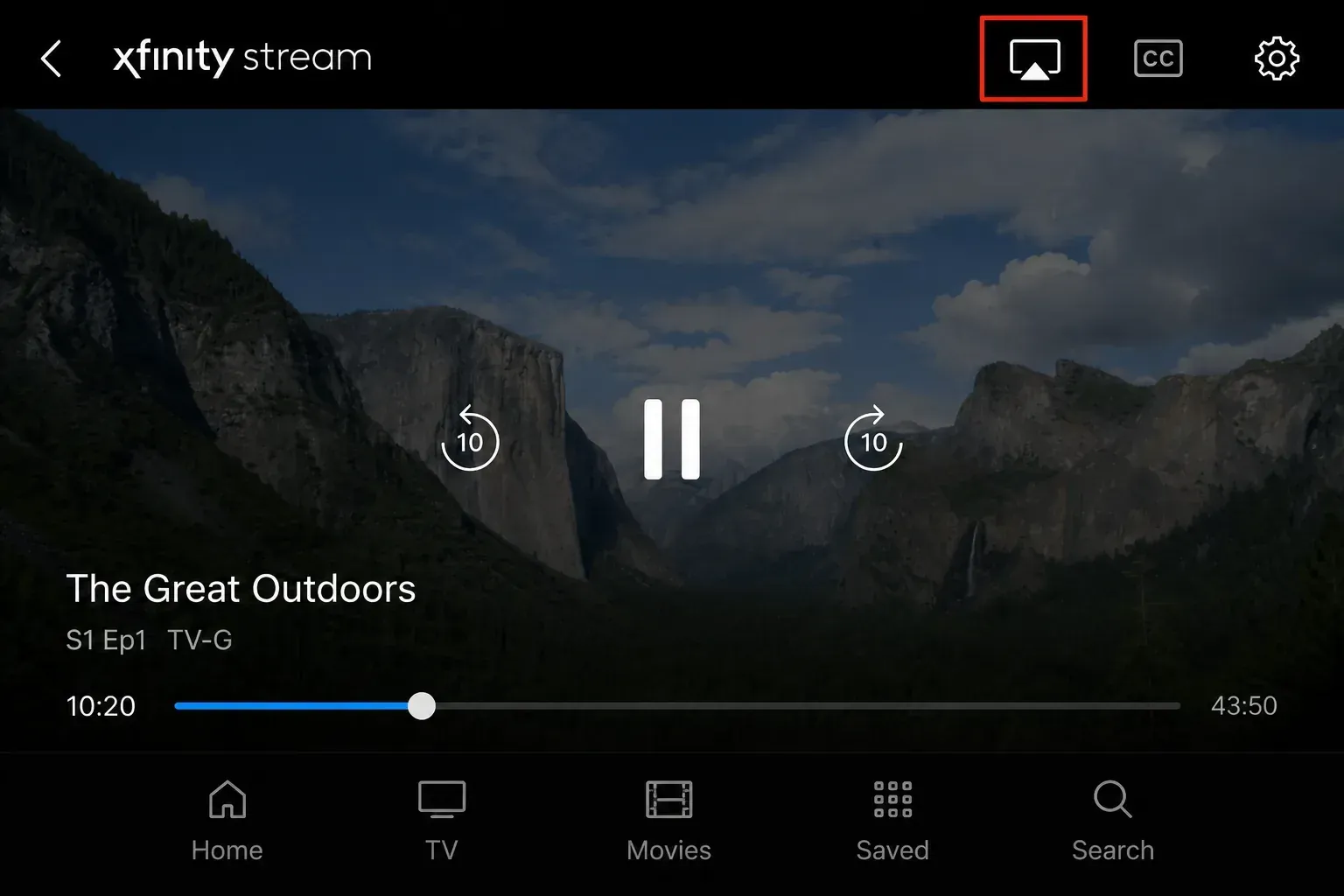
Step 1. Connect your iPhone, iPad, or Mac and the TV to the same Wi-Fi.
Step 2. Open the Xfinity Stream app.
Step 3. Choose the show, movie, or live channel you want to watch.
Step 4. Tap the AirPlay icon.
Step 5. Select your Apple TV or AirPlay-compatible TV.
Step 6. Wait for the video to play on the TV.
- For full screen mirroring:
Step 1. Open Control Center on your iPhone, iPad, or Mac and tap Screen Mirroring.
Step 2. Select your Apple TV or AirPlay-compatible TV.
Step 3. Enter the AirPlay code if it appears.
Step 4. Open the content you want to show on the big screen.
If the TV does not appear, check that AirPlay is turned on, keep both devices on the same Wi-Fi, and restart them. If a video shows a black screen, the app or content may not allow full screen mirroring.
Method 2. Use Chromecast to Cast Xfinity Stream to TV
Chromecast is another simple way to play Xfinity Stream content on a bigger screen. It works with a Chromecast device, Chromecast built-in TV, or Google TV that supports casting. This method is better for video casting, not full screen mirroring.
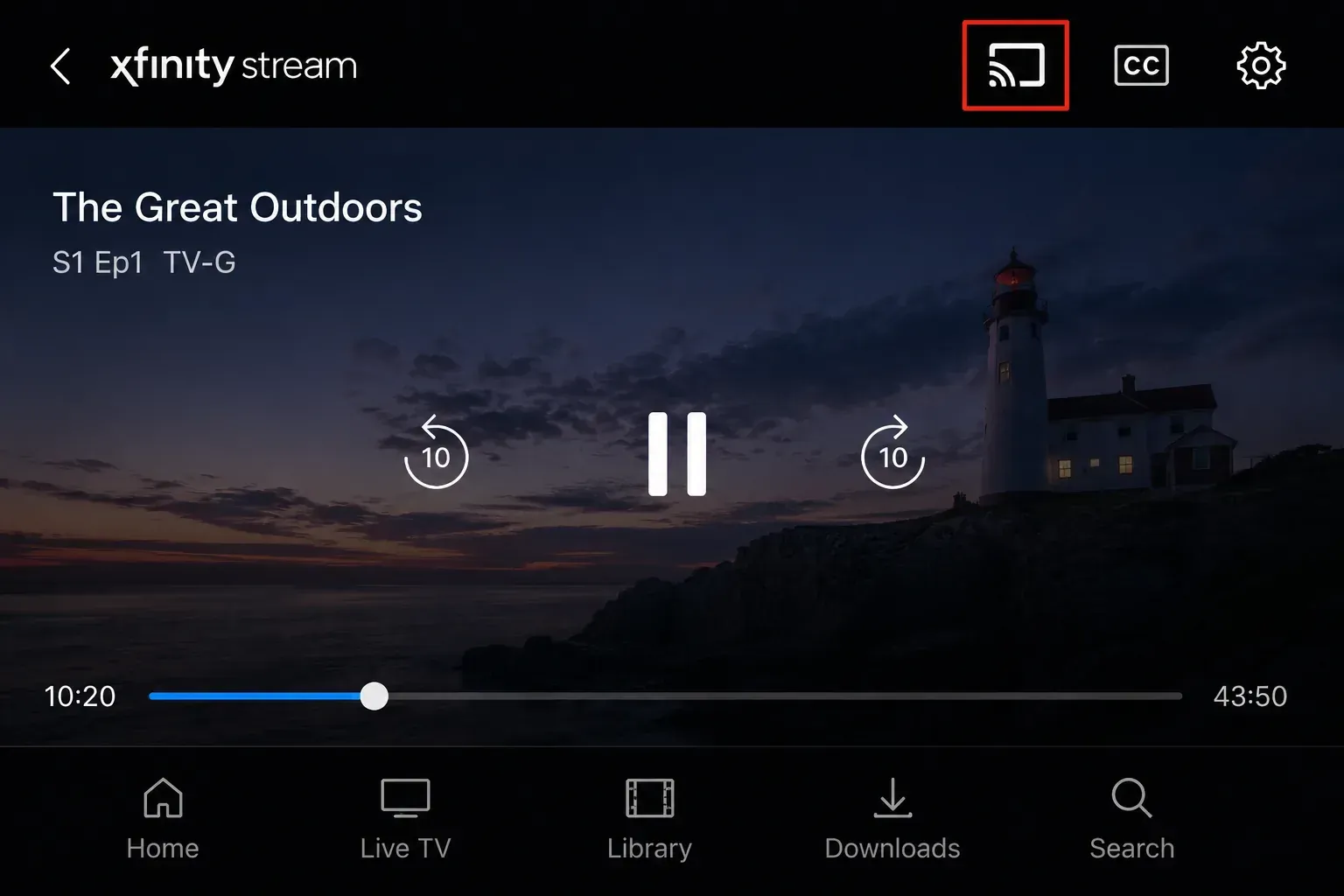
alt=Cast icon in the Xfinity app
Step 1. Connect your phone, tablet, computer, and Chromecast device to the same Wi-Fi.
Step 2. Open the Xfinity Stream app or website and sign in.
Step 3. Choose the show, movie, or live channel you want to watch.
Step 4. Tap or click the Cast icon, select your Chromecast device, then start watching.
If the Cast icon is missing, update the app, restart Chromecast, and make sure both devices are on the same Wi-Fi. If you want to mirror photos, apps, web pages, or local files instead of only streaming video, use a screen mirroring method below.
Method 3. Use Xfinity X1 or Flex Mobile Casting
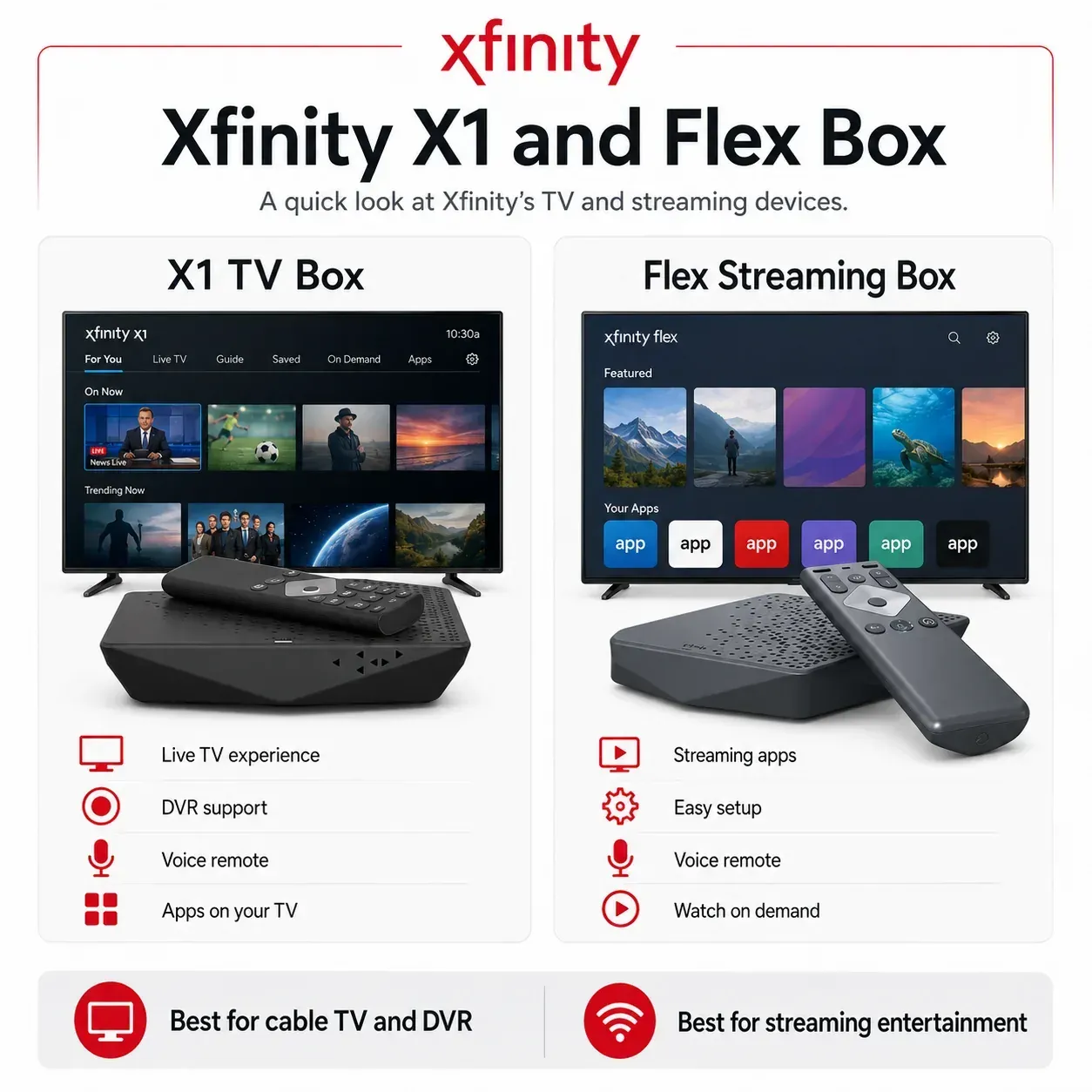
If your TV is connected to an Xfinity X1 or Flex box, you can cast from some mobile apps directly to the TV screen. This works well for supported apps like YouTube, Netflix, or Spotify, but it is not the same as mirroring your whole phone screen.
alt=Xfinity X1 and Flex box
Step 1. Keep your phone and X1 or Flex box on the same home network.
Step 2. Open a supported app on your phone.
Step 3. Tap the Cast icon, choose your X1 or Flex device, and play the content.
If the X1 or Flex device does not appear, restart the box, check the Wi-Fi, and make sure the app supports casting. To show photos, browser pages, files, or other apps, use a full screen mirroring method like AirPlay, PigeonCast, or HDMI.
Method 4. Use PigeonCast for Wireless Screen Mirroring
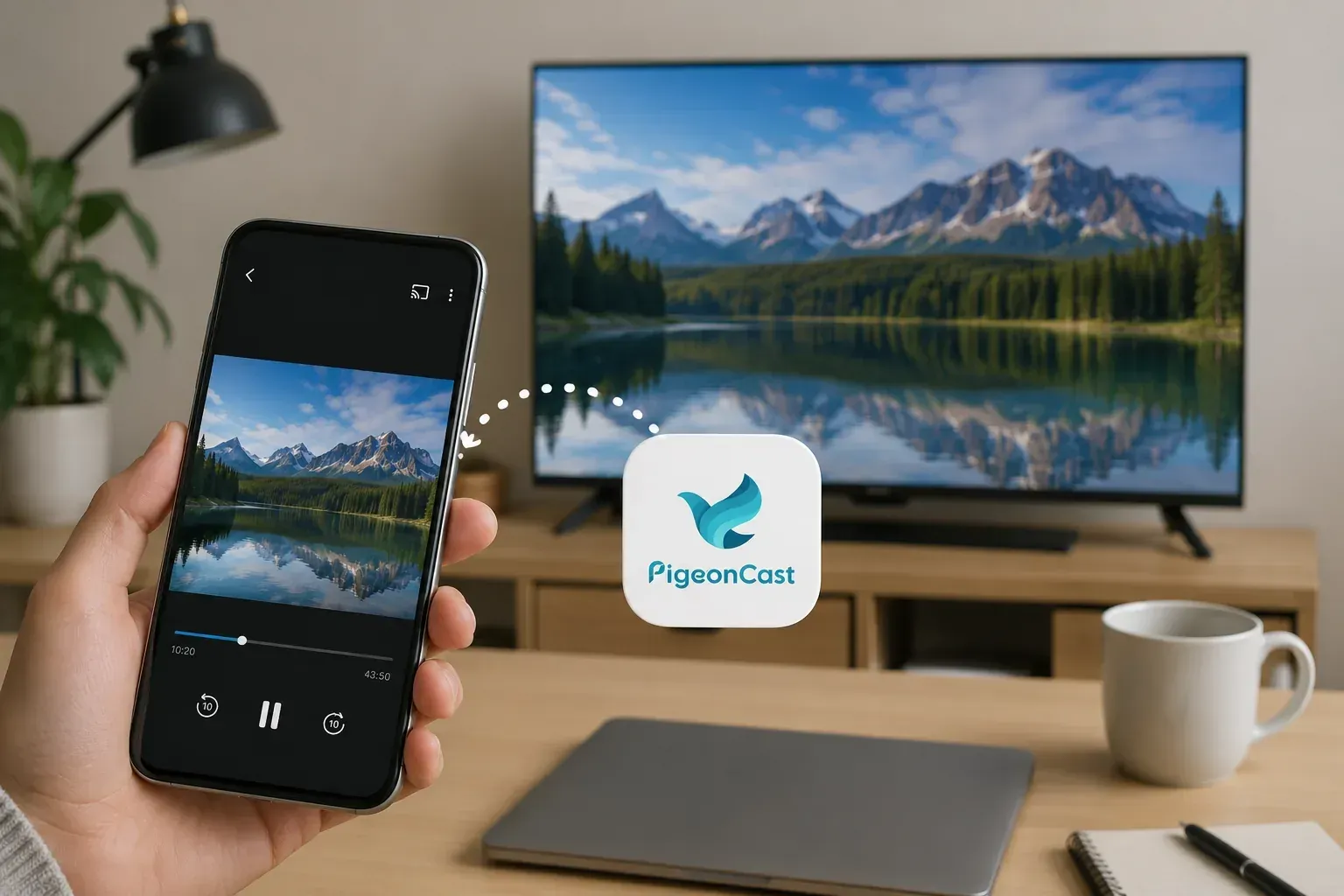
PigeonCast is a good choice when you want to mirror more than Xfinity Stream content. It supports iPhone, Android, Windows, Mac, and TV, and it works with common casting options such as AirPlay, DLNA, and Google Cast. You can use it to share photos, web pages, apps, local videos, online classes, presentations, or mobile games on a bigger screen without cables.
Step 1. Connect your phone or computer and TV to the same Wi-Fi.


Overall Rating:



Step 2. Install PigeonCast on your mobile device from the app store, and install it on your TV from the app store if available.
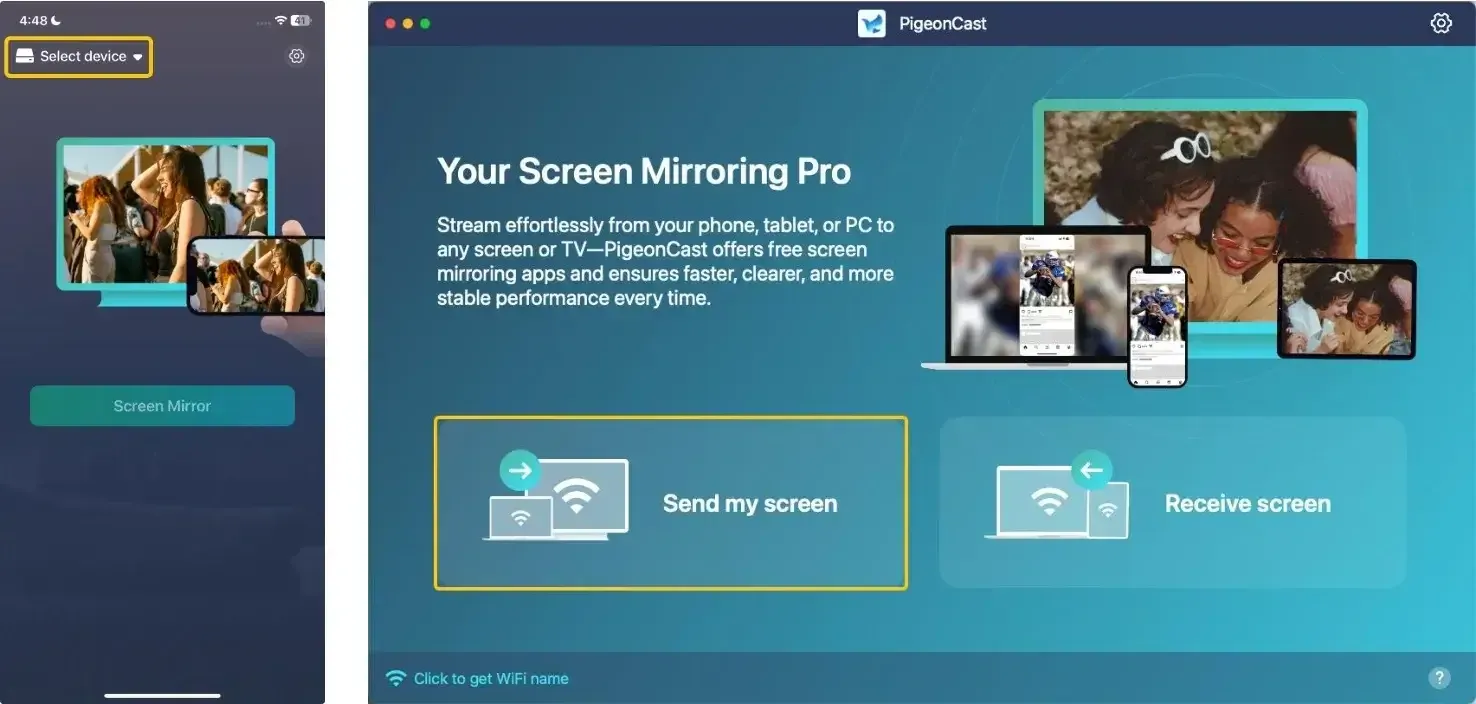
Step 3. Open PigeonCast on your device, then tap Select device or Send my screen to choose your device from the available list.
Step 4. Enter the on-screen code to finish the pairing process.
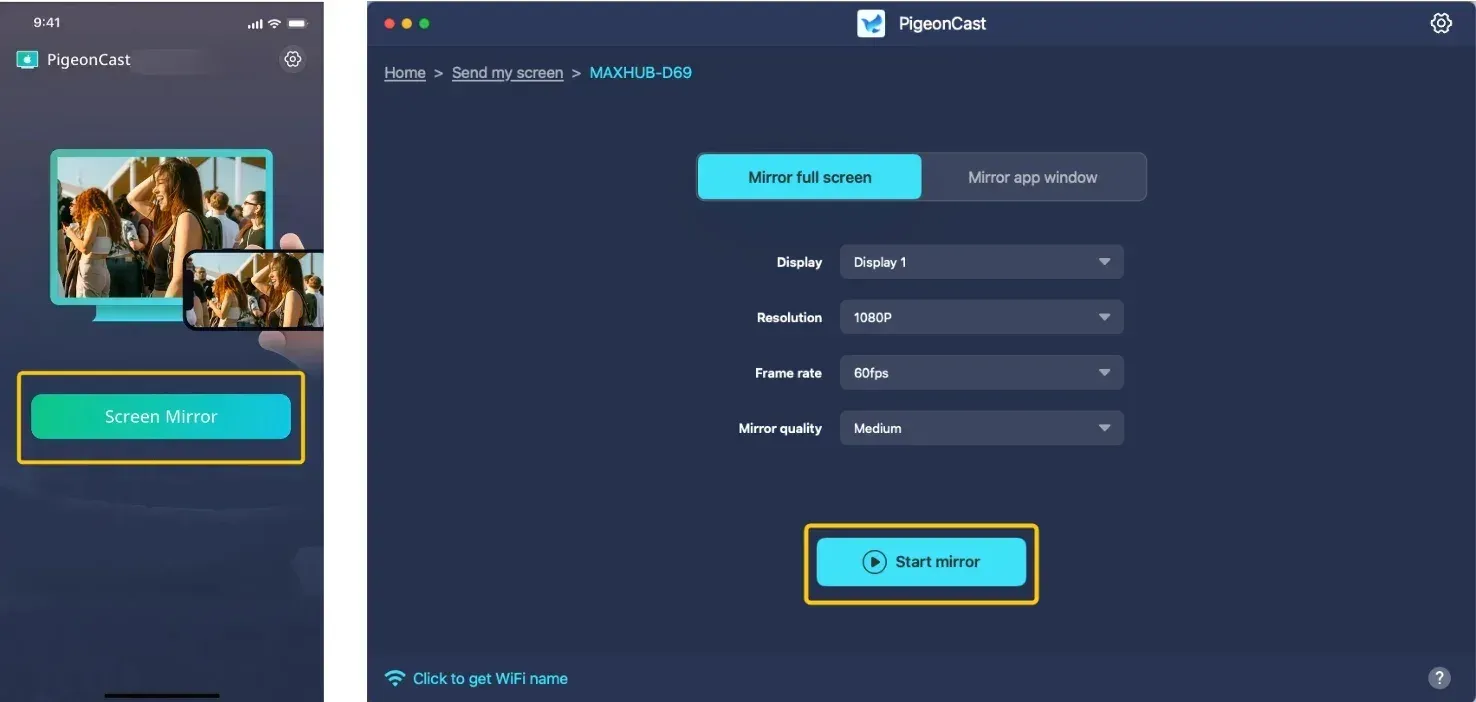
Step 5. After the connection is ready, tap Screen Mirror or Start mirror to begin mirroring.
Method 5. Use HDMI as a Stable Backup
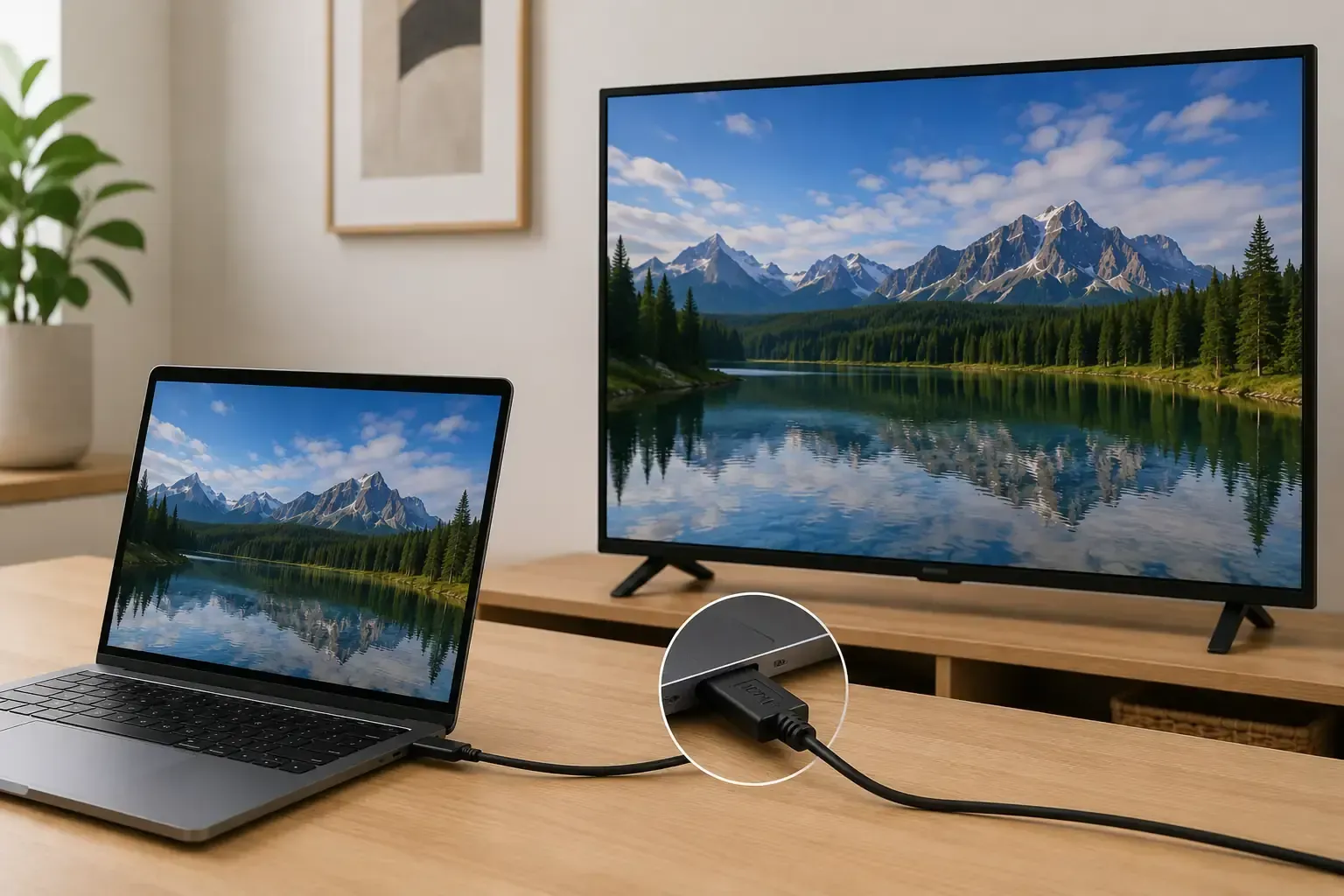
HDMI is a reliable wired option when wireless casting is slow, laggy, or not showing your TV. It works for most computers and some phones with the right cable or adapter. You can use it to show Xfinity Stream, browser pages, local videos, slides, or almost anything on your screen. What you need for HDMI screen mirroring:
| Your device port | Cable or adapter |
|---|---|
| HDMI port | A standard HDMI cable |
| USB C port on a Mac or tablet | USB C to HDMI adapter or USB C to HDMI cable |
| Lightning port on iPhone | Lightning Digital AV Adapter plus HDMI cable |
| USB C port on iPhone 15 or later | USB C to HDMI adapter or USB C to HDMI cable |
| USB C port on Android phone | USB C to HDMI adapter or USB C to HDMI cable if the phone supports video output |
alt=Connect your device with an HDMI cable
Step 1. Plug one end of the HDMI cable into the TV.
Step 2. Connect the other end to your device. If your device does not have an HDMI port, connect the HDMI cable to an adapter first, then plug the adapter into your phone, tablet, or computer.
Step 3. Use the TV remote to choose the right HDMI input, such as HDMI 1 or HDMI 2.
Step 4. Open Xfinity Stream, a browser page, a local video, or the file you want to show.
Step 5. If there is no sound on the TV, set the audio output on your device to the TV.
Step 6. If the picture does not fit the screen, adjust the display settings on your device.
HDMI does not rely on Wi-Fi, so it is usually more stable than wireless casting. The downside is that you need a cable, and some phones may not support video output through USB-C.
Why Screen Mirroring Is Not Working on Xfinity TV
If screen mirroring or casting does not work, check the problem first and try the matching fix.
Keep your phone, computer, Xfinity box, Apple TV, Chromecast, or smart TV on the same Wi-Fi. Turn off VPN, restart both devices, and open the casting menu again.
- Cast icon is missing:
Update the Xfinity Stream app or the app you want to cast from. If you use Chromecast, make sure the Chromecast device is powered on and connected to the same network.
- AirPlay is not connecting:
Check that AirPlay is turned on in your TV or Apple TV settings. Restart your iPhone, iPad, Mac, and TV, then try Screen Mirroring again from Control Center.
Some videos do not allow full screen mirroring. Try the built-in AirPlay or Cast button inside the app. If you want to show photos, web pages, local files, or other apps, use PigeonCast or HDMI instead.
- Video is laggy or the sound is delayed:
Move closer to the router, close unused apps, and use a 5 GHz Wi-Fi network if available. For the steadiest result, connect with HDMI.
To Sum Up
There is no single best way for every Xfinity setup. If you only want to watch Xfinity Stream on TV, AirPlay or Chromecast is usually the easiest pick. If your TV is connected to an X1 or Flex box, you can cast from supported apps. If you want to share your full screen, such as photos, web pages, local videos, apps, classes, or presentations, PigeonCast or HDMI will fit better.
Start with the method that matches your device. If wireless casting keeps failing, switch to full screen mirroring or use HDMI for a stable wired connection.
How to Screen Mirror on Xfinity TV FAQ
Can I screen mirror Xfinity TV without Wi-Fi?
Wireless casting usually needs Wi-Fi. If you do not have a stable network, HDMI is the better choice since it connects your device to the TV with a cable.
Can I use Bluetooth to mirror my screen to Xfinity TV?
No. Bluetooth is mainly for audio devices, keyboards, remotes, and small data transfers. It does not have enough speed for screen mirroring.
Why is Xfinity Stream blocked when I screen mirror?
Some Xfinity Stream videos may block full screen mirroring due to content protection rules. This can lead to a black screen, no video, or playback errors. Use the built-in AirPlay or Cast button in the Xfinity Stream app when it is available. You can also use HDMI for supported devices, or mirror other non-protected content such as photos, web pages, local files, and presentations with PigeonCast.
How to fix “Xfinity screen mirroring isn’t currently supported”?
If you see this message, the Xfinity Stream app may be blocking full screen mirroring for that video. Use the built-in AirPlay or Cast option when available. For non-protected content, such as photos, web pages, files, or presentations, switch to PigeonCast or connect your device with HDMI.
Why is there sound but no picture when mirroring Xfinity Stream?
This usually happens when the video does not allow full screen mirroring. The audio may keep playing, but the video turns black. Try casting from inside the Xfinity Stream app, or use HDMI if your device supports it.
Does HDMI work with Xfinity Stream?
HDMI can work when your phone, tablet, or computer supports video output. It is a good backup when wireless casting is unstable. Some mobile devices need a USB-C or Lightning to HDMI adapter.
Clara Rossi is an experienced technology editor and a seasoned expert in screen mirroring and casting technologies. With a keen eye for detail and a deep understanding of how to seamlessly connect devices, Clara excels at optimizing user experiences for effortless sharing and streaming. Whether you're seeking quick fixes or advanced tips, her expertise and responsiveness ensure that every query is met with a well-informed and efficient solution.