
Have you ever tried to cast your phone to your TV, only for it to not work? Whether you're using AirPlay, Google Cast, or another method, it can be frustrating when your phone refuses to cooperate. If you're asking, "Why won't my phone cast to my TV?", you're not alone. From connectivity issues to device incompatibilities, several factors could be blamed. In this guide, we'll dive into the most common reasons why your phone may not be casting to your TV and provide easy-to-follow solutions so you can get back to streaming in no time.
Why Your Phone Won't Cast to Your TV
It can be frustrating when you try to cast from your phone to your TV, and it simply won't work. Several issues can prevent a successful connection, and while some are straightforward to resolve, others may require more thorough troubleshooting. Below, we'll break down the most common reasons why this happens and provide practical steps to resolve each issue, so you can enjoy your content hassle-free.
#1. Wi-Fi Connection Issues
Wi-Fi connectivity is arguably the most common culprit behind casting problems, like Chromecast not showing up. For technologies like Google Cast and AirPlay to work, both your phone and TV must be on the same network.
This requirement often trips people up, especially if they have multiple networks in their home or if their devices switch networks automatically without notice. According to a survey by Consumer Reports, nearly 30% of users report that their streaming issues are caused by weak or misconfigured Wi-Fi networks.
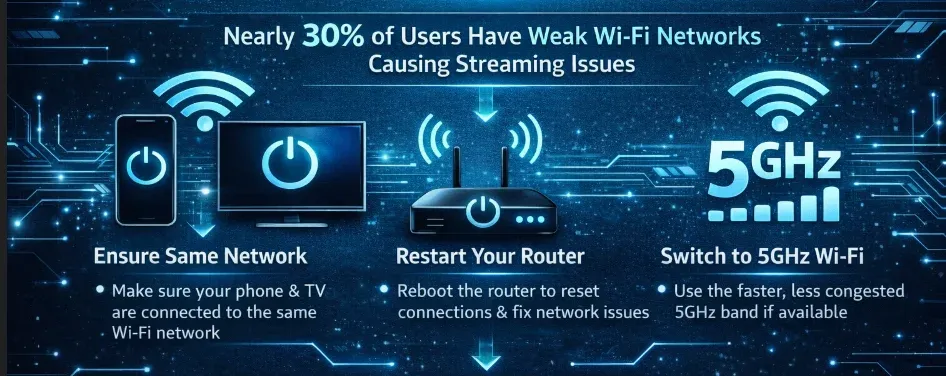
How to fix unable to cast from phone to TV:
- Ensure Both Devices are on the Same Network: Make sure your phone and TV are connected to the same Wi-Fi network. This can be done through the network settings on both devices.
- Restart Your Router: If the devices are on the same network but still not connecting, restart your router. This helps reset connections and can fix temporary network issues.
- Switch to 5GHz Wi-Fi: If your router supports it, switch to a 5GHz connection rather than 2.4GHz. The 5GHz band is faster and less prone to interference from other household devices, which is particularly useful for high-quality video streaming.
#2. Incompatible TV or Device
Casting requires specific protocols, like Google Cast, Miracast, or AirPlay, which not all TVs support. Older TV models, in particular, might lack built-in casting capabilities. For instance, older Samsung TVs may only support certain versions of Miracast, which could leave you asking, "Why can't I cast my TV from my Android phone?" This can also happen if your TV doesn't support screen mirroring or only supports certain types of casting.
How to fix:
- Check TV Compatibility: Look up your TV's manual or online specifications to verify if it supports Google Cast, AirPlay, or Miracast. Some brands, like Samsung, LG, and Sony, natively support these protocols.
- Update Your TV's Firmware: Many TV manufacturers release updates that add new features, including support for newer casting protocols. Check for firmware updates in your TV's settings menu and install any available updates.
- Use an External Device: If your TV lacks native support for casting, consider buying an external device like Chromecast or Apple TV, which can make any TV "smart" and compatible with multiple casting protocols. This is a quick and often cost-effective solution.
#3. Screen Mirroring Not Enabled
Some phones do not automatically enable screen mirroring. The settings to allow casting or mirroring might be disabled by default, especially on Android phones, as it's not always a feature everyone uses regularly. This can leave you wondering, "Why is my phone not screen mirroring?"
How to fix unable to cast from phone to TV:
- For Android: Navigate to Settings > Display > Cast. Toggle the Cast option to "on". Afterward, ensure your TV is listed in the available devices. If it's not, try reconnecting both devices to the same Wi-Fi network.
- For iPhone: Open the Control Center by swiping down (iPhone X and newer) or up (older models). Tap Screen Mirroring and select your TV. If your TV doesn't appear or screen mirroring doesn't work, make sure both devices are on the same Wi-Fi network.
#4. Bluetooth and Wi-Fi Conflicts
In some cases, your phone might attempt to connect to the TV via Bluetooth, particularly if the devices are in close proximity. Bluetooth and Wi-Fi can interfere with each other, causing issues with casting. For example, your phone may automatically try to use Bluetooth for media transfer while the TV relies on Wi-Fi for better quality streaming, resulting in the connection failing, and one of the common connection issues is AirPlay not connecting to TV.
How to fix casting from phone to TV not working:
- Disable Bluetooth: To ensure your phone casts via Wi-Fi, disable Bluetooth when attempting to mirror your screen from Android or iPhone. This forces the phone to rely solely on Wi-Fi for a smoother connection.
- Prioritize Wi-Fi: In the settings, ensure that your phone is prioritizing Wi-Fi over Bluetooth. This may be done automatically in most modern phones, but it's worth checking.
#5. Outdated Software or Apps
Software bugs or outdated versions of apps can prevent screen mirroring from functioning properly. This is especially true if your phone's operating system or the TV's firmware is outdated. A report from Statista found that 35% of streaming device issues stem from outdated software or apps that don't work well with the latest versions of screen mirroring technology.
How to fix casting from phone to TV not working:
- Update Your Devices: Check for any software or firmware updates for your phone and TV. Keeping both devices up-to-date ensures that all features, including screen mirroring, work properly.
- Update Apps: If you're using apps like Google Home, Apple TV, or a third-party app like PigeonCast, make sure they are the latest versions. App updates often resolve bugs and improve compatibility.
#6. TV Input or HDMI Settings
If you're using a physical device, such as Chromecast, plugged into your TV's HDMI port, the TV might be stuck on the wrong input, preventing it from receiving the cast signal. This can leave you wondering, "Why is my phone not casting to my TV?"
How to fix casting from phone to TV not working:
- Switch TV Inputs: Ensure your TV is set to the correct input for casting (usually HDMI). You can do this using your TV's remote control or settings menu.
- Check HDMI Connections: If you're using a device like Chromecast or a streaming stick, make sure it's properly plugged into the HDMI port. Sometimes, unplugging and re-plugging the device can help reset the connection.
How to Solve Phone Not Casting to TV
If you're experiencing issues with casting, here's a quick rundown of steps you can take to fix common problems:
Step 1. Ensure both devices are on the same Wi-Fi network. Restart the router and switch to a 5GHz network if possible.
Step 2. Check if your TV supports Google Cast, AirPlay, or Miracast. If not, consider using a streaming device like Chromecast or Apple TV.
Step 3. Go to your phone's display settings (Android) or Control Center (iPhone) and enable screen mirroring.
Step 4. Disable Bluetooth to ensure your phone uses Wi-Fi for casting.
Step 5. Update your phone, TV, and any casting apps to their latest versions.
Step 6. Make sure your TV is set to the correct input (HDMI) for the casting device.
Additional Tips for a Smooth Casting Experience
While troubleshooting the common casting issues is essential, there are several additional tips you can implement to enhance your overall casting experience. These simple steps can help you ensure that your devices communicate smoothly and eliminate minor disruptions.
Using a Reliable Casting App
Free screen mirroring apps like PigeonCast can be incredibly helpful, especially if your TV doesn't support popular casting protocols like Google Cast, AirPlay, and DLNA. With PigeonCast, you can seamlessly cast content from your phone to your TV without needing a native casting feature on your TV.
The app is designed to provide better compatibility and stability, ensuring smoother streaming, even when dealing with device limitations or connection issues.
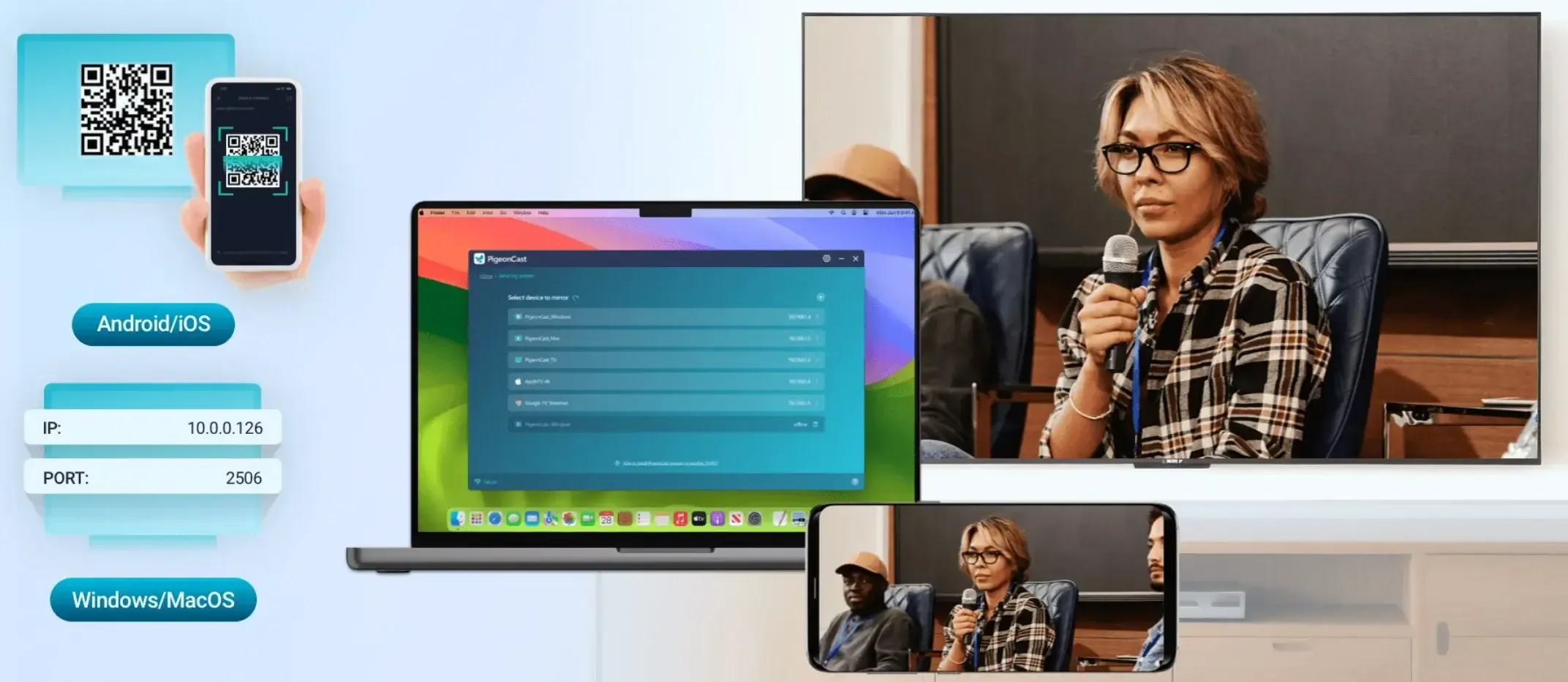
How to use PigeonCast for casting:
Step 1. Ensure Pigeoncast is installed on both your phone and the TV, and leave the app open.


Overall Rating:



Step 2. PigeonCast on the sending device will automatically scan for devices connected to the same Wi-Fi network. Select your TV from the list of available devices.
Step 3. Once connected, you can choose the content you want to cast.
PigeonCast also allows for customization of quality settings and resolution for a smoother experience, ensuring you get the best possible streaming results based on your network speed and device capability.
Streamline Your Wi-Fi Network
One of the most important factors in successful casting is a strong and reliable Wi-Fi connection. When there is network congestion or interference from other devices, casting can experience lag, buffering, or even connection drops.
To improve your casting experience, consider the following steps:
- Use the 5GHz Band: If your router supports both 2.4GHz and 5GHz bands, switch your devices to the 5GHz network. The 5GHz band is faster, less congested, and better suited for high-quality streaming, ensuring smoother casting.
- Limit Network Traffic: Try to limit other high-bandwidth activities (such as large downloads or online gaming) while casting. This reduces the strain on your network and helps improve streaming performance.
- Optimize Router Placement: Place your router in a central location, ideally in the same room as your TV, to minimize signal interference and ensure a stronger connection.
- Use a Wired Connection: If possible, connect your streaming device to the TV using an Ethernet cable. Wired connections are more stable than Wi-Fi and eliminate network congestion.
By improving your Wi-Fi network's performance, you can ensure that your casting experience is fast and uninterrupted, even when streaming high-definition content.
Restart Your Devices Regularly
Sometimes, the simplest solutions are the most effective. Restarting both your phone and TV can help resolve various issues related to screen mirroring or casting. This is especially helpful when you encounter bugs or glitches that prevent a stable connection. Restarting clears temporary software glitches, refreshes the network connection, and often resolves minor issues that could disrupt the casting process.
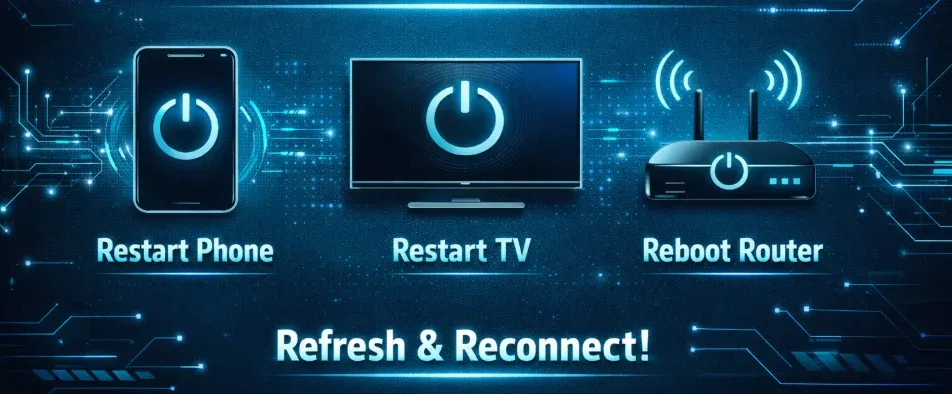
How to Restart Devices for Optimal Performance:
- Restart Your Phone: Simply turn your phone off and back on again. This clears any background apps or processes that might be interfering with the casting functionality.
- Restart Your TV: If you're using a Smart TV, turn it off and on again, or perform a soft reset through the TV's settings menu. This can help reset the TV's network connection and refresh any casting protocols.
- Reboot Your Router: If network-related issues persist, try restarting your router. A fresh connection can often resolve Wi-Fi congestion or other temporary connectivity issues.
A quick reboot can often make a significant difference in getting your phone and TV to reconnect properly and restoring smooth casting functionality.
Clear Your Cache
If you're experiencing lag or stuttering during casting, it might be helpful to clear your device's cache. Over time, cached data can slow down performance. Clearing the cache can help speed up your phone or TV and ensure a smoother casting experience.
How to Clear Cache:
- For Android: Go to Settings > Storage > Cached Data and tap to clear it.
- For iPhone: You can clear Safari's cache by going to Settings > Safari > Clear History and Website Data.
- For Smart TVs: Check your TV settings for any available option to clear cache or reset app data.
Conclusion
If you're experiencing issues like "phone not casting to TV", there's no need to panic. With a few simple adjustments, such as checking your Wi-Fi connection, ensuring device compatibility, and updating software, you can easily solve these problems. Don't forget that using apps like PigeonCast can offer added reliability when standard methods fail. Happy casting!
Why Won't My Phone Cast to My TV FAQs
Why can't I cast to my TV from my Android phone?
Ensure that both your phone and TV are connected to the same Wi-Fi network. Additionally, make sure that screen mirroring or casting is enabled on both devices, and check that any necessary apps, like Google Home, are up to date.
Why is my phone not screen mirroring to my TV?
This could be due to several reasons, such as compatibility issues between your phone and TV, outdated software, or incorrect settings. Make sure both devices are connected to the same Wi-Fi network, check that screen mirroring is enabled, and ensure that your TV supports the casting protocol you're using (e.g., Google Cast, AirPlay, Miracast).
What should I do if my phone screen mirroring is not working?
Start by updating your phone's and TV's software to the latest versions. Enable the proper casting or screen mirroring settings on both devices. Additionally, check for any Bluetooth conflicts that might be preventing the connection. Restarting your devices or router can sometimes help resolve minor connection issues.
Why won't my phone cast to my Roku TV?
If your Roku TV isn't showing up as an available device, make sure that both your phone and Roku are on the same Wi-Fi network. Enable screen mirroring on the Roku settings and verify that your Roku TV supports the casting protocol you're using. Also, try restarting both your phone and Roku for a fresh connection.
Why won't my phone cast to my LG TV?
For LG TVs, ensure that your TV supports screen mirroring via Miracast or AirPlay (depending on your phone's OS). Check that both devices are on the same Wi-Fi network and that screen mirroring is enabled in the TV's settings. If issues persist, try updating the firmware on your TV or using an external device like Chromecast for better compatibility.
Is there a free casting app for a phone?
Yes, there are several free apps available for screen mirroring and casting. PigeonCast is one popular option, offering wireless, easy, and cross-platform casting between your phone and TV without the need for a dedicated casting protocol. Other apps like LetsView and AirDroid Cast also offer free versions, though with limited features. Always ensure that the app is compatible with both your phone and TV for optimal performance.
Mia Clarke is a technology editor specializing in screen mirroring and casting solutions across multiple platforms. Mia provides clear, practical guides and in-depth insights to help users seamlessly connect their devices. Passionate about enhancing digital experiences, Mia is dedicated to keeping readers updated on the latest trends and tools in cross-platform screen sharing. Whether you’re looking to mirror your smartphone, laptop, or smart TV, Mia’s content delivers reliable, user-friendly advice to simplify your tech setup.