
Want to know how to share screen on FaceTime? Whether you're showing photos, giving a presentation, or offering tech support, screen sharing makes your calls more interactive. In this guide, we'll walk you through how to share your screen on FaceTime with any Apple device, fix common issues, and explore additional device options. Let's get started!
How to Screen Share on FaceTime
Screen sharing on FaceTime lets you share your device's screen in real time with someone else. It's perfect for collaboration, giving virtual tours, or sharing content like videos and documents without leaving FaceTime call. To use this feature, you'll need iOS 15 or later or macOS Monterey or later. Here's how to share your screen on FaceTime:
Share Screen FaceTime on iPhone and iPad
Screen share FaceTime is quick and simple on both iPhones and iPads. You can easily share apps, photos, and more, all without needing any extra software. Just keep in mind that both you and the person you're sharing with need to be using iOS 15 or later to use this feature.

Step 1. Open the FaceTime app, initiate a call with your contact, and wait for them to pick up.
Step 2. Once the call is active, tap anywhere on the screen to bring up the control bar.
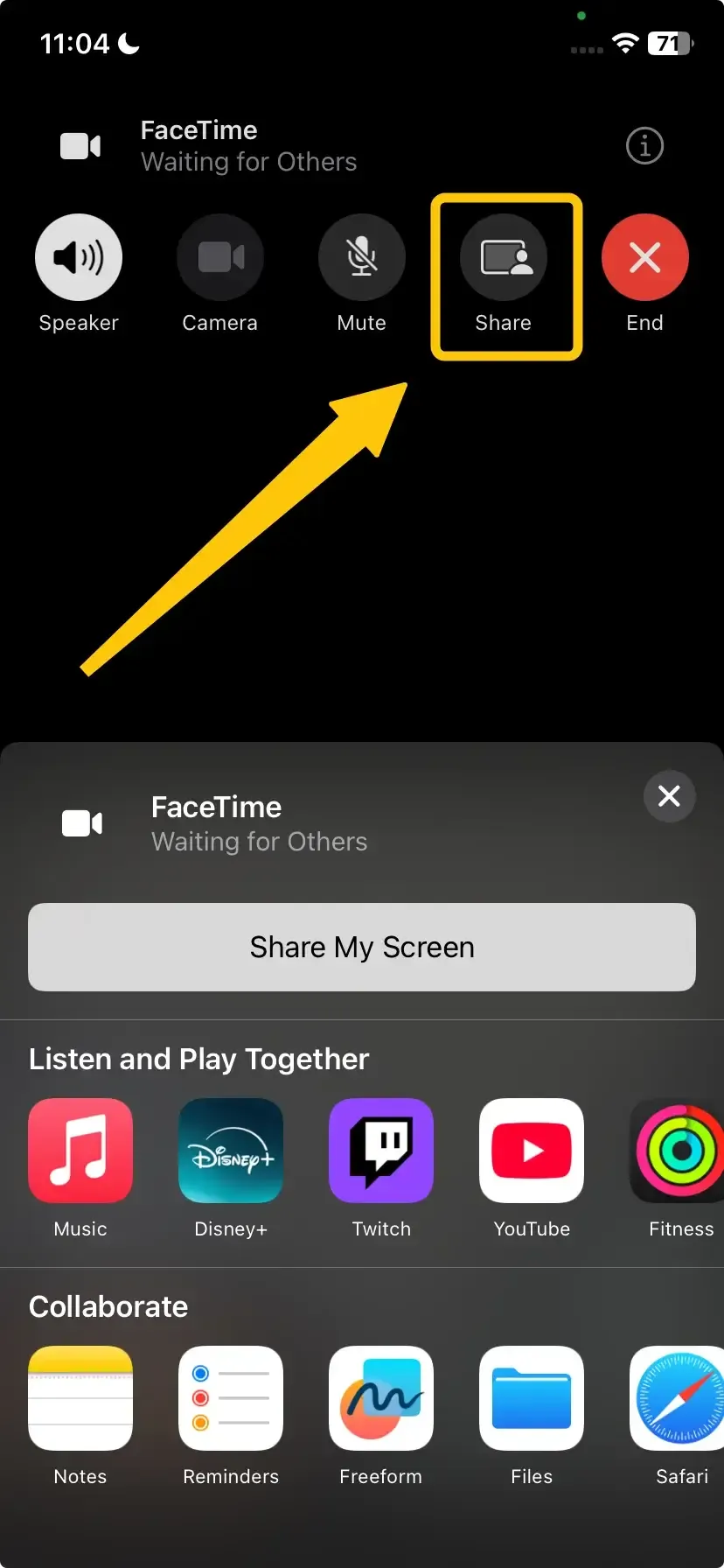
Step 3. Tap the Share icon (a rectangle with a person in front of it) to access the sharing options.
Step 4. Tap Share My Screen, then tap it again to confirm. You'll see a three-second countdown, giving you a moment to get ready before sharing your screen.

Step 5. After the countdown, a small image of your screen will appear on the other person's device. If you're using an iPhone, your camera will turn off during screen sharing, while on an iPad, the camera remains on.
Step 6. Now, swipe up or press the Home button to start FaceTime share screen. From there, choose the app, document, or webpage you want to share. Whatever you select will appear live on the other person's device.
Step 7. If someone else is already sharing their screen, tap Open next to Join Screen Sharing during the call. This will let you join the session and view what they're sharing.
Step 8. When you're done sharing, just tap the Share button again to stop the screen-sharing session. Everyone on the call will see that your screen is no longer being shared.
Share Screen FaceTime on Mac
How to share screen on FaceTime on computer? Mac users can also easily share their screen during a FaceTime call. This can be particularly useful when presenting or displaying more complex information, such as a website, document, or software. Read on to check how to share screen on Mac FaceTime:
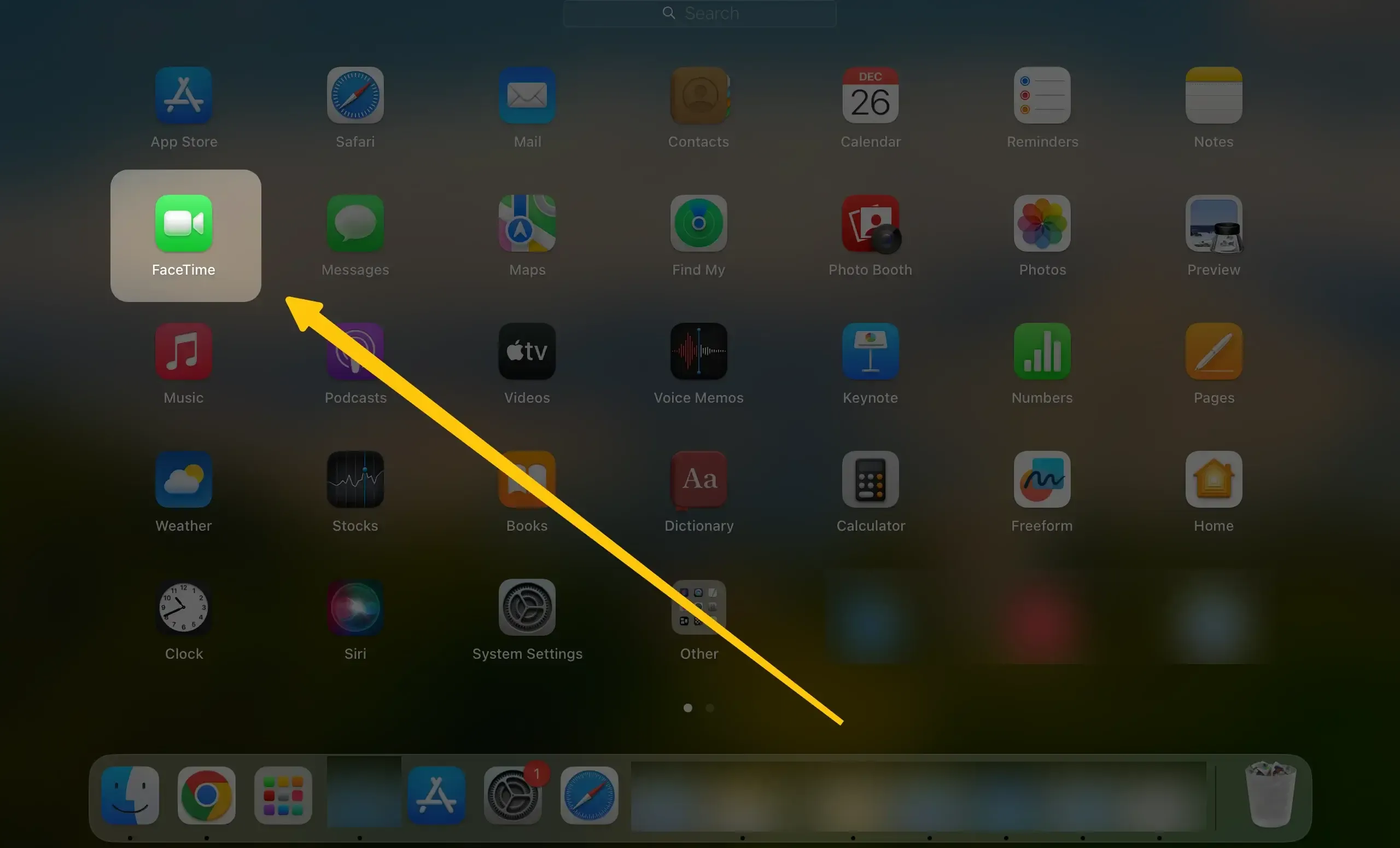
Step 1. Open FaceTime and start a call with the person you want to share your screen with. Move your mouse over the FaceTime window to reveal the call controls.
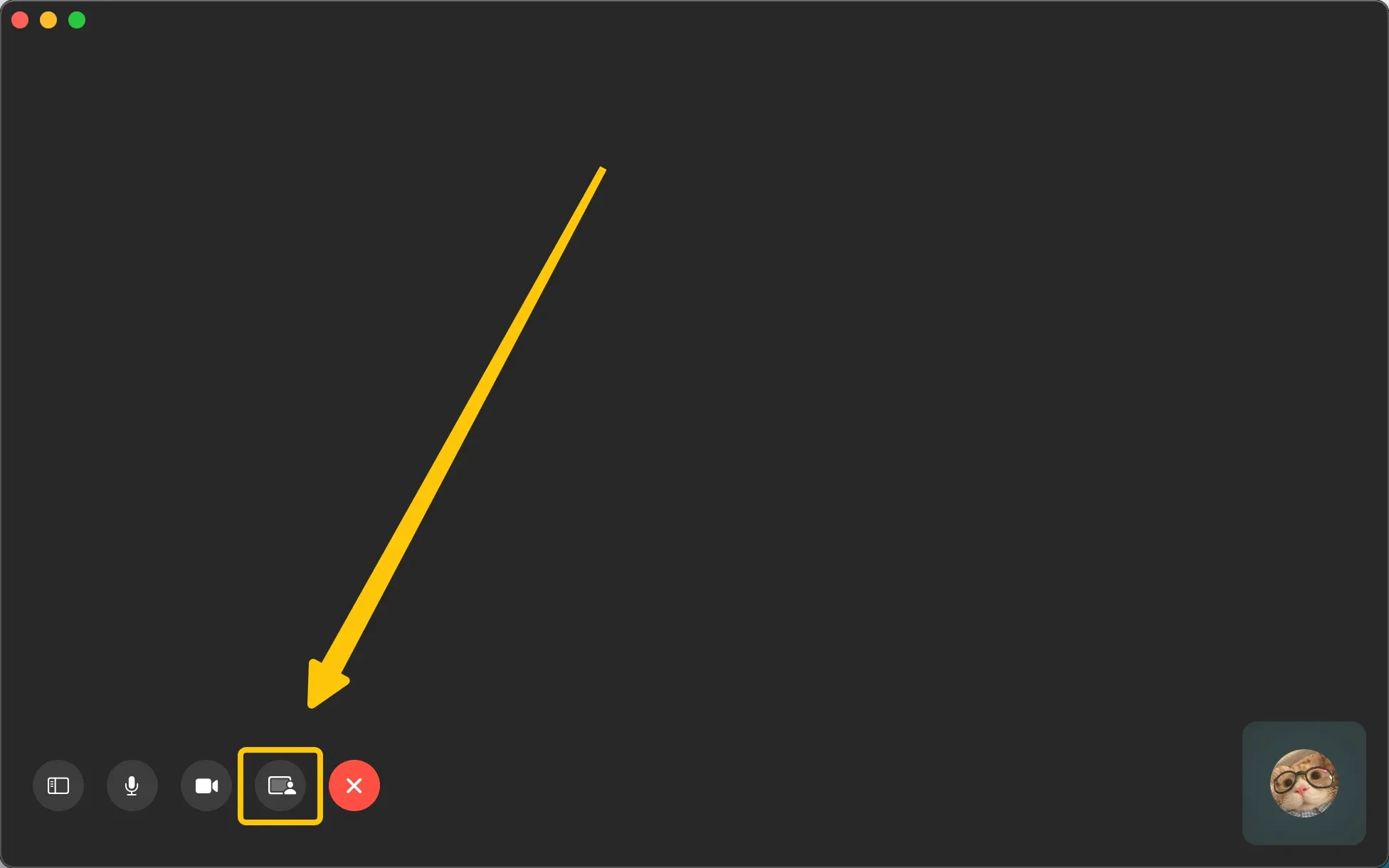
Step 2. Look for the Screen Share icon in the toolbar and click it to begin. A prompt will appear, allowing you to choose whether to share a specific window or your entire screen.
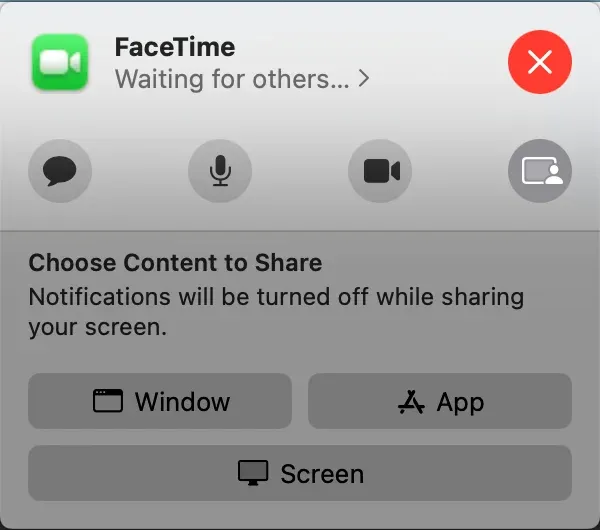
- Single Window: Hover over your open windows and click the one you'd like to share.
- Entire Screen: Click anywhere on your screen. If you have multiple monitors, select the one you'd like to share. Everything on that screen will be visible to your call partner exactly as you see it.
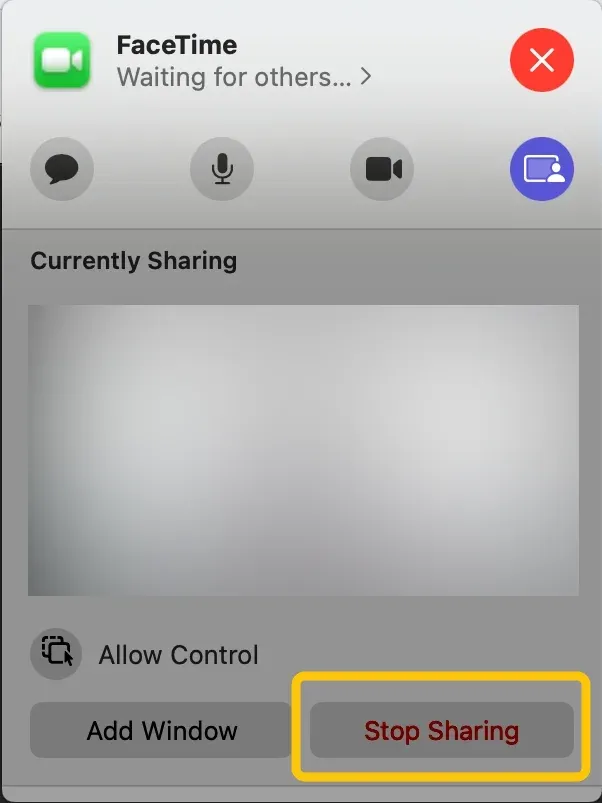
Step 3. To stop sharing, go back to the FaceTime window and click the Screen Share icon once more. A menu will pop up at the top, and you can select Stop Sharing Screen to end your session.
Why Can't I Share My Screen on FaceTime
If the Share icon is missing or grayed out, it could be due to a few factors. Most often, the issue is related to software compatibility or device settings, and it's usually easy to fix.
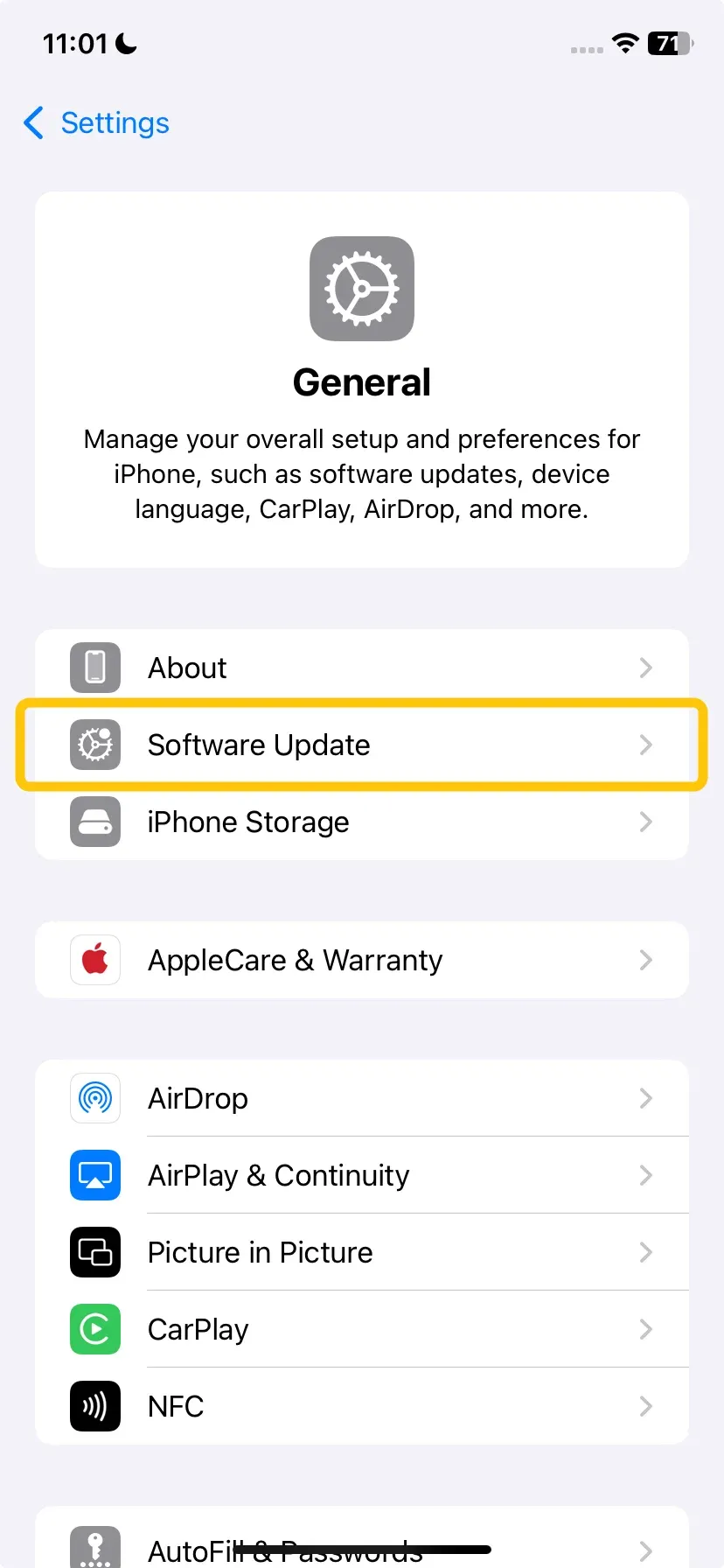
- Outdated Software: This is the most common cause. Screen share requires iOS 15/iPadOS 15 or macOS 12 Monterey or later on all devices in the call. Check for updates in Settings > General > Software Update on iPhone/iPad or System Settings > General > Software Update on Mac.
- Network or Firewall Block: Strict network settings (common on school, office, or public Wi-Fi) can block SharePlay. Try switching to a cellular network or a different Wi-Fi.
- Permissions: Ensure that FaceTime has the necessary permissions to share the screen. On iPhone and iPad, go to Settings > FaceTime and check that the app has access to the necessary system features.
- A Bug or Glitch: Simply end the FaceTime call and restart it. If that fails, restart your device.
Best FaceTime Screen Share Tool: PigeonCast
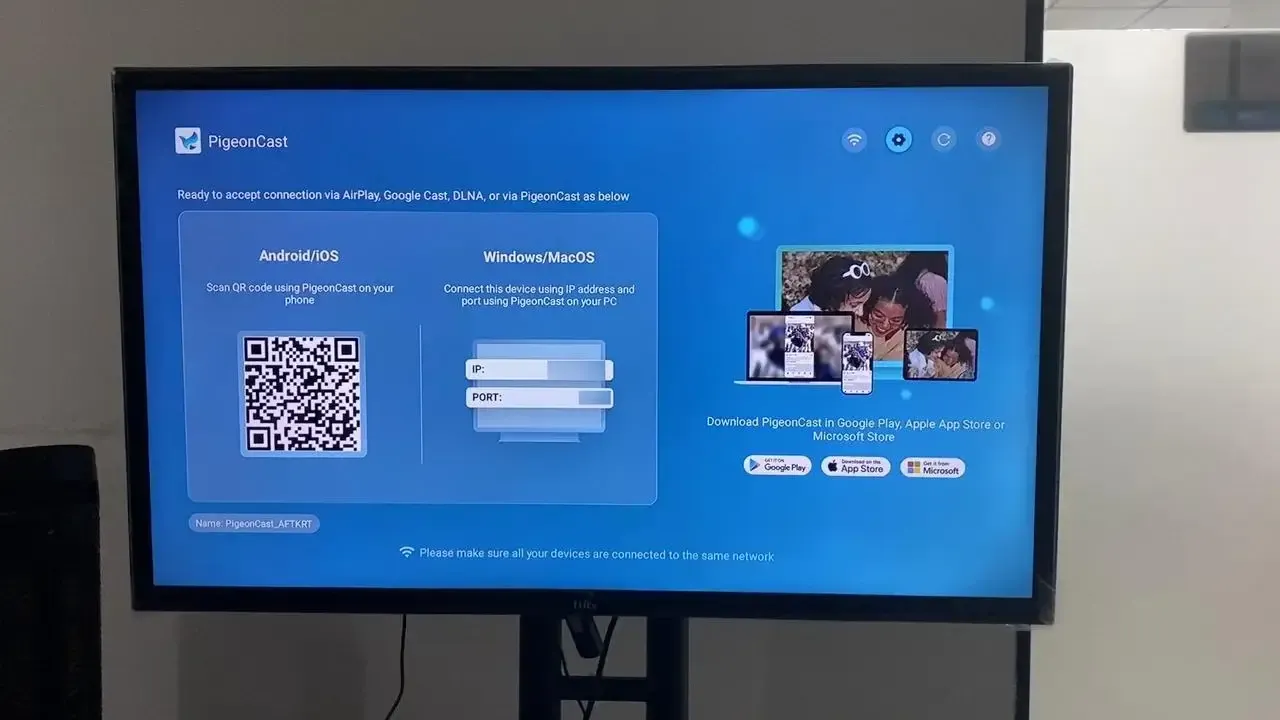
How to share my screen on FaceTime? If FaceTime's screen sharing isn't meeting your needs, give PigeonCast a try. Unlike FaceTime, which only works on Apple devices, this free PigeonCast supports Windows, Mac, Android, iOS, and even Smart TVs. You can share multiple screens at once, making it easy to collaborate seamlessly, no matter what device you're using.


Overall Rating:



Step 1. Install PigeonCast on your Apple device and another device. Then launch it on both your devices.
Step 2. Ensure your devices are connected to the same wireless network.
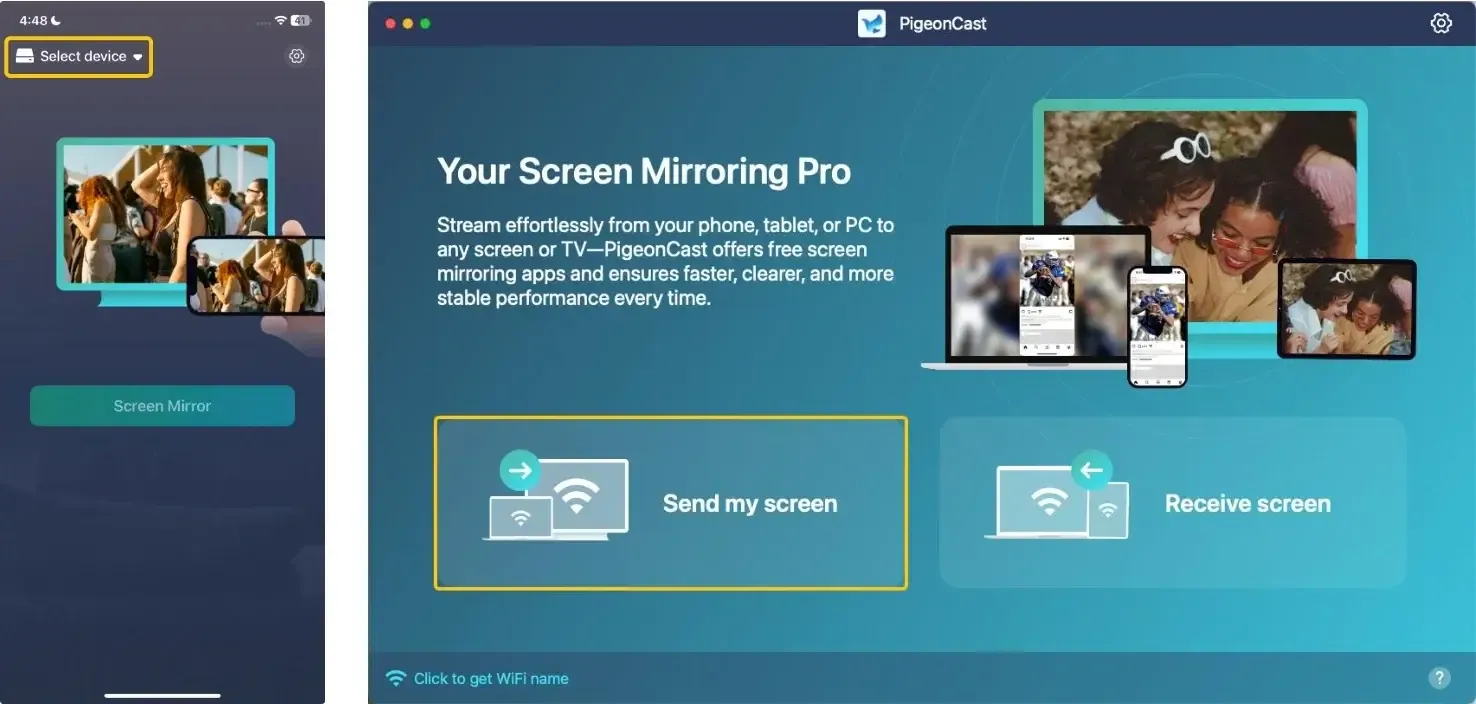
Step 3. On the Apple device, tap Select device or Send my screen to choose your device from the available list. Or you can scan the QR code shown on the television screen.
Step 4. Enter the onscreen PIN code to confirm the connection.
Step 5. When the connection succeeds, you can tap the Screen mirror button to start the mirroring activities. Then, open FaceTime and enjoy real-time sharing and entertainment.
Final Verdict
How to enable screen share on FaceTime? By following the easy steps for iPhone, iPad, or Mac, you can start sharing your screen in no time. If FaceTime's screen sharing isn't enough for your needs, PigeonCast offers a more versatile solution, allowing you to share across multiple platforms.
How to Share Screen on FaceTime FAQ
How to mute screen share on FaceTime?
Currently, FaceTime does not offer a dedicated feature to mute the screen share itself. However, you can mute your microphone during the call if you don't want to be heard while sharing your screen. Simply tap the microphone icon during the call to mute it.
How to fix screen share on FaceTime?
To fix screen share issues on FaceTime, try the following steps:
- Check for Software Updates: Ensure both you and the person you're calling are using iOS 15 or later, or macOS Monterey or later. Go to Settings > General > Software Update on iPhone/iPad, or System Preferences > Software Update on Mac.
- Restart the Call: If the screen share isn't working, end the FaceTime call and restart it.
- Check Network Connection: Poor or restricted Wi-Fi can cause issues with screen sharing. Try switching to a different Wi-Fi network or using cellular data.
- Permissions: Make sure FaceTime has the necessary permissions to share your screen. On iPhone/iPad, go to Settings > FaceTime and check permissions.
- Reboot Your Device: If all else fails, restart your device to resolve any software glitches that might be causing the issue.
Can you share screen on FaceTime?
Yes, you can share your screen on FaceTime using iOS 15 or later. During a FaceTime call, tap the screen share icon to begin sharing your screen.
Why can't I share my screen on FaceTime?
Here are some potential reasons why you can't share your screen on FaceTime:
- Outdated software
- Network restrictions
- Permissions issues
- Software glitches
- Device incompatibility
- Low battery
- Connection problems
- Background apps
- FaceTime account issues
- App conflicts
Clara Rossi is an experienced technology editor and a seasoned expert in screen mirroring and casting technologies. With a keen eye for detail and a deep understanding of how to seamlessly connect devices, Clara excels at optimizing user experiences for effortless sharing and streaming. Whether you're seeking quick fixes or advanced tips, her expertise and responsiveness ensure that every query is met with a well-informed and efficient solution.