
Sharp TVs support screen mirroring, but the setup can vary by model and device, so some connections work instantly while others get stuck at "device not found". In most cases, the issue is simple, such as using the wrong method or missing a key setting. This guide covers quick ways on Sharp TV screen mirroring to mirror from iPhone, Android, Windows, and Mac, plus reliable alternatives when there're something wrong.
Does Sharp TV Have Screen Mirroring
Yes, many Sharp TVs support screen mirroring, but the exact method depends on your specific model and operating system (such as Roku TV, Android TV, or Aquos). Instead of trying multiple options blindly, it is more effective to choose the right connection protocol based on your device first. Here are the primary ways to mirror your screen to a Sharp TV:
| Method | Supported Devices | Setup Difficulty | Reliability | Notes |
|---|---|---|---|---|
| AirPlay | iPhone, iPad, Mac | Easy | High | Best for Sharp TVs with built-in Apple support |
| Google Cast/Miracast | Android, Chromebook | Easy to Moderate | High | Native wireless mirroring for most mobile users |
| Wireless Display | Windows PCs | Moderate | High | Uses the Miracast protocol built into Windows |
| PigeonCast (App-based) | iOS, Android, Win, Mac | Easy | High | Cross-platform bridge when native protocols fail |
| HDMI Connection | Laptops, PCs, Consoles | Very Easy | Highest | The most stable wired solution with zero lag |
- Choosing the right path for your device
To avoid setup loops, match your device type with the corresponding method below. While native protocols like AirPlay or Miracast are often the fastest starting point, app-based solutions like PigeonCast provide a flexible alternative when your TV and device use different standards. For mission-critical tasks where lag isn't an option, a physical HDMI cable remains the gold standard.
How to Screen Share on Sharp TV
The setup is straightforward once you choose the right route for your source device instead of trying every option at once. Start with wireless sharing on supported models, then move to wired fallback only if stability is still poor. That order usually gives you a faster first success and a cleaner long-term setup.
How to Screen Mirroring iPhone to Sharp TV (Mac Included)
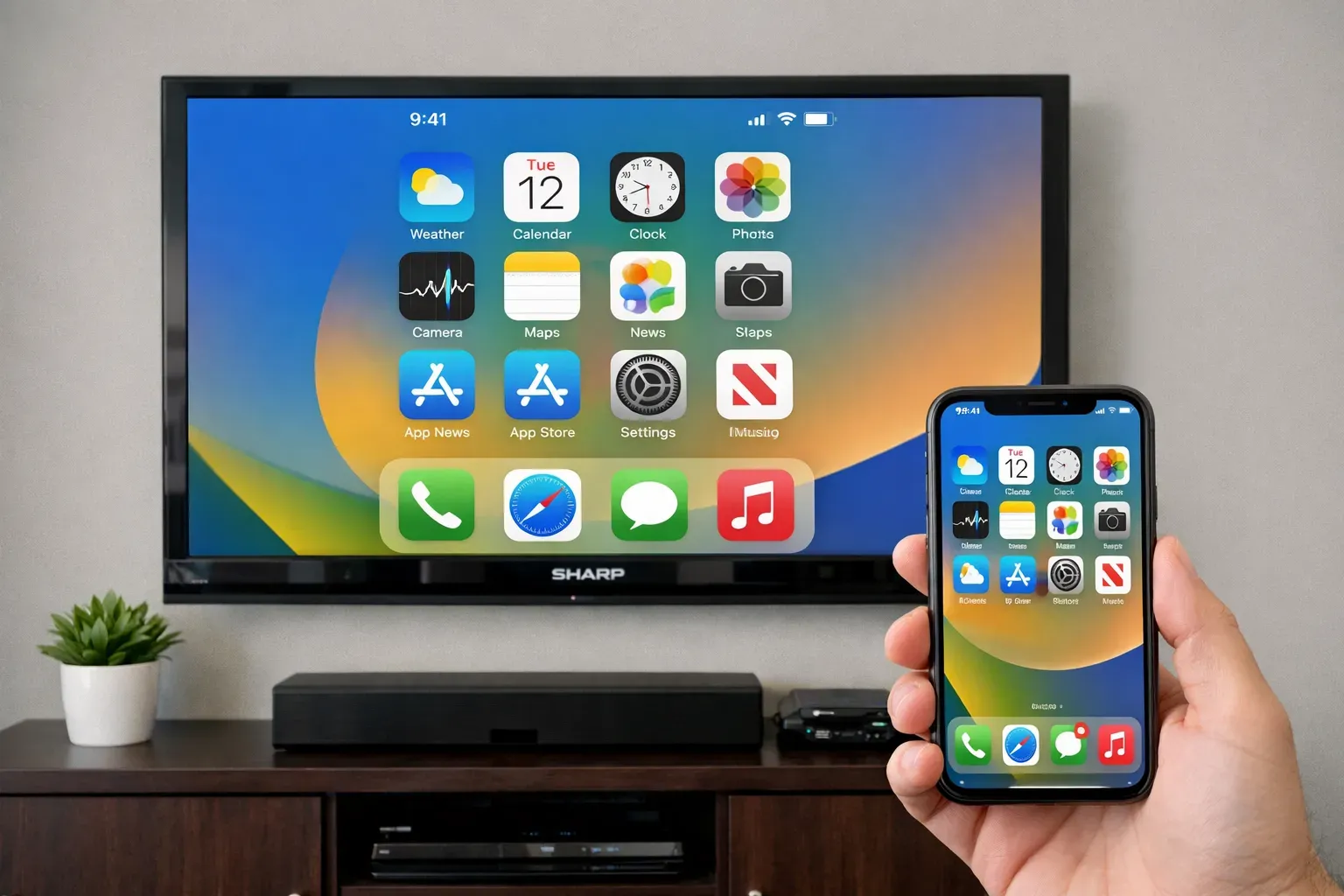
For iPhone, iPad, and Mac, AirPlay is usually the best place to start since it is built in and easy to check. If your TV does not show up or certain apps do not work, try app-based casting, such as PigeonCast or use an HDMI cable instead of retrying AirPlay multiple times. Here's how to mirror iPhone to Sharp TV:
- Method 1. Use AirPlay
AirPlay is the easiest way to mirror your iPhone or Mac to a Sharp TV, but it only works on supported models. Most newer Sharp TVs running Roku TV or Google TV support AirPlay, while older models usually do not. Once you check the compatibility, follow these steps to do Sharp TV AirPlay:
Step 1. Ensure your Sharp TV and the Apple device connect to the same wireless network.
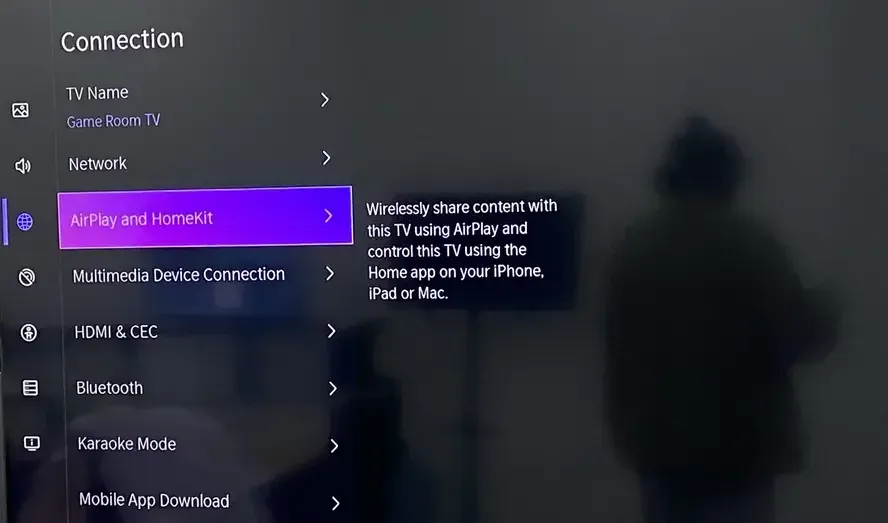
Step 2. Open Settings on your TV, go to Apple AirPlay and HomeKit, and make sure AirPlay is turned On (menu names may vary slightly depending on your TV model).
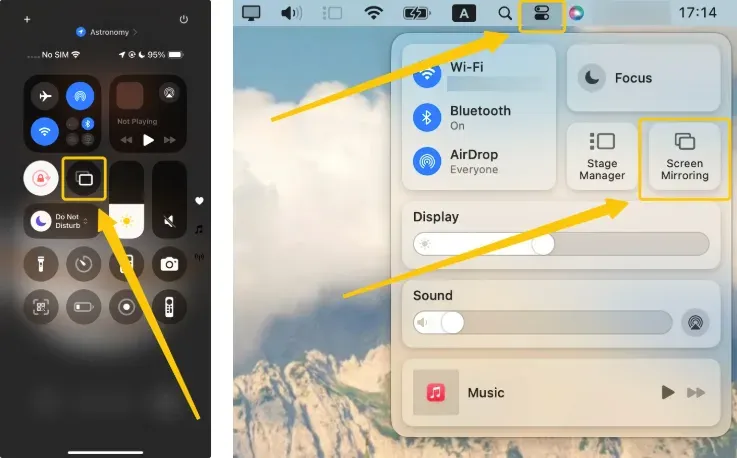
Step 3. On iPhone, swipe down from the top-right corner to open Control Center, then tap Screen Mirroring. On Mac, click the Control Center icon in the top menu bar, then select Screen Mirroring.
Step 4. Choose your Sharp TV from the list of available devices. If prompted, enter the AirPlay code shown on your TV screen.
Step 5. Once connected, your screen will appear on the TV automatically.
- Method 2. Use In-App Casting
This method is often better than full screen mirroring for videos, because the app sends content directly to the TV instead of duplicating your entire screen. It can improve playback stability and reduce battery usage on iPhone and Mac, especially for streaming apps.
Step 1. Ensure your iPhone or Mac is connected to the same WiFi network as your Sharp TV.
Step 2. Open an app that supports AirPlay or casting, such as YouTube, Apple TV, Netflix, or some local media player apps.
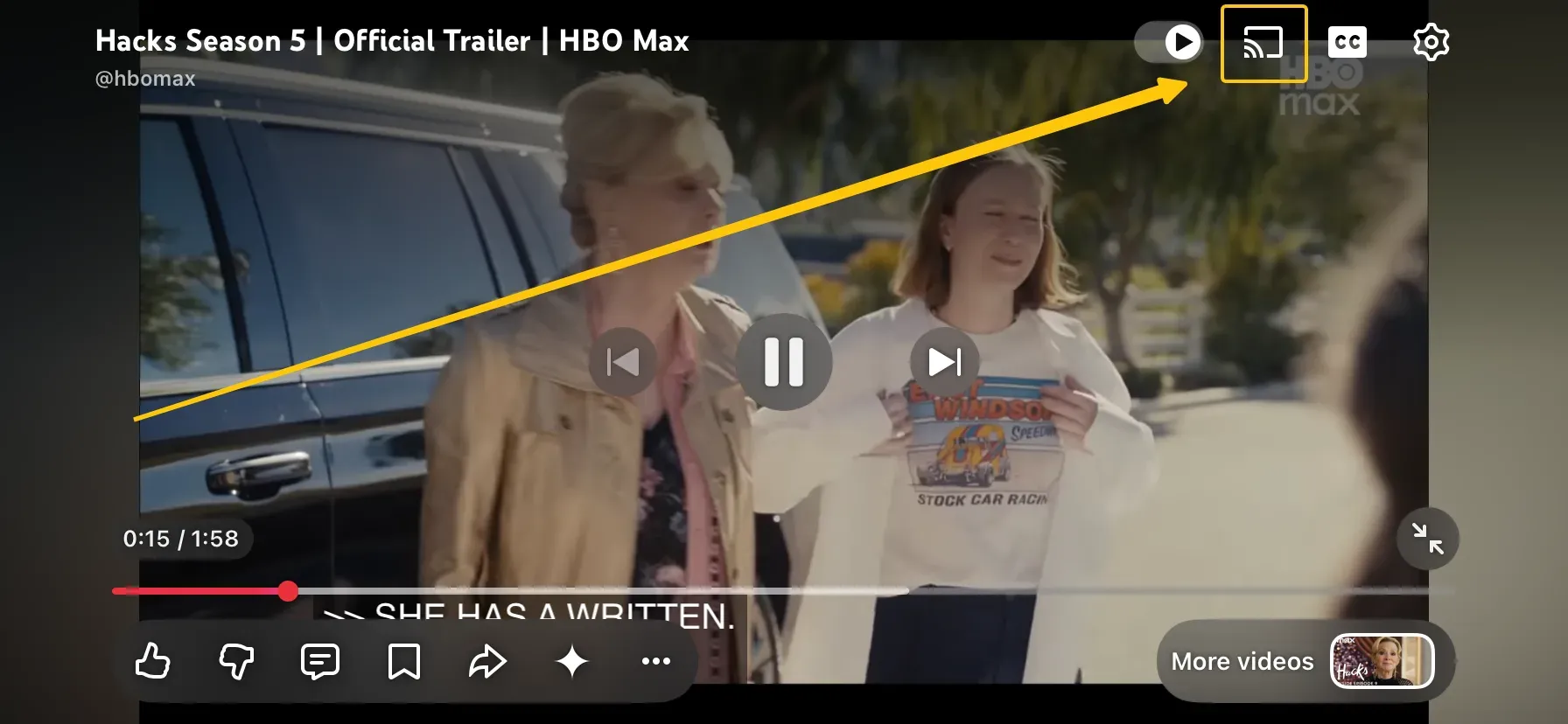
Step 3. Start playing a video, then tap the AirPlay or Cast icon (the icon and location may vary by app).
Step 4. Select your Sharp TV from the list of available devices, then keep the app open until playback starts smoothly.
- Method 3. Use a Streaming Device
Yes, this bridge method can and should include Apple TV, Roku Stick, and Chromecast, but with different expectations. Apple TV gives the most complete iPhone/Mac mirroring workflow; Roku/Chromecast are often better for app-level casting than full Apple screen duplication. Use this when your Sharp TV does not provide reliable native protocol support.
Step 1. Connect your streaming device to Sharp TV correctly, and connect it to the same Wi-Fi as your iPhone/Mac.
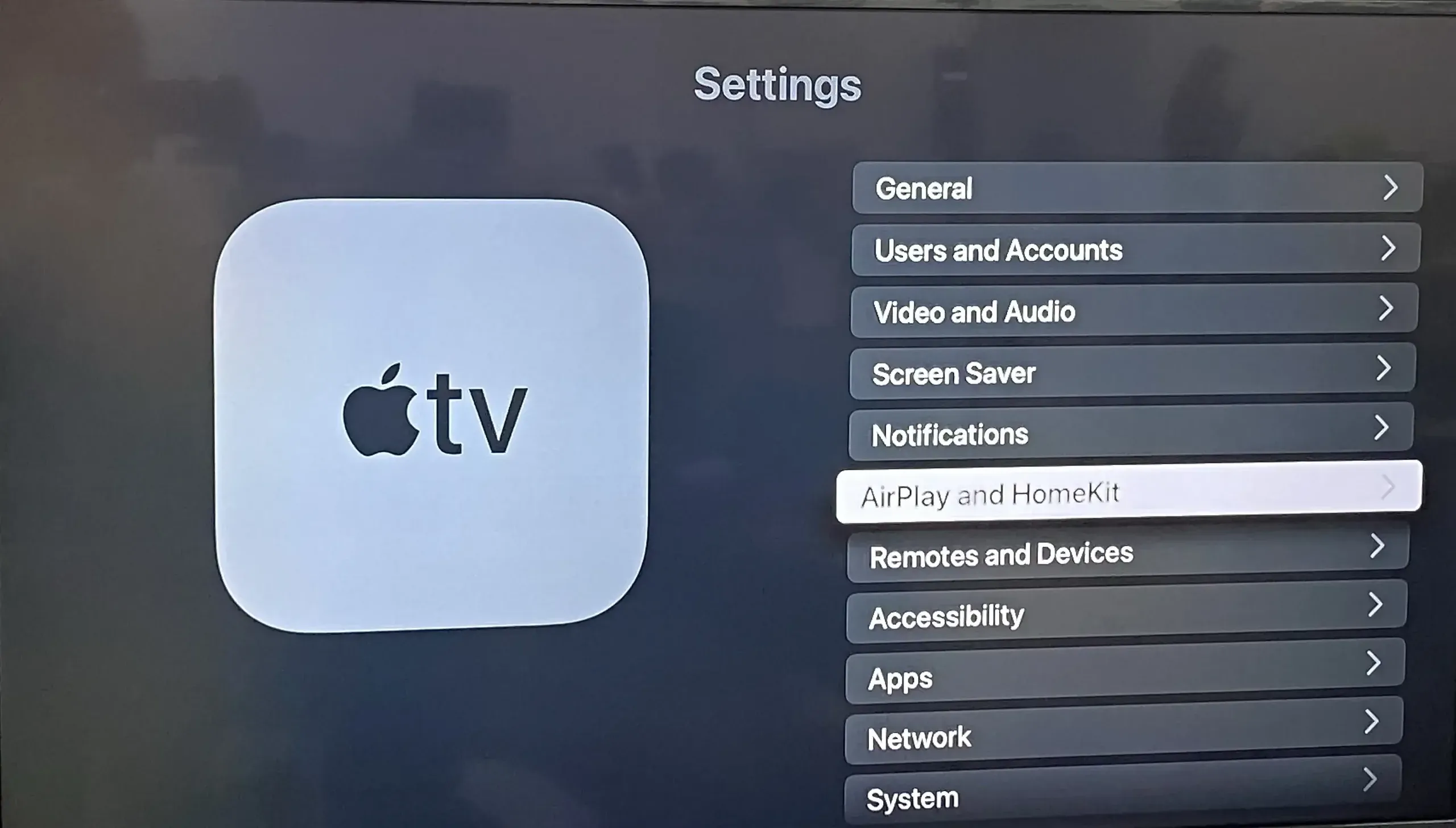
Step 2. If you are using Apple TV or a Roku device with AirPlay support, active AirPlay settings on the TV and then open Screen Mirroring on your iPhone or Mac to select get pairing.
Step 3. If you are using Chromecast, use the built-in casting feature from supported apps like YouTube or Netflix.
Step 4. Switch your Sharp TV to the correct HDMI input for the streaming device.
- Method 4. Use a HDMI
HDMI is the most reliable option when wireless mirroring is unstable or not supported, especially for meetings, editing, or protected content. If wireless methods fail, switching to HDMI is usually the fastest solution. Here's Sharp TV screen mirroring iPhone and how to screen mirroring Mac to Sharp TV via cables:
Step 1. For iPhone, use a Lightning-to-HDMI or USB-C-to-HDMI adapter depending on your model. For Mac, connect using an HDMI cable or a USB-C/Thunderbolt adapter.
Step 2. Switch your Sharp TV to the correct HDMI input.
Step 3. On Mac, open Display Settings and choose Mirror or Extend. On iPhone, make sure the external display appears after connecting.
Step 4. Adjust the TV's picture size or aspect ratio if the screen looks cropped.
How to Screen Mirroring Android to Sharp TV
Android screen mirroring only works when your phone and Sharp TV support the same protocol. To avoid connection issues, first check which system your Sharp TV runs, then use the matching method. Most Sharp TVs fall into three categories:
-
Google TV/Android TV models: support Google Cast
-
Roku TV: may support AirPlay and limited Miracast (model-dependent)
-
Non-smart or older Sharp TVs: usually do not support wireless mirroring (HDMI required)
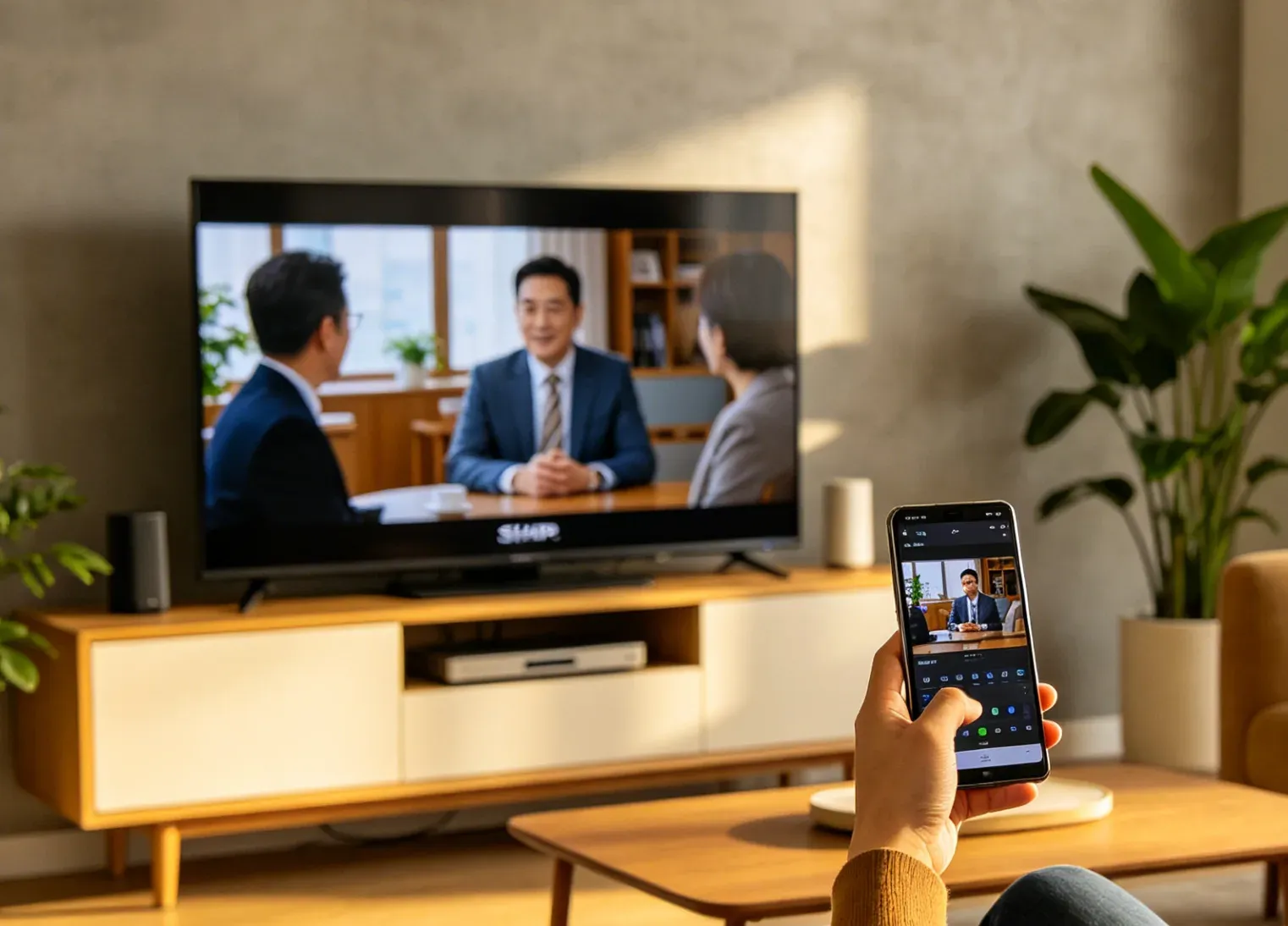
- Method 1. Use Google Cast (Google TV/Android TV)
Use this method only if your Sharp TV runs Google TV or Android TV. You can check this by looking at your TV home screen: If you see Google TV interface or apps like YouTube, Play Store; If your TV menu includes "Cast" or "Chromecast built-in". This Sharp TV screen mirroring android way does not mirror your whole screen, but sends video directly from specific apps.
Step 1. Connect your Android phone and Sharp TV to the same Wi-Fi network.
Step 2. Open an app that supports casting (YouTube, Netflix, etc.).
Step 3. Tap the Cast icon (a rectangle with Wi-Fi waves) and select your Sharp TV.
Step 4. Start playback, and the video will play on the TV, not mirror your Android screen).
- Method 2. Use Smart View/Screen Cast (Miracast)
You can check whether your Sharp TV supports Miracast from Screen Mirroring/Wireless Display in settings, or open Input/Sourcet to see if a mirroring option exists. On your phone, the feature name may be Smart View (Samsung), Cast/Screen Cast, or Wireless Display. Once you confirm, follow these to start Sharp Aquos TV screen mirroring from Android.
Step 1. Connect your phone and TV to the same Wi-Fi network.
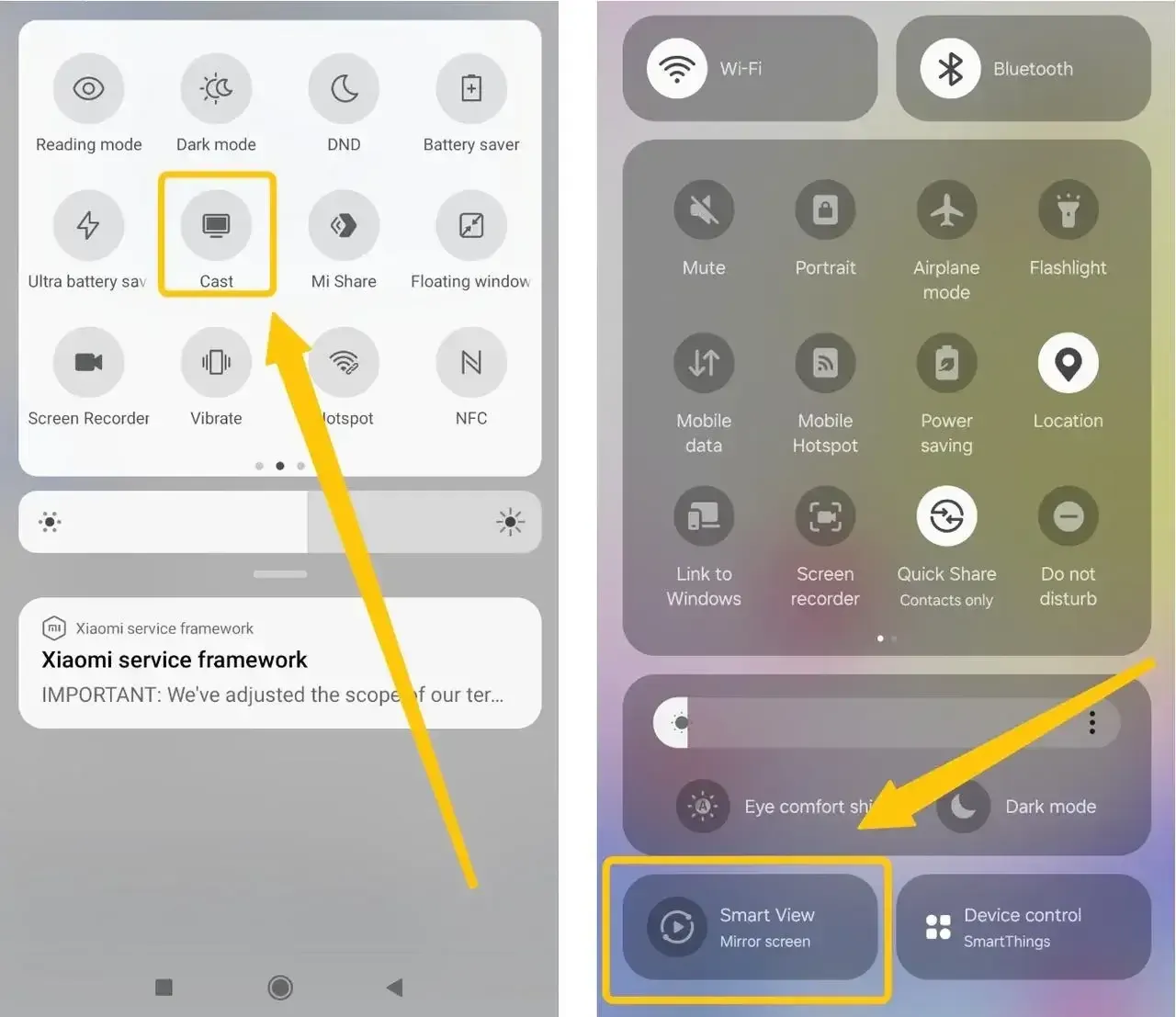
Step 2. Open Quick Settings on your phone, tap Smart View/Cast/Screen Cast (name varies by device).
Step 3. Select your Sharp TV from the list, confirm the connection on the TV if prompted.
- Method 3. Use a Casting App
When your TV does not show Cast or Screen Mirroring options, but is still connected to Wi-Fi. It may work only for photos, videos, and local files, not apps like Netflix.


Overall Rating:


Step 1. Install a DLNA-based casting app, such as PigeonCast on your Android phone from Google Play.
Step 2. Make sure both devices are on the same network.
Step 3. Open the app and select your Sharp TV, follow the onscreen instructions to set up and build the connection.
Step 4. After you completing the pairing process, start your mirroring activties then.
- Method 4. Use HDMI
Use HDMI when your TV does not support wireless mirroring or when the connection is unstable. This method works on all Sharp TVs, but you should focus on the type of cable or adapter depends on your phone model.
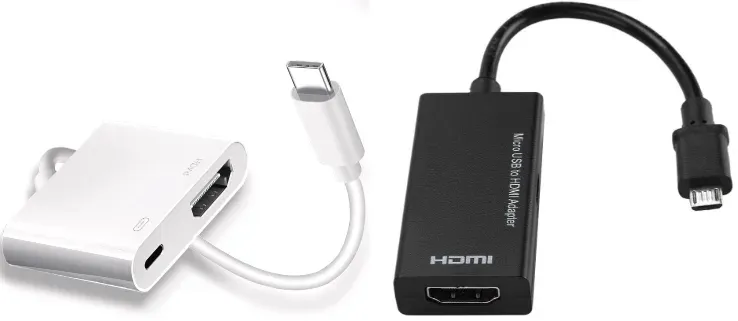
Step 1. If your phone has USB-C with display output, use a USB-C to HDMI adapter or cable. If your phone uses Micro USB, it usually does not support HDMI output.
Step 2. Connect your phone to the TV using the adapter and HDMI cable.
Step 3. Switch your TV to the correct HDMI input.
How to Screen Mirroring Windows to Sharp TV
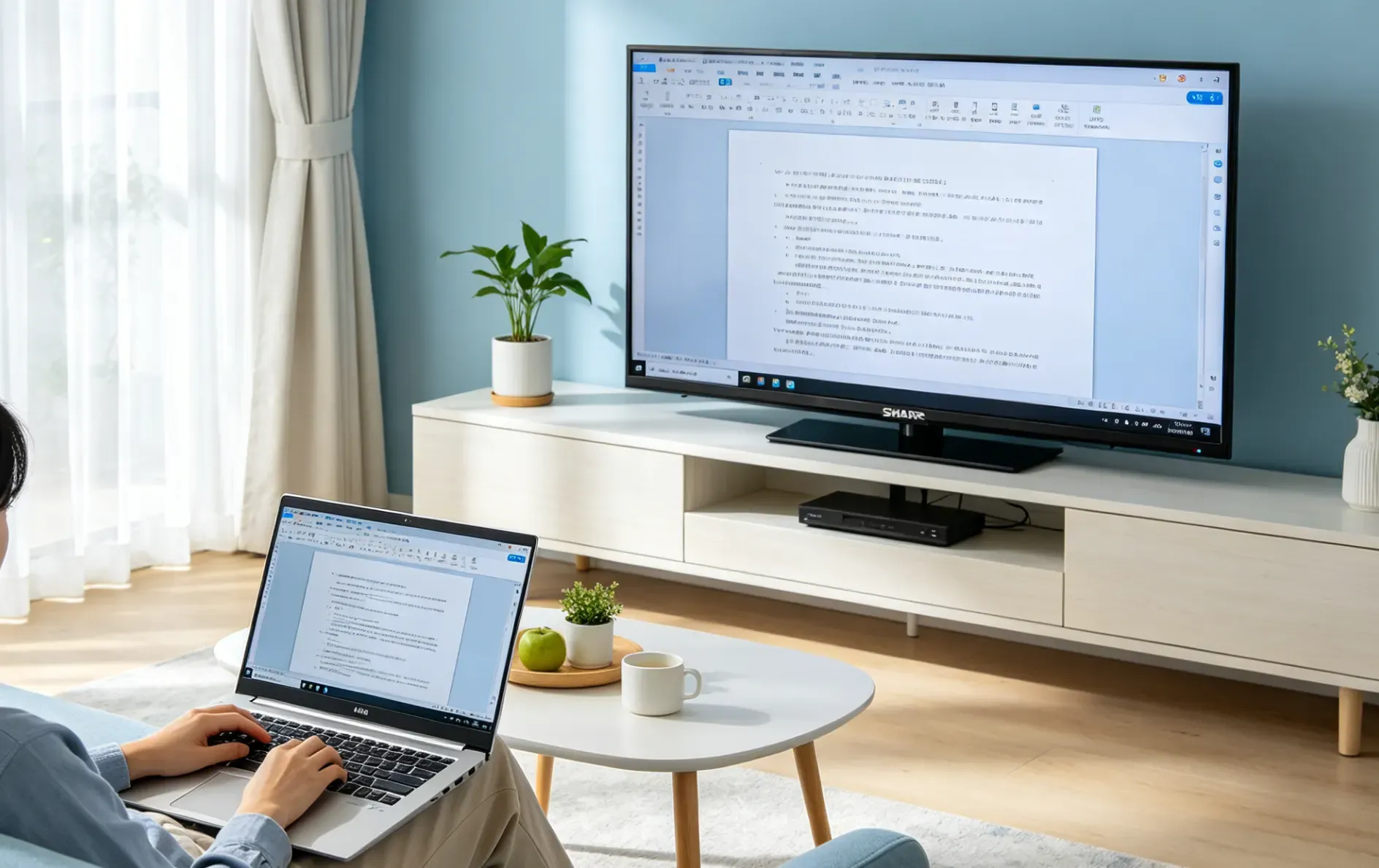
On Windows, screen mirroring usually comes down to three options: using Wireless Display (Miracast) for full desktop sharing, casting from a browser or app for video playback, or connecting with HDMI for the most stable result. Let's read on to check screen mirroring Windows 10 to Sharp Smart TV:
- Method 1. Use Miracast
When your Sharp TV has a "Screen Mirroring" or "Wireless Display" feature, it enables full desktop sharing, making it ideal for presentations or extending your display. If you're unsure whether your TV supports this feature, check the user manual or search online using your TV model number. Here's how to miracast Windows to Sharp TV:
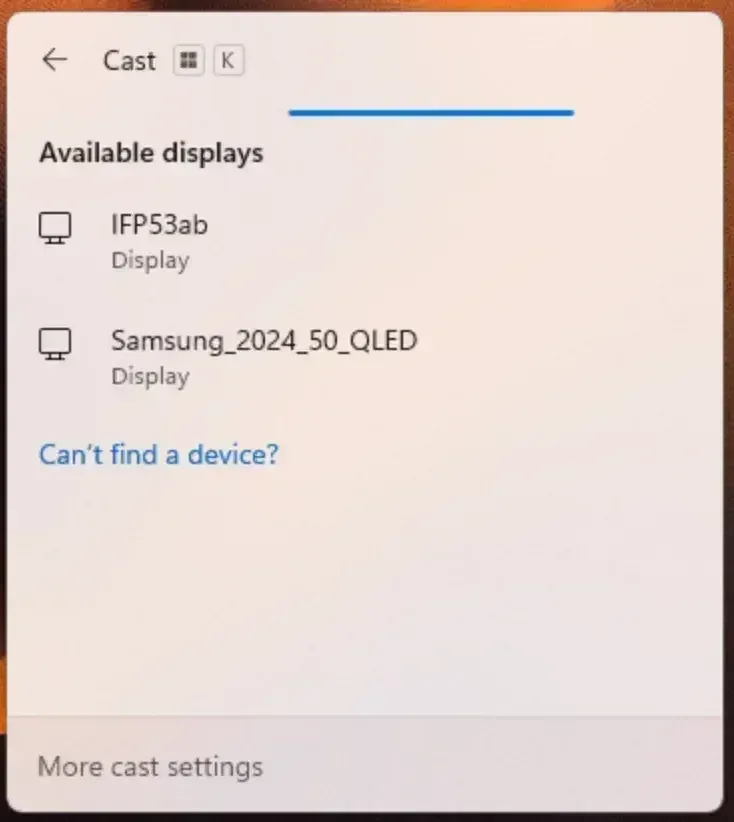
Step 1. Turn on your Sharp TV and open Screen Mirroring/Wireless Display mode (menu name may vary).
Step 2. On Windows, press Win + K to open the Connect panel.
Step 3. Select your Sharp TV from the list, then accept the connection on the TV if prompted.
Step 4. Press Win + P and choose Duplicate or Extend.
- Method 2. Use Browser or App Casting
If you only need to play videos or browser content, this method is a better choice. It sends media directly to the TV instead of mirroring your entire screen, so playback is usually smoother and your PC remains usable for other tasks.
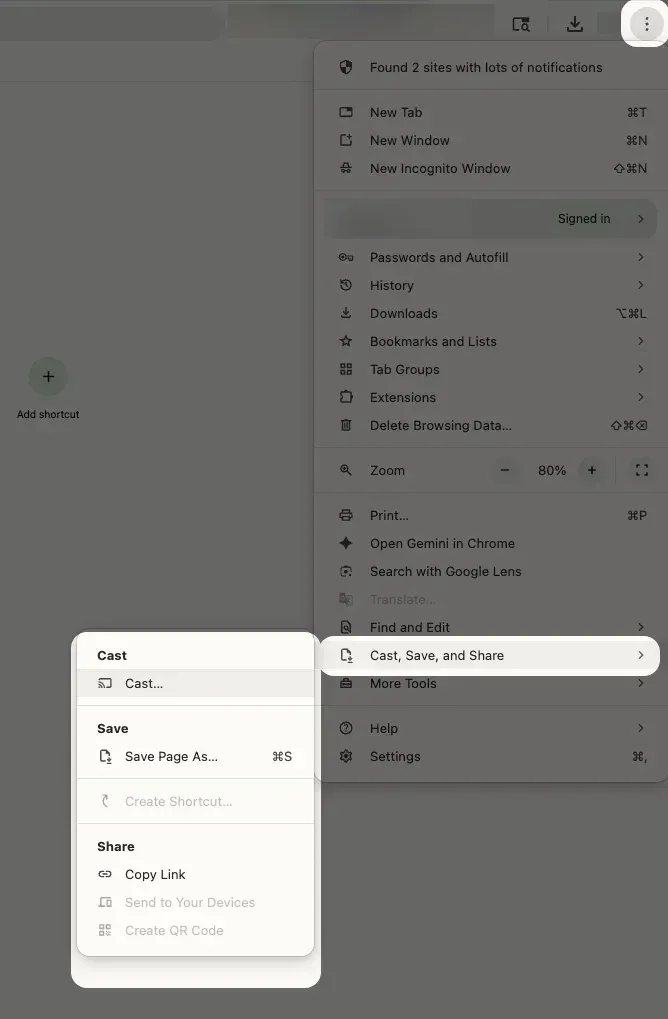
Step 1. Make sure your Sharp TV and Windows PC are connected to the same Wi-Fi network.
Step 2. Open Chrome or a Cast-supported app, then launch the Cast menu to select your Sharp TV.
Step 3. Choose the type of content you want to send. In Chrome, this may include:
-
Cast tab if you only want to send the current browser tab.
-
Cast desktop if you want to send your whole desktop.
-
Cast file if you want to play a local video or audio file from your PC.
-
Method 3. Use HDMI
Use this method when you need a stable connection, such as for meetings, demos, or when wireless mirroring is not working. HDMI sends video and audio directly through the cable, so it does not rely on Wi-Fi.
Step 1. Connect your laptop to the Sharp TV using the correct cable:
-
If your laptop has a full-size HDMI port: use a standard HDMI to HDMI cable.
-
If your laptop has USB-C (with video output): use a USB-C to HDMI adapter or cable.
-
If your laptop has Mini HDMI or Micro HDMI: use the matching Mini/Micro HDMI to HDMI cable.
Step 2. Use the TV remote to switch to the correct HDMI input (for example, HDMI 1 or HDMI 2).
Step 3. On your laptop, press Win + P and choose Duplicate or Extend.
When Native Methods Don't Work
Even if your Sharp TV technically supports mirroring, you may still encounter "no device found" errors or constant lagging. Most mirroring failures happen for three specific reasons:
-
Protocol Mismatch: Your TV supports Miracast, but your device only supports AirPlay (or vice versa).
-
Device Incompatibility: Older Sharp models or specific firmware versions often drop support for newer mobile OS updates.
-
Unstable Connections: Local network interference can cause native protocols to drop the signal frequently.
The Solution: Using a Cross-Protocol Mirroring App
Instead of cycling through different protocols, you can use a unified, app-based solution like PigeonCast. It bypasses native protocol restrictions by creating a direct bridge between your device and the TV, ensuring a stable 4K connection regardless of whether you are using iOS, Android, or Windows. Here's how to cast to Sharp TV via PigeonCast:
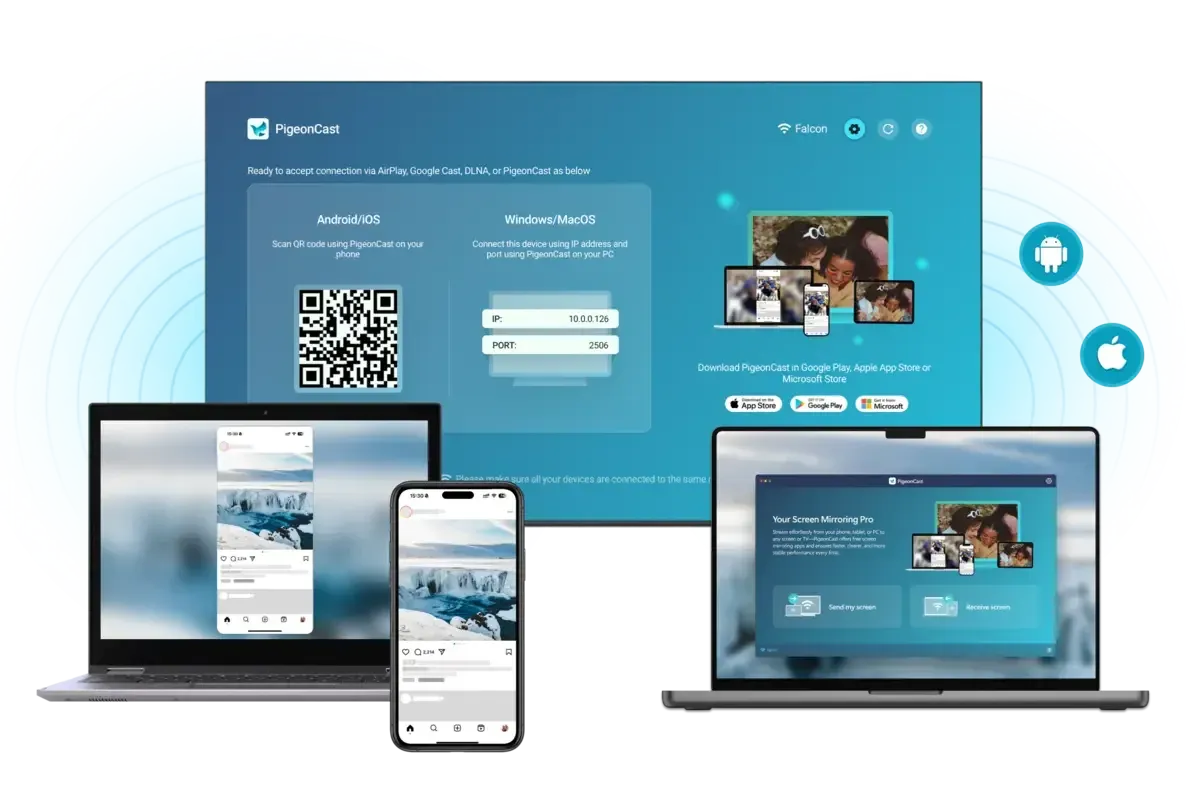
Step 1. Ensure your devices are covered by the same wireless network.
Overall Rating:


Step 2. Install PigeonCast on your mobile device from the app store. You can also download it on your TV from the app store if you can search it.
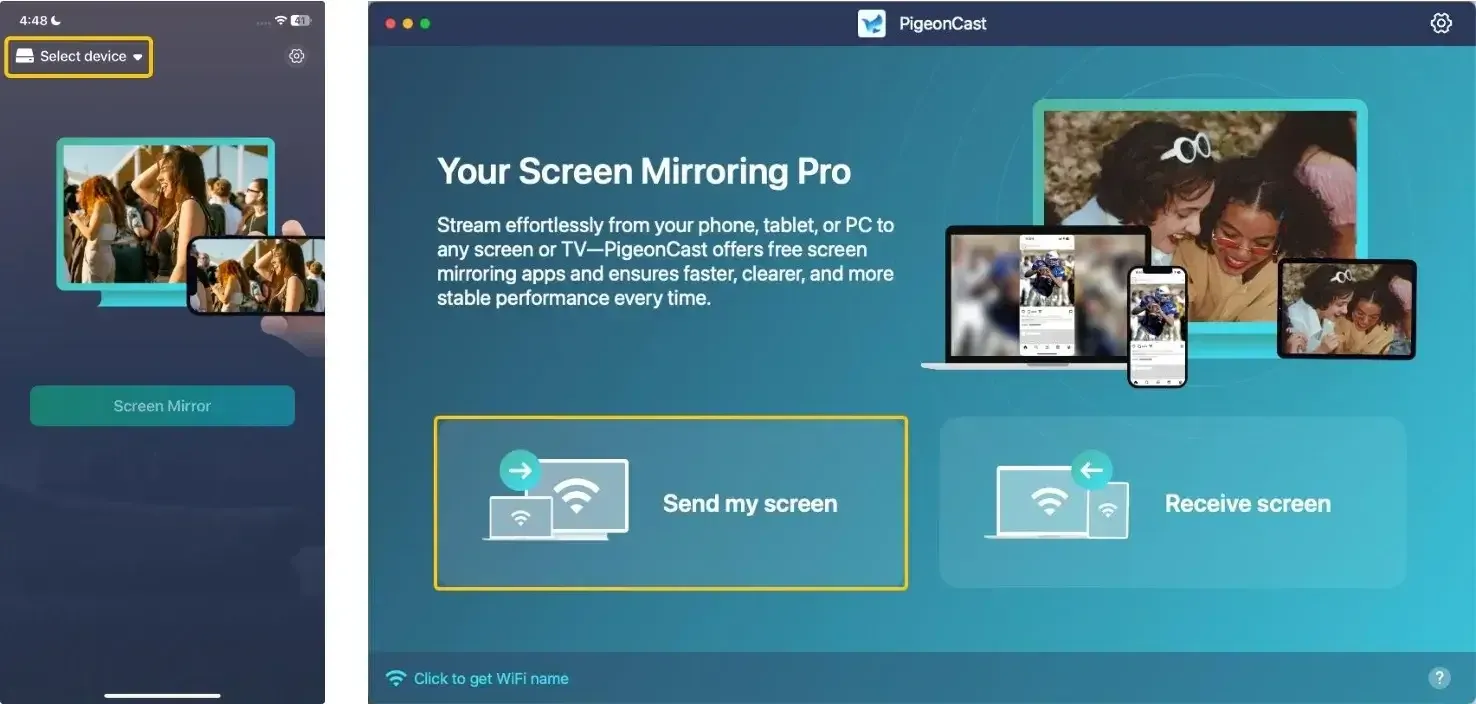
Step 3. Launch the app, tap Select device or Send my screen to choose your smart television to connect.
Step 4. If prompted, enter the onscreen PIN code to build the connection.
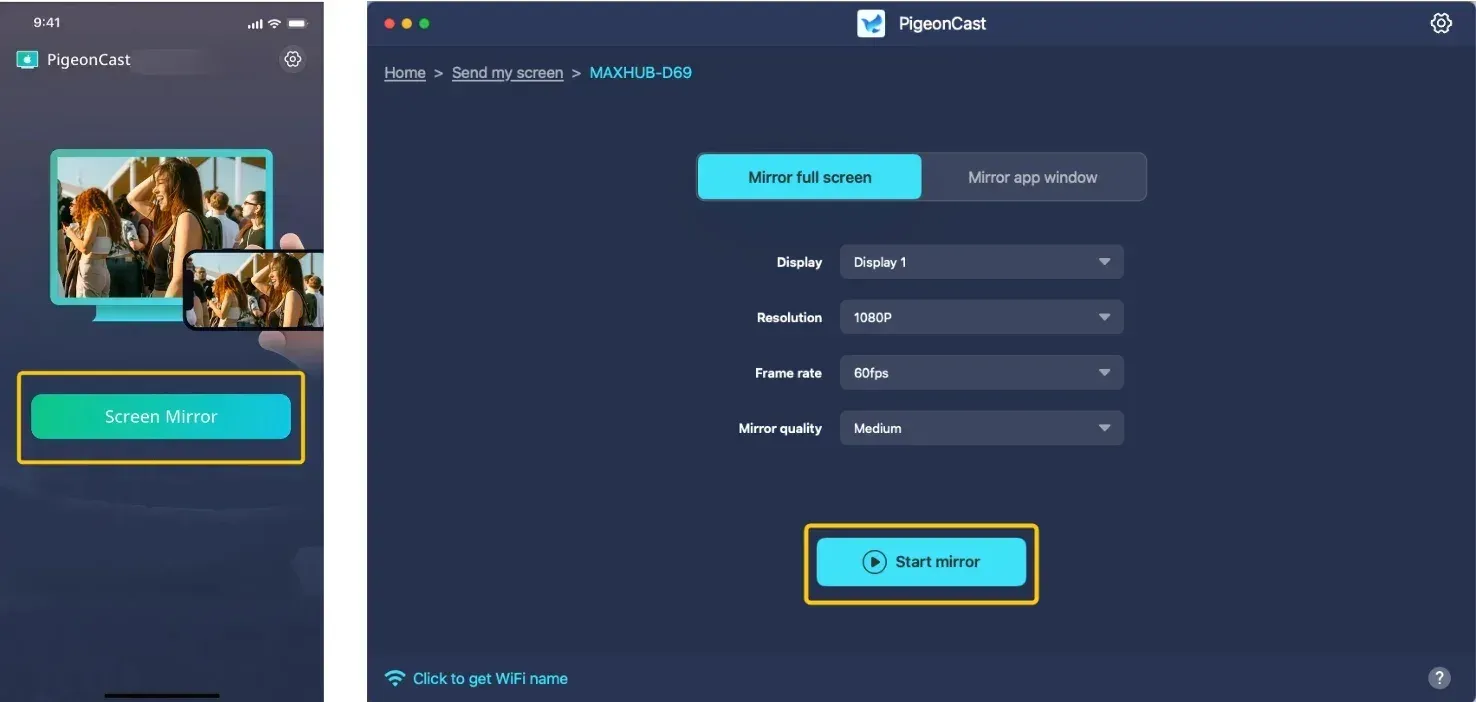
Step 5. When you finish the pairing process, tap Screen Mirror or Start mirror to begin your casting or mirroring activties.
Screen Mirroring for Sharp TV Common Issues
Work from basic checks to deeper fixes, so you do not waste time on low-probability changes. Test after each adjustment and keep notes on what changed, even if the result is partial. That pattern makes stubborn issues much easier to isolate.
The TV does not appear in the device list
-
Confirm both devices are on the same Wi-Fi network.
-
Restart the Sharp TV and the phone, tablet, or computer.
-
Check whether your Sharp TV actually supports the mirroring method you are using.
The connection drops after a few seconds
-
Move the router closer to the TV or device.
-
Update the Sharp TV firmware.
-
Close background apps on the phone or computer.
The screen is laggy or choppy
-
Use 5 GHz Wi-Fi instead of 2.4 GHz when possible.
-
Reduce the distance between the TV and router.
-
Switch to HDMI for live demos or fast-motion content.
Audio plays but video does not, or the screen stays black
-
Check that the TV input is correct.
-
Disable and re-enable screen mirroring on the Sharp TV.
-
Restart both devices and try again.
AirPlay or Miracast is missing on the Sharp TV
-
Open the TV settings and look for network, sharing, or input options.
-
Verify the exact model number in the manual or settings menu.
-
Use HDMI if the model does not support wireless mirroring.
The image looks cropped or stretched
-
Change the aspect ratio or picture size setting on the Sharp TV.
-
Match the resolution on your computer to the TV's native resolution.
Bottom Line
How to screen mirror to Sharp TV? Yes, many Sharp TVs support screen mirroring, but compatibility depends on the model and system. Newer models such as Google TV or Roku TVs may support AirPlay, Google Cast, or Miracast, while older or non smart models often require an HDMI connection. The key is to match your device with a supported method, such as AirPlay for iPhone or Mac and Cast or Miracast for Android or Windows, since mirroring only works when both the TV and the source device support the same protocol.
Sharp TV Screen Mirroring FAQ
Does Sharp Aquos TV have screen mirroring?
Yes, many Sharp Aquos TVs support screen mirroring, but it depends on the specific model and platform. Most newer Aquos models include wireless options like Miracast, Google Cast, or sometimes AirPlay, while older or basic models may not support wireless mirroring and instead require an HDMI connection.
Can Sharp TV Miracast iPhone?
No, Sharp TV Miracast does not work with iPhone. Miracast is a wireless standard mainly supported by Android and Windows devices, while iPhones do not support Miracast at all and instead use Apple's AirPlay protocol.
How to setup screen mirroring on Sharp TV?
-
Make sure your TV supports a mirroring feature such as Screen Mirroring, Wireless Display, AirPlay, or Cast.
-
Turn on the TV and connect it to the same Wi-Fi network as your phone or computer, then open the corresponding option on the TV (usually under Settings or Input, such as "Screen Mirroring" or "AirPlay").
-
On your device, open Screen Mirroring on iPhone or Mac, Cast/Smart View on Android, or Win + K on Windows, and select your Sharp TV from the list.
-
Confirm any pairing prompt on the TV, and the screen should appear once connected.
How does the Sharp Roku TV screen mirroring?
Sharp Roku TV uses built-in screen mirroring through Miracast and AirPlay, depending on your device.
-
For Android and Windows, it relies on Miracast, which wirelessly duplicates your entire screen to the TV once you select it and approve the connection on the TV.
-
For iPhone, iPad, and Mac, it uses AirPlay, which can mirror the screen or stream content directly.
Can Sharp Smart TV screen mirroring Android?
Yes, a Sharp Smart TV can mirror an Android device, but only if both support the same method.
-
Most Android phones use Google Cast or Miracast (Screen Cast/Smart View), and the TV must support one of these to work.
-
Sharp TVs running Google TV or Android TV support Cast, while some models support Miracast for full screen mirroring.
-
If your TV does not support either, you will need to use a third party app or an HDMI connection instead.
How to screen mirroring Samsung to Sharp TV?
To screen mirror a Samsung phone to a Sharp TV, use Smart View or Cast, depending on what your TV supports.
-
First, make sure both devices are on the same Wi-Fi network.
-
On your Sharp TV, open Screen Mirroring or Wireless Display mode if available.
-
Then on your Samsung phone, swipe down to open Quick Settings, tap Smart View, and select your Sharp TV from the list.
-
Confirm the connection on the TV if prompted, and your phone screen will appear.
-
If your TV runs Google TV, you can also use Cast from apps like YouTube. If the TV does not support wireless mirroring, use an HDMI adapter as a fallback.
Clara Rossi is an experienced technology editor and a seasoned expert in screen mirroring and casting technologies. With a keen eye for detail and a deep understanding of how to seamlessly connect devices, Clara excels at optimizing user experiences for effortless sharing and streaming. Whether you're seeking quick fixes or advanced tips, her expertise and responsiveness ensure that every query is met with a well-informed and efficient solution.