
Trying Sharp TV screen mirroring iPhone should be simple, but it often turns into trial and error. Sometimes the TV does not show up, connection drops, and apps just refuse to play. In most cases, the issue is not your device but using a method that does not match your TV or situation. This guide breaks down the working options, shows when to use each one, and helps you get a stable connection without wasting time on repeated attempts.
Can You Screen Mirror iPhone to Sharp TV
Yes, but it depends on your Sharp TV model and system. Many newer Sharp TVs, such as Roku TV and some Xumo TV models, support AirPlay, while older AQUOS models usually do not. If your TV does not support AirPlay or the connection is unstable, you can try other Sharp TV screen mirroring methods, such as a third-party screen mirroring app, a streaming device (such as Apple TV), or an HDMI connection instead of retrying AirPlay repeatedly.
How to Cast iPhone to Sharp TV
If your TV has AirPlay, start there. If not, or if the connection is unstable, switch to a streaming device or HDMI for a more reliable result. If you need a more consistent solution across different devices and apps, tools like PigeonCast can help by supporting multiple casting protocols in one place.
Method 1. Use AirPlay
AirPlay is the primary method for iPhone to Sharp TV, but it works in two different ways depending on your goal. Use screen mirroring when you need to display your entire iPhone, and use in-app AirPlay when you only need to play videos, which is usually more stable. Here's how to connect iPhone to Sharp TV wirelessly via AirPlay:
- Option 1. Screen Mirroring
Best for demos, browsing, photos, and showing the full iPhone interface.
Step 1. Connect iPhone and Sharp TV to the same Wi-Fi network (avoid guest Wi-Fi).
Step 2. On Sharp TV, enable AirPlay (usually under Apple AirPlay and HomeKit) in the Settings menu.
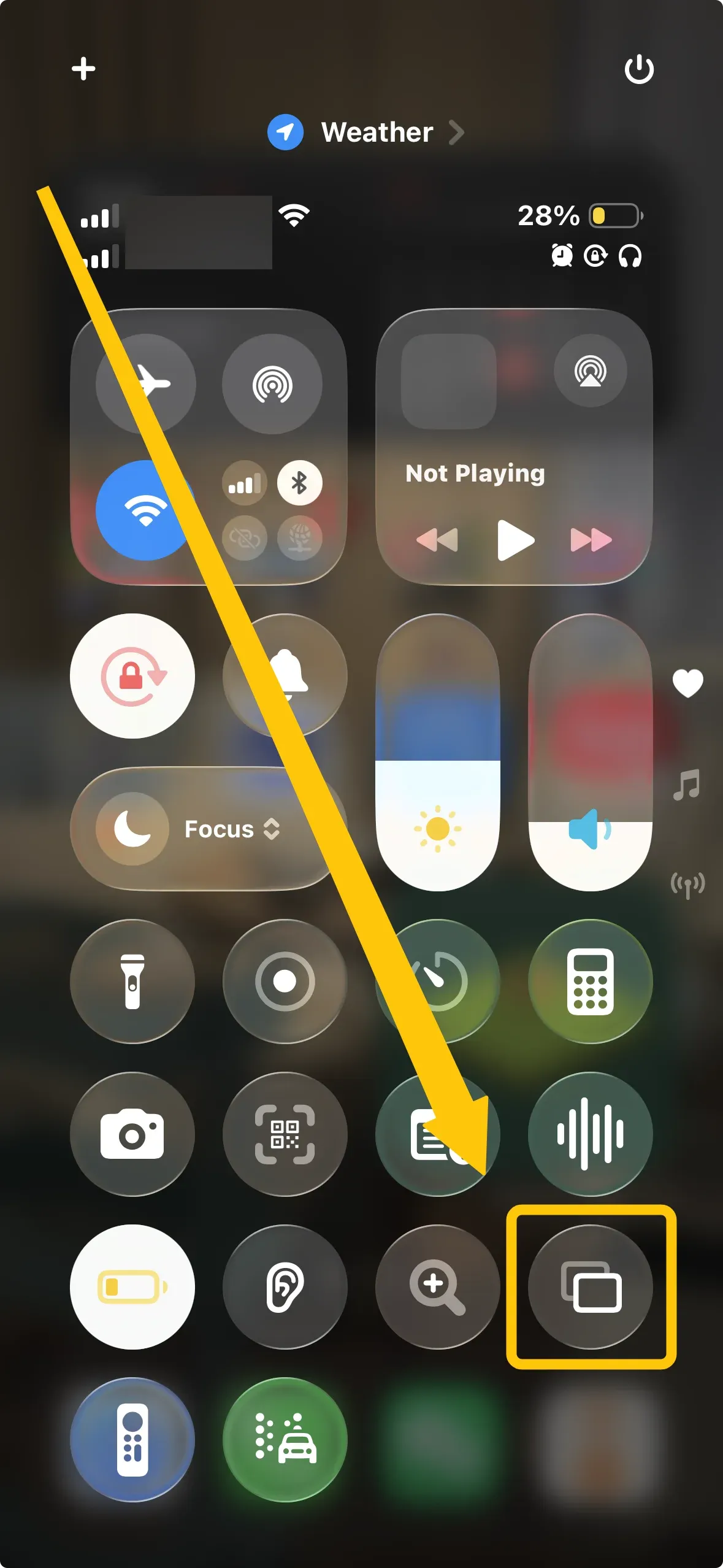
Step 3. On your iPhone, open Control Center > Screen Mirroring.
Step 4. Select your Sharp TV and enter the code if prompted.
Step 5. Make sure audio is playing through the TV, not a Bluetooth device.
- Option 2. In-App AirPlay
Best for movies and streaming apps, since the app sends video directly instead of mirroring your whole screen.
Step 1. Ensure your devices are connected to the same wireless network.
Step 2. Open a supported app and start playback.
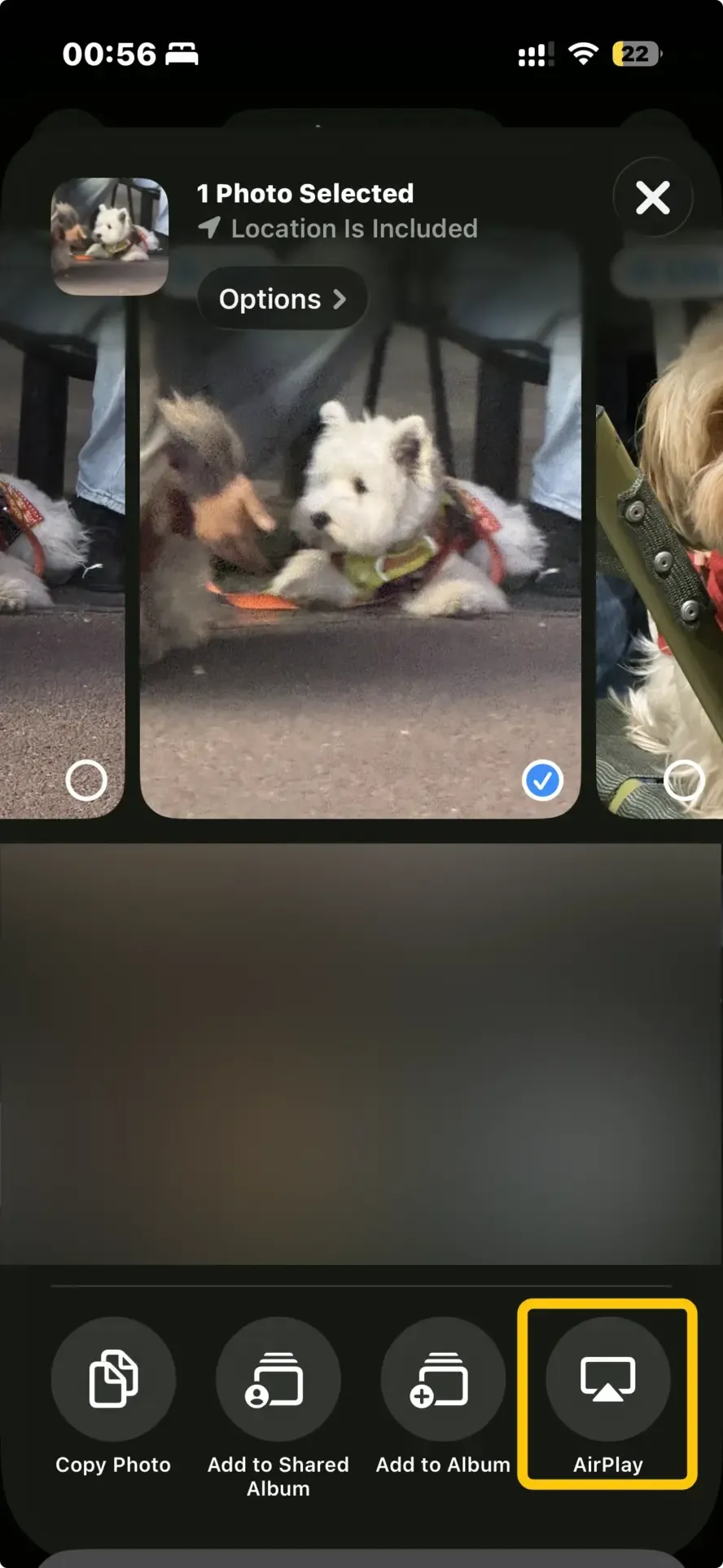
Step 3. Tap the AirPlay icon inside the app.
Step 4. Select your Sharp TV from the available list
Step 5. Keep playback in the app and check video and audio.
Method 2. Use a Streaming Device
Use this method when your Sharp TV does not support AirPlay or the connection is unreliable. A streaming device acts as a bridge, but the experience depends on the device. Here we take screen mirroring iPhone to Sharp Roku TV as an example:
Step 1. Connect the Roku stick to your TV and connect it to the same Wi-Fi network as your iPhone.
Step 2. Switch your TV to the correct HDMI input.
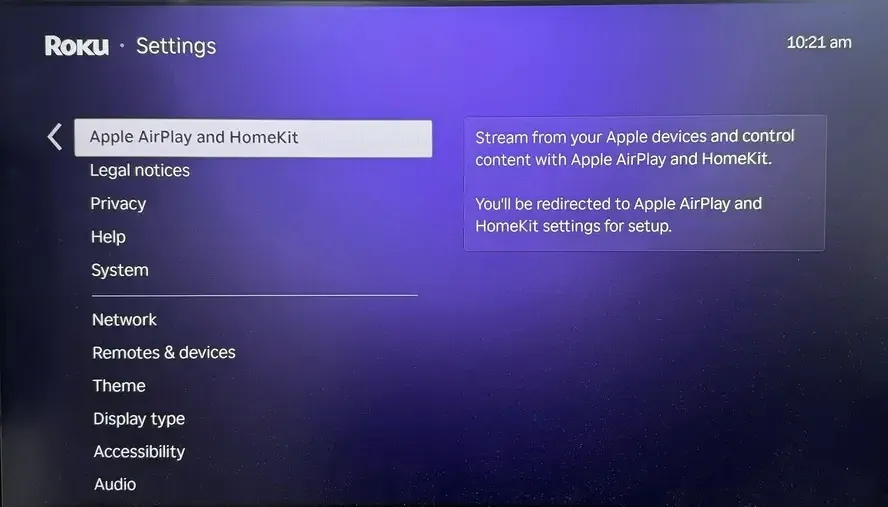
Step 3. Activate AirPlay on Roku from the Apple AirPlay and HomeKit menu in Settings.
Step 4. Tap Screen Mirroring in the Control Center to choose the Roku to build the connection. Plus, you can use an in-app casting from supported apps on.
Method 3. Use HDMI Cable
How to screen mirror iPhone to Sharp TV? HDMI is the most reliable option when wireless mirroring is unstable or unsupported, especially for meetings, editing, or protected content. If wireless methods fail, switching to HDMI is usually the fastest solution.
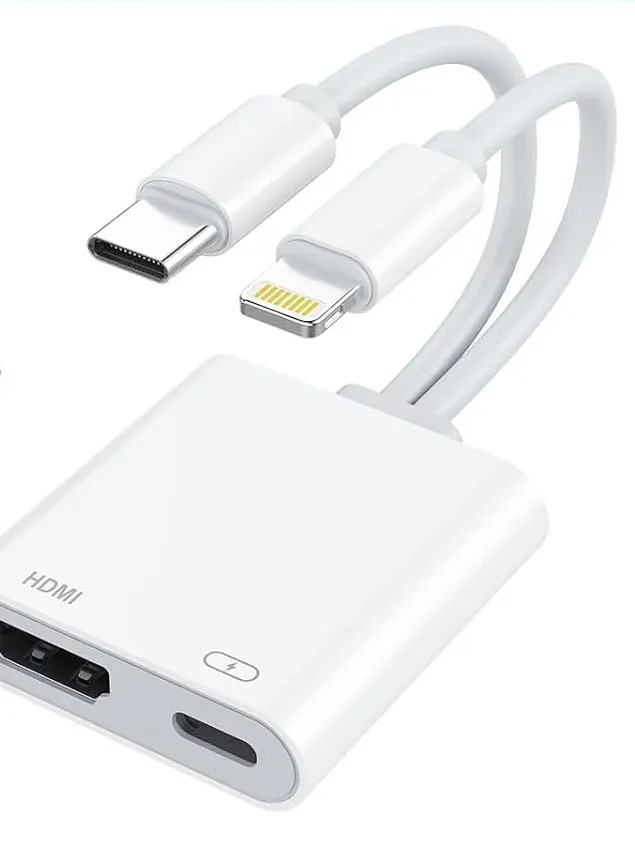
Step 1. For iPhone, use a Lightning-to-HDMI or USB-C-to-HDMI adapter depending on your model.
Step 2. Connect the adapter and HDMI cable, then switch Sharp TV to the correct HDMI input.
Step 3. Unlock iPhone and verify the external display appears after connecting.
Method 4. Use PigeonCast for Cross-Protocol Mirroring
If AirPlay feels inconsistent or different apps behave differently on the same setup, the limitation is usually not the device itself but the protocol being used. In those cases, switching methods often fix the issue, such as some free mirroring apps for iPhone to TV.
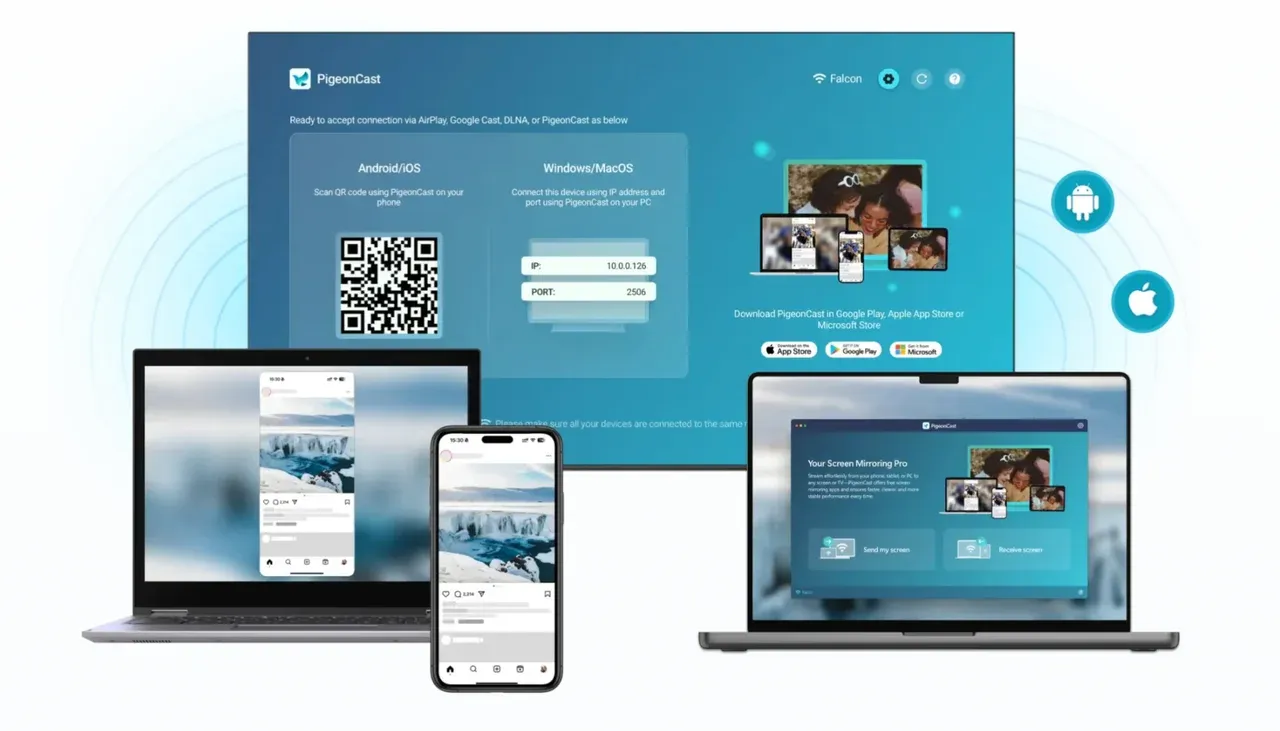
PigeonCast brings AirPlay, DLNA, and Google Cast together, so you can move between different connection types without changing devices or repeating setup steps. It works across iPhone, Android, Windows, Mac, and smart TVs over Wi-Fi, which makes it easier to get a stable connection when the default option is unreliable. Read on to check how to mirror iPhone to Sharp TV free via PigeonCast:
Step 1. Ensure your iPhone and Sharp TV are under the same wireless network.


Overall Rating:



Step 2. Install PigeonCast on your iPhone and Sharp TV if available from the app store.
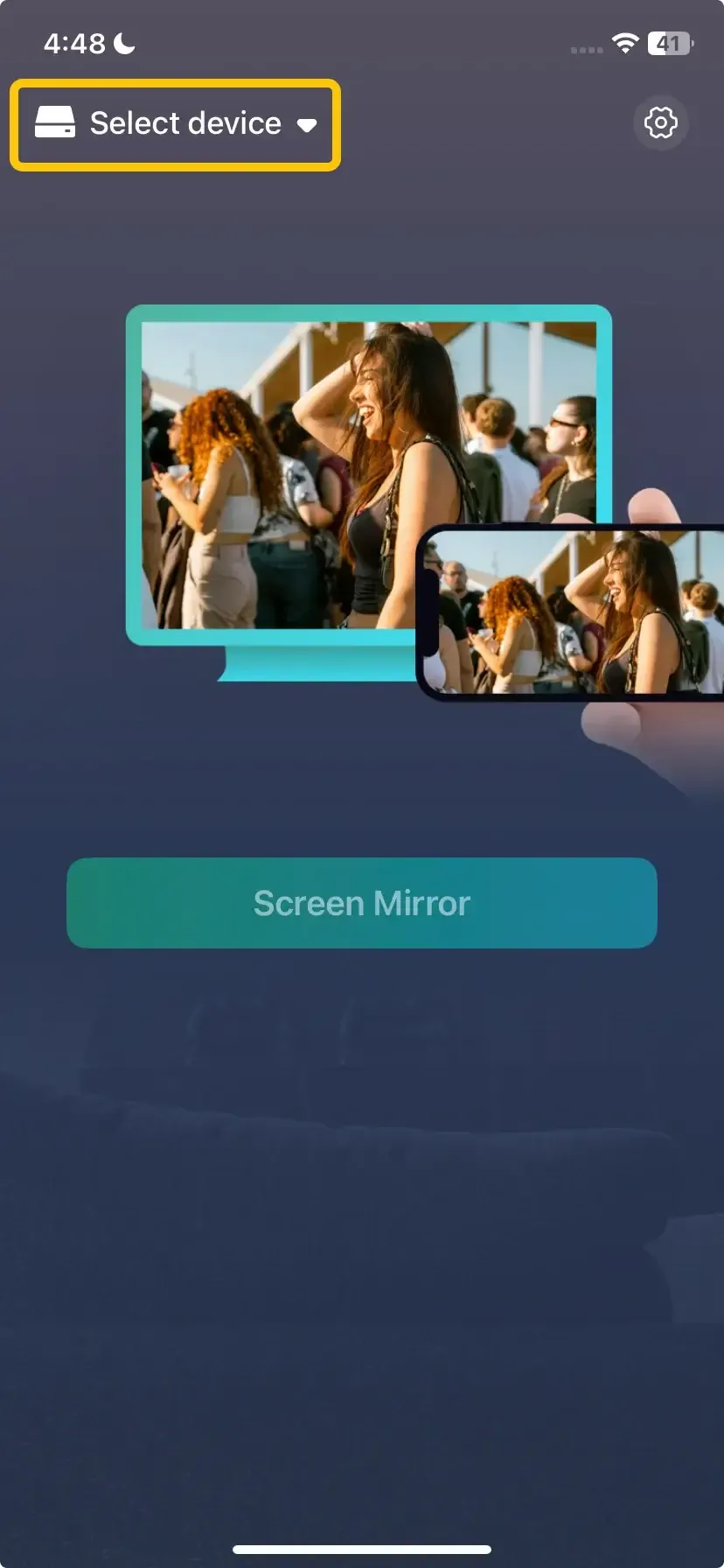
Step 3. Launch the app, tap Select device to choose your Sharp TV from the available list.
Step 4. Enter the onscreen code to confirm the pairing requisition.
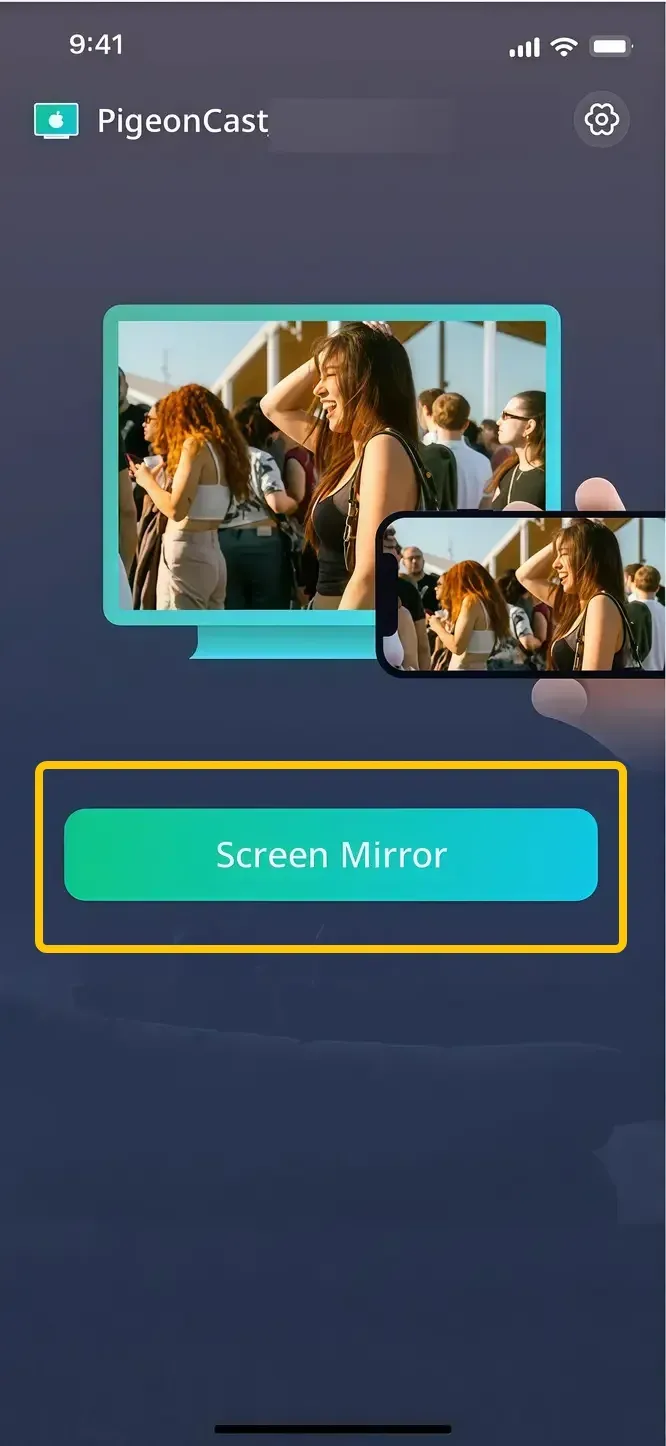
Step 5. When you finish the connection, tap Screen Mirror to begin screen mirroring from iPhone to Sharp TV.
How to Solve Sharp TV iPhone Screen Mirroring Not Working
Most screen mirroring issues follow a few common patterns. Instead of trying random fixes, it's faster to check things in order: first confirm your TV supports AirPlay, then check network discovery, and finally look at app restrictions or system settings.
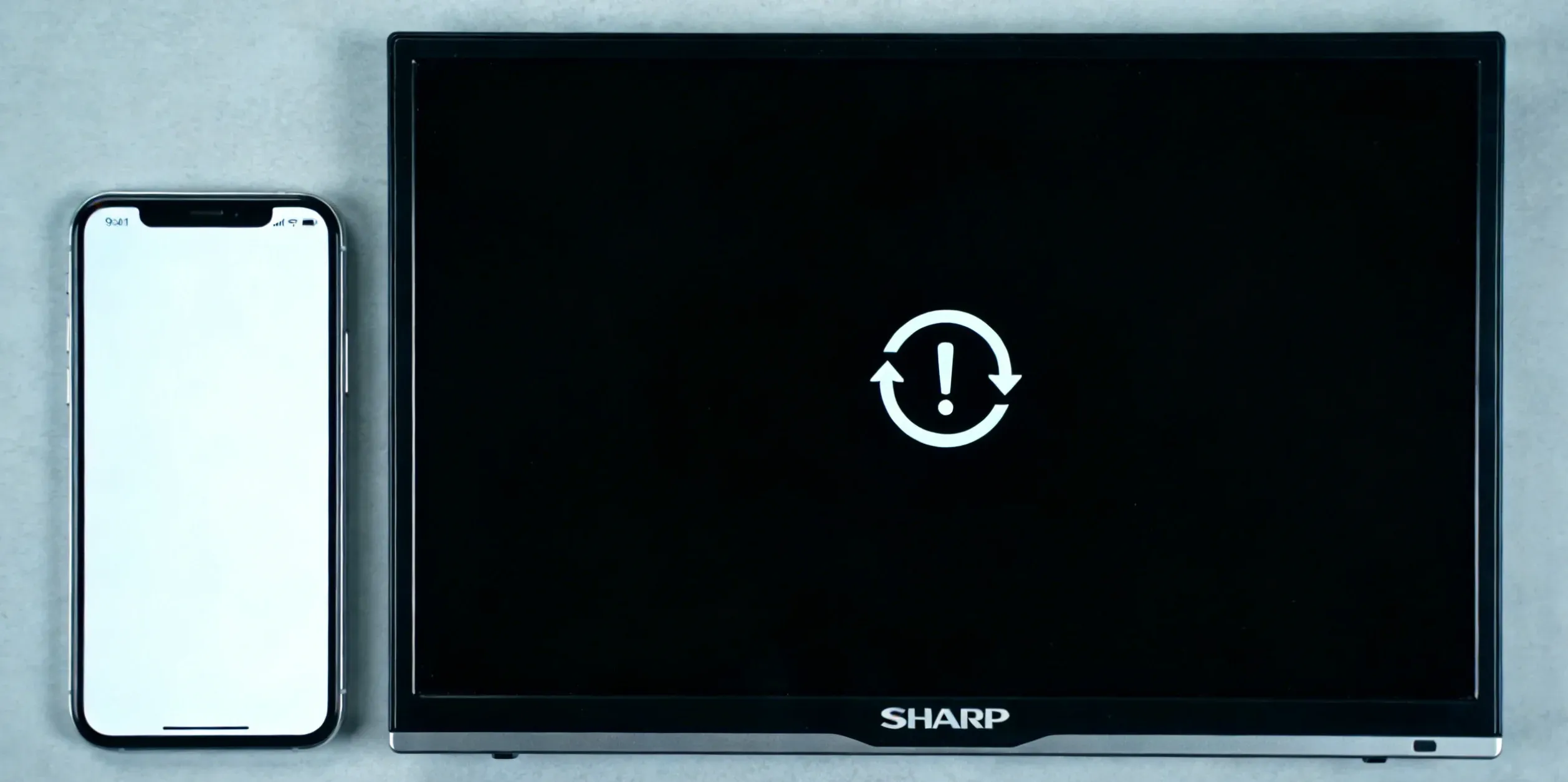
- TV not detected in Screen Mirroring
If your Sharp TV does not appear at all, start by confirming that your model supports AirPlay. If it does, check whether both devices are on the same network (not a guest network), and make sure VPN is turned off on your iPhone. Keep the TV on the AirPlay or screen mirroring screen while connecting.
- AirPlay connects but video is black
If the connection works but video does not play, the issue is usually related to app restrictions rather than Wi-Fi. Try using in-app AirPlay instead of full screen mirroring, or test with a different app. If the problem only happens with certain content, switch to HDMI for reliable playback.
- Random disconnects or lag
If the connection drops or feels unstable, it is usually caused by wireless conditions. Move your devices closer to the router, pause other heavy network activity, and update both iOS and your TV firmware. If the issue continues, consider using a streaming device or HDMI for a more stable connection.
- Audio mismatch (sound not on TV)
If video plays but sound stays on your iPhone, check the audio output and switch it to the TV. Disconnect and reconnect if needed, and make sure no Bluetooth device is taking priority over the TV.
Bottom Line
Sharp Smart TV screen mirroring iPhone works best when you choose the right method for your setup. Start with AirPlay on supported models, using screen mirroring for full display or in-app AirPlay for smoother video. If that fails or is not supported, switch to a streaming device or HDMI for a more stable connection. For more complex setups across different devices and apps, tools like PigeonCast can provide a more flexible solution.
Sharp TV Screen Mirroring iPhone FAQ
Does Sharp TV have AirPlay?
Yes, some Sharp TVs support AirPlay, but it depends on the model and platform. Many newer Sharp TVs running Roku TV or certain smart TV systems include AirPlay support, while older models, especially older AQUOS TVs, usually do not. To confirm, check your TV settings for an AirPlay or Apple AirPlay and HomeKit option.
Is AirPlay better than HDMI for iPhone to Sharp TV?
It depends on your goal, but HDMI is more reliable for critical sessions. AirPlay is more convenient for everyday sharing when the TV and network are stable. If your setup keeps dropping or apps are blocked, HDMI is the safer route.
Why is there no sound on my Sharp TV when mirroring?
- Audio is still routed to the iPhone instead of the TV.
- A Bluetooth device (headphones or speaker) is connected and taking priority.
- The TV is muted or the volume is too low.
- The wrong audio output device is selected on the iPhone.
- The mirroring session did not switch audio correctly.
- App-specific audio restrictions or playback issues.
What is the fastest fallback when iPhone mirroring keeps failing?
HDMI is the fastest fallback when repeated wireless attempts fail. It bypasses most discovery and protocol compatibility issues in one move. If you still prefer wireless, try PigeonCast as a cross-protocol option before returning to HDMI.
Why does one app mirror fine but another app fails?
That is usually normal behavior caused by app-level playback rules. Some apps allow direct AirPlay handoff while blocking full-screen mirroring for protected content. Test in-app AirPlay first, then switch to HDMI when restrictions persist.
Why won't my iPhone connect to my Sharp TV?
- The Sharp TV does not support AirPlay.
- iPhone and TV are not on the same Wi-Fi network.
- The TV is not on the AirPlay or screen mirroring screen.
- AirPlay is turned off in the TV settings.
- Network restrictions (guest Wi-Fi, VPN, or router isolation) block discovery.
- Weak or unstable Wi-Fi connection.
- iPhone or TV software is outdated.
- A Bluetooth device is interfering with the connection.
- Temporary system glitches on the iPhone or TV.
Clara Rossi is an experienced technology editor and a seasoned expert in screen mirroring and casting technologies. With a keen eye for detail and a deep understanding of how to seamlessly connect devices, Clara excels at optimizing user experiences for effortless sharing and streaming. Whether you're seeking quick fixes or advanced tips, her expertise and responsiveness ensure that every query is met with a well-informed and efficient solution.