
AirPlay is a popular feature that lets you stream content from your Apple devices, like your iPhone, iPad, or Mac, to your Apple TV or compatible smart TVs. As AirPlay evolves, securing your streaming experience with a password has become more important. This guide will cover everything you need to know about your AirPlay password, including what it is, how to find it, change it, reset it, and how to fix common issues when the password isn't showing up.
What Is AirPlay Password
The AirPlay password is a security feature designed to prevent unauthorized devices from connecting to your Apple TV or other AirPlay-enabled devices. When enabled, only devices with the correct AirPlay passcode can stream or mirror content, keeping your media and data secure. This code is typically set through the AirPlay-compatible devices, often as a four- or six-digit code, ensuring that only trusted devices can connect.
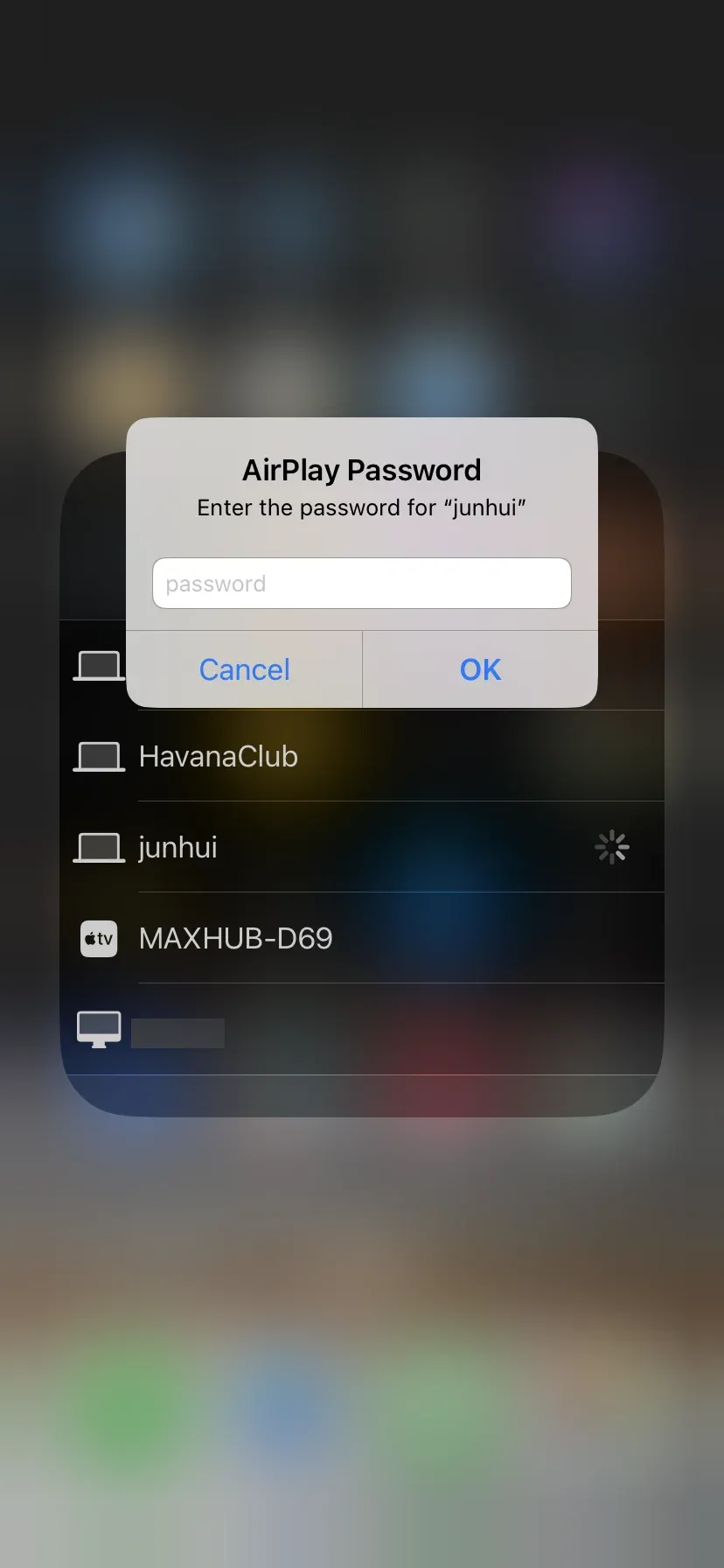
A common misconception is that Apple provides a universal AirPlay password, but this isn't the case. When a device requests an AirPlay password, it refers to the security feature protecting your local network. The prompt usually appears when streaming to a device on the same Wi-Fi network, verifying that you're physically nearby and authorized to cast content, preventing others from accidentally or intentionally streaming to your TV.
How to Find AirPlay Password
The AirPlay code is displayed on the device you're streaming to, like your TV or speaker, not on your iPhone. It's usually a temporary PIN that appears on screen when you try to connect. If you're unsure where to find it, you're not alone; this information can be easy to forget. Fortunately, it's simple to locate once you know where to look.
Find AirPlay Code on Mac
How do I find my AirPlay password? The process is straightforward, especially if you're using a Mac. To locate the AirPlay passcode on your Mac, you'll need to access the AirPlay settings directly from your device.
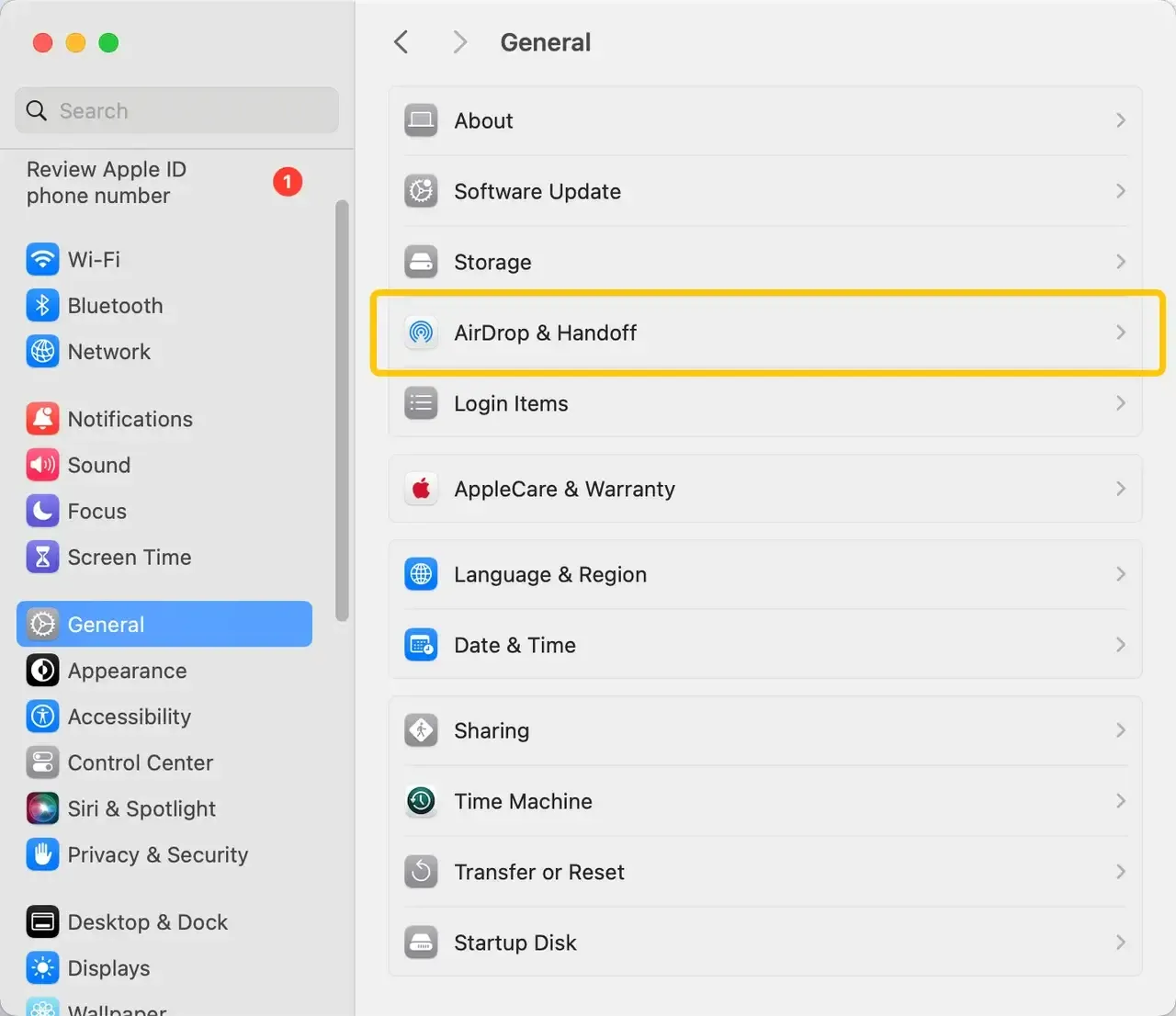
Step 1. Launch the System Settings, click General > AirDrop & Handoff menu.
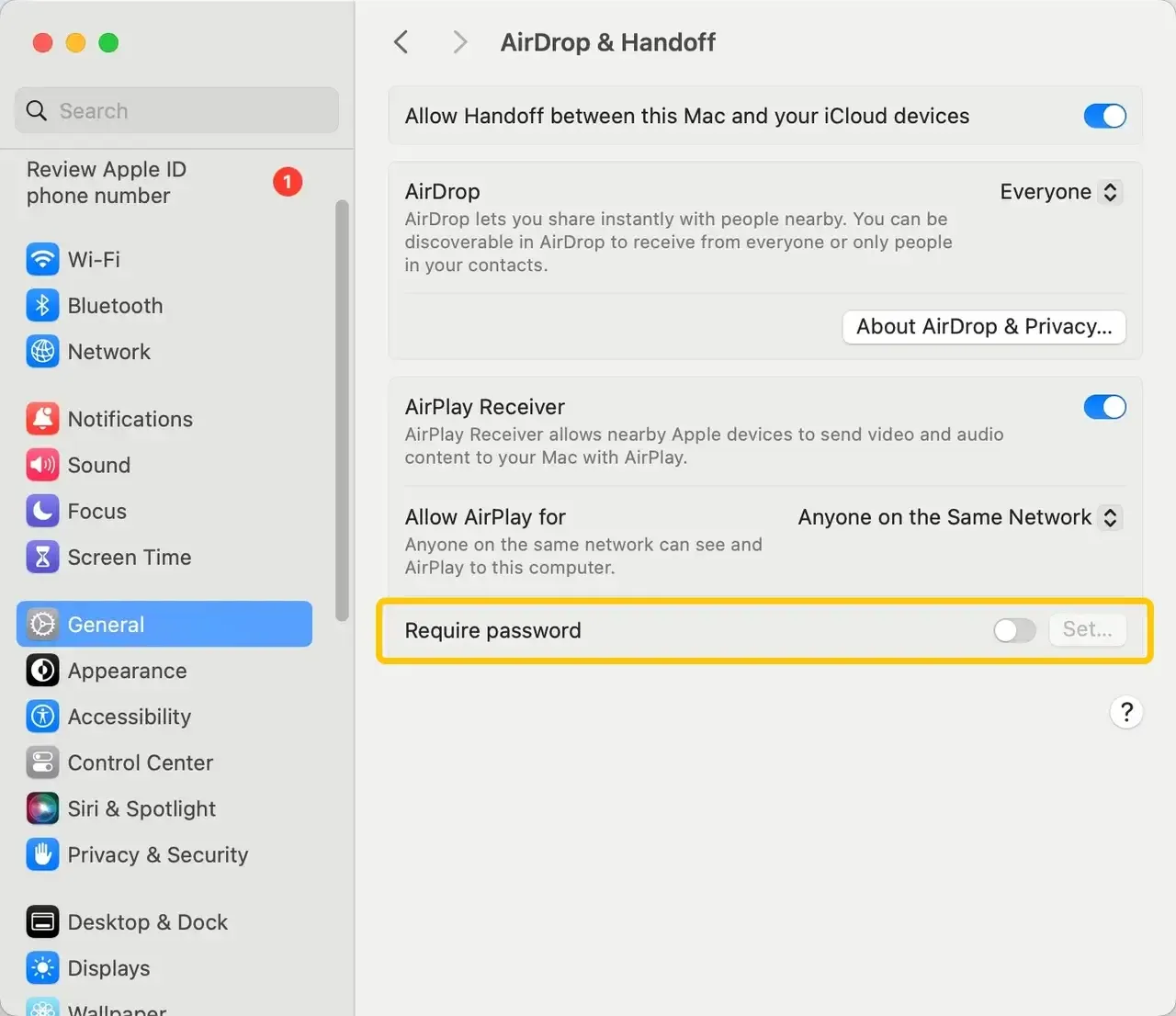
Step 2. Toggle the Require password option on.
Step 3. Enter the new AirPlay password and click OK to finish the code settings.
- How to Change AirPlay Password:
Step 1. Open Settings and then select AirPlay and Handoff.
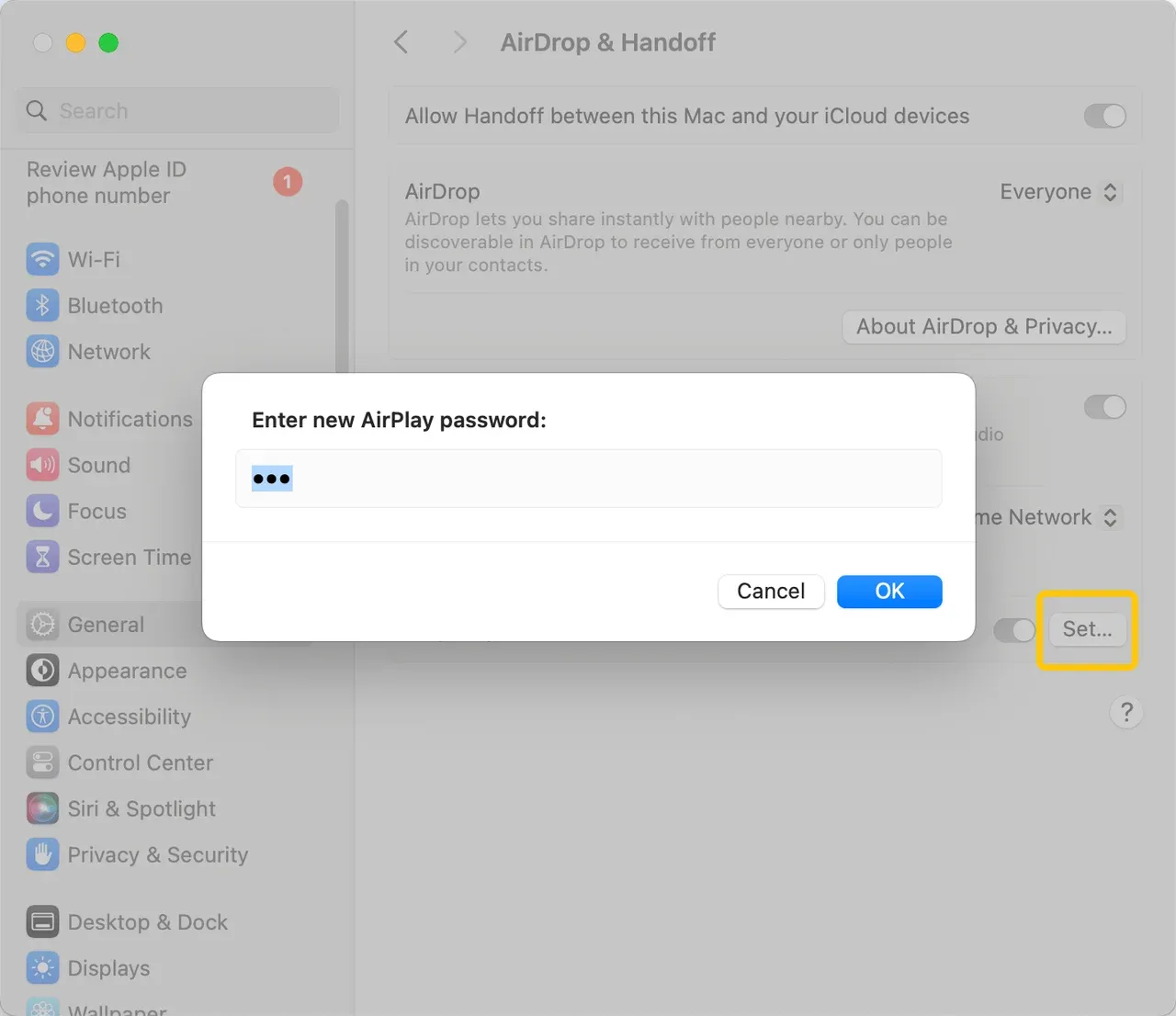
Step 2. Click on the Set option next to Require password.
Step 3. Enter your new AirPlay passcode and then click on OK.
Find AirPlay Code on Apple TV or an AirPlay-compatible TV
The AirPlay passcode typically appears automatically on your TV screen the first time you try to AirPlay or after a reset. For Apple TV users, you can find the AirPlay password in the settings menu, similar to how it appears on AirPlay-compatible televisions. Here's a quick guide to help you locate it:
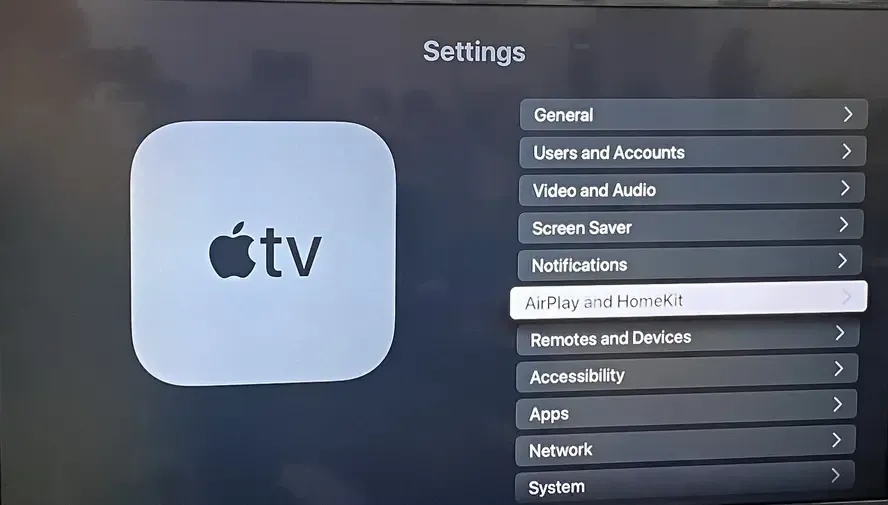
Step 1. Turn on your smart television, navigate to Settings > AirPlay and HomeKit. (On non-Apple TV, you have to find the menu under the Connection or General menu.)
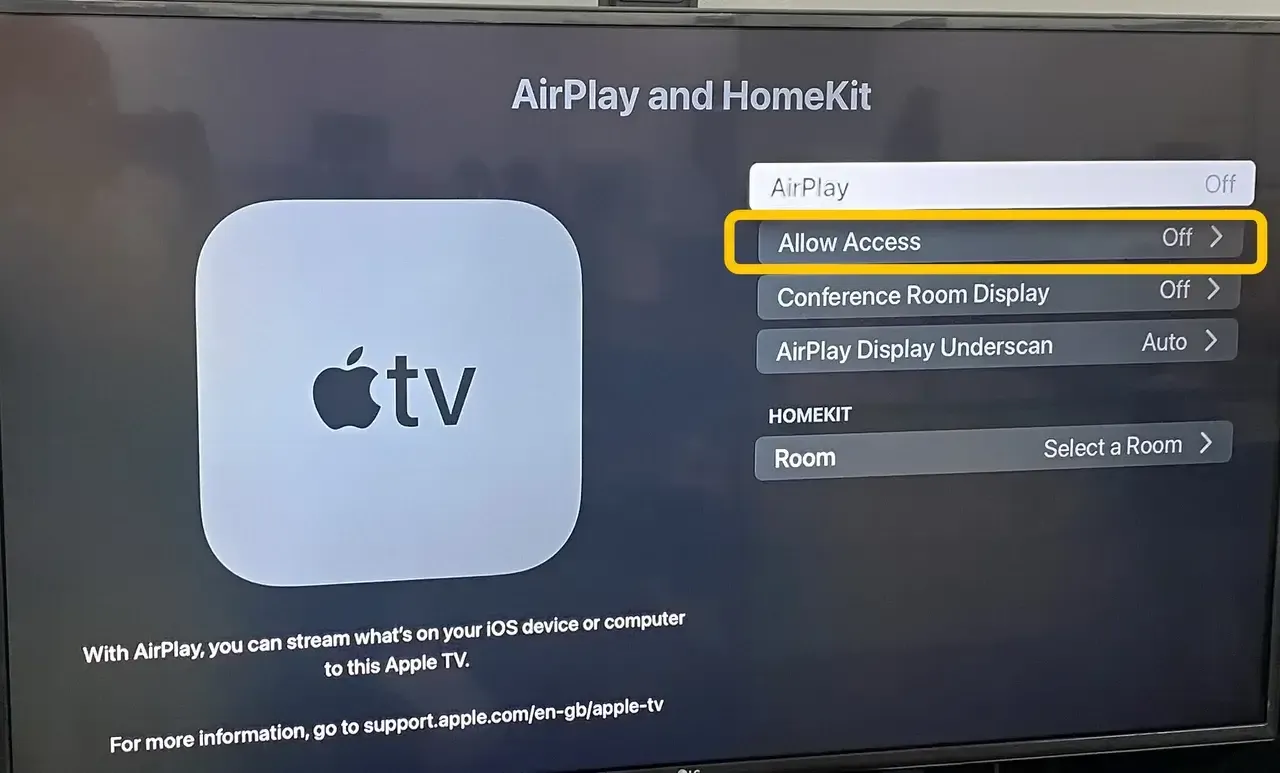
Step 2. Choose Allow Access > Required Password, and you can see the default AirPlay password generated, which needs to be entered before streaming content from your device.
- How to Change AirPlay Password:
Step 1. Back to the Require Password menu on your TV.
Step 2. Choose Password, enter your new password, and click Done to save.
How to Solve AirPlay Password Not Showing Up
Sometimes, you might encounter a frustrating situation where your AirPlay password isn't showing up, preventing you from connecting your devices. This could be due to several reasons, such as network issues, device settings, or bugs in your Apple TV or AirPlay-enabled device. Here's what you can do to fix it:
- Restart Devices: Sometimes, a simple restart of both your Apple TV and the device you're trying to stream from (iPhone, iPad, etc.) can resolve the issue.
- Check Wi-Fi Connection: Ensure that both devices are connected to the same Wi-Fi network. AirPlay requires both devices to be on the same network to function correctly.
- Update Software: Ensure both your Apple TV and the device you're using for AirPlay are running the latest software version.
- Check TV AirPlay Settings: Navigate to your TV's AirPlay settings menu (typically found in Network/General Settings) and ensure the feature is enabled. Sometimes there's an option to disable the "code requirement".
- Re-enable AirPlay: Go back to Settings > AirPlay and HomeKit and toggle AirPlay off, then on again to reset the connection.
- Use PigeonCast: If the steps above don't work, you can try using PigeonCast, a free app that helps resolve AirPlay issues. Available on iOS, Android, Windows, and Mac, PigeonCast creates a direct connection to your TV, bypassing complicated network settings. It's a reliable alternative when you need to mirror or cast content without relying on built-in AirPlay. Plus, with end-to-end encryption, your content stays secure while streaming.



Overall Rating:



Closing Words
What is my AirPlay password? How to manage it? Securing your AirPlay with a password helps keep your content safe from unauthorized access. By following the steps provided, you can ensure a smooth and secure streaming experience. And if you run into issues, tools like PigeonCast can help you get back on track. With these tips, you'll be ready to enjoy AirPlay without any hassle.
AirPlay Password FAQ
How to find AirPlay password for Samsung TV?
To find the AirPlay password for your Samsung TV, follow these steps:
- Go to Settings on your Samsung TV.
- Navigate to General > Apple AirPlay Settings.
- Select AirPlay and toggle it on if it's off.
- If a password is required, you'll see the option to view or set the AirPlay password in this menu.
How to find AirPlay password for LG TV?
To find the AirPlay password for your LG TV, follow these steps:
- Open Settings on your LG TV.
- Go to All Settings > General > AirPlay.
- Select AirPlay Settings and ensure that AirPlay is enabled.
- If a password is required, the AirPlay password will be displayed on the screen when you attempt to connect from your Apple device.
What to do when you forgot AirPlay password?
If you've forgotten your AirPlay password, here's what you can do:
- Reset the AirPlay Password:
- On Apple TV: Go to Settings > AirPlay and HomeKit > Require Password. You can either turn the password off or reset it to a new one.
- On Smart TVs (Samsung, LG, etc.): Navigate to Settings > AirPlay or Apple AirPlay Settings. You should find an option to change or reset the AirPlay password.
- Restart Your Devices: Sometimes, restarting both the device you're trying to stream from and the AirPlay-enabled device (e.g., Apple TV or Smart TV) can help refresh the connection and reset any issues.
- Re-enable AirPlay: On your TV or Apple TV, toggle AirPlay off and on again. This will often prompt the TV to generate a new AirPlay code.
- Check Your Device Settings: Make sure your devices are on the same Wi-Fi network, as AirPlay requires both devices to be connected to the same network.
How to reset AirPlay Password?
- Go to Settings on your Apple TV or AirPlay-compatible device.
- Navigate to AirPlay Settings or Apple AirPlay Settings.
- Look for the Require Password option.
- Select Reset or Change Password.
- Set a new password or disable it if you prefer not to use one.
Clara Rossi is an experienced technology editor and a seasoned expert in screen mirroring and casting technologies. With a keen eye for detail and a deep understanding of how to seamlessly connect devices, Clara excels at optimizing user experiences for effortless sharing and streaming. Whether you're seeking quick fixes or advanced tips, her expertise and responsiveness ensure that every query is met with a well-informed and efficient solution.