
The AirPlay code is a crucial part of the secure connection process between your Apple device and your TV. It ensures that you're casting your content to the correct screen. When AirPlay code not showing on TV appears, it halts the entire process, leaving you unable to enjoy the convenience of wireless streaming. This guide will explain why the code might be missing and provide a clear, step-by-step path to resolve the issue.
Why Is the AirPlay Code Not Showing Up on My TV
If the AirPlay code not showing up on TV happens, it can prevent your Apple device from connecting properly. This code is essential for making sure your content streams to the right screen. Understanding the root cause helps you apply the most effective solution without wasting time:
- AirPlay is turned off on the TV or streaming device.
- Devices are not on the same Wi-Fi network, which prevents AirPlay from establishing a connection.
- Software issues or outdated firmware on your TV or Apple device.
- Multiple AirPlay sessions or previous connections are interfering with a new connection.
- HDMI or external device conflicts if using an HDMI input instead of a built-in smart TV app.
How to Solve AirPlay Code Not Working
If the AirPlay code isn't appearing or the connection fails, follow these steps to troubleshoot and fix the issue, ensuring your Apple device connects smoothly for uninterrupted content streaming.
Solution 1. Confirm Both Devices Are on the Same Wi-Fi Network
Start with checking the Wi-Fi connection. The connection between your Apple device and your TV relies entirely on them being on the same local network to communicate.
Solution 2. Update Software on TV and Apple Device
After confirming your network connection is correct, the next critical step is ensuring all your software is current. Outdated firmware on your TV or operating system on your Apple device can lead to compatibility issues, bugs, and security vulnerabilities that prevent AirPlay from functioning properly, including the generation of the on-screen code.
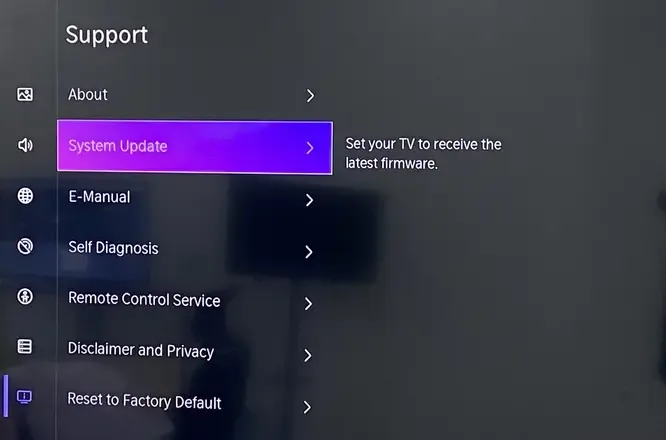
Step 1. Using your TV remote, press the Home or Settings button and go to the Support, System, or General & Privacy section in the settings menu.
Step 2. Select Software Update or Update Now. The TV will connect to the internet and search for new firmware.
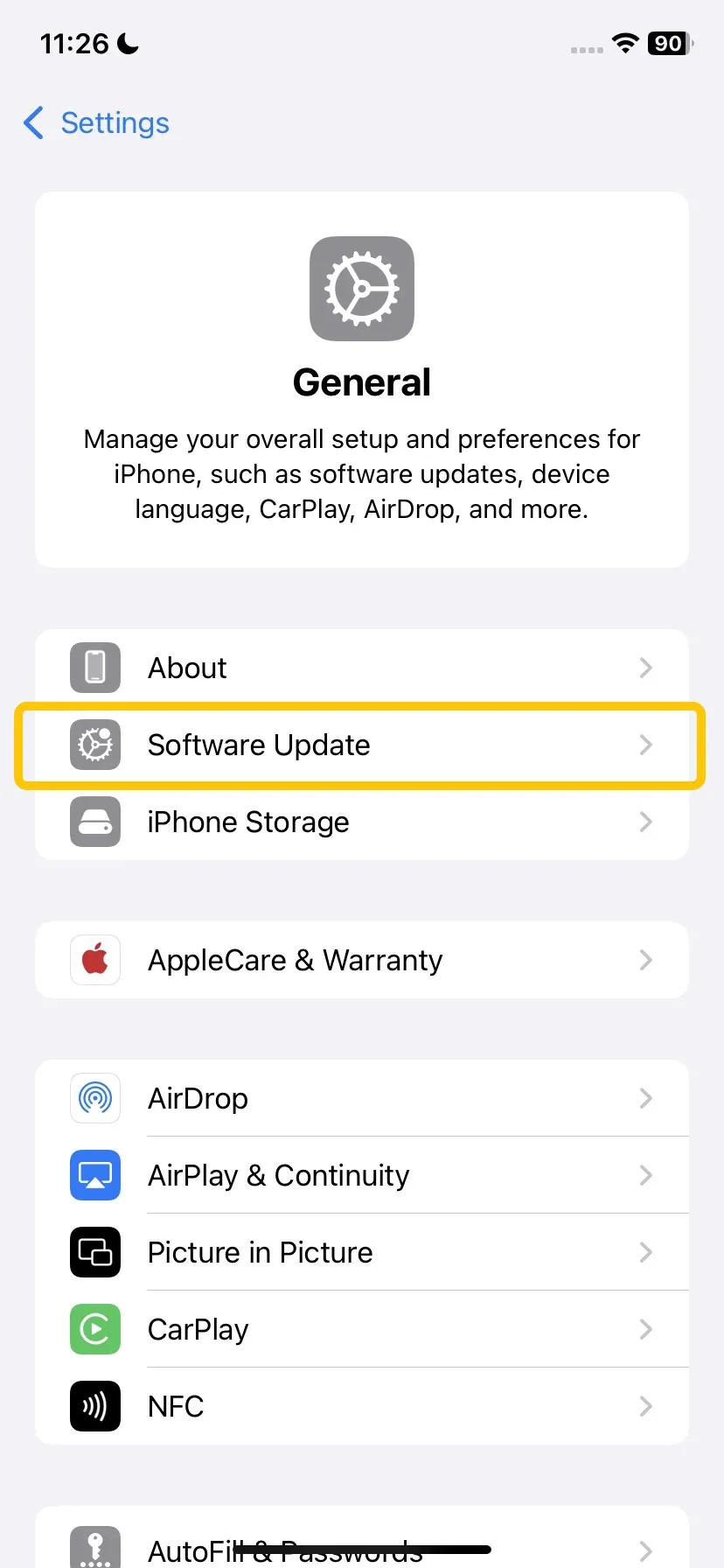
Step 3. Tap on the Settings app on your Apple device, and access General > Software Update.
Step 4. Tap Download and Install, and your device will restart to complete the update.
Solution 3. Check the Compatibility
Apple AirPlay code not showing on TV can always be caused by AirPlay incompatibility. AirPlay 2, the version required for streaming to third-party smart TVs, has specific hardware requirements that not all devices meet. Taking a few moments to verify compatibility can save you from unnecessary troubleshooting and help ensure a smooth streaming experience.
Solution 4. Restart Your Devices
Sometimes, the simplest solution is the most effective. Restarting your devices can clear temporary glitches, refresh network connections, and resolve minor software issues that may be preventing the AirPlay code from appearing.
- Restart Your TV:
Step 1. Unplug your TV from the electrical outlet.
Step 2. Wait for 60 seconds. This allows the internal components to fully power down and clear any cached data.
Step 3. Plug the TV back in and turn it on.
- Restart Your Apple Device:
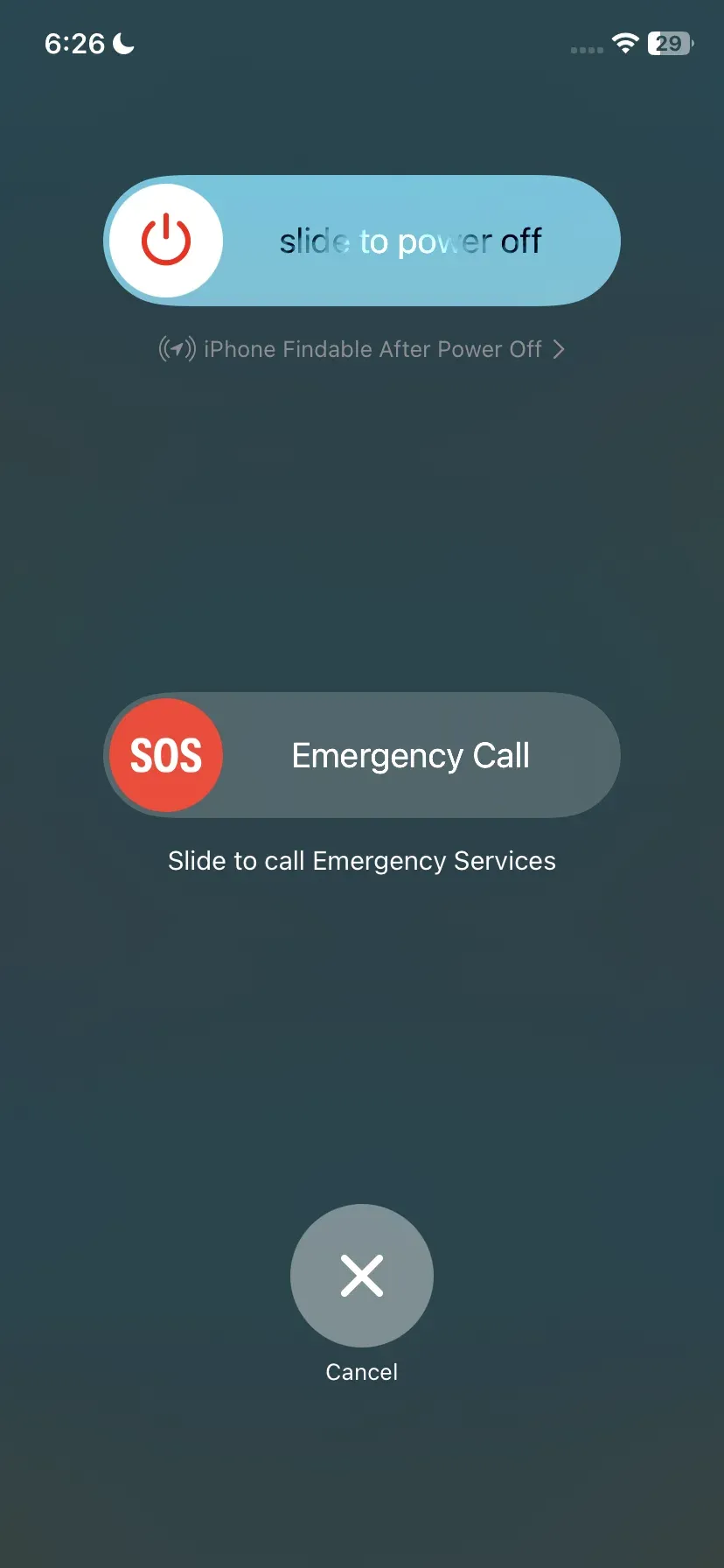
Step 1. Press and hold the side button and either volume button until the power-off slider appears.
Step 2. Drag the slider to turn your device completely off.
Step 3. After 30 seconds, press and hold the side button again until you see the Apple logo.
- Restart Your Router/Modem:
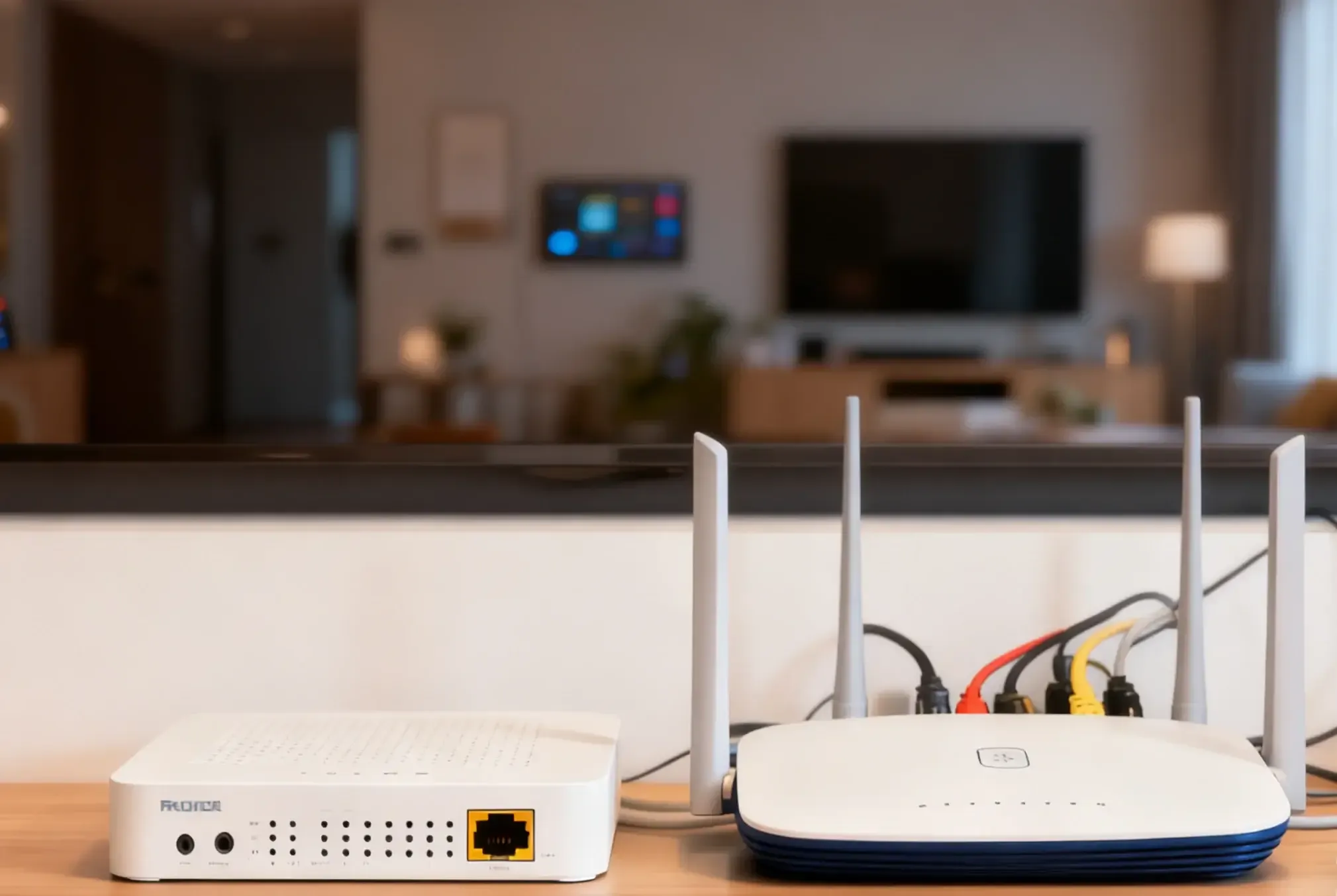
Step 1. Unplug your router and modem from power. Wait 30 seconds.
Step 2. Plug the modem back in first and wait for all the lights to become stable.
Step 3. Then plug your router back in and wait for it to fully boot up.
Solution 5. Check AirPlay Settings
If the AirPlay code isn't showing when trying to connect from your iPhone, the issue is often buried in your TV's settings. AirPlay might be disabled, or there could be security restrictions preventing the code from appearing.
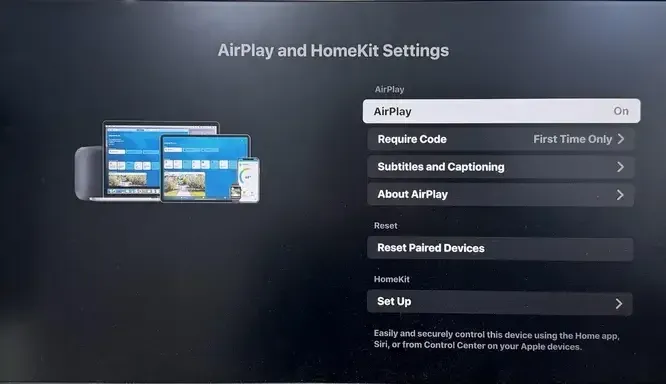
Step 1. On your TV, move to General or Network settings, and select AirPlay and Homekit Settings (or just "AirPlay" on some brands).
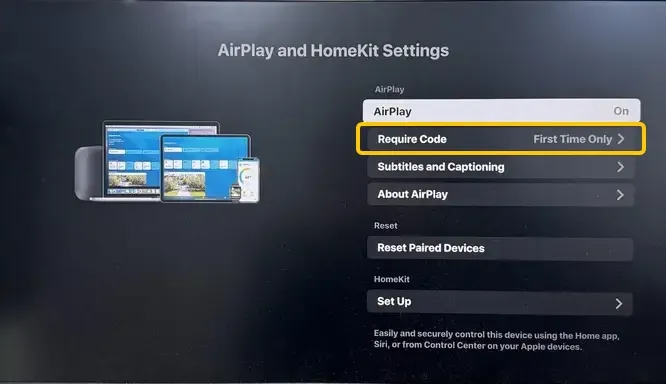
Step 2. Look for the Security or Require Code options. If it's set to Always, try changing it to First Time Only or Never.
Step 3. Some TVs have an Allow Access or Device List option. Make sure it's set to Everyone or All Devices instead of Same Network Only for testing purposes.
Try an AirPlay Alternative
If you run into compatibility issues, try PigeonCast. It's a free, all-in-one screen mirroring tool that works across Android, iOS, Windows, Mac, and smart TVs (including tvOS and Android TV) with no restrictions. Once connected, you can easily stream YouTube videos, photos, music, apps, and more from your device to any screen.


PigeonCast Screen Mirroring

Official Download


Step 1. Ensure your devices are connected to the same wireless network.
Step 2. Install PigeonCast on both your mobile Apple device and TV.
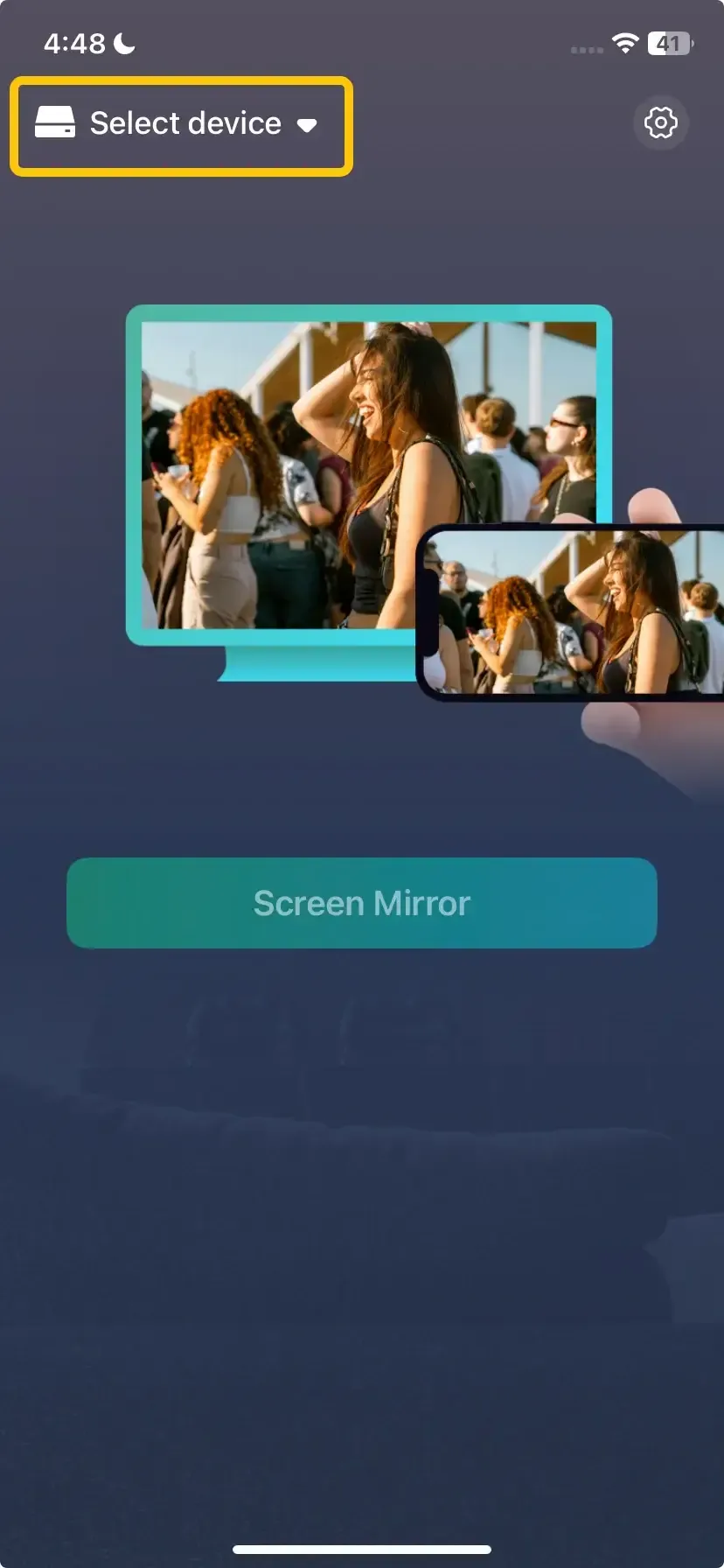
Step 3. Launch the app, tap Select device to choose your TV from the available list.
Step 4. Enter the onscreen code to finish the connection.
Step 5. When you finish the pairing, you can tap Screen Mirror to begin your mirroring activities.
Closing Words
If the AirPlay code not showing on TV iPhone, it can prevent your Apple device from connecting and streaming content wirelessly. By following the troubleshooting steps outlined, checking Wi-Fi connections, updating software, verifying device compatibility, restarting devices, and adjusting TV settings, you can resolve the issue and get back to enjoying seamless AirPlay streaming. With a little patience and the right steps, you'll be casting content effortlessly once again.
AirPlay Code Not Showing on TV FAQ
Why AirPlay code not showing on Roku TV?
The AirPlay code may not be showing on your Roku TV for several reasons:
- AirPlay is Disabled
- Outdated Roku Software
- Different Wi-Fi Networks
- AirPlay Permissions
- Connection Issues
Where do I find my AirPlay code?
The code is automatically generated by your TV and should appear as a large, on-screen pop-up when you attempt to connect from your Apple device. If it's not there, you cannot "find" it in a menu; you must troubleshoot why it's not generating.
AirPlay code not showing on Samsung TV?
Go to Settings > General & Privacy > Apple AirPlay Settings and ensure AirPlay is turned on. Check the Security options and set Accessory Verification to off. Finally, perform a power cycle by unplugging the TV.
AirPlay code not showing on the TV HDMI?
AirPlay is a function of your TV's smart platform, not its HDMI ports. You cannot use AirPlay to stream to an HDMI input directly. You must be on your TV's home screen or a built-in app for the AirPlay code to appear.
Where is the AirPlay QR code?
Not all TVs support the QR code feature. For those that do, the QR code typically appears on the same screen as the numeric AirPlay code. If you don't see it, your TV model may not have this functionality, and you will need to enter the 4-digit number manually on your Apple device.
Clara Rossi is an experienced technology editor and a seasoned expert in screen mirroring and casting technologies. With a keen eye for detail and a deep understanding of how to seamlessly connect devices, Clara excels at optimizing user experiences for effortless sharing and streaming. Whether you're seeking quick fixes or advanced tips, her expertise and responsiveness ensure that every query is met with a well-informed and efficient solution.