
Choosing the best way to share your screen wirelessly can be tricky. On one side, there's Apple's seamless AirPlay, known for its smooth integration, and on the other, the open, cross-platform Miracast. While both allow you to stream content from your phone, tablet, or laptop to a larger screen, they operate in fundamentally different ways. Understanding the differences between Miracast vs AirPlay, how they operate, and which one fits your ecosystem can help you pick the best option and avoid any mirroring headaches.
What Is AirPlay? How to Use AirPlay?
AirPlay is Apple's proprietary wireless streaming protocol, designed to effortlessly stream content between Apple devices and AirPlay-compatible devices. Unlike generic streaming options, AirPlay is deeply integrated into the Apple ecosystem, making it feel like a natural extension of the device. It's as simple and intuitive as moving a file from one folder to another on your computer.
Originally launched in 2004 as AirTunes, Apple created it to wirelessly stream audio from an iTunes library to speakers. In 2010, the protocol expanded to support video streaming, and the name was changed to AirPlay (AirPlay vs AirPlay 2). Over the years, it has evolved into a comprehensive system that handles video, photos, and even full-screen mirroring, all while delivering high fidelity and low latency.
Step 1. Ensure you have a sender device (iPhone, iPad, or Mac) and a receiver (Apple TV or a modern smart TV/streamer) with "AirPlay 2" support.
Step 2. Connect both your devices to the same Wi-Fi network.
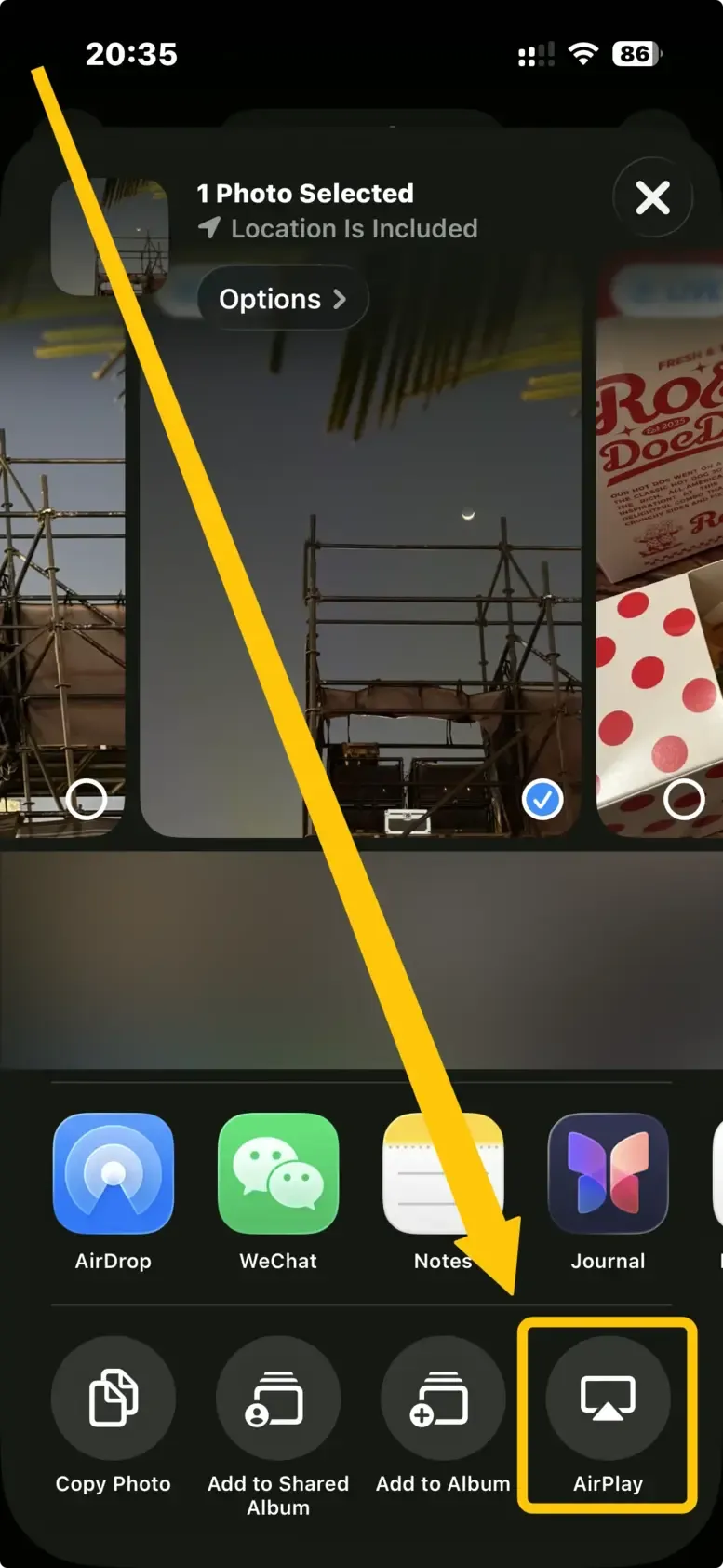
Step 3. Look for the AirPlay icon (a rectangle with a solid triangle at the bottom) in supported apps like Photos, YouTube, or Spotify, or in your device's Control Center (iOS/iPadOS) or menu bar (macOS).
Step 4. Tap the icon, and a list of available AirPlay-compatible devices on your network will appear to select your TV or speaker.
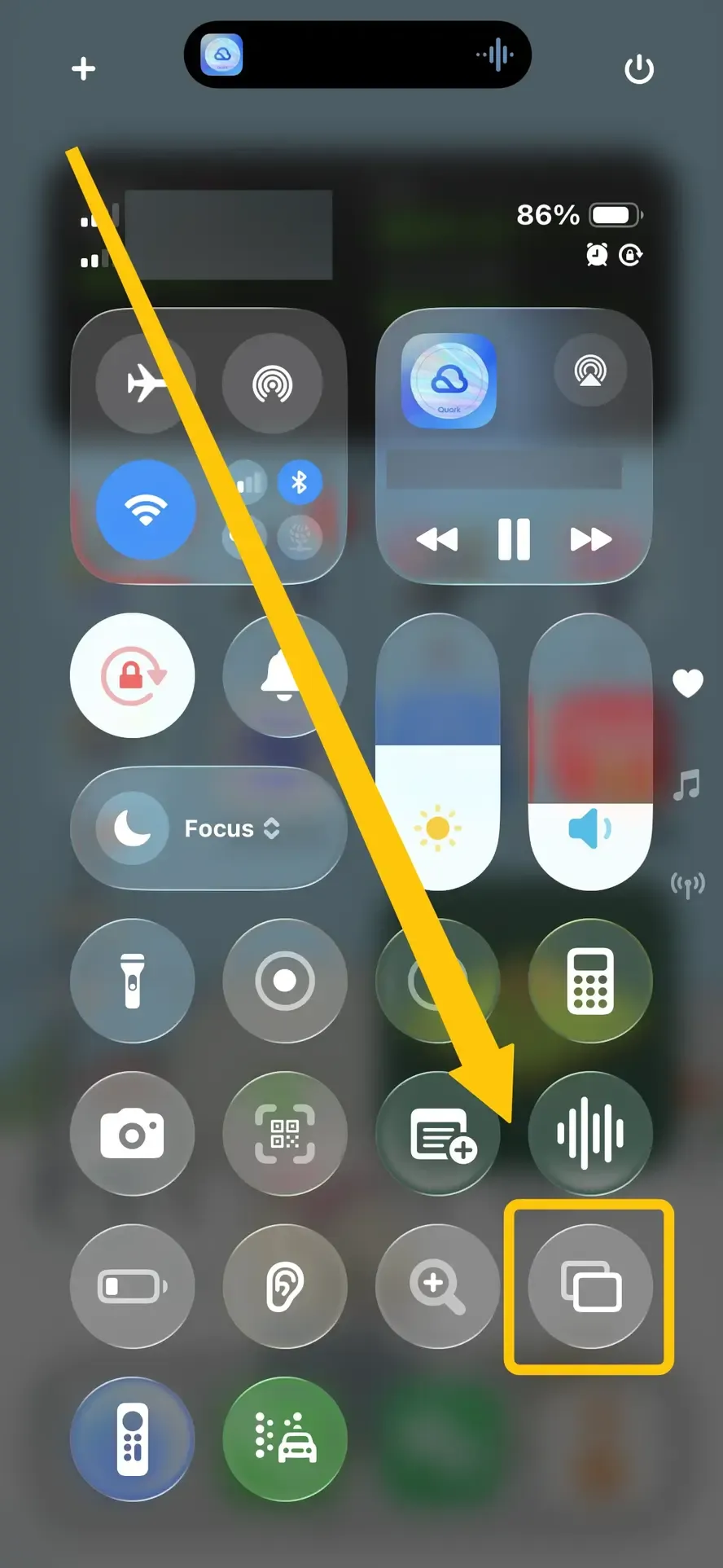
Step 5. For media, it will begin playing on the larger screen. For full-screen mirroring, select the Screen Mirroring option in Control Center to project your entire device display.
What Is Miracast? How to Use Miracast?
Miracast, developed by the Wi-Fi Alliance and launched in 2012, is an open, industry-standard protocol for wireless display connectivity. Miracast allows devices from different manufacturers to connect directly without needing a router or intermediary device, making it a versatile solution for cross-platform streaming.
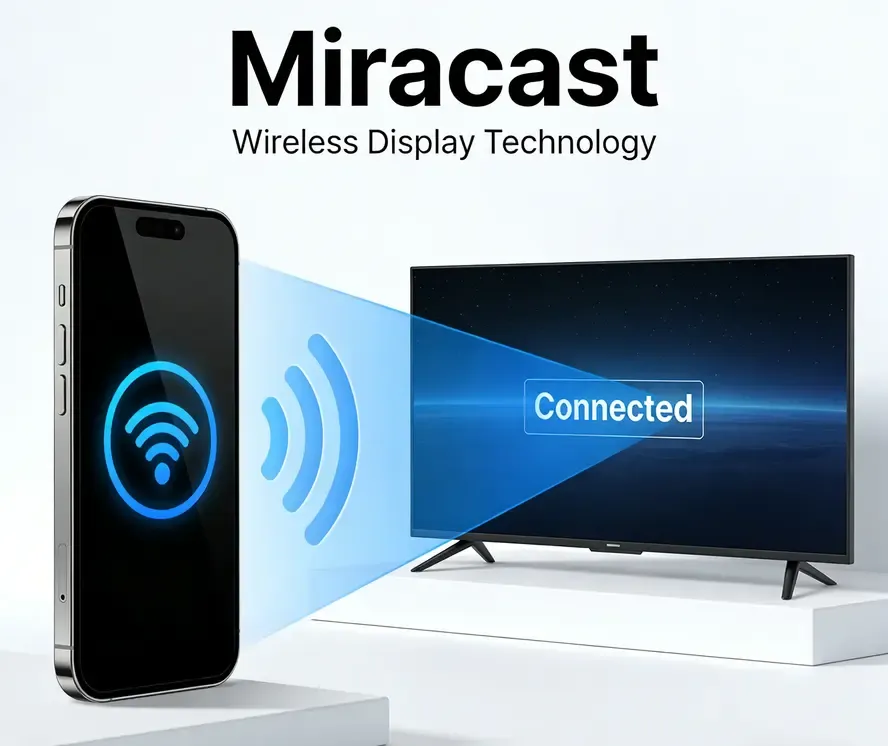
It works by creating a direct Wi-Fi connection between the sending device and the display using Wi-Fi Direct, a peer-to-peer technology. This connection doesn't rely on a local network, ensuring better portability and security. While widely supported on Android and Windows devices, it doesn't support Apple devices.
- How to Use Miracast:
Step 1. On your TV, projector, or adapter (like a Microsoft Wireless Display Adapter), enable its screen mirroring function. This is often labeled Screen Mirroring, Cast, Wireless Display, or Miracast in the settings.
Step 2. Set up from the sender device:
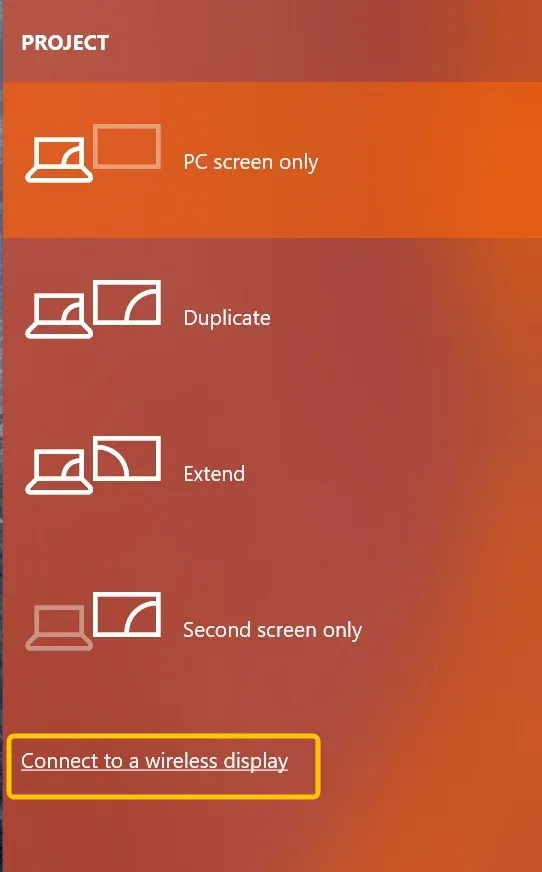
- For Windows, open Action Center (Windows key + A) and click Connect, or go to Settings > System > Display > Connect to a wireless display.
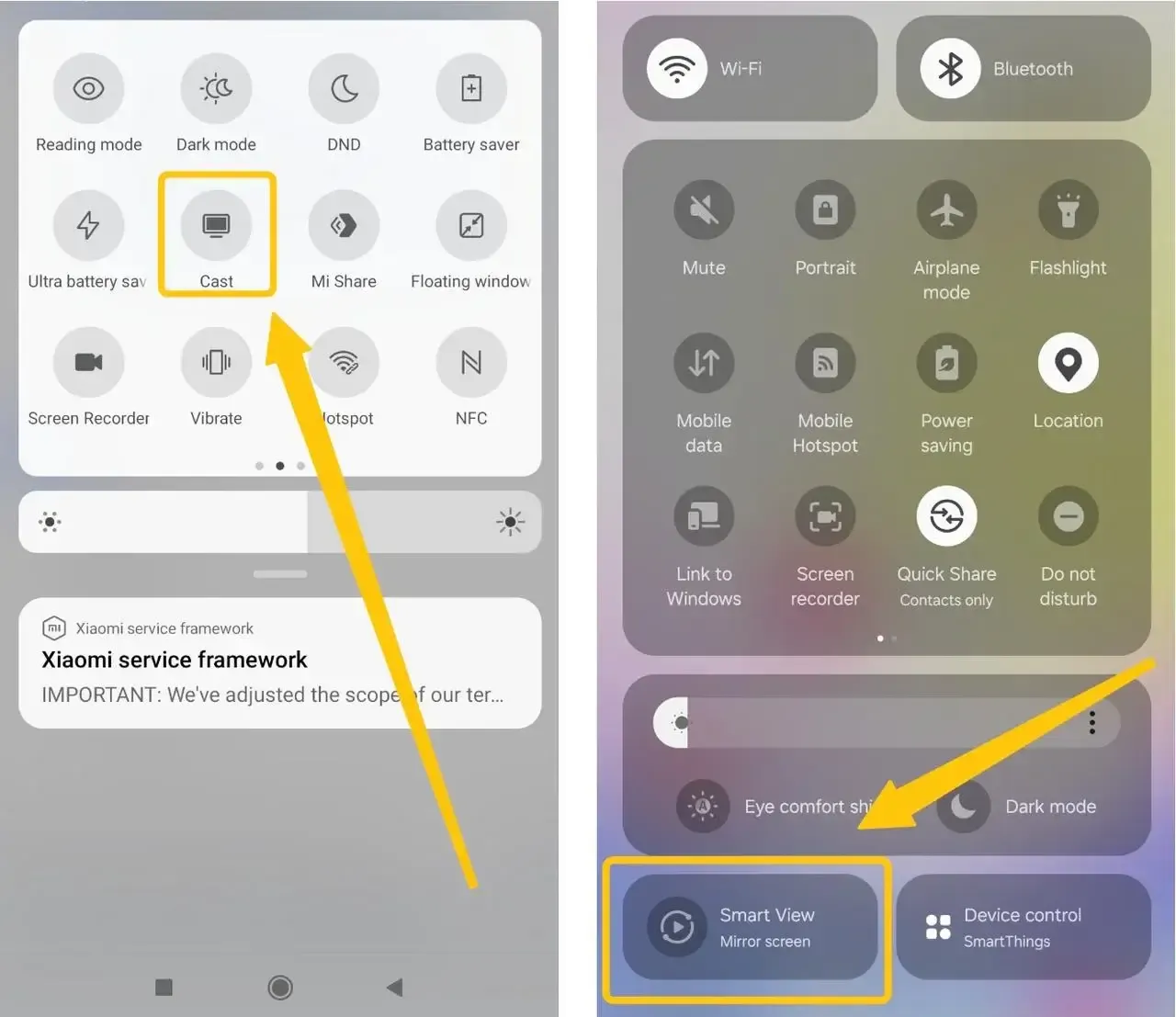
- For Android, open Quick Settings, tap "Cast", "Smart View", or "Screen Mirroring" (varies by brand). Your phone will search for available displays.
Step 3. Select your display from the list. The first connection may require a PIN displayed on the TV, and your screen should then appear wirelessly.
AirPlay Vs MiraCast: Difference Between AirPlay and Miracast
Both Miracast AirPlay allow you to cast your screen, but their approaches are quite different. AirPlay is built for a seamless, feature-rich experience within Apple's tightly controlled ecosystem, while Miracast offers a more flexible, no-frills solution for cross-platform compatibility. Here's a side-by-side comparison to highlight the main differences:
| Feature | AirPlay (Apple) | Miracast (Open Standard) |
|---|---|---|
| Ecosystem | Proprietary & closed; exclusive to Apple devices and certified receivers. | Open & universal; works on Android, Windows, Linux, and many TVs. |
| Core Technology | Streams over a local Wi-Fi network, which requires a router. | Creates a direct Wi-Fi Direct link, doesn't need a router. |
| Primary Use Case | Media streaming and full-screen mirroring with tight integration. | Primarily for screen mirroring and presentations. |
| User Experience | Polished and consistent, with deep integration into the OS. | Inconsistent and can vary based on device and manufacturer. |
| Key Advantage | Seamless experience, multi-room audio (AirPlay 2), high-quality media streaming. | Broad device compatibility and reliable direct connections. |
| Key Limitation | Locked to Apple's ecosystem, non-Apple devices can't initiate AirPlay. | Variable performance can be buggy with lag or dropped connections. |
Which One Is Best for You: Miracast Vs Apple AirPlay
The best wireless mirroring protocol for you depends on the devices you use and how seamlessly the technology fits into your lifestyle. This isn't about which protocol is objectively better, but which one integrates best with your existing setup.
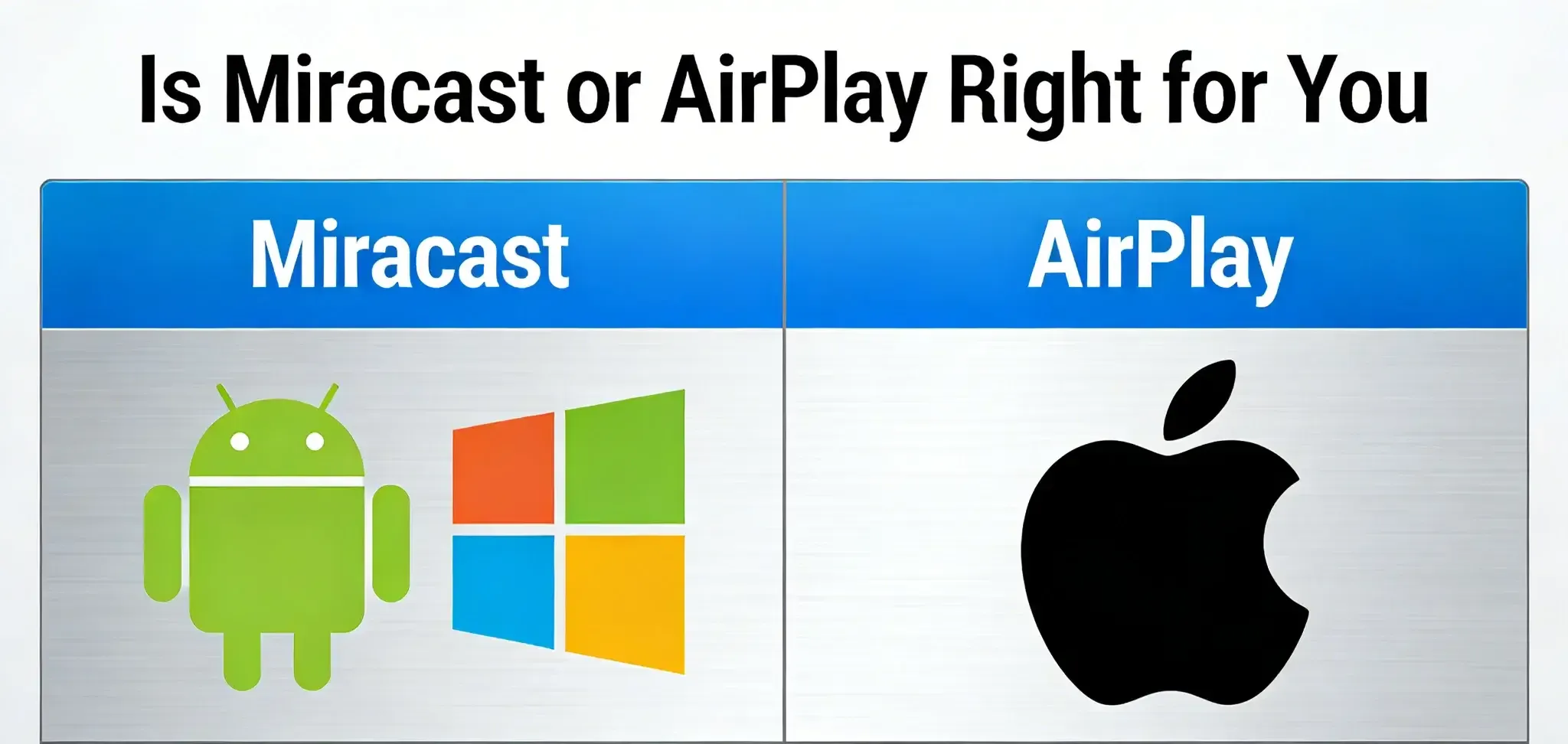
- Choose Apple AirPlay if:
- Your primary devices are iPhone, iPad, or Mac.
- Your main target display is an Apple TV or an AirPlay 2-compatible receiver.
- You value a seamless, consistent experience with minimal setup.
- You make use of features like multi-room audio streaming or audio handoff between speakers.
- Choose Miracast if:
- You primarily use a Windows PC or an Android phone/tablet.
- You need to mirror or present to projectors, conference room displays, or TVs from various brands.
- You're in an environment without a stable Wi-Fi network, as Miracast works through a direct connection.
- You prioritize broad compatibility over a flawless, polished experience.
Consider PigeonCast for Wireless Screen Mirroring
Can you Miracast iPhone? The answer is no, but fortunateltly you can use a free mirroing app, PigeonCast with a wide range of devices and multiple platforms. It allows you to stream content in up to 4K resolution with minimal lag, making it a smooth and reliable solution for cable-free screen sharing, whether you're at home, in the office, or on the go.

Step 1. Ensure your sender device and receiver device are covered by the same wireless network.


Overall Rating:


Step 2. Install PigeonCast on both your devices from the App Store, Google Play Store, or Microsoft Store, then launch the app.
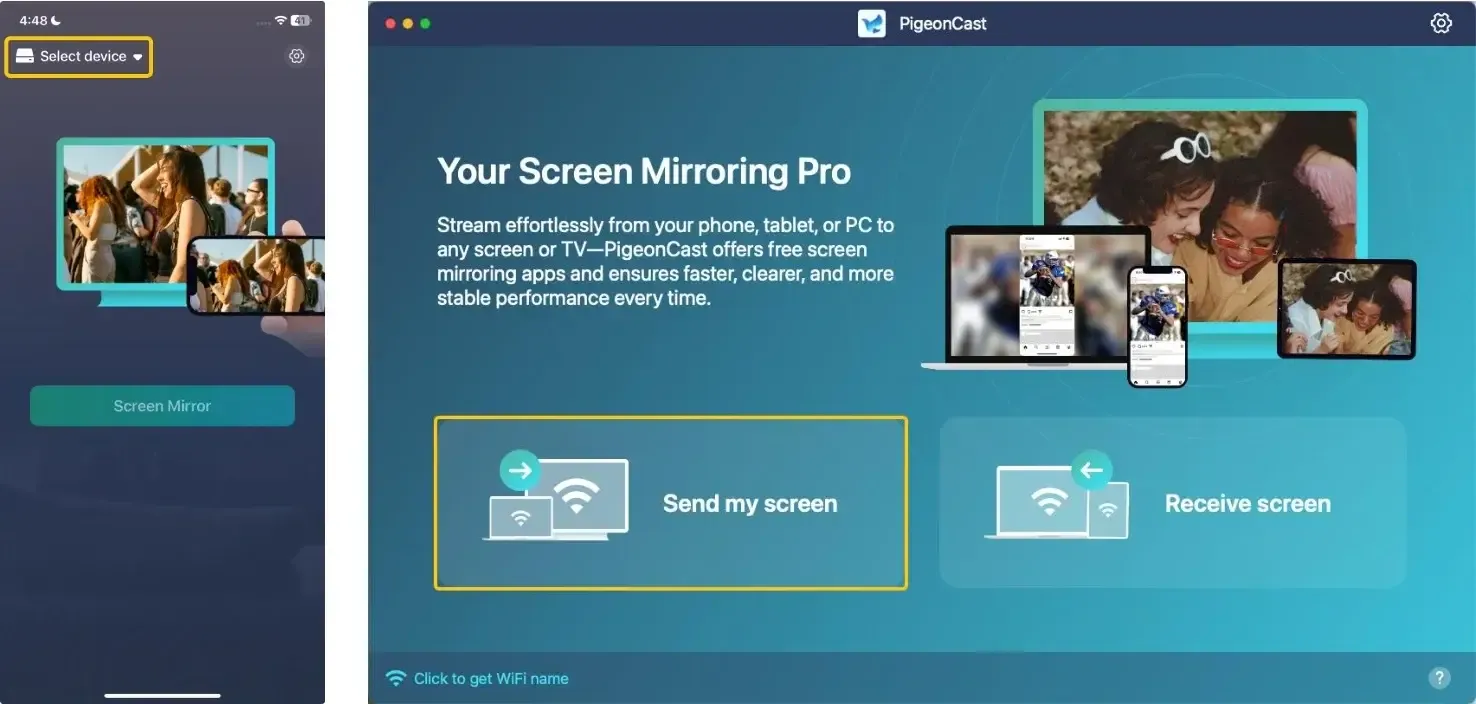
Step 3. On the sender device, tap Select device or Send my screen to choose your targeted device from the available list. Alternatively, you can scan the QR Code shown on the television screen to build the connection.
Step 4. Enter the PIN code to finish the pairing process.
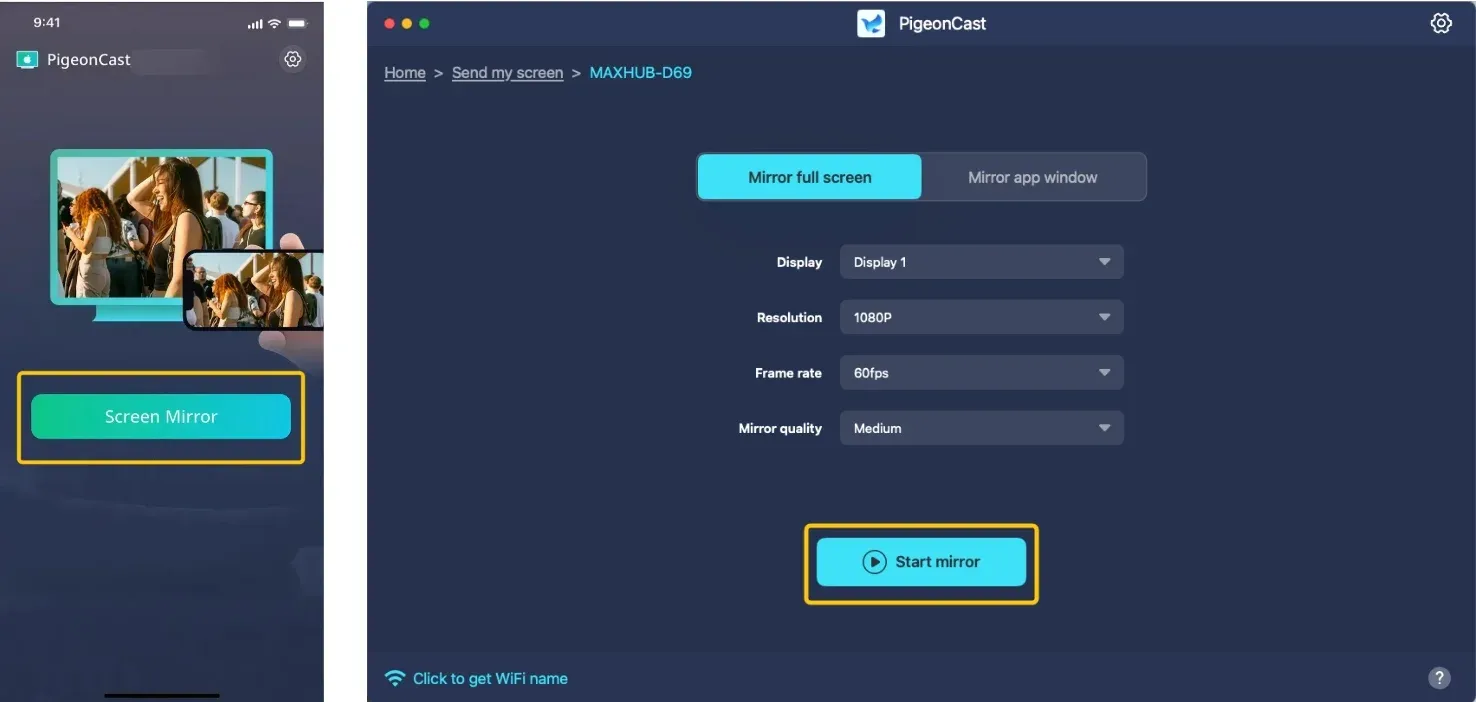
Step 5. When you finish the connection, you can tap Screen Mirror or Start mirror to start your universal mirroring. If you use a laptop, you can choose to mirror the full screen or only a single app window.
Closing Words
When deciding between Miracast vs AirPlay 2, it really depends on your device setup. If you're using Apple devices and want a seamless, high-quality experience, AirPlay 2 is your best bet. However, if you use devices across different platforms like Android or Windows, Miracast offers better compatibility, allowing you to connect without needing a Wi-Fi network. For a more flexible, cross-platform option, PigeonCast provides an easy and free solution to wirelessly share your screen across different devices, with up to 4K resolution and minimal lag.
Miracast Vs AirPlay FAQ
Do iPhones use Miracast?
No. iPhones and iPads do not and have never supported Miracast. Apple uses its own proprietary AirPlay protocol for wireless display and audio streaming.
What are the disadvantages of using Miracast?
The main disadvantages of using Miracast include inconsistent user experience, as performance can vary depending on the device brand and model. It may also experience lag or instability, especially with lower-quality connections. The setup process is often less polished compared to AirPlay, and there's no standardized media control, meaning it's mainly designed for screen mirroring rather than smooth, intelligent media streaming like AirPlay.
What is Miracast on iPhone?
Miracast does not exist on the iPhone, and iPhones are fundamentally incompatible with the Miracast standard.
- If you have an iPhone, you need an AirPlay-compatible receiver (like an Apple TV or a modern smart TV with AirPlay built-in) to mirror your screen wirelessly.
- If you only have a Miracast-only TV or adapter, your iPhone cannot connect to it directly for wireless screen mirroring. You would need to use a mirroring app or physical Lightning/USB-C to HDMI cable instead.
Is Apple AirPlay better than Miracast?
"Better" depends on your primary goal and device ecosystem.
- Choose Apple AirPlay if: You prioritize seamless, high-quality integration within the Apple ecosystem (iPhone, iPad, Mac). It excels at effortless media casting, multi-room audio, and a polished user experience with minimal latency.
- Choose Miracast if: You need a universal, cross-platform standard that works between Android phones, Windows PCs, and most smart TVs or projectors, regardless of brand. It's the go-to for basic, direct screen mirroring in mixed-device environments.
Chromecast vs AirPlay sound quality
For streaming the same song from the same service (e.g., Spotify Premium), you will likely hear no difference between a single high-quality speaker. Choose based on your ecosystem:
- For flawless multi-room audio, AirPlay 2 has a technical advantage.
- For stability and freeing your phone, Chromecast has an advantage.
- Overall sound quality is determined by your speaker hardware and streaming service, not the casting protocol itself.
Is Miracast the same as screen mirroring?
No, they are not the same. It's a case of "all Miracast is screen mirroring, but not all screen mirroring is Miracast".
- Screen Mirroring is the general feature, the action of duplicating your device's display onto a larger screen.
- Miracast is a specific wireless technology standard (like a "language") that enables that feature between compatible devices (e.g., Android to TV).
Clara Rossi is an experienced technology editor and a seasoned expert in screen mirroring and casting technologies. With a keen eye for detail and a deep understanding of how to seamlessly connect devices, Clara excels at optimizing user experiences for effortless sharing and streaming. Whether you're seeking quick fixes or advanced tips, her expertise and responsiveness ensure that every query is met with a well-informed and efficient solution.