
When it comes to sharing your phone, tablet, or computer screen on a larger display, AirPlay and Screen Mirroring are two of the most common technologies. While they might seem similar, they actually work in different ways and serve slightly different purposes. In this guide, we'll compare AirPlay vs Screen Mirroring and how to use AirPlay effectively, especially if you want to connect to a Windows PC.
What Is AirPlay vs Screen Mirroring
Before diving into the comparison, it's important to understand what each technology does and how it works. Both AirPlay and Screen Mirroring allow you to share content from your device to a larger display, but they do so in different ways and for different purposes.
| AirPlay: | Apple's proprietary wireless streaming technology, first introduced in 2010 as an evolution of AirTunes. Originally designed for audio streaming, it has since expanded to support video, photos, and full-screen mirroring from Apple devices such as iPhones, iPads, and Macs to compatible receivers like Apple TV, smart TVs, or speakers. AirPlay uses WiFi to provide smooth, high-quality playback with minimal latency, and with the introduction of AirPlay 2, it now supports multi-room audio and improved device synchronization. Additionally, AirPlay Peer-to-Peer allows you to stream content without connecting to a WiFi network by creating a direct connection via Bluetooth and Wi-Fi Direct, making it ideal for travel, hotels, or any environment where shared networks are unavailable or restricted. |
|---|---|
| Screen Mirroring: | A general term for displaying your device's screen on another device in real time, allowing you to replicate everything you do, including apps, games, and web pages, onto a larger display. On Android devices, it is often called Smart View or Cast, while Windows PCs may use Miracast to mirror screens wirelessly. On Apple devices, screen mirroring is most commonly referred to as Screen Mirroring in the Control Center interface. Google devices and Chrome-enabled devices typically use Chromecast for screen sharing. Depending on the device and technology, screen mirroring can be done over WiFi, WiFi Direct, wired connections, or a third-party screen mirroring app, offering flexibility for streaming, presentations, gaming, or sharing media across devices. |
Is AirPlay the Same as Screen Mirroring
Before choosing a method, it's important to understand the difference between Screen Mirroring vs AirPlay, as they may seem similar but serve different purposes. Considering multiple perspectives, like performance, flexibility, and use cases, can help you pick the best method for your needs.
| Feature | AirPlay | Screen Mirroring |
|---|---|---|
| Function | Can mirror your screen and directly stream media from supported sources | Duplicates your entire device screen in real time |
| How it Works | The receiving device (Apple TV, smart TV) streams content from the source, while your device acts as a remote | Your device sends everything on the screen, including apps, interface, and notifications, to the receiving screen |
| Device Support | Limited to the Apple ecosystem and AirPlay-compatible devices | Works across multiple platforms, like Android, Windows, Mac, and smart TVs with Miracast, Chromecast, or Smart View |
| Video/Audio Quality | Optimized for high-quality video and audio; minimal lag | Quality depends on Wi-Fi speed and device performance; you can experience lag or stuttering |
| Latency | Very low; ideal for video playback and streaming | Higher latency; may not be ideal for gaming or fast-action apps |
| Bandwidth & Battery | Low usage since media streams directly from the source; preserves battery | High usage because the device streams all content live; it drains the battery faster |
| Control | The device acts as a remote; you can pause, skip, or adjust playback without affecting performance | Your device controls everything on screen, including navigation; interruptions affect what's mirrored |
Is AirPlay Better Than Screen Mirroring
Apple AirPlay vs Screen Mirroring: Which is better? The answer about choosing between AirPlay and screen mirroring largely depends on the devices you own and how you plan to use them. AirPlay is specifically designed for Apple devices such as iPhones, iPads, and Macs. Since it is natively integrated into iOS and macOS, AirPlay allows you to easily stream videos, music, or mirror your device's screen to compatible Apple TVs or smart TVs.
Note: The main limitation is that AirPlay only works with Apple devices and requires a stable WiFi connection to function properly.

Screen Mirroring, on the other hand, provides broader compatibility and flexibility. It works across multiple platforms, including Android, Windows, and various smart TVs.It duplicates everything on your device's screen in real-time, which is useful for presentations, gaming, or sharing content that AirPlay may not support directly.
Tip: Plus, third-party apps like PigeonCast can enhance the experience, offering a smooth, lag-free connection across different operating systems, without being limited to a single brand or ecosystem.


PigeonCast Screen Mirroring

Official Download


How to Use AirPlay
AirPlay is Apple's proprietary wireless streaming technology that lets you share content between Apple devices. When you screen mirror using AirPlay, your iPhone, iPad or Mac's screen is duplicated on another device, making it perfect for presentations, watching videos, or playing games on a bigger display.
Step 1. Ensure your devices are connected to the same wireless network.
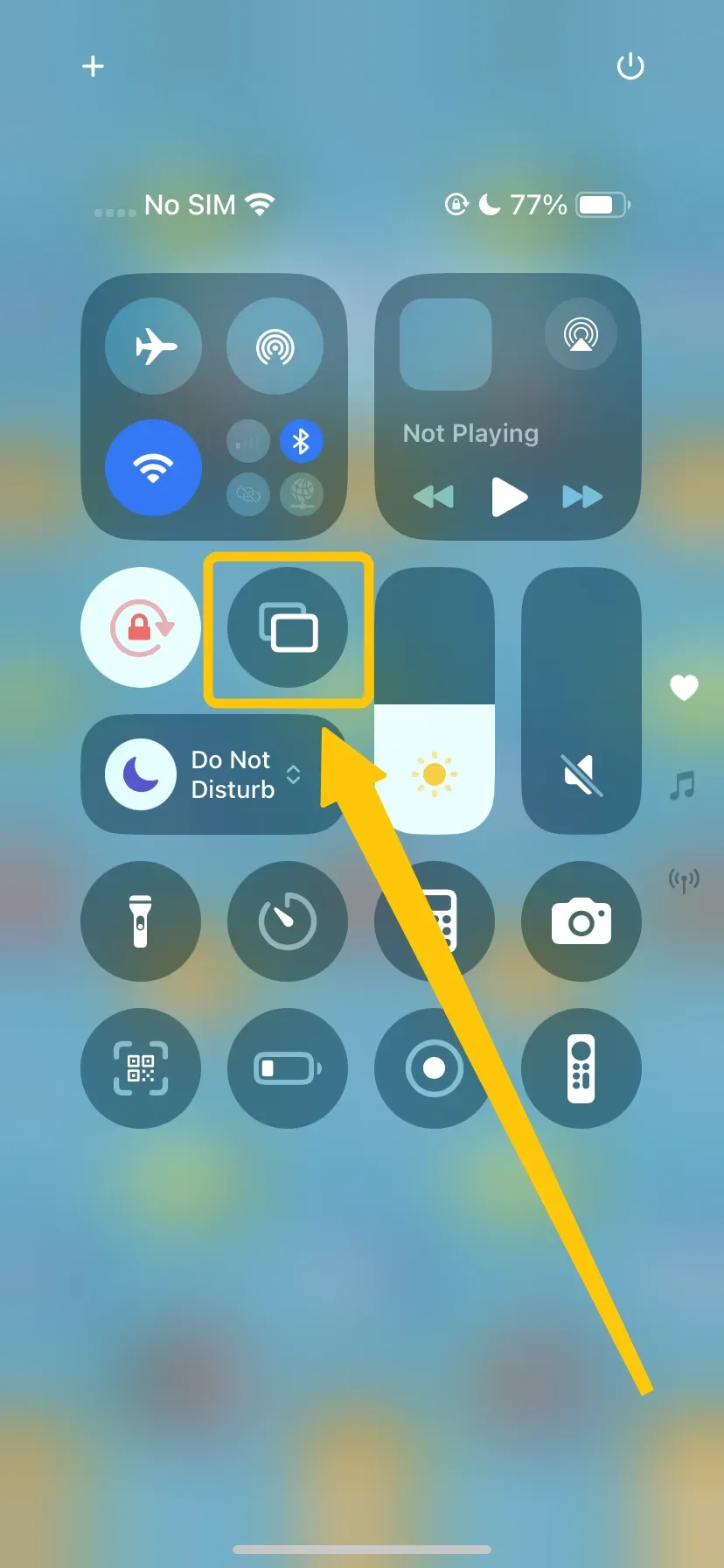
Step 2. Tap the Screen Mirroring in the Control Center, choose your receiver devices from the available list.
Step 3. If prompted, enter the onscreen PIN code to confirm the connection.
Step 4. Once pairing succeeds, you can then start screen mirroring from your Apple device.
How to Start Screen Mirroring
The process of screen mirroring from other devices is also straightforward. While the exact method may vary depending on the device, here's a general guide covering the most common approaches.
Step 1. Ensure your devices are compatible to screen mirror.
Step 2. Ensure both devices are on the same Wi-Fi network.
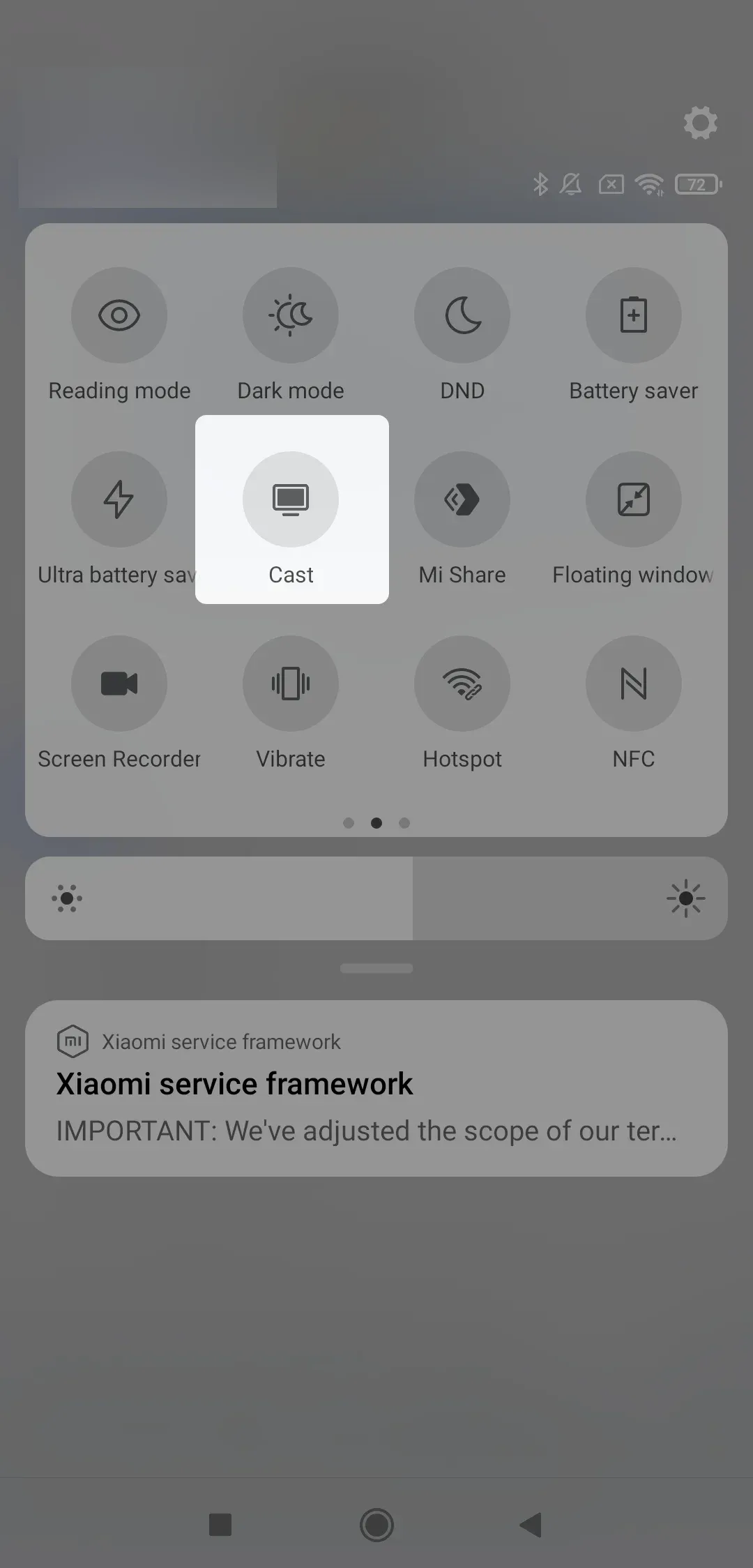
Step 3. On the mobile device, tap the Cast button (or similar name) to choose your device to finish the connection.
Plus, you can also use a compatible HDMI adapter or cable to connect your devices. Just be sure to check that the HDMI inputs are compatible.
Bypass AirPlay Limitations: Mirror Your iPhone to a PC with PigeoCast
Now that you have a clearer understanding of AirPlay mirroring vs Screen Mirroring, let's explore how to break AirPlay's comaptiblity barrier from iPhone to a Windows PC. You might not have considered this before, but with the right tools and settings, you can make cross-platform mirroring simple and efficient. In this section, we'll guide you on how to get the most out of screen mirroring across devices.

PigeonCast combines AirPlay, DLNA, and Google Cast to provide seamless casting across multiple platforms. It works reliably on Android, iOS, Windows, Mac, and smart TVs, including tvOS and Android TV, without any limitations. There is no need for cables or adapters. Just connect your devices to the same Wi-Fi network and start streaming instantly.
Step 1. Install the PigeonCast app on your Windows PC.
PigeonCast Screen Mirroring
Official Download

Step 2. Ensure your iPhone and Windows PC are covered by the same wireless network.
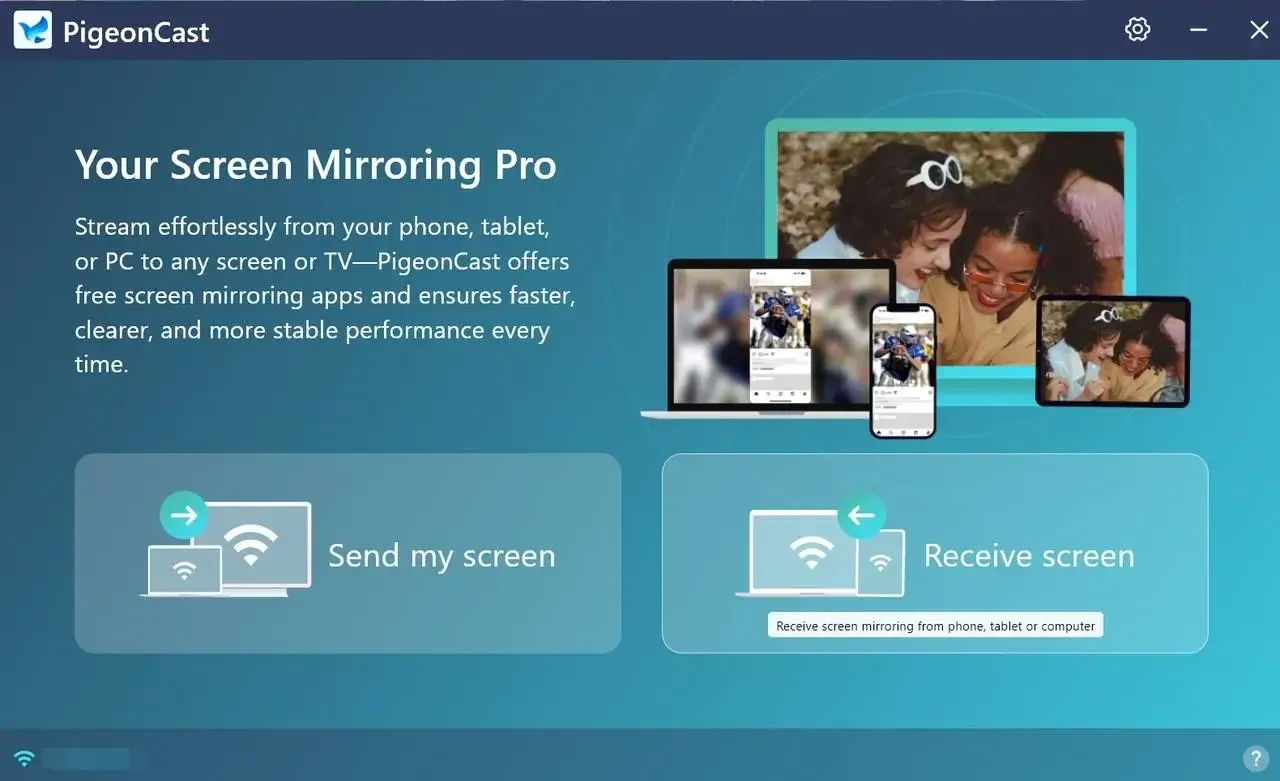
Step 3. Launch the app on your Windows and tap the Receive screen to choose your iPhone from the device list.
Step 4. If prompted, enter the onscreen code to finish the mirroring connection. Then you can see your iPhone's screen displayed on your Windows PC.
Bottom Line
When comparing AirPlay vs Screen Mirroring to TV, the best choice depends on your devices and needs. AirPlay works best with Apple devices, offering smooth, high-quality streaming and low latency, while screen mirroring is more flexible, supporting multiple platforms like Android, Windows, and smart TVs. If you often switch between Apple and non-Apple devices, a cross-platform tool like PigeonCast offers the best of both worlds.
AirPlay vs Screen Mirroring FAQ
What's the difference between Screen Mirroring and AirPlay?
Screen mirroring duplicates your device's entire screen in real time on another display, showing everything you do, including notifications. AirPlay, on the other hand, is Apple's streaming technology that can mirror your screen or directly stream audio and video from apps, offering smoother playback and better performance.
How to AirPlay instead of Screen Mirroring?
To AirPlay instead of screen mirroring, open Control Center on your Apple device, tap AirPlay or Screen Mirroring, and select a compatible device (like Apple TV or a smart TV). When streaming from an app like Apple TV, YouTube, or Music, choose AirPlay within the app to send the content directly, rather than duplicating your entire screen.
What is the purpose of AirPlay?
The purpose of AirPlay is to wirelessly stream or mirror content from an Apple device to compatible devices like Apple TV, smart TVs, or speakers. It allows you to share videos, music, photos, or your screen with high quality and minimal lag, making it easy to enjoy media on a larger display or through better speakers.
Why is AirPlay not Screen Mirroring?
AirPlay is not just screen mirroring because it does more than duplicate your device's screen. While it can mirror your display, it also streams audio and video directly from apps to compatible devices, providing smoother playback, better quality, and lower lag. Screen mirroring only duplicates everything on your screen in real time, including notifications and interface elements.
Clara Rossi is an experienced technology editor and a seasoned expert in screen mirroring and casting technologies. With a keen eye for detail and a deep understanding of how to seamlessly connect devices, Clara excels at optimizing user experiences for effortless sharing and streaming. Whether you're seeking quick fixes or advanced tips, her expertise and responsiveness ensure that every query is met with a well-informed and efficient solution.