
Stop squinting at your tiny screen! If you want to learn how to screen mirror iPhone to Sceptre TV without the tech headache, you are in the right place. Whether you have a new Roku model or an older TV, here are the absolute fastest wireless hacks and wired setups to get your favorite content onto the big screen in under two minutes.
Ready to Connect? Check This Before You Start
Before we dive into the methods, let's make sure your tech is actually ready to talk to each other. Wireless screen mirroring is a team sport, and to avoid the frustration of your iPhone endlessly searching for a TV that seems to have vanished, check off these two quick things first:
- Are They on the Same Wi-Fi
Your iPhone and your Sceptre TV must be connected to the exact same Wi-Fi network. If your router broadcasts separate 2.4 GHz and 5 GHz channels, make sure both devices are locked onto the exact same frequency, or they won't be able to "see" each other.
- Is your Sceptre TV a Smart Model
while newer Sceptre Roku TVs often come with native Apple AirPlay built-in, many Sceptre Android TV or standard smart models only come with Chromecast, which plays nice with Android but leaves iPhones out in the cold. Head to your TV's Settings > Systems (or Applications) to see if an "AirPlay" or "Apple HomeKit" menu exists.
Don't panic if your TV doesn't have that native Apple badge! Once you know whether your Sceptre TV supports AirPlay or if it's a non-AirPlay model, you are ready to pick the perfect route below. Let's get that screen mirrored.
How to Screen Mirror iPhone to Sceptre TV
If your television comes with Apple wireless technology built right into the system, which is very common on newer Roku models, this is the easiest route to take. You do not need to buy extra cords or hardware because the software already inside your devices will handle the heavy lifting.
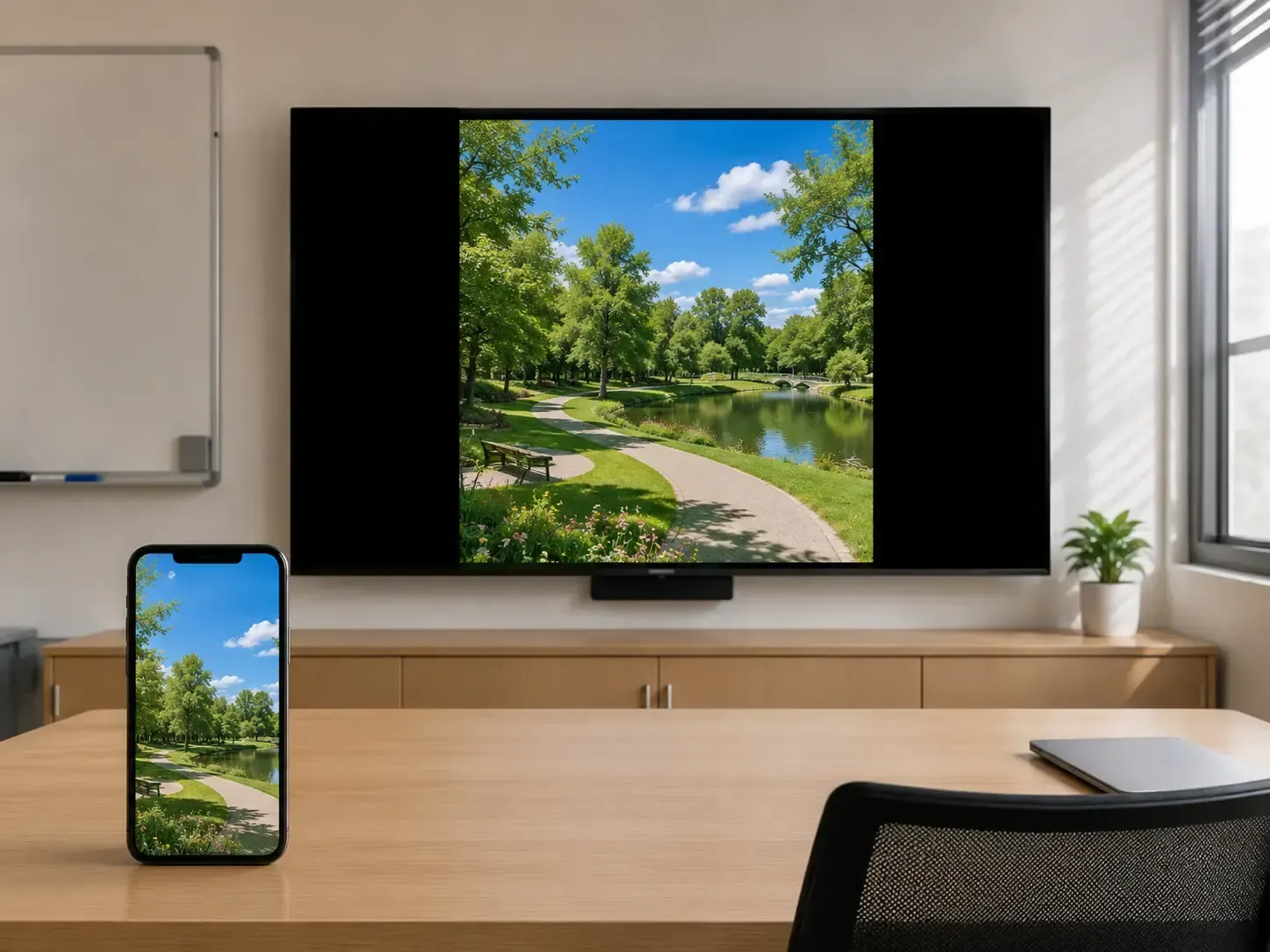
Method 1: Use Built In AirPlay to Mirror iPhone to Sceptre TV
This method works if your Sceptre supports AirPlay. Otherwise, please skip this section and check the methods below.
Step 1. Ensure your iPhone and TV connects to the same wireless network.
Step 2. Activate AirPlay settings on your Sceptre TV from the Settings menu > System or Applications depending on your specific model.
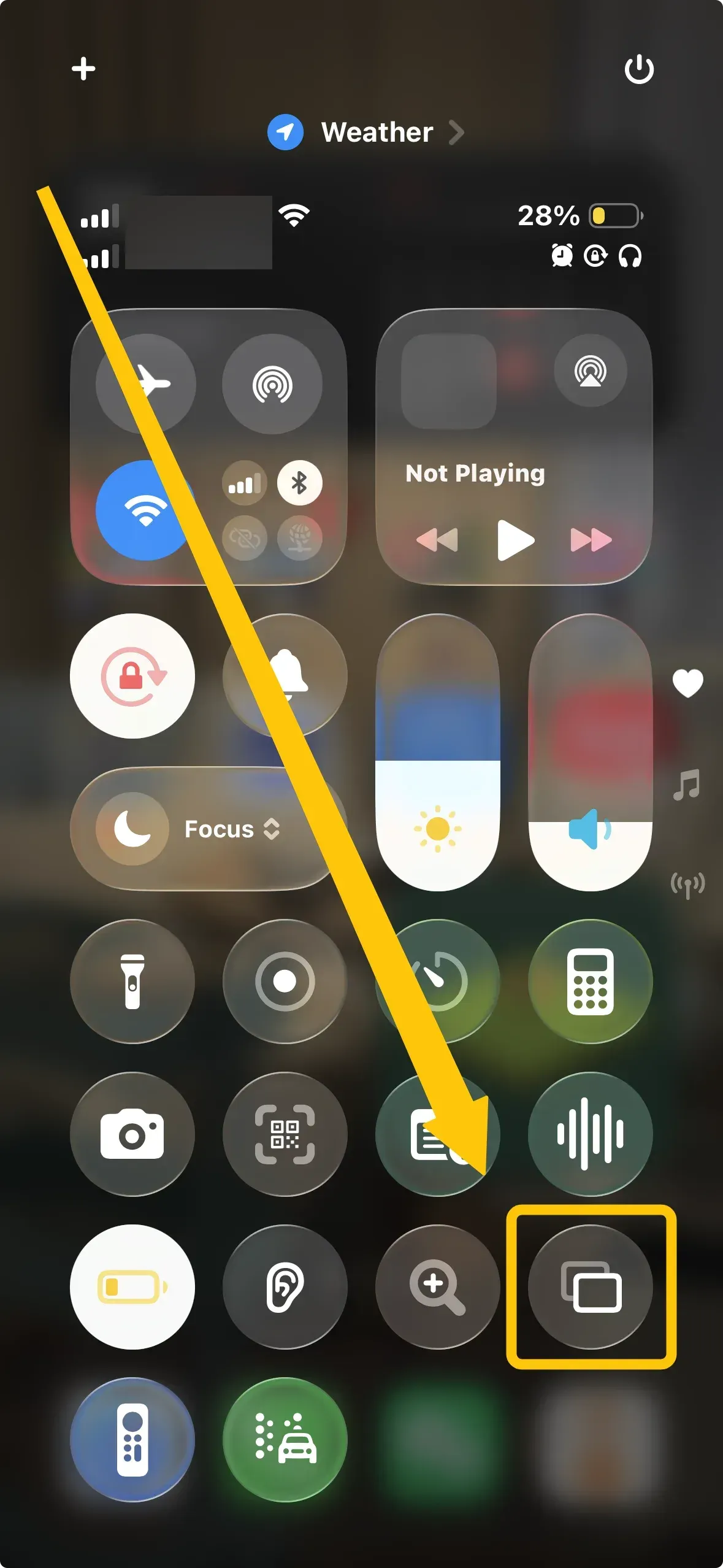
Step 3. On your iPhone, swiping down from the top right corner of your screen to open the Control Center > Screen Mirroring.
Step 4. Select the name of your Sceptre TV from the list that appears on your phone screen.
Step 5. Enter the four digit code displayed on your television into your phone prompt to complete the connection.
Method 2: Use PigeonCast to Mirror iPhone to Sceptre TV
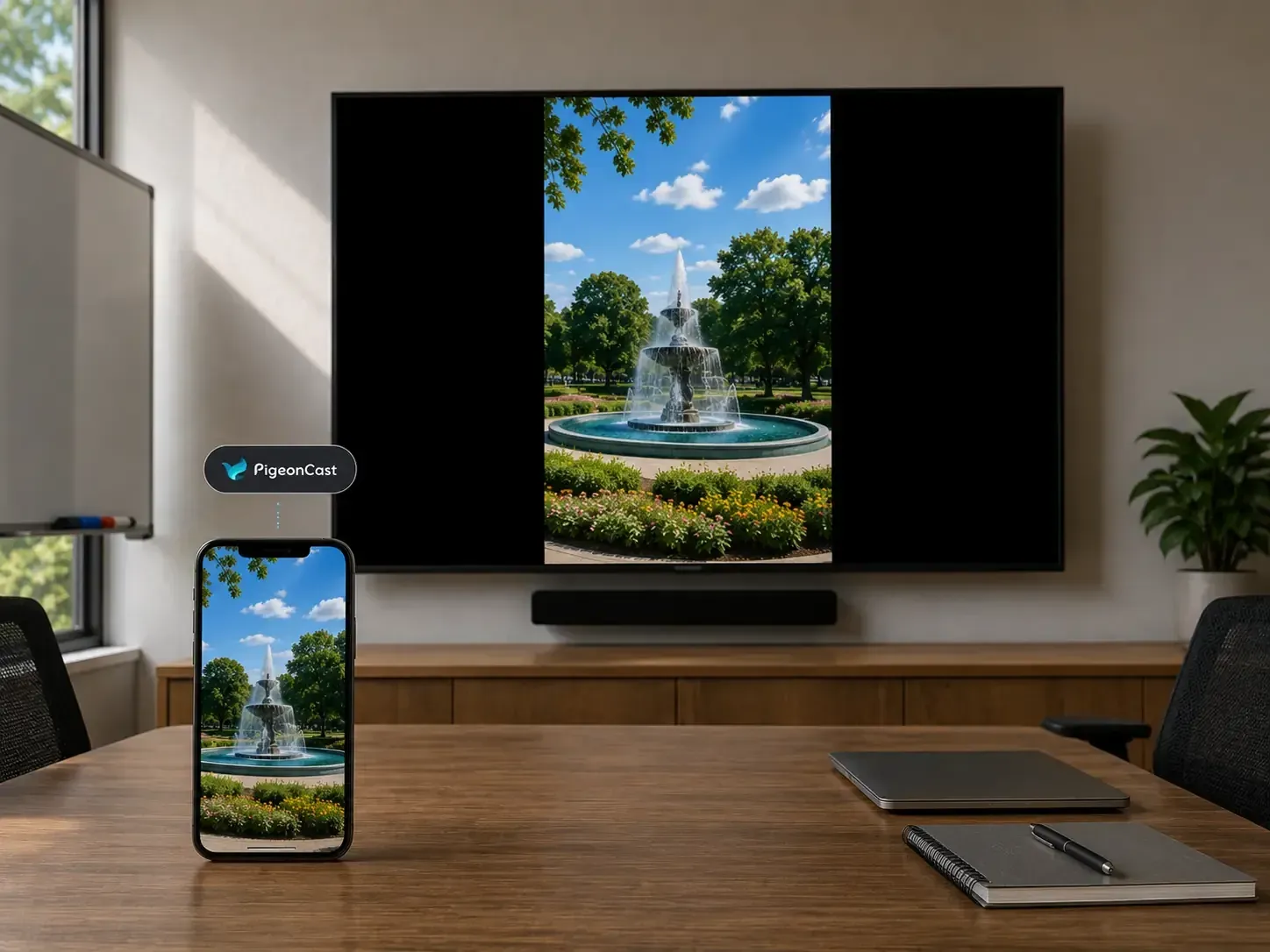
If you encounter the device compatibility issue, you can try using a third party mirroring tool such as the free PigeonCast. This app integrates multiple streaming technologies, including AirPlay, DLNA, and Google Cast protocols and streams high definition content up to 4K resolution with very minimal latency.
Step 1. Confirm that both your mobile device and your television link to the exact same Wi-Fi network.


Overall Rating:



Step 2. Install PigeonCast on your iPhone from App Store or TV from App Store if available.
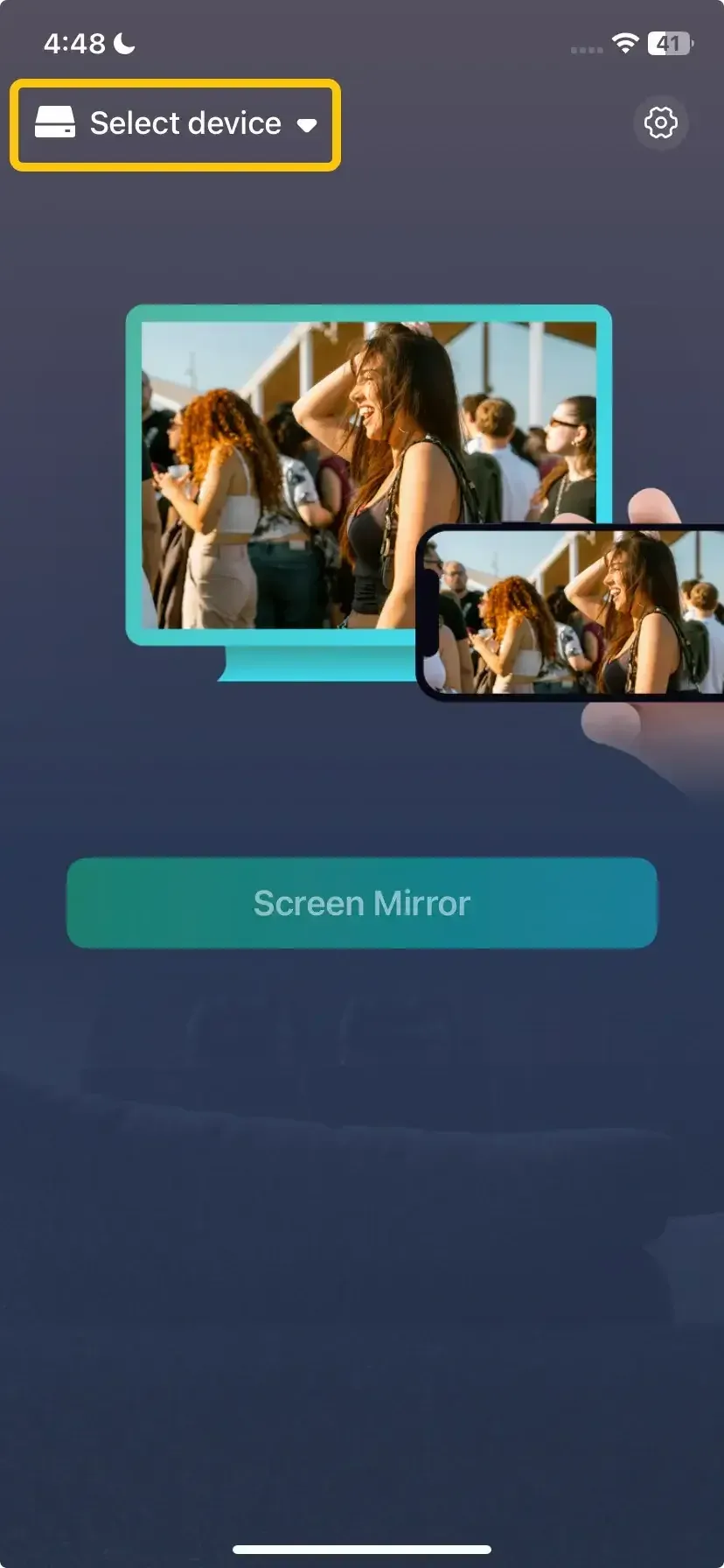
Step 3. Launch the app, tap Select device to choose your TV from the device list.
Step 4. Enter the onscreen PIN code to confirm the pairing requisition.
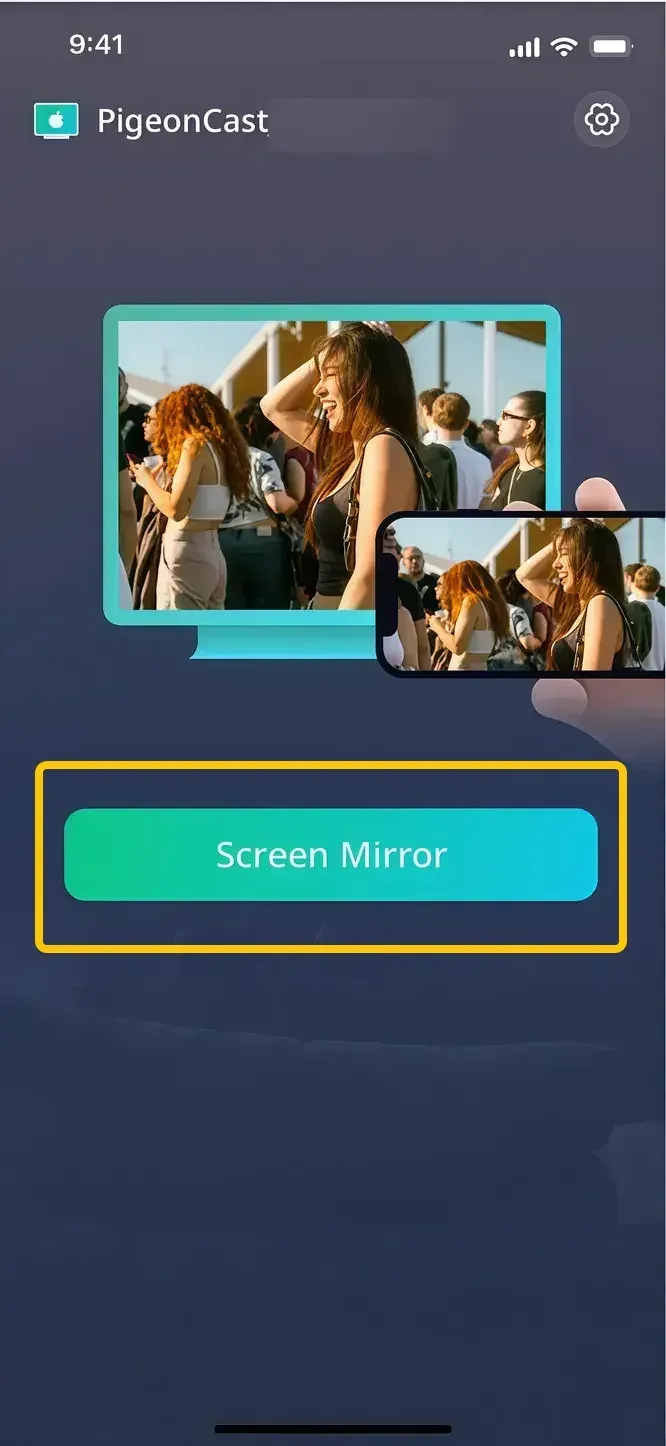
Step 5. Tap Screen Mirror to start mirroring activities on your Sceptre TV.
Method 3: Use a Streaming Device to Mirror iPhone to Sceptre TV
For Sceptre TVs lacking smart features, utilizing an external streaming device like a Roku streaming stick, Chromecast, or Apple TV box is an excellent alternative. These external gadgets act as a bridge, allowing your older television to receive wireless signals from your mobile device.
Step 1. Ensure your iPhone and your external streaming device connect to the exact same Wi-Fi network.
Step 2. Use your television remote to switch to the HDMI input where your streaming device is plugged in.
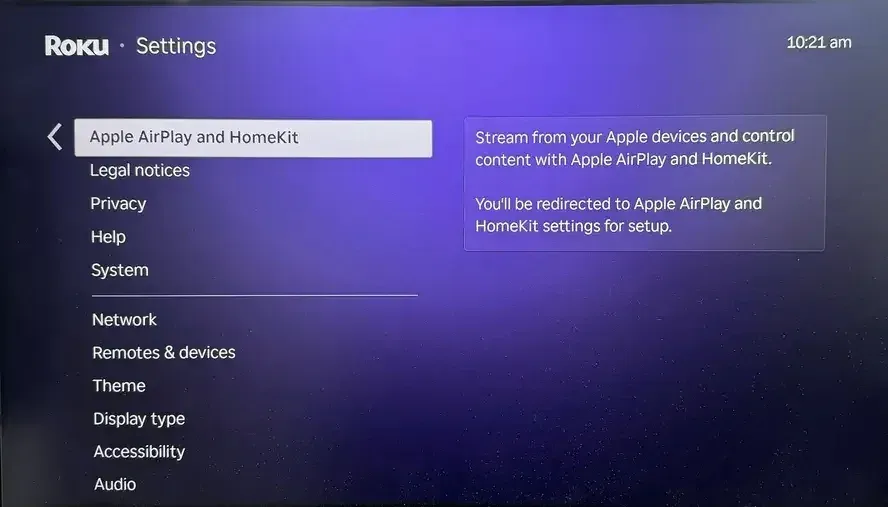
Step 3. Enable AirPlay feature on the streaming device in the Apple and HomeKit menu.
Step 4. Open the Control Center on your iPhone and tap the Screen Mirroring icon.
Step 5. Select the name of your Roku, Chromecast, or Apple TV from the available device list.
Step 6. Type in any security PIN code that appears on your television display to finalize the wireless connection.
Method 4: Use an HDMI Cable to Mirror iPhone to Sceptre TV
For classic non-smart Sceptre televisions with no internet capabilities at all, a physical cable setup serves as the most reliable solution. This wired HDMI mirroring connection completely bypasses Wi-Fi networks and eliminates any wireless interference or pairing complications.
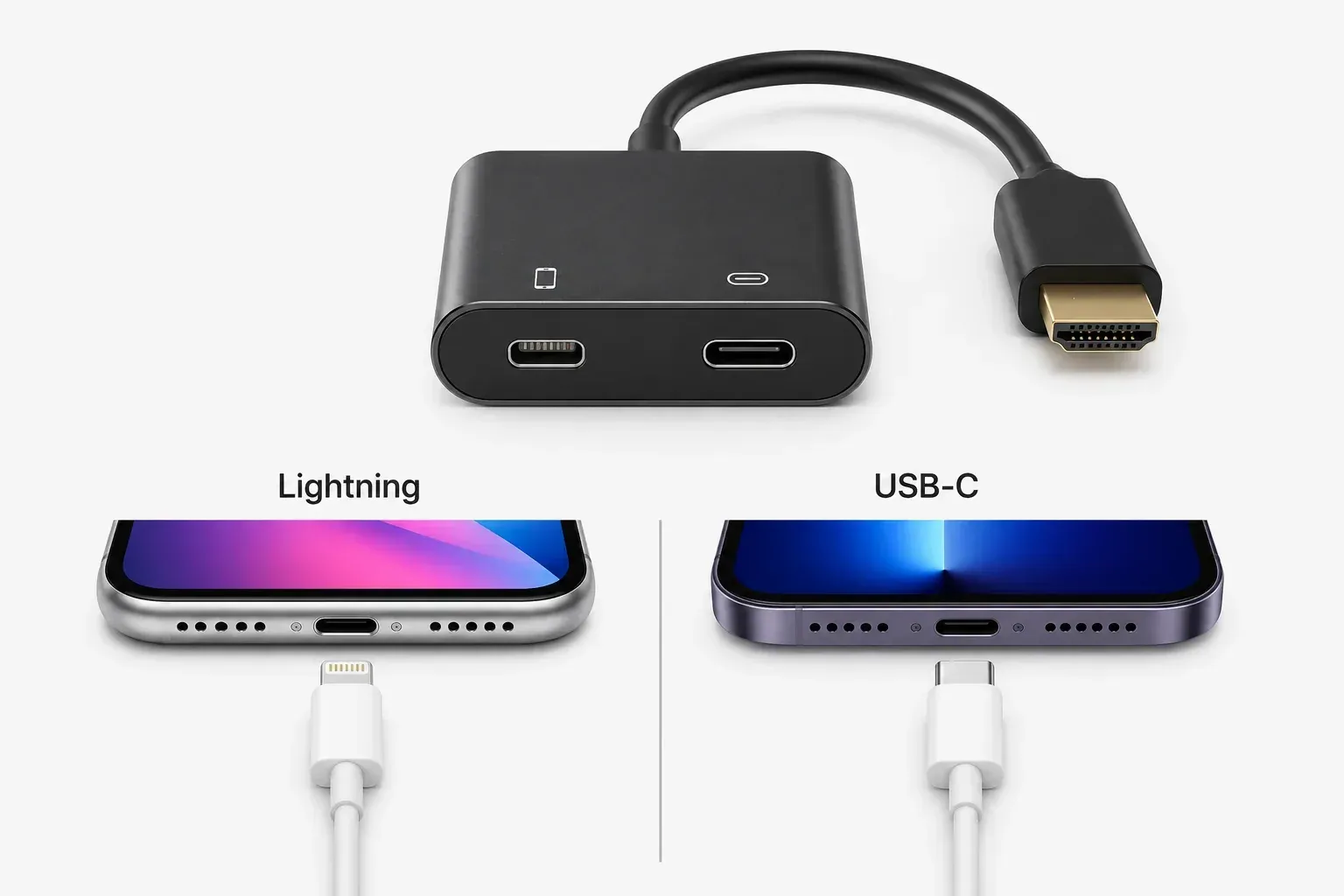
Step 1. Inspect the bottom charging port of your phone to choose the correct adapter style: iPhone 14 and older models require a Lightning to HDMI adapter, while iPhone 15 and iPhone 16 series require a USB-C to HDMI adapter.
Step 2. Plug one end of a standard HDMI cable into your newly chosen adapter and link the other end to an open port on the back of your Sceptre TV.
Step 3. Insert the adapter cable directly into the charging port located at the bottom of your iPhone.
Step 4. Grab your television remote control and press the Input or Source button to switch the display channel to the corresponding HDMI port.
Step 5. Acknowledge any trust prompts on your phone screen and watch your mobile layout appear on the big display automatically.
Troubleshooting Screen Mirroring Issues on Sceptre TV
While screen mirroring is usually seamless, network glitches or hardware settings can sometimes disrupt the connection. Check the quick solutions below to resolve the most common casting problems immediately.
- Missing TV Name
Check your Wi-Fi name on both devices. Make sure they are not on separate 2.4G and 5G channels, then restart your router and television to refresh the connection.
- Screen Lag or Freezing
Bring your wireless router closer to the devices to boost signal strength, shut down all background applications running on your phone, or switch to the PigeonCast app for a dedicated low-latency performance.
- No Television Sound
Press the volume up button on your physical Sceptre remote control, check that your iPhone side switch is not set to silent, and verify that the television audio output source is set to internal speakers.
- AirPlay Disconnecting Repeatedly
Check for any pending iOS software updates on your phone, navigate to your Sceptre TV system settings to clear the television cache, and perform a full power cycle on the display.
- Wired Connection Black Screen
Unplug the HDMI adapter from your iPhone port, wipe any dust off the connectors, plug it back in firmly, and ensure you select the exact HDMI channel number matching the physical port you used.
Closing Words
Newer Sceptre Roku models can link instantly through native AirPlay, while other smart displays can bypass compatibility issues by downloading the free PigeonCast app for a smooth wireless stream. For older non-smart TVs, you can bridge the gap wirelessly using an external streaming stick or plug in directly using an HDMI adapter matched to your specific iPhone port.
How to Screen Mirror iPhone to Sceptre TV FAQ
Do Sceptre TVs have screen mirroring?
It depends on the specific model and smart platform your Sceptre TV uses. Sceptre does not have a single, proprietary mirroring software, so capability is split into three categories:
-
Sceptre Roku TVs (Yes): These models have native screen mirroring built-in. They support Apple AirPlay 2 for iPhones/Macs and Screen Miracast for Android and Windows devices right out of the box.
-
Sceptre Android/Smart TVs (Partial): These models come with Google Cast (Chromecast built-in). Android users can mirror directly via the Google Home app. iPhone users cannot mirror natively from the iOS Control Center and must use a third-party bridging app like PigeonCast.
-
Sceptre Non-Smart TVs (No): Classic, budget Sceptre models have no wireless cards or internet capabilities. They cannot screen mirror wirelessly at all unless you plug in an external hardware solution like a Roku stick, Apple TV box, or a physical HDMI adapter cable.
Can I Mirror iPhone to Every Sceptre TV Directly?
No. You cannot mirror an iPhone to every Sceptre TV directly. Direct wireless mirroring depends entirely on your TV model's built-in software:
-
Newer Sceptre Roku TVs: Yes. They support native Apple AirPlay directly out of the box.
-
Sceptre Android/Smart TVs: No. They use Chromecast protocols, which require a third-party app like PigeonCast or an external streaming device (Roku, Apple TV) to bridge the connection.
-
Older/Non-Smart Sceptre TVs: No. They lack internet capabilities entirely and require a physical HDMI adapter cable (Lightning or USB-C depending on your iPhone model).
Do I Need Extra Hardware to Screen Mirror iPhone to Sceptre TV?
It depends entirely on your specific Sceptre TV model:
-
No hardware needed: if you have a newer Sceptre Roku TV. It has Apple AirPlay built-in, allowing you to connect wirelessly right out of the box.
-
No hardware needed: if you have a standard Sceptre Smart/Android TV and use a free software workaround. You can simply download a third-party casting app like PigeonCast to bridge the connection wirelessly.
-
Extra hardware IS needed: if you have a classic, non-smart Sceptre TV with no internet capabilities. You will need either an external streaming device (like a Roku Stick, Chromecast, or Apple TV) or a physical HDMI adapter cable (Lightning or USB-C, depending on your iPhone model) to get your screen onto the TV.
Why Does My Sceptre TV Not Appear on iPhone Screen Mirroring?
Here are the exact reasons why your Sceptre TV is not appearing on your iPhone's Screen Mirroring list:
-
Wi-Fi Band Separation
-
Protocol Incompatibility
-
Deactivated AirPlay Feature
-
App Permissions Blocked
-
System Cache Glitch
Can I Screen Mirror iPhone to Sceptre TV Without Wi-Fi?
Yes. You can screen mirror an iPhone to a Sceptre TV without Wi-Fi, but your options are limited to specific methods:
-
The Wired Route (HDMI Cable)
-
The Peer-to-Peer AirPlay Route
Is There More Delay With Wireless Casting Than HDMI?
Yes. Wireless casting inherently introduces more delay (latency) than a direct HDMI cable connection. Here is the professional breakdown of why this happens:
-
Wired Connection (HDMI): Audio and video signals travel instantly through copper wiring at the speed of electricity. Latency is virtually 0 milliseconds, resulting in real-time responsiveness that is ideal for gaming or precise UI navigation.
-
Wireless Connection: Your iPhone must first compress the screen data, convert it into wireless radio packets, transmit it through the air, and wait for your Sceptre TV or router to decompress and decode the signal. This digital processing chain creates a consistent delay of anywhere from 50 to 200+ milliseconds.
Clara Rossi is an experienced technology editor and a seasoned expert in screen mirroring and casting technologies. With a keen eye for detail and a deep understanding of how to seamlessly connect devices, Clara excels at optimizing user experiences for effortless sharing and streaming. Whether you're seeking quick fixes or advanced tips, her expertise and responsiveness ensure that every query is met with a well-informed and efficient solution.