

Vizio smart TV screen mirroring is simpler once you frame it correctly: most supported models do not use a separate Vizio-native mirroring system. Instead, they receive mirrored content through Apple AirPlay or Google Chromecast, and support depends on the TV's model year, platform, firmware, and network setup.
If you know which protocol your phone or laptop is trying to use, it becomes much easier to tell whether the TV is compatible, how to verify support, and what to do when the connection fails.
Does Your Vizio Smart TV Support Screen Mirroring?
Most Vizio smart TVs from 2016 onward can handle screen mirroring in some form, but they do it through AirPlay or Chromecast rather than through Miracast or a built-in Vizio-only receiver.
The easiest way to think about support is this:
- Newer SmartCast TVs are usually the ones that can mirror.
- Older VIA and VIA+ models do not support modern wireless screen mirroring.
- Apple devices typically rely on AirPlay.
- Many Android devices rely on Chromecast instead of the wireless-display shortcut that expects Miracast.
That difference matters because a TV can support screen mirroring for an iPhone and still appear invisible to an Android phone that is searching for Miracast. In other words, "supports mirroring" is only true when the sending device and the TV share the same protocol.
Firmware also matters. Some models gained broader support only after later software updates, so a compatible TV may still look unsupported until it is updated and restarted.
How to Check Vizio Screen Mirroring Support Yourself
Use three checks in order.
First, look at the TV platform. If the TV opens into the SmartCast home screen, it is in the generation most likely to support wireless mirroring. If SmartCast Home is not available or fails to load, fix that issue first before using the interface to judge mirroring support. If the TV uses the older VIA or VIA+ interface, wireless mirroring support is generally not available.
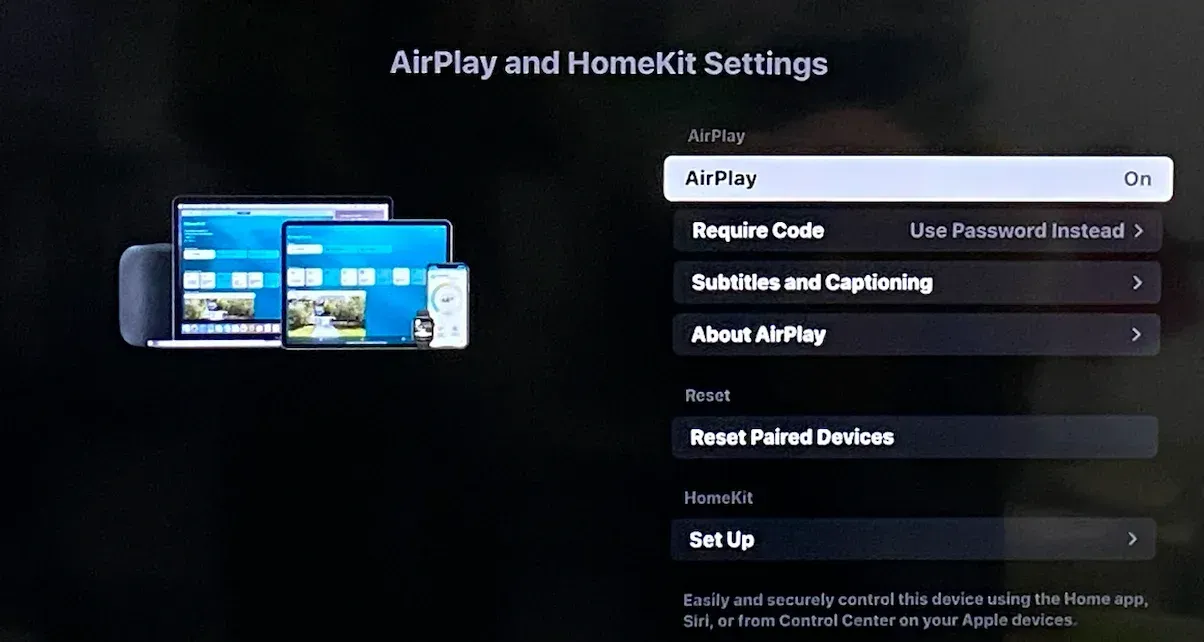
Second, open the TV settings and look for AirPlay or casting-related options. If AirPlay appears in settings, that is a strong sign that Apple-device mirroring is available on that unit. If the menu is missing, support may be absent or the firmware may be outdated.
Third, run a system update and restart the TV after the update finishes. This is important because new casting features may not fully appear until after the reboot. Many people stop after the download and assume the update failed when the real missing step is the restart.
These checks give you a much clearer answer than relying on purchase year alone. A TV bought in one year may actually be an earlier model generation, so the model number and platform are more reliable than the retail date.
How to Screen Mirror on Vizio TV
The main thing to decide before touching any menu is not the TV, but the sending device. Vizio does not offer one universal mirroring button that works the same way for every phone and laptop, so the setup path changes based on whether your device is entering through Apple's AirPlay route or Google's casting route. Once you choose the correct path first, the steps become much more predictable and the usual "TV not found" confusion drops sharply.
Mirror iPhone, iPad, or Mac to Vizio TV with AirPlay
AirPlay is the standard route for iPhone, iPad, and Mac users. Before starting, make sure the TV is turned on, connected to Wi-Fi, and fully loaded into its normal home screen. You should also confirm that AirPlay is enabled in the TV settings and that the Apple device is on the same Wi-Fi network.
Step 1. Turn on the Vizio TV, open Settings, and make sure AirPlay is enabled.
Step 2. Connect your iPhone, iPad, or Mac to the same Wi-Fi network as the TV.
Step 3. Open Control Center and tap Screen Mirroring if you want to mirror the whole screen, or tap the app's AirPlay button if you only want to send a video, photo, or other media.
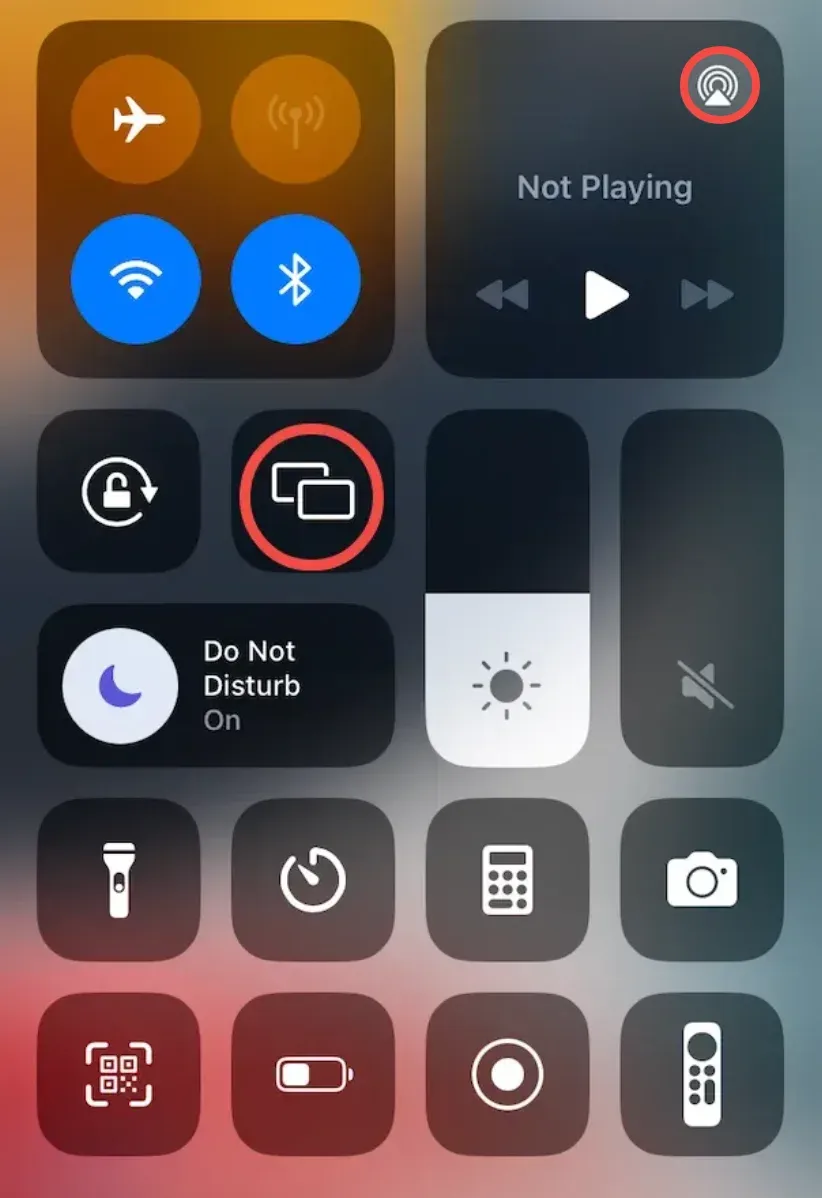
Step 4. Select your Vizio TV from the device list, then enter the on-screen code if the TV asks for one.
Step 5. Wait for the picture to appear on the TV, then test with a photo, page scroll, or short clip to confirm the connection is working normally.
If the TV appears and accepts the connection, mirroring should begin within a few seconds. If it does not appear, the problem is usually network discovery, disabled AirPlay settings, or outdated firmware rather than a total lack of support.
Mirror Android Phone or Chrome with Chromecast
Chromecast is the more reliable path for many Android devices and for Chrome-based desktop casting. Before starting, make sure the TV is online, the sending device is on the same Wi-Fi network, and the network is not a guest network that blocks device discovery.
Step 1. Turn on the Vizio TV and make sure it is connected to the same Wi-Fi network as your Android phone, tablet, or computer.
Step 2. Open the casting entry on your device. This may be Cast in quick settings, Google Home, a supported app's Cast button, or Chrome on a computer.
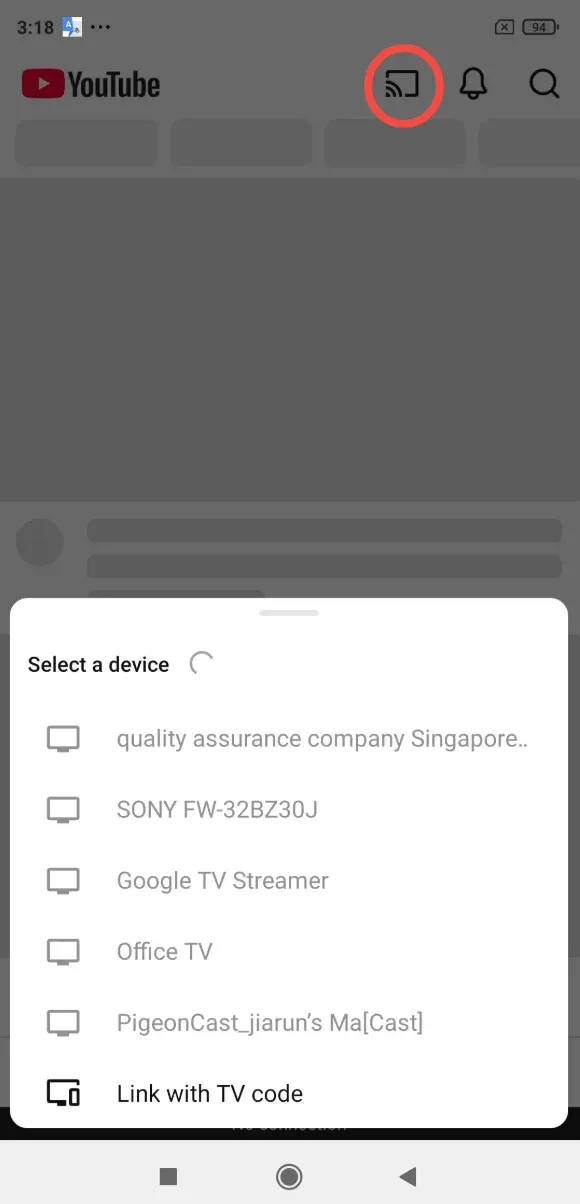
Step 3. Wait for available devices to load, then select your Vizio TV from the list.
Step 4. Choose the casting mode if prompted, such as a video, a browser tab, or the entire screen.
Step 5. Confirm the connection and wait for the content or mirrored screen to appear on the TV.
This method is important because many Android users expect the TV to appear in the device's wireless-display menu. On Vizio TVs, that often fails because the TV is not acting as a Miracast receiver. Casting through Chromecast is usually the correct route instead.
Vizio TV Screen Mirroring Not Working
When Vizio screen mirroring fails, the cause is usually one of a small number of predictable problems: the wrong protocol, different networks, outdated firmware, disabled settings, temporary casting service issues, or content restrictions.
Start with the protocol. If an Android phone is trying to use a Miracast-style wireless display scan, the TV may never appear even though Chromecast casting is available. In that case, switch to the cast workflow instead of continuing to scan for a receiver that does not exist.
Next, check the network. The TV and the sending device must be on the same local network. Guest Wi-Fi, isolated networks, and split router setups often block device discovery, which makes the TV look unsupported when it is actually just unreachable.
Then verify firmware and restart both sides. An update alone is not always enough; the TV often needs a restart before the new casting stack is active. Restarting the phone, tablet, or laptop also clears stale discovery sessions.
If the connection starts but video fails, the issue may be content protection. Some streaming services limit what can be shown over a mirrored session, so a black screen does not always mean the TV is broken.
Use this troubleshooting order:
- Confirm whether you should be using AirPlay or Chromecast.
- Put both devices on the same non-guest network.
- Check that mirroring or AirPlay settings are enabled on the TV.
- Update the TV firmware and restart the TV.
- Restart the sending device.
- Test with simple content such as photos or a browser tab before testing protected streaming video.
This order removes guesswork and separates true compatibility problems from temporary setup issues.
How to Screen Mirror to Vizio TV with PigeonCast
PigeonCast is a screen mirroring and casting app that works for many devices, including Android, iPhone, Windows PC, and Mac. It connects your phone or computer to TV wirelessly, and you don't need to confirm your device uses AirPlay or Chromecast.
Therefore, you just need one screen mirroring app and screen mirror to Vizio TV easily:
Step 1. Download and install PigeonCast on your phone or computer.


Overall Rating:



Step 2. Make sure your sending device and Vizio TV are connected to the same Wi-Fi network, then open PigeonCast on your phone or computer.
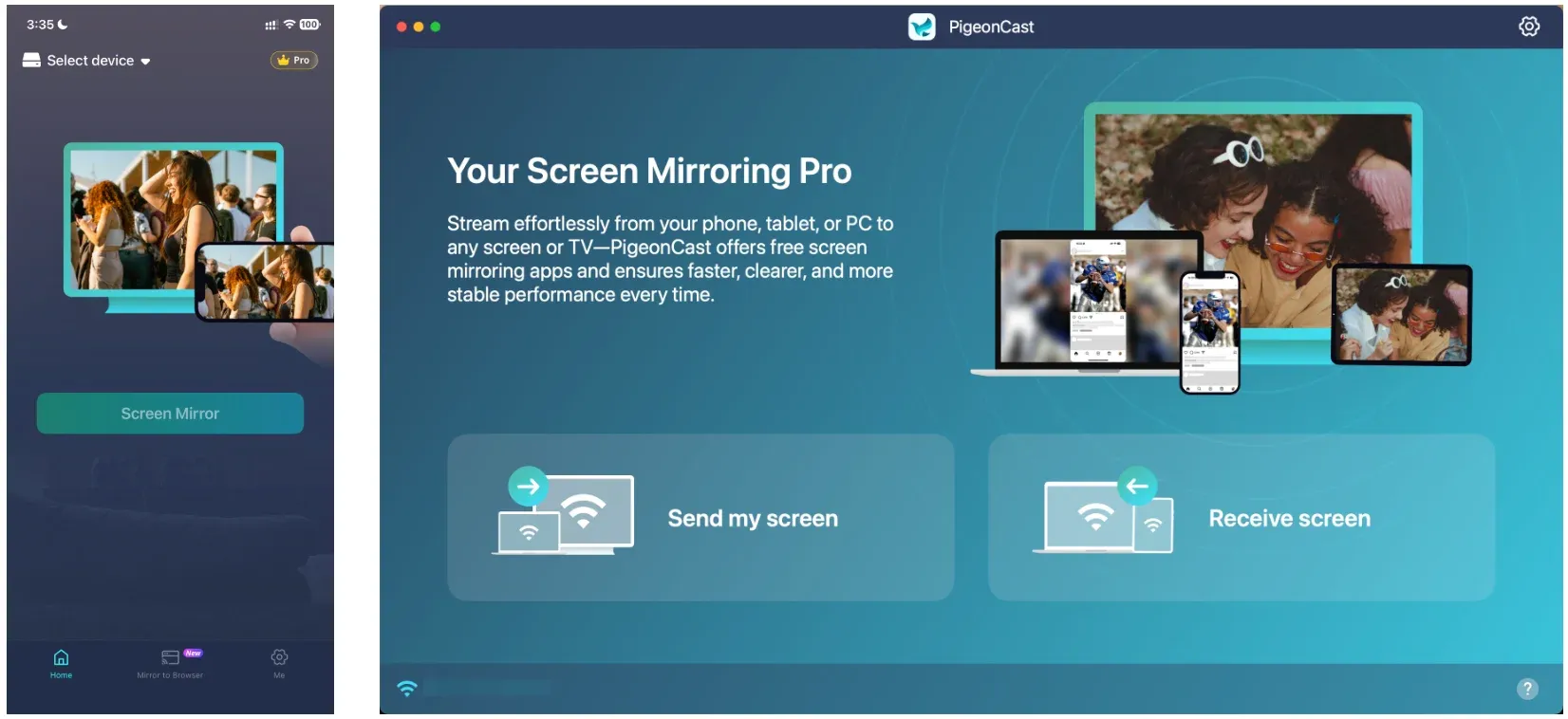
Step 3. In PigeonCast, tap or click the option to search for available TVs, then select your Vizio TV from the device list.
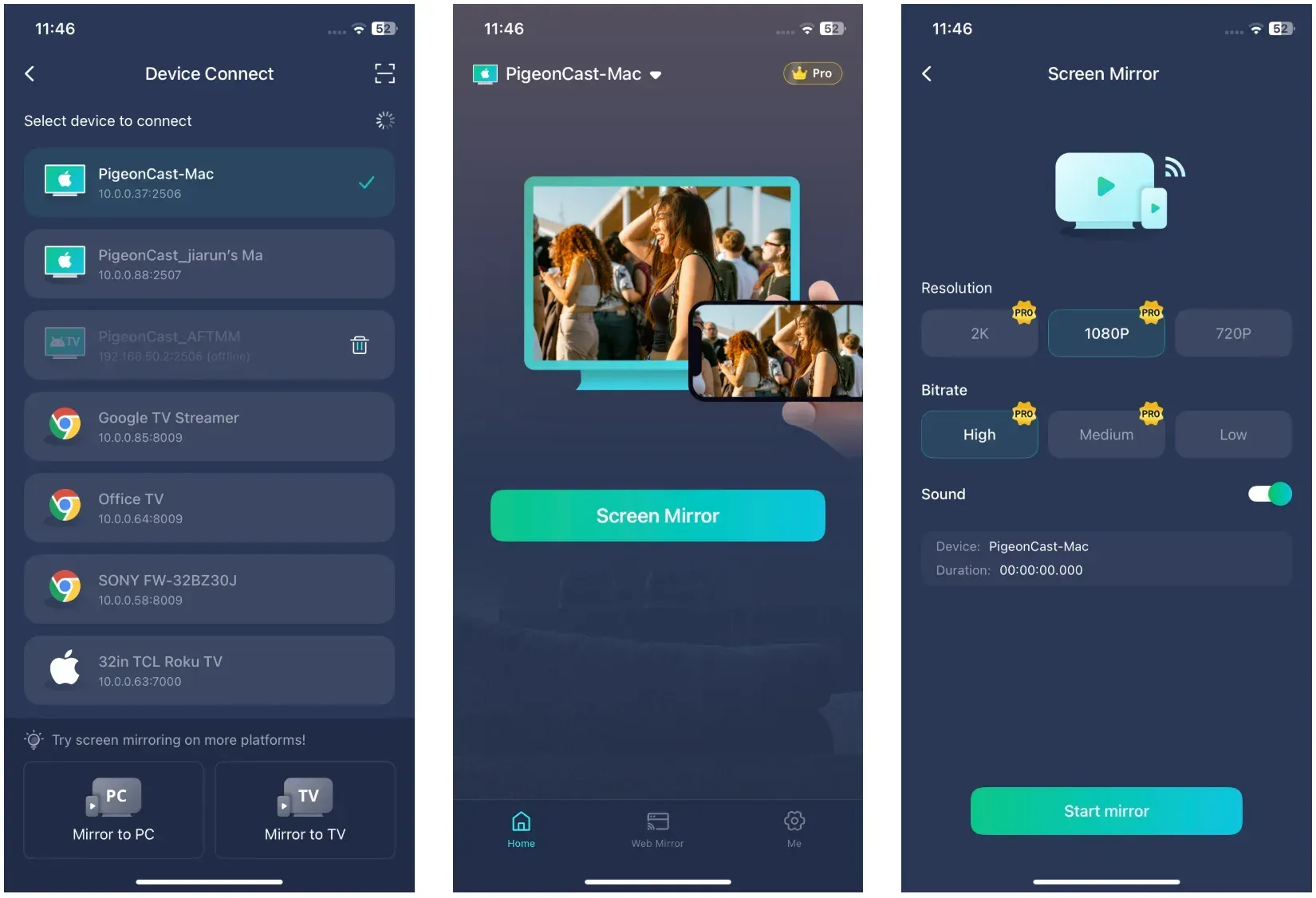
Step 4. Choose whether you want to mirror the full screen or cast specific content, then confirm the connection in PigeonCast.
Step 5. Start screen mirroring from the sending device and check that the picture appears correctly on the TV.
Final Words
Screen mirroring on a Vizio TV is less about a yes-or-no feature label and more about ecosystem fit. The real question is whether your TV, device, network, and use case line up with the same transmission path.
That is also why the best long-term solution is not always "fix the TV." Sometimes the smarter move is to choose a more stable workflow for the kind of sharing you actually do, whether that means using the built-in casting path for casual viewing or moving to a more controlled option for work, teaching, family sharing, or repeated cross-device use.
Vizio Smart TV Screen Mirroring FAQ
How Do I Find My Vizio TV's Model Year?
Check the full model number on the back label or in the system information menu. The model number is much more reliable than the purchase date when you are trying to confirm feature support. If you need to verify compatibility, search the full model number rather than guessing from the TV's age.
Can I Mirror to a Vizio TV from a Windows Laptop?
Yes, but not always through the Windows screen mirroring shortcut. Many Windows setups expect Miracast, while Vizio TVs usually work better through Chrome-based Chromecast casting. If native wireless display does not find the TV, try casting from the browser instead.
Does Screen Mirroring Work If My TV Uses Ethernet and My Phone Uses Wi-Fi?
Yes, as long as both are still on the same local network. A wired TV and a wireless phone can discover each other normally if the router keeps them on the same subnet and does not isolate devices from one another.
Can an Older Vizio TV Gain Screen Mirroring Support?
Not natively in most cases. Older models generally do not gain full wireless mirroring through updates alone. If the TV lacks modern casting support, the usual workaround is an external casting receiver connected through HDMI, like Fire Stick, Roku Express, etc.
Why Does My Phone Find Other TVs but Not My Vizio TV?
That usually means the phone is searching for a protocol the Vizio TV does not expose. This is common with Android devices that expect Miracast. The TV may still work through Chromecast or AirPlay, but it will not appear in every kind of wireless-display scan.
Mia Clarke is a technology editor specializing in screen mirroring and casting solutions across multiple platforms. Mia provides clear, practical guides and in-depth insights to help users seamlessly connect their devices. Passionate about enhancing digital experiences, Mia is dedicated to keeping readers updated on the latest trends and tools in cross-platform screen sharing. Whether you’re looking to mirror your smartphone, laptop, or smart TV, Mia’s content delivers reliable, user-friendly advice to simplify your tech setup.