
For most people searching for Vizio Miracast, the direct answer is that current VIZIO TVs do not officially use Miracast as their main screen mirroring method. Instead, they mainly support Apple AirPlay and Chromecast built-in or Google Cast.
Miracast may still work with some Windows PCs and Android phones, depending on the TV model and device compatibility. This guide shows when Vizio Miracast is worth trying and which alternatives to use when it is not available.
Does Vizio TV Support Miracast?
Most current VIZIO TVs do not treat Miracast as their main screen mirroring feature. VIZIO primarily promotes Apple AirPlay and Chromecast built-in or Google Cast, so these are usually the more predictable options on newer VIZIO Smart TVs.
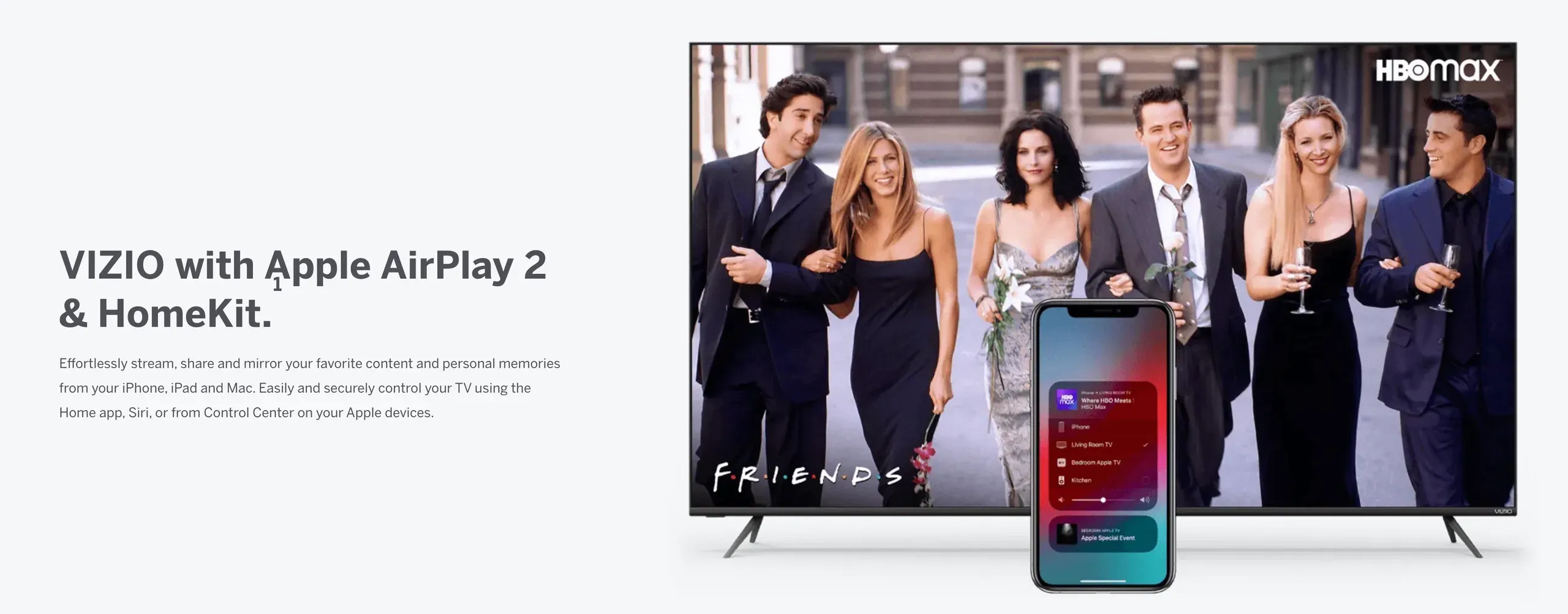 (image source: https://www.vizio.com/en/apple)
Miracast works differently from both technologies. It duplicates the entire screen of a phone, tablet, or computer directly onto a compatible display. Google Cast often sends content from a supported app or Chrome browser, while AirPlay handles streaming and screen mirroring from Apple devices. Check their differences in AirPlay vs DLNA vs Cast vs Miracast.
That does not mean Miracast can never work with a VIZIO TV. A Windows PC or certain Android phones may still detect the TV as a wireless display. However, VIZIO does not currently provide a clear model-by-model list of TVs that support Miracast, so compatibility can vary depending on the TV model, firmware, and sending device.
VIZIO has documented AirPlay and Chromecast built-in support much more clearly. Its major Smart TV families, including V-Series, M-Series, P-Series, and OLED models, have been associated with AirPlay support, and AirPlay 2 was also rolled out to many SmartCast TVs dating back to 2016. Current VIZIO product pages commonly present AirPlay and Google Cast as the standard ways to share content from phones, tablets, and computers.
In practice, the best method depends more on the device you are casting from than on Miracast alone:
| Sending device | Best method to try first | Should you try Miracast? |
|---|---|---|
| Windows PC | Wireless display through Windows + K | Yes, especially for full-screen mirroring |
| Android phone | Google Cast or the phone’s built-in screen-sharing feature | Possibly, if the phone supports Wireless Display or Miracast |
| iPhone or iPad | AirPlay | No |
| Mac | AirPlay | No |
| Chrome browser | Google Cast | Usually not necessary |
Miracast is therefore most relevant for Windows users and some Android devices. If you use an iPhone, iPad, or Mac, start with AirPlay. For Chrome and Cast-enabled Android apps, Google Cast will usually be the better option.
How to Screen Mirror to Vizio TV with Miracast
If you are using a Windows PC or a Miracast-compatible Android phone, follow the steps below to check whether the VIZIO TV appears as a wireless display.
Mirror a Windows PC to VIZIO TV with Miracast
On Windows, Miracast can duplicate the full desktop instead of sending content from only one supported app. This makes it useful for presentations, documents, browser activity, and other content shown across the computer screen.
Step 1. Turn on the VIZIO TV.
Step 2. On the Windows PC, press Windows + K.
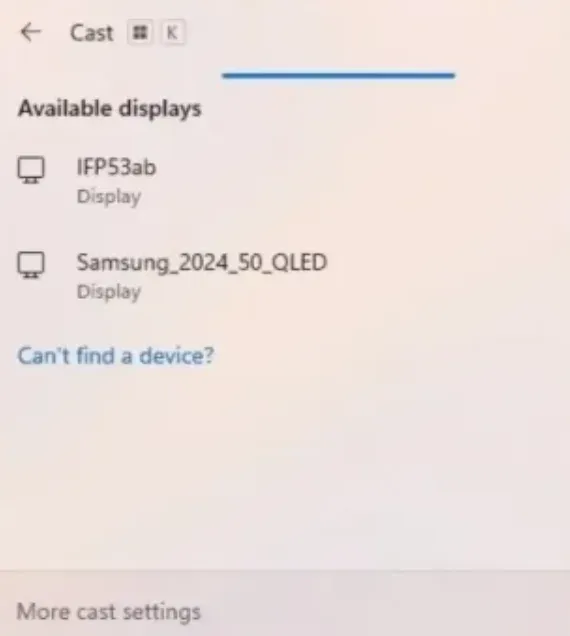
Step 3. Wait for nearby wireless displays to appear.
Step 4. Select the VIZIO TV if it is listed.
Step 5. Follow any connection prompt shown on the TV or computer.
Once connected, you can press Windows + P to choose how the screen is displayed. Depending on the setup, Windows may let you duplicate the desktop, extend it to the TV, or use the TV as the only active screen.
If the VIZIO TV does not appear, check whether the PC supports Miracast and whether its wireless display or graphics drivers are up to date. The TV may also not be available as a Miracast receiver, even if it supports AirPlay or Google Cast.
Microsoft uses Windows + K as the standard way to connect to a Miracast-ready display, so this is the most direct compatibility test. For additional setup and troubleshooting details, see this Miracast on Windows guide.
Mirror an Android Phone to VIZIO TV with Miracast
Android screen-sharing names vary by phone brand. Features such as Wireless Display, Smart View, or Screen Share may use Miracast, while an option labeled Cast may instead search for Google Cast devices.
Here's how to connect Android to Vizio TV:
Step 1. Open the phone’s screen-sharing or wireless display settings.
Step 2. Look for an option such as Wireless Display, Smart View, Screen Share, or Screen Cast.
Step 3. Wait for the phone to scan for nearby displays.
Step 4. Select the VIZIO TV if it appears.
Step 5. Accept any connection request shown on the TV.
If the TV appears, the phone should begin duplicating its screen. Because Miracast support differs across Android brands and models, the exact menu name and available controls may vary.
If the VIZIO TV does not appear, the phone may not support Miracast or may be searching only for Google Cast receivers. In that case, use Google Cast or another mirroring method rather than repeatedly scanning for the same device.
If neither Windows nor Android detects the TV as a wireless display, move to one of the non-Miracast options below.
How to Screen Mirror to Vizio TV Without Miracast
The best alternative depends on the device you are sending from and whether you want full-screen mirroring or app-based playback. AirPlay handles Apple devices, Google Cast works well for supported apps and Chrome, while mirroring apps and HDMI cover broader compatibility needs.
Use AirPlay from iPhone or iPad
AirPlay is the native screen mirroring method for iPhone and iPad. It can either duplicate the entire device screen or send video directly from a supported app.
To cast iPhone screen to Vizio TV:
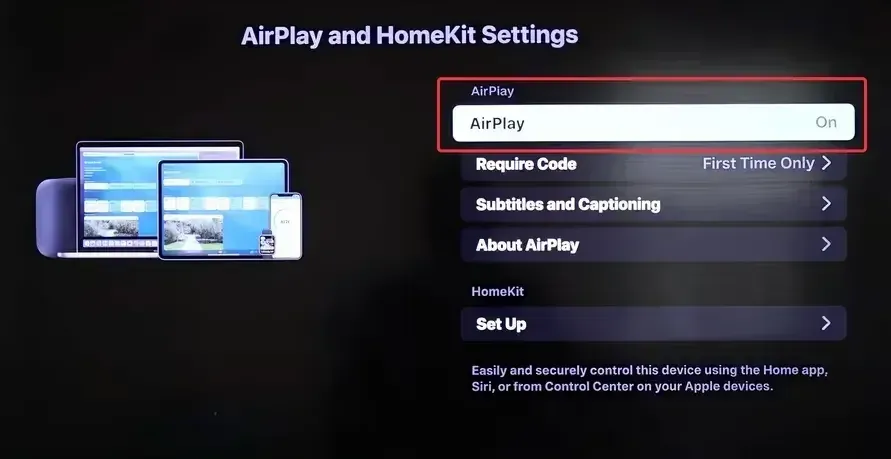
Step 1. Connect the iPhone or iPad and the VIZIO TV to the same Wi-Fi network.
Step 2. Open Control Center.
Step 3. Tap Screen Mirroring.
Step 4. Select the VIZIO TV.
Step 5. Enter the AirPlay code if one appears on the TV.
For compatible video apps, you can instead tap the AirPlay icon inside the app. This sends the video without continuously duplicating everything shown on the phone.
If the TV already includes AirPlay, turning on AirPlay on a VIZIO TV is more appropriate than trying to add Miracast support to an Apple device.
Use AirPlay from Mac
AirPlay can mirror the Mac desktop or use the VIZIO TV as another display, depending on the macOS version and available display settings.
Step 1. Connect the Mac and VIZIO TV to the same Wi-Fi network.
Step 2. Open Control Center on the Mac.
Step 3. Click Screen Mirroring.
Step 4. Select the VIZIO TV.
After connecting, open the Mac display settings if you want to switch between mirroring and using the TV as an extended display.
AirPlay is useful for presentations, browser windows, locally stored media, and other content that needs to remain visible on the Mac screen. For video from a supported Android app or Chrome, however, Google Cast may provide a more direct playback method.
Use Google Cast from Android Apps or Chrome
Google Cast often sends content directly from a supported app or browser to the TV instead of continuously mirroring the sender’s screen. This allows the phone or computer to act as a controller while the TV handles playback.
For Android apps:
Step 1. Connect the phone and VIZIO TV to the same Wi-Fi network.
Step 2. Open a Cast-enabled app, such as YouTube.
Step 3. Tap the Cast icon.
Step 4. Select the VIZIO TV.
For Chrome on a laptop:
Step 1. Open Chrome.
Step 2. Open the Chrome menu.
Step 3. Select Cast, save, and share, followed by Cast.
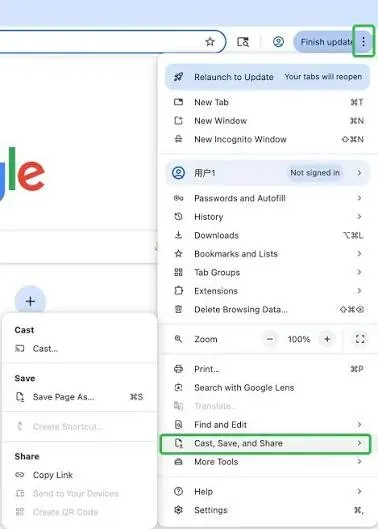
Step 4. Choose the VIZIO TV.
Step 5. Select a tab, window, or screen when Chrome provides the option.
Google Cast is generally the better choice for supported streaming apps and browser tabs. However, app casting may not show every menu, notification, or unsupported app displayed on the sending device.
When you need consistent full-screen mirroring across devices that do not share the same native protocol, a cross-platform mirroring app can be more practical.
Use a Cross-Platform Screen Mirroring App
A cross-platform app is useful when AirPlay works from one device, Google Cast works from another, and Miracast is unavailable or inconsistent.
PigeonCast provides a shared mirroring workflow across phones, computers, TVs, and browsers. This reduces the need to use a different connection method for every device in a mixed-platform setup.
It is particularly useful when:
- you want to mirror different types of devices
- the TV does not appear consistently in native connection menus
- you need full-screen mirroring rather than app-only casting
- you want a more consistent connection process across platforms
Step 1. Install PigeonCast on the sending device you want to mirror from.


Overall Rating:



Step 2. Make sure both devices are on the same Wi-Fi network.
Step 3. Select the VIZIO TV from the device list.
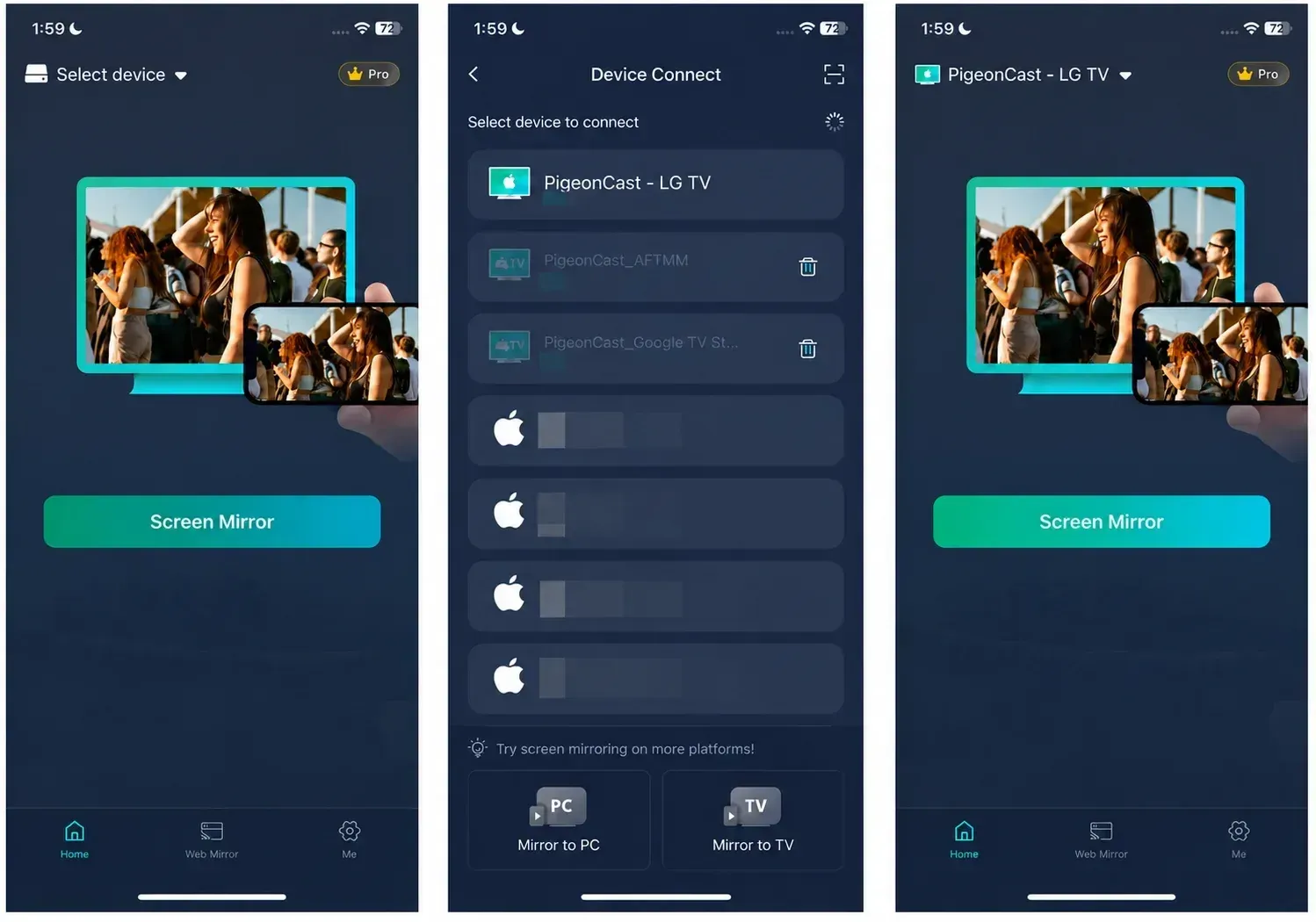
Step 4. Start mirroring and confirm the connection if prompted.
Step 5. Adjust the display mode inside the app if you want full-screen mirroring, video playback, or a presentation-friendly view.
Wireless mirroring still depends on the network and device performance. When stability, low delay, or guaranteed compatibility matters more than convenience, a wired connection is the safer option.
Use a HDMI Cable or Adapter
HDMI sends video and audio directly through a cable. It does not depend on Miracast support, Wi-Fi quality, device discovery, or compatible wireless protocols.
Connect the computer or mobile device to an HDMI input on the VIZIO TV using the appropriate cable or adapter. Then switch the TV to the corresponding HDMI input.
HDMI is the strongest fallback when:
- the TV never appears in Windows + K
- AirPlay or Google Cast disconnects repeatedly
- the Wi-Fi network is congested or restricted
- low delay and stable image quality matter
- you need the connection to work without further compatibility testing
The main limitation is that the sending device must remain physically connected to the TV. For presentations, gaming, troubleshooting, or long viewing sessions, that trade-off may be preferable to an unstable wireless connection.
Conclusion
The more useful way to approach VIZIO screen mirroring is not to focus on one protocol name, but to identify what the sending device is actually capable of using. A menu labeled Cast, Screen Share, or Wireless Display may rely on different technologies depending on the phone, computer, and operating system.
Before troubleshooting, check whether you need full-screen mirroring, app-based video playback, an extended desktop, or simply a stable wired display. Choosing the method around that goal can save more time than repeatedly trying to make one wireless standard work across incompatible devices.
As VIZIO software and device platforms continue to change, connection menus and supported features may also vary by model and firmware version. Keeping the TV, phone, computer, and relevant apps updated will make future casting and mirroring setups easier to diagnose.
Vizio Miracast FAQ
Does VIZIO TV support Miracast or Chromecast?
Many VIZIO Smart TVs document Chromecast built-in or Google Cast more clearly than Miracast. Miracast may still work when a compatible Windows PC or Android phone detects the TV as a wireless display, but availability is not consistent across all VIZIO models.
How can I tell if my VIZIO TV supports Miracast?
Press Windows + K on a Miracast-compatible Windows PC and check whether the VIZIO TV appears in the wireless display list. You can also check the TV settings and user manual for terms such as Screen Mirroring, Wireless Display, or Miracast. AirPlay or Cast support alone does not confirm Miracast compatibility.
Does Vizio Miracast require the same Wi-Fi network?
Miracast creates a direct wireless connection between compatible devices, so it does not always rely on the home Wi-Fi network in the same way as AirPlay or Google Cast. However, wireless adapters must remain enabled, and some VIZIO setups may still depend on network discovery or TV software features.
Can I use Vizio Miracast without installing an app?
Yes, when both the sending device and VIZIO TV support Miracast. Windows includes wireless display controls through Windows + K, and some Android phones include compatible screen-sharing tools. If either device lacks Miracast support, you will need AirPlay, Google Cast, a mirroring app, or HDMI instead.
Why does my phone show Cast but not my VIZIO TV?
A menu labeled Cast may search for Google Cast devices rather than Miracast receivers. This is especially common on Google Pixel phones and some newer Android devices. Check whether the phone offers a separate option such as Wireless Display, Smart View, or Screen Share.
Can Miracast play protected streaming content on a VIZIO TV?
Not always. Some streaming services use digital rights management that may block the video, show a black screen, or allow audio without the picture during full-screen mirroring. Using the service’s built-in Cast or AirPlay button is usually more reliable for protected movies and shows.
Is Miracast better than Google Cast for a VIZIO TV?
Miracast is more suitable when you need to duplicate the entire Windows or Android screen, including documents, presentations, and unsupported apps. Google Cast is usually better for playing content from compatible streaming apps because the TV can handle the playback directly.
Can an older VIZIO TV use Miracast?
Possibly, but age alone does not confirm compatibility. Older VIZIO TVs may support earlier SmartCast features, AirPlay after a firmware update, or no built-in wireless mirroring at all. Check the exact model number, update the TV software, and test wireless display detection from the sending device.
Mia Clarke is a technology editor specializing in screen mirroring and casting solutions across multiple platforms. Mia provides clear, practical guides and in-depth insights to help users seamlessly connect their devices. Passionate about enhancing digital experiences, Mia is dedicated to keeping readers updated on the latest trends and tools in cross-platform screen sharing. Whether you’re looking to mirror your smartphone, laptop, or smart TV, Mia’s content delivers reliable, user-friendly advice to simplify your tech setup.