
A wireless display receiver is a device or app that lets a TV, monitor, or computer accept a screen sent from another device without an HDMI cable. In 2026, that can mean a small HDMI dongle, a smart TV with built-in receiving support, or software running on a computer or streaming device.
That matters because people still use the same phrase for very different products. Some receivers are built for Miracast. Some are better at Cast-based video playback. Some are just there to make screen mirroring easier across mixed devices. If you pick the wrong type, the connection may never work the way you expect.
Wireless Display Receiver: Quick Answer
A wireless display receiver is worth buying when your display device cannot already receive screen casts from the devices you use every day.
For many people, the biggest mistake is focusing on the receiver itself instead of checking how their phone, tablet, or computer actually sends video wirelessly. A receiver that works perfectly with a Windows laptop may not provide the same experience with an iPhone or Mac.
Before buying anything, ask yourself three simple questions:
- What device will you be mirroring most often?
- Where do you want the content to appear (TV, monitor, projector, or PC)?
- Does the receiving screen already support AirPlay, Google Cast, or another wireless protocol?
In many cases, the answer is simpler than expected. Some smart TVs already include the receiving technology you need. In other situations, a dedicated receiver can add wireless display support to older screens. And for users who switch between different devices and platforms, a software-based receiving solution may provide more flexibility than additional hardware.
What Counts as a Wireless Display Receiver in 2026
Ten years ago, most people meant an HDMI dongle when they said wireless display receiver. That is still one valid meaning, but it is no longer the only one.
Today, the term usually covers three groups:
- Miracast receivers like Microsoft Wireless Display Adapter that plug into a TV or monitor and accept direct screen duplication
- Cast-capable receivers that work better with video apps and Chrome browser casting
- Software receivers that turn a TV device, computer, or media box into a receiving screen
These products solve a similar problem, but they do not behave the same way. That is why a receiver that works well with Windows may do almost nothing for an iPhone or Mac.
Another source of confusion is that many product listings use broad language such as "supports wireless display" without explaining whether that means Miracast, Cast, DLNA-style media sharing, or app-based receiving.
That difference matters because buyers often assume any receiver can do any job. In practice, a receiver built for direct screen duplication may be poor at app-based streaming, while a Cast-focused device may be excellent for video playback but weak for full desktop mirroring.
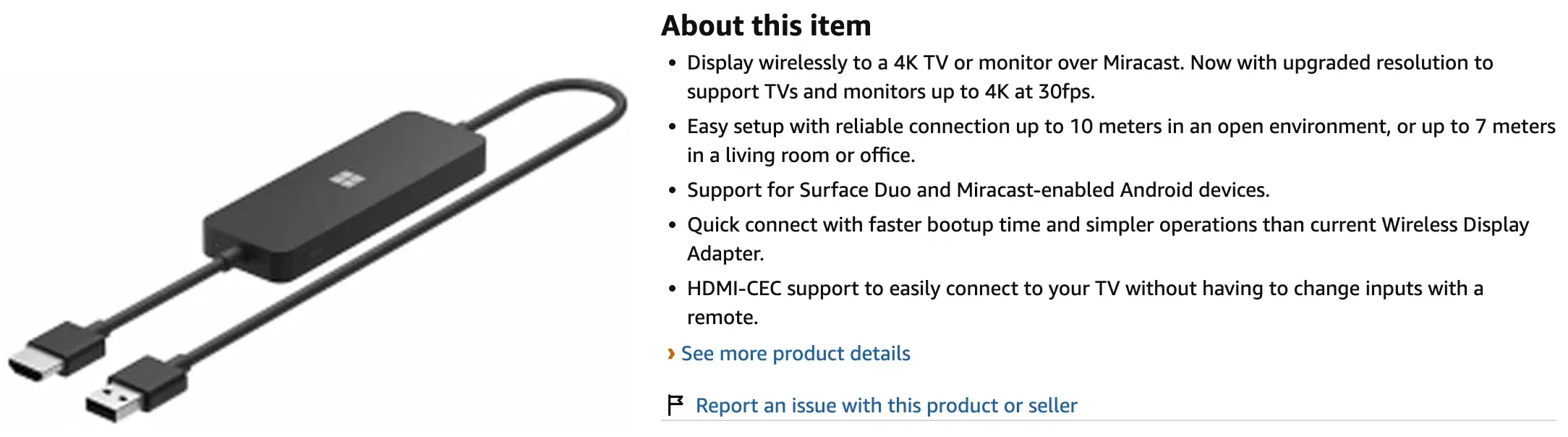
The safest way to judge a product is to stop reading the headline first and check its actual receive methods. Look for exact terms such as Miracast, Google Cast, AirPlay, DLNA, or multi-protocol support. If the listing avoids saying which standards it accepts, that is usually a warning sign rather than a minor omission.
Wireless Display Receiver Types and How They Differ
The easiest way to avoid a bad purchase is to separate receiver types before you look at brand names.
Miracast Receiver
A Miracast receiver is closest to the old idea of wireless display. It focuses on direct screen duplication, often through an HDMI dongle connected to a TV.
Miracast matters because it mirrors what is on the sender's screen instead of handing media playback over to the TV in the way Cast often does.
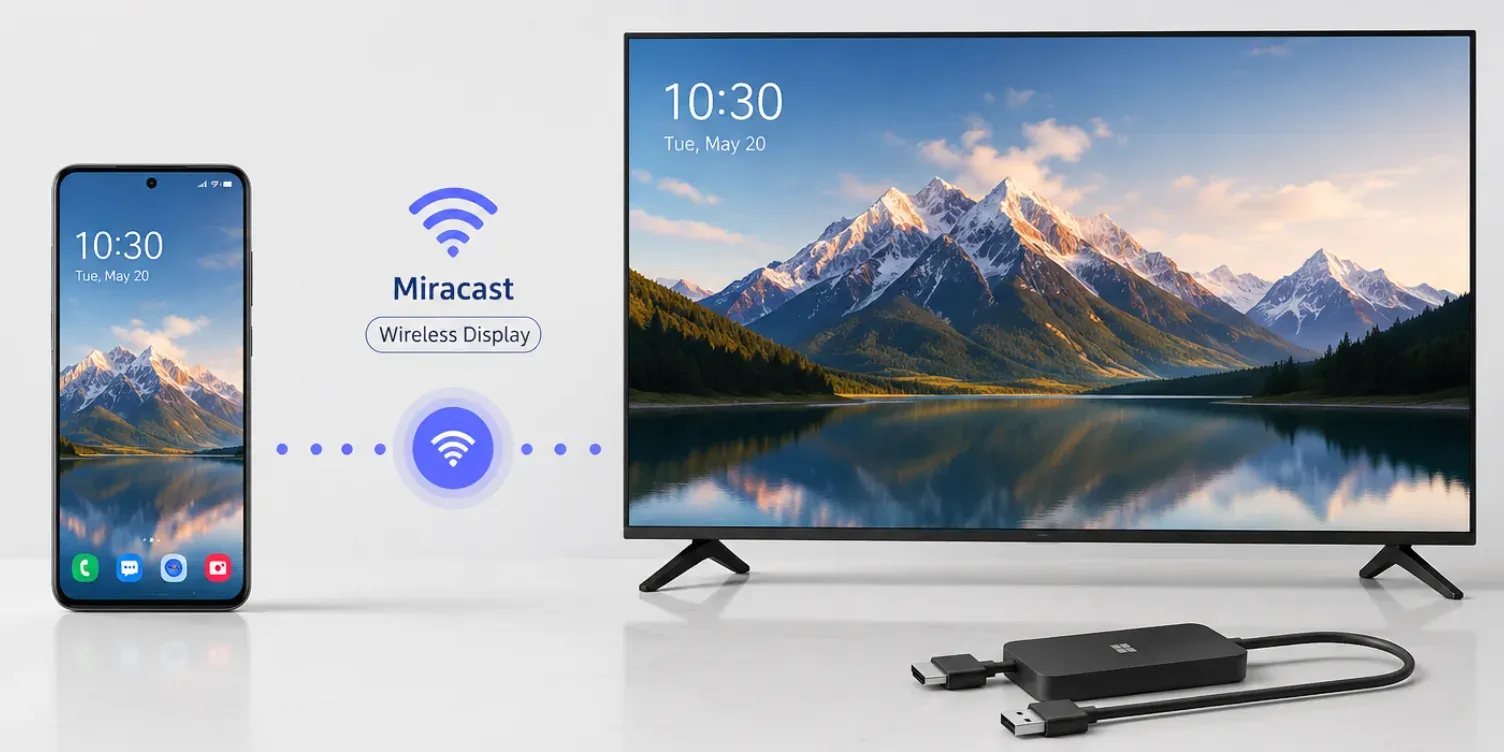
That makes it useful for slides, browser tabs, training demos, internal tools, local files, and any situation where you need the target display to show exactly what the sender sees. In meeting rooms and classrooms, this is still the reason Miracast receivers have not disappeared.
This type is usually best for:
- Windows laptops with Miracast support
- Android phones that still support Miracast-style sending
- meeting-room or presentation use
In real use, Miracast receivers tend to perform best when the sender is close to the display, the wireless environment is not congested, and the task is more presentation-heavy than entertainment-heavy.
They can feel perfectly fine for PowerPoint, spreadsheets, web pages, and short clips. They can feel less convincing when users expect perfect lip sync, instant reconnection, or reliable compatibility across every modern phone and computer in the room.
This type is usually weaker for iPhone and iPad, Mac, and households that want easy streaming from many app ecosystems.
That weakness is not just a small compatibility footnote. It affects the whole buying decision. If a family uses iPhones in the living room and Windows laptops in the office, a Miracast-only receiver may solve one problem while creating another. It is still a valid tool, but it is a narrower tool than many buyers expect.
Cast-Based Receiver
A Cast-based receiver is built more for video delivery than for full screen duplication. This group includes devices and TVs that receive Google Cast sessions from supported apps or Chrome.
This distinction is important because Cast is often smoother for entertainment. When you cast from a supported app, the sender may only trigger playback while the TV or receiving device handles the stream more directly. That can reduce battery drain on the phone and often gives a cleaner TV viewing experience than plain screen duplication.
This type is better when you want:
- smoother playback from video apps
- less battery drain on the sending phone
- easier TV watching instead of desktop-style mirroring
It is less useful when you need to show your entire screen, a game menu, a class demo, or a browser tab that does not cast cleanly. If you are unsure what that standard actually does, this Chromecast Guide gives a cleaner picture.
Buyers often overrate Cast-based hardware when their real need is work-related mirroring. A TV that is excellent at receiving YouTube, browser video, or music apps may still be awkward for mirrored training sessions, cross-platform device demos, or showing a phone settings menu. That is why Cast-based receivers are excellent for some households but incomplete for others.
App-Based Screen Mirroring Receiver
An app-based receiver uses software instead of a single-purpose dongle. That matters more now because many homes no longer use one operating system. A Windows laptop, Android phone, iPhone, and smart TV do not always share one native standard.
In that situation, an app-based receiver can be the more practical option because it is built for mixed-device use instead of one legacy protocol. This category is especially relevant now because buyers increasingly want one receiver that can handle iPhone, iPad, Android, Windows, and TV-side receiving without forcing them to keep separate dongles for each standard.
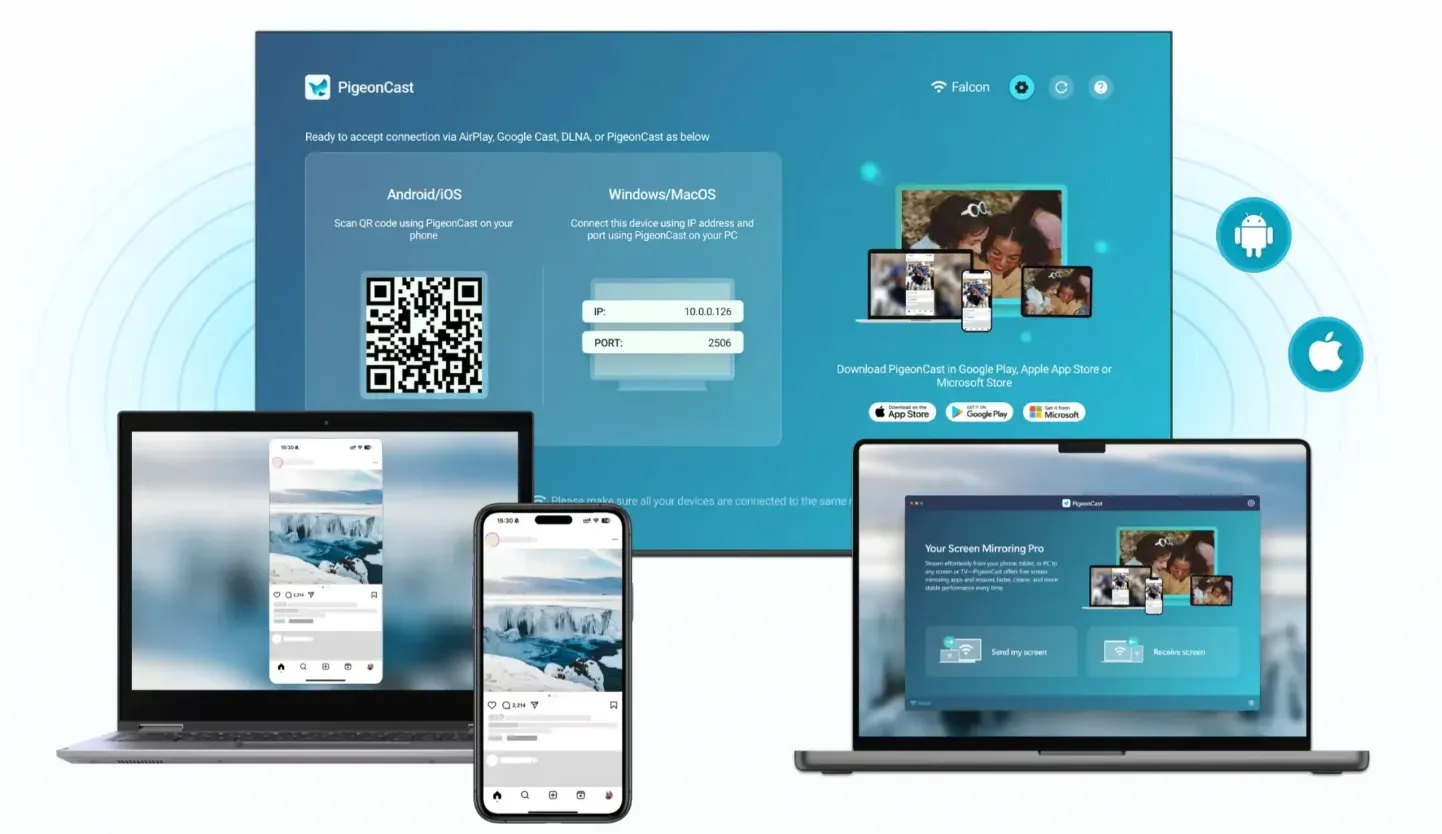
The strongest app-based options are not just "another screen mirroring app." They function more like a universal screen mirroring receiver.
A lightweight screen mirroring app is PigeonCast, because it supports multiple protocols and fits mixed-device setups better than a single-standard Miracast dongle. That multi-protocol design matters when one person wants to mirror a phone, another wants to cast video, and someone else needs to share a laptop screen to the same larger display.
Software receivers are not automatically better than hardware. They are better when protocol range is the real problem. If your issue is not signal quality but cross-device compatibility, a universal screen mirroring receiver usually gives more day-to-day value than a receiver that only supports one sending standard.
Who Should Still Buy a Wireless Display Receiver
A dedicated receiver still makes sense for some buyers.
The simplest way to think about this section is to look at repeated usage, not one-time setup. If you expect to use the receiver every week for the same kind of task, dedicated hardware can still be worthwhile. If you only need occasional screen sharing and your display already supports one or two standards, extra hardware may do little beyond adding clutter.
You Mainly Mirror a Windows PC to a TV or Projector
If your setup is Windows-first and you want simple screen duplication for slides, documents, or local video, a Miracast receiver can still do the job well enough.
This is still one of the clearest reasons to buy a receiver. Windows laptops remain the strongest native fit for many wireless display adapters, especially in offices, classrooms, front-desk displays, and internal presentations. If your daily use case is "open laptop, duplicate screen, present," receiver hardware can still feel straightforward and cost-effective.
It is also one of the few cases where a narrower product can still be the right product. You do not always need a feature-rich media ecosystem if your only goal is reliable screen duplication from a known device class.
Your Display Has No Built-In Receive Feature
Older TVs and office monitors often lack AirPlay, Google Cast, or any usable screen receive mode. In that case, a wireless display adapter can be the quickest way to add the feature without replacing the screen.
This matters in commercial environments too. Conference room TVs, showroom displays, portable monitors, and budget office screens often stay in service for years after their smart features become outdated or irrelevant. In that situation, a receiver can extend the life of existing hardware at a lower cost than replacing the display.
The key detail is to match the receiver to the senders you already have. A cheap adapter only saves money if it actually speaks the same standard as your laptops and phones.
You Need a Low-Complexity Presentation Device
Some buyers do not need a full app ecosystem. They just want to walk into a room, connect a laptop, and put the screen on a larger display. A basic receiver can still be fine for that.
That is why some dedicated receivers continue to survive even in a smart-TV-heavy market. For presentations, many users care more about predictable duplication than about app catalogs, voice search, or media storefronts. If the room already has internet restrictions or a locked-down network, a simple receive-only device can even be easier to manage than a full streaming platform.
In short, dedicated receiver hardware still earns its place when the display job is narrow, repeatable, and mostly unchanged from one week to the next.
When You Should Skip Dedicated Receiver Hardware
Many people searching for a wireless display receiver do not actually need separate hardware anymore.
This is especially true in 2026 because many smart TVs, streaming sticks, and media boxes already offer some level of receiving support. Buyers who skip this check often end up paying twice for the same category of function, while still not fixing their real compatibility issue.
Your TV Already Supports the Same Standard
If your TV already includes Google Cast, AirPlay, or built-in screen receiving, buying another dongle may only add one more point of confusion. First check what the display already supports. For example, if you have a Telefunken TV, check whether your model supports Wireless Display on Telefunken before buying a separate receiver.
You should also check how well the built-in support works in real use, not just what appears on the product box. Some TVs advertise casting support clearly but handle only specific app scenarios well.
Others support screen receiving but bury the feature in menus or limit it to certain device families. Still, if the built-in option already matches your main sender, it is usually smarter to test that first before buying more hardware.
You Use iPhone, iPad, or Mac Most of the Time
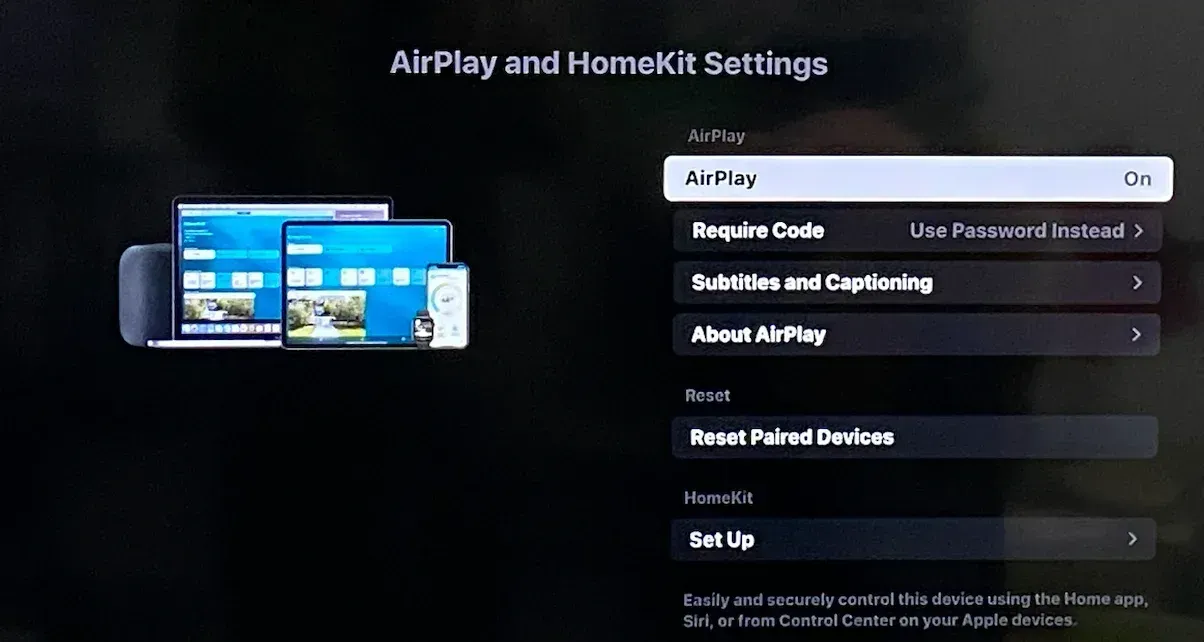
Apple devices do not work naturally with Miracast receivers. If your main goal is to mirror Apple devices, a Miracast dongle is often the wrong buy from the start.
This is one of the most common buyer mistakes. Many users search for a wireless display receiver, see an HDMI dongle at a low price, and assume it will work equally well with iPhone, iPad, MacBook, and Windows.
In practice, Apple-heavy households need to look much more carefully at receiving standards. For example, if you want to screen mirror an iPhone to a Windows PC, a dedicated solution designed for Apple devices usually delivers a much smoother experience than a standard Miracast receiver. Likewise, users who need to mirror a Mac to a PC (or vice versa) should verify compatibility before purchasing any wireless display hardware.
A receiver that lacks natural Apple support may turn a simple use case into a frustrating series of partial connections and missing device prompts. If you're primarily using Apple devices, it's worth exploring alternatives specifically built for iPhone and Mac screen mirroring rather than relying on Miracast alone.
You Use Mixed Devices Every Week
If multiple device types are used regularly, a single-standard receiver can become restrictive. In most cases, compatibility across platforms matters more than the hardware itself.
Wireless Display Receiver vs Built-In Casting vs Screen Mirroring Apps
This is where many buying decisions get easier.
| Option | Best for | Strength | Main limit |
|---|---|---|---|
| Wireless display receiver dongle | Windows and some Android mirroring | Direct screen duplication | Limited Apple support |
| Built-in TV casting | App streaming and simple casting | Fewer devices to manage | Feature set varies by TV |
| App-based receiver | Mixed-device homes | Broader compatibility | Depends on the app and network quality |
If all you want is to open a video app and watch on a TV, a dedicated receiver is often not the best answer. If you need your full screen on a larger display, the decision changes.
The buyer mistake here is treating these three options as direct substitutes in every scenario. They overlap, but they do not serve the same primary job. Receiver dongles are strongest when the sender needs to duplicate its screen. Built-in TV casting is strongest when the TV can take over playback cleanly. App-based receiving is strongest when compatibility matters more than any one native standard.
Quick Recommendation
- Choose a wireless display receiver if you mainly mirror a Windows laptop or Android device.
- Choose built-in casting if your TV already supports the apps and devices you use.
- Choose a software receiver if you regularly switch between different operating systems and want broader compatibility.
How to Set Up a Wireless Display Receiver
Setup depends on the receiver type, but the broad steps are usually simple.
What changes from one product to another is not the overall setup order but the receive standard, network requirement, and device-discovery behavior. That is why some receivers seem easy in one room and confusing in another. Good setup is less about pressing the right button sequence and more about making sure the sender and receiver are speaking the same language.
Set Up an HDMI Wireless Display Adapter
Step 1. Plug the receiver into an HDMI port on the TV or monitor.
Step 2. Connect power if the receiver needs USB power.
Step 3. Switch the display to the correct HDMI input.
Step 4. Put the receiver into ready-to-connect mode.
Step 5. On the sending device, open the built-in casting or screen mirroring control and select the receiver.
Before you blame the receiver, check three things first: whether the display is on the right HDMI input, whether the sender actually supports the same receive standard, and whether the receiver is waiting in discoverable mode. Many failed setups come from one of those three basic mismatches.
For buyers using Windows, it is also worth confirming that the laptop's wireless adapter and drivers support wireless display properly. A receiver cannot fix a sender that lacks the right capability on its own side.
Set Up a Software Receiver
Step 1. Install the receiver app like PigeonCast on the target screen or target device.


Overall Rating:



Step 2. Make sure both devices are on the same Wi-Fi network if the app requires it.
Step 3. Open the receive screen inside the app.
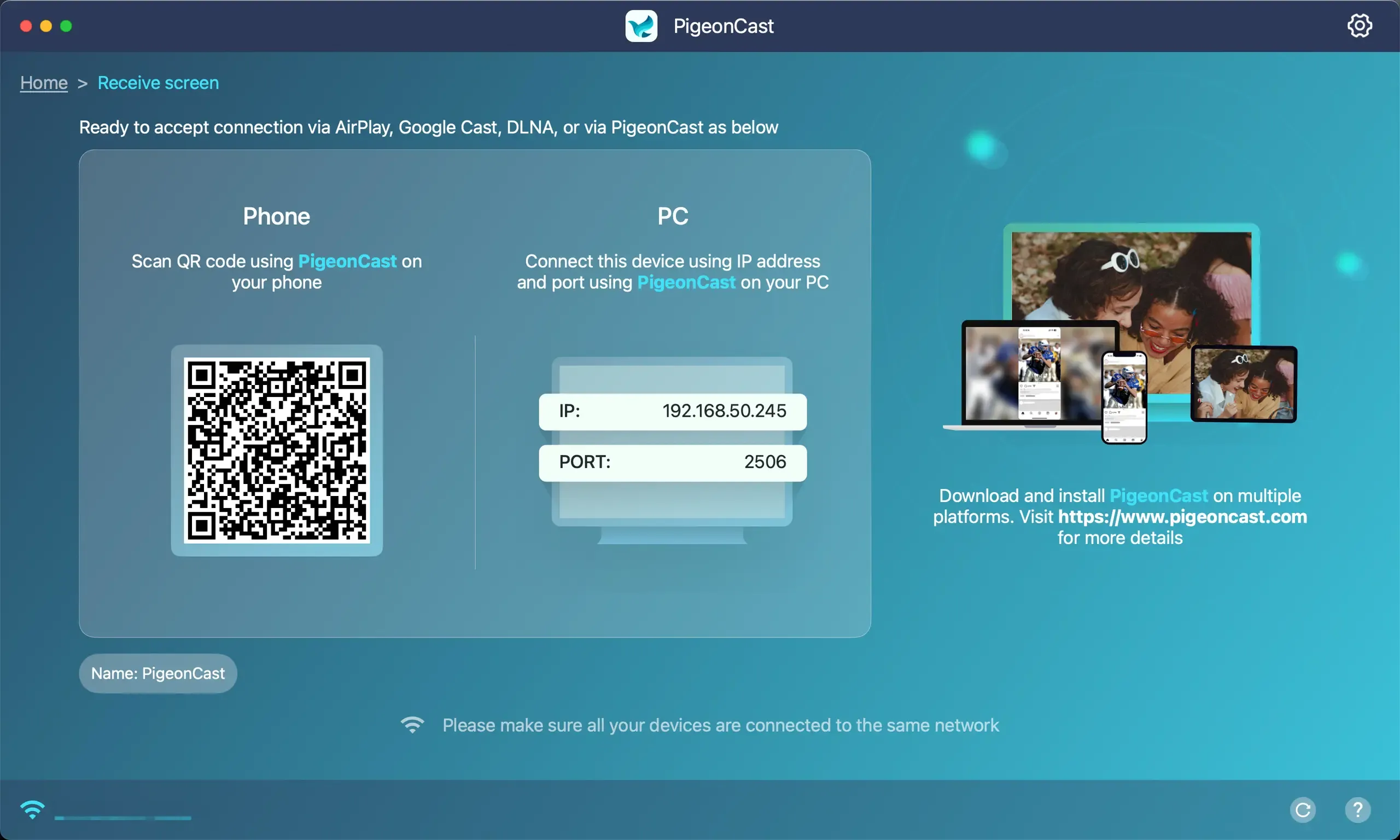
Step 4. Start mirroring or casting from the sending device.
Software receivers reduce that friction when they accept more than one protocol, which is why they are often easier to live with in mixed-device environments.
Common Wireless Display Receiver Limits
Even a good receiver has boundaries. Most complaints come from buying the right product for the wrong kind of device.
App Streaming and Full Mirroring Are Not the Same
Some devices are great at app casting but not great at full screen duplication. Others mirror the whole screen but do not feel smooth enough for streaming-heavy use.
This difference affects picture quality, latency, usability, and user expectations.
- If a household mostly watches video apps, they may care more about stable playback and less about showing the entire phone screen.
- If a teacher or trainer needs to demonstrate browser steps, settings menus, or software tools, full mirroring matters more.
Buyers who do not separate these two jobs usually end up with the wrong receiver.
Older Miracast Hardware Can Feel Dated
Many older dongles still work, but they can feel less stable on newer devices than they did years ago. That does not make them useless. It just means buyers should not expect modern cross-platform flexibility from aging hardware.
This is one reason older wireless display adapters often produce mixed reviews. They may still perform acceptably in a narrow Windows-based setup, yet feel out of place in a home where users expect quick switching between phones, tablets, laptops, and smart-TV apps. The hardware may not be broken at all. It may simply reflect a more limited era of wireless display use.
Conclusion
A wireless display receiver is still a real product category, but it no longer means one thing. For Windows-first mirroring, a receiver dongle can still be useful. For app streaming, built-in casting is often better. For homes and teams using several device types, software-based receiving is often the smarter buy.
The better question is not "Do I need a wireless display receiver?" It is "What kind of receiver matches the devices I already use?" Once you answer that, the product category becomes much easier to evaluate. Instead of chasing broad marketing claims, you can focus on sender compatibility, receive standards, and whether your daily use is mostly mirroring, mostly casting, or a mix of both.
Wireless Display Receiver FAQ
What is a wireless display receiver?
A wireless display receiver is a device or app that lets a TV, monitor, or computer receive a screen wirelessly from another device. In practice, it may be a Miracast dongle, a Cast-capable TV device, or software that turns a screen into a receiver.
Is a wireless display receiver the same as Chromecast?
No, a wireless display receiver is a broader category, while Chromecast is one specific Cast-focused receiving method inside that category. Many receivers are built around full screen duplication, but Chromecast is better known for supported app playback, browser casting, and a TV viewing experience that often feels different from plain mirroring.
Does a wireless display receiver work with iPhone?
Some do, but many wireless display receivers do not work naturally with iPhone unless they support Apple-friendly receiving standards. Before buying, check whether the receiver supports AirPlay or broader multi-protocol receiving, because many low-cost HDMI dongles are still aimed more at Windows and Android than at Apple devices.
Do I need a wireless display adapter if my TV is smart?
Not always, because many smart TVs already support at least one useful receiving standard out of the box. If your TV already works well with your phone or laptop, adding a separate wireless display adapter may only duplicate features instead of solving a real problem.
Is Miracast still worth buying in 2026?
Yes, Miracast can still be worth buying in 2026 if your main use is Windows-first screen mirroring or simple presentation sharing. It is much less appealing when your home or office switches often between Apple, Android, Windows, and app-based TV viewing.
Mia Clarke is a technology editor specializing in screen mirroring and casting solutions across multiple platforms. Mia provides clear, practical guides and in-depth insights to help users seamlessly connect their devices. Passionate about enhancing digital experiences, Mia is dedicated to keeping readers updated on the latest trends and tools in cross-platform screen sharing. Whether you’re looking to mirror your smartphone, laptop, or smart TV, Mia’s content delivers reliable, user-friendly advice to simplify your tech setup.