
If you need a Microsoft Wireless Display Adapter alternative, the secret to a lag-free experience is to match your protocol first and your hardware second. For most Windows users, the winning order is a Miracast receiver first, a streaming device second, an HDMI wireless kit third, and a software bridge last for protocol gaps.
This guide is designed for Windows users who need to cast PC to TV without a Microsoft adapter by replacing an older, unstable casting setup with more reliable, modern hardware.
Why People Replace the Microsoft Wireless Display Adapter
Most replacements happen for four reasons: unstable pairing, rising latency, mixed-device environments, or poor 4K behavior on newer displays. If your setup worked before and now drops sessions, the common cause is drift between sender, receiver, and router settings.
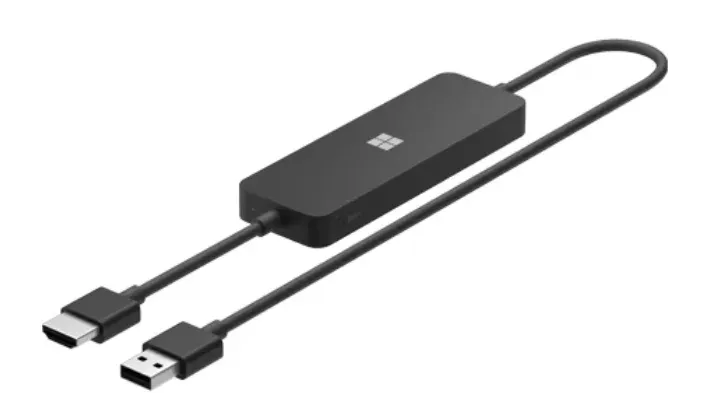
Another reason is device diversity. A single-protocol setup breaks down when teams switch between Windows laptops, phones, and app-native casting flows.
If you check two or more items below, moving to a modern screen mirroring adapter alternative is worth the investment:
-
You have to reconnect more than once per 30-minute session.
-
You see stuttering during slide transitions or demo videos.
-
The receiver is "invisible" on the first Windows + K scan.
-
Audio delay is noticeable during Teams or Zoom meetings.
-
Protected streaming apps (Netflix/Hulu) show a black video screen.
Top 4 Microsoft Wireless Display Adapter Alternatives
When choosing an alternative, don't just buy the highest-rated dongle on Amazon. You must choose based on how your network is managed and whether you need to mirror your entire screen or just stream a video.
Here are the 4 best Microsoft Wireless Display Adapter alternatives. This ranking is based on practical success rates in 2026. Pick the option that best matches your hardware ecosystem and performance needs.
Dedicated Miracast Receivers: Best for Low-Latency Windows Mirroring
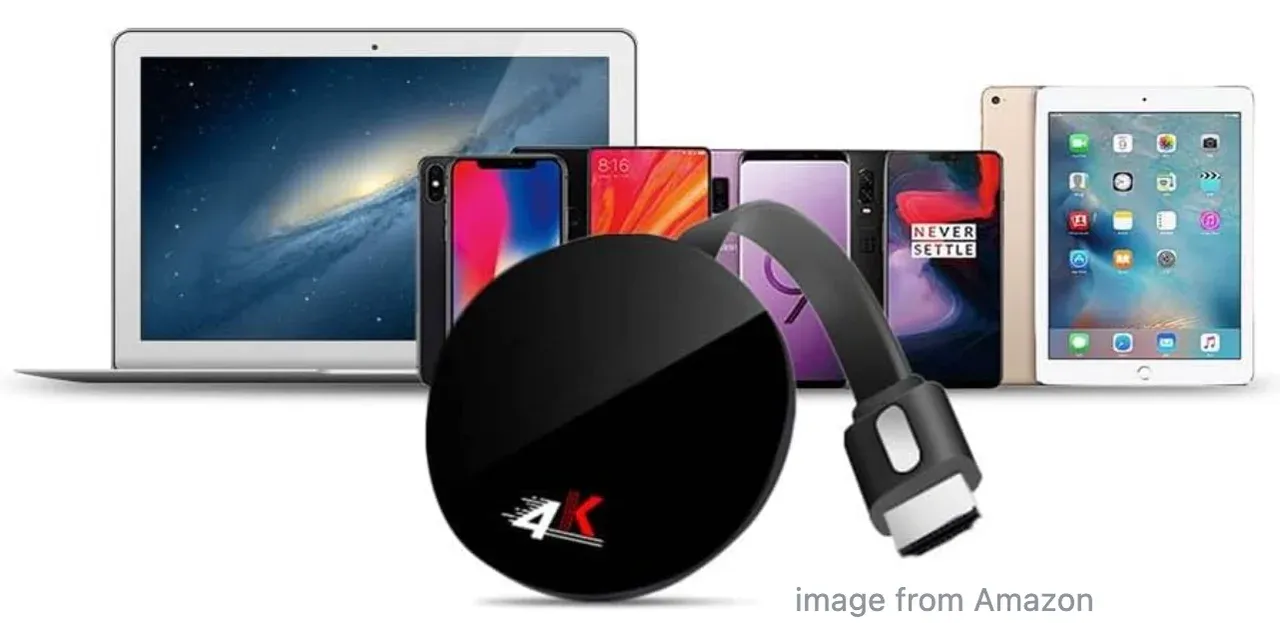
Since the Microsoft Wireless Display Adapter was built on the Miracast protocol, a native Miracast receiver is the most direct "1-to-1" replacement. These devices allow Windows laptops to "see" the display as a secondary monitor without installing third-party apps.
Before buying a separate receiver, check whether your TV already has Miracast-style receiving built in. For example, some Telefunken models offer Telefunken Wireless Display as an input source.
-
Best Use Case: Quick office presentations, classroom lectures, and home office setups where you need to extend your desktop (not just duplicate it).
-
What to expect: Fast pairing via the Windows "Connect" (Win+K) flow and low latency for mouse movements.
-
The Limitation: Because they use Wi-Fi Direct, they can struggle in "noisy" environments with dozens of competing Wi-Fi signals.
How to screen mirror Windows to TV with Miracast receiver:
Step 1. Plug the Miracast receiver into your TV's HDMI port and a USB power source.
Step 2. On your Windows PC, press Win + K to open the "Cast" or "Connect" sidebar.
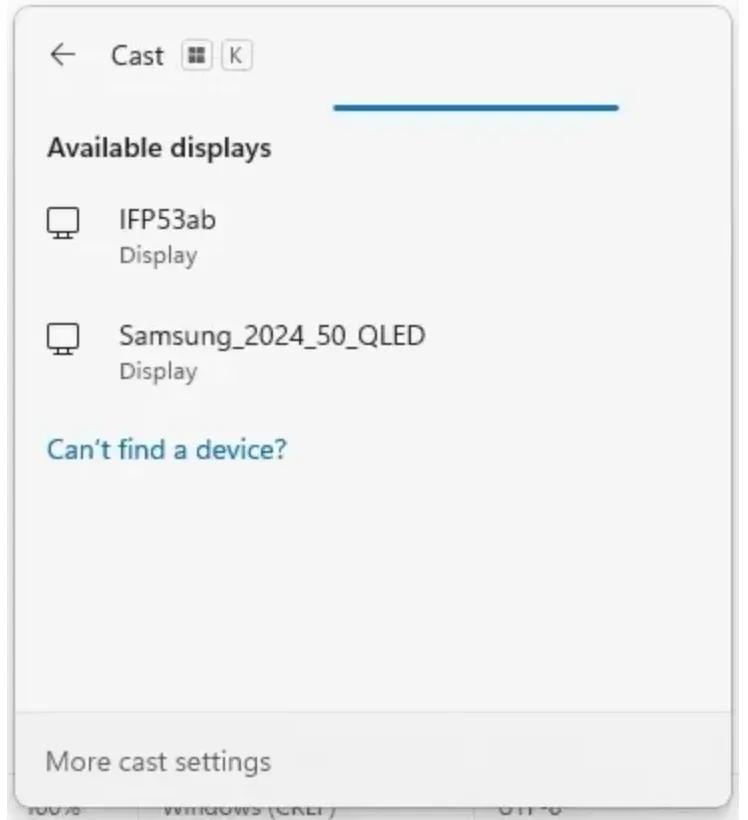
Step 3. Select your receiver from the list.
Note: If you receive a message saying your device doesn't support Miracast, you may need to check your drivers or consider the software bridge option below.
Step 4. If prompted, enter the PIN displayed on the TV screen.
Step 5. Change the projection mode to "Extend" to use the TV as a second monitor while keeping your laptop screen free for notes.
Pro Tip: If the connection is choppy, ensure your laptop's Wi-Fi drivers are updated, as Miracast relies on your internal wireless card.
Smart Streaming Sticks: Best for App-Native Casting & Home Media
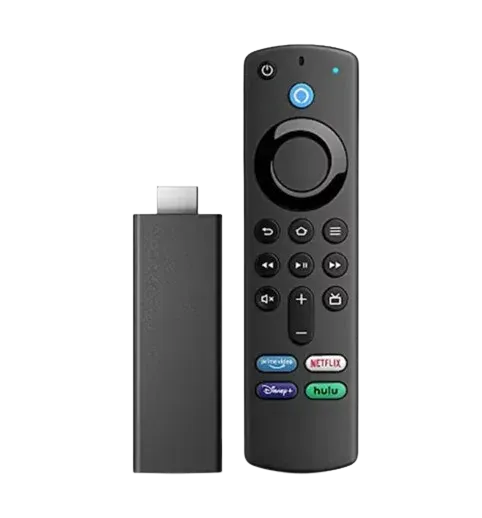
If your main goal is streaming, a dedicated device like a Chromecast with Google TV or a Roku is a better wireless display adapter for TV than a pure mirroring dongle. Instead of your laptop doing all the heavy lifting, the app (like YouTube or Netflix) runs directly on the stick.
-
Best Use Case: Home entertainment, sharing video links in a huddle room, or environments where users switch between Windows laptops and Android/iOS phones.
-
What to expect: High-definition playback without "jitter" because the device handles the processing.
-
The Tradeoff: Full desktop mirroring can sometimes feel "laggy" compared to native Miracast.
How to mirror Windows to TV with a streaming device? Ensure your PC and the streaming stick are on the same Wi-Fi network, then:
-
For Roku/FireStick: Press Win + K and select the device (ensure Screen Mirroring is enabled in the Roku's system settings).
-
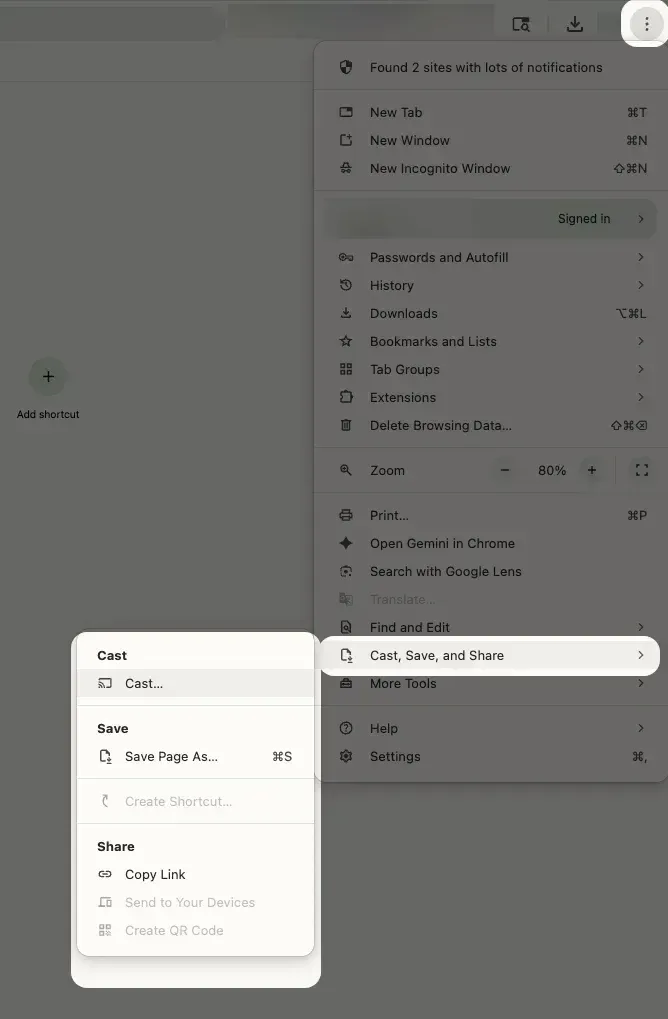
For Chromecast: Open Google Chrome, click the three-dot menu > Save and Share > Cast. In the Sources dropdown, choose Cast Desktop to mirror your entire screen, then select your device.
Plug-and-Play HDMI Wireless Kits: Best for "No-WiFi" Meeting Rooms
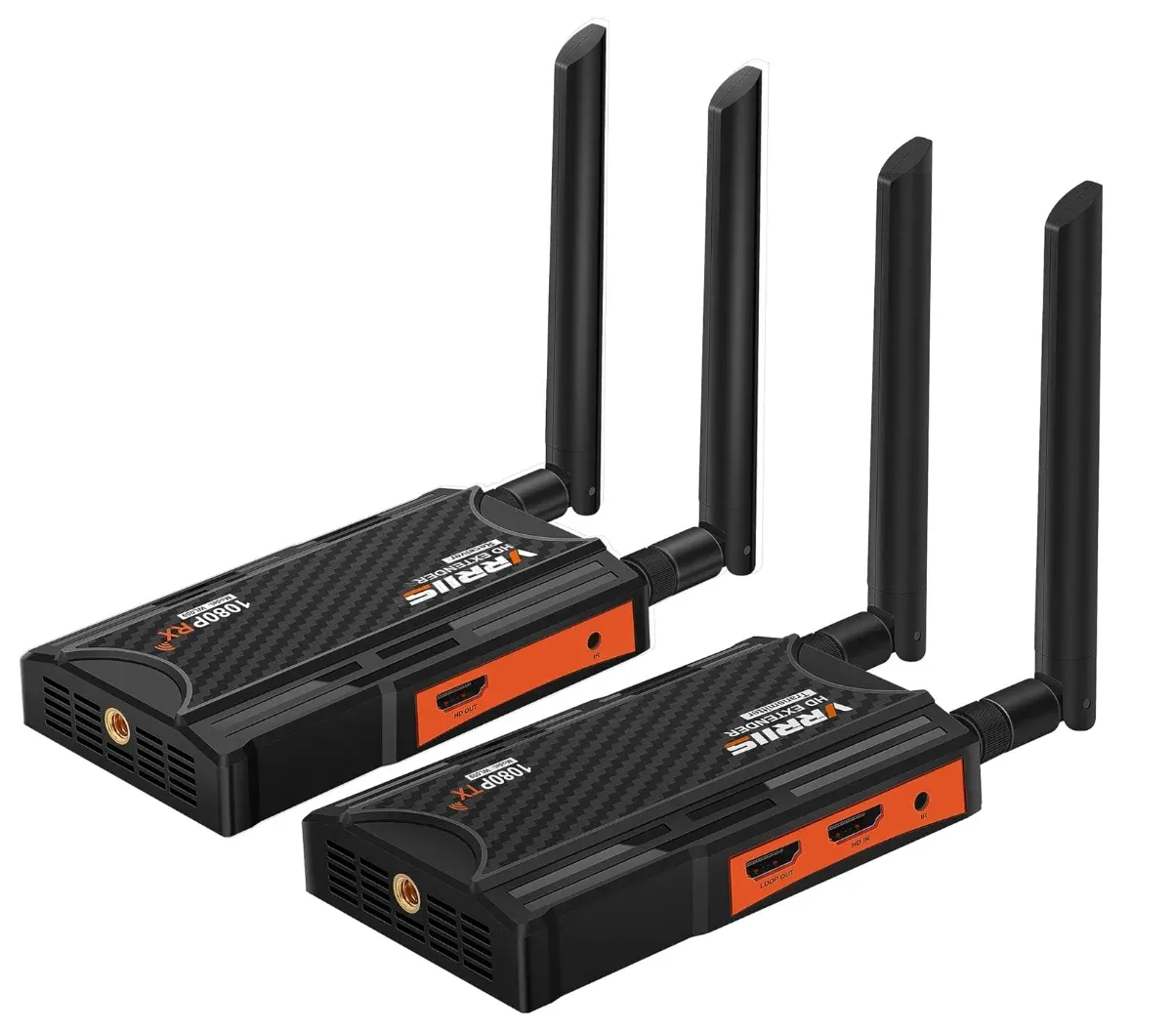
HDMI wireless kits (Transmitter + Receiver pairs) work when software-based discovery fails. These bypass your Wi-Fi network entirely by creating their own closed-loop signal. If your IT department has strict "Client Isolation" rules on the Wi-Fi, this is your only reliable choice.
-
Best Use Case: Large conference rooms, training centers with segmented Wi-Fi, or users who want "Plug-and-Play" without touching any Windows settings.
-
What to expect: Near-zero latency and instant connection. It behaves exactly like an invisible HDMI cable.
-
The Tradeoff: These are significantly more expensive and require a "dongle" to be plugged into the laptop's HDMI/USB-C port.
How to mirror Windows to TV with HDMI wireless kits:
Step 1. Connect the Receiver to the TV's HDMI port and power it via USB.
Step 2. Plug the Transmitter into your laptop's HDMI (or USB-C) port.
Step 3. Wait 10–15 seconds for the lights on both units to turn solid blue.
Step 4. Your screen will mirror automatically.
Cross-Protocol Software Bridges: Best for Apple TV & Mixed Devices
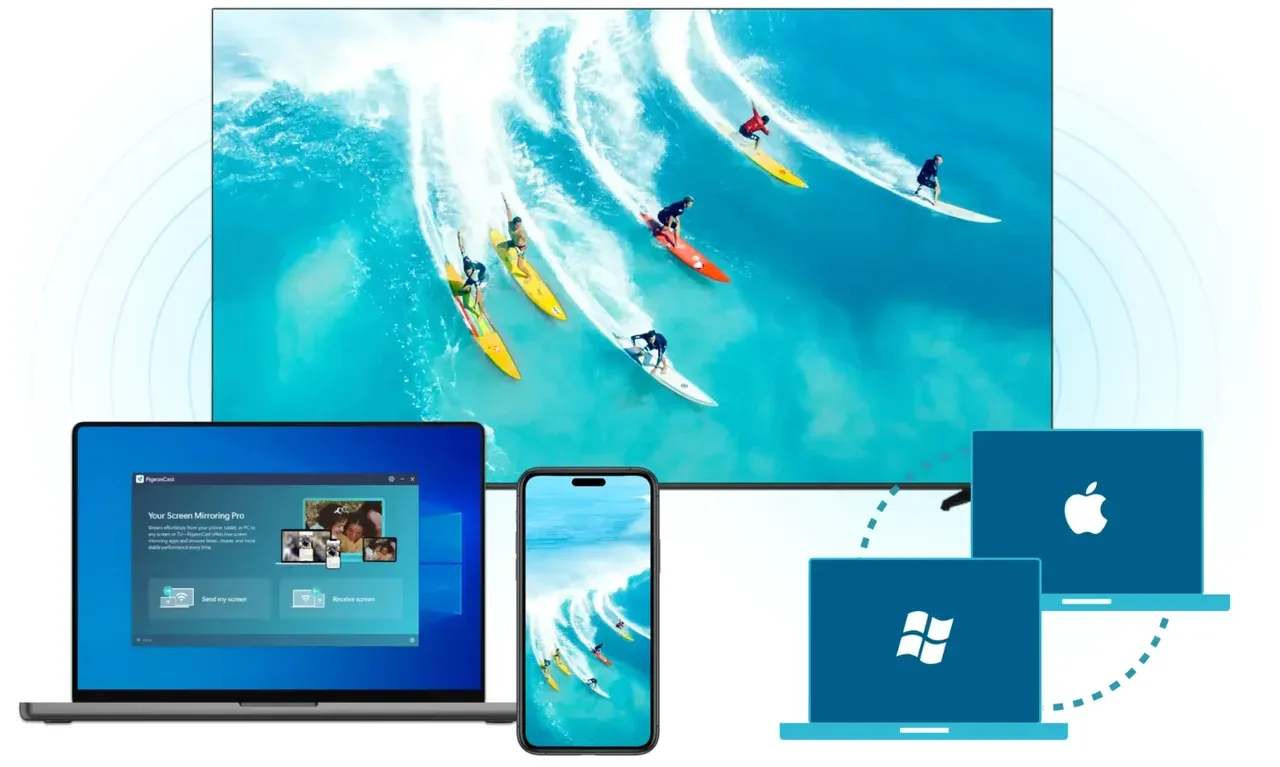
When you have a Windows laptop but the only screen available is an Apple TV or a tablet, a software bridge is necessary. Tools like PigeonCast Screen Mirroring App act as a translator, allowing a Miracast sender to talk to a receiver that usually only speaks AirPlay or Google Cast.
-
Best Use Case: Mixed-device households or temporary workarounds during an office move.
-
What to expect: Flexibility to connect to almost any hardware you already own.
-
The Tradeoff: Requires software installation and may involve more troubleshooting than hardware-based solutions.
How to mirror Windows to TV with PigeonCast:
Step 1. Ensure your Windows laptop and TV are on the same Wi-Fi network.
Step 2. Download and install PigeonCast on your Windows PC and TV.


Overall Rating:


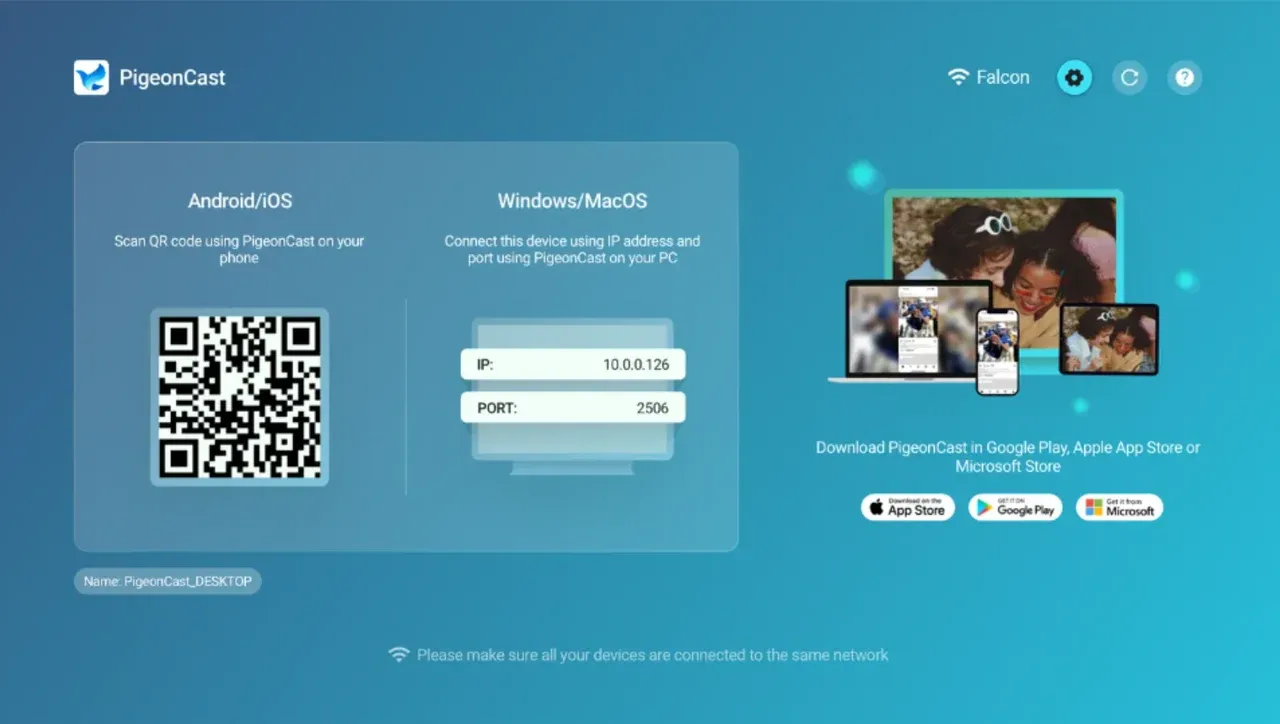 Step 3. Open the app on both platforms and select Send my screen on the laptop.
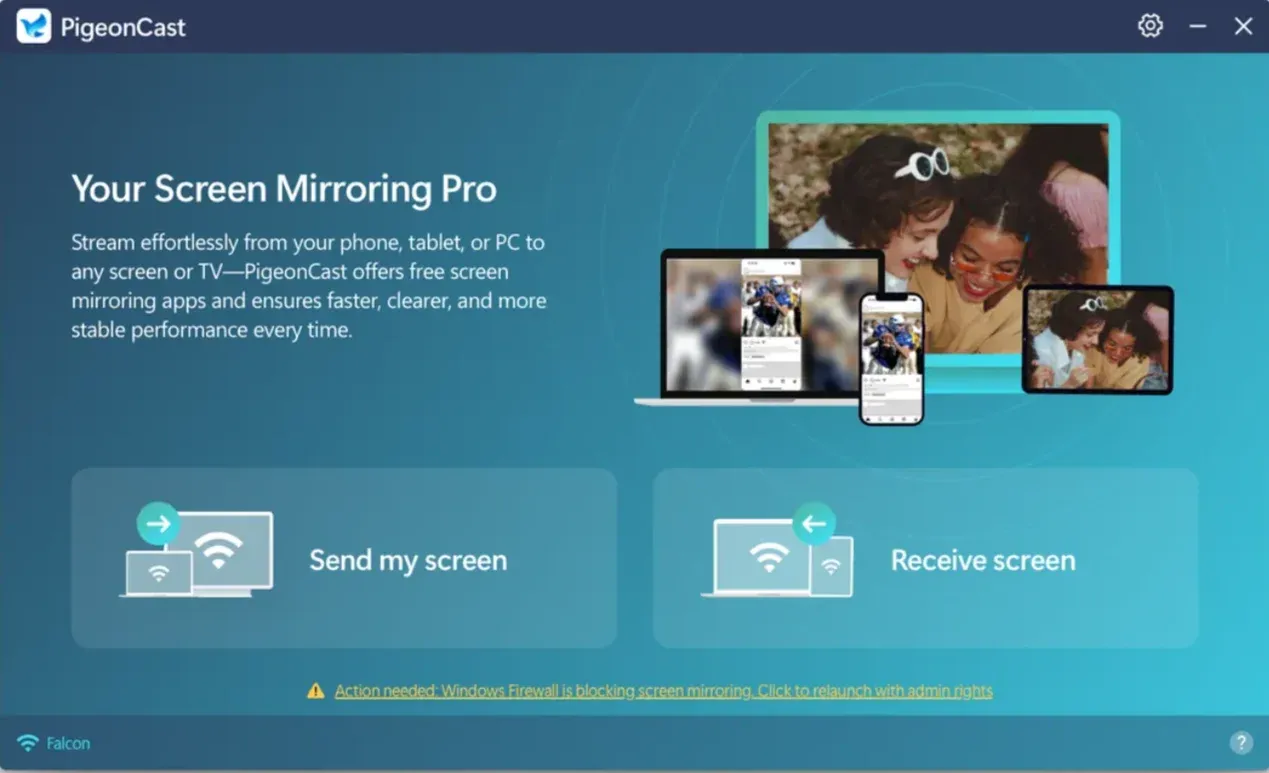
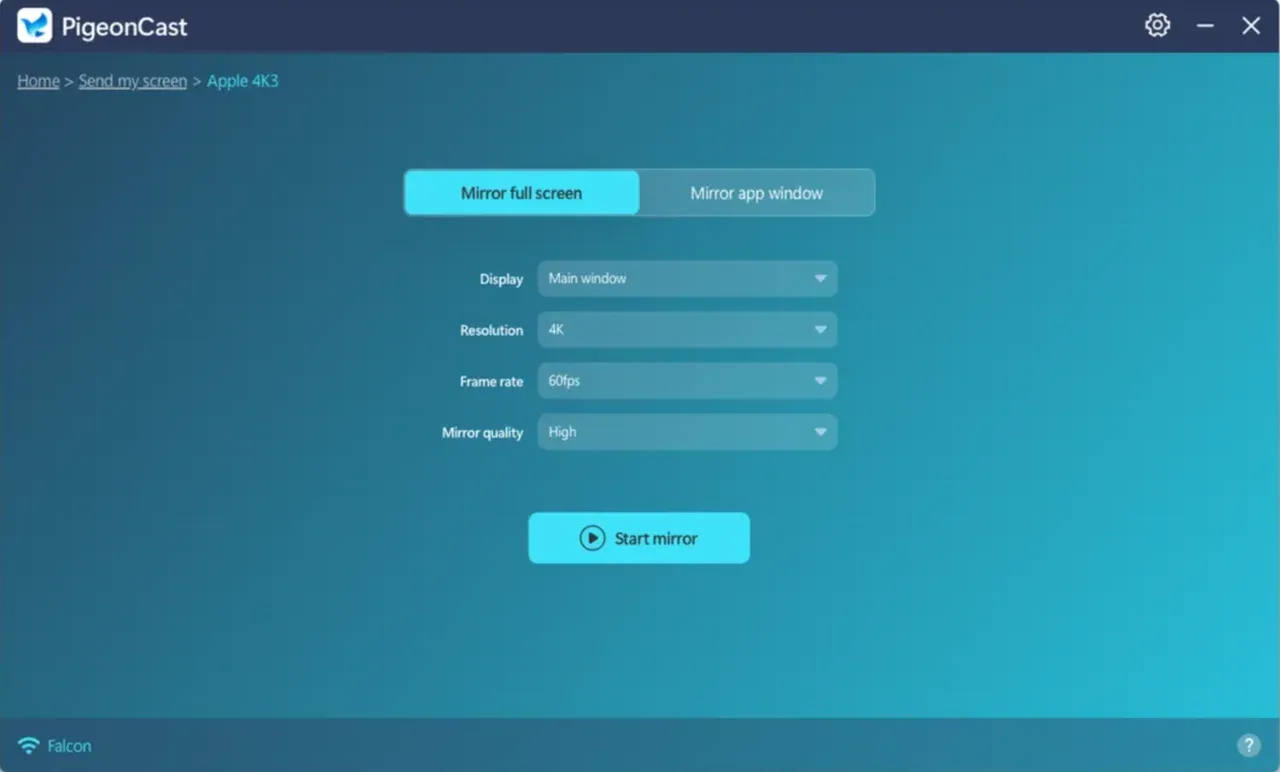
Step 4. The app will scan available devices. Once your TV appears, choose it.
Step 5. Click Start Mirror.
Pro Tip: This is the only way to reliably mirror Windows to an Apple TV without buying new hardware.
Quick Comparison Table: Finding Your Match
| Feature | Miracast Receiver | Streaming Stick | HDMI Wireless Kit | Software Bridge |
|---|---|---|---|---|
| Best For | Windows Mirroring | Media/App Casting | Pro Meeting Rooms | Mixed Devices |
| Setup Speed | Instant (Win+K) | Moderate (App-based) | Instant (Hardware) | Quick (Software) |
| Latency | Low | Medium | Ultra-Low | Variable |
| Wi-Fi Req. | Wi-Fi Direct | Standard Wi-Fi | None (Independent) | Local Network |
| Price Point | $ - $$ | $ | $$$ | Free / $ |
Conclusion
The right Microsoft Wireless Display Adapter alternative depends on your environment, but the recommendation order remains consistent: native Miracast receiver first, streaming ecosystem device second, HDMI wireless kit third for restricted networks, and software bridge workflows for cross-protocol edge cases.
If you are a home user, start with the option that matches daily app behavior. If you run classrooms or meeting rooms, prioritize predictability and keep a fallback path documented.
Microsoft Wireless Display Adapter Alternative FAQ
What is the best alternative to Microsoft Wireless Display Adapter for Windows users?
For Windows-first environments, native Miracast receivers are usually the strongest replacement because pairing is direct and setup is simple. They offer good latency for presentations and daily screen sharing when sender and receiver are on a healthy Wi-Fi network.
Can I cast PC to TV without Microsoft adapter and still get low lag?
Yes. You can use a Miracast receiver, an app ecosystem streaming device for native playback, or an HDMI wireless kit. Low lag depends more on network quality and protocol matching than on brand name alone.
Is a Miracast alternative better than a streaming stick?
It depends on your task. Miracast-style receivers are better for full desktop mirroring. Streaming sticks are better for direct app playback. If your workflow mixes both, choose based on your most frequent session type.
What should I buy as a wireless display adapter for TV in office rooms?
For offices, prioritize reliability under managed Wi-Fi. Start with a receiver type that IT can support consistently, then keep a fallback path such as HDMI or a dedicated wireless kit for critical meetings.
How do I choose a Microsoft wireless display adapter alternative when setup keeps failing?
Use a staged decision: verify protocol support, align network settings, test at 1080p, then switch receiver category if discovery still fails.
Did Microsoft discontinue the wireless display adapter?
Yes, Microsoft has phased out the original hardware. While some stock remains, users are encouraged to move toward Miracast-capable displays or third-party receivers that support the Wi-Fi Alliance standards.
Is Miracast the same as wireless display?
Essentially, yes. "Wireless Display" is the feature name used within Windows, while Miracast is the industry-standard protocol that powers it.
Mia Clarke is a technology editor specializing in screen mirroring and casting solutions across multiple platforms. Mia provides clear, practical guides and in-depth insights to help users seamlessly connect their devices. Passionate about enhancing digital experiences, Mia is dedicated to keeping readers updated on the latest trends and tools in cross-platform screen sharing. Whether you’re looking to mirror your smartphone, laptop, or smart TV, Mia’s content delivers reliable, user-friendly advice to simplify your tech setup.