
Wireless screen mirroring should be a one-click process, yet it is often the most temperamental feature in Windows. When mirroring from PC to Smart TV doesn't work at all, the issue rarely stems from a broken TV. Instead, it is usually a failure between your PC's Miracast drivers and your network's security settings.
If your PC cannot discover the TV or keeps dropping the connection, generic "restart your device" advice won't cut it. You need to address the specific protocols that govern how Windows 11 and 10 communicate with external displays. Let's see how to fix the issue.
Fix 1: Verify Hardware Miracast Compatibility
Your hardware must explicitly support Miracast to mirror a screen without a cable. If your PC screen mirroring is not working on a Smart TV, the first step is to confirm your graphics card and Wi-Fi adapter are capable of the handshake.
Here's how:
-
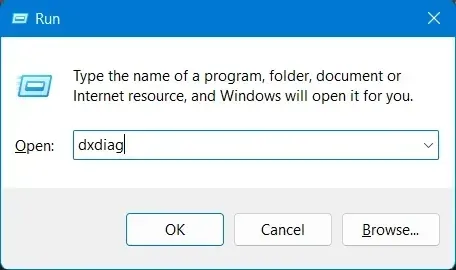
Press Windows + R, type dxdiag, and hit Enter.
-
Wait for the progress bar to finish, then click Save All Information.
-
Open the saved text file and search for Miracast.
If the result shows "Not Supported by Graphics Driver", update your Intel or NVIDIA graphics drivers to enable Miracast support. If it simply says "Not Supported", your Wi-Fi adapter likely doesn't support Wi-Fi Direct, which is required for wireless screen mirroring. In that case, consider using a dedicated screen mirroring app like free PigeonCast as an alternative solution.


Overall Rating:


Fix 2: Update Graphics and Wi-Fi Drivers
Outdated drivers are the primary cause of the "PC won't mirror to TV" error. Windows Update doesn't always grab the latest manufacturer-specific drivers. How to troubleshoot screen mirroring from PC to TV not working?
Update the GPU driver:
-
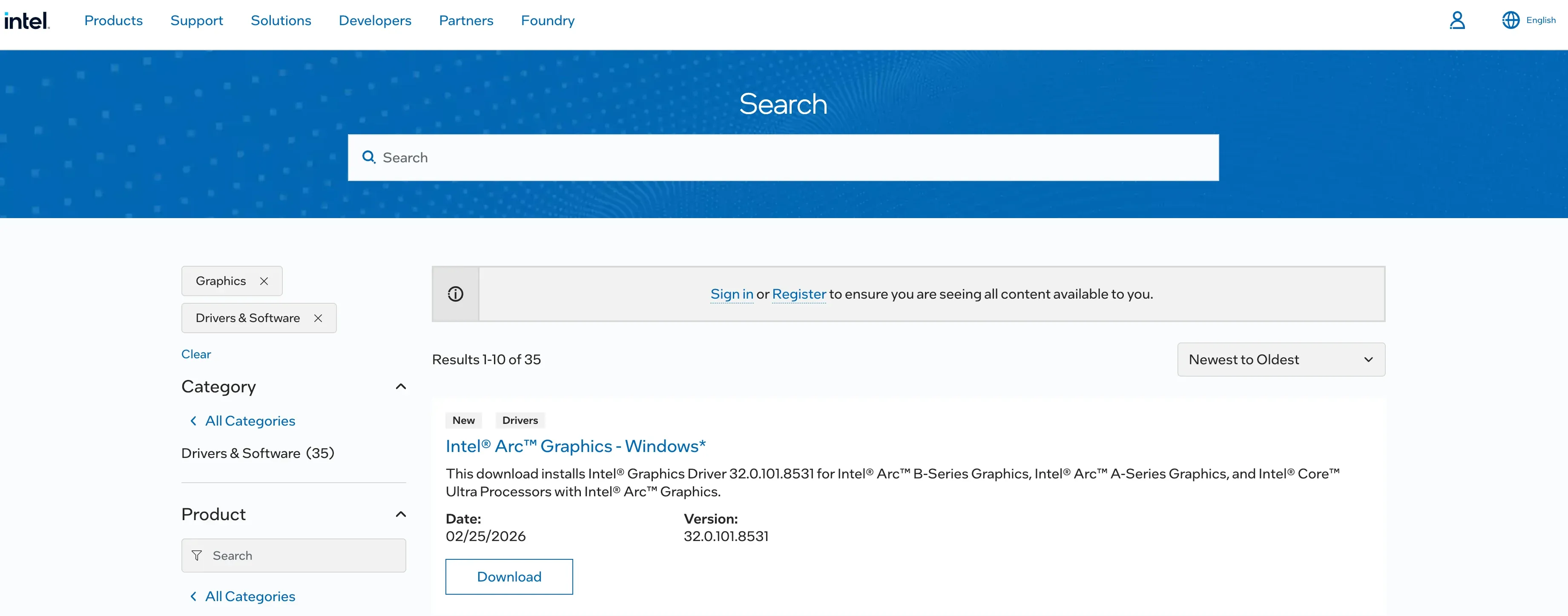
Go to the Intel, NVIDIA, or AMD website.
-
Download the latest Display Driver.
Update the Wi-Fi driver:
-
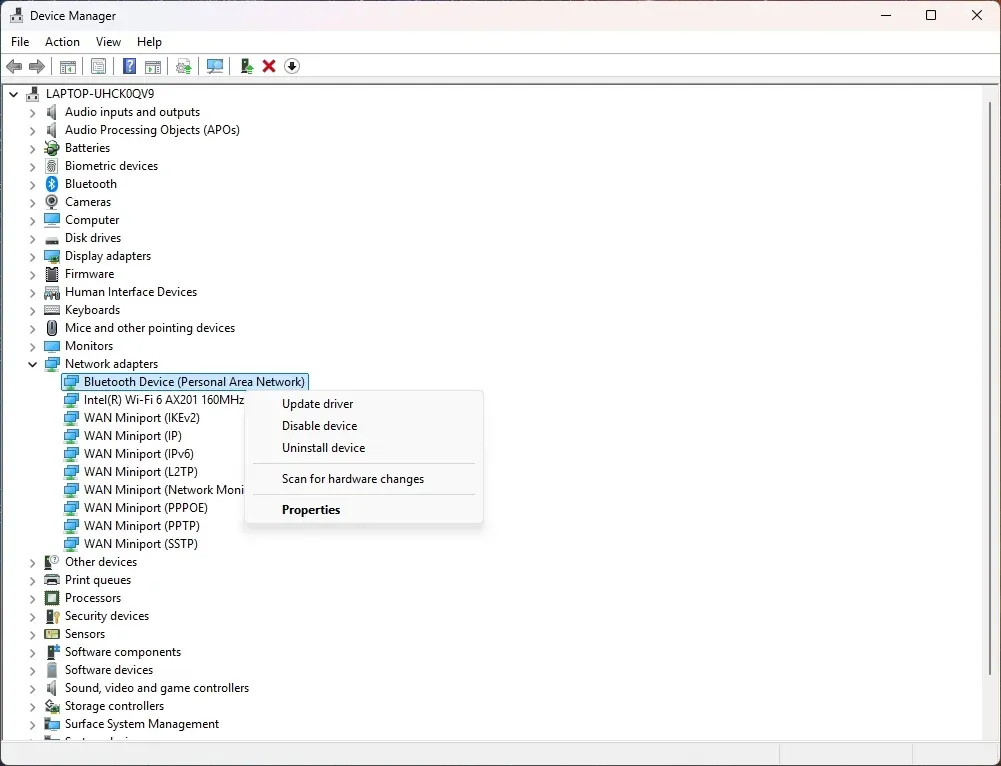
In Device Manager, right-click your Wireless Network Adapter.
-
Select Update Driver.
-
Look for a driver model higher than WDDM 1.3 and NDIS version 6.30 or higher.
Fix 3: Confirm TV Protocol Support
Not all Smart TVs support Miracast. For example, many older Vizio models and Apple TVs rely on AirPlay or Google Cast instead. These technologies are not compatible with Windows' built-in Miracast feature, so your PC will not detect the TV through the native Cast option.
So, to get your laptop to Smart TV mirroring not working solved, check whether your TV supports Miracast:
-
Turn on your Smart TV and open the Settings menu.
-
Navigate to sections like Network, Connections, or Screen Mirroring (the name varies by brand).
-
Look for options such as Screen Share, Smart View, Wireless Display, or Miracast.
-
Enable the feature if available.
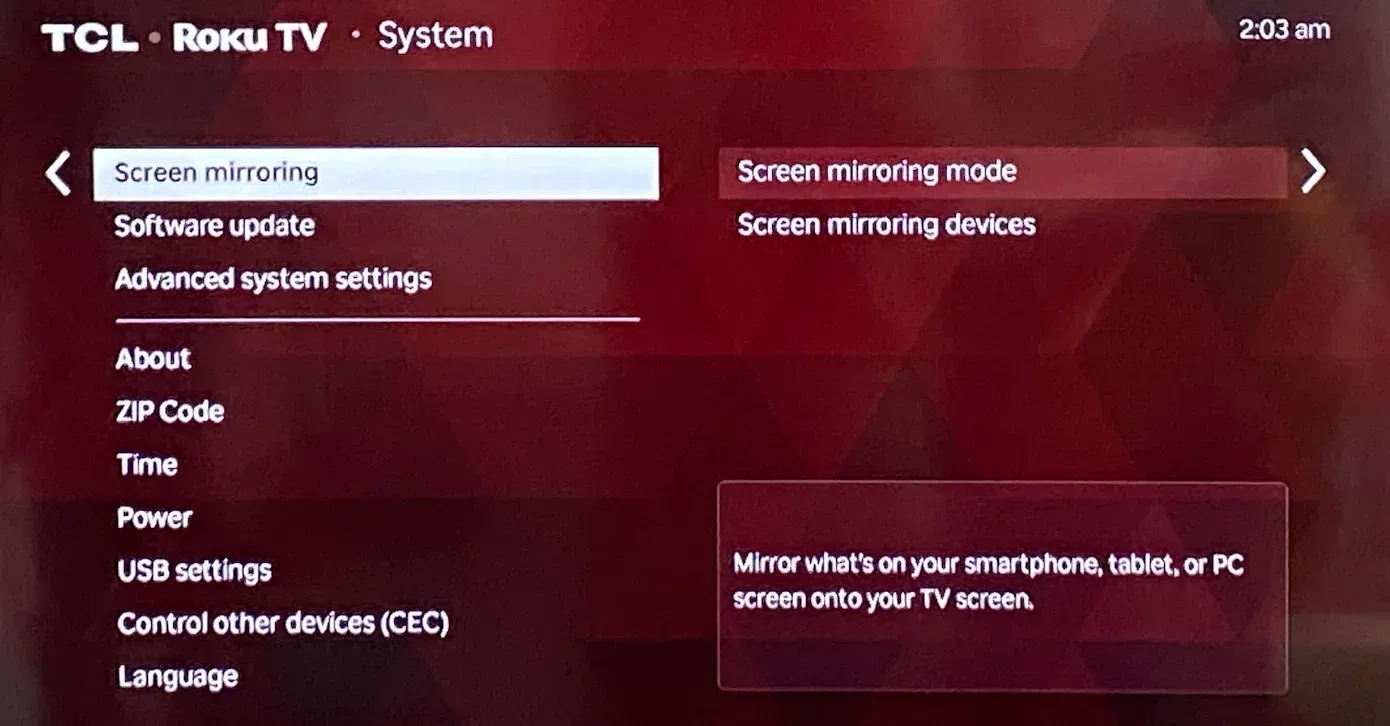
If you only see options related to Chromecast or Google Cast, your TV does not support Miracast. In that case, the native Windows Connect (Win + K) feature will not detect your TV, because it works exclusively with Miracast-compatible devices.
Fix 4: Reinstall the Wireless Display Feature
Windows handles mirroring through an optional system feature. If this feature is corrupted, mirroring from PC to TV will not work.
-
On your Windows PC, go to Settings > Apps > Optional features.
-
Search for Wireless Display. If it's there, uninstall it.
-
Restart your PC, then click Add a feature and reinstall Wireless Display.
Fix 5: Restart Core Wireless Services
Sometimes the background software that manages connections gets stuck.
-
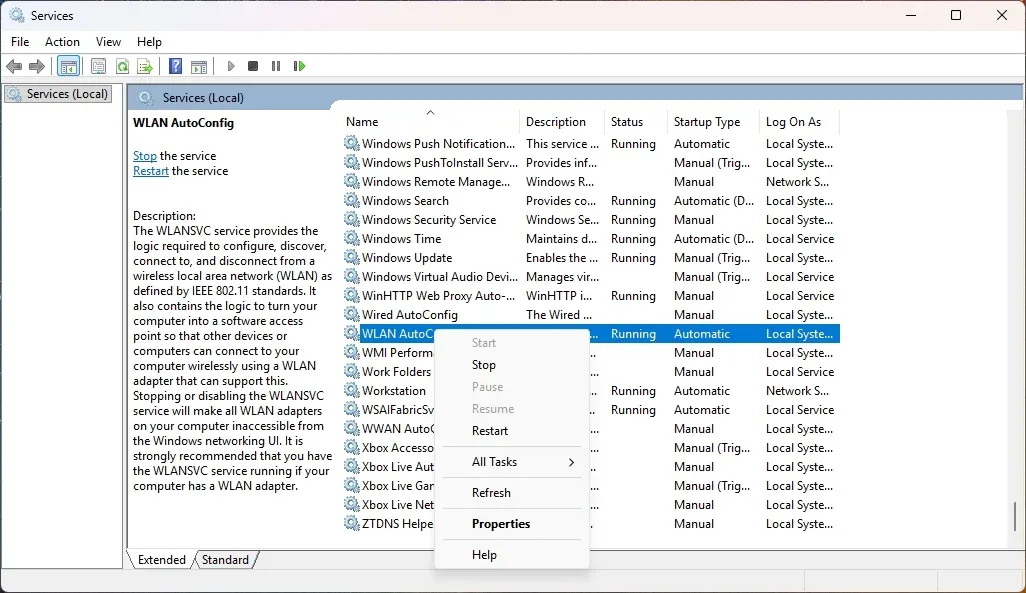
Press Win + R, type services.msc, and Enter.
-
Find WLAN AutoConfig.
-
Right-click it and select Restart.
-
Do the same for DNS Client.
Fix 6: Set Network Profile to Private
When PC screen mirroring not working on Smart TV happens, Windows Defender may block discovery on Public networks for security. In that case, mirror PC to TV not working can be resolved with the following actions:
-
Go to Settings > Network & Internet > Wi-Fi.
-
Select your network and change it to Private.
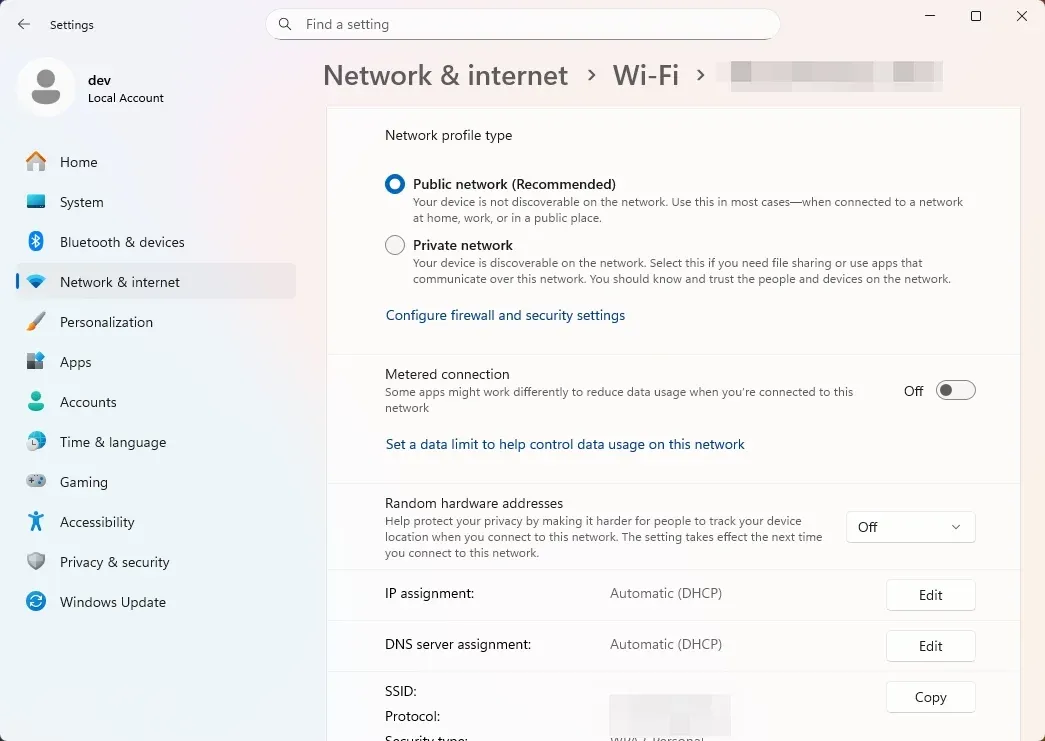
This allows your PC to see other hardware on the local network. Try screen mirroring from your PC to TV again and see if it works.
Fix 7: Disable VPN and Third-Party Antivirus
An active VPN reroutes your internet traffic through a remote server, which can prevent your PC from discovering devices on your local network, including your Smart TV. As a result, your TV may not appear in the Windows Cast list.
Turn off your VPN and temporarily disable any third-party antivirus or firewall software, as these tools can block the ports and protocols required for Miracast.
If screen mirroring from your Windows PC still isn't working after this step, continue with the next solutions below.
Fix 8: Sync Wi-Fi Bands (2.4GHz vs 5GHz)
Many routers split their signal into two bands (like 2.4GHz and 5GHz). If your laptop is on 5GHz and your TV is on 2.4GHz, they may not communicate properly. So, ensure both devices are connected to the exact same SSID (network name).
Fix 9: Disable AP Isolation in Router Settings
In your router's admin panel (usually 192.168.1.1), look for a setting called AP Isolation, Client Isolation, or Guest Mode. If this is ON, your devices are intentionally blocked from talking to each other. Turn it OFF.
Fix 10: Perform a Full Power Cycle
Electronics often hold onto "ghost" states in their memory, resulting in the "cast PC to Smart TV not working" issue.
In that case, you just need to give your Windows and TV a full power cycle:
-
Unplug the TV from the wall for 60 seconds.
-
Restart your PC.
-
Unplug your router for 30 seconds.
Fix 11: Update Smart TV Firmware
TV manufacturers release firmware updates specifically to improve compatibility with newer Windows updates.
-
Check Settings > Support > Software Update on your TV.
-
Wait for the update to finish.
Fix 12: Use HDMI to Rule Out Hardware Failure
If you connect an HDMI cable and the screen still won't display, you have a hardware issue with your GPU or TV port. If HDMI works, the problem is strictly a software/wireless protocol issue.
Fix 13: Use PigeonCast for Seamless PC-to-TV Mirroring
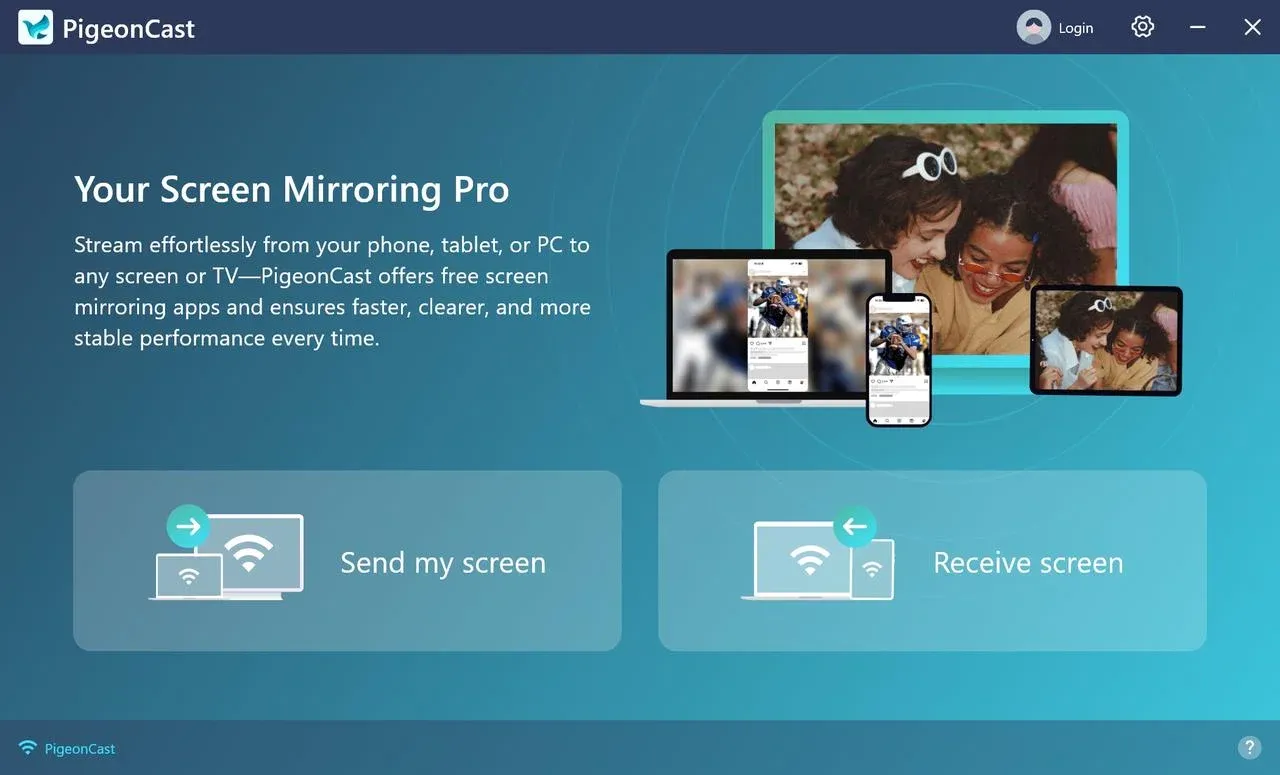
If you have tried the list above and your Windows screen mirroring is still not working, the issue is likely an irreconcilable protocol mismatch. PigeonCast for Windows Screen Mirroring App is a superior alternative for Windows users because it bridges the gap between different standards.
-
Free to Use: The screen mirroring app is now free to access all features, and no ads will pop up during the whole mirroring process.
-
Universal Compatibility: It allows a Windows PC to mirror to AirPlay, Google Cast, and DLNA devices, bypassing the strict Miracast hardware requirements.
-
Stability: PigeonCast uses its own optimized streaming engine that is less prone to the "driver handshake" failures common in native Windows tools.
-
High Performance: It supports HD screen mirroring (up to 4K resolution and 60fps), which often outperforms the native Windows Connect feature.
Overall Rating:
To mirror Windows to TV with PigeonCast:
-
Download PigeonCast on your Windows PC from Microsoft Store.
-
Download PigeonCast on your TV from the official app store.
-
When the two devices are on the same Wi-F network, open PigeonCast.
-
On your Windows PC, click Send my screen.
-
Choose your Smart TV from the device list.
-
Click Start mirror.
The screen mirroring app lets you mirror your PC to your TV reliably over Wi-Fi, without having to mess with drivers or registry settings.
Final Words
Windows screen mirroring not working is a frustrating technical hurdle, but it is rarely a sign of broken hardware. Usually, it is a conflict between your PC's security settings and the TV's discovery protocol. By systematically checking your drivers and network profile, you can resolve the majority of PC-to-TV screen mirroring issues. If the native Windows Connect tool continues to fail, software alternatives provide a much more reliable experience for high-definition streaming.
Mirroring From PC to Smart TV Doesn't Work At All FAQs
Why won't my computer screen mirror to my TV?
Most of the time, the issue is due to your network profile being set to Public instead of Private, a graphics or Wi-Fi driver that doesn't support Miracast, or mismatched Wi-Fi bands between your PC and TV.
How do I know if my PC supports Miracast?
-
Run dxdiag.
-
Save the info to a text file.
-
Search for the word "Miracast".
-
If it says Available, your hardware is compatible.
Why does my TV say "Connection Failed" when I try to mirror?
This is often caused by a firewall blocking the handshake or AP Isolation being enabled on your router, which prevents local device communication.
Can I mirror without Wi-Fi?
Miracast technically uses Wi-Fi Direct, so you don't need a router, but you do need a functional Wi-Fi adapter in both your PC and your TV.
Does a VPN affect screen mirroring?
Yes. A VPN hides your PC from the local network, making it impossible for the TV to find the computer. Always disconnect your VPN before mirroring.
What is the best app for mirroring when Windows fails?
PigeonCast is highly recommended because it supports multiple protocols (AirPlay, Chromecast, DLNA) in one package, making it much more reliable than the native Windows Connect feature.
Mia Clarke is a technology editor specializing in screen mirroring and casting solutions across multiple platforms. Mia provides clear, practical guides and in-depth insights to help users seamlessly connect their devices. Passionate about enhancing digital experiences, Mia is dedicated to keeping readers updated on the latest trends and tools in cross-platform screen sharing. Whether you’re looking to mirror your smartphone, laptop, or smart TV, Mia’s content delivers reliable, user-friendly advice to simplify your tech setup.