

You've got a sleek MacBook with an M3 chip, but your Steam library is a graveyard of "Windows Only" titles. It's a classic frustration. While Steam has a native Mac client, the reality is that the vast majority of triple-A titles skip macOS entirely. So, can you actually play Windows Steam games on Macwithout buying a dedicated gaming PC?
The short answer is yes, but "how to play Windows Steam games on Mac" depends entirely on your patience and your hardware. Whether you want to tinker with compatibility layers or just stream the heavy lifting from the cloud, here is your roadmap to gaming freedom.
How to Play Windows Steam Games on Mac
Navigating the gap between a Windows-centric gaming world and Apple's high-end hardware doesn't have to be a headache. While the "Silicon" era has brought incredible power to MacBooks, the software barrier remains.
To bridge this divide, we have identified four distinct pathways. Whether you want to leverage local hardware translation, tap into the power of the cloud, or simply mirror a high-end PC you already own, one of these methods will get you into the match.
The choice really comes down to a simple question: Do you want the game to run on your Mac, or do you just want to see it there? Let's break down the best ways to bridge that gap.
Method 1: Install the Official Steam for Mac Client
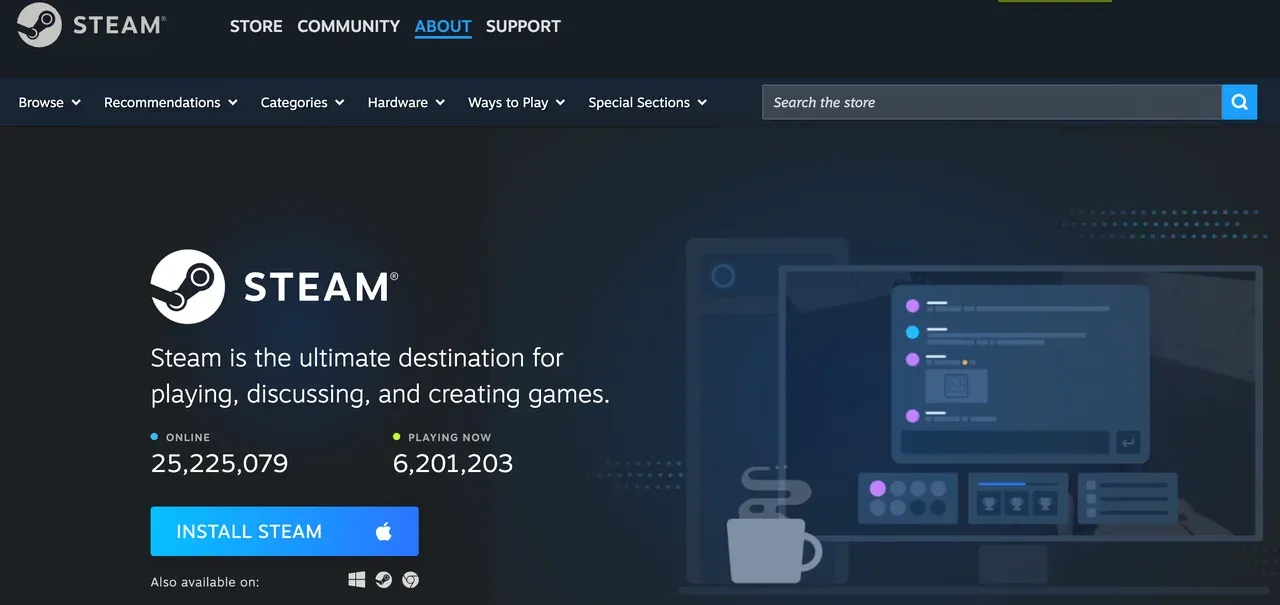
The official Steam for Mac client is easy to install, but its library is a bit of a minefield.
What are Steam games for Mac? Titles like Baldur's Gate 3, Hades, and Resident Evil Village run beautifully because they were built for Apple's Metal API.
Note: Anything still running on 32-bit architecture is dead weight. Ever since macOS Catalina, Apple dropped 32-bit support, meaning many older "Mac-compatible" games simply won't launch.
How to play Steam Windows games on Mac:
- Ensure your Mac runs macOS 12 (Monterey) or later and has a few GB of free storage for Steam and games.
- Open Safari or any browser on your Mac and go to the official page: store.steampowered.com/about/.
- Click Install Steam to download, open the downloaded .dmg file, and install Steam.
- Open Steam and let it finish the initial self-update.
- Log in to your Steam account or create a new one from the login window.
- Browse the Store and filter games by macOS support using the OS filter in Steam.
- Buy and install the game, and play it on your Mac.
Method 2: Use a Compatibility Layer (Whisky or CrossOver)
If your game isn't native, you need a way to make it think it's running on Windows (without actually installing Windows). This is where things get interesting.
Tools like CrossOver and Whisky have become popular options for this. Among them, Whisky Mac has become a favorite for many because it's a free, clean, user-friendly wrapper for Wine and Apple's Game Porting Toolkit. Instead of running a full version of Windows, Whisky translates Windows system calls into macOS-compatible instructions in real time, allowing many Windows Steam games to run directly on your Mac.

Requirements: Ensure you have an Apple Silicon Mac (M1/M2/M3/M4) on macOS 13+; your Mac has at least 10-20 GB free space per game/bottle.
How to set Whisky on Mac for Windows Steam gameplay:
- Download Whisky from getwhisky.app and install it on your Mac.
- Launch Whisky and follow the on-screen setup prompts. If required, macOS will prompt you to install Rosetta 2, and Whisky will guide you through setting up Apple's Game Porting Toolkit (GPTK).
- Visit store.steampowered.com/about/ in your browser, click Install Steam, and click the Windows icon to download the Windows version.
- In Whisky, create a new Windows bottle by following the on-screen instructions.
- Open the bottle's C: drive, move SteamSetup.exe into it, then double-click the file to run the installer and install Steam inside the bottle.
- Once installed, launch Steam from Whisky, sign in to your account, and download a Windows game from your Steam library.
- After installation, you can start the game directly from Steam within the Whisky bottle.
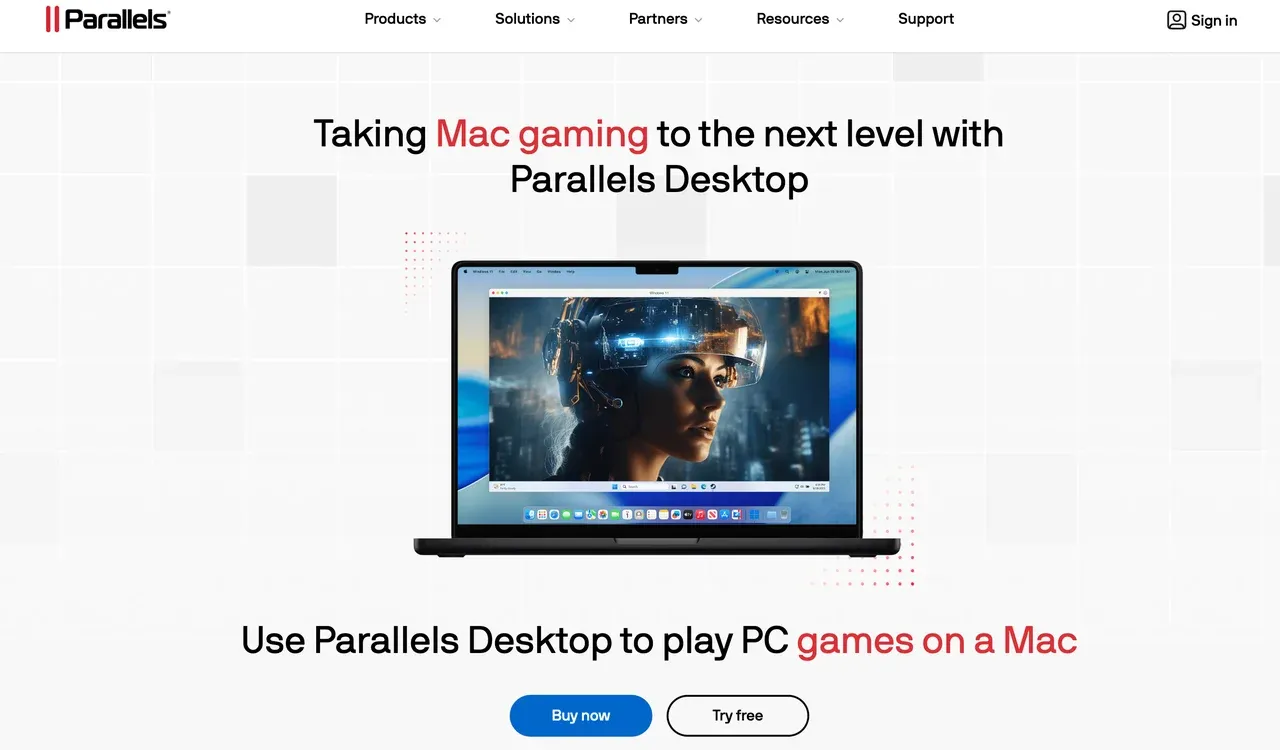
If you need a 100% Windows environment, Parallels is the way to go. It creates a virtual machine that runs Windows 11 on top of your macOS.
- Best for: Strategy games, older titles, and software that needs a full Windows OS.
- Trade-off: It eats up RAM. If you have an 8GB MacBook, expect some stuttering.
- Whisky vs Crossover vs Parallels:
| Tool | Is it a VM? | Runs a Full Windows OS? | How It Works | Performance Overhead |
|---|---|---|---|---|
| Whisky | ❌ No | ❌ No | API translation (Wine + Apple Game Porting Toolkit) | Low |
| CrossOver | ❌ No | ❌ No | API translation (Wine) | Low–Medium |
| Parallels Desktop | ✅ Yes | ✅ Yes | Full Windows virtualization | High |
Method 3: Try Cloud Gaming with NVIDIA GeForce NOW
Don't want to turn your MacBook into a space heater? Let NVIDIA's servers handle the heavy lifting instead.
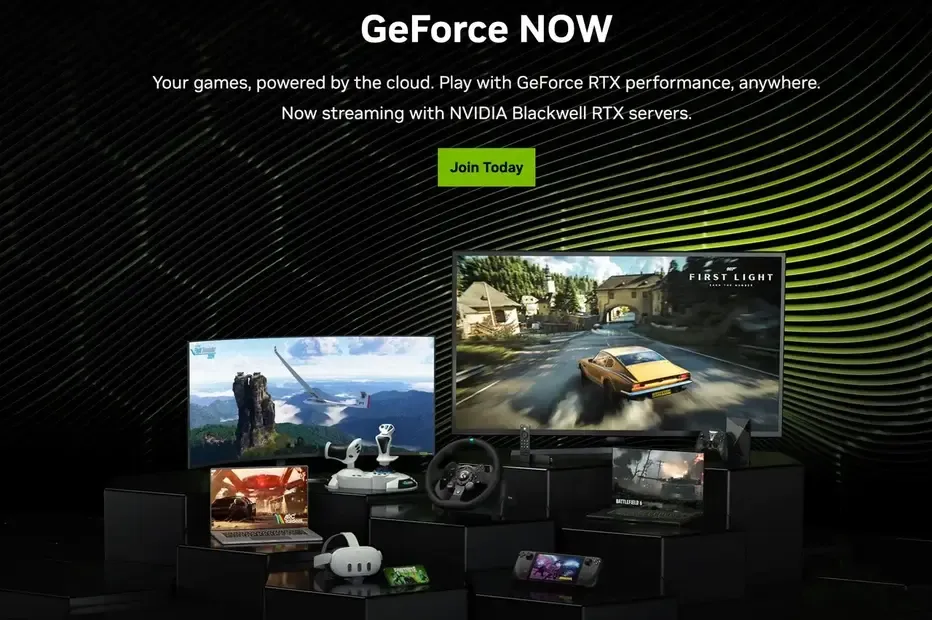
NVIDIA GeForce NOW is one of the easiest ways to play Windows Steam games on a Mac, as long as you have a fast and stable internet connection. Instead of running the game locally, you link your Steam account and stream the gameplay directly to your Mac, with all processing done in the cloud.
How to Play Steam Games on Mac Using NVIDIA GeForce NOW:
- Go to nvidia.com/geforce-now/ and create or sign in to your NVIDIA account.
- Download and install the GeForce NOW app for macOS.
- Launch the app and sign in with your NVIDIA account.
- In Settings, connect your Steam account, so GeForce NOW can sync your game library.
- Choose a supported Steam game from the GeForce NOW library and click Play.
- When prompted, sign in to Steam inside the streaming session, and the game will launch.
Tip: For the best experience, use a wired Ethernet connection or 5 GHz Wi-Fi.
Pros:
- High-end graphics features like ray tracing, even on a MacBook Air
- No local storage or Windows installation required
- Great option for Apple Silicon Macs
Cons:
- Performance depends heavily on your network
- Unstable Wi-Fi can cause resolution drops (like 480p), input lag, or compression artifacts
Method 4: Stream Windows Steam Games to Mac Using PigeonCast
Sometimes the best way to play is to let a beefy PC in another room do the heavy lifting. While Steam Link is the standard, many gamers find it a bit restrictive.
This is where PigeonCast shines. It's a high-performance mirroring tool that allows you to cast your Windows to your Mac or a larger TV with impressive synchronization.
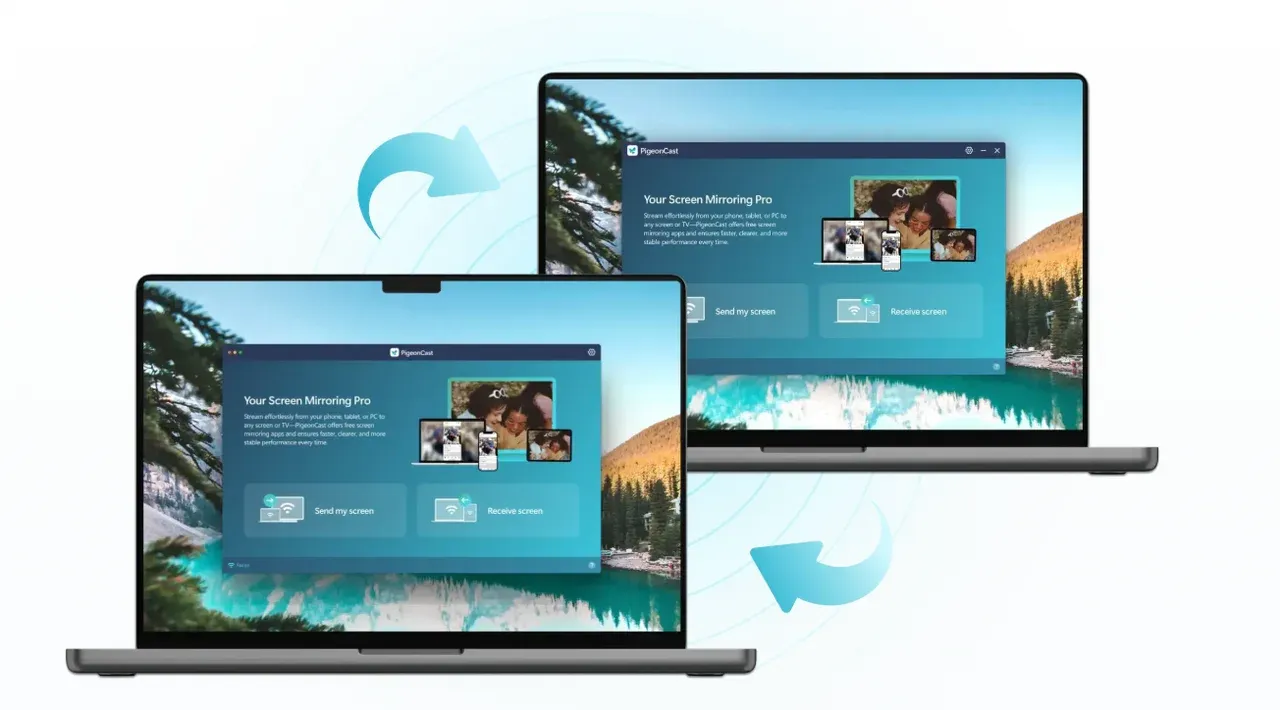
Why use PigeonCast:
- Free, no ads
- Wireless connection
- HD screen mirroring (up to 4K)
- Low latency
How to play Steam games on Mac for Windows using PigeonCast:


Overall Rating:



- Ensure the two computers are on the same Wi-Fi network.
- Open the Steam app on Windows.
- Go to the App Store and Microsoft Store to download PigeonCast and set it up.
- Launch the app on both devices, click Receive screen on Mac, and click Send my screen on Windows.
- Choose your Mac from the list on your Windows.
- Switch to Mirror app window and choose Steam from the App menu.
- Modify resolution, frame rate, and mirroring quality, and click Start mirror.
- Your Windows Steam will appear on the Mac.
Pro Tips for Better Performance for Playing Windows Steam on Mac
- Game Mode: Ensure you are on macOS Sonoma or later. Game Mode automatically prioritizes CPU and GPU cycles for your game.
- Thermal Management: MacBooks (especially the Air) throttle when hot. A simple laptop stand can actually boost your FPS by helping with airflow.
- Resolution Scaling: Don't try to run games at the Mac's native Retina resolution (which is often 3K or 4K). Dropping to 1080p will double your frame rate instantly.
Conclusion: Choosing Your Best Path to Play
How to play Windows games on Mac? The days of Mac users being completely locked out of the Steam ecosystem are over, but the "best" solution depends entirely on your setup, hardware, and how you prefer to play.
- For the local-play purist: If you're using an Apple silicon Mac and want to run games locally without subscriptions or streaming latency, Whisky is a standout option. It's free, lightweight, and built on Apple's own Game Porting Toolkit, making it surprisingly capable for many Windows Steam titles—especially indie and mid-tier games.
- For maximum visuals with minimal hardware: If your MacBook is an entry-level Air but your internet connection is solid, NVIDIA GeForce NOW is hard to beat. It lets you play Windows games on Mac at Ultra settings with ray tracing—something local execution simply can't offer on integrated GPUs.
- For flexible, remote-style gaming: If you already have a Windows gaming PC at home and just want to play from your MacBook—or mirror gameplay onto a larger screen—PigeonCast delivers the smoothest experience. Instead of relying on traditional remote desktop solutions, it focuses on low-latency mirroring, stable audio-video sync, and high-definition streaming, making it feel closer to native play.
Ultimately, playing Windows Steam games on Mac is no longer a pipe dream—it's just a matter of picking the right tool for the job.
How to Play Windows Steam Games on Mac FAQs
What are Steam games for Mac?
Steam games for Mac are titles officially supported on macOS. They run natively without extra tools. Examples include:
- Baldur's Gate 3 – A modern RPG built for Metal API.
- Hades – Critically acclaimed indie roguelike.
- Resident Evil Village – Survival horror with macOS support.
- Civilization VI – Popular turn-based strategy game.
- Stardew Valley – Cozy farming and life simulation indie hit.
- The Witcher 3: Wild Hunt – Available on Mac via official port or Metal-compatible build.
- Portal 2 – Classic puzzle-platformer with full Mac support.
- Divinity: Original Sin 2 – Story-driven RPG playable on macOS.
- Note: Some older 32-bit games are no longer supported on macOS Catalina or later.
Can I play Windows Steam games on my Mac without installing Windows?
Yes. You can:
- Use a compatibility layer like Whisky or CrossOver, which translates Windows instructions into macOS instructions.
- Use a cloud gaming service like NVIDIA GeForce NOW, which runs the game on a remote server and streams it to your Mac.
What is the best way to play Windows games on a Mac M1/M2/M3?
- For most users: Whisky offers a free, lightweight solution for local gameplay.
- For "it just works" cloud gaming: GeForce NOW provides high-end graphics and ray tracing without taxing your Mac's hardware.
- If you already own a powerful Windows PC: PigeonCast lets you stream games from your PC to Mac with low latency.
Does GeForce NOW support my Steam library?
Not all games. Only titles that publishers have opted into GeForce NOW are available. Major triple-A games are usually included, but always check the GeForce NOW library before subscribing.
How do I reduce lag when streaming PC games to Mac?
- Prefer a wired Ethernet connection over Wi-Fi (USB-C to Ethernet adapter recommended).
- For wireless streaming with tools like PigeonCast, ensure both devices are connected to the 5GHz Wi-Fi band.
- Close background apps on both Mac and PC to free up bandwidth.
How to stream Windows Steam games from PC to Mac?
- Install PigeonCast (or Steam Link) on both devices.
- Ensure both devices are on the same network.
- On the PC, select Send my screen, then select your Mac.
- On the Mac, select Receive screen, adjust resolution and frame rate, then start mirroring.
Can I play games in full resolution on a MacBook?
Yes, but running at native Retina resolutions (3K–4K) can reduce frame rates. For smoother performance, try 1080p or 1440p resolution scaling.
Do I need a powerful Mac for Windows Steam games?
- For cloud gaming (GeForce NOW), even MacBook Air works if internet is stable.
- For local emulation (Whisky, CrossOver), Apple Silicon Macs (M1/M2/M3) are strongly recommended for best performance.
Will all Steam Windows games run on Mac with Whisky or CrossOver?
Not 100%. Most indie and mid-tier games work well. Triple-A titles with anti-cheat or complex DRM may fail. Use Parallels Desktop for full Windows virtualization if needed.
Can I use a game controller on Mac for Windows Steam games?
Yes. Both Steam and GeForce NOW support most popular controllers (Xbox, PlayStation, or USB controllers). Configure in Steam Input or your cloud service settings.
Are there any costs involved?
- Whisky: Free
- CrossOver: Paid license (~$40/year)
- Parallels Desktop: Paid (~$100/year)
- GeForce NOW: Free tier available; priority access and RTX features require subscription
- PigeonCast: Free
Mia Clarke is a technology editor specializing in screen mirroring and casting solutions across multiple platforms. Mia provides clear, practical guides and in-depth insights to help users seamlessly connect their devices. Passionate about enhancing digital experiences, Mia is dedicated to keeping readers updated on the latest trends and tools in cross-platform screen sharing. Whether you’re looking to mirror your smartphone, laptop, or smart TV, Mia’s content delivers reliable, user-friendly advice to simplify your tech setup.