
Screen mirroring from a MacBook to a TV should be simple in theory, but in practice it often becomes surprisingly inconsistent. One TV connects immediately while another refuses to appear. Video playback may lag on one screen but work perfectly on another. Sometimes AirPlay detects the TV instantly, and sometimes the same setup stops working after a software update.
That inconsistency is usually the reason you start looking for a dedicated screen mirroring app for MacBook to TV instead of relying entirely on native wireless casting.
The challenge is not usually the MacBook itself. The real issue is that modern TV brands do not all work the same way. You may have an LG TV in the living room, a Fire TV in the bedroom, and a Roku TV somewhere else. Even though all of them are considered “smart TVs,” they do not always handle wireless mirroring in the same way. Some support AirPlay well, others only partially support it, and older models may behave unpredictably.
This is why choosing the right MacBook screen mirroring app matters more than most comparison articles suggest. The best app is not necessarily the one with the most advanced feature list. It is the one that gives you the most reliable way to connect a MacBook to different TVs without constantly troubleshooting compatibility issues.
Quick Answer: Which Is the Best Screen Mirroring App for MacBook to TV?
For most people, PigeonCast is the best screen mirroring app for MacBook to TV because it gives you an easier and more consistent way to connect across different TV brands and streaming platforms.
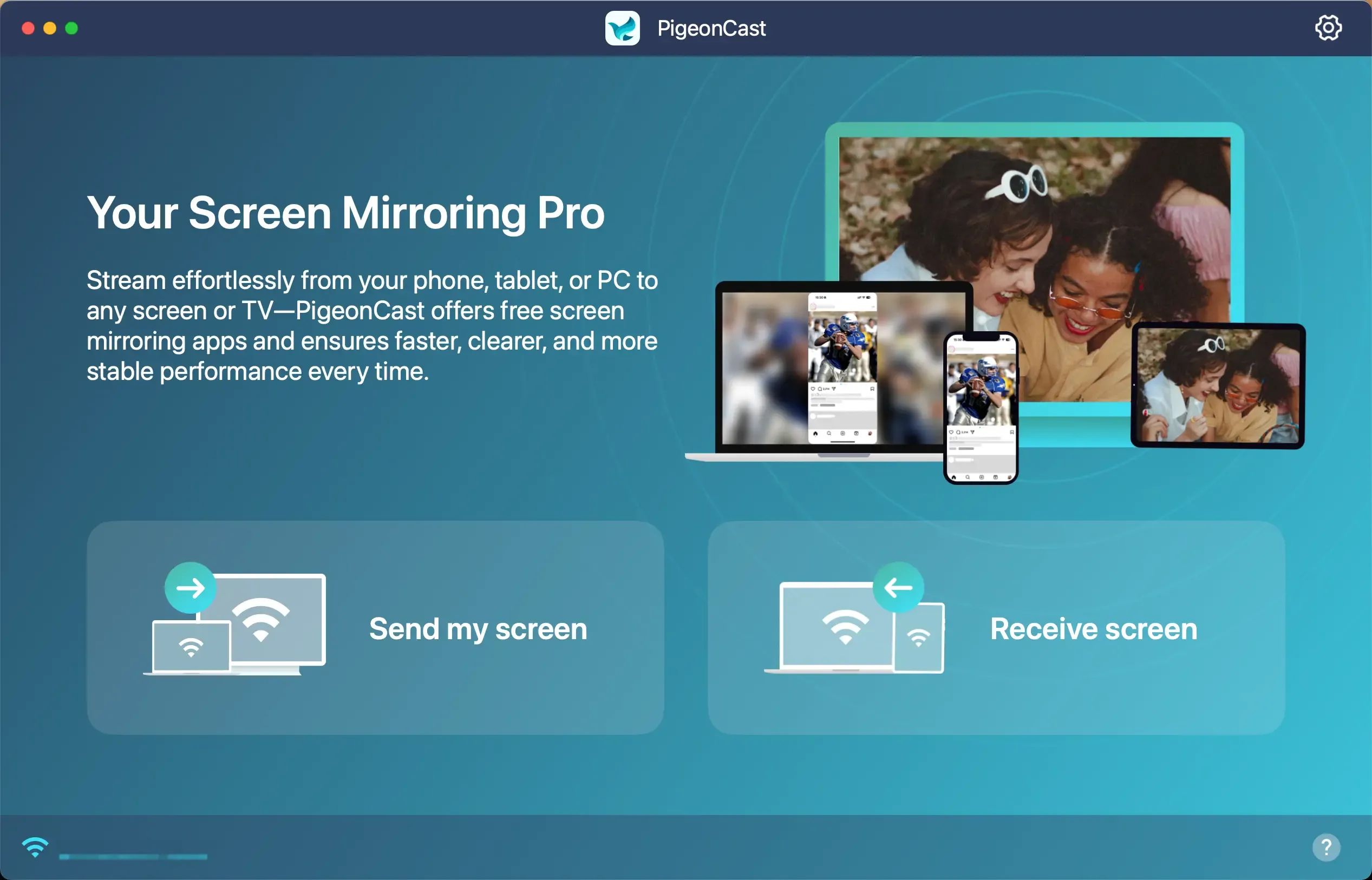


Overall Rating:


AirPlay is still a good option when your setup already revolves around Apple products. If you use Apple TV hardware or a newer AirPlay-enabled television, the built-in Apple workflow can feel seamless. However, if you are searching for terms like mirror MacBook to TV or MacBook to smart TV, you are probably dealing with a setup where native AirPlay is either unreliable or unavailable.
That is why PigeonCast is the better pick overall.
Instead of depending completely on one brand's system, PigeonCast fits the way many homes actually work now. You may want to mirror a MacBook to an Android TV one day and switch to a Fire TV or Roku TV the next. Native casting methods often become inconsistent in those situations, while PigeonCast gives you an easier and more seamless way to connect across different devices.
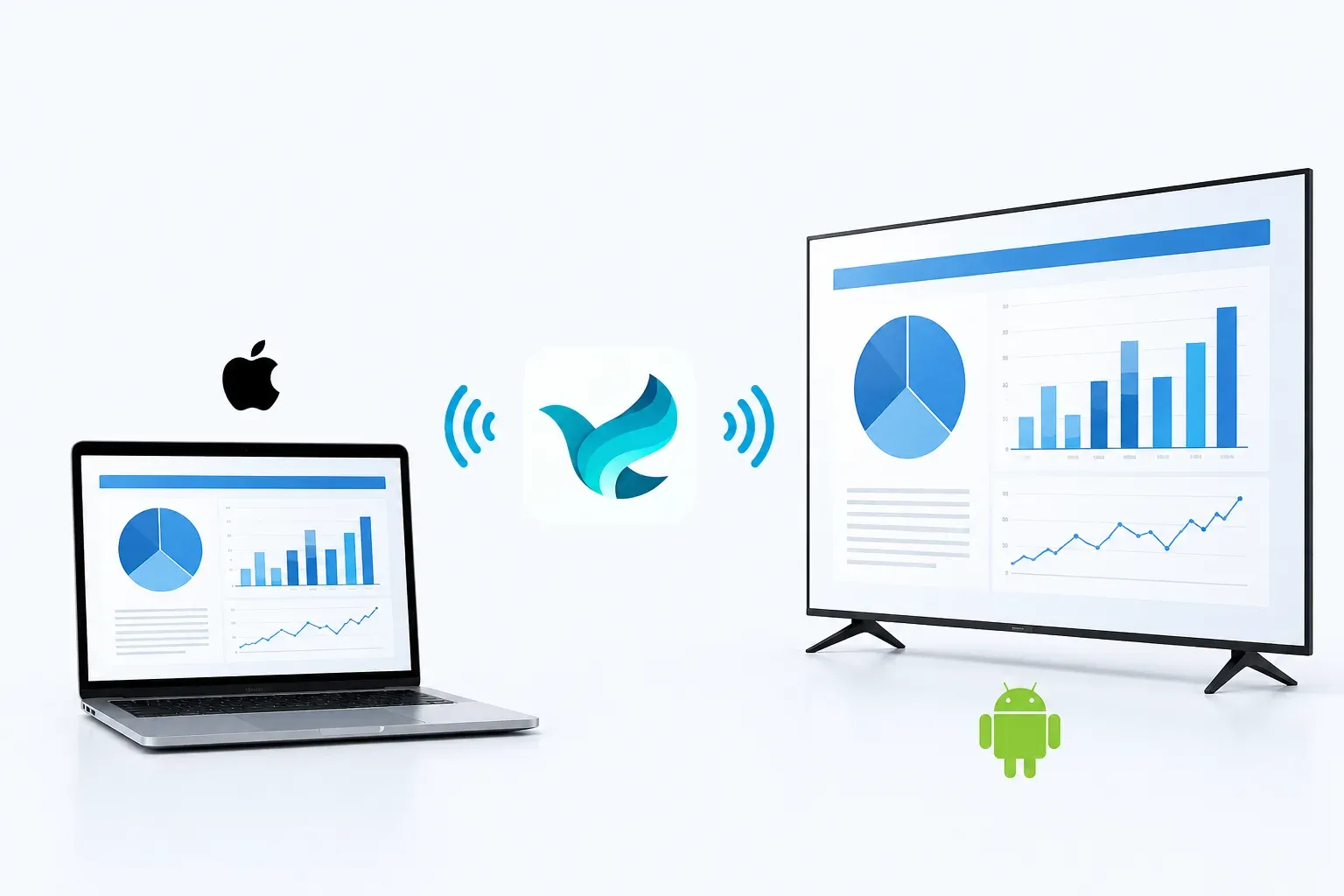
Another advantage is simplicity. Many screen mirroring tools are built primarily for business presentations, classrooms, or turning computers into wireless receivers. PigeonCast focuses much more directly on the everyday home use case: getting a MacBook screen onto a television quickly and with as little friction as possible.
If you only need a free tool for occasional testing, apps like LetsView can still be useful. But if you regularly stream video, share content wirelessly, or switch between different TVs, PigeonCast is the easier long-term choice.
How to Screen Mirror MacBook to TV with PigeonCast
One of the biggest reasons to choose PigeonCast is that setup feels easier across different TV brands. Instead of learning a completely different method for every television, you can follow almost the same steps whether you are connecting to an Android TV, Fire TV, Roku TV, or another smart TV platform.
Step 1. Install PigeonCast on your MacBook and your smart TV device from the appropriate app store.
Overall Rating:

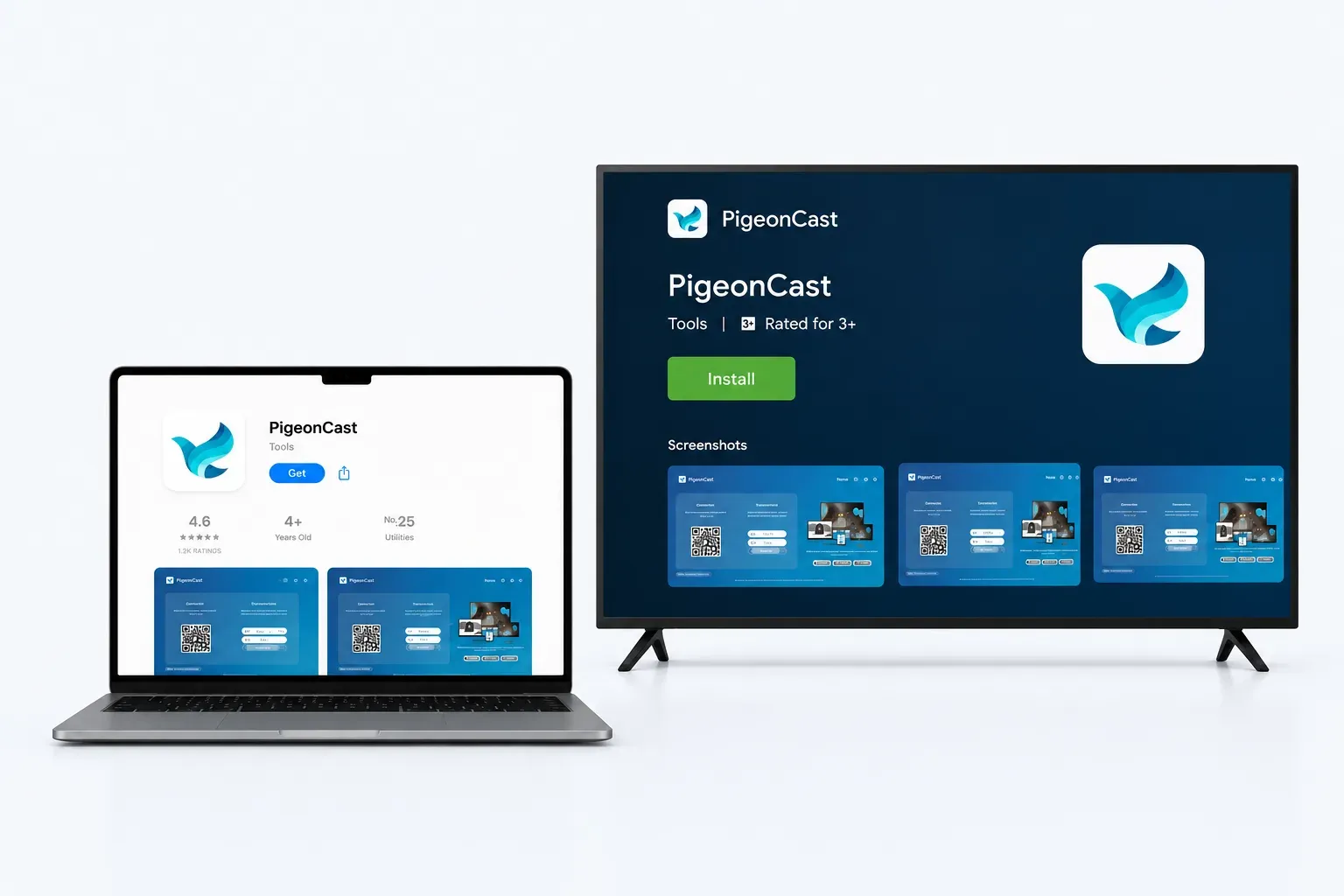
Step 2. Connect both the MacBook and the target TV device to the same Wi-Fi network.
Step 3. Open PigeonCast on the TV side and stay on that screen.
Step 4. Open PigeonCast on your MacBook, click Send my screen and choose your TV from the list.
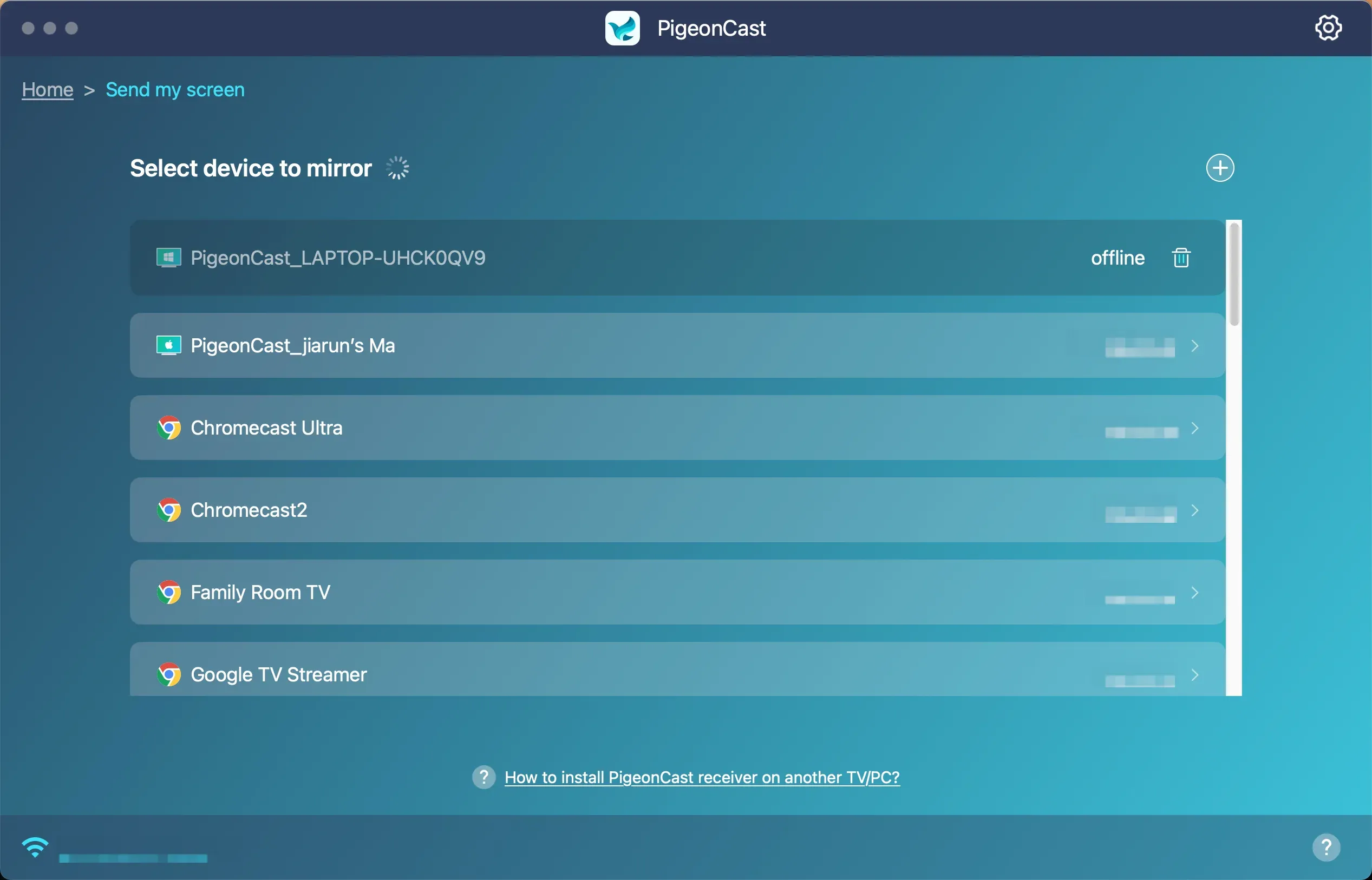
Step 5. Confirm the mirroring quality, resolution, and frame rate, and click Start mirror.
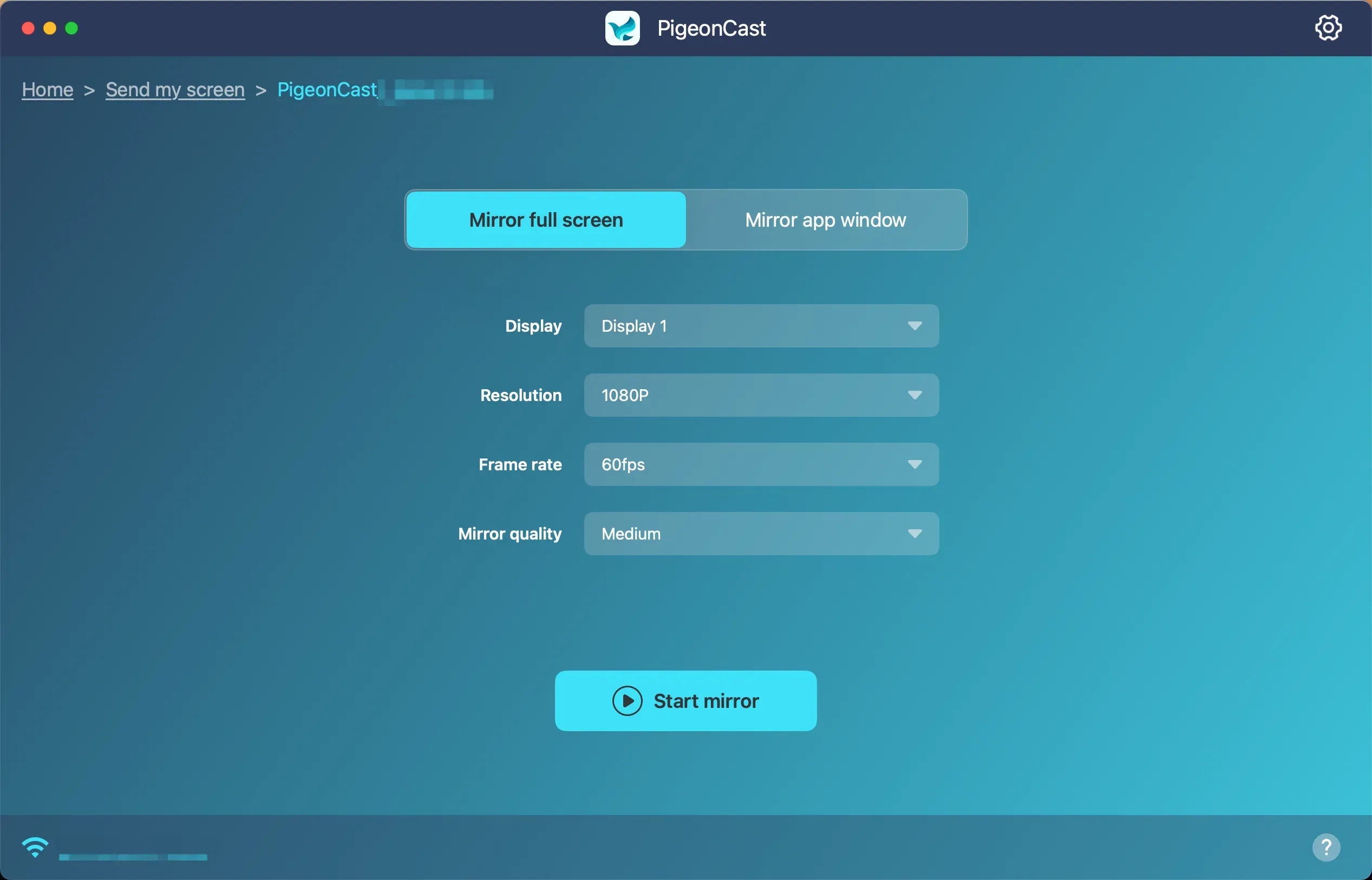
That consistency is an important reason why PigeonCast stands out as a strong screen mirroring app for MacBook to TV. With native AirPlay methods, your experience can vary significantly depending on the TV manufacturer and software version. PigeonCast removes some of that friction by giving you a simpler app-based option.
This becomes especially valuable if you use multiple TV brands at home. If you frequently switch between an LG TV in the living room and a Fire TV in another room, you probably do not want to relearn a different casting process every time. One simple approach makes the overall experience feel much less frustrating.
The End
Wireless screen mirroring still feels inconsistent for many MacBook users, especially outside perfectly controlled Apple-only setups.
Most of the time, you are not trying to build a professional presentation environment. You simply want a reliable way to connect a MacBook to a smart TV, stream content wirelessly, and avoid spending half an hour troubleshooting compatibility issues every time you switch devices.
That is why dedicated mirroring apps still have value even though AirPlay already exists.
If you already live entirely inside Apple's ecosystem, AirPlay may be enough. But if you regularly connect to different TV brands, switch between rooms, or want an easier experience across devices, PigeonCast is the stronger overall recommendation.
It solves the problem most of us actually face: making MacBook-to-TV mirroring feel simpler and more reliable regardless of which smart TV happens to be in front of us.
Best Screen Mirroring App for MacBook to TV FAQ
What is the best app to mirror a MacBook to TV?
For most people, PigeonCast is the best overall option because it works across more TV platforms and gives you a more consistent mirroring experience than relying only on built-in casting methods.
Can I mirror a MacBook to Roku TV or Fire TV?
Yes. PigeonCast supports broader compatibility across Roku TV, Fire TV, Android TV, LG TV, Apple TV, and other smart TV environments.
Is AirPlay the same as a screen mirroring app?
Not exactly. AirPlay is Apple's built-in wireless casting feature, while dedicated apps like PigeonCast are designed to give you more flexibility across mixed-device setups and different TV platforms.
Do I need Apple TV hardware to mirror MacBook to TV?
No. Many smart TVs support wireless casting directly, and dedicated apps can make the setup process easier even without Apple TV hardware.
Why is my MacBook not showing my TV?
This usually happens because of network isolation, unsupported TV compatibility, VPN interference, or inconsistent native AirPlay support. In many cases, the issue is related to the connection method rather than the MacBook itself.
Mia Clarke is a technology editor specializing in screen mirroring and casting solutions across multiple platforms. Mia provides clear, practical guides and in-depth insights to help users seamlessly connect their devices. Passionate about enhancing digital experiences, Mia is dedicated to keeping readers updated on the latest trends and tools in cross-platform screen sharing. Whether you’re looking to mirror your smartphone, laptop, or smart TV, Mia’s content delivers reliable, user-friendly advice to simplify your tech setup.