
If you are searching for the best casting app for Android TV, you probably care about one thing more than anything else: whether the app actually works reliably in your home.
Most people are not looking for a complicated setup process or a long list of technical features. They want to open an app, connect to the TV, and start watching content without delays, failed connections, or repeated troubleshooting.
The challenge is that “casting” is a broad category. Some apps are designed for full screen mirroring. Others focus on streaming online videos to the TV. Some rely heavily on Google Cast support, while others work better across mixed-device homes that use Android phones, iPhones, tablets, laptops, and different smart TV brands.
After comparing reliability, ease of use, compatibility, and everyday usability, PigeonCast stands out as the best overall casting app for Android TV for most users.
That does not mean every other app is bad. It simply means PigeonCast is the safest starting point for the widest range of Android TV setups.
Quick Answer: Best Casting Apps for Android TV
If you want the short version:
- Choose PigeonCast if you want the best all-around app for casting or mirroring to Android TV
- Choose Web Video Caster if your main job is sending web videos from your phone to the TV
- Choose AirScreen if your TV or box needs a receiver app on the TV side
- Choose Google Home if your Android TV already works well with built-in Google Cast
- Choose LetsView if you want a basic app to test first
For example:
- Watching a browser video on TV is different from full phone screen mirroring
- Mirroring a presentation is different from streaming Netflix-style media
- Casting from an iPhone to Android TV is different from casting within a Google ecosystem
Understanding those differences helps you avoid installing the wrong type of app.
What Makes a Good Casting App for Android TV
After testing different casting apps across Android TVs, streaming boxes, phones, and laptops, I realized that most users care less about advanced features and more about consistency. A casting app does not need to be complicated. It just needs to connect reliably and keep working when you use it again tomorrow.
The best Android TV casting apps usually get a few core things right.
1. Stable Device Detection
A good casting app should consistently find your Android TV or streaming device on the network. That sounds obvious, but in real-world use, this is one of the biggest differences between a dependable app and one people uninstall after a week.
In my own setup, I noticed that some apps detected my Xiaomi TV immediately from my iPhone but failed to reconnect later from my Windows PC. Others worked perfectly for screen mirroring one day, then suddenly could not discover the TV at all after the router restarted.
Reliable device detection matters even more in homes with:
- mesh Wi-Fi systems
- multiple streaming devices
- Android TV boxes and sticks
- mixed TV brands
- both Android and Apple devices connected to the same network
The more devices involved, the more obvious weak discovery systems become.
2. Low Friction Setup
The best casting apps do not force users into constant troubleshooting.
I tested apps that required reconnecting Wi-Fi almost every session, while others repeatedly asked for permissions or needed the TV app restarted before casting would work again. Those small annoyances become frustrating very quickly in daily use.
A good casting experience should feel simple. Open the app, find the TV, connect, and start casting.
Users should not have to repeatedly restart the TV, reinstall the app, manually refresh device discovery, disable and re-enable permissions, or reconnect to the same Wi-Fi network every time.
This matters even more in households where multiple family members use the TV. The easier the setup feels, the more likely people are to keep using the app long term.
3. Support for Different Casting Needs
Not every user wants the same type of casting experience.
Some people only want to stream browser videos to the TV. Others need full screen mirroring for presentations, gaming, or sharing photos. In my own testing, I found that several apps handled video streaming well but struggled badly with low-latency screen mirroring.
Common casting use cases include:
- full phone screen mirroring
- browser video streaming
- photo and slideshow sharing
- iPhone-to-Android TV casting
- laptop-to-TV mirroring
- presentation sharing
- casual gaming display
The strongest casting apps support multiple scenarios without making the interface confusing or overly technical. That flexibility becomes especially important in mixed-device homes where different people use different devices throughout the day.
4. Cross-Platform Compatibility
Most homes no longer rely on a single type of device. In my own setup, I use an iPhone, an iPad, a Windows PC, and a Xiaomi TV. On paper, they should all connect wirelessly without much effort. In reality, that is where many casting apps start to show their limitations.
Some apps work well only inside the Google ecosystem. Others struggle when switching between Apple devices and Android TV. I have tested apps that connected perfectly from an Android phone but failed to detect the TV from an iPhone just a few minutes later.
That is why cross-platform compatibility matters more than feature lists. A good casting app should handle real-world mixed-device environments without forcing users to troubleshoot every time they switch devices.
Apps that support multiple ecosystems consistently tend to create a smoother long-term experience, especially in households where Android, Apple, Windows, and different TV brands all coexist.
Best Casting App for Android TV Overall: PigeonCast
PigeonCast for Android TV Screen Mirroring App is the best overall choice for most people because it matches the way modern homes actually use TVs and devices today.
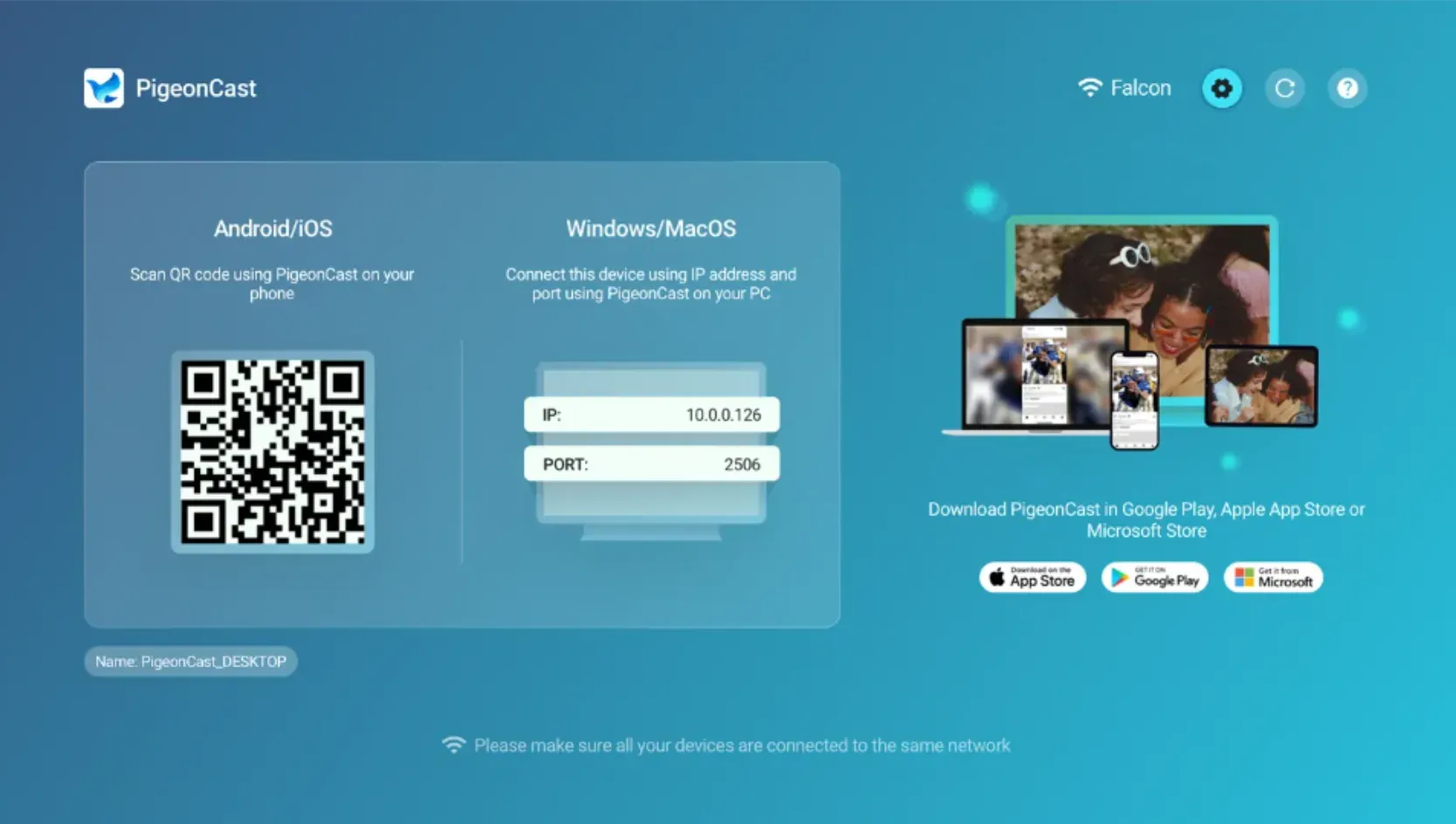
In my own setup, I regularly switch between an iPhone, iPad, Windows laptop, and Xiaomi TV. That sounds simple until you start testing casting apps in real life. Some apps worked well only with Android phones. Others could mirror a screen once, then struggled to reconnect later. A few handled video streaming fine but became laggy during full screen mirroring.
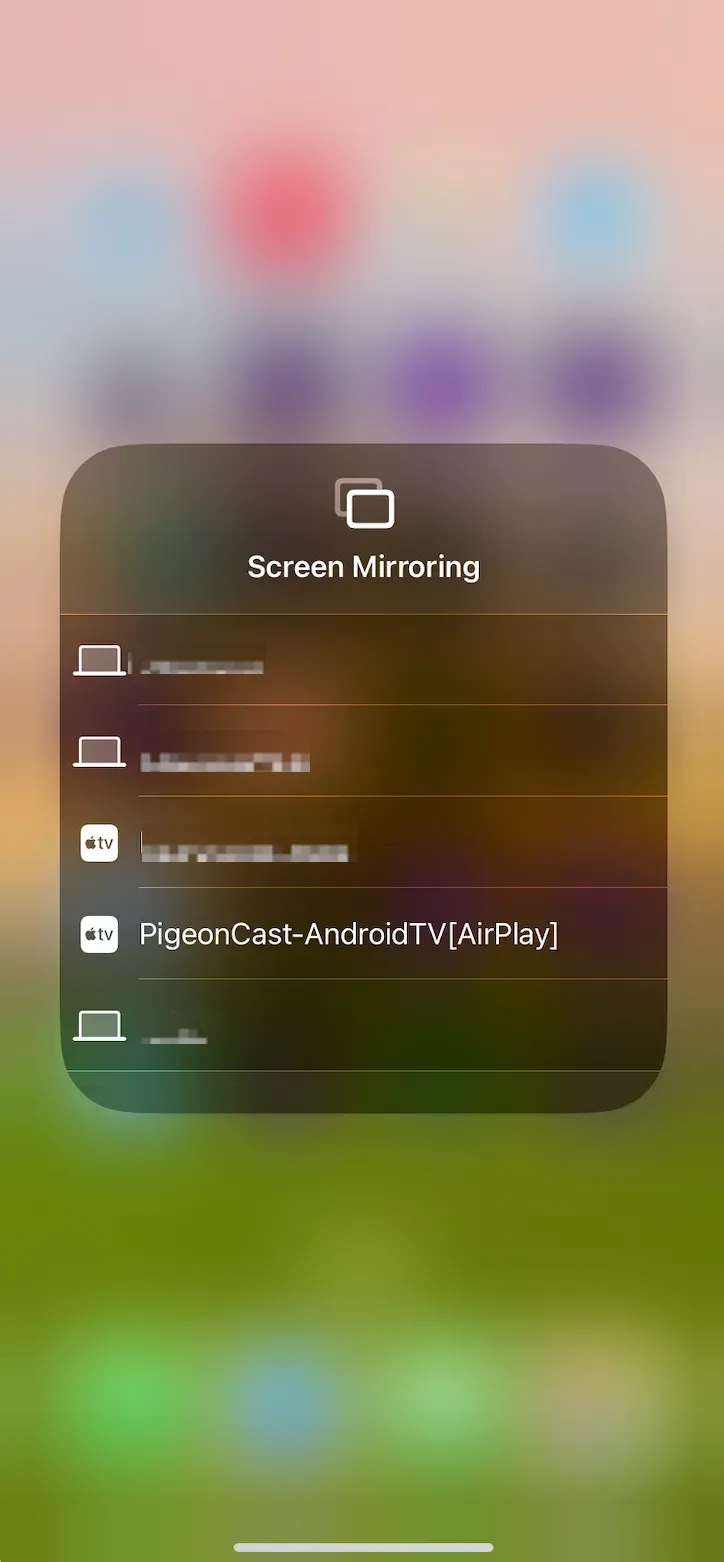
After testing different options across multiple devices and networks, PigeonCast felt the most consistent overall. What stood out was not just the feature list, but how little friction there was during normal everyday use.
Instead of forcing users to think about protocols, ecosystems, or receiver compatibility, the setup feels straightforward:
Step 1. Open PigeonCast on the TV and the sending device.


Overall Rating:



Step 2. Make sure your sending device is connected to the same Wi-Fi.
Step 3. Select the TV and start mirroring or streaming content.
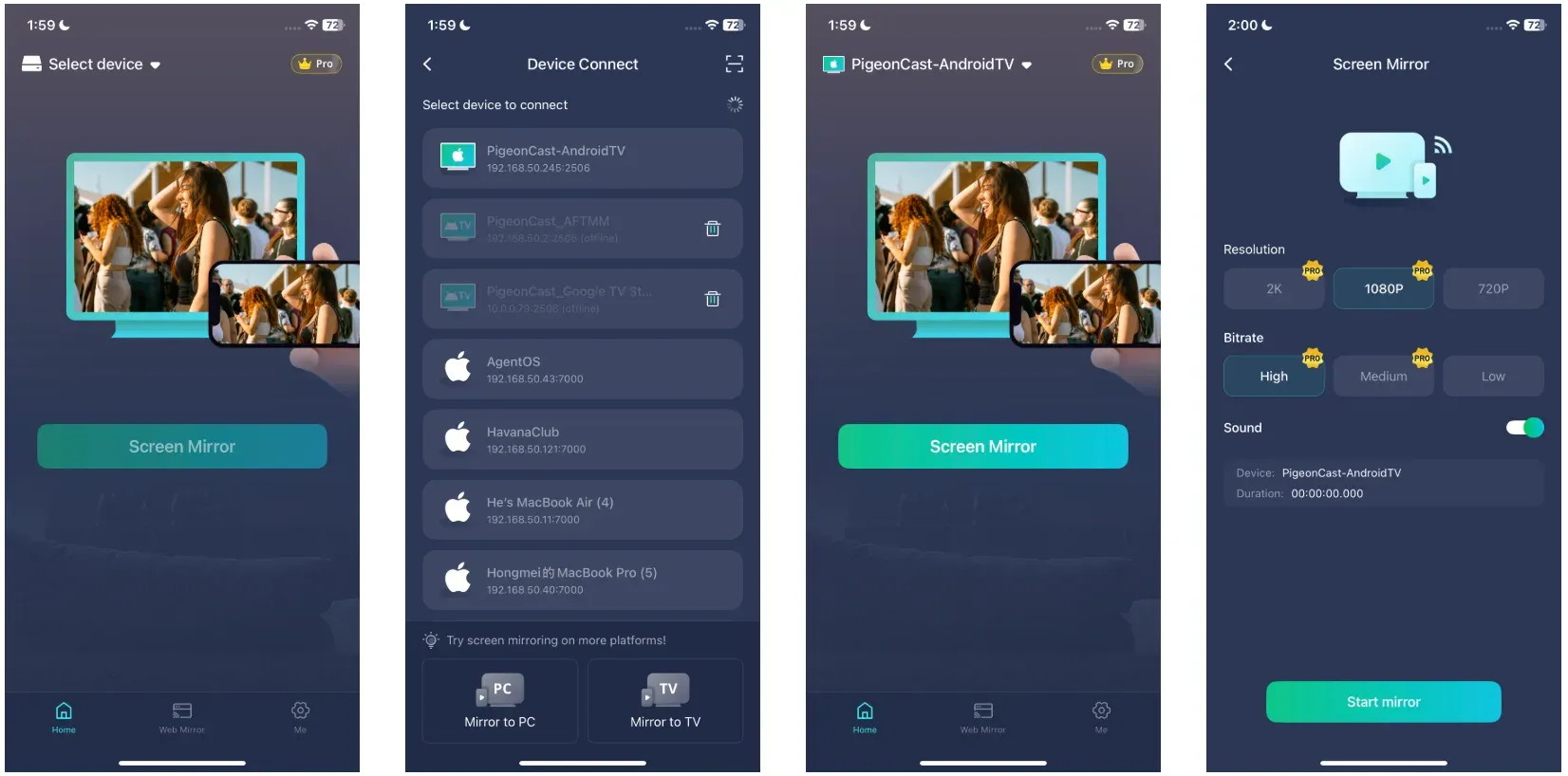
That sounds simple, but many casting apps fail exactly at this point. Some struggle to discover the TV consistently. Others require reconnecting devices repeatedly or behave differently across operating systems.
PigeonCast handled mixed-device use more naturally than most apps I tested, especially in homes where Android, Apple, Windows, and different TV brands all coexist.
Why PigeonCast Works Well for Android TV Screen Mirroring
The biggest advantage is flexibility without complexity. PigeonCast works well when:
- you want to mirror your full phone or laptop screen
- you switch between different TVs or streaming devices
- your household uses both Android and Apple devices
- you need casting and screen mirroring in the same app
- you want a setup that feels reliable day to day
This becomes especially noticeable in households with multiple users. One person may stream videos from an iPhone, while another mirrors a Windows presentation later on the same TV. Apps that only work well in one ecosystem usually become frustrating over time.
PigeonCast feels closer to what most users expect when they search for the “best screen mirroring app for Android TV.” It reduces the amount of troubleshooting and simply gets people connected faster.
Where PigeonCast May Not Be the Best Fit
PigeonCast is still a general-purpose casting app, so there are situations where a more specialized app makes sense.
For example, if your main goal is extracting browser-based videos from websites and sending only the media stream to the TV, Web Video Caster may provide a cleaner experience.
If your Android TV already works perfectly with built-in Google Cast and you only use Android devices, Google Home may already cover your needs.
That is why PigeonCast is best viewed as the strongest all-around recommendation rather than the only possible solution. It performs well across the widest range of real-world setups, which is ultimately what most Android TV users care about.
Web Video Caster: Best for Sending Web Videos to Android TV
Web Video Caster is a better fit for users who spend most of their time watching online videos rather than mirroring their entire screen.
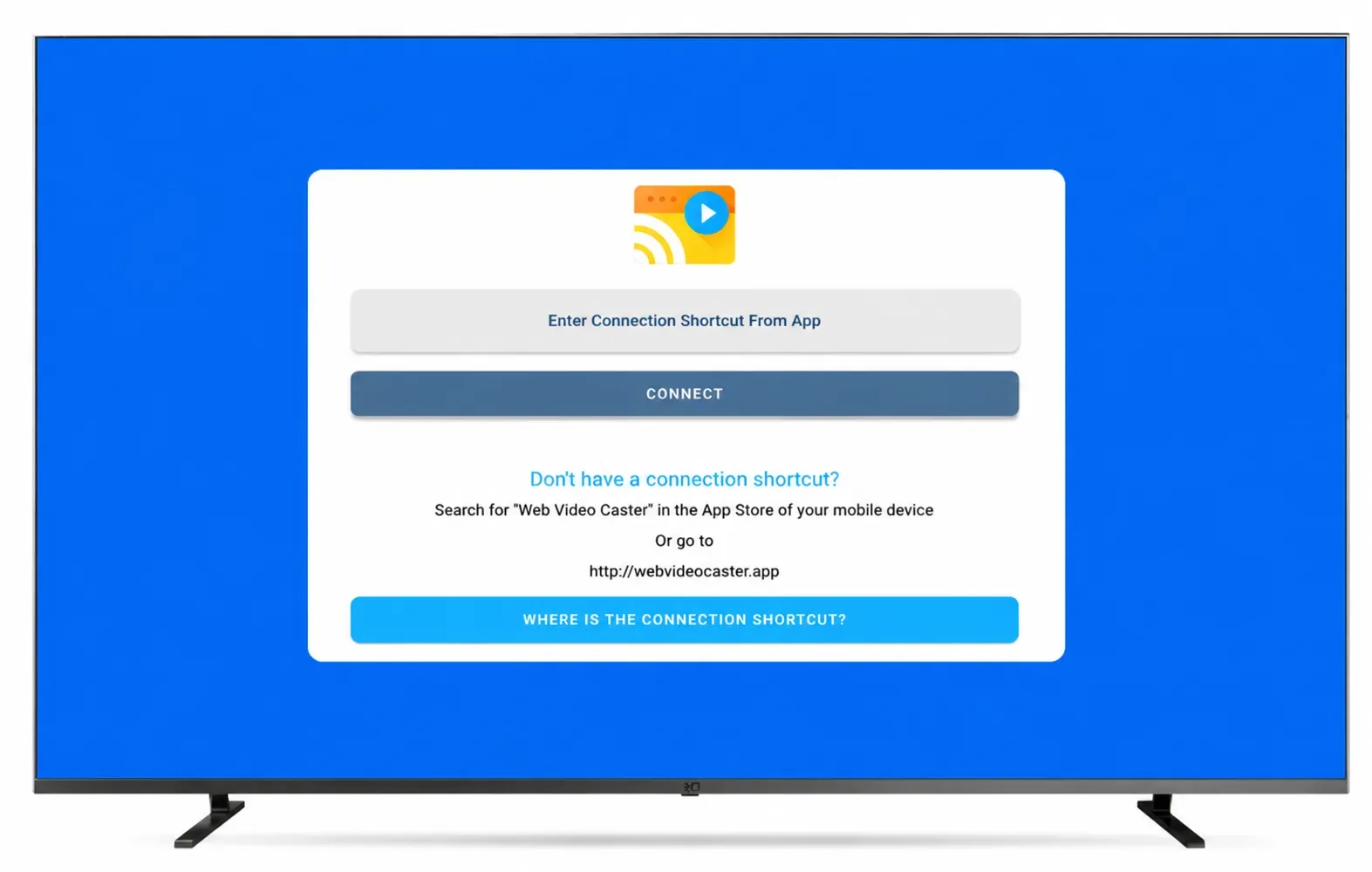
I tested it mainly with browser-based streaming on Android TV, and the experience felt very different from a traditional screen mirroring app. Instead of duplicating everything happening on the phone, Web Video Caster focuses on detecting the actual video stream from a webpage and sending that directly to the TV.
When it works properly, this creates a cleaner viewing experience. You can continue using your phone normally without every notification, scroll, or accidental tap appearing on the television.
When Web Video Caster Works Best for Android TV Screen Mirroring
Web Video Caster makes the most sense when:
- you regularly stream videos from websites
- you prefer direct media playback on the TV
- you do not need full screen mirroring
- you want to avoid showing your entire phone interface on screen
In some cases, video playback can feel smoother than standard mirroring because the TV handles the stream more directly.
Where Web Video Caster Can Become Frustrating
The biggest limitation is consistency across websites. During testing, some video pages worked almost instantly, while others failed to detect the media correctly or required extra steps before playback started. Certain embedded players were also noticeably slower to respond.
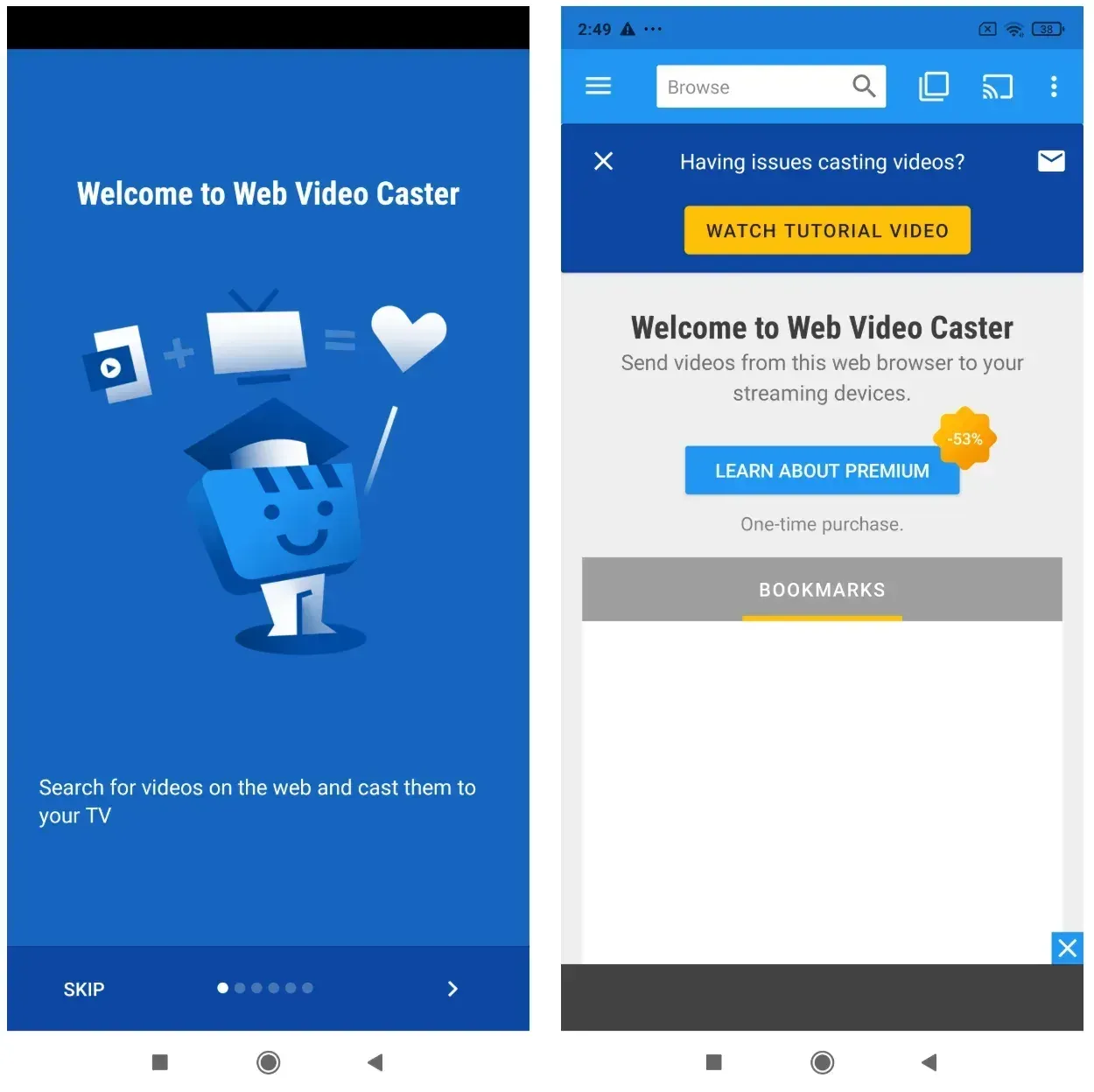
This is less of an issue with the app itself and more a limitation of browser-based video extraction in general.
If your goal is simple full-screen casting or screen sharing, apps like PigeonCast usually feel more predictable and easier to use day to day.
AirScreen: Best When You Need a Receiver App on Android TV
AirScreen is useful in a different way from most casting apps because it focuses heavily on the receiving side of the connection.
Instead of primarily helping the phone send content, AirScreen helps the Android TV accept incoming casts and screen mirrors more reliably. That distinction matters more than many people realize.
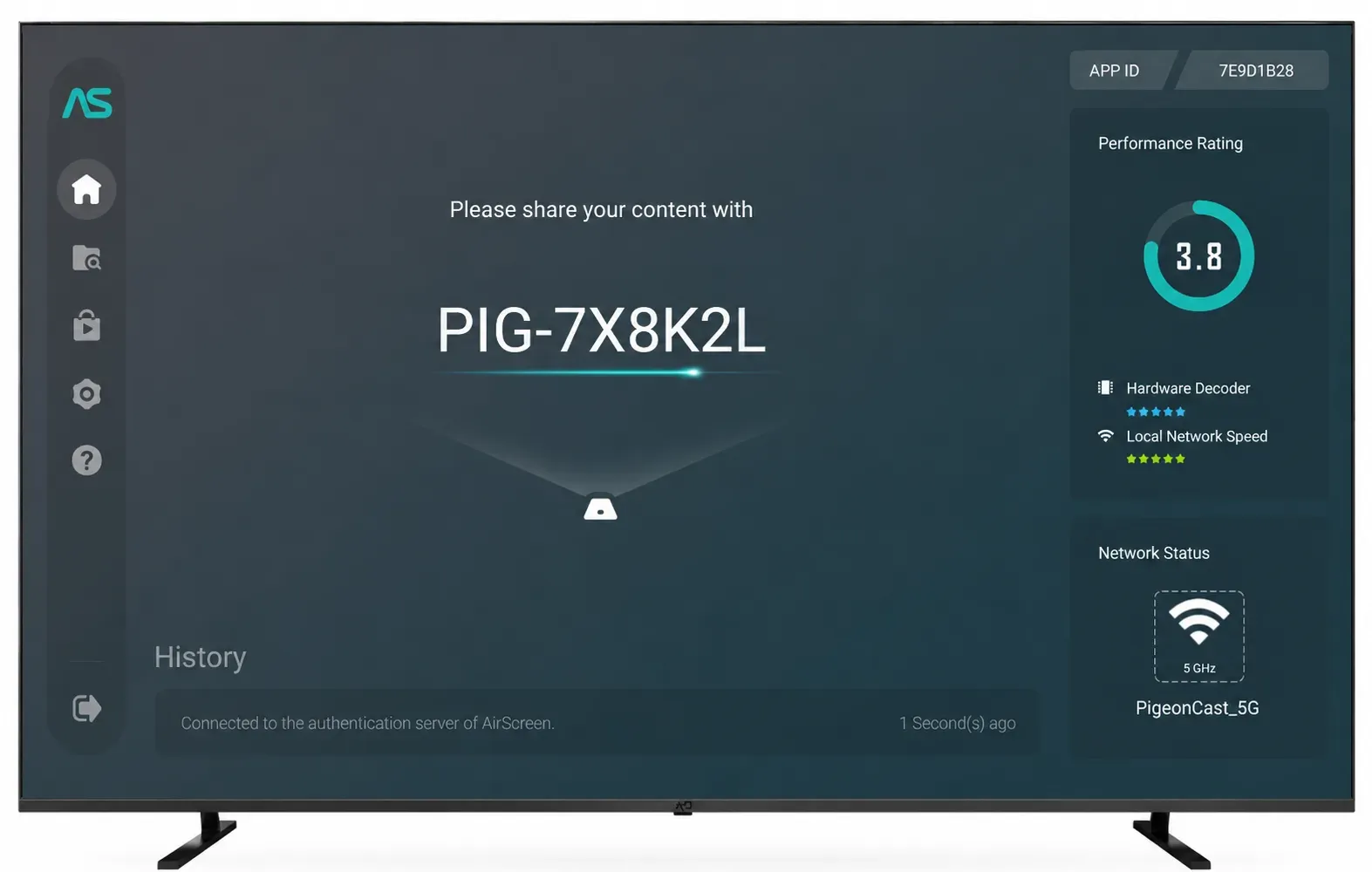
In my own testing, I found that some TVs had decent sender support but weak receiver compatibility, especially when switching between iPhone, Windows, and Android devices. AirScreen can help smooth out those compatibility gaps.
When AirScreen Is Good for Android TV Screen Mirroring
AirScreen is a good option when:
- your Android TV struggles to receive casts consistently
- you cast from multiple device types
- built-in casting support feels unreliable
- you often switch between Apple and Android devices
For users dealing with receiver-side issues, AirScreen sometimes solves the actual bottleneck better than replacing the sender app.
Where AirScreen Feels Less Convenient
The downside is that the overall experience can feel slightly more technical compared with all-in-one casting apps.
Because the app focuses heavily on helping the TV receive connections, the workflow may feel less direct for users who simply want to open one app and start mirroring immediately.
For everyday mixed-device casting, PigeonCast generally feels more streamlined overall.
You might be interested in more AirScreen guides:
Google Home: Best If Your Android TV Already Works Well With Google Cast
Google Home is still a solid option if your Android TV already works smoothly with Google Cast. For many Android users, it is the first casting method they try because it is already connected to the broader Google ecosystem.
In the best-case scenario, the experience is very simple. The TV appears instantly, supported apps show the Cast button automatically, and playback starts within seconds.
When Google Home Works Well for Android TV Screen Mirroring
Google Home is a strong fit when:
- your Android TV consistently appears in Google Home
- you mainly use Android devices
- your apps already support Google Cast properly
- your home network is stable
In a well-optimized Google ecosystem, the setup can feel extremely convenient.
Where Google Home Starts to Break Down
The experience becomes less reliable once you move outside ideal conditions.
In my own testing, device discovery sometimes became inconsistent after network changes or router restarts. Certain TVs also behaved differently depending on firmware updates and manufacturer implementation.
This is one reason many users eventually look for third-party casting apps. When Google Cast works, it feels seamless. When Google Cast does not work, troubleshooting can become surprisingly time-consuming.
For mixed-device households, broader casting apps like PigeonCast often create a more stable long-term experience.
LetsView: Best Basic Cast App for Android TV
LetsView is one of the simpler casting apps to test if you only need basic screen mirroring and do not want an overly technical setup.
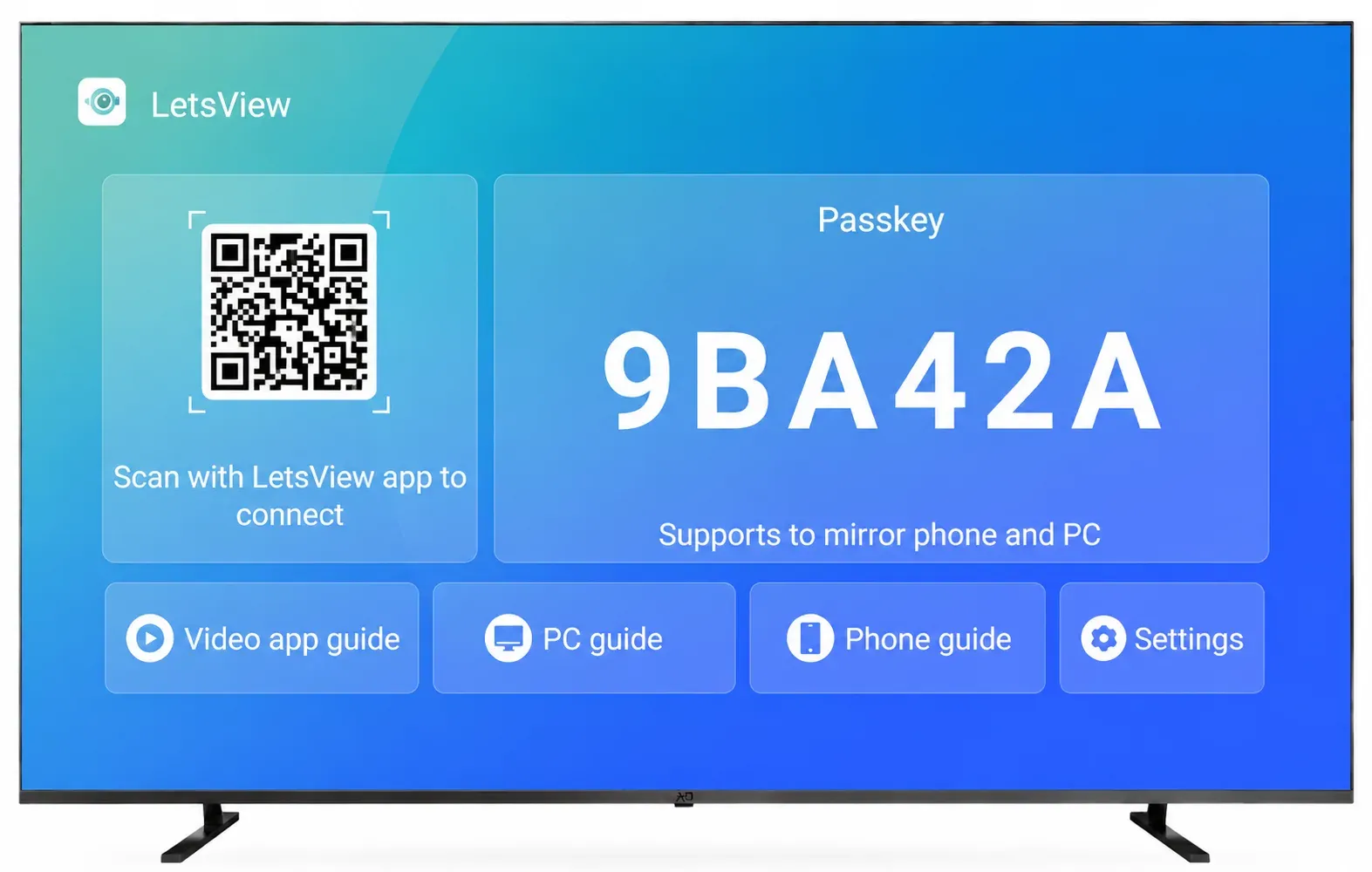
Compared with heavier casting platforms, it feels lighter and more beginner-friendly.
I found it useful mainly for quick connection testing and casual screen sharing rather than long-term everyday use.
When LetsView Is Worth Trying for Android TV Screen Mirroring
LetsView works best when:
- you want a quick free option
- your casting needs are minimal
- you only mirror occasionally
- you are testing whether devices can communicate properly on the same Wi-Fi network
For casual home use, the setup process is relatively approachable.
Where LetsView Feels Limited
The app becomes less convincing once your setup gets more complicated.
In mixed-device environments with different phones, laptops, and TV brands, the experience can feel less stable and less flexible than broader casting platforms.
That is why LetsView works better as a lightweight starter app rather than the strongest long-term recommendation for most Android TV users.
Which Is the Best App for Android TV Casting?
After testing these apps across different devices and TV setups, I do not think there is one perfect casting app for every situation. The biggest difference usually comes down to how people actually use their TVs at home.
For example, my own experience was very different depending on the task. Web Video Caster felt better for streaming browser videos. AirScreen helped more when receiver compatibility became the issue. Google Home worked smoothly on some networks, then suddenly became unreliable after a router restart or TV update.
But when I looked at overall day-to-day usability, switching between iPhone, Windows PC, and Android TV, reconnecting devices over time, and helping non-technical family members use the same setup, PigeonCast consistently felt like the easiest all-around option to live with.
That is ultimately why it stands out as the best general recommendation rather than just another feature-heavy casting app.
| Option | Best for | Type | Main strength | Main limitation |
|---|---|---|---|---|
| PigeonCast | Everyday casting and screen mirroring across mixed-device homes | General casting app | Reliable all-around experience with Android, iPhone, laptop, and TV setups | Still depends on stable Wi-Fi quality like every wireless casting app |
| Web Video Caster | Streaming videos directly from websites | Web video casting app | Cleaner browser video playback without full screen mirroring | Performance varies depending on the website and video player |
| AirScreen | Improving TV-side receiver compatibility | Receiver app | Helps Android TV accept casts from more device types | Slightly less streamlined for simple everyday mirroring |
| Google Home | Native Google Cast environments | Cast control app | Very convenient when Google Cast works properly | Device discovery can become inconsistent across networks and TV brands |
| LetsView | Lightweight casual casting and testing | Mirroring app | Beginner-friendly setup for quick screen sharing | Less flexible for long-term mixed-device use |
Common Android TV Casting Problems
One thing I noticed while testing these apps is that many casting problems are not actually caused by the app itself.
In several cases, I switched between apps thinking one of them was broken, only to realize the real issue was the network, the TV, or the casting method being used.
For example, I had one setup where my iPhone could detect the Xiaomi TV immediately, but the Windows laptop could not see it at all. Another time, Google Cast stopped discovering the TV after a router restart even though the internet connection itself was working perfectly.
Wireless casting depends on more moving parts than most people expect.
The Most Common Reasons Casting Fails
Across different Android TV setups, these were the issues I ran into most often:
- the phone and TV were connected to different Wi-Fi bands or networks
- VPNs interfered with device discovery
- guest network isolation blocked local connections
- the TV entered a low-power standby mode
- outdated TV firmware caused unstable Cast behavior
- the app being used did not match the actual task
That last point matters a lot.
A web video casting app behaves very differently from a full screen mirroring app. A receiver-focused app like AirScreen solves a different problem from a sender-first app like PigeonCast.
Many negative app reviews are really caused by a mismatch between the casting method and what the user is actually trying to do.
If your goal is simply mirroring your phone, a lightweight browser video app will probably feel frustrating. And if your TV struggles to receive casts reliably, switching sender apps may not solve the real issue.
Final Thoughts
After spending time with these apps across different TVs and devices, I realized the biggest difference usually shows up after the first successful connection.
Almost every casting app can work once. The harder part is whether the experience still feels simple a week later.
Some apps became frustrating after repeated reconnects. Others worked well only with certain devices or specific streaming situations. A few were clearly designed more for technical users than for normal households.
PigeonCast felt more natural in daily use.
I could move from watching a video on my iPhone to mirroring a Windows laptop presentation on the same Android TV without constantly adjusting settings or troubleshooting device discovery problems. That kind of flexibility matters more over time than having the longest feature list.
That is why I would recommend PigeonCast to most people searching for the best app to cast phone to Android TV. It removes a lot of the small friction points that tend to make wireless casting annoying in the first place.
The setup is also straightforward. Install PigeonCast on the TV, connect your devices to the same Wi-Fi network, open screen mirroring or casting on your phone or laptop, and select the TV to start streaming wirelessly.
At the end of the day, the best cast to Android TV app is usually the one you stop thinking about because it simply works when you need it.
Best Casting App for Android TV FAQ
What is the best casting app for Android TV?
For most people, PigeonCast is the best app to cast phone to Android TV because it supports both screen mirroring and wireless casting across a wide range of Android TVs, phones, and laptops.
It also works better than many narrower apps in mixed-device homes where people switch between iPhone, Android, Windows, and different TV brands.
Is there a free casting app for Android TV?
Yes. Many Android TVs now support iPhone casting, although the experience depends on the TV model and the app being used.
Apps with broader cross-platform support, such as PigeonCast and AirScreen, usually work more reliably in mixed Apple and Android setups.
Can I cast from iPhone to Android TV?
Yes. Many Android TVs now support iPhone casting, although the experience depends on the TV model and the app being used.
Apps with broader cross-platform support, such as PigeonCast and AirScreen, usually work more reliably in mixed Apple and Android setups.
Why is my Android TV not showing up when I try to cast?
This is usually caused by local network or device discovery issues rather than the casting app itself.
Common causes include:
- devices connected to different Wi-Fi networks
- VPN interference
- guest network isolation
- outdated TV firmware
- unstable built-in Cast support
- low-power standby settings on the TV
Restarting the TV and reconnecting both devices to the same Wi-Fi network often fixes the issue.
Mia Clarke is a technology editor specializing in screen mirroring and casting solutions across multiple platforms. Mia provides clear, practical guides and in-depth insights to help users seamlessly connect their devices. Passionate about enhancing digital experiences, Mia is dedicated to keeping readers updated on the latest trends and tools in cross-platform screen sharing. Whether you’re looking to mirror your smartphone, laptop, or smart TV, Mia’s content delivers reliable, user-friendly advice to simplify your tech setup.