
The short version of this Web Video Caster review is clear enough: it is a useful app with a narrow strength. When you want to pull video from a website and send it to a TV, it can be genuinely handy. When you expect a clean, universal casting experience that works the same way everywhere, it starts to show its limits fast.
That gap between what the app does well and what people expect from it is the whole story. The Web Video Caster app is not really competing with full-device mirroring tools. It is closer to a mobile browser with casting built in, which is exactly why it can feel smart in the right situation and frustrating in the wrong one.
What Is Web Video Caster?
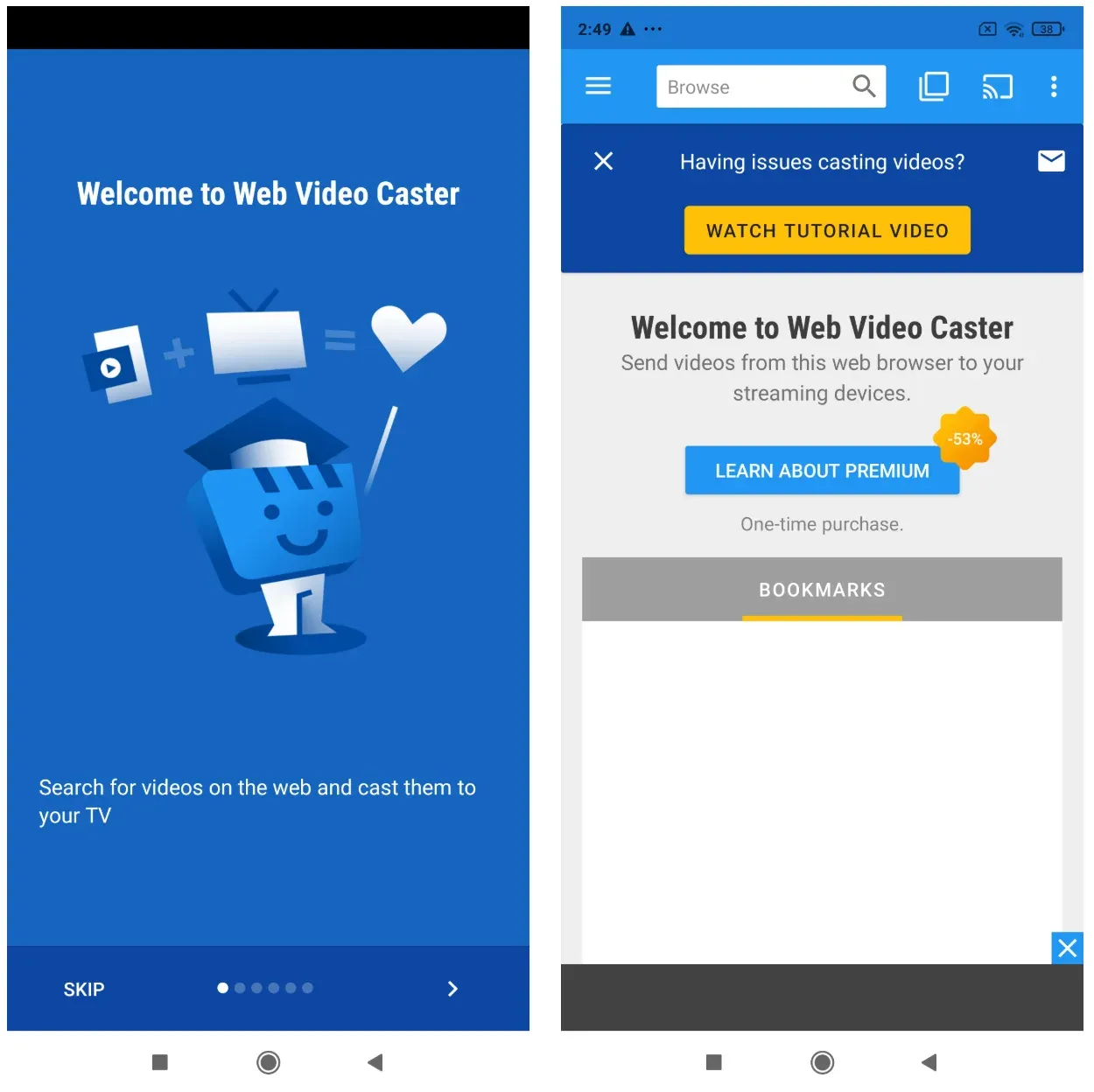
Web Video Caster is a browser-to-TV casting tool. You open a page inside the app, let it detect a playable media stream, and send that stream to a supported playback device such as Roku, Chromecast, Fire TV, or another compatible receiver.
That is an important distinction.
This is not the same thing as standard screen mirroring, where your phone continuously duplicates everything on its display. Web Video Caster is built to pass the video itself to the receiving device, which can make playback feel lighter and less messy when the source page cooperates.
In practical terms, that often creates a cleaner experience than standard screen mirroring because:
- playback can feel lighter and smoother
- the phone does not always need to stay actively streaming the screen
- video quality may remain more stable
- navigation feels less cluttered on TV
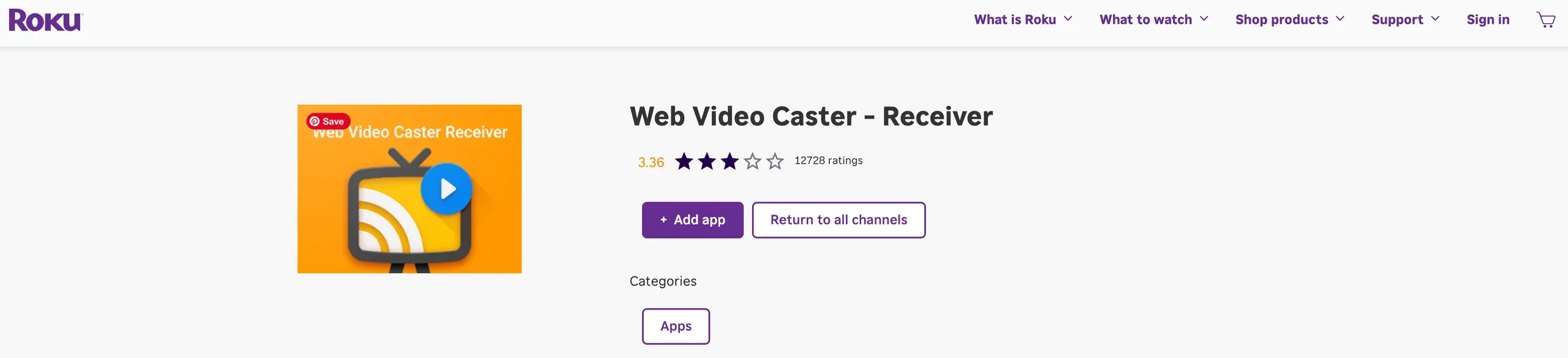
The Web Video Caster Receiver is the playback layer behind this process. For example, when casting to Roku, the Roku device is not showing a mirrored copy of your phone screen. Instead, it receives and plays the video stream directly through the receiver app.
This is also what makes Web Video Caster useful in the first place.
The app is especially valuable when the content you want to watch lives on a website that does not cleanly hand off to a native TV application. Rather than fighting with unreliable browser playback on a smart TV or using awkward screen mirroring, Web Video Caster tries to bridge the gap between web video and TV playback.
Which Devices Support Web Video Caster?
One of the biggest strengths of Web Video Caster is how broad its receiver compatibility has become over time.
Although many people associate it mainly with Roku, the app actually supports a wide range of streaming devices, smart TV platforms, and receiver methods.
Roku Support
Roku is one of the most fully supported receiver ecosystems for Web Video Caster.
The Roku receiver channel is designed specifically for browser video playback and supports features such as:
- subtitles
- subtitle styling
- mp4 playback
- mkv playback
- m3u8 streams
- ts live streams
Because of this, Roku remains one of the clearest examples of how the app is intended to work.
Chromecast Compatibility
Chromecast is another core platform for Web Video Caster.
The app supports several formats and playback features on Chromecast-enabled devices, including:
- mp4
- m3u8 streams
- subtitles
- subtitle customization
For users already invested in the Google ecosystem, Chromecast support is one of the app’s major selling points.
Android TV and Fire TV Devices
Support is especially broad across Android-based platforms.
Web Video Caster works with:
- Android TV
- Fire TV
- Fire TV Stick
- other Android devices running Android 4.1 or later
This branch of compatibility is particularly strong because it supports advanced playback features such as:
- subtitles
- video rotation
- live streams
- m3u8 playback
- mp4 playback
For many users, Android TV and Fire TV offer the smoothest overall experience with the app.
Apple TV Support
Apple TV 4 and newer devices have a dedicated tvOS receiver app for Web Video Caster.
Importantly, this receiver is focused on direct web video playback rather than basic screen duplication, which helps preserve the app’s core “browser-to-TV” casting workflow.
Smart TV Compatibility
Web Video Caster also supports several major smart TV ecosystems through dedicated receiver apps.
Samsung TVs and LG TVs
- Samsung TVs running Tizen OS are supported through a native receiver implementation.
- LG TVs with WebOS or Netcast support dedicated receiver functionality as well.
These receiver apps typically provide more than simple fallback DLNA streaming and may include:
- subtitles
- subtitle styling
- zoom controls
- broader video compatibility
Support for Smaller TV Platforms
The compatibility list extends beyond the major streaming ecosystems.
Web Video Caster also supports platforms such as:
- VEWD
- Foxxum
- Vidaa
These are easy to overlook, but they help expand compatibility across a wider range of smart TVs and regional television brands.
Browser Receiver and DLNA Support
There is even a browser-based receiver mode for devices that may not support the app’s native receiver protocols.
For example, devices such as PlayStation 4 or other hardware with a web browser can still receive and play video streams through the browser receiver workflow.
DLNA support further expands compatibility.
Even if a smart TV is not officially listed, it may still work through DLNA if the television can receive video streams over the local network.
In practice, this broad compatibility is one of the biggest reasons people continue using Web Video Caster. The exact feature set varies depending on the receiver method, but the sheer number of supported playback paths gives the app far more flexibility than standard casting or screen mirroring tools.
Who Should Use Web Video Caster?
Web Video Caster makes the most sense for people who regularly watch browser-based video and want a flexible way to move that content onto a larger screen. It is especially useful in mixed-device setups where you cannot rely on one ecosystem-specific casting method to cover everything.
It is a weaker fit for anyone who wants a one-tap experience, predictable compatibility, or true whole-screen sharing. If your real goal is to mirror your iPhone or Android phone interface, demo an app, or cast everything exactly as it appears on your device, this is probably not the tool you actually want.
Put more simply, Web Video Caster is good at web media delivery. It is much less convincing as a general display-sharing app.
How Web Video Caster Works in Real Use
The setup itself is not complicated. A Web Video Caster app download gets the tool onto your phone, but that is only the first step. The actual experience still depends on the receiving device, the source website, and the quality of your local network.
How to Use Web Video Caster
In normal use, the workflow looks like this:
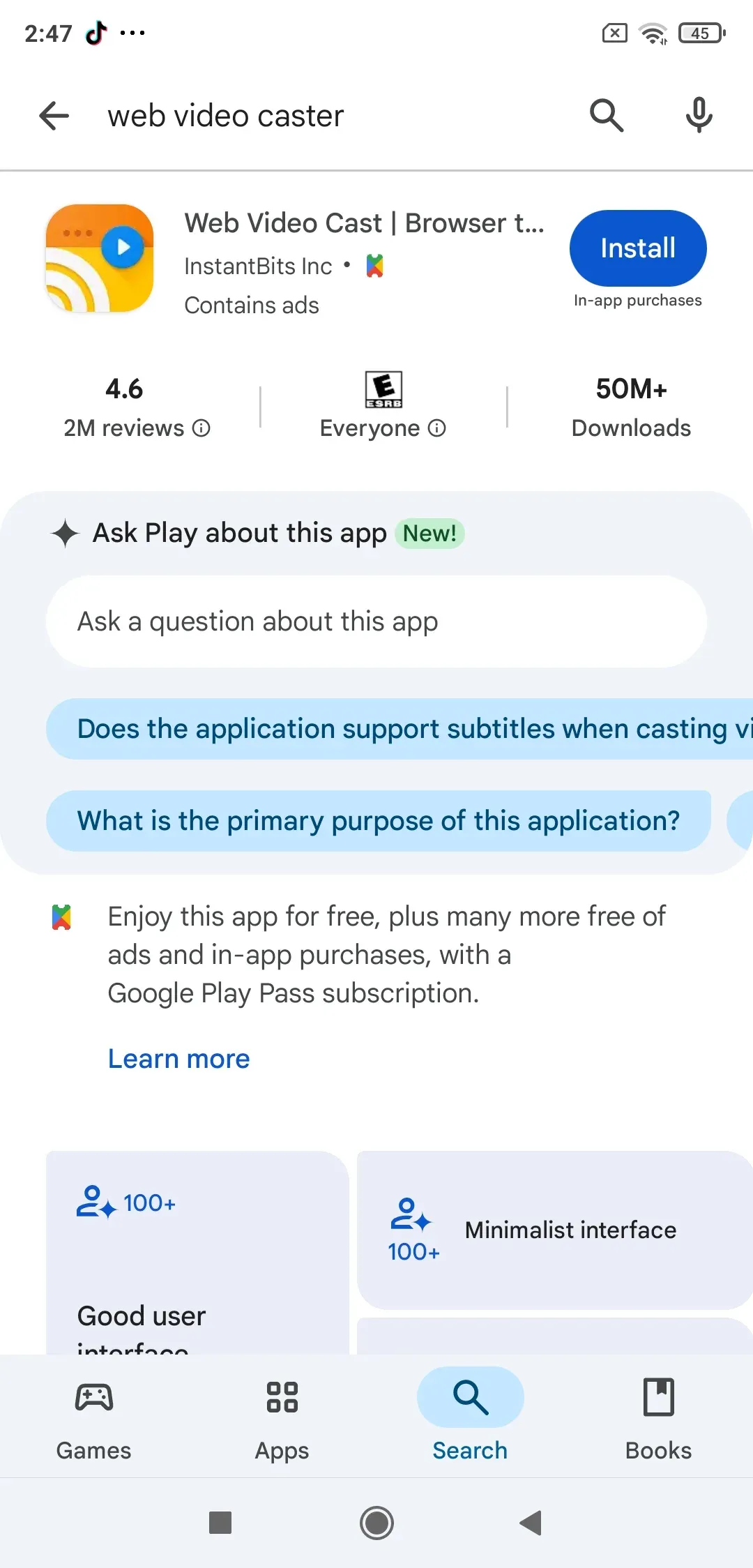
Step 1. Install the app on your phone or tablet from the app store.
Tip: Some platforms, such as Roku, Fire TV, Apple TV, and certain smart TVs, may also require installing the Web Video Caster Receiver app on the playback device itself.
Step 2. Connect your phone and playback device to the same Wi-Fi network.
Step 3. Open the app and inside the Browser menu, search for a video.
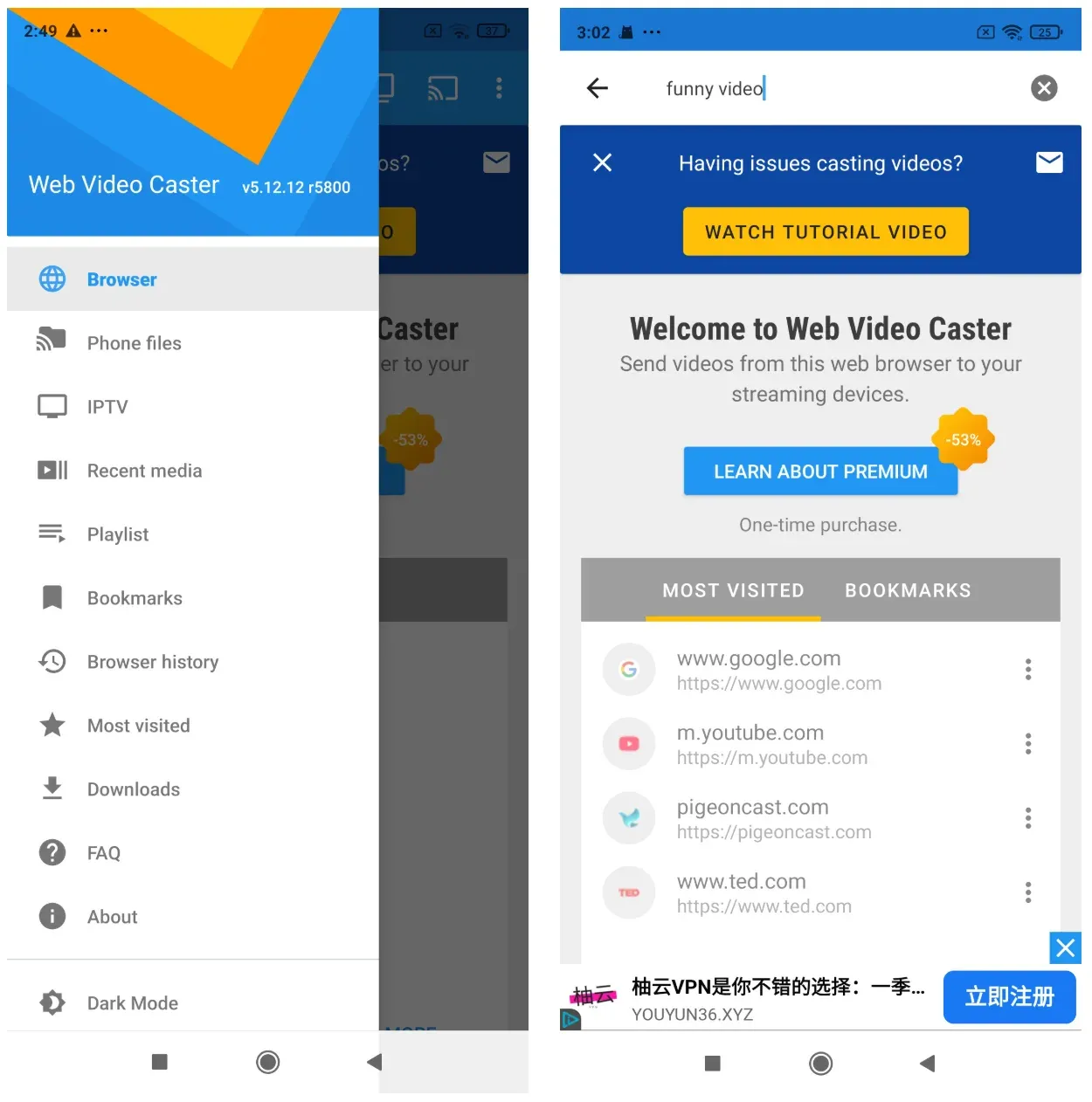
Step 4. Select a video from the search reslut and tap the Cast button at the top
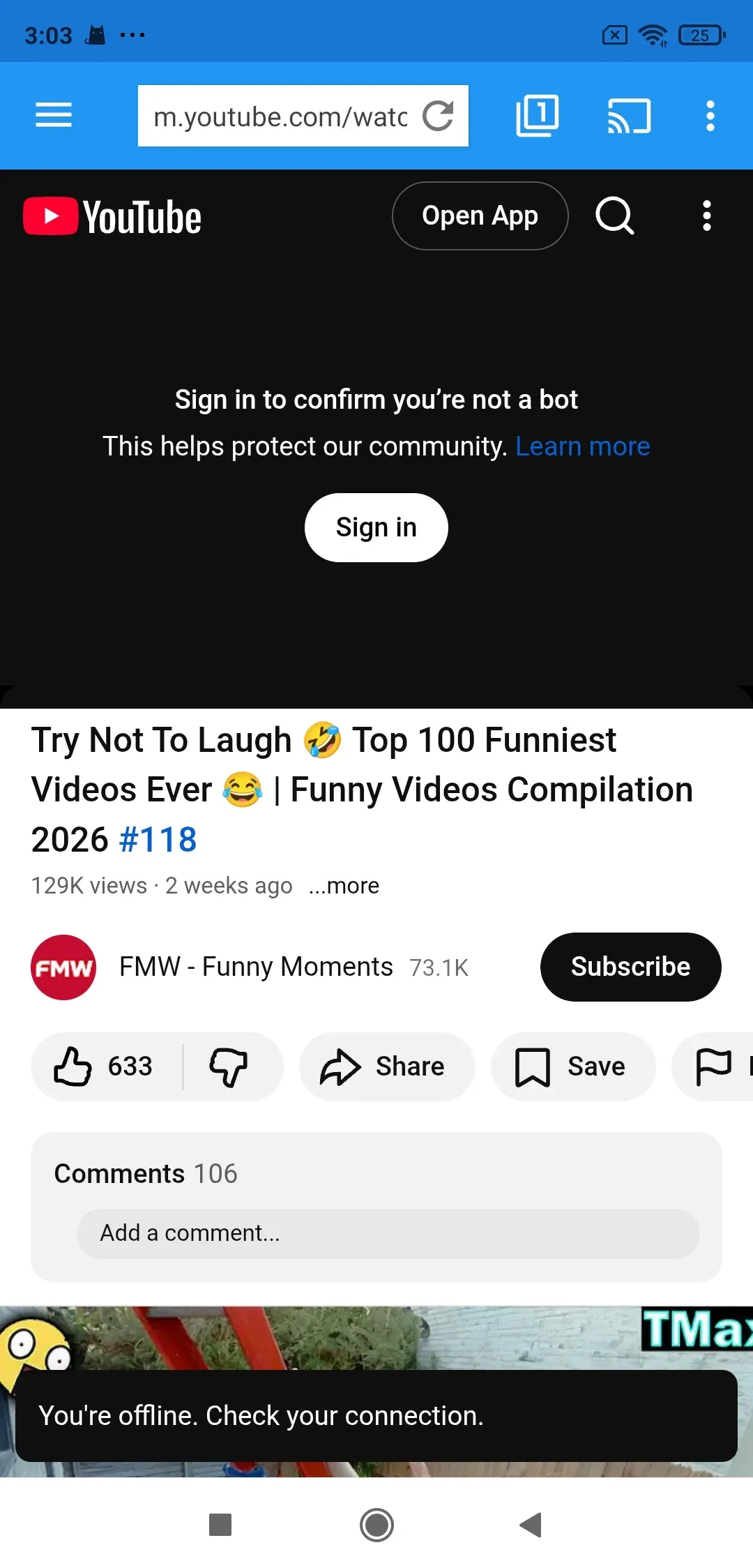
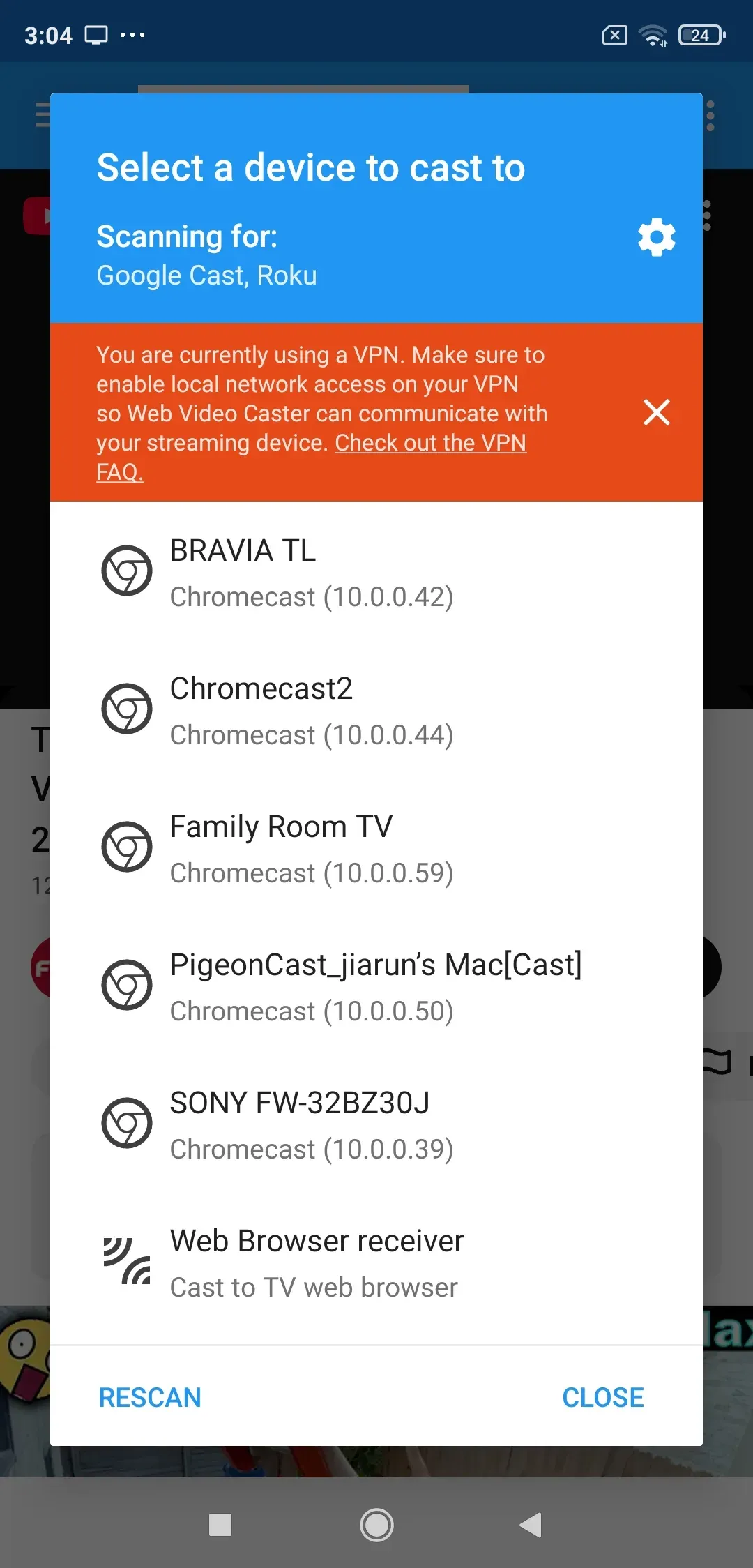
Step 5. Choose the target device from the device list.
Step 6. Wait for the connection, video loading, and start enjoying on the big screen.
On a straightforward page with a standard HTML5 player, this can feel almost effortless. On cluttered pages with odd embeds, pop-ups, or protected streams, it becomes more trial and error. If your real goal is broader device casting rather than browser-led playback, this guide on how to cast screen to TV is a better match for that workflow.
What Web Video Caster Does Well
The app’s main advantage is practical rather than flashy. It solves a gap that many native TV casting flows still leave open: web-hosted video that does not live inside a polished mainstream streaming app.
It also supports a broad range of receiver types. That matters if your home setup includes Roku, Chromecast, Fire TV, DLNA-capable devices, and smart TVs rather than one neatly unified ecosystem.
There is also a quieter benefit here. Because the app tries to send the media itself instead of mirroring your full display, you avoid broadcasting notifications, app switching, and every other bit of phone clutter that has nothing to do with the video.
Where Web Video Caster Falls Short
Its biggest weakness is that too much depends on factors outside the app. Website structure, stream accessibility, format compatibility, and network stability all shape the experience, which means the app can feel reliable one day and annoying the next without changing anything obvious in the interface.
The interface itself is serviceable, but not especially elegant. It does the job, yet it can feel busier than it needs to, especially when multiple media links or alternate streams appear and the user has to guess which one is the right choice.
That is where the app loses some people. It is not bad in a simple yes-or-no sense. It is just less forgiving than the average consumer casting app, and that difference shows up quickly if you want convenience more than control.
Common Web Video Caster Problems
Most complaints about the app cluster around the same three weak points: stream detection, receiver compatibility, and network stability.
Web Video Caster Not Working
When Web Video Caster not working becomes the issue, the cause is usually one of four things:
- the page does not expose a usable stream
- the app detects the wrong media URL
- the receiver cannot handle the selected format cleanly
- the handoff breaks even though the phone and receiver can still see each other
If the app finds your device but playback never starts, begin with the basics. Keep both devices on the same stable Wi-Fi network, turn off VPN during testing, retry with a simpler source page, and test another detected stream if the app offers more than one. If the problem looks broader than this app alone, a separate phone not mirroring troubleshooting guide is a useful next step.
Web Video Caster Buffering
Web Video Caster buffering is another common complaint, but it is often a symptom rather than the root problem. In many cases, buffering starts with a weak source site, unstable home Wi-Fi, or a streaming device that is already under load.
If Web Video Caster buffering keeps happening, the fastest checks are practical: move closer to the router, reduce network congestion, restart the receiver, and test a different source page. If the problem only appears on one site, that site is usually the bottleneck. If it happens across multiple sites and devices, the local network deserves the blame first.
Is Web Video Caster Worth It?
For the right user, yes. If you often cast videos from browser-based sources and you do not mind a bit of troubleshooting when a site behaves badly, the app still has a real use case.
For the wrong user, not really. If what you want is a smooth, general-purpose mirroring tool that works with minimal friction, Web Video Caster can feel too conditional to trust as your default solution.


Overall Rating:



That is the fairest conclusion: Web Video Caster is worth trying if your main need is web-based media casting, but it is not the best answer for broad, everyday screen sharing.
Try a Web Video Caster Alternative
A Web Video Caster alternative starts to make more sense when your priority shifts from browser media extraction to broader screen mirroring and everyday device casting.
Web Video Caster works best when the content lives inside a browser and the app can successfully detect a playable media stream. That approach can feel clever when it works well, but it also means the experience depends heavily on website structure, stream compatibility, and receiver behavior.
For many people, the real goal is simpler than that.
They just want to:
- mirror a phone or tablet screen
- cast local videos
- share presentations
- stream photos or apps to a TV
- connect devices quickly without troubleshooting media links
That is where a more general casting tool like PigeonCast becomes easier to recommend.
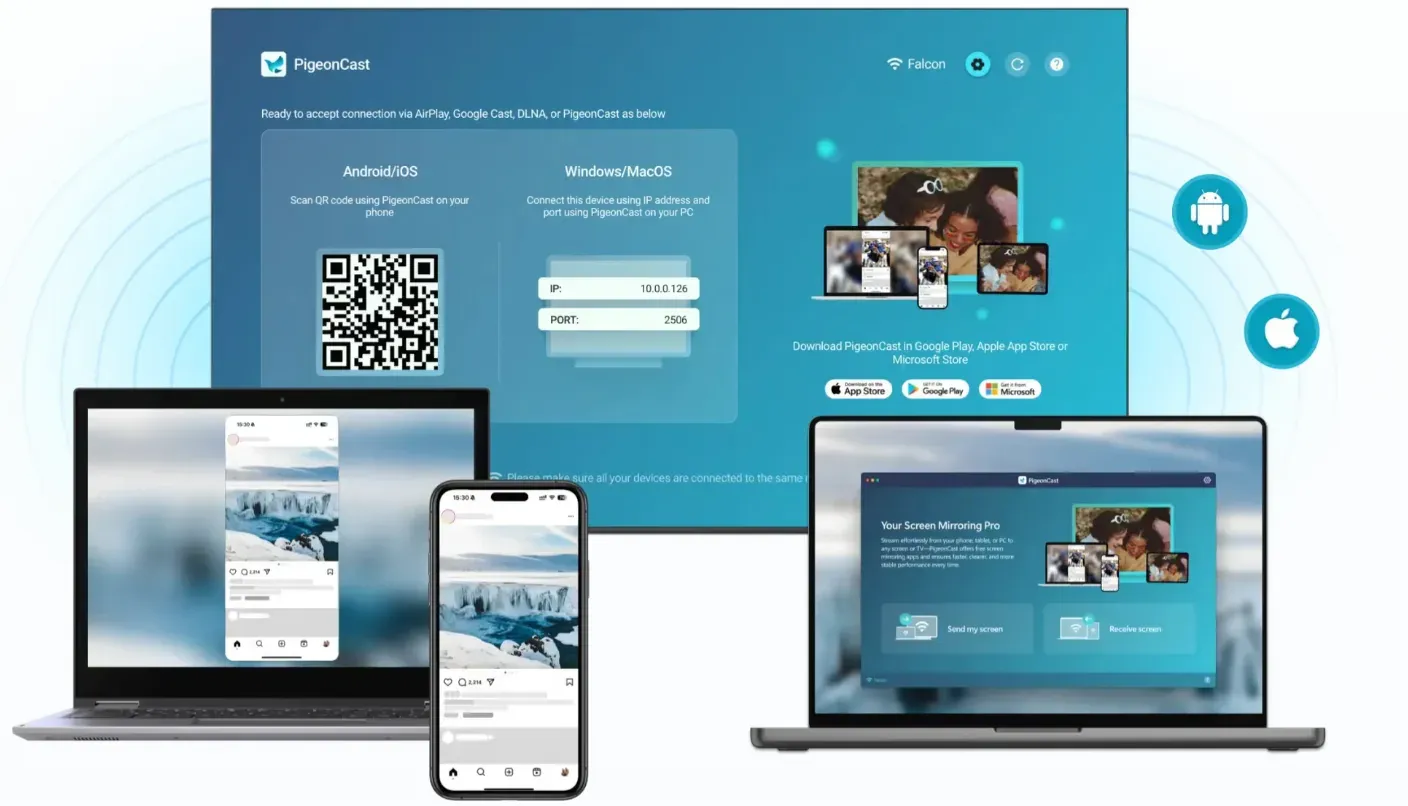
Unlike Web Video Caster, PigeonCast focuses less on browser-based media extraction and more on lightweight cross-device casting and screen sharing. The workflow is generally simpler because the app is built around direct device connection rather than trying to interpret video streams from individual websites.
In practice, that changes the experience quite a bit.
Instead of opening webpages inside a browser and hoping the app correctly detects the playable stream, PigeonCast behaves more like a straightforward casting layer between devices.
For users who care more about ease of use than advanced stream handling, that difference matters.
How to Use PigeonCast
The setup process is typically more direct than a browser-based casting workflow.
Step 1. Install PigeonCast on your phone or tablet, laptop, or streaming device.
Overall Rating:

Step 2. Connect your devices to the same Wi-Fi network.
Step 3. Open PigeonCast and select the target device.
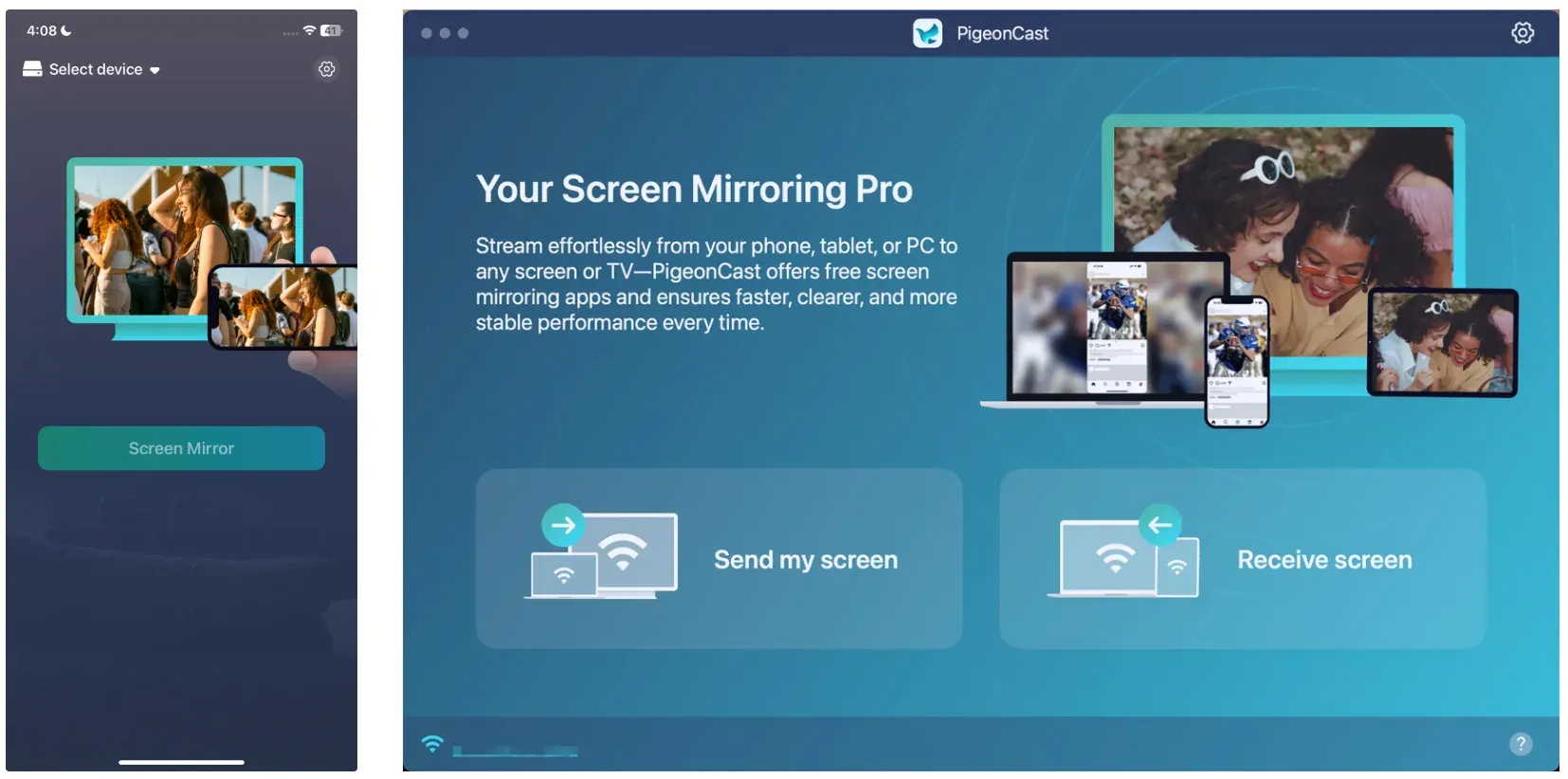
Step 4. Start screen mirroring or cast local content directly.
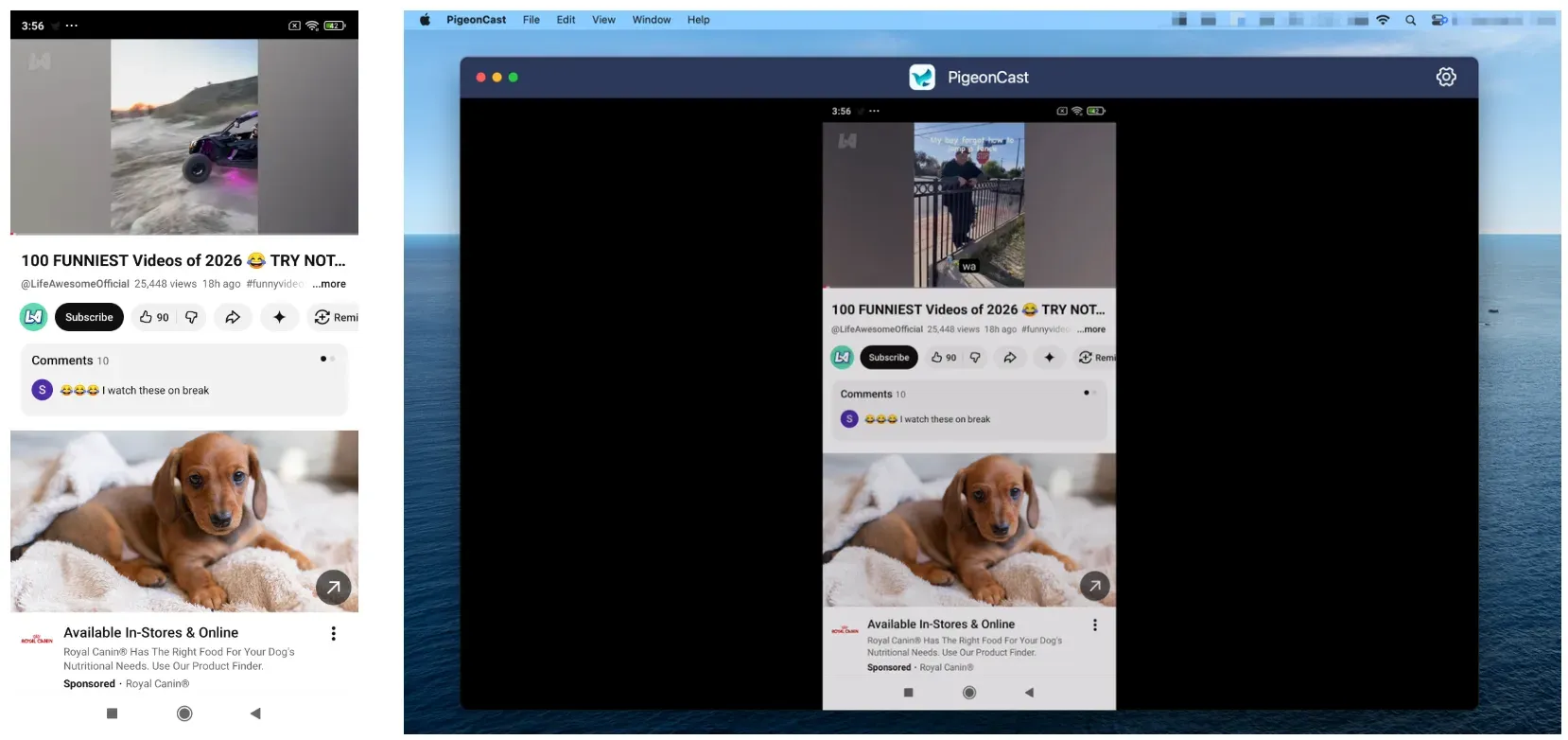
Because the workflow is less dependent on stream detection, the process usually feels more predictable across apps and websites.
Web Video Caster vs PigeonCast
| Feature | Web Video Caster | PigeonCast |
|---|---|---|
| Primary Use Case | Browser video casting | General screen mirroring and casting |
| Best For | Web-hosted video streams | Everyday device casting |
| Casting Method | Detects and sends media streams | Direct screen/device casting |
| Full Screen Mirroring | Limited | Yes |
| Browser Dependency | High | Low |
| Ease of Use | Moderate | Simpler |
| Interface Style | More technical | Cleaner and lighter |
| Stream Detection Required | Yes | No |
| Roku Support | Yes | No |
| Chromecast Support | Yes | Yes |
| Fire TV Support | Yes | Yes |
| Smart TV Support | Broad | Broad |
| DLNA Support | Yes | Yes |
| Subtitle Controls | Strong | More basic |
| Local File Casting | Supported | Supported |
| App / Presentation Sharing | Limited | Better suited |
| Best User Type | Power users | General users and families |
Neither app is universally “better” because they solve slightly different problems.
Web Video Caster is stronger when your main goal is pulling browser-based video streams onto a TV. PigeonCast makes more sense when you want a cleaner and more predictable casting experience across everyday devices and apps.
That difference is ultimately what separates a browser-stream tool from a broader casting platform.
Final Verdict
Web Video Caster is not the best casting app for everyone, and it does not need to be. Its value is narrower than that. What it does offer is a workable way to send browser-found video to a TV when native options are awkward, missing, or too limited.
If that is your exact use case, it is still worth keeping around. If you want something smoother, broader, and more predictable across devices, you will probably outgrow it and move on to a better-fit alternative.
Web Video Caster FAQ
Is Web Video Caster a screen mirroring app?
Not in the usual sense. It works more like a browser-based casting tool that detects media links and sends them to a receiver instead of mirroring your entire phone screen.
Is there a separate Web Video Caster app download for TV?
Yes, in some cases.
The main Web Video Caster app download is installed on the mobile device, but certain platforms such as Roku, Fire TV, Apple TV, and some smart TVs also require a separate Web Video Caster Receiver app on the playback device itself. In most setups, the phone acts as the controller while the TV or streaming device handles playback.
What is a web video caster on Roku?
On Roku, Web Video Caster works through a dedicated receiver channel installed on the Roku device. The phone detects the video stream inside the Web Video Caster app and then sends that stream to the Roku receiver for playback on the TV.
How to Use Web Video Caster on Roku?
- Install Web Video Caster on your phone.
- Install the Web Video Caster Receiver channel on Roku.
- Connect both devices to the same Wi-Fi network.
- Open a video page inside the app browser.
- Tap the Cast button.
- Select your Roku device from the receiver list.
- Choose the detected video stream and begin playback.
Why does Web Video Caster not working happen so often?
In most cases, Web Video Caster not working is caused by external factors rather than a single app bug. Common causes include:
- source websites blocking stream access
- incorrect stream detection
- unsupported video formats
- unstable Wi-Fi connections
- receiver compatibility problems
- VPN or network interference
Because the app depends heavily on how individual websites deliver video, reliability can vary significantly between different pages and streaming sources.
Is PigeonCast safe?
Yes, PigeonCast is a safe screen mirroring and casting tool that can be downloaded through official platforms such as Google Play, the App Store, the Microsoft Store, and supported TV app stores. If Web Video Caster sometimes feels inconsistent because of website compatibility or stream detection problems, PigeonCast is designed to offer a simpler and more stable casting workflow for everyday screen sharing and device mirroring.
Mia Clarke is a technology editor specializing in screen mirroring and casting solutions across multiple platforms. Mia provides clear, practical guides and in-depth insights to help users seamlessly connect their devices. Passionate about enhancing digital experiences, Mia is dedicated to keeping readers updated on the latest trends and tools in cross-platform screen sharing. Whether you’re looking to mirror your smartphone, laptop, or smart TV, Mia’s content delivers reliable, user-friendly advice to simplify your tech setup.