
Watching a movie on your phone is convenient, as it's always with you, and you can start streaming in seconds. But when you're sharing the moment with others, that tiny screen just doesn't cut it. Whether you're planning a movie night, want to share travel clips with family, or just prefer better sound and a bigger display, learning how to play movies from phone to TV is a must-have skill in 2025.
The good news is that modern phones and TVs are built to work together. You can cast a movie, mirror videos, or stream your favorite shows wirelessly or plug in directly with a cable if you prefer a more stable setup. From iPhones and Androids to universal apps like PigeonCast, there's a method for every situation and every device.
Why You Can Watch Movies from Your Phone on a TV
Today's TVs aren't just screens; they're connected hubs designed to sync with your other devices. Most of them come with built-in casting standards like AirPlay, Chromecast, or Miracast, which allow your phone to send audio and video directly to your TV over Wi-Fi.
In essence, your phone becomes the controller and content source, while your TV acts as the player. Once both are connected to the same Wi-Fi network, they "speak the same language", letting you start playback on your phone and watch it instantly on the TV. That's why casting and mirroring feel so seamless — it's all happening locally, without the internet middleman.
How to Play Videos from iPhone to TV
If you're using an iPhone, Apple has designed the process to feel as effortless as possible. The company built AirPlay right into its ecosystem, allowing your iPhone to communicate directly with compatible TVs. And if Wi-Fi isn't available, you can always fall back on a simple HDMI connection got an equally reliable experience.
This two-pronged approach, wireless through AirPlay or wired through HDMI, means you'll never be stuck wondering how to play videos from phone to TV, no matter where you are.
Method 1: Cast Movies with AirPlay (Wireless Option)
Step 1. Make sure your TV supports AirPlay (most models from Samsung, LG, Roku, and Vizio do).
Step 2. Connect your iPhone and TV to the same Wi-Fi network.
Step 3. Open your preferred streaming app, such as Netflix, Disney+, and Apple TV+.
Step 4. Tap the AirPlay icon (a small TV symbol with a triangle at the bottom).
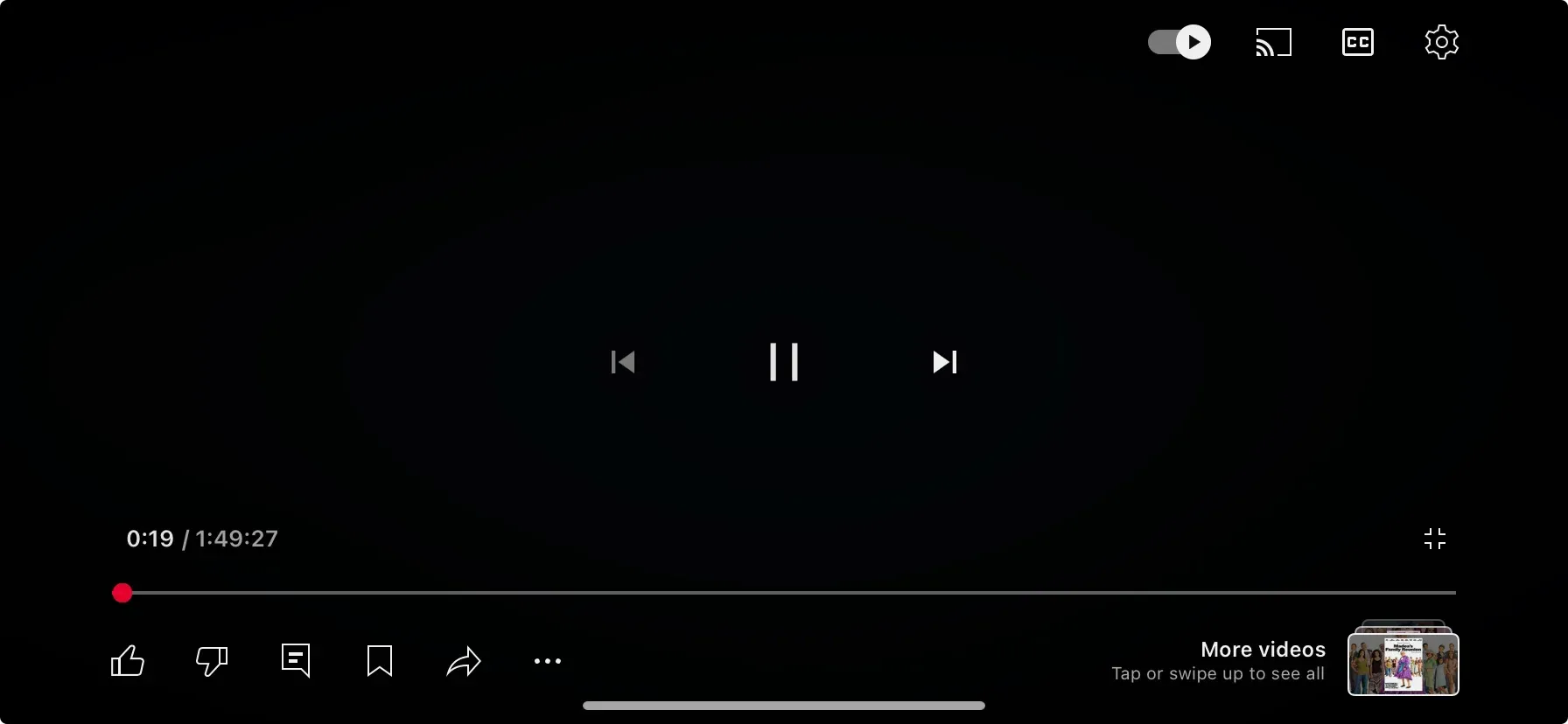
Step 5. Choose your TV, and your movie will begin playing on the big screen.
If you want to mirror your entire iPhone screen — say, to play downloaded videos or view apps that don't have AirPlay support — open Control Center → Screen Mirroring, and select your TV from the list.
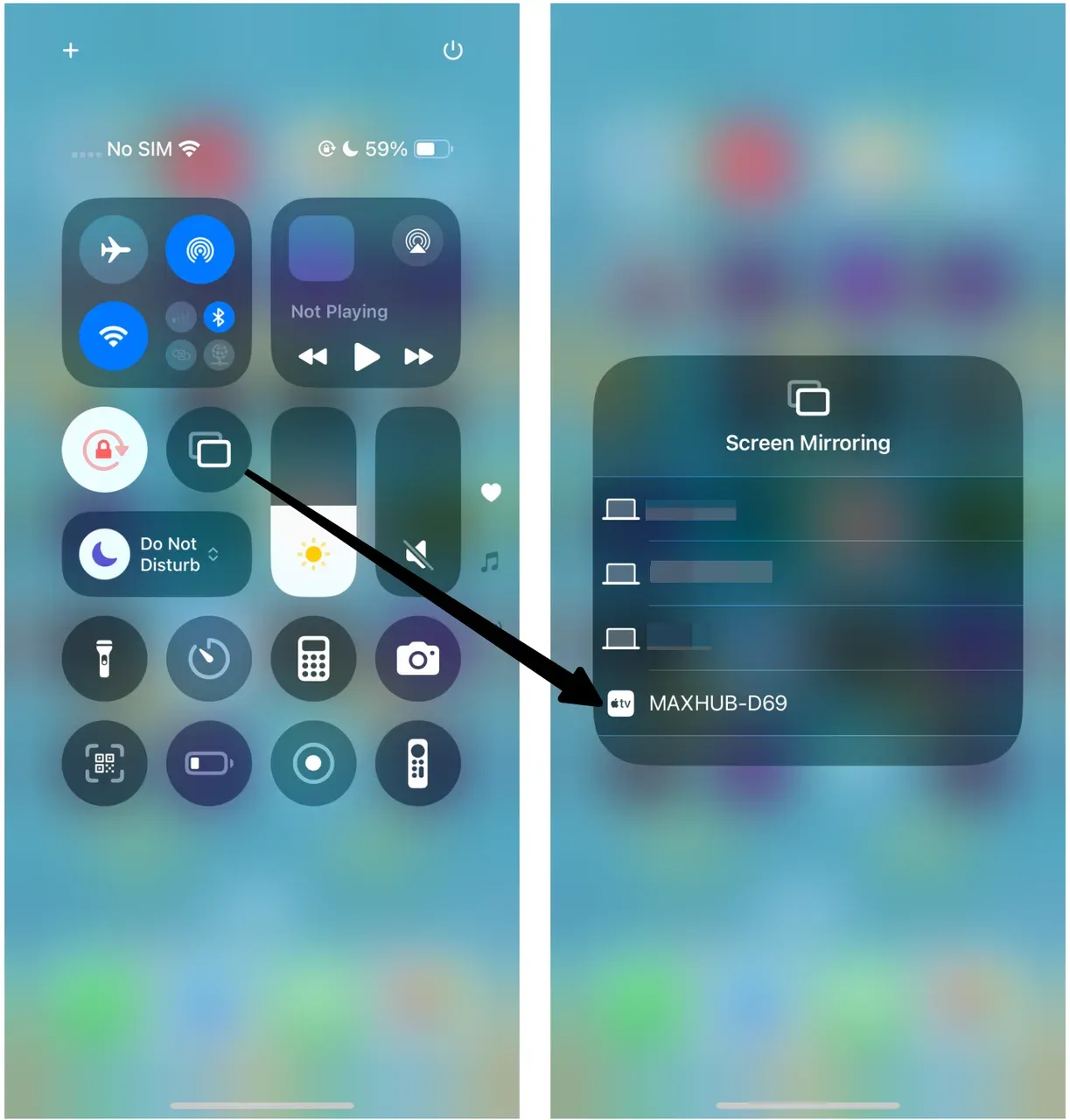
The great thing about AirPlay is how intuitive it feels. You don't have to configure anything; your phone automatically recognizes compatible TVs nearby. It's one of the reasons Apple remains ahead when it comes to wireless streaming simplicity.
Method 2: Mirror Movies with a Cable (Wired Option)
How to watch movie from phone to TV without Wi-Fi? Of course, Wi-Fi isn't always perfect. If you're in a location with weak connectivity or a shared network, a wired setup guarantees uninterrupted playback.
- For iPhone 15 or newer, use a USB-C to HDMI adapter.
- For iPhone 14 or older, use a Lightning to HDMI adapter.
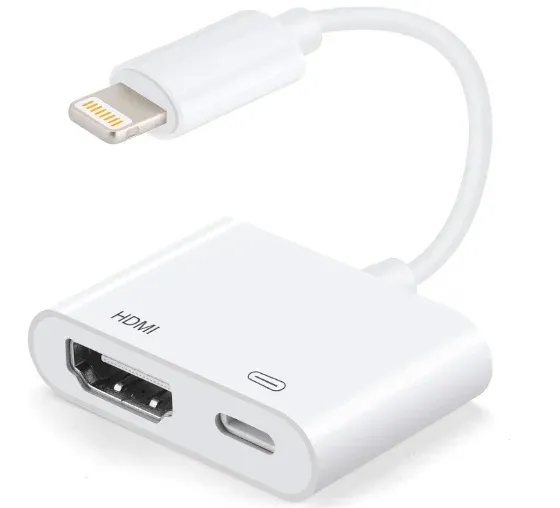
How to play movie from phone to TV? Simply plug the adapter into your iPhone, connect an HDMI cable to your TV, and switch the TV's input to the correct HDMI port. Your phone's display will instantly appear, no configuration needed.
This method is particularly useful for long movies, travel setups, or when you want the reliability of a wired connection without worrying about buffering or lag.
How to Play Videos from Android Phone to TV
Android users enjoy even more flexibility because the platform supports multiple streaming standards. Most Android phones are compatible with Chromecast, and some brands like Samsung and Motorola also include Miracast for full-screen mirroring.
This versatility means you can stream a movie, cast a video, or mirror your entire screen, depending on what works best for your situation.
Method 1: Cast Movies with Chromecast
Google's Chromecast technology is built right into most Android devices and many smart TVs. It's one of the fastest ways to play movies on TV from phone without extra setup.
Step 1. Ensure your TV has Chromecast built in or that a Chromecast dongle is connected.
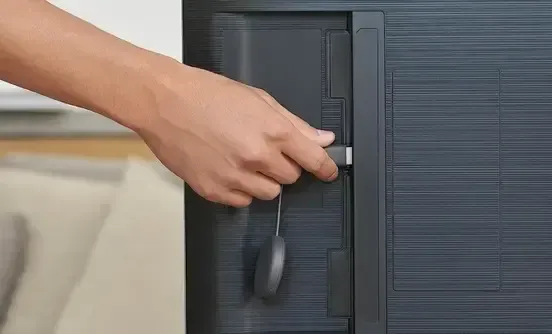
Step 2. Make sure your phone and TV are on the same Wi-Fi network.
Step 3. Open a Chromecast-enabled app like YouTube, Hulu, or Prime Video.
Step 4. Tap the Cast icon (a rectangle with curved lines).
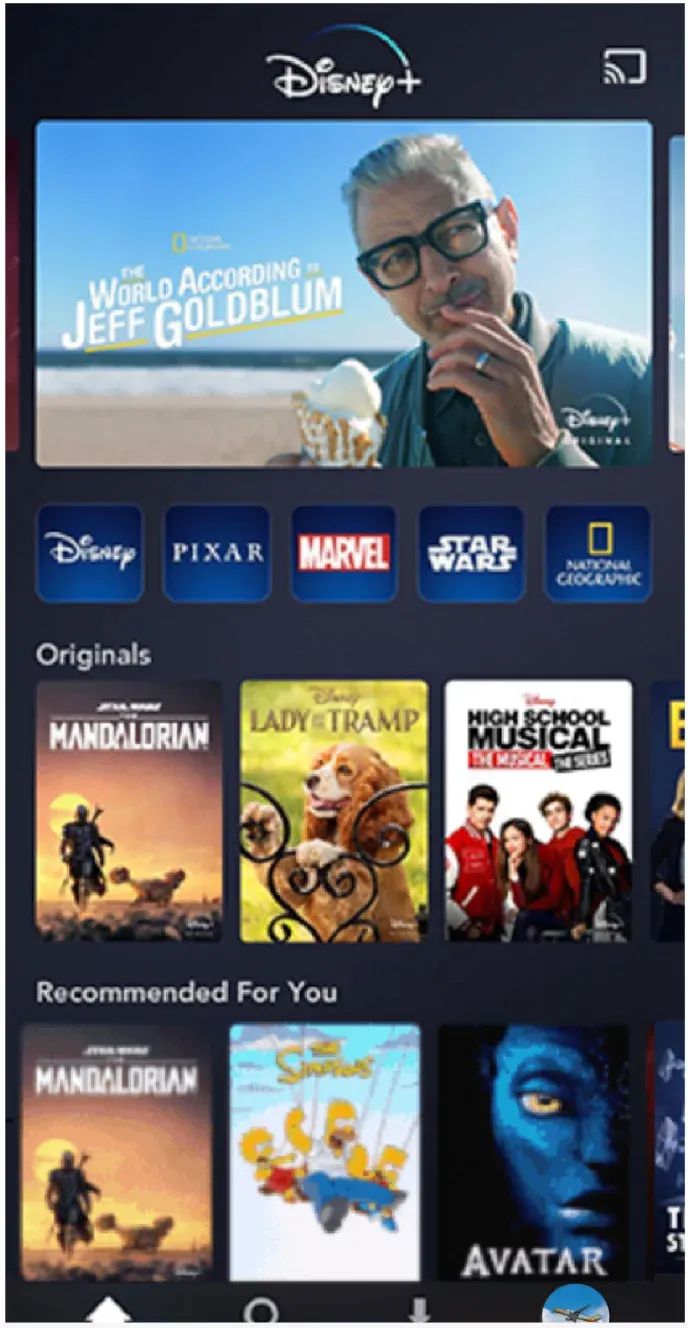
Step 5. Choose your TV, and your movie will start playing in seconds.
What makes Chromecast so convenient is that once you've connected, your phone acts as a remote rather than the video source. You can browse other apps, take calls, or even turn off your screen while the movie continues playing on your TV.
Method 2: Mirror Movies with Miracast
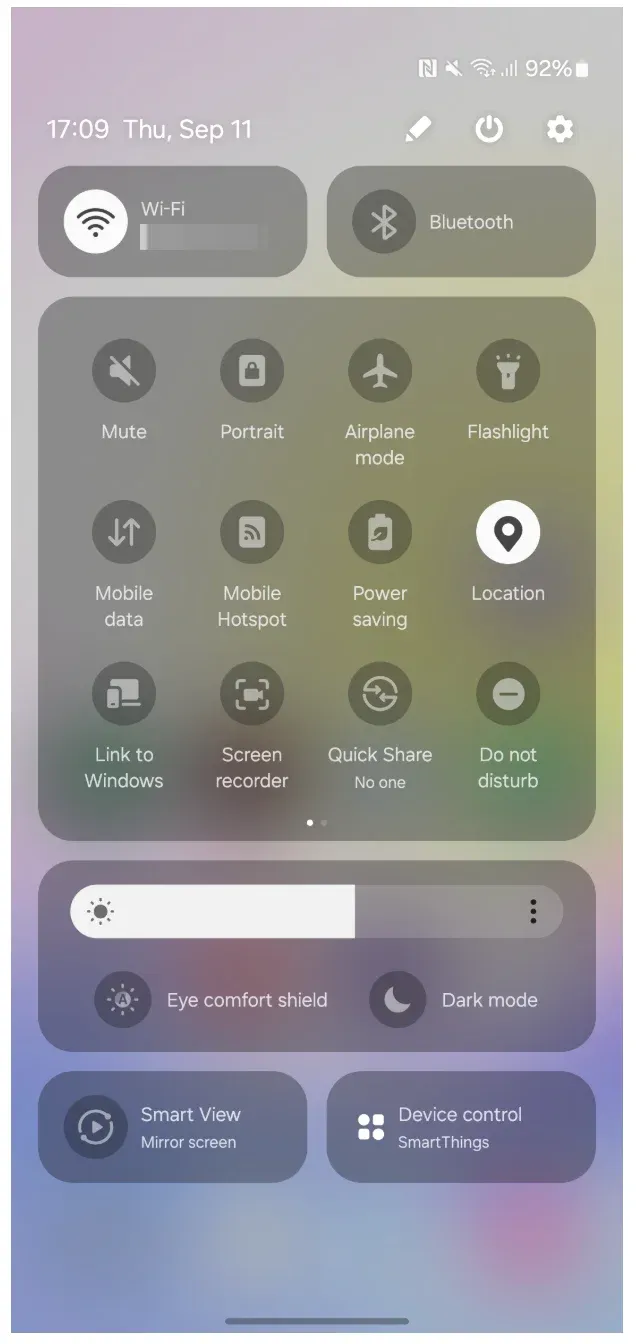
If you own a Samsung or Motorola phone, you might also have Miracast capabilities. These appear under different names depending on the brand. Samsung calls it Smart View, and Motorola uses Ready For or Smart Connect.
Here's how to play movies on TV from phone with Miracast:
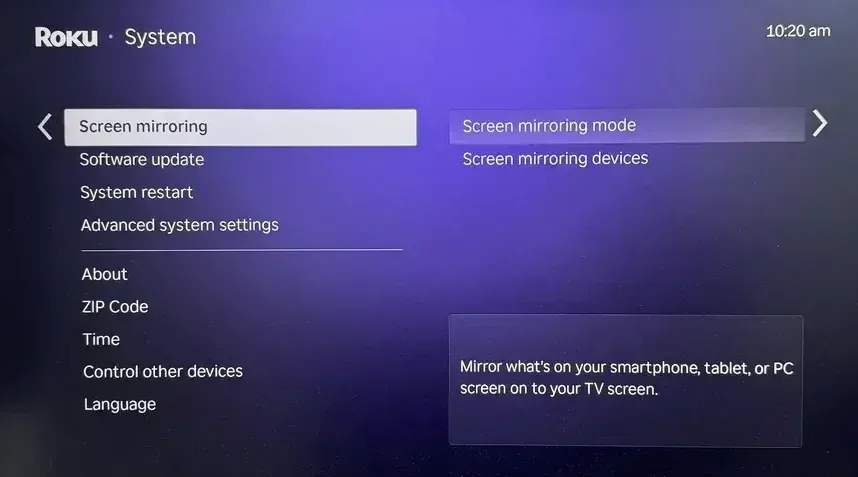
Step 1. Turn on screen mirroring or Miracast on your TV. For example, go to Settings > System > Screen Mirroring and set the mode to Prompt or Always Allow on Roku TV.
Step 2. Open Smart View or Ready For on your phone.
Step 3. Wait for your TV to appear in the list of available devices, then select it.
Step 4. Your phone screen will be mirrored instantly.
Step 5. Play a movie on your phone, then watch it on your TV.
Unlike Chromecast, which casts from supported apps, Miracast mirrors everything from your display. This makes it ideal for playing local videos or using apps that don't have casting built in.
How to Play Videos from Any Phone Using PigeonCast
If you want one free solution that works everywhere, across iPhone, Android, Windows, MacBook, Apple TV, and Google TV, PigeonCast is the app to try. It's designed for people who need a cross-platform way to play movies from phone to TV, without worrying about which system each device uses.

Where AirPlay and Chromecast stay inside their ecosystems, the PigeonCast app bridges them. It lets iPhones connect to Chromecast devices and Android TVs, Android phones connect to Apple TV, and just about any combination in between.
Here's how to stream a movie from phone to TV with PigeonCast:
Step 1. Install PigeonCast on both your phone and TV (it's available on most major app stores)

PigeonCast Screen Mirroring

Official Download



Step 2. Connect both devices to the same Wi-Fi network.
Step 3. Open the app on your phone and select your TV from the list of available devices.
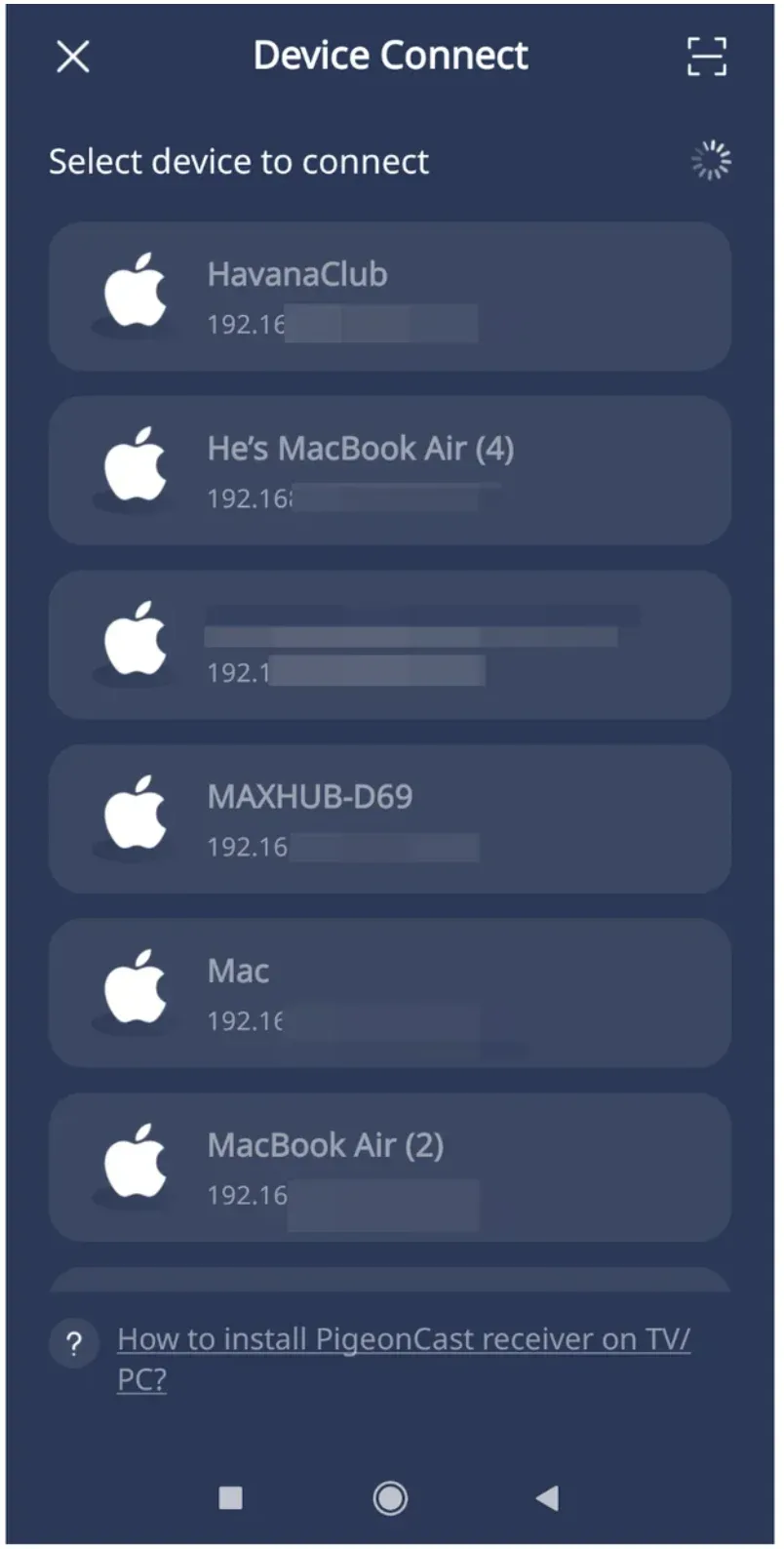
Step 4. Once connected, choose to cast a movie from a streaming website or your album, or mirror your phone screen.
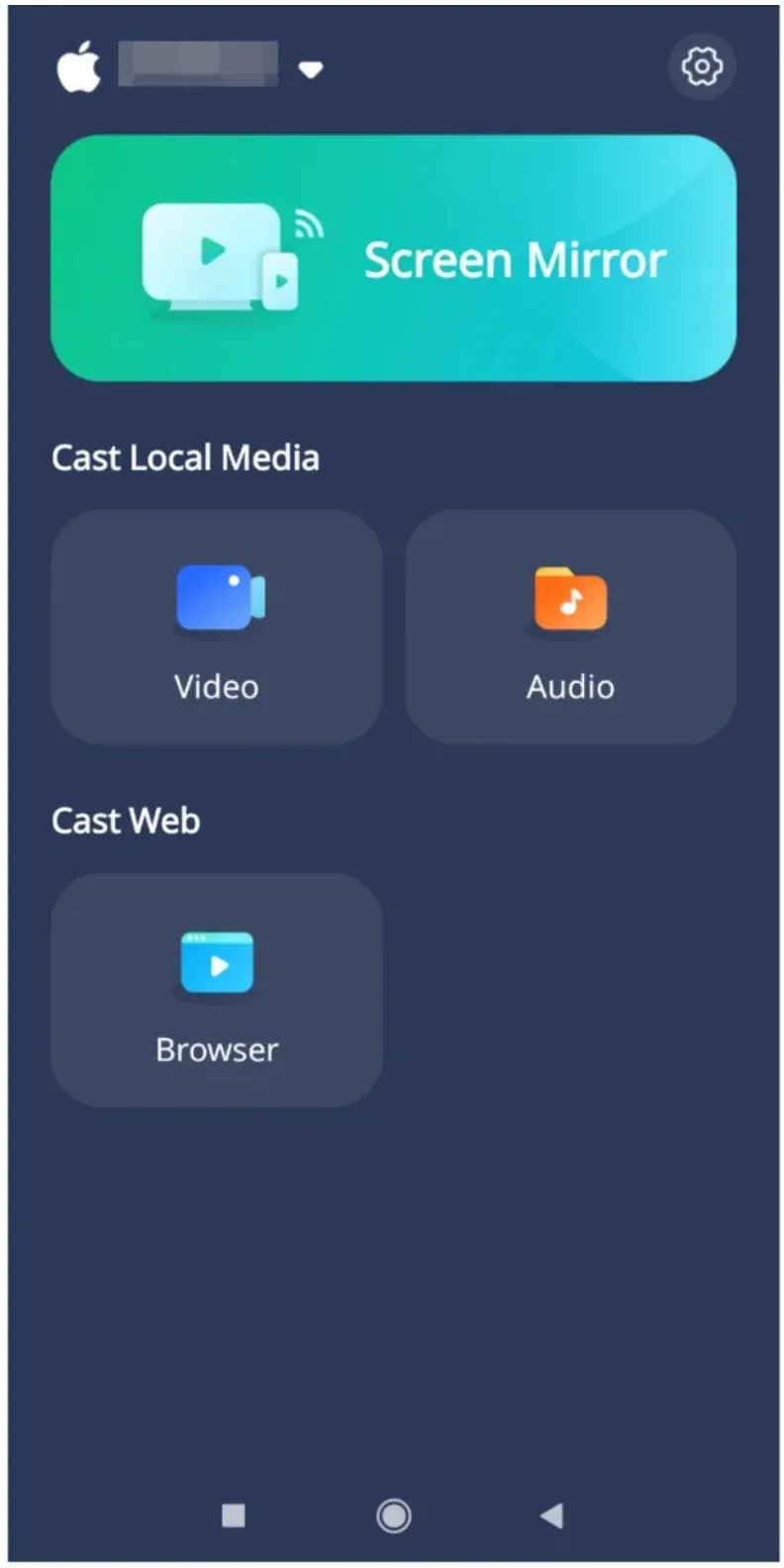
Step 5. Your movie will start playing instantly.
Because it doesn't rely on brand-specific technology, PigeonCast is perfect for mixed-device households or travel — for example, when your Airbnb TV doesn't have the right streaming app. It gives you freedom to watch movies from phone to TV no matter where you are.
Tips for Smooth Movie Playback from Phone to TV
Before you kick back and enjoy your movie night, a few quick tweaks can make a big difference in how smoothly your videos play. Whether you're streaming wirelessly or using a cable connection, these small adjustments help you ensure your movie runs without buffering or lag.
- Stay close to your router for a stronger, faster Wi-Fi signal.
- Close background apps to keep your phone running efficiently.
- Keep devices updated for smoother streaming and fewer connection issues.
- Use a wired connection when you need rock-solid stability for HD or 4K playback.
Wrapping Up
Knowing how to cast a movie from phone to TV gives you the flexibility to turn any room into a home theater. Whether you use AirPlay, Chromecast, Miracast, or PigeonCast, you'll find that streaming from your phone feels effortless once you know the basics.
So grab your phone, pick your favorite movie, and hit play because the best big-screen experiences are now just a few steps away.
How to Play Movies from Phone to TV FAQs
Q: How to play videos from phone to TV with USB?
You can connect your phone to your TV with a USB cable if your TV supports media playback from external drives. For Android phones, use a USB-C to USB-A cable and switch the phone's USB mode to “File Transfer” or “MTP.” Then, open your TV's media player app and browse to your phone's storage. iPhones typically don't support USB playback on TVs, so an HDMI adapter or AirPlay connection is a better choice.
Q: How to play movies on TV from phone without Wi-Fi?
You can use a USB-C to HDMI (for Android or iPhone 15 and later) or Lightning to HDMI adapter (for older iPhones). Plug one end into your phone and the other into your TV's HDMI port. Your phone's screen will appear on the TV instantly — no Wi-Fi required.
Q: Can I watch movies from my phone to TV using Bluetooth?
Not really. Bluetooth doesn't have enough bandwidth to stream video. It's fine for connecting speakers or remote controls, but for playing movies, you'll need Wi-Fi-based casting or a wired connection.
Q: How to cast a movie from phone to TV using Chromecast?
Install the Google Home app and make sure your Chromecast and phone share the same Wi-Fi network. Open any supported app (like Disney+, YouTube, or Hulu), tap the Cast icon, and choose your Chromecast device. Your movie will begin playing on your TV immediately.
Q: How to stream a movie from phone to TV using AirPlay?
For iPhones or iPads, swipe down to open Control Center, tap Screen Mirroring, and choose your Apple TV or AirPlay-compatible TV. Alternatively, open a video app and tap the AirPlay icon to send the movie directly to your TV.
Q: Why isn't my phone casting to the TV?
If casting fails, first make sure both devices are on the same Wi-Fi network. Restart your phone and TV, and try again. If you're using Chromecast or AirPlay, update both apps and firmware. When traveling, hotel Wi-Fi restrictions can block device discovery — in that case, use PigeonCast or a wired HDMI adapter as a workaround.
Q: Can I watch downloaded movies from my phone on TV?
Yes, you can use a third-party app like PigeonCast to stream your local media from your phone to your TV. Alternatively, you can directly mirror your screen via AirPlay, Smart View, or a wired HDMI connection, then open your downloaded movie, and it will appear on your TV in real time.
Q: How do I connect my phone to my smart TV?
If your TV is a smart model, you can usually connect wirelessly using AirPlay, Chromecast, or Miracast. Make sure both devices are on the same Wi-Fi network. For broader compatibility, apps like PigeonCast can connect any phone to nearly any TV — even if they use different casting technologies.
Q: How do I make my TV discoverable for casting?
On your TV, open the settings menu and look for Screen Mirroring, AirPlay, Cast, or Device Connection options. Enable the feature, then try reconnecting from your phone. Alternatively, install third-party apps like PigeonCast on your TV for seamless cross-platform casting. For older TVs, plug in a compatible casting device like Chromecast or Fire TV Stick to add this functionality.
Mia Clarke is a technology editor specializing in screen mirroring and casting solutions across multiple platforms. Mia provides clear, practical guides and in-depth insights to help users seamlessly connect their devices. Passionate about enhancing digital experiences, Mia is dedicated to keeping readers updated on the latest trends and tools in cross-platform screen sharing. Whether you’re looking to mirror your smartphone, laptop, or smart TV, Mia’s content delivers reliable, user-friendly advice to simplify your tech setup.