
If you are looking for a Vizio TV Internet browser, the short answer is no: most current Vizio Smart TVs do not come with a full built-in web browser for normal website browsing.
You can still browse the web on a Vizio TV, but the simplest way is usually to open the site on a phone or computer first, then cast or mirror it to the TV. This post guides you through the best ways to do that, especially if you are deciding between screen mirroring and casting.
Does Vizio Smart TV Have an Internet Browser?
Usually, no. Most current answers to "does Vizio TV have a web browser" lead to the same conclusion: Vizio TVs focus on apps and wireless sharing rather than a full browser with an address bar, tabs, and comfortable text entry.
Vizio's current product pages emphasize VIZIO OS, built-in apps, Apple AirPlay, and Google Cast support. Vizio also promotes laptop mirroring through Chrome and casting from phones and tablets. That points to the real design choice here: these TVs are meant to receive content from other devices more often than they are meant to act like desktop browsers.
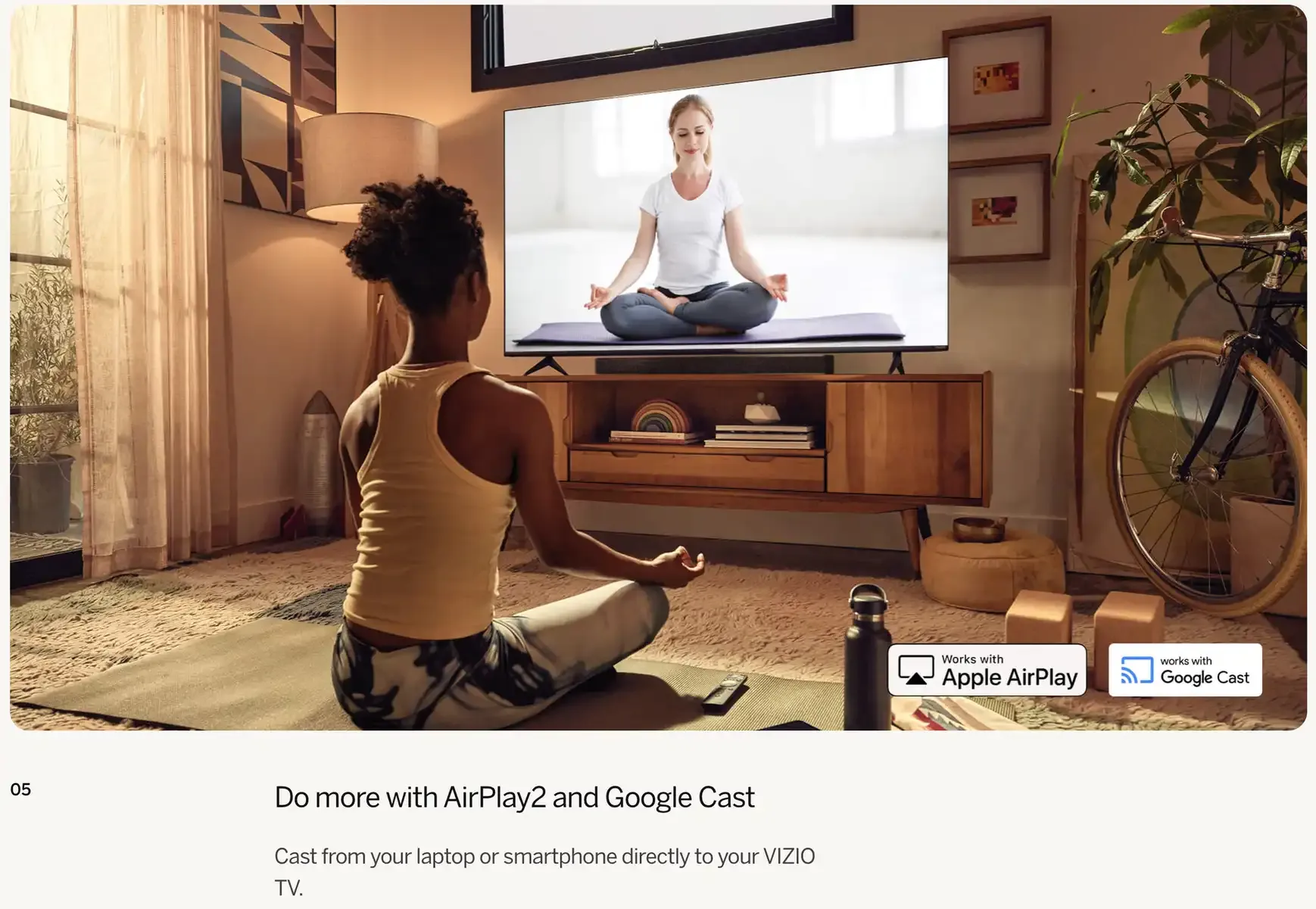 image source: https://www.vizio.com/en/tv/hd/VHQ32M-1007
In other words, Vizio treats the TV more like a receiver for content than a browser-first device. That is why casting, AirPlay, and mirroring feel like the intended way to use it, while direct on-TV browsing is limited or absent on most current models.
How to Browse the Internet on a Vizio Smart TV
The right method depends on whether you need a full browser session or just a supported video or page handoff.
Start on the device that already has the better browser. Open the website on your laptop, phone, or tablet first. Then send that browser session to the TV using one of the methods below.
Method 1. Cast a Chrome Tab from a Computer
This is the most credible first choice for many Vizio owners because Vizio Chromecast support and Chrome-based laptop mirroring are both emphasized on current product pages.
Use this method when:
- you already browse on a Windows PC, Mac, or Chromebook
- the TV appears as a Cast target in Chrome
- you want a quick way to show a web page or a supported video site on the TV
How to do it:
Step 1. Connect your computer and Vizio TV to the same Wi-Fi network.
Step 2. Open the website in Google Chrome.
Step 3. Click the three-dot menu in Chrome.
Step 4. Choose Cast, save, and share and then Cast.
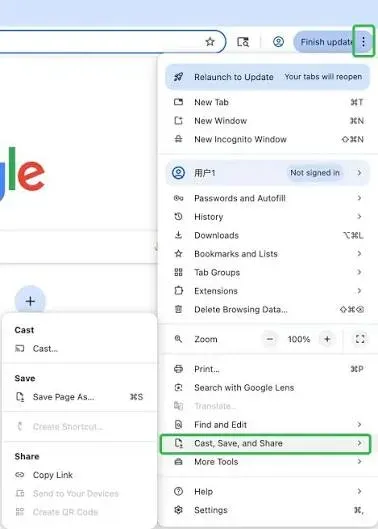
Step 5. Select your Vizio TV from the device list.
Step 6. Cast the current tab first, or switch to full-screen casting if the site needs more than one tab.
If the page contains a supported media player, direct casting usually feels cleaner than mirroring. If the website is not Cast-friendly, switch methods early instead of forcing tab casting. If you need a laptop-first version of this setup, see Vizio cast from laptop.
Method 2. Mirror a Phone or Computer with PigeonCast
This is the stronger choice when tab casting is too narrow for the job, especially if you need how to cast to Vizio TV from Android or iPhone-specific options.
PigeonCast is a cross-platform screen mirroring app, which lets you open the website in a familiar browser on your phone or computer, then mirror the browser screen to a larger display.
Use this method when:
- you want the entire browser window, not just a compatible media stream
- the page includes logins, menus, forms, or pop-ups
- the site does not cast cleanly through Chrome or an in-app Cast button
- you move between iPhone, Android, Windows, and Mac
How to cast from Android, iPhone, Windows PC, or Mac to Vizio TV:
Step 1. Install and open PigeonCast on the device you want to send from.


Overall Rating:



Step 2. Make sure your sending device and the Vizio TV are on the same Wi-Fi network.
Step 3. Open the website in your usual browser on the phone or computer.
Step 4. Choose the Vizio TV from the available devices in PigeonCast.
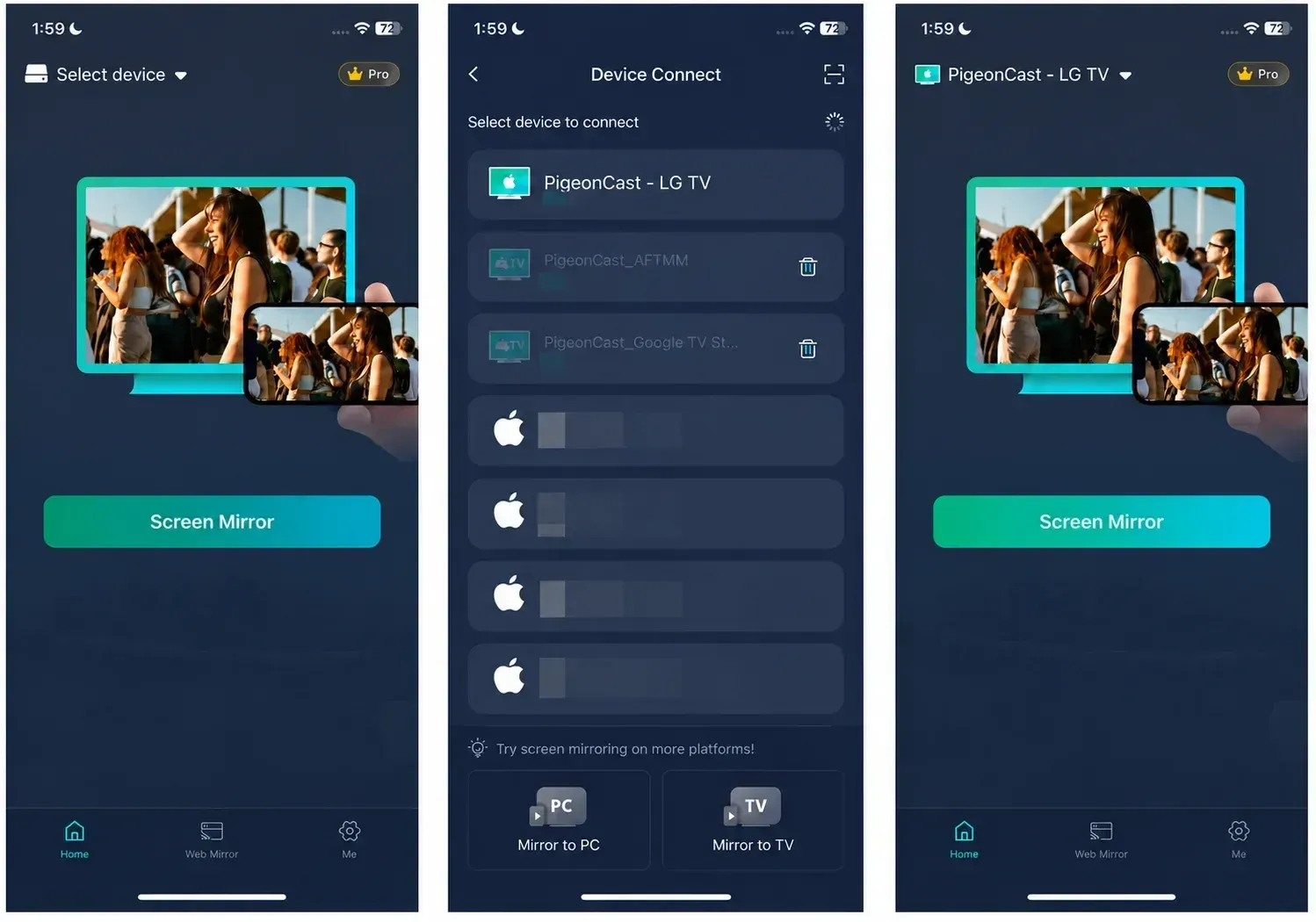
Step 5. Start mirroring so the TV shows the full browser screen.
The difference is simple: mirroring is more flexible, but it can show notifications, tab changes, and other on-screen activity because the TV is duplicating the browser view itself.
Method 3. Use AirPlay from iPhone, iPad, or Mac
AirPlay is a strong option if your Vizio model supports it and your household already uses Apple devices like iPhone, iPad, and Mac. If you are unsure whether your setup supports it, check this list of AirPlay compatible devices.
Use this method when:
- you browse mostly on Safari or Chrome on Apple devices
- your TV supports AirPlay
- you want to mirror the page or send supported video to the TV
How to AirPlay to Vizio TV from Apple device:
Step 1. Put your Apple device and Vizio TV on the same Wi-Fi network.
Step 2. Ensure AirPlay is turned on your Vizio TV.
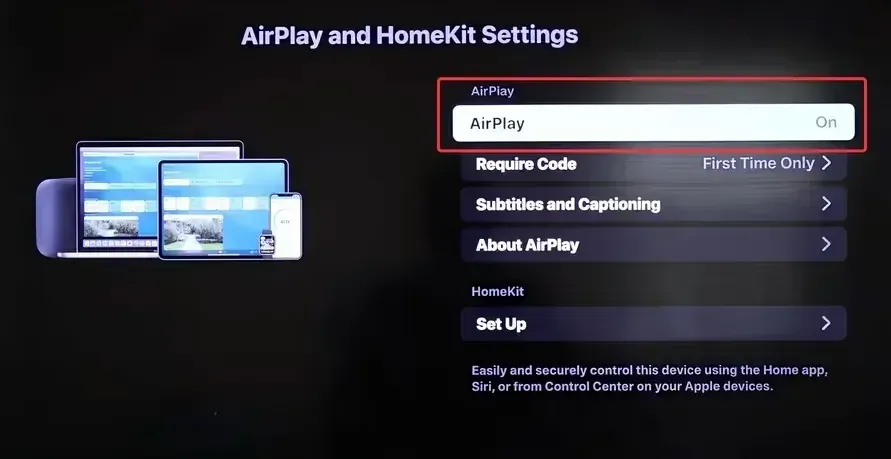
Step 3. Open the website or video on your iPhone, iPad, or Mac.
Step 4. Use Screen Mirroring if you want the full browser view.
Step 5. Use the AirPlay button inside a supported app if you only want the video itself on the TV.
Use AirPlay for supported media. Use full-screen mirroring when you need to browse, scroll, search, or interact with the page live.
Method 4. Connect a Laptop via HDMI
If you care more about stability than convenience, screen mirroring via HDMI is recommended. It ignores most wireless discovery issues and makes the TV behave like a regular external display.
Use this method when:
- Wi-Fi is unstable
- the Vizio AirPlay does not work
- the website is sensitive to lag or DRM checks
- you need the most predictable full-browser experience
How to do it:
Step 1. Connect your laptop to the Vizio TV with an HDMI cable or the right adapter for your device.
Step 2. Switch the Vizio TV to the correct HDMI input.
Step 3. Open the website on your laptop browser.
Step 4. Adjust display settings on the laptop if you want to mirror the screen or use the TV as a second display.
For school portals, browser games, dashboards, web-based work tools, or long browsing sessions, HDMI is often less frustrating than repeated wireless troubleshooting. If you are comparing those two options directly, this guide on AirPlay vs HDMI is the next useful read.
Method 5. Use a Streaming Device with a Browser
If you already own a streaming device with stronger browser support or broader casting compatibility, connecting it to your Vizio TV can give you more ways to open websites or cast browser content.
Devices such as Fire TV, Chromecast, or other casting devices may also support apps and connection methods that are not available directly on the TV.
However, this option requires additional hardware. For most users, casting from Chrome, using AirPlay or a screen mirroring app, or connecting a device through HDMI will be simpler.
Why Is a Website Not Casting to Vizio TV?
Most failed casting attempts come from five predictable causes. The faster you separate them, the faster you stop troubleshooting the wrong thing.
Why is my Vizio TV not showing in Chrome Cast?
Start with device discovery. If the TV does not appear in Chrome or on your phone, check these first:
- Confirm both devices are on the same Wi-Fi network.
- Restart the TV, browser, and sender device.
- Update Chrome, the sender OS, and the TV software.
- Turn off VPN on the sending device during testing.
- Make sure the TV's network connection is active and stable.
If the TV still does not appear, try HDMI or a screen mirroring app like PigeonCast before spending too long forcing Cast discovery.
Why does the website open but not play correctly?
Some websites are not built for clean Cast playback. A few common blockers:
- the content uses DRM or protected playback rules
- the site supports only media casting, not full page interaction
- tab casting works, but the page depends on unsupported plugins or unusual playback logic
- the browser session is too old or the TV firmware is behind
This is where people confuse casting with mirroring. If only the video fails, mirror the entire screen instead of retrying the same broken direct-cast method.
Why does full-page browsing feel laggy?
A TV is rarely the ideal place to drive a complex browser session with a remote. Lag often comes from wireless screen duplication, crowded Wi-Fi, or a page that is heavy with ads, pop-ups, and scripts. In those cases, a wired HDMI connection is usually the cleaner fix.
Best Way to Use a Web Browser on Vizio TV
Use this shortcut:
- For opening a simple page occasionally: cast a Chrome tab.
- For browsing from an iPhone, iPad, or Mac: use AirPlay if the TV supports it.
- For mixed devices or full browser control: use PigeonCast to mirror the browser screen.
- For unstable networks or long sessions: use HDMI.
Use casting when the site or video already supports it well, and switch to full-screen mirroring when you need the complete browser experience.
Final Words
If you came here hoping for a built-in Vizio TV internet browser, the short answer is that most current Vizio TVs work better as receivers than as standalone browsing devices. The simplest way is usually to open the website on the device you already use every day, then send it to the TV with Chrome Cast, AirPlay, PigeonCast, or HDMI.
For quick pages, tab casting is often enough. For full websites, sign-ins, and browser-heavy tasks, mirroring is usually the stronger option.
Vizio TV Internet Browser FAQ
Can I download Google Chrome or another browser on a Vizio TV?
Usually not in the way people expect. Most current Vizio TVs are not built like Android TV devices where you install a full browser and use it directly with a remote. If you want to open Google or another website on the TV, it is usually easier to do it on your phone or computer first and then send it to the screen.
Is it better to cast a browser tab or mirror the whole screen?
It depends on what you are trying to show. Cast a browser tab when the page is simple or the site supports clean playback. Mirror the whole screen when you need to scroll, sign in, switch tabs, open menus, or show a full website exactly as it appears on your device.
Can I browse the web on a Vizio TV without Wi-Fi?
Not in the usual wireless way. Chrome Cast, AirPlay, and most screen mirroring methods depend on a local network connection. If Wi-Fi is weak or unavailable, the most reliable fallback is to connect a laptop with HDMI and browse from the laptop while the TV works as the display. For a deeper breakdown, read can you cast to a TV without Wi-Fi.
Will a Bluetooth keyboard or mouse give my Vizio TV a full browser experience?
No, not by itself. A keyboard or mouse can make typing and navigation easier only if you are already using another device or a browser-capable external streamer. They do not turn a Vizio TV into a full browsing device on their own, because the missing piece is still the browser software itself.
Why do some websites work with casting while others do not?
Some sites are easier to cast because their video players and page structure work cleanly with casting systems. Others use protected playback, unusual page scripts, pop-ups, or login-heavy layouts that do not transfer well. When one site fails and another works, the problem is often the website itself rather than your TV.
Is screen mirroring private when I browse on my TV?
Not completely. Screen mirroring shows the live screen from your phone or computer, so notifications, tab switches, search suggestions, and other on-screen activity may also appear on the TV. If privacy matters, turn on Do Not Disturb, close unrelated tabs, and avoid opening personal messages before you start mirroring.
Mia Clarke is a technology editor specializing in screen mirroring and casting solutions across multiple platforms. Mia provides clear, practical guides and in-depth insights to help users seamlessly connect their devices. Passionate about enhancing digital experiences, Mia is dedicated to keeping readers updated on the latest trends and tools in cross-platform screen sharing. Whether you’re looking to mirror your smartphone, laptop, or smart TV, Mia’s content delivers reliable, user-friendly advice to simplify your tech setup.