
Can you cast to a TV Without WiFi? Yes, but the answer depends on what “without WiFi” actually means.
Many people use “WiFi” to mean internet access, but those are not always the same thing. In most cases, casting systems like AirPlay and Chromecast mainly need a local connection between your phone and the TV, even if your internet service is offline.
This guide explains when casting works without WiFi, which methods are most reliable, and what to do when your devices cannot find each other.
Quick Answer for Casting to TV Without WiFi
| Situation | Does it work? | Best method | What to expect |
|---|---|---|---|
| Router still works but internet is down | Yes | AirPlay, Chromecast, or PigeonCast | Devices can often still communicate over the local network |
| No router, but devices support direct wireless connection | Sometimes | WiFi Direct or screen mirroring | Works only on supported phones and TVs |
| Devices cannot discover each other normally | Sometimes | Hotspot setup or PigeonCast | Helps devices reconnect and discover each other |
| No wireless connection available | No wireless casting | HDMI cable or adapter | Most reliable fallback when wireless casting fails |
Do You Need WiFi to Cast to a TV?
Usually, you need some type of wireless connection, but not always an internet connection.
Most casting methods work like this:
- Your phone discovers the TV on a local network
- The devices connect
- The content streams or mirrors to the TV
That means the devices normally need:
- the same WiFi network
- a hotspot connection
- WiFi Direct
- peer-to-peer wireless support
- or another local discovery method
So when people ask: "can you cast without WiFi?", the real answer is:
- Yes, if your devices still have a local connection path
- No, if there is no way for the devices to communicate
What Happens If the Internet Is Down?
This is the easiest “no WiFi” scenario.
Even if your internet provider is offline, your router may still create a local network inside your home. If both the TV and your phone stay connected to that router, casting to TV may continue to work.
In this setup, you can often still use AirPlay, Chromecast, a screen mirroring app like PigeonCast, local media playback apps
However, some streaming apps still require internet verification before playback starts.
What Happens If There Is No Router?
Without a router, casting becomes less predictable.
Some TVs and phones support direct wireless discovery, while others only expose cast targets when both devices are connected to the same network.
Possible workarounds include WiFi Direct, mobile hotspot pairing, peer-to-peer AirPlay, screen mirroring apps, and HDMI adapters.
This is where compatibility matters more than the “smart TV” label itself.
How to Cast to a TV Without WiFi
The best method depends on what kind of connection is still available between your phone and the TV. In most cases, casting still works if the devices can communicate through a local network, direct wireless connection, or another discovery method.
Start with the simplest option below based on your setup.
Method 1: Use the Same Router Without Internet
A router can continue creating a local network even when its internet connection is unavailable. If your phone and TV remain connected to that router, supported casting methods may still discover the receiving device and play locally stored content.
Step 1. Keep the TV connected to the router.
Step 2. Connect your phone to the same Wi-Fi network.
Step 3. Open the video, photo, or compatible app you want to cast.
Step 4. Tap the Cast or AirPlay button.
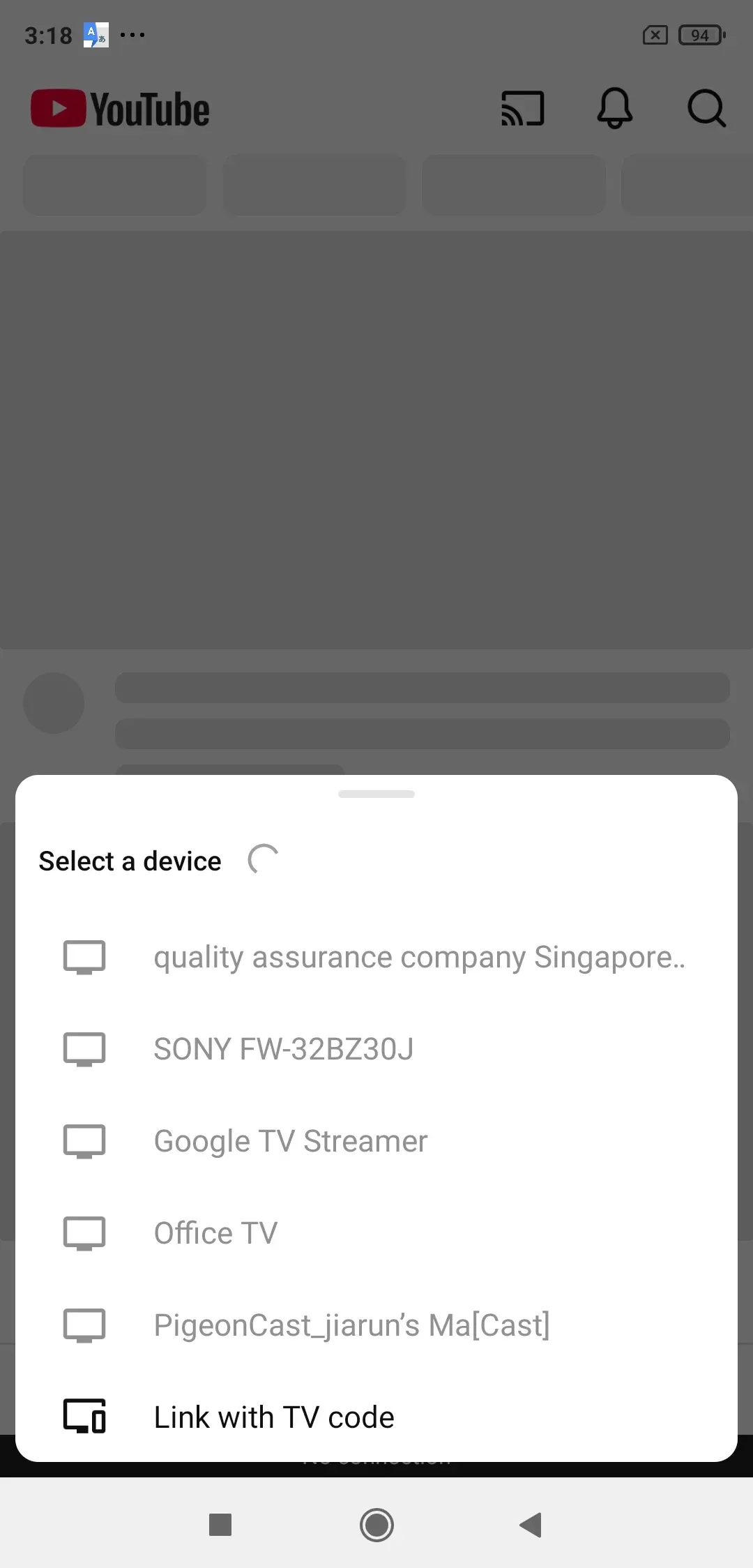
Step 5. Select the TV and start playback.
This method works best with downloaded or locally stored content. Streaming services and online videos still require internet access, even when the devices can communicate through the local network.
Method 2: Use Wi-Fi Direct or Peer-to-Peer Casting
Some TVs and streaming devices can establish a direct wireless connection with your phone, so a home Wi-Fi network is not required. Depending on the devices, this feature may be labeled Wi-Fi Direct, Miracast, Wireless Display, or Peer-to-Peer AirPlay.
Step 1. Enable Wi-Fi Direct, screen mirroring, or wireless display mode on the TV.
Step 2. Open the Cast, Smart View, Screen Cast, or screen mirroring menu on your phone.
Step 3. Select the TV from the available device list.
Step 4. Accept the connection request on the TV if prompted.
Step 5. Start mirroring your screen or playing local content.
Support varies significantly by TV brand, operating system, and phone model. Android users can check the available options in this guide to mirror an Android phone to a TV without Wi-Fi.
Method 3: Use PigeonCast or Another Casting App
A casting or screen mirroring app can provide another connection option when the phone and TV do not support the same built-in casting technology. This approach is particularly useful for mixed-device setups, but the devices still need a compatible local connection, such as the same router or a mobile hotspot.
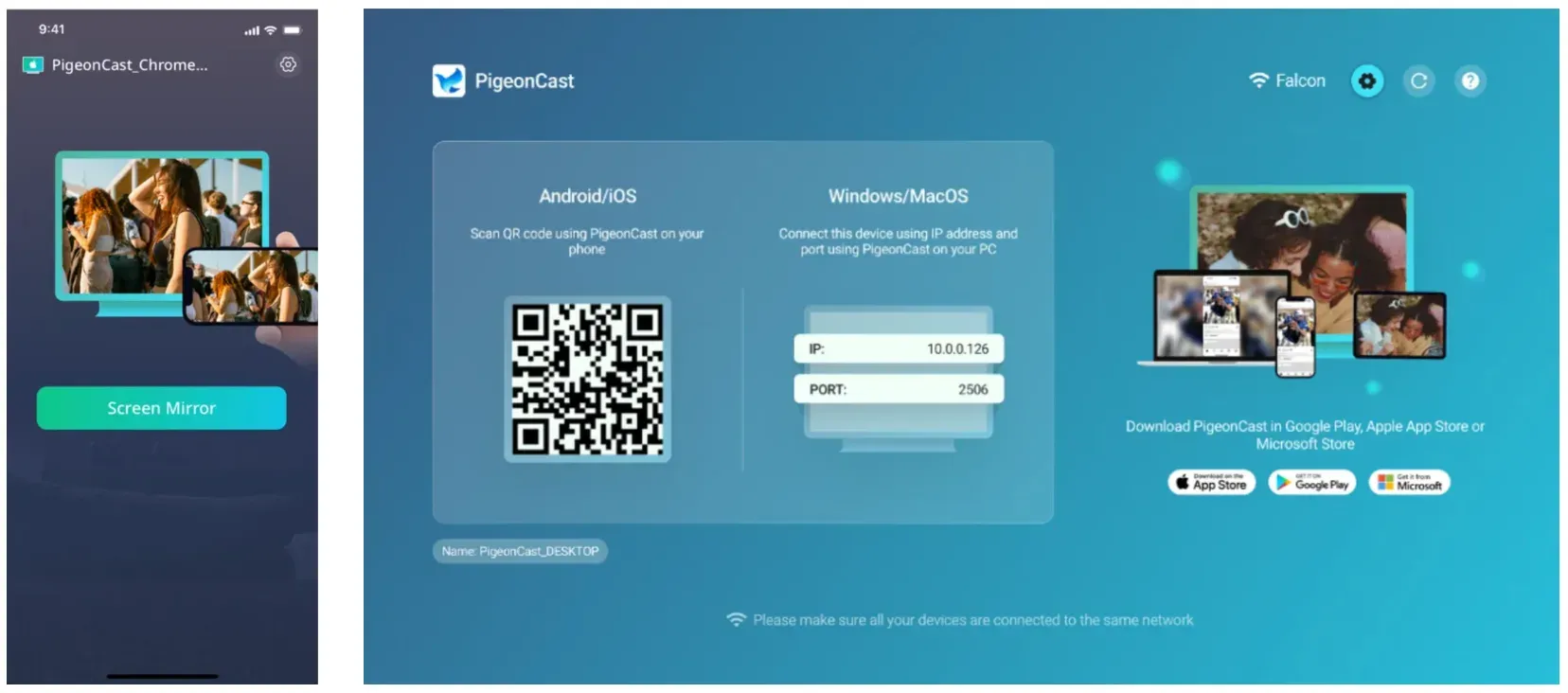
Step 1. Install PigeonCast or another compatible casting app on the sending device and receiver.


Overall Rating:



Step 2. Connect both devices to the same local network or compatible hotspot.
Step 3. Open the app on both devices.
Step 4. Choose the receiving TV or screen.
Step 5. Start screen mirroring or media playback.
An app cannot create a wireless connection by itself, so this method still requires a working local network or another supported connection between the devices. Compatibility also depends on whether the app is available on the receiving TV or streaming device.
Method 4: Use HDMI for Screen Mirroring
An HDMI cable or adapter sends the phone, tablet, or computer display directly to the TV. It does not require Wi-Fi, internet access, device discovery, or compatible wireless casting protocols, making it the most dependable option when wireless methods are unavailable.
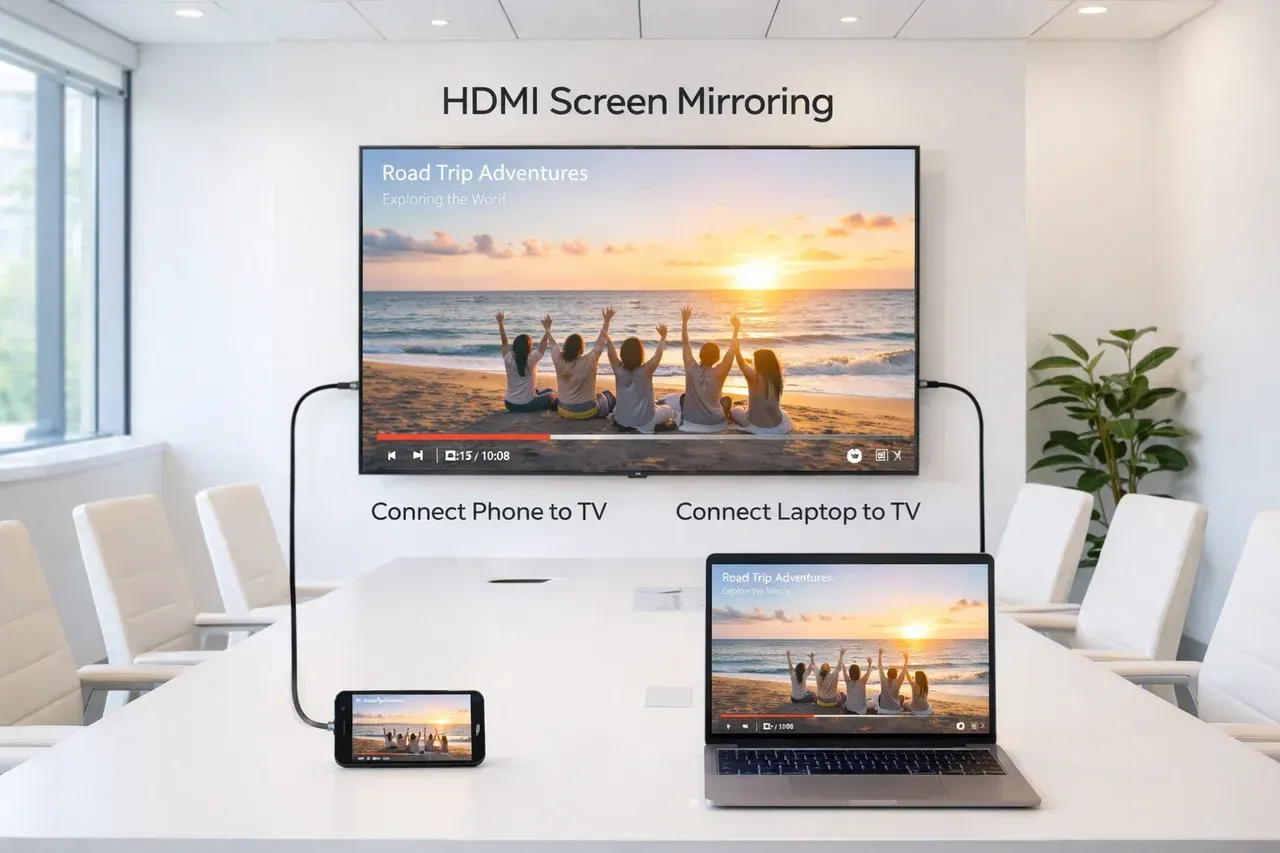
Step 1. Confirm that your phone, tablet, or computer supports video output.
Step 2. Connect the device to the TV using a compatible HDMI cable or adapter.
Step 3. Switch the TV to the corresponding HDMI input.
Step 4. Start playback or open the content you want to display.
Step 5. Adjust the screen orientation, resolution, or audio output if necessary.
This is technically screen mirroring rather than casting because the TV displays the device’s entire screen. Support depends on the sending device: not every phone can output video through its USB-C port, so check device compatibility before purchasing an adapter.
Final Take
You can cast to a TV without internet, but you cannot cast without some way for the two devices to communicate.
When your router is still operating, keep the phone and TV connected to the same local network and try the normal Cast or AirPlay controls first. If no router is available, check whether your devices support Wi-Fi Direct, Miracast, peer-to-peer casting, or a mobile hotspot setup. Support for these methods varies by phone, TV, and streaming device.
When the devices cannot establish a compatible wireless connection, an HDMI cable or adapter is the most dependable alternative. The best method is therefore determined less by internet availability and more by which local connection methods your devices support.
Can You Cast to a TV Without WiFi FAQ
What is the difference between casting without internet and casting without Wi-Fi?
Casting without internet means the devices remain connected through a local Wi-Fi network, but the network has no online access. Casting without Wi-Fi usually means there is no shared router at all. In that situation, you need another connection method, such as Wi-Fi Direct, Miracast, a mobile hotspot, peer-to-peer support, or HDMI.
Can I cast downloaded videos without internet?
Yes, provided the phone and TV can still communicate through a local or direct connection. Locally stored videos, photos, and music do not require internet access. However, the receiving app or device must support the file format, and some casting systems may still require a network for device discovery before playback begins.
Can I cast to a TV using a phone hotspot?
Sometimes. Connect the TV or streaming device to the phone’s hotspot, then open the casting or mirroring feature. Some phones cannot host a hotspot and act as the casting device reliably at the same time, so using a second phone as the hotspot may work better. Online streaming through the hotspot will also use mobile data.
Why does my TV not appear when I try to cast without internet?
Confirm that both devices are still connected to the same local network. If there is no router, check whether the TV supports Wi-Fi Direct, Miracast, or another direct connection method. Restart both devices, disable any VPN, open the TV’s receiving or screen mirroring mode, and make sure network isolation is not blocking device discovery.
Can I cast to a hotel TV without using the hotel Wi-Fi?
It depends on the TV and its available ports. Hotel Wi-Fi often prevents connected devices from discovering one another, and some hotel TVs restrict network or input settings. A mobile hotspot may work with an unlocked smart TV, while an HDMI cable or adapter is generally more reliable when you can access and change the TV input.
Can I cast from a laptop to a TV without Wi-Fi?
Yes. A Windows laptop may connect directly to a Miracast-compatible TV or wireless display, while some Apple devices can use supported peer-to-peer AirPlay setups. Compatibility varies, so HDMI is the most reliable option when the laptop and TV do not support the same wireless technology.
Does casting without Wi-Fi use mobile data?
Direct methods such as Miracast, Wi-Fi Direct, and HDMI do not use mobile data by themselves. A hotspot connection only uses mobile data when the content comes from the internet. Casting downloaded videos or locally stored files over the hotspot may use little or no mobile data beyond any app or account checks.
Mia Clarke is a technology editor specializing in screen mirroring and casting solutions across multiple platforms. Mia provides clear, practical guides and in-depth insights to help users seamlessly connect their devices. Passionate about enhancing digital experiences, Mia is dedicated to keeping readers updated on the latest trends and tools in cross-platform screen sharing. Whether you’re looking to mirror your smartphone, laptop, or smart TV, Mia’s content delivers reliable, user-friendly advice to simplify your tech setup.