

When it comes to wirelessly casting content to a TV or speaker, AirPlay and Chromecast are two of the most common options. Both can stream video and audio, but they differ in device compatibility, playback methods, screen mirroring, and ecosystem integration.
This post compares AirPlay vs Chromecast to help you decide which technology better fits your devices and everyday casting needs.
Quick Answer: AirPlay vs Chromecast
AirPlay is usually the better choice for Apple-focused setups, especially when you want to mirror an iPhone, iPad, or Mac or use AirPlay 2 speakers. Chromecast is generally better for Android, Google TV, Chrome, and casting from supported streaming apps.
For mixed-device setups, the better option depends on whether the sender and receiver support the same technology.
| Comparison | AirPlay | Chromecast |
|---|---|---|
| Main ecosystem | Apple | Google and broader app support |
| Common senders | iPhone, iPad, Mac | Android, iPhone, iPad, Windows, Mac, Chromebook |
| Main strength | System-level mirroring | Media casting from supported apps |
| Multi-room audio | AirPlay 2 | Google Home speaker groups |
| Best suited to | Apple-focused setups | Android, Google, and app-based casting |
AirPlay and Chromecast at a Glance
AirPlay is Apple’s wireless streaming standard, while Chromecast is commonly used to describe both Google’s casting products and the broader Google Cast technology built into many apps and receiving devices.
What Is AirPlay?
AirPlay is Apple’s wireless streaming technology. It allows an iPhone, iPad, or Mac to send video, music, photos, or a mirrored screen to a compatible receiver.
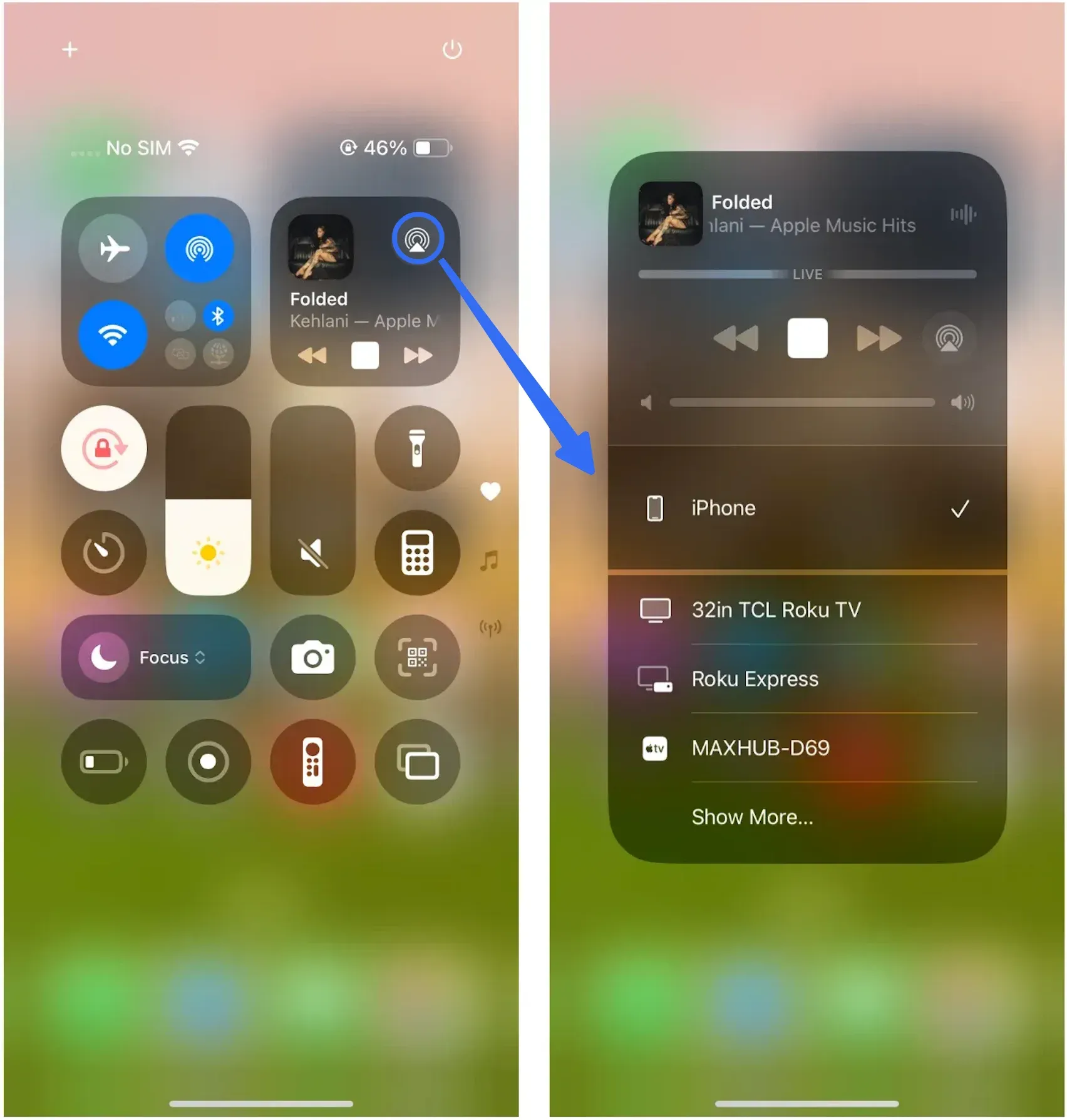
Common AirPlay receivers include Apple TV, HomePod, supported smart TVs, compatible speakers, and some Mac computers.
AirPlay is built directly into Apple operating systems, so you can usually access it through Control Center, the Screen Mirroring menu, or the AirPlay button inside a supported app.
AirPlay 2 expands the audio features of the original standard, including support for multi-room playback across compatible speakers.
What Is Chromecast?
Chromecast is commonly used to refer to Google Cast, the technology that allows supported apps and devices to send content to a compatible television, speaker, or display.

Google Cast is built into many Google TV and Android TV devices, smart TVs, speakers, and streaming products.
Users typically start casting by selecting the Cast icon inside a supported app. Chrome can also cast a browser tab or computer screen to a compatible receiver.
AirPlay vs Chromecast: Key Differences
The main difference between AirPlay and Chromecast goes beyond brand preference. The differences become clearer when looking at compatibility, playback behavior, performance, and audio features.
Sender and Receiver Compatibility
AirPlay is mainly designed around Apple devices. An iPhone, iPad, or Mac can natively send content to an Apple TV, supported smart TV, compatible speaker, or another eligible Apple device.
Many television brands now include AirPlay support, so owning an Apple TV is not always necessary. However, the sending device is still usually an Apple product.
Chromecast supports a wider range of senders. Android phones and tablets can cast from compatible apps, while iPhone and iPad users can also use apps that include Google Cast support. Windows, Mac, and Chromebook users can cast through Chrome.
Receiver support depends on the television, speaker, or streaming device. Google TV, Android TV, and many third-party smart TVs include Google Cast, but not every television supports it.
A compatible sender alone is not enough. The receiving TV, speaker, or streaming device also determines which casting options are available. A phone may support a casting method, but the TV or speaker must also be able to receive it.
Media Casting and Screen Mirroring
AirPlay provides native screen mirroring across iPhone, iPad, and Mac. Users can open Control Center or the system menu and select an available AirPlay receiver.
Chromecast is especially strong for casting media from supported apps such as video and music services. Full-screen mirroring through Chromecast is available in some situations, including Android screen casting and Chrome desktop casting, but the available options depend on the sender and receiver.
AirPlay may therefore feel more direct for Apple screen mirroring, while Chromecast often provides a smoother experience for casting from supported apps.
Content Transmission Methods
AirPlay and Chromecast do not always handle content in the same way.
With AirPlay, an Apple device sends media or screen information to an AirPlay receiver. The exact behavior varies depending on whether the user is playing a supported video, streaming audio, or mirroring the entire display.
With Google Cast, a supported app can instruct the receiver to load and play the selected media. The phone or tablet then controls actions such as pause, volume, and playback position.
This difference can affect battery use and stability. When the receiver loads the media directly, the sending device does not need to display the content continuously. Full-screen mirroring, however, requires the source device to keep capturing and transmitting what appears on its display.
For this reason, casting a supported video is often more stable than mirroring the entire screen, regardless of which technology is used.
Setup and Everyday Use
Both AirPlay and Chromecast are generally easy to use once the sender and receiver are connected to the same local network.
For AirPlay, you just need to:
- Connect the Apple device and receiver to the same Wi-Fi network.
- Open a supported app or Control Center.
- Select the AirPlay or Screen Mirroring button.
- Choose the receiving device.
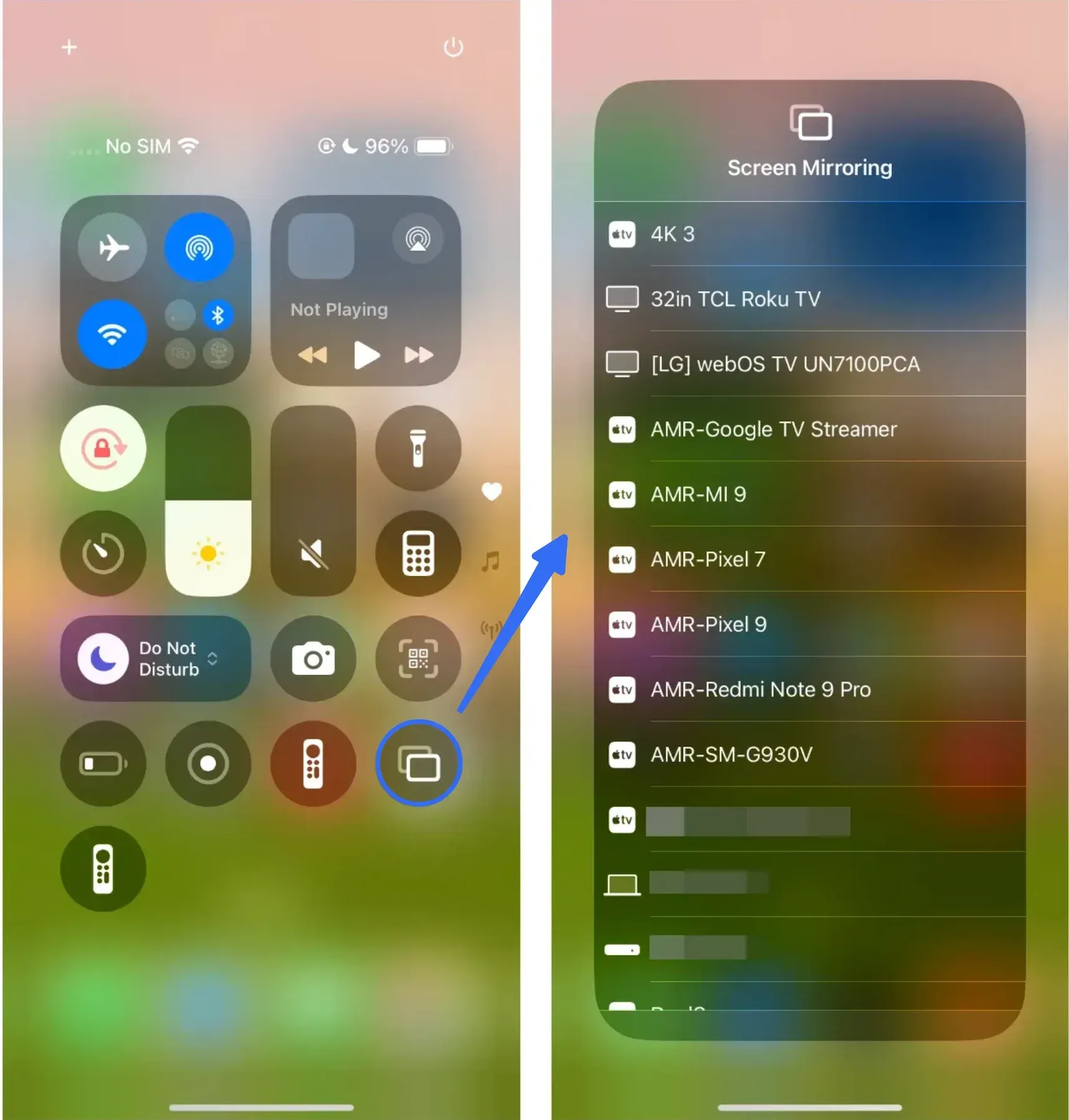
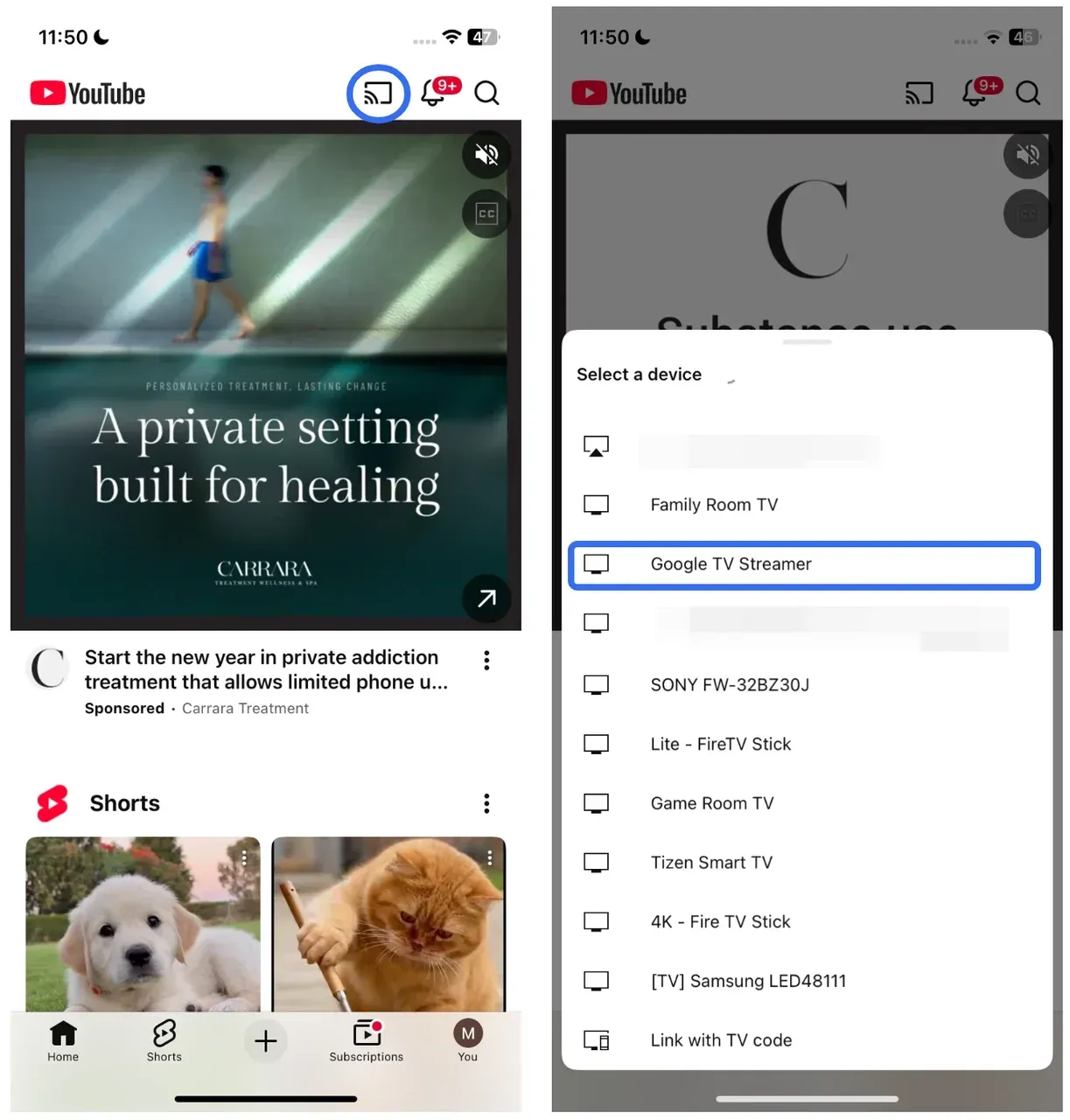
For Chromecast, you need to:
- Connect the sender and receiver to the same Wi-Fi network.
- Open an app that supports Google Cast.
- Select the Cast icon.
- Choose the television, speaker, or display.
AirPlay feels more closely integrated into Apple devices because the controls are built into iOS, iPadOS, and macOS.
Chromecast is often more app-dependent. The experience is simple when an app includes the Cast button, but users may need another method when they want to display an unsupported app or mirror an entire screen.
Video Quality and Performance
Both AirPlay and Chromecast can support high-resolution video when the content, sender, receiver, and network conditions allow it. However, the actual experience depends more on how you use them than on the name of the technology itself.
For streaming movies, TV shows, and music videos, app-based casting is usually more reliable than full-screen mirroring. Supported apps can send optimized playback information directly to the receiver, while screen mirroring requires the device to continuously capture and transmit everything displayed on the screen.
Screen mirroring is more useful for content that does not have a dedicated casting option, such as browser pages, presentations, photos, or apps. However, it is also more sensitive to Wi-Fi stability because the entire screen needs to be updated in real time.
Common situations where wireless mirroring may feel less reliable include:
- Streaming protected content that blocks screen capture
- Using an older TV or receiver with limited processing power
- Connecting devices through unstable Wi-Fi networks
- Mirroring fast-moving content such as games
For most users, Chromecast or AirPlay will provide a similar viewing experience when casting supported video apps. The bigger difference appears when you need full-screen mirroring, where device compatibility and network conditions become more important.
Sound Quality
When comparing Chromecast vs AirPlay sound quality, neither technology automatically produces better audio. The final result is usually determined by the speakers, music service, audio format, and receiver rather than the wireless standard alone.
AirPlay is often the better fit for Apple-focused audio setups. With HomePod, Apple TV, or AirPlay-compatible speakers, you can control playback directly from Apple devices and create a more unified multi-room audio experience.
Chromecast is a strong option for users who rely on Google Home, Nest speakers, or music apps with built-in Google Cast support. It works especially well when the entire audio setup is already connected through Google’s ecosystem.
For everyday listening, the more important question is not whether AirPlay or Chromecast sounds better, but which system provides better compatibility with your speakers and preferred music apps.
Multi-Room Audio Support
AirPlay 2 allows users to play music on multiple compatible speakers and control them from an iPhone, iPad, Mac, or Apple TV.
It is particularly useful in a home with HomePod speakers, Apple TV devices, and third-party AirPlay 2 audio products.
Chromecast also supports multi-room playback through compatible Google Home, Nest, and Cast-enabled speakers. Users can organize devices into speaker groups and play audio in several rooms.
When comparing AirPlay 2 vs Chromecast, the better option is usually the one that matches the speakers and smart-home platform already in use.
Choose AirPlay 2 when:
- You mainly use Apple devices.
- Your speakers support AirPlay 2.
- You manage audio through Apple Home or Apple Music.
- You use HomePod or Apple TV devices.
Choose Chromecast when:
- You use Google Home or Nest speakers.
- Your preferred music apps include Google Cast.
- You use Android devices regularly.
- Your speakers are organized through the Google Home app.
The Chromecast vs AirPlay 2 comparison is therefore less about one technology being universally better and more about which group of devices works together more naturally.
Cost and Additional Hardware
The additional cost depends on whether your current TV or speaker already includes AirPlay or Google Cast support.
If your TV already supports AirPlay, you may not need to buy an Apple TV. Similarly, a Google TV, Android TV, or television with Google Cast built in may not require another streaming device.
Older televisions may need additional hardware. An Apple TV can add AirPlay support, while a compatible Google streaming device can add Google Cast to a television that does not include it.
Before buying anything, check the television settings and product specifications. Many newer TVs support AirPlay, Google Cast, or both.
AirPlay vs Chromecast: Which Should You Choose?
The individual differences matter most when they are connected to a real device setup. Instead of choosing the technology with the longest feature list, consider which devices you use most often and whether your main goal is media casting, screen mirroring, or multi-room audio.
| Your setup or goal | Better choice |
|---|---|
| Mostly iPhone, iPad, and Mac devices | AirPlay |
| Apple TV or an AirPlay-compatible TV | AirPlay |
| Android phone or tablet | Chromecast |
| Google TV, Android TV, or Nest devices | Chromecast |
| Casting from supported video or music apps | Chromecast |
| Mirroring an iPhone, iPad, or Mac screen | AirPlay |
| Apple-based multi-room audio | AirPlay 2 |
| Google Home speaker groups | Chromecast |
| Mixed senders and different TV brands | Cross-platform screen mirroring app |
| TV supports both | Choose based on the current sender and app |
AirPlay is usually the more convenient option in an Apple-based home, while Chromecast works better with Android, Google devices, and apps that include native Cast support. A different solution may be needed when the sender and receiver do not support the same standard.
How to Screen Mirror Beyond AirPlay or Chromecast
Choosing between AirPlay and Chromecast does not solve every connection problem. In many homes, the phone, computer, television, and streaming device come from different ecosystems, so no single built-in standard works consistently across every screen.
Common examples include:
- Mirroring an iPhone to a TV without AirPlay
- Connecting an Android phone to an Apple TV
- Mirroring a Windows computer to Apple TV or different TV brands
- Displaying an app that does not include a Cast button
- Sharing a complete screen instead of a single video
- Switching frequently between phones, computers, TVs, and browsers
In these situations, the main requirement may be cross-platform screen mirroring rather than AirPlay or Chromecast alone.
PigeonCast is a screen mirroring app designed to connect iPhone, Android, Windows, and Mac devices to supported TVs, computers, streaming devices, and browsers. It provides a more consistent option when your devices come from different ecosystems and cannot connect through the same built-in option.
To mirror a screen with PigeonCast:
Step 1. Install PigeonCast on the phone, tablet, or computer you want to share.


Overall Rating:



Step 2. Install or open PigeonCast on the TV or receiving device.
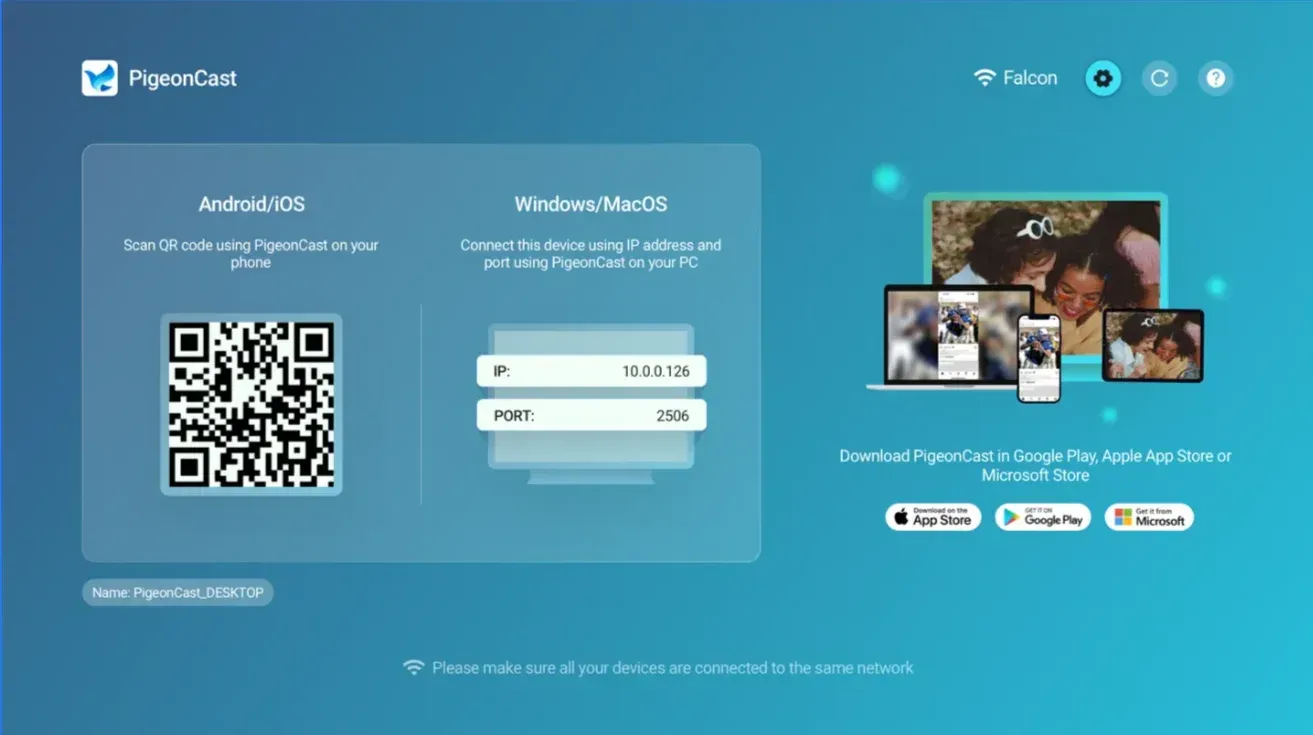
Step 3. Connect both devices to the same Wi-Fi network.
Step 4. On your phone or computer, choose the target device.
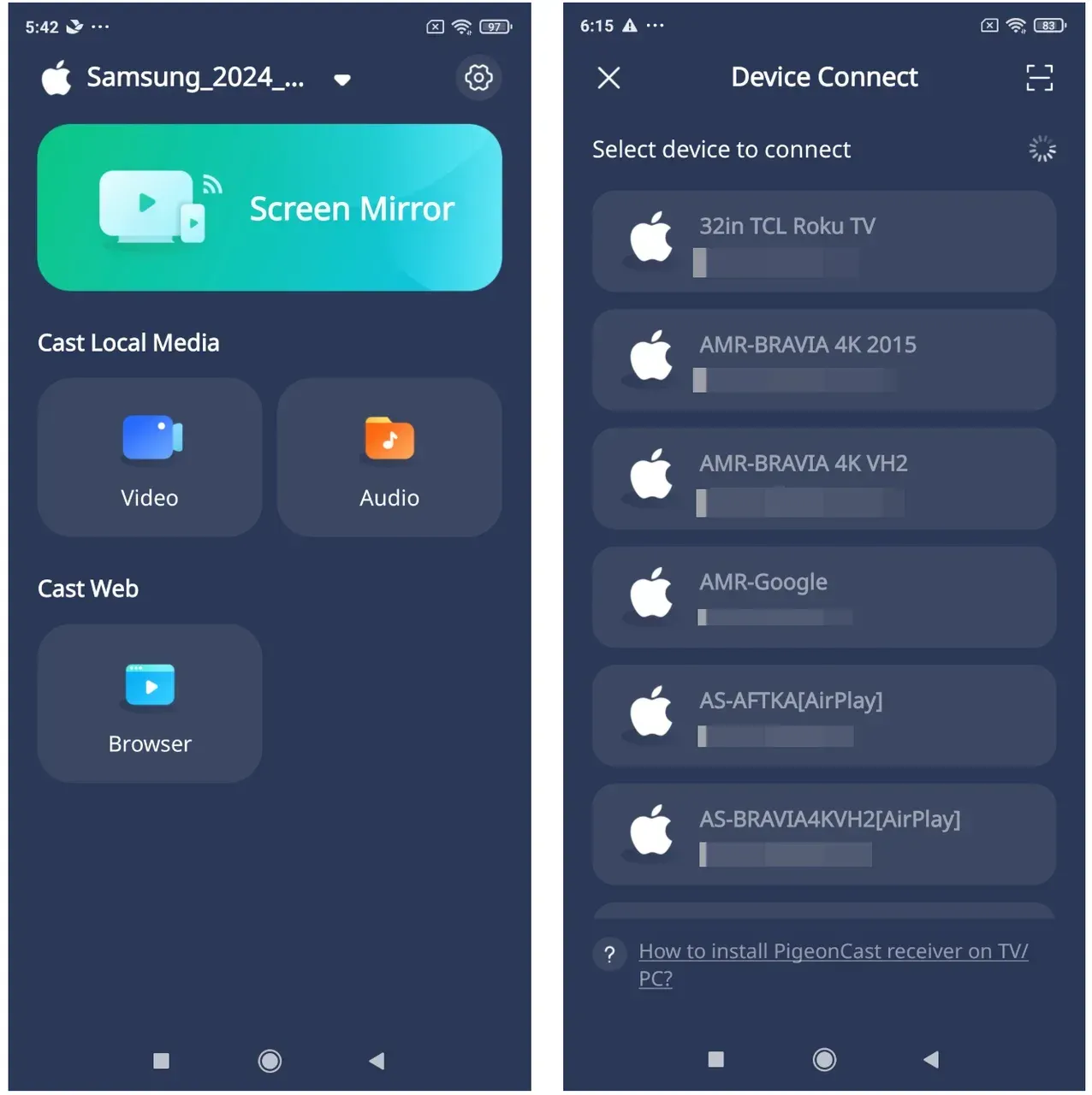
Step 5. Once the two devices are connected, start screen mirroring.
PigeonCast does not replace every function of AirPlay 2 or Google Home. Instead, it is designed for users whose main goal is to mirror screens across different operating systems and receiving devices.
Conclusion
The choice between AirPlay and Chromecast usually comes down to one question: do your devices already work well together?
If you mainly use Apple devices and want seamless screen mirroring or AirPlay 2 audio, AirPlay is usually the better match. If you use Android devices, Google TV, Chrome, or apps with built-in Cast support, Chromecast may provide a more natural experience.
For households with a mix of iPhone, Android, Windows, Mac, and different TV brands, the challenge is often not choosing between AirPlay and Chromecast, but finding a way to connect devices that use different standards. In those cases, a cross-platform screen mirroring solution such as PigeonCast can provide a simpler way to share screens across devices.
AirPlay vs Chromecast FAQ
Can You Use Chromecast with Apple Devices?
Yes. An iPhone or iPad can use Chromecast when the selected app supports Google Cast. Open the app, select the Cast icon, and choose a compatible television, speaker, or streaming device.
Can You Use AirPlay with Android or Windows?
Android and Windows do not provide the same built-in AirPlay sending controls found on iPhone, iPad, and Mac. Some third-party applications like PigeonCast can add AirPlay-related functions, but compatibility and performance vary.
Can AirPlay and Chromecast Work on the Same TV?
Yes. Some smart TVs support both AirPlay and Google Cast. This allows you to choose AirPlay from an iPhone or Mac and Chromecast from an Android device or supported app.
Does Chromecast Mirror the Entire iPhone Screen?
Chromecast does not provide the same built-in full-screen mirroring option on iPhone that AirPlay does. An iPhone can cast from apps that support Google Cast, but this only sends the selected media from that app. To display the entire iPhone screen on a non-AirPlay receiver, you can use a dedicated iPhone screen mirroring app.
Which Is Better for Gaming, AirPlay or Chromecast?
Neither AirPlay nor Chromecast guarantees a delay-free gaming experience. Full-screen wireless mirroring requires the device to capture, encode, and transmit the screen continuously, which can create noticeable latency. A wired connection is usually more reliable for games that require fast reactions, while wireless casting is better suited to casual viewing.
Do AirPlay and Chromecast Work Without Internet?
AirPlay and Chromecast generally need a local network so the sender can discover and connect to the receiver. However, a local connection and an internet connection are not the same thing.
Mia Clarke is a technology editor specializing in screen mirroring and casting solutions across multiple platforms. Mia provides clear, practical guides and in-depth insights to help users seamlessly connect their devices. Passionate about enhancing digital experiences, Mia is dedicated to keeping readers updated on the latest trends and tools in cross-platform screen sharing. Whether you’re looking to mirror your smartphone, laptop, or smart TV, Mia’s content delivers reliable, user-friendly advice to simplify your tech setup.