
If you're looking for an easy and effective way to screen mirror Chromecast, you're in the right place. Screen mirroring Chromecast allows you to project your phone, laptop, or tablet screen to your TV wirelessly, without the hassle of cables. This guide will walk you through the process of how to screen mirror on Chromecast, from Android and iOS devices to Windows PCs and Macs. Let's dive into the different ways to use Chromecast screen mirroring and get the most out of your device.
What Does Screen Mirror Chromecast Mean
Screen mirroring Chromecast refers to the process of wirelessly projecting the screen of your device to a TV using Google Chromecast. This allows you to display everything on your device, from apps and games to photos, videos, and presentations, directly onto a larger TV screen without the need for physical cables. Essentially, it lets you mirror your device's display in real-time, making it perfect for entertainment, work presentations, and much more.
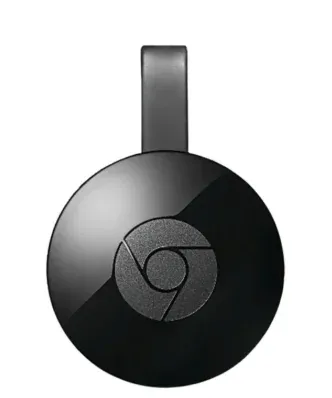
When you use Chromecast for screen mirroring, you're leveraging Google's technology that enables seamless streaming across devices. Chromecast works by connecting to your TV and receiving signals from your phone, tablet, or computer, creating a smooth and cable-free experience. Whether you're streaming, presenting, or displaying photos, Chromecast makes it easy.
- Mobility and convenience: Move freely without tangled cables.
- Reduced cable clutter: Eliminate the need for HDMI and other wires.
- Cross-device compatibility: Works with Android, Windows, and Mac devices.
- Universal connectivity: Compatible with smart TVs or TVs with a Chromecast device.
How to Screen Mirror with Chromecast from Phone
Screen mirroring Chromecast from your Android phone to your TV is straightforward. Follow the guide on how to screen mirror Chromecast:
Step 1. Ensure your Chromecast is plugged into the TV and powered on.
Step 2. Make sure both your phone and Chromecast are connected to the same Wi-Fi network.
Step 3. Open the Google Home app on your phone.
Step 4. Choose your Chromecast device from the list.
Step 5. Select Cast my screen from the available options.
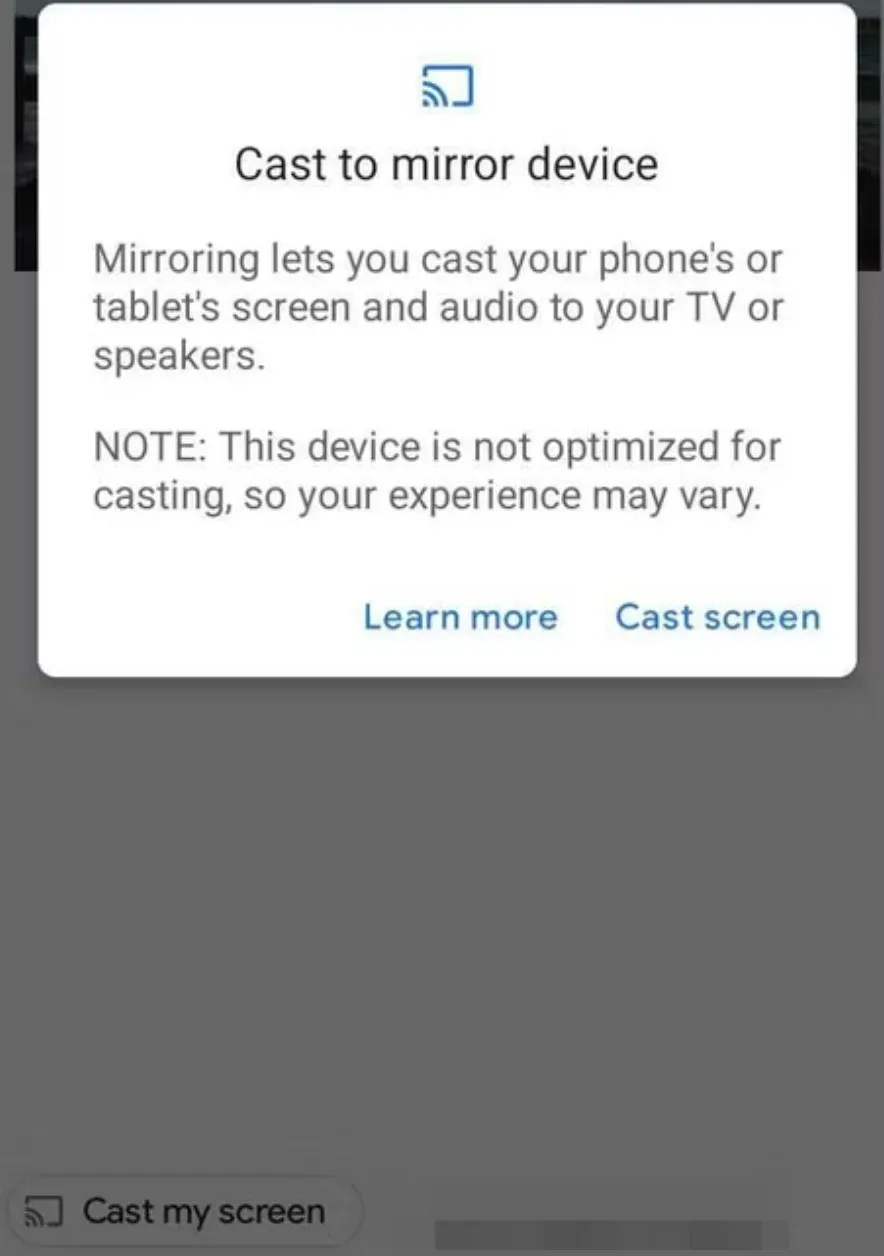 Step 6. Tap the blue Cast screen button.
Step 7. Depending on your phone, you might need to confirm one more time by tapping Start Now.
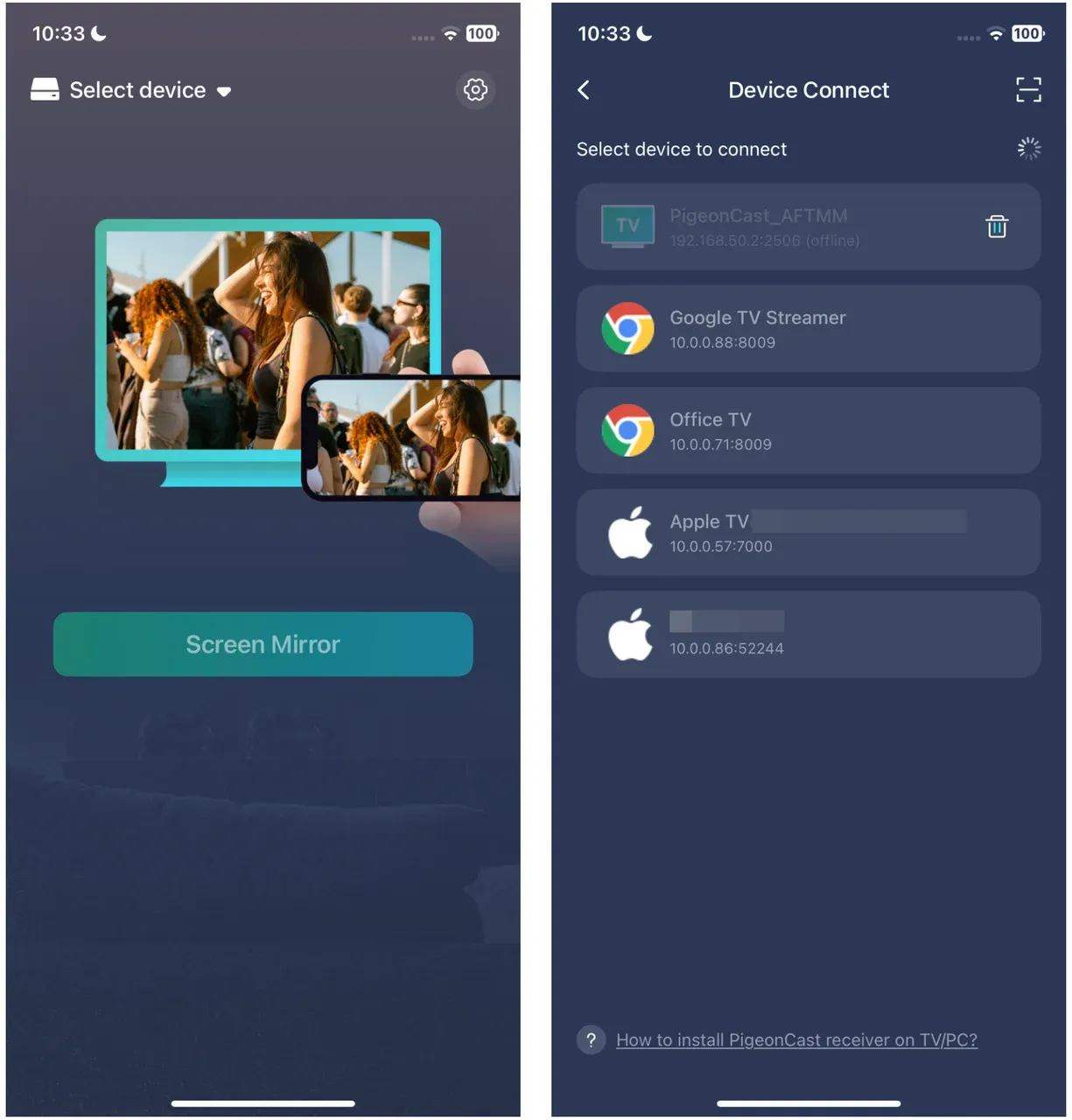
Note: This way does not support direct mirroring of the entire iPhone screen; if you want to mirror your iPhone screen to Chromecast, try third-party apps like PigeonCast.
iOS-download-button
How to Screen Mirror with Chromecast from Laptop
To mirror screen Chromecast from a laptop, you can use Google Chrome. Here's how to screen mirror to Chromecast:
Step 1. Make sure your Chromecast is connected to your TV and both your laptop and Chromecast are on the same Wi-Fi network.
Step 2. Open Google Chrome on your laptop.
Step 3. Click on the three-dot menu in the top-right corner of Chrome and select Cast.
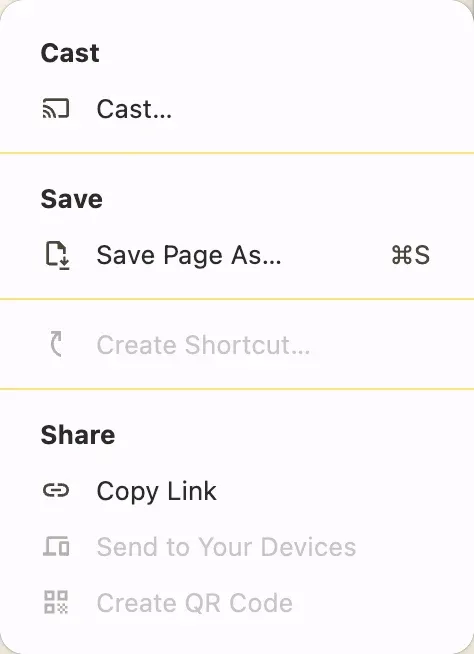
Step 4. From the cast menu, choose Cast screen.
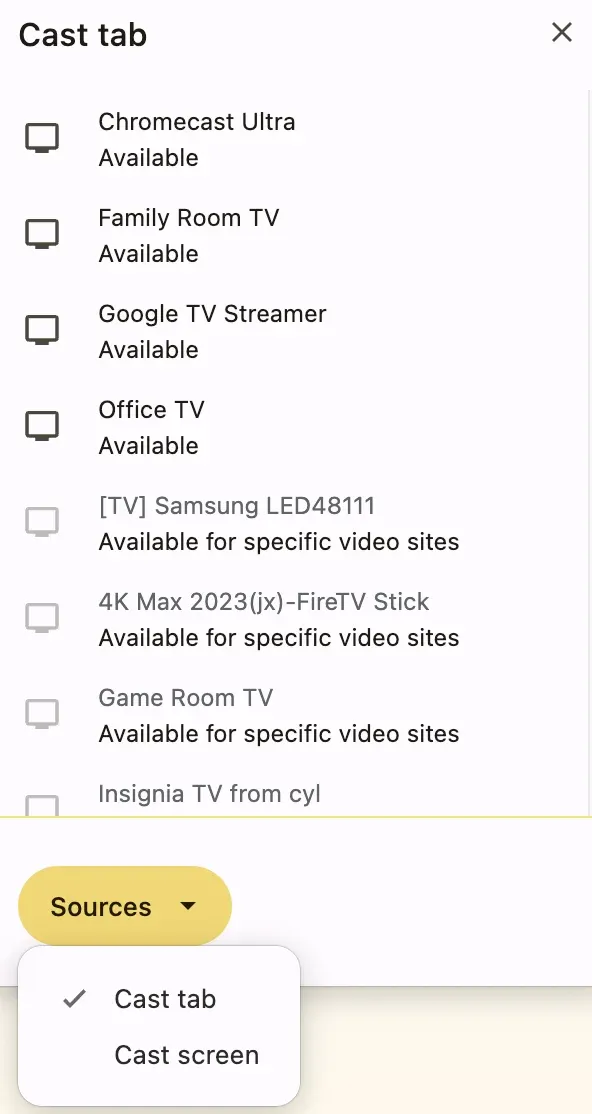
Step 5. Select your Chromecast device from the list.
Step 6. Your laptop's screen will now be mirrored to your TV.
Best Practices for Screen Mirroring Chromecast
To get the best experience when screen mirroring with Chromecast, it's important to follow a few key practices that can enhance both performance and ease of use. By ensuring everything is set up correctly and optimizing your devices, you can enjoy a smooth, lag-free streaming experience.
Let's explore the best practices for Chromecast screen mirroring to make your viewing experience as seamless as possible.
- Ensure a strong Wi-Fi connection: A stable and fast Wi-Fi connection is essential for smooth screen mirroring Chromecast. Both your device and Chromecast should be connected to the same Wi-Fi network, ideally one with strong signal strength and minimal interference. This helps eliminate lag or buffering.
- Update your devices: Always make sure your Chromecast and the device you're casting from are running the latest software updates. This ensures compatibility and can fix any potential bugs or performance issues.
- Optimize TV settings: Adjust the display settings on your TV to match the screen solution and aspect ratio of the device you're mirroring. This can prevent distorted images and ensure a better viewing experience.
- Close unnecessary apps: Running too many apps on your casting device can slow down the performance of screen mirroring. Close unused apps to free up resources and avoid unnecessary strain on your device.
- Place Chromecast in an optimal location: For best results, place your Chromecast near your router to improve Wi-Fi signal strength. This reduces the chances of buffering and connection drops.
How to Screen Mirror Without Chromecast
While Chromecast screen mirroring is popular, it's not the only option available. If you don't have a Chromecast or it's acting up, there are other ways to mirror your screen wirelessly.
Option 1: Use AirPlay
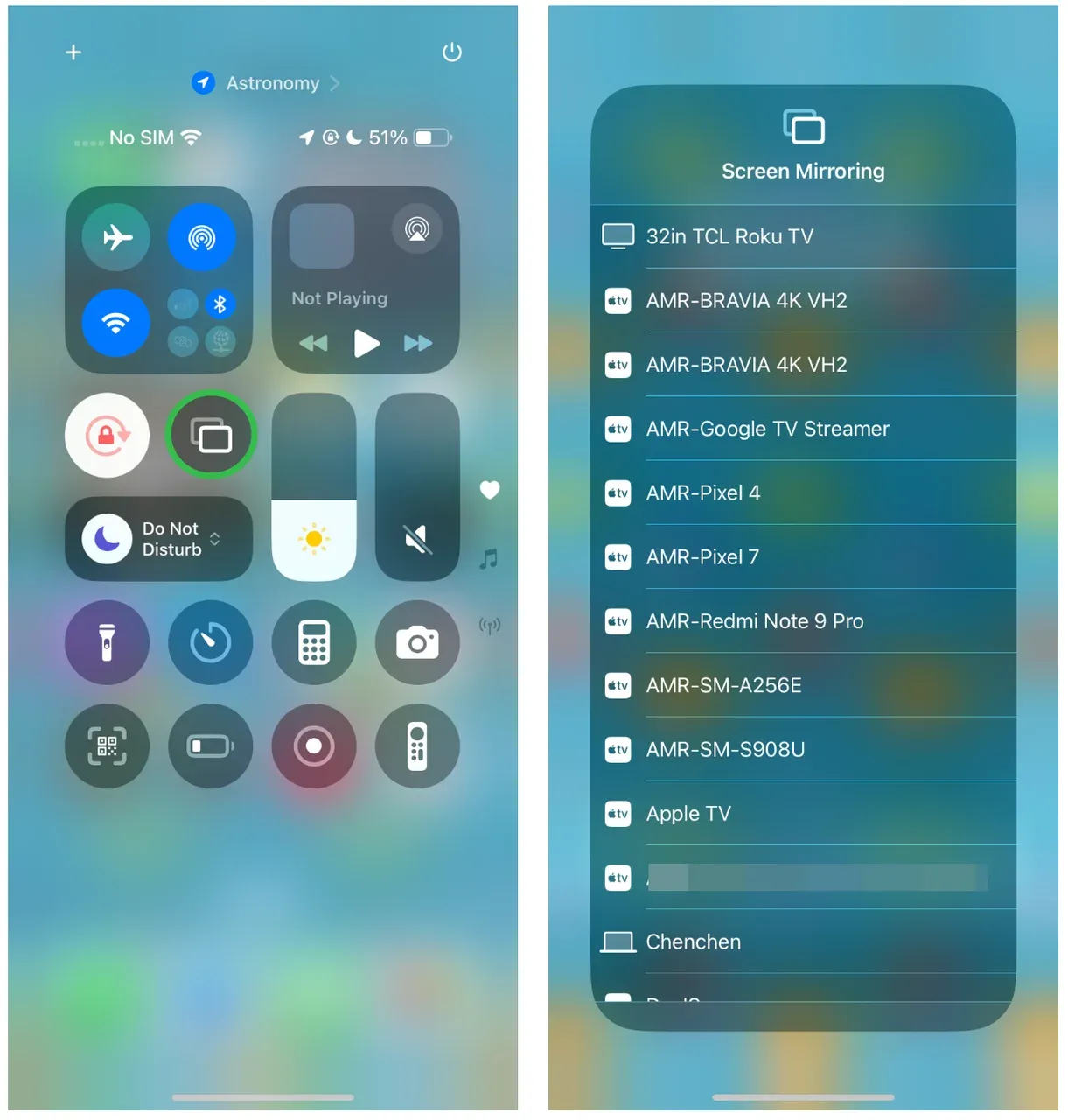
If you're a Mac user with an Apple TV or an AirPlay-compatible TV, you can easily mirror your screen using AirPlay. Simply enable AirPlay on your TV or Apple TV and select Screen Mirroring from your iPhone's or Mac's Control Center to begin.
Option 2: Use Miracast
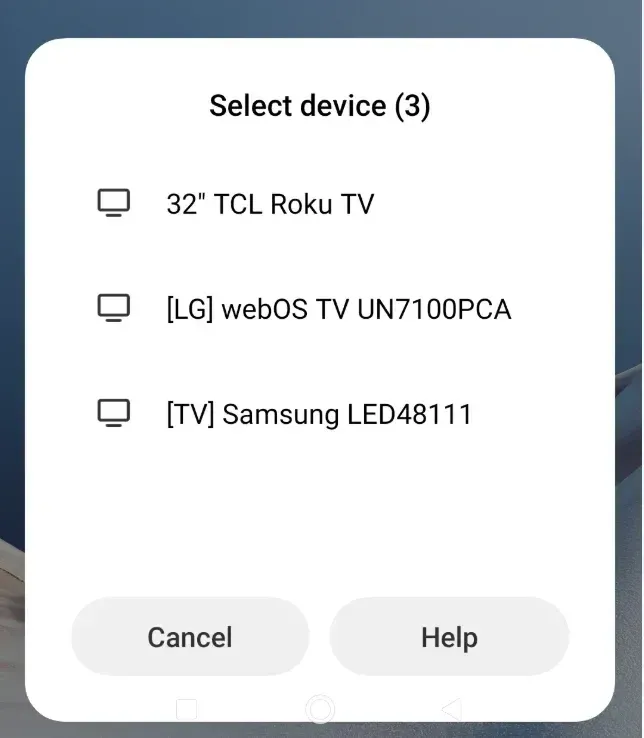
For Android and Windows users, Miracast offers another screen mirroring option. If both your phone or laptop and TV support Miracast, you can mirror your device screen by selecting the Cast option in Android or Windows settings. No additional hardware or apps are required.
Option 3: Use Third-Party Apps
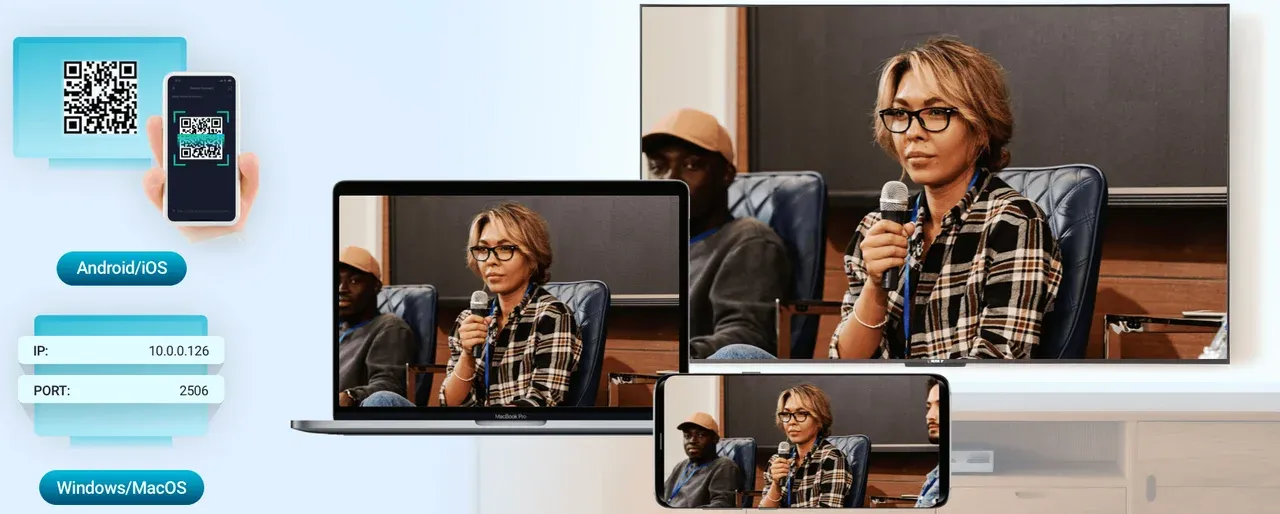
PigeonCast is a free alternative for users without Chromecast. It's a cross-platform screen mirroring tool compatible with Android, iOS, Windows, macOS, Android TV, and tvOS. Its setup is also simple: install PigeonCast on both your devices (like iPhone and Android TV), connect to the same Wi-Fi network, and start mirroring your screen.


Overall Rating:



Conclusion
Screen mirroring with Chromecast is an excellent way to enjoy content from your phone, laptop, or tablet on your TV without the need for cables. Whether you're using an Android phone, iPhone, Windows PC, or MacBook, Chromecast screen mirroring offers a hassle-free experience.
If you don't have Chromecast, there are still plenty of alternatives like AirPlay, Miracast, or third-party apps like PigeonCast that can help you mirror your screen Chromecast-style.
With all the methods outlined above, you can easily choose the one that fits your needs and enjoy a wireless screen mirroring experience.
Screen Mirror Chromecast FAQs
Does Chromecast allow screen mirroring?
Yes, you can mirror your phone screen to Chromecast using the Google Home app; for laptop users, the Google Chrome app can mirror the desktop to the display with Chromecast.
How do you mirror an iPhone to Chromecast?
You can't directly mirror an iPhone to Chromecast even though you have the Google Home app installed. A third-party screen mirroring app (e.g., PigeonCast), however, can help you start screen mirroring without hassles.
Why won't my phone mirror to Chromecast?
If your phone isn't mirroring to Chromecast, it could be due to several reasons:
- Network Issues: Ensure both your phone and Chromecast are connected to the same Wi-Fi network.
- Outdated Apps: Make sure the Google Home app on your phone is updated.
- Device Compatibility: Not all apps support screen mirroring. Make sure you're using an app that allows casting or screen sharing.
- Wi-Fi Interference: Weak or unstable Wi-Fi connections can cause issues. Try restarting your router or using a different network.
Can you AirPlay to a Chromecast?
While AirPlay is an Apple-specific technology, you can't natively AirPlay directly to Chromecast. However, you can use third-party apps like PigeonCast to enable AirPlay or Google Cast functionality on your device. This allows you to mirror your iPhone, iPad, or Mac screen to your TV through Chromecast, but it requires the installation of an additional app.
Is screen mirroring the same as casting?
No, screen mirroring and casting are not exactly the same:
- Screen Mirroring: This involves duplicating everything on your device’s screen onto your TV. Anything you do on your device will be reflected on the TV in real-time (including notifications, apps, etc.).
- Casting: This allows you to send specific content (like a video or app) from your device to the TV, without mirroring the entire screen. For example, you can cast a YouTube video from your phone to your TV while still using your phone for other tasks.
Mia Clarke is a technology editor specializing in screen mirroring and casting solutions across multiple platforms. Mia provides clear, practical guides and in-depth insights to help users seamlessly connect their devices. Passionate about enhancing digital experiences, Mia is dedicated to keeping readers updated on the latest trends and tools in cross-platform screen sharing. Whether you’re looking to mirror your smartphone, laptop, or smart TV, Mia’s content delivers reliable, user-friendly advice to simplify your tech setup.