

If you are deciding between AirPlay vs HDMI for connecting to a TV, the short answer is simple: AirPlay is better for wireless streaming, screen sharing, and everyday convenience, while HDMI is usually better for stable performance, lower latency, and wider device compatibility. Neither one is automatically better in every setup.
That is the real difference in HDMI vs AirPlay. One removes the cable and makes casual sharing easier. The other removes much of the uncertainty that comes with Wi-Fi, receiver support, and wireless delay. If you are not sure whether to use AirPlay or HDMI, the right choice depends on the sending device, the TV inputs available, and what you are trying to do on the larger screen.
This guide compares connection method, device support, video quality, latency, reliability, and real-world use cases so you can choose the option that fits your setup instead of guessing.
Quick Answer: AirPlay vs HDMI
Before getting into the details, here is the practical version:
| Comparison | AirPlay | HDMI |
|---|---|---|
| Connection | Wireless | Wired |
| Setup | No cable required | Requires cable or adapter |
| Stability | Depends on Wi-Fi | Usually more consistent |
| Latency | Higher during mirroring | Usually lower |
| Compatibility | Requires AirPlay support | Works with most displays |
| Best for | Casual streaming and sharing | Gaming and reliable output |
Choose AirPlay when wireless convenience matters most. Choose HDMI when you need stable performance, low latency, or a connection that does not depend on Wi-Fi.
How AirPlay and HDMI Connect Your Devices
AirPlay and HDMI can both send video and audio to a larger screen, but they do so in fundamentally different ways. That difference affects setup, device support, and overall performance later in the experience.
How AirPlay Works
AirPlay is Apple's wireless transmission technology for sending video, audio, and screen content from one device to another. It can be used for app-based playback, audio streaming, or full screen mirroring depending on the app, device, and receiver involved.
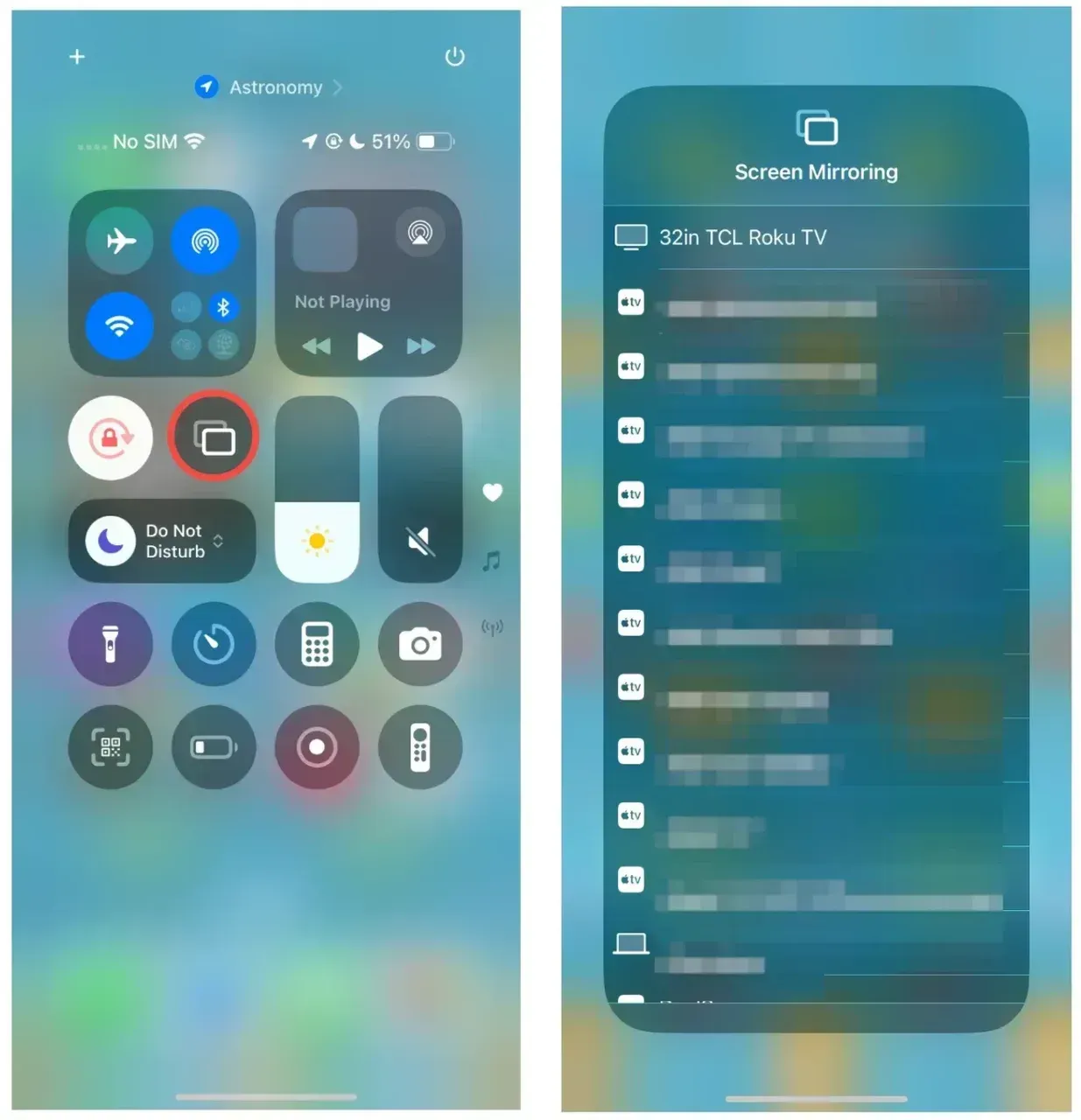
In most home setups, AirPlay works through the local network. The sending device is usually an iPhone, iPad, or Mac, while the receiving device may be an Apple TV, a smart TV with AirPlay support, or another compatible receiver. Both sides generally need to recognize AirPlay and be allowed to see each other on a compatible network.
How HDMI Works
HDMI connects devices through a physical cable that carries both video and audio. It does not depend on Wi-Fi, network discovery, or wireless permissions. Once the source and display are connected correctly, the TV or monitor usually treats the source as a direct external input.
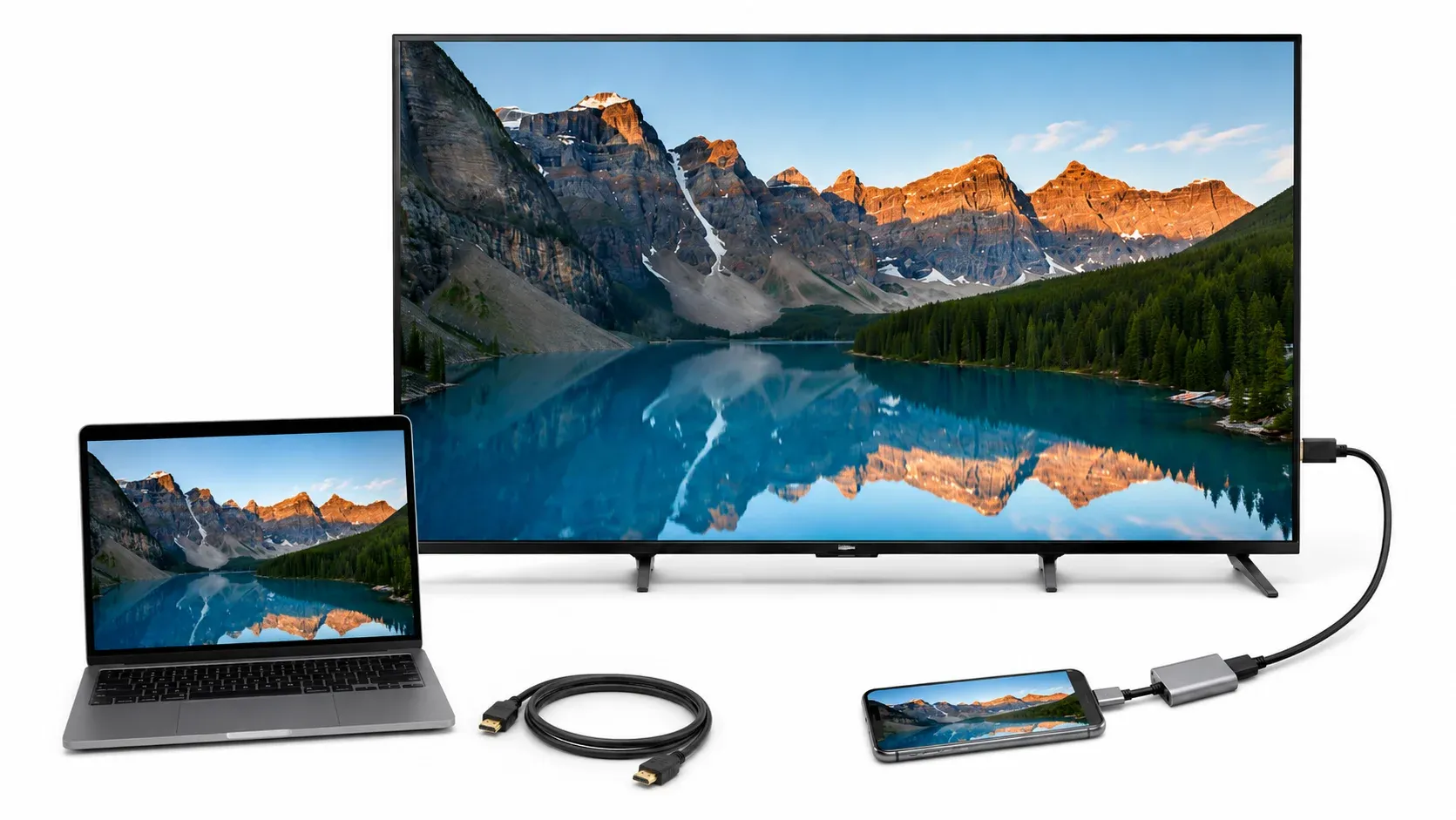
That is why HDMI remains common across TVs, monitors, projectors, laptops, streaming boxes, and game consoles. Phones and tablets can also use HDMI in some cases, but they may need a Lightning, USB-C, or other video adapter depending on the device.
AirPlay vs HDMI: Key Differences
The practical difference between AirPlay and HDMI is not limited to whether a cable is required. Their connection methods also affect compatibility, reliability, responsiveness, and how easily they fit into different environments.
Setup and Convenience
AirPlay is usually faster to start when both devices already support it. You do not need to find a cable, reach behind the TV, or bring an adapter. That makes AirPlay useful for quick photo sharing, short videos, or temporary presentations where convenience matters more than perfect predictability.
At the same time, AirPlay is not always effortless. The sender and receiver may need to be on the same network, the TV may require AirPlay to be enabled, and network permissions can still get in the way. HDMI takes more preparation because you need the right cable and sometimes an adapter, but once the hardware is connected, the path is usually more direct.
Device Compatibility
AirPlay mainly fits Apple sending devices such as iPhone, iPad, and Mac. The receiver also needs to support AirPlay directly, which means Apple TV or a compatible smart TV is often part of the setup. Not every smart TV includes AirPlay, and Windows or Android devices are not normally native AirPlay senders.
HDMI covers a broader range of displays and source devices. TVs, monitors, and projectors widely support it, and many computers and game consoles use it as a standard output method. Mobile devices are less predictable because some need adapters and some USB-C ports do not support video output.
| Sender | AirPlay | HDMI |
|---|---|---|
| iPhone or iPad | Native support | Adapter usually required |
| Mac | Native support | HDMI or USB-C connection |
| Android phone | No native AirPlay sending | Depends on video output support |
| Windows PC | Requires additional software in most cases | Widely supported |
Video Quality
AirPlay can look very good in everyday use, especially for ordinary streaming and casual home viewing. But the actual result depends on the sending device, the receiving device, the app being used, and the condition of the network. In weaker or busier network conditions, the picture may be compressed, adjusted dynamically, buffered, or interrupted.
HDMI gives a more predictable video path because it carries a direct wired signal. That does not mean every HDMI setup automatically produces better image quality, because final resolution still depends on the cable, HDMI version, adapter, source device, and TV capabilities. What HDMI usually offers is not magic quality, but more consistent output over long viewing sessions.
Both AirPlay and HDMI can carry audio along with video, but HDMI is less dependent on app behavior or wireless conditions when long uninterrupted playback matters.
Latency
Latency is one of the biggest differences in the AirPlay vs HDMI decision. AirPlay is often fine for movie playback, photo sharing, and slideshows because those tasks do not require every on-screen action to appear instantly.
Screen mirroring is different. When you mirror a phone or computer over AirPlay, there can be a visible gap between your input and what appears on the TV. HDMI usually has much lower delay because the signal is traveling directly through a cable. That is why gaming, live demonstrations, mouse movement, and other real-time tasks are usually more comfortable over HDMI.
Connection Stability
AirPlay depends on Wi-Fi quality, device discovery, and router behavior. Weak signal, guest networks, client isolation, VPN settings, and crowded wireless environments can all affect whether the connection appears, stays stable, or drops in the middle of use.
HDMI does not rely on network conditions, so it avoids those wireless failure points. It can still fail if the cable is damaged, the adapter is poor, or the connection is loose, but in most cases the problems are easier to isolate because the signal path is physical rather than network-based.
Mobility and Device Placement
AirPlay makes it easier to move around while using the device. You can stay on the couch with your phone, walk around during a classroom demo, or control playback without being physically tied to the TV. That freedom is one of AirPlay's most practical advantages.
HDMI is limited by cable length, adapter reach, and the position of the screen. In a desk setup or conference room where the source stays in one place, that may not matter much. In a living room or presentation space where movement matters, it can feel restrictive.
Network and Privacy Requirements
AirPlay usually expects the devices to be on a network where they can discover each other. That can become a problem in offices, hotels, public Wi-Fi environments, or any place where network permissions are restricted. Even when the devices are technically online, the network may still block the local visibility needed for wireless discovery.
HDMI does not need a shared network at all. It is a direct device-to-display connection, which can make it simpler in controlled work environments or in situations where you do not want to depend on local network settings for private content.
AirPlay or HDMI for Different Uses
Once the technical differences are clear, the better option usually depends on what you are displaying and how important responsiveness or reliability is.
Watching Movies and Videos
For casual home viewing, AirPlay is often the more convenient choice. It makes it easy to send a video, share family clips, or start playback without setting up cables first. If your Wi-Fi is stable and the app supports AirPlay cleanly, the experience can feel very natural.
HDMI becomes more attractive when the session is long, the file is high quality, or the network is unreliable. If you are dealing with large local video files, extended playback, or situations where you do not want the stream interrupted by network issues, HDMI is usually the safer choice.
DRM behavior can also vary by app, so it is better not to assume that either AirPlay or HDMI will behave identically across every streaming service.
Screen Mirroring and Presentations
AirPlay works well for quick demonstrations, showing photos, walking someone through a webpage, or giving a short presentation where wireless flexibility matters. If you need to move around the room while controlling the content, AirPlay can be much more comfortable than being attached to a cable.
HDMI is the lower-risk choice for formal meetings, longer presentations, or unfamiliar network environments. In a meeting room where the Wi-Fi may be restricted or the display may not support wireless discovery correctly, a cable connection is often easier to trust.
Gaming
HDMI is usually the better choice for gaming. Lower delay makes controls feel more immediate, and a direct wired output is much better suited to fast action, real-time feedback, and long sessions.
AirPlay can still be useful for showing gameplay casually on a larger screen, but it is not the ideal main path when responsiveness matters. Turn-based or non-time-sensitive content may be acceptable, but competitive or action-heavy play is where HDMI clearly has the advantage.
Working on a Larger Screen
For temporarily showing a document, web page, or image collection on a TV, AirPlay is often enough. It is convenient when the goal is quick visibility rather than an all-day desktop setup.
For longer work sessions, writing, editing, spreadsheet tasks, or any job where text clarity and cursor response matter over time, HDMI or another direct display connection is usually better. A wired connection is more predictable when the TV or monitor is acting like a real workspace rather than a casual second screen.
Travel and Hotel TVs
Travel is one of the easiest places for both methods to become inconvenient in different ways. Hotel Wi-Fi often prevents AirPlay discovery or isolates devices from one another, even when both devices can connect to the internet. Some hotel TVs also disable or hide wireless casting features entirely.
HDMI avoids the network problem, but the TV's ports may be difficult to reach, locked behind furniture, or limited by the hotel setup. If you travel often, it helps to bring the correct adapter and avoid depending on only one connection method.
When AirPlay and HDMI May Not Fit Your Setup
Some setups fall into the gap between these two options. Maybe the sender is not an Apple device but you still want wireless mirroring. Maybe the TV does not support AirPlay. Maybe the phone cannot output video through HDMI, or maybe you do not want to carry cables and adapters everywhere. Mixed-device environments create this problem often.
Use a Cross-Platform Screen Mirroring App
A cross-platform screen mirroring app can fill the gap between AirPlay and HDMI. It keeps the connection wireless without limiting the setup to Apple devices or requiring a physical video output port.
That is where PigeonCast becomes a separate option rather than a repair tool for failed AirPlay. PigeonCast is a screen mirroring app that supports iPhone, Android, Windows, Mac, TV, and browser-based receivers, which makes it more practical in mixed-device environments where neither Apple-only wireless support nor direct HDMI hardware is a clean fit.
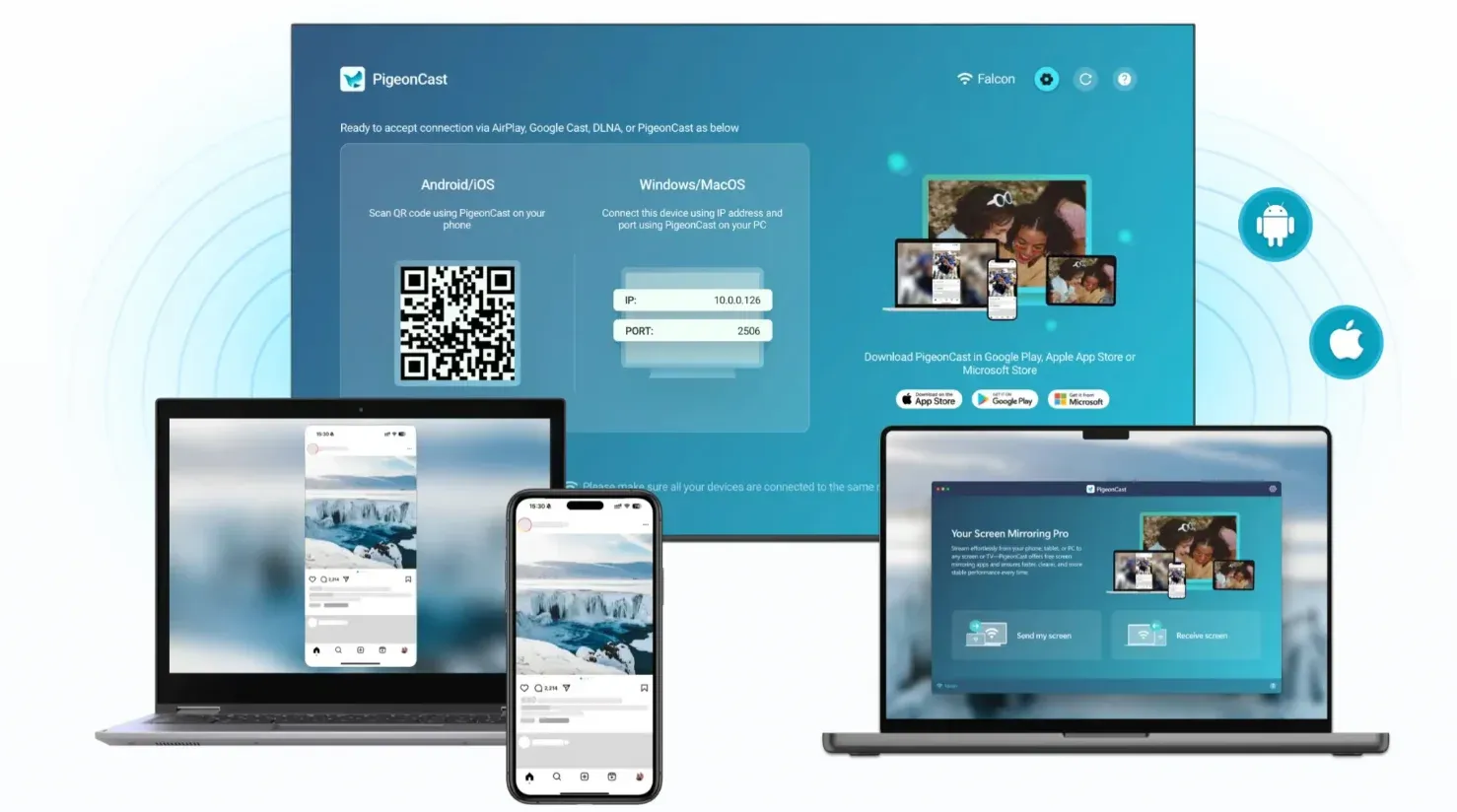
It does not replace HDMI for every low-latency use case, but it can be a more flexible wireless choice when AirPlay compatibility is limited or when the sender and receiver do not belong to the same device ecosystem.
How to Mirror with PigeonCast
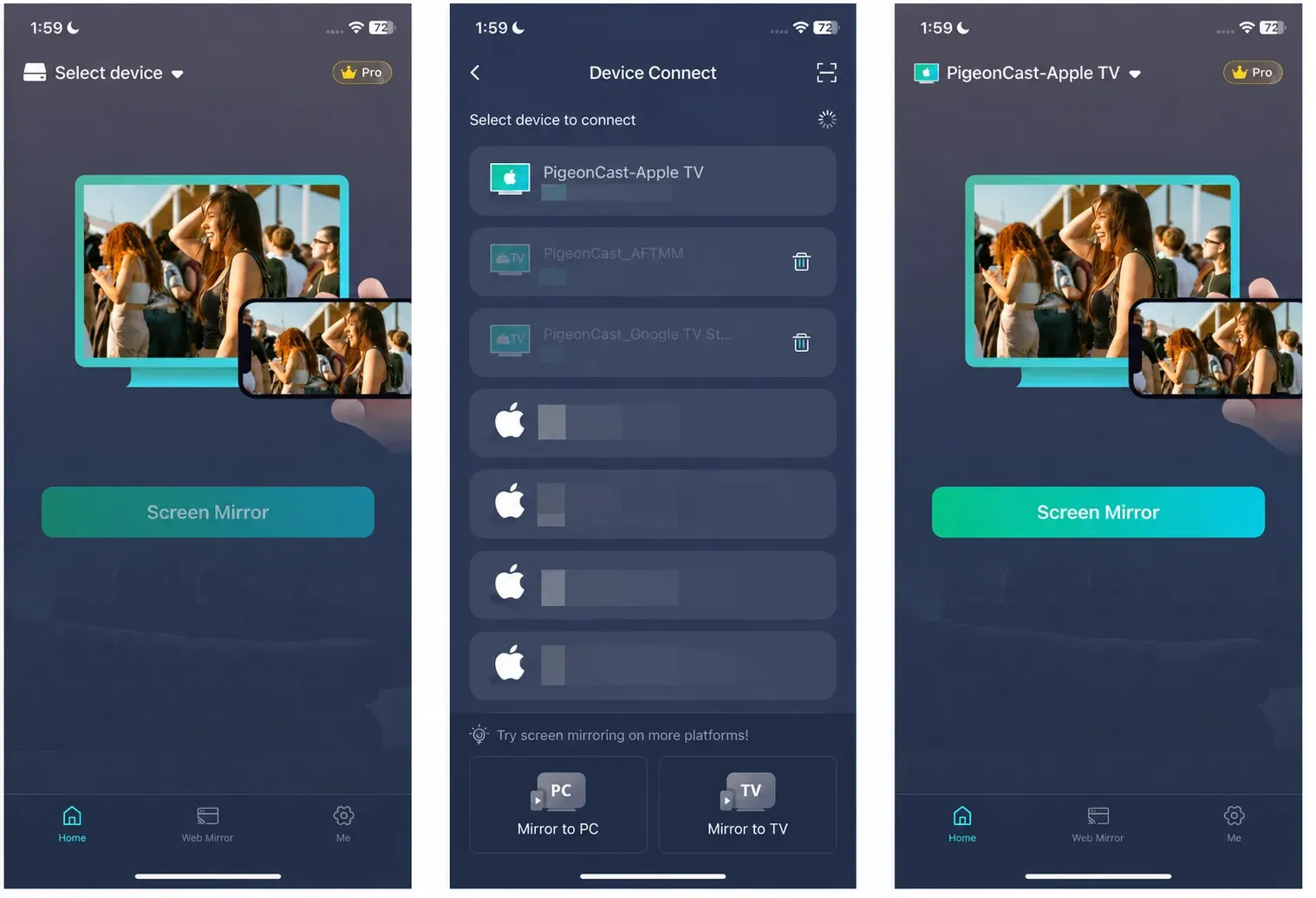
If your setup fits that cross-platform case, the steps are straightforward:
- Install PigeonCast on the sending device.
- Install and open PigeonCast on the receiving TV, computer, or supported device.
- Connect both devices to the same Wi-Fi network.
- Select the receiver from the device list or scan the QR code on the receiver.
- Start screen mirroring.


Overall Rating:



AirPlay vs HDMI: Which Should You Choose?
If you only want the final decision, use this table:
| Your main priority | Recommended option |
|---|---|
| Wireless video sharing | AirPlay |
| Lowest latency | HDMI |
| Apple device to an AirPlay TV | AirPlay |
| Gaming | HDMI |
| No reliable Wi-Fi | HDMI |
| Moving around during a presentation | AirPlay |
| Long-term monitor connection | HDMI |
| Mixed-device wireless mirroring | PigeonCast or another cross-platform app |
Choose AirPlay when you already have compatible Apple devices and want a convenient wireless connection. Choose HDMI when responsiveness, stability, or network independence matters more. For mixed-device setups that still need wireless mirroring, a cross-platform app provides a separate option.
Conclusion
AirPlay and HDMI both solve the same basic problem, but they do it in very different ways. AirPlay removes the cable and makes everyday sharing easier. HDMI removes much of the uncertainty caused by wireless networks, receiver discovery, and mirroring delay.
The best option is the one that matches the situation rather than the brand alone. Use AirPlay for flexible wireless viewing, HDMI for dependable direct output, and a cross-platform mirroring app when your sender and receiver do not fit neatly into either setup.
AirPlay vs HDMI FAQ
Can AirPlay replace an HDMI cable?
AirPlay can replace an HDMI cable for many everyday tasks such as casual video playback, photo sharing, and short presentations. It cannot fully replace HDMI in situations where low latency, network independence, or stable long-session output matters more.
Is AirPlay better quality than HDMI?
AirPlay can still look very good, but HDMI is usually more predictable. AirPlay quality depends on the app, the devices involved, and network conditions, while HDMI depends more on the cable, adapter, interface support, and display capabilities.
Does AirPlay have more delay than HDMI?
Usually yes, especially during full screen mirroring or other interactive tasks. For ordinary video playback, the delay may not matter much. For gaming, live control, or real-time cursor movement, HDMI is generally the better fit.
Is HDMI better than AirPlay for 4K video?
HDMI is usually the easier path for stable high-resolution output, including 4K, as long as the source device, cable, adapter, and display all support the required standard. AirPlay can also handle high-quality playback in some setups, but the result is more dependent on hardware support and network conditions.
Should I use AirPlay or HDMI for a presentation?
Use AirPlay when the presentation is short, the network is known to work well, and you want the freedom to move around the room. Use HDMI when the presentation is important, long, or taking place in an environment where network discovery may fail.
What can I use if my TV does not support AirPlay?
If your TV does not support AirPlay, you can use Apple TV, an HDMI adapter, another compatible wireless receiver, or a cross-platform screen mirroring app such as PigeonCast. The best alternative depends on whether you want wireless flexibility, direct stability, or broader device compatibility.
Mia Clarke is a technology editor specializing in screen mirroring and casting solutions across multiple platforms. Mia provides clear, practical guides and in-depth insights to help users seamlessly connect their devices. Passionate about enhancing digital experiences, Mia is dedicated to keeping readers updated on the latest trends and tools in cross-platform screen sharing. Whether you’re looking to mirror your smartphone, laptop, or smart TV, Mia’s content delivers reliable, user-friendly advice to simplify your tech setup.