
Sharing your favorite memories on a big screen can be more satisfying than scrolling through your phone. AirPlay photos to TV lets you do just that, whether you want to showcase a vacation album, family photos, or creative projects. This guide explains exactly how to AirPlay photos to TV from different devices, including iPhone, iPad, and Mac, without leaving you guessing.
First Ensure Your TV Is AirPlay-Compatible
Before attempting anything, it's important to make sure your TV can receive AirPlay signals. Not every TV will allow you to AirPlay photos to Apple TV or smart TVs directly.
AirPlay-compatible TVs include:
-
Apple TV (all generations)
-
AirPlay-2 enabled smart TVs such as select Samsung, LG, Sony, and Vizio models.
Generally, AirPlay is enabled on those TVs. For a smooth process, checking might not be a waste of time:
-
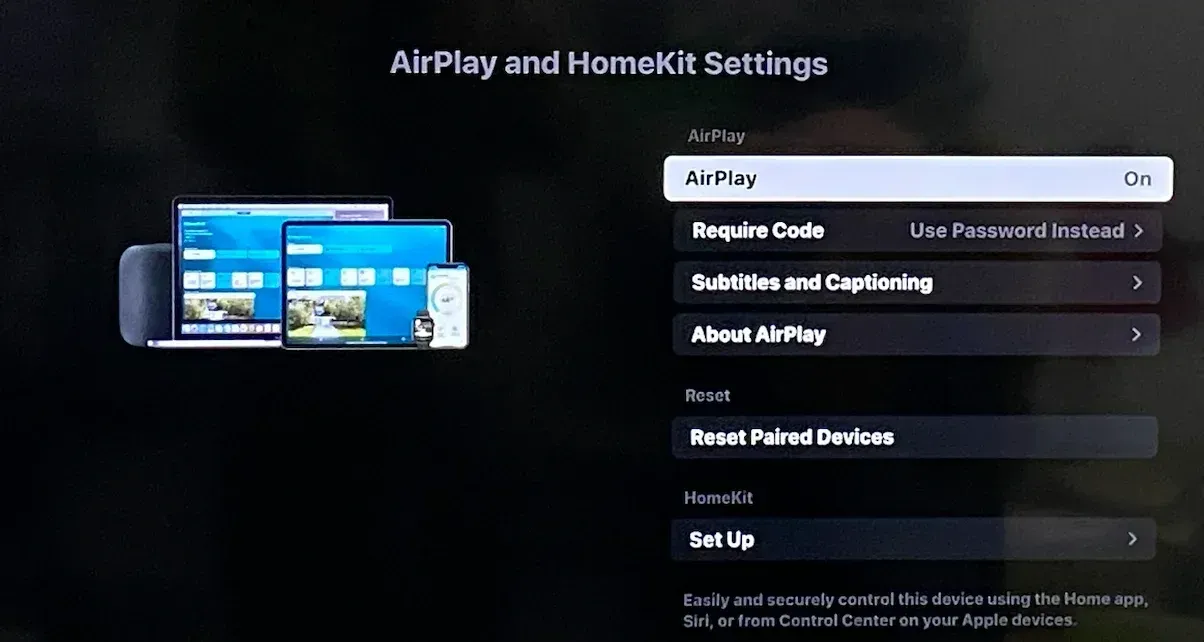
On your TV, go to Settings.
-
Look for AirPlay and HomeKit or Network & AirPlay.
-
Turn AirPlay On.
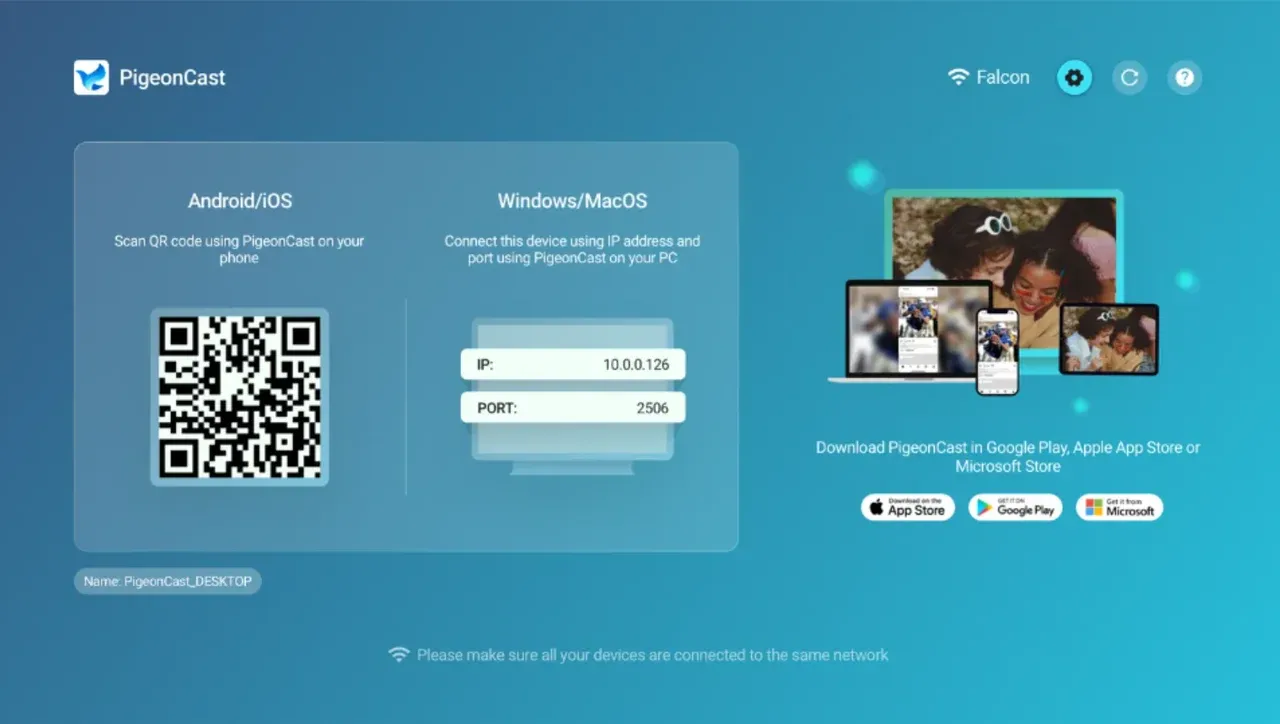
Is the AirPlay feature available on your TV? Don't worry; you can turn your TV into an AirPlay 2 receiver by installing an app like PigeonCast:
Step 1. Go to the app store on your TV, search for an app like PigeonCast, and install it.
Step 2. Launch the app on your TV, and your TV is able to receive content from iPhone, iPad, or Mac.
How to AirPlay Photos from iPhone to TV
Casting photos from iPhone to TV over AirPlay is simple. Here's how to AirPlay photos to Apple TV or a compatible TV:
Step 1. Ensure your iPhone or iPad and TV are connected to the same Wi-Fi network.
Step 2. Open the Photos app on your iPhone or iPad.
Step 3. Select the photo or album you want to AirPlay and tap the Share button.

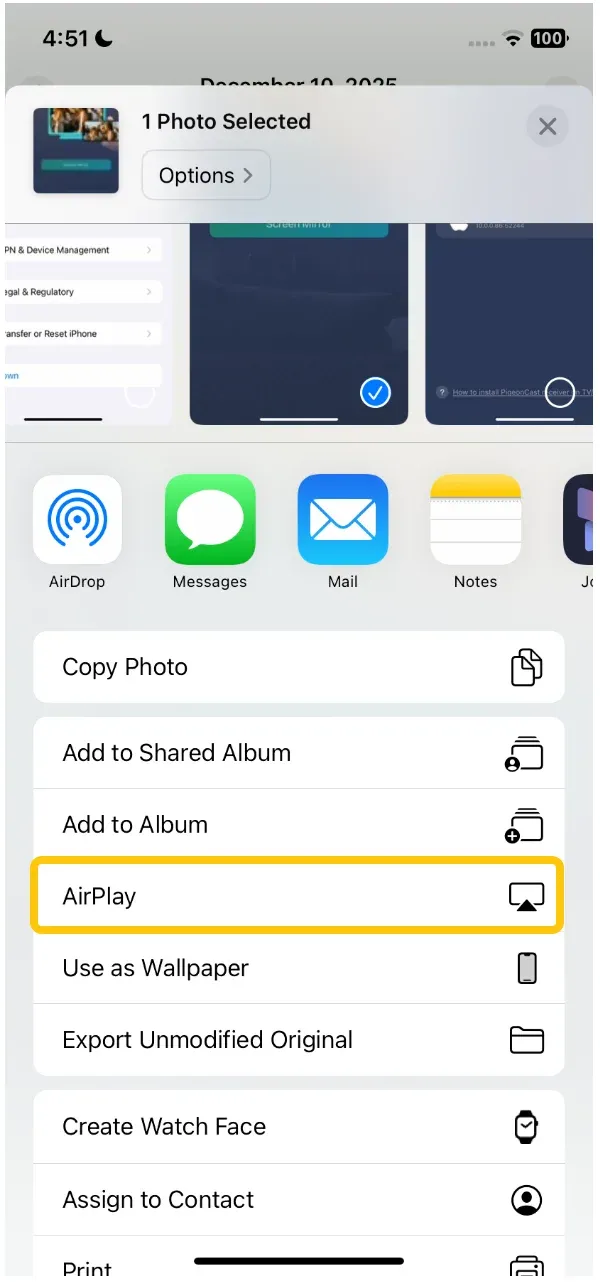
Step 4. Choose AirPlay from the options.
Step 5. Select your TV or Apple TV from the list.
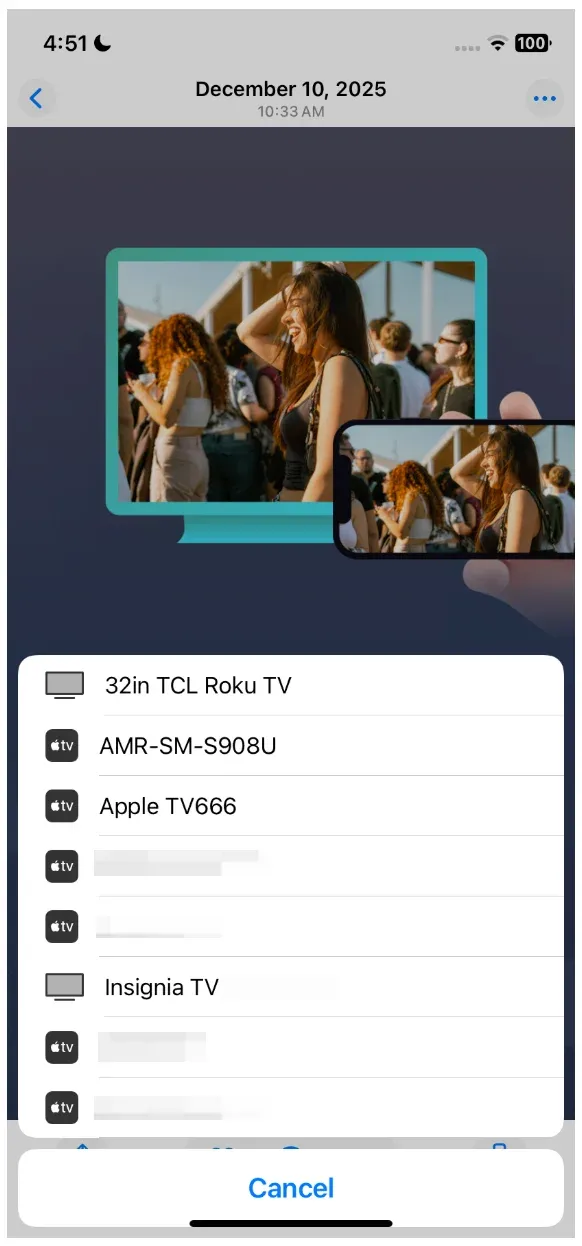
Step 6. The photo appears on your TV screen almost instantly.
How to AirPlay Photos from Mac to TV
Mac users have a slightly different process, as there is no dedicated AirPlay button inside the Mac Photos app itself in most macOS versions, but it's equally straightforward.
Option 1: Mirror Your Mac Screen to TV
Step 1. Ensure your Mac and TV are on the same Wi-Fi network.
Step 2. Click the Control Center icon in the menu bar, then click Screen Mirroring.
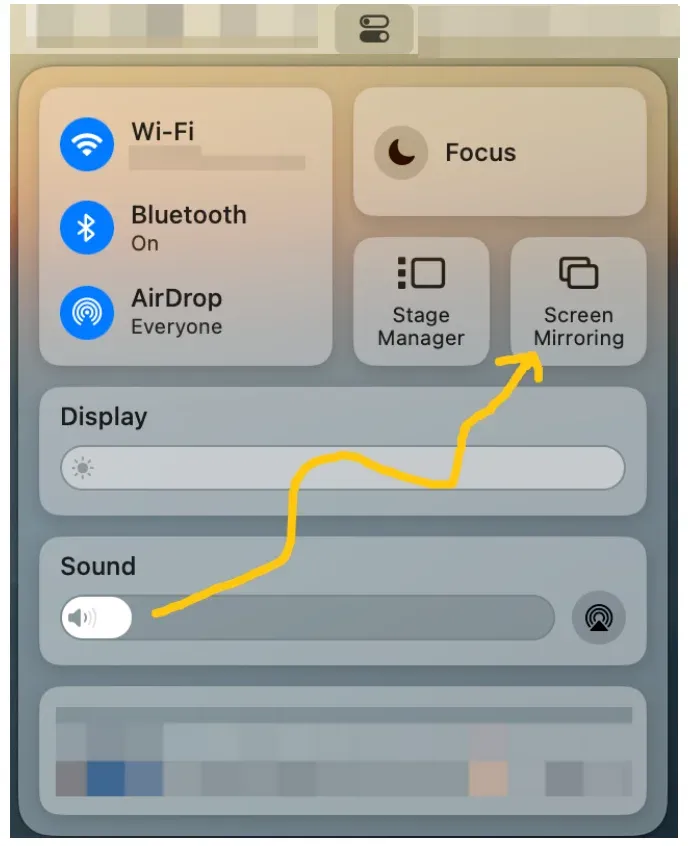
Step 3. Choose your Apple TV or TV from the list.
Step 4. Once your Mac screen appears on the TV, open the Photos app on your Mac and view any photo or slideshow; it will show on the TV via mirroring.
Option 2: Use PigeonCast for Mac
If you want to share only certain photos, full screen mirroring is not suggested. The PigeonCast for Mac app enables you to share your entire Mac screen or an app window onto another device. Here's how:
Step 1. Ensure your Mac and TV are on the same Wi-Fi network.
Step 2. Download and install PigeonCast from the App Store.


Overall Rating:


Step 3. Launch PigeonCast on your Mac and click Send my screen.

Step 4. Choose your Apple TV or TV from the list.

Step 5. Launch the Photos app on your Mac (do not minimize it ), then on the PigeonCast interface, choose Mirror app window and choose Photos from the App menu.

Step 6. Click Start mirror, and you can browse photos on the big screen.
Option 3: Enable Home Sharing
If you use an Apple TV, you can view your Mac's photos on the TV through the Home Sharing feature instead of AirPlay.
Note: Your Apple TV and Mac are on the same Wi‑Fi (or Ethernet) network.
Step 1. On your Mac, click the Apple menu > System Settings > General > Sharing.
Step 2. Turn on Media Sharing and click the info button next to it.
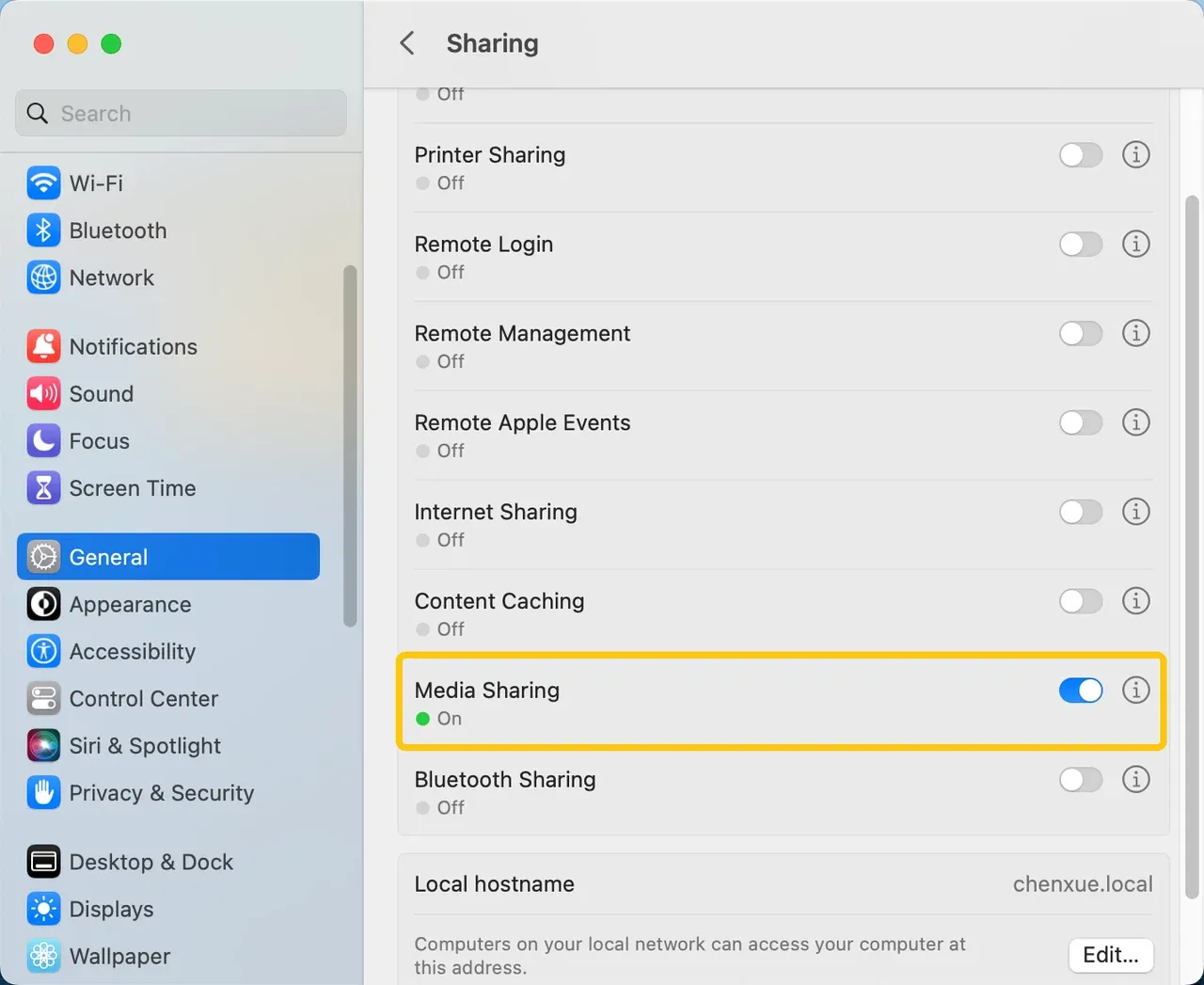
Step 3. Check Home Sharing and enter your Apple ID email (use the one you'll use on Apple TV), then click Turn on Home Sharing.
Step 4. Check Share Photos with Apple TV, then choose whether to share: everything in your Photos library, selected albums only, and whether to include videos.
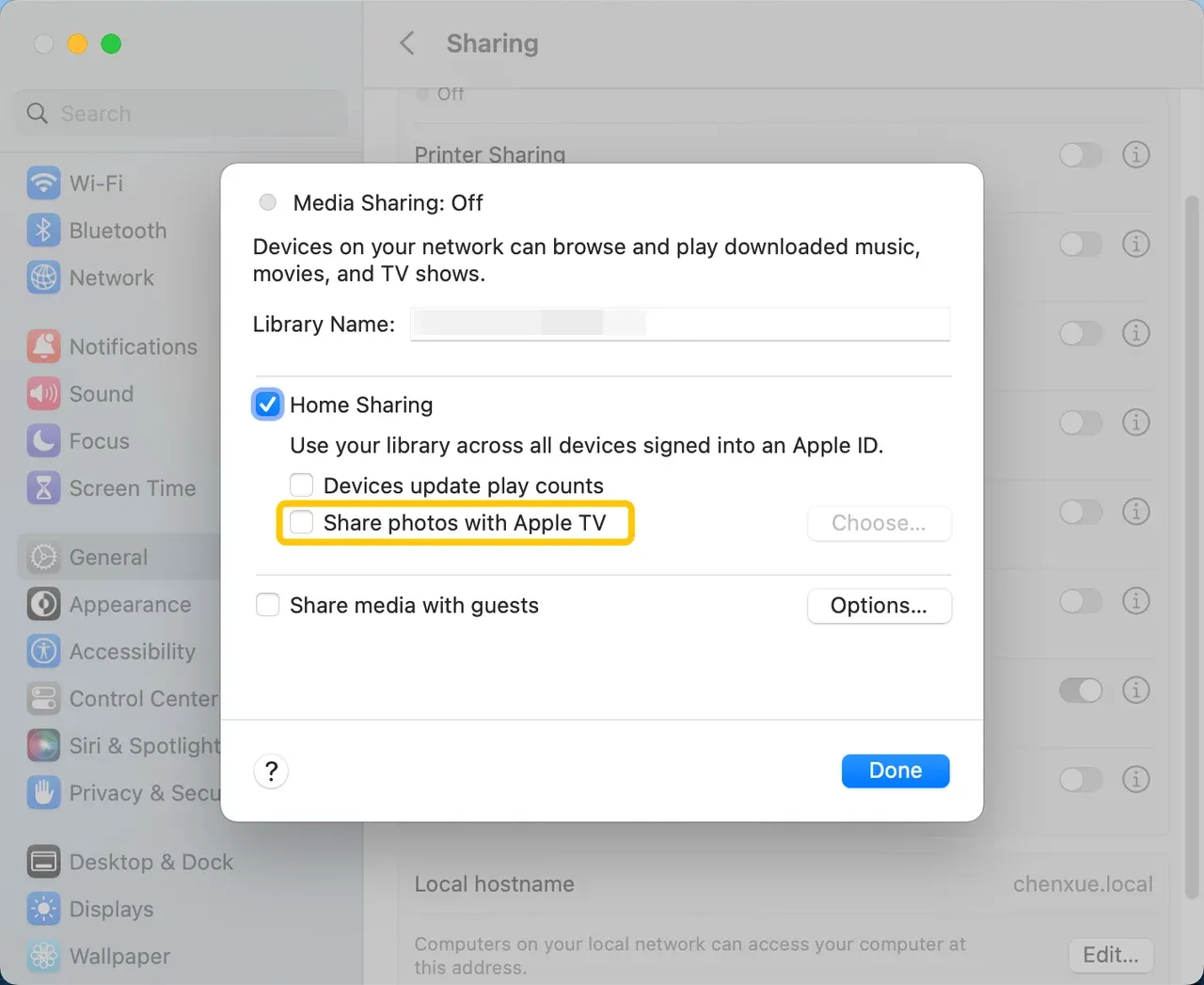
Note: Make sure your Mac stays on, awake, and has the Photos app available, because other devices can only see the library while the Mac is on.
Step 5. On your Apple TV, go to Settings > Users and Accounts > Home Sharing.
Step 6. Choose Turn on Home Sharing.
Step 7. Sign in with the same Apple ID you used for Home Sharing on the Mac.
Step 8. On your Apple TV, go to the Home Screen and open the Computers app.
Step 9. Choose your Mac's shared library and browse the Photos section.
Step 10. Open the Photos section to view slideshows or browse albums that are shared from the Mac's Photos library.
Verdict
AirPlay photos to TV is simpler than it looks when you match the method to the situation. For quick sharing, the iPhone Photos app is still the most reliable option. It's fast, doesn't need extra setup, and handles single images or slideshows with ease.
On a Mac, screen mirroring is convenient, but it's not always precise. If you want more control, app-level mirroring through tools like PigeonCast feels cleaner, especially when presenting albums or avoiding distractions on the desktop.
If you're using Apple TV at home and care more about browsing than mirroring, Home Sharing is worth enabling. It's not AirPlay, but for photo libraries, it's stable and surprisingly practical.
Lastly, do not forget to keep both your devices updated to avoid compression or blurry images.
How to AirPlay Photos to TV FAQs
Can you AirPlay photos?
Yes. AirPlay photos directly from the Photos app on iPhone, iPad, or Mac to Apple TV or an AirPlay-compatible TV, as long as both devices are on the same network.
Can I AirPlay photos from any TV?
No. Only Apple TV and TVs with built-in AirPlay 2 support can receive photos directly. If your TV doesn't support AirPlay, installing a receiver app can bridge the gap.
Why won't my photos AirPlay to my TV?
This usually comes down to one of three things:
-
Devices are on different Wi-Fi networks
-
AirPlay is disabled on the TV
-
The TV firmware is outdated
How to fix AirPlay not showing photos?
First, confirm AirPlay is turned on in your TV settings. Then check Wi-Fi, update your TV system, and reopen the Photos app. If the AirPlay icon still doesn't appear, try screen mirroring as a fallback.
Can I AirPlay photos without Wi-Fi?
No. AirPlay requires a shared local network (learn more from Can You AirPlay Without WiFi). Personal hotspots and mobile data won't work reliably for photo streaming.
How to AirPlay Live Photos or videos?
Live Photos and videos can be AirPlayed directly from the Photos app. For smoother playback, avoid screen mirroring and use the built-in AirPlay option instead.
Can I AirPlay photos from iCloud or Google Photos?
Yes. iCloud photos work natively through the Photos app. Google Photos can be AirPlayed from a browser on Mac or via screen mirroring from iPhone.
How to AirPlay a slideshow on TV?
Select multiple photos in the Photos app, start a slideshow, then tap AirPlay and choose your TV. Slideshow timing and transitions follow your Photos app settings.
How do I get my iPhone photos to show on my TV?
Open the Photos app, select a photo, tap Share, choose AirPlay, and pick your TV or Apple TV. The image should appear on the screen within seconds.
Is Home Sharing better than AirPlay for photos?
Home Sharing isn't better, just different. It's ideal for browsing entire photo libraries on Apple TV, while AirPlay is better for instant sharing or presentations.
Mia Clarke is a technology editor specializing in screen mirroring and casting solutions across multiple platforms. Mia provides clear, practical guides and in-depth insights to help users seamlessly connect their devices. Passionate about enhancing digital experiences, Mia is dedicated to keeping readers updated on the latest trends and tools in cross-platform screen sharing. Whether you’re looking to mirror your smartphone, laptop, or smart TV, Mia’s content delivers reliable, user-friendly advice to simplify your tech setup.